The previous articles have explained storage connections using volume and bind mount. This article will describe how to share a folder so that containers on other hosts can access it.
Problem
How to share a data folder between container hosts?
Solution
In this article, I use 3 servers where 1 server runs an NFS server with an IP of 192.168.56.12, and 2 servers run Docker with IPs 192.168.56.2 (docker1) and 192.168.56.102 (docker2). You can go to this article about NFS, and I use the /var/nfs folder as a data folder for all containers. After installing NFS on the server, type the following commands to configure NFS in the NFS server:
sudo mkdir /var/nfs
sudo chmod -R 777 /var/nfs
sudo echo "/var/nfs 192.168.56.0/24(rw,sync,no_subtree_check,no_root_squash)" | sudo tee /etc/exports
sudo exportfs -r
sudo touch /var/nfs/test.txt
sudo bash -c 'echo "This is from NFS server" > /var/nfs/test.txt'
On 2 other Docker hosts, type the command below to make a volume Docker:
docker volume create --driver local \
  --opt type=nfs \
  --opt o=addr=192.168.56.12,rw,nfsvers=4,noatime,nodev,nosuid \
  --opt device=:/var/nfs \
  nfs_volume
After that, type the command below on those 2 Docker hosts to run the container connected to your NFS server:
docker run --rm -it -u root --workdir /root \
  --mount source=nfs_volume,target=/root \
  alpine ash
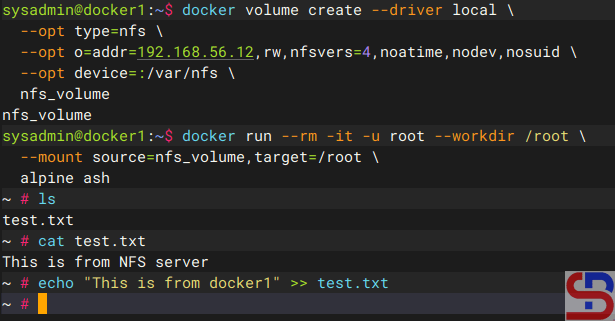
The image below is an example of when a container from docker1 host (192.168.56.2) accesses the NFS server:
The image below is an example of when a container from the docker2 host (192.168.56.102) accesses the NFS server:
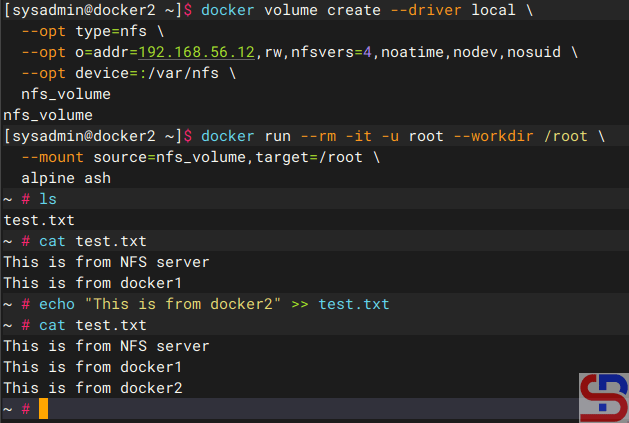
As you can see in the images above, all containers can access the NFS server and can change the files on the NFS server.
Note
On the internet, some developers make a Docker plugin to access NFS servers from containers, such as plugins docker-volume-netshare, nfs- volume-plugin, nfsvol, and so on. I have tried the first 3 plugins, but I always failed when accessing the NFS server using the plugins. But, there is a Docker plugin called docker-volume-sshfs that can access a folder, but the connection does not use NFS; but uses SSH, so you don’t need to install and configure NFS. As long as the folder can still be accessed using SSH, then this Docker plugin can still be used. For example, I create /home/sysadmin/data as a data folder in IP 192.168.56.12, so I use the commands below to create the folder:
mkdir /home/sysadmin/data
cd /home/sysadmin/data
echo "This is from server" > test.txt
On the 2 Docker hosts, use the command below to install the Docker plugin:
docker plugin install --grant-all-permissions vieux/sshfs DEBUG=1
docker plugin ls
Use the command below to create a volume in Docker:
docker volume create \
-d vieux/sshfs \
-o sshcmd=sysadmin@192.168.56.12:/home/sysadmin/data \
-o port=22 \
-o password=qwerty \
ssh_volume
After that, use the command below to run the container to connect to the folder:
docker run -it --rm \
--workdir /root  \
-v ssh_volume:/root  \
alpine sh
The image below is an example of when a container from docker1 host (192.168.56.2) accesses the data folder:

The image below is an example of when a container from docker2 host (192.168.56.102) accesses the data folder:

As you can see in the images above, all containers can access the data folder and can change the files in the folder.
References
youtube.dimas-maryanto.com
docs.docker.com

