I want to access the user on the Ubuntu server that has the privilege of root using the sudo command, but I forgot my user password.
Problem
How to reset the password in Ubuntu?
Solution
Here are the steps to reset the password in Ubuntu:
1. Reboot the server
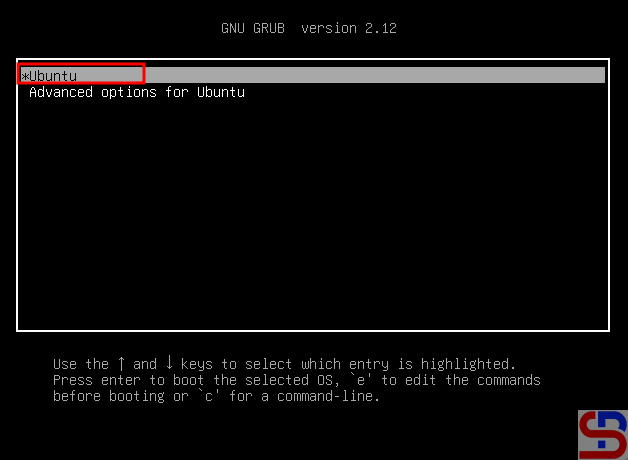
Reboot the server and press the Esc key or Shift key, and there should be a display like below:
Choose the Ubuntu
2. Click the first option
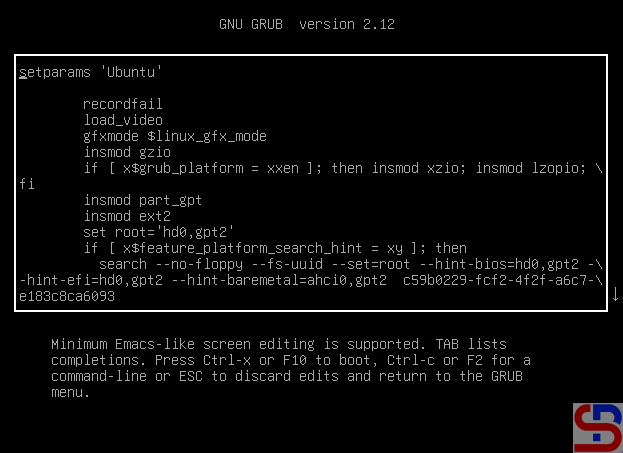
To enter recovery mode, select the top part of the image above and push the e button, so that there will be a display like the image below:
The GRUB options
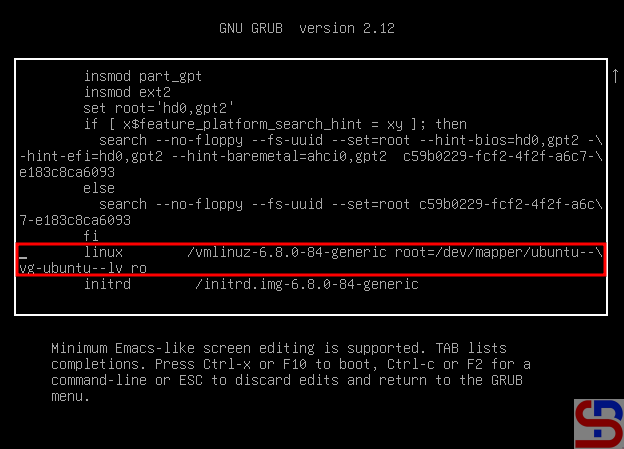
Find the line starting with linux, similar to the picture below:
Find the line starting with linux
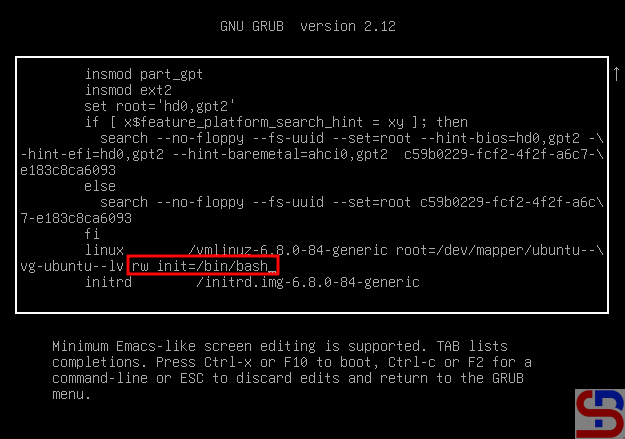
Remove everything from ro and append rw init=/bin/bash to the end of this line, like the picture below:
Change the script
After you change the script, press F10 or Ctrl+x to boot these parameters.
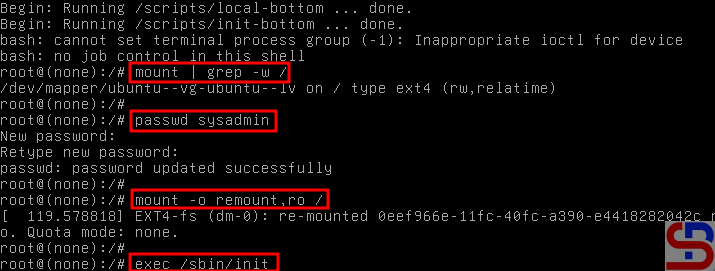
3. Run the commands
In the recovery mode, run the command below:
mount | grep -w /
After that, execute the command below to change the password:
passwd
After you change the password, run the commands below:
mount -o remount,ro /
exec /sbin/init
Run the commands
The Linux server will reboot, and after that, try to log in with the new password that you set before.
Note
By default, you cannot log in directly as root on Ubuntu, so you can’t change your password to root because to be root on Ubuntu, you only need to use your sudo command and enter your user password.
By default, when you connect to an Ubuntu server using SSH, Ubuntu will display a welcome message. But sometimes, the welcome message is not needed or even annoying, so you want to disable the welcome message.
Problem
How to disable a welcome message in Ubuntu?
Solution
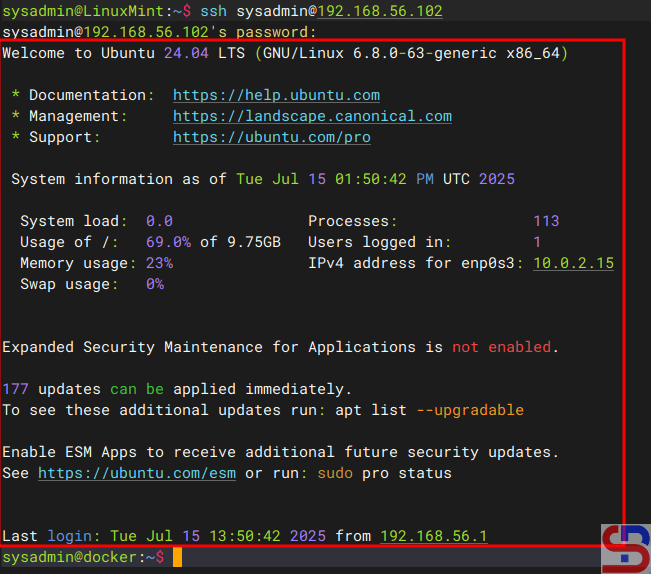
Usually, the welcome message looks like Ubuntu displays information about the Ubuntu server, as shown in the image below:
The welcome message in Ubuntu
There are 2 methods to disable the welcome message:
1. Remove the execute
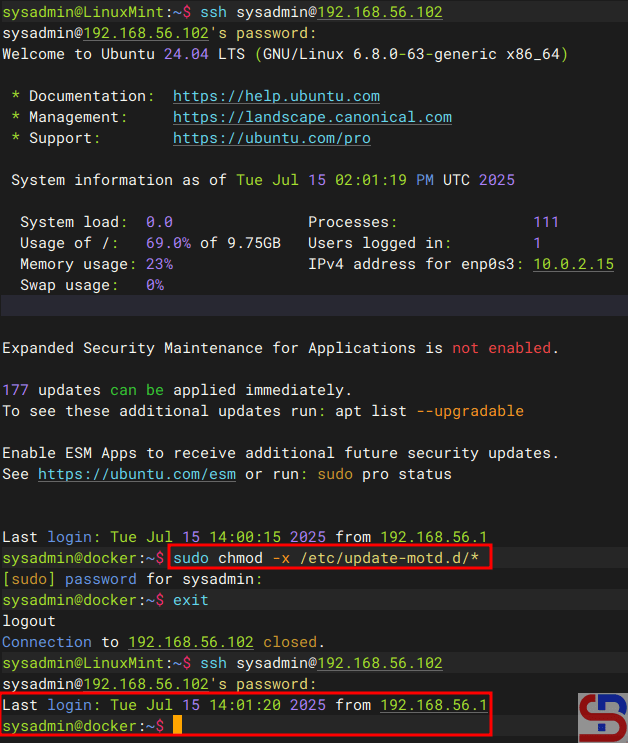
You have to know that the welcome messages are generated by the files residing in /etc/update-motd.d/. So, use the command below to disable the welcome message in Ubuntu:
sudo chmod -x /etc/update-motd.d/*
After you run the above command, every time you access the Ubuntu server, the Ubuntu server does not display a welcome message anymore, but only displays the last login on this server as shown in the image below:
Disable the welcome message by removing the execute
2. Create a file
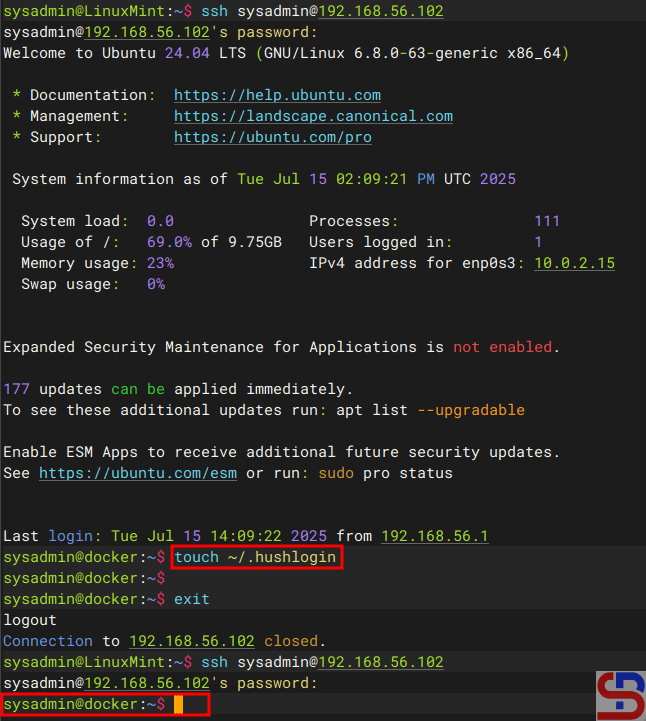
The second method is to create an empty file known as .hushlogin in your $HOME directory by using the command below:
touch ~/.hushlogin
It should be after you do the above command, every time you access the server, the Ubuntu server does not display a welcome message or last login at all, as shown in the image below:
Disable the welcome message by creating a file
Note
If you want to return the default welcome message after you run one of the 2 methods above, then use the command below if you are using the first method:
sudo chmod +x /etc/update-motd.d/*
And use the command below if you are using the second method:
rm ~/.hushlogin
The default welcome message in Ubuntu should appear every time you access the Ubuntu server.
The previous article explained how to configure the firewalld to become a port forwarding. This article will explain how to configure ufw applications in Ubuntu to become a port forwarding.
Suppose you have an Ubuntu server with IP address 192.168.56.102 and want to close port 22 but open port 43210 if someone wants to access the server via SSH. Change the SSH port like in this article, and you have to enable ufw in the server using the command below:
sudo ufw enable
Answer the question by pushing the y button. Now type the below commands to open port 22 and port 43210:
sudo ufw allow 43210/tcp
Check the SSH port using the below command and make sure the SSH port is pointed to the new port (port 43210) like in the below image:
Check the port
If the port is still connected to port 22, you can go to this article to change the SSH port.Now, try to access the server using the command below:
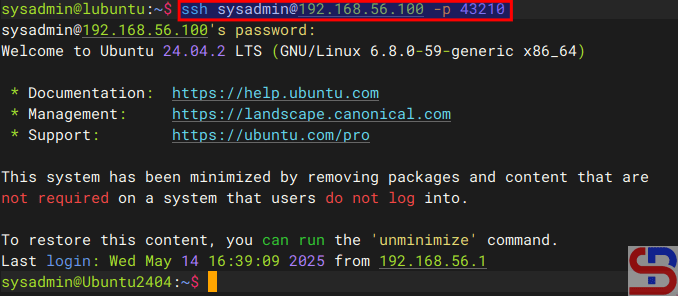
ssh sysadmin@192.168.56.102 -p 43210
Access to the server via SSH using the port
You should access the server like in the image above. Now, you want to implement the port forwarding in the ufw so the sysadmin doesn’t need to write -p 43210 anymore. So, you have to configure the before.rules file in the /etc/ufw folder. In short, before.rules typically contains rules that handle essential network traffic before ufw’s User-Defined Rules are applied. I think you have to backup the file before you configure the file using the below command:
sudo cp /etc/ufw/before.rules /etc/ufw/before.rules.ori
sudo vi /etc/ufw/before.rules
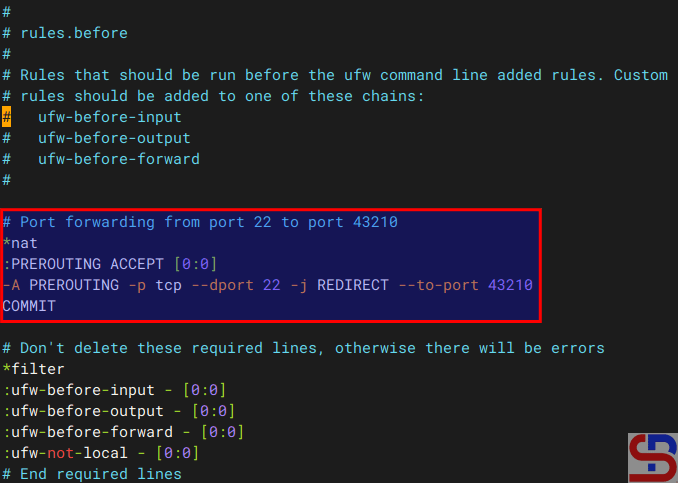
After that, copy the script below to the file before the *filter section:
# Port forwarding from port 22 to port 43210
*nat
:PREROUTING ACCEPT [0:0]
-A PREROUTING -p tcp --dport 22 -j REDIRECT --to-port 43210
COMMIT
Configure the before.rules file
Restart ufw using the command below:
sudo ufw reload
Now, try to access using the command below:
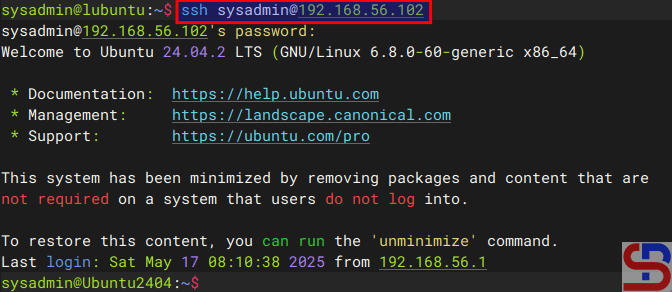
ssh sysadmin@192.168.56.102
You should access to the server without writing the port anymore like in the image below:
Access to the server without writing the port
B. Forward to the different IP/device
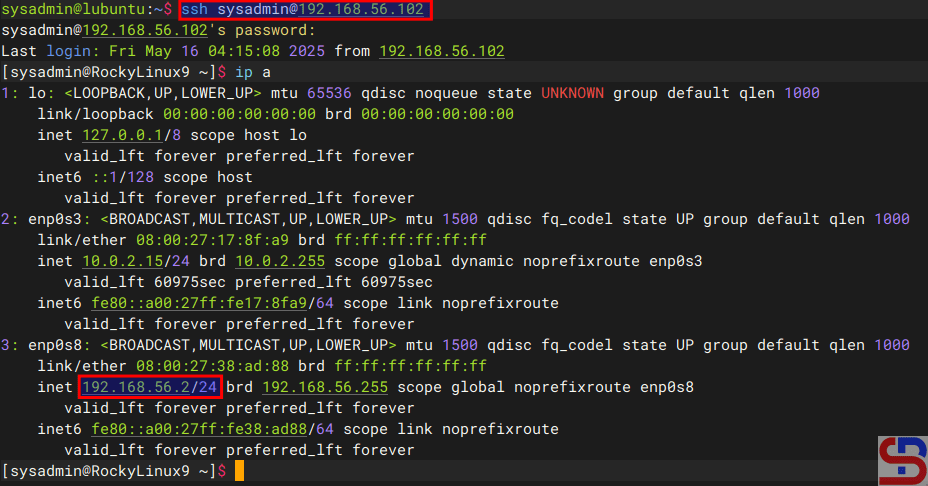
Suppose you have a Ubuntu server with IP address 192.168.56.102 and port 22 is available. You would like users who access the server using SSH to forward to port 22 with IP address 192.168.56.2 using RockyLinux. So, these are the steps:
1. Configure ufw
Check your Ubuntu server to see whether UFW is running on the server using the command below:
sudo ufw status
If it still doesn’t run, use the command below to have ufw run on that server:
sudo ufw enable
Answer the question by pushing the y button. Then, open port 22 by using the command below:
sudo ufw allow 22/tcp
To run the forwarding port on UFW, you must configure the before.rules file in the /etc/ufw folder. In short, before.rules typically contains rules that handle essential network traffic before ufw’s User-Defined Rules are applied. I think you have to backup the file before you configure the file using the below command:
sudo cp /etc/ufw/before.rules /etc/ufw/before.rules.ori
sudo vi /etc/ufw/before.rules
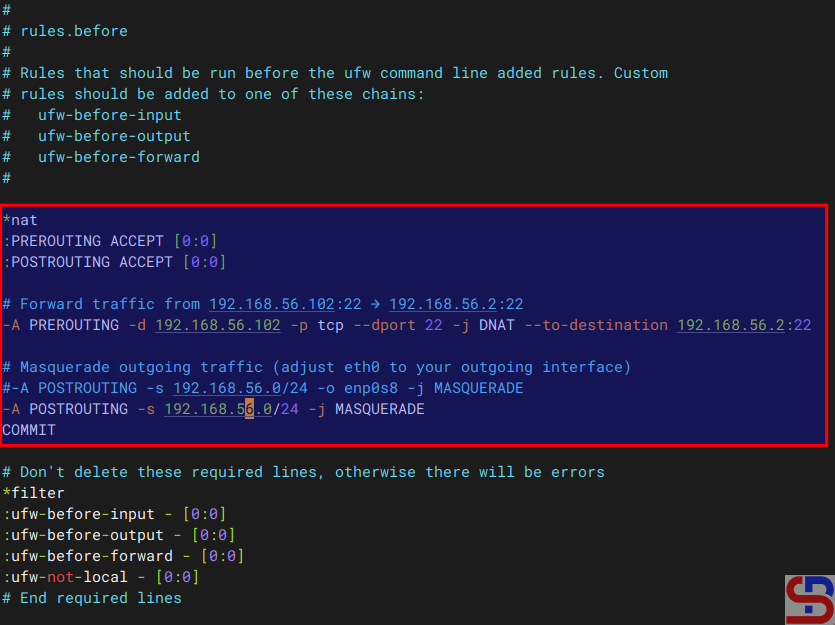
After that, copy the script below to the file before the *filter section:
*nat
:PREROUTING ACCEPT [0:0]
:POSTROUTING ACCEPT [0:0]

# Forward traffic from 192.168.56.102:22 → 192.168.56.2:22
-A PREROUTING -d 192.168.56.102 -p tcp --dport 22 -j DNAT --to-destination 192.168.56.2:22

# Masquerade outgoing traffic (adjust eth0 to your outgoing interface)
-A POSTROUTING -s 192.168.56.0/24 -o eth0 -j MASQUERADE

COMMIT
Configure the before.rules file
2. Enable IP Forwarding
Go to the /etc/default/ufw file and change the file from:
DEFAULT_FORWARD_POLICY="DROP"
to
DEFAULT_FORWARD_POLICY="ACCEPT"
After that, go to the /etc/sysctl.conf file and uncomment or add in the file:
net.ipv4.ip_forward=1
And run the below commands:
sudo sysctl -p
sudo ufw reload
3. Test the result
Now, try to access the Ubuntu server which has an IP 192.168.56.102 and you should be forwarded to the Rockylinux server that uses IP 192.168.56.2 like the below image:
ssh sysadmin@192.168.56.102
Test access
If you have a display like the image above, you have succeeded in making ufw as a forwarding port to a different IP/device.
Note
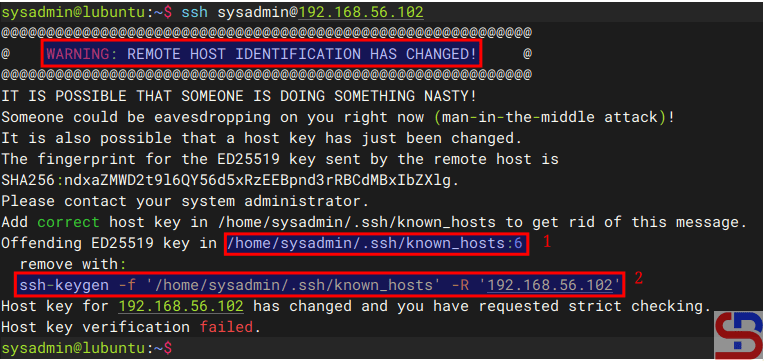
If you get an error like this:
WARNING: REMOTE HOST IDENTIFICATION HAS CHANGED!
Error when connecting the server via SSH
When you get this error, the system gives the clue to solve this error. Based on the picture above, you can go to the /home/sysadmin/.ssh/known_hosts file and delete line 6 or you run the command below:
How to Configure Virtual Hosts in Apache on Ubuntu?
written by sysadmin | 1 October 2025
Virtual hosts are a feature on a web server, such as Apache or Nginx, to run more than one site on a server. By using this feature, you can easily configure multiple domains on a server and save on operational costs because you only need one server or a public IP. This article will explain how to configure virtual hosts in Apache on Ubuntu.
Problem
How to configure virtual hosts in Apache on Ubuntu?
Solution
Before starting the configuration, make sure that on the Ubuntu server, the Apache application is installed by using the command:
apt update
apt install -y apache2
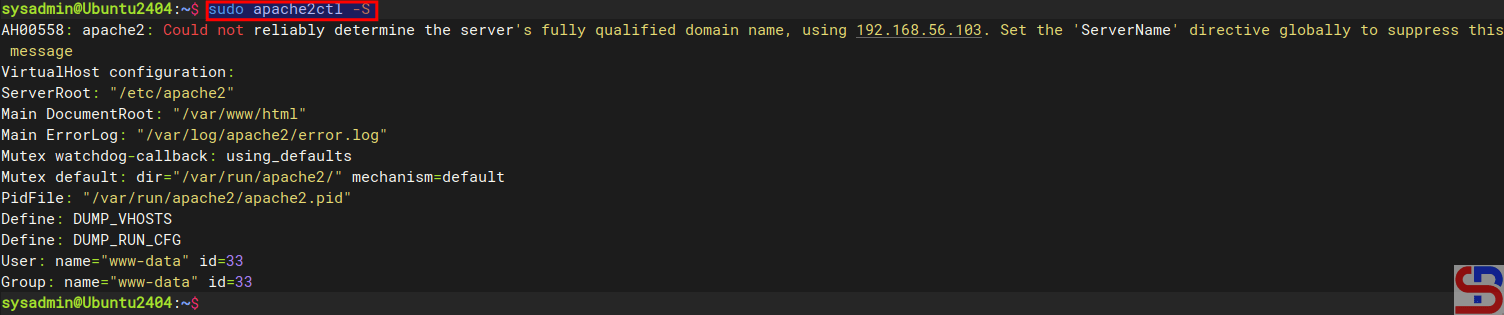
To see the default settings of Apache in Ubuntu, type the command below:
sudo apache2ctl -S
Display default Apache configuration
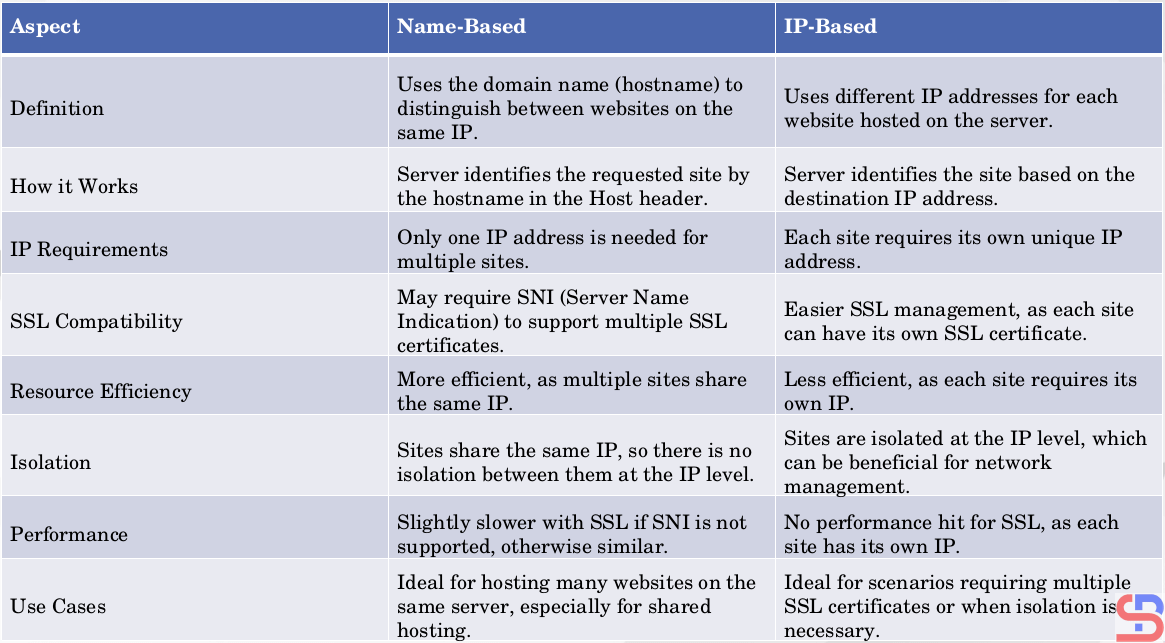
2 types of virtual hosts can be used, name-based and IP-based, and the difference between the two can be seen in the image below:
Comparison of name-based and IP-based in virtual hosts
WARNING
This article uses a private IP, not a public IP.
A. name-based virtual hosts
The meaning of name-based is that you have many websites or domains, but you only have one IP. For example, you have 2 domain names: website1.com and website2.com, but you only have 1 IP, which is 192.168.56.100. Here are the steps to get all three domains to use the same IP:
1. Create the directories and the files
By default, Apache uses the /var/www/html folder as its rootdocument, as shown in the image above. However, to make it easier to configure it, you should create a folder for each of these websites, as shown in the image below:
You can change the above directory to another directory, but for the next steps, you have to follow the directory you created.
After that, create an index.html file for each domain:
sudo sh -c 'echo "<h1> This is for website1.com domain</h1>" > /var/www/html/website1.com/index.html'
sudo sh -c 'echo "<h1> This is for website2.com domain</h1>" > /var/www/html/website2.com/index.html'
By default, 2 directories are used to manage the many domains in the virtual hosts running on that server: the sites-available and sites-enabled directories located in the /etc/apache2 directory. The sites-enabled directory contains all the configurations of the website (virtual host) that are available on the server but are not yet activated automatically. In contrast, the sites-enabled directory contains a symlink (symbolic link) to the configuration file that exists in the sites-available directory, and only the files that exist in the sites-enabled directory will be executed and activated by the web server if the web server is restarted or reloaded. Use the command below to create two websites on virtual hosts:
echo '<VirtualHost *:80>' | sudo tee /etc/apache2/sites-available/website1.com.conf > /dev/null
echo '    ServerName website1.com' | sudo tee -a /etc/apache2/sites-available/website1.com.conf > /dev/null
echo '    ServerAlias www.website1.com' | sudo tee -a /etc/apache2/sites-available/website1.com.conf > /dev/null
echo '    ServerAdmin webmaster@website1.com' | sudo tee -a /etc/apache2/sites-available/website1.com.conf > /dev/null
echo '    DocumentRoot /var/www/html/website1.com' | sudo tee -a /etc/apache2/sites-available/website1.com.conf > /dev/null
echo '    ErrorLog ${APACHE_LOG_DIR}/website1-error.log' | sudo tee -a /etc/apache2/sites-available/website1.com.conf > /dev/null
echo '    CustomLog ${APACHE_LOG_DIR}/website1-access.log combined' | sudo tee -a /etc/apache2/sites-available/website1.com.conf > /dev/null
echo '</VirtualHost>' | sudo tee -a /etc/apache2/sites-available/website1.com.conf > /dev/null

echo '<VirtualHost *:80>' | sudo tee /etc/apache2/sites-available/website2.com.conf > /dev/null
echo '    ServerName website2.com' | sudo tee -a /etc/apache2/sites-available/website2.com.conf > /dev/null
echo '    ServerAlias www.website2.com' | sudo tee -a /etc/apache2/sites-available/website2.com.conf > /dev/null
echo '    ServerAdmin webmaster@website2.com' | sudo tee -a /etc/apache2/sites-available/website2.com.conf > /dev/null
echo '    DocumentRoot /var/www/html/website2.com' | sudo tee -a /etc/apache2/sites-available/website2.com.conf > /dev/null
echo '    ErrorLog ${APACHE_LOG_DIR}/website2-error.log' | sudo tee -a /etc/apache2/sites-available/website2.com.conf > /dev/null
echo '    CustomLog ${APACHE_LOG_DIR}/website2-access.log combined' | sudo tee -a /etc/apache2/sites-available/website2.com.conf > /dev/null
echo '</VirtualHost>' | sudo tee -a /etc/apache2/sites-available/website2.com.conf > /dev/null
WARNING
You can change *:80 to your IP server like 192.168.56.102:80.
Then type the command below to enable the Virtual Hosts configuration:
Type the command below to disable the default virtual hosts configuration:
sudo a2dissite 000-default.conf
WARNING
If you want to change the configuration of virtual hosts, you have to change it in the sites-available directory and not in the sites-enabled directory.
5. Check the configuration
Use the command below to check whether there is an Apache configuration that is an error or not by using the command below:
sudo apache2ctl configtest
If there is no error, then reload Apache using the command below:
sudo systemctl reload apache2
WARNING
Use the command above if there is a change in the configuration of virtual hosts in each domain.
6. Check in the browser
Because this article uses a private IP, you must configure it in the hosts file before you check the browser. If you use Windows, change the hosts file in C:\Windows\System32\drivers\etc\hosts or in /etc/hosts if you use Linux. In the hosts file, add the below script:
192.168.56.102 website1.com website2.com
Info
Change IP 192.168.56.102 with your Ubuntu IP server.
If your Ubuntu server uses a firewall, type the command below to open the port for Apache:
sudo ufw allow 'Apache Full'
Open your browser and type each of these domains, then there should be a site displayed as in the image below:
http://website1.com
Site website1.com
http://website2.com
site website2.com
If you use Linux, you can use the command below to check the result:
curl http://website1.com
curl http://website2.com
Using the curl command
By default, websites work on the web server using port 80. But you can change port 80 to another port as long as the port is not used on the server. For example, if you want the website1.com site to use port 8080, change the /etc/apache2/sites-available/website1.com.conf file and change its contents to something like this:
If you use the firewall in the Ubuntu server, don’t forget to open port 8080 using the command below:
sudo ufw allow 8080
Reload Apache and open it in the browser by typing the command:
http://website1.com:8080
Site website1.com:8080
B. IP-based virtual hosts
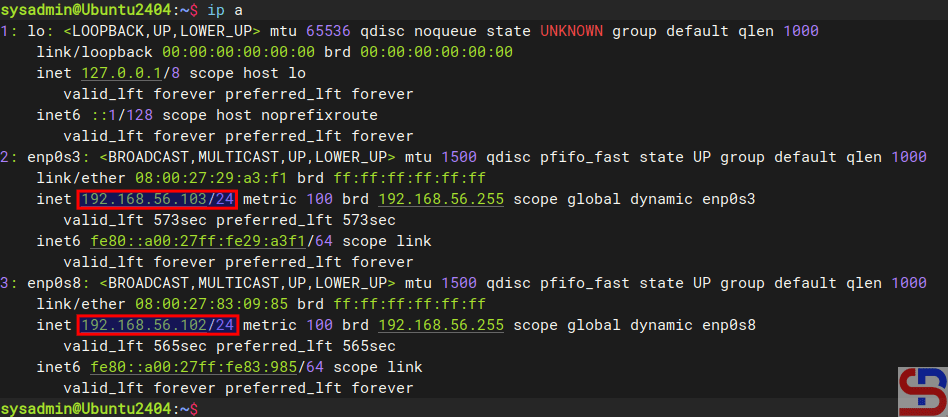
The meaning of IP-based is that you use a different IP address for each website. For example, you have 2 IPs and 2 domains, where IP 192.168.56.102 is for site1.com, and IP 192.168.56.103 is for site2.com. This article will use a server that has 2 IPs, as shown below:
Using 2 NICs in a server
1. Create the directories and the files
By default, Apache uses the /var/www/html folder as its rootdocument, as shown in the image above. However, to make it easier to configure it, you should create a folder for each of these websites, as shown in the image below:
You can change the above directory to another directory, but for the next steps, you have to follow the directory you created.
After that, create an index.html file for each domain:
sudo sh -c 'echo "<h1> This is for site1.com domain</h1>" > /var/www/html/site1.com/index.html'
sudo sh -c 'echo "<h1> This is for site2.com domain</h1>" > /var/www/html/site2.com/index.html'
By default, 2 directories are used to manage the many domains in the virtual hosts running on that server: the sites-available and sites-enabled directories located in the /etc/apache2 directory. The sites-enabled directory contains all the configuration of the website (virtual host) that is available on the server, but is not yet activated automatically while the sites-enabled directory contains a symlink (symbolic link) to the configuration file that exists in the sites-available directory and only the files that exist in the site-enabled directory will be executed and activated by the web server if the webserver is restarted or reloaded. Use the command below to create a virtual hosts directory:
echo '<VirtualHost 192.168.56.102:80>' | sudo tee /etc/apache2/sites-available/site1.com.conf > /dev/null
echo '    ServerName site1.com' | sudo tee -a /etc/apache2/sites-available/site1.com.conf > /dev/null
echo '    ServerAlias www.site1.com' | sudo tee -a /etc/apache2/sites-available/site1.com.conf > /dev/null
echo '    ServerAdmin webmaster@site1.com' | sudo tee -a /etc/apache2/sites-available/site1.com.conf > /dev/null
echo '    DocumentRoot /var/www/html/site1.com' | sudo tee -a /etc/apache2/sites-available/site1.com.conf > /dev/null
echo '    ErrorLog ${APACHE_LOG_DIR}/site1-error.log' | sudo tee -a /etc/apache2/sites-available/site1.com.conf > /dev/null
echo '    CustomLog ${APACHE_LOG_DIR}/site1-access.log combined' | sudo tee -a /etc/apache2/sites-available/site1.com.conf > /dev/null
echo '</VirtualHost>' | sudo tee -a /etc/apache2/sites-available/site1.com.conf > /dev/null

echo '<VirtualHost 192.168.56.103:80>' | sudo tee /etc/apache2/sites-available/site2.com.conf > /dev/null
echo '    ServerName site2.com' | sudo tee -a /etc/apache2/sites-available/site2.com.conf > /dev/null
echo '    ServerAlias www.site2.com' | sudo tee -a /etc/apache2/sites-available/site2.com.conf > /dev/null
echo '    ServerAdmin webmaster@site2.com' | sudo tee -a /etc/apache2/sites-available/site2.com.conf > /dev/null
echo '    DocumentRoot /var/www/html/site2.com' | sudo tee -a /etc/apache2/sites-available/site2.com.conf > /dev/null
echo '    ErrorLog ${APACHE_LOG_DIR}/site2-error.log' | sudo tee -a /etc/apache2/sites-available/site2.com.conf > /dev/null
echo '    CustomLog ${APACHE_LOG_DIR}/site2-access.log combined' | sudo tee -a /etc/apache2/sites-available/site2.com.conf > /dev/null
echo '</VirtualHost>' | sudo tee -a /etc/apache2/sites-available/site2.com.conf > /dev/null
WARNING
If you want to change the configuration of virtual hosts, you have to change it in the sites-available directory and not in the sites-enabled directory.
Then type the command below to enable the Virtual Hosts configuration:
Type the command below to disable the default virtual hosts configuration:
sudo a2dissite 000-default.conf
5. Check the configuration
Use the command below to check whether there is an Apache configuration that is an error or not by using the command below:
sudo apache2ctl configtest
If there is no error, then reload Apache using the command below:
sudo systemctl reload apache2
WARNING
Use the command above if there is a change in the configuration of virtual hosts in each domain.
6. Check in the browser
Because this article uses a private IP, you must configure it in the hosts file before you check the browser. If you use Windows, change the hosts file in C:\Windows\System32\drivers\etc\hosts or in /etc/hosts if you use Linux. In the hosts file, add the below script:
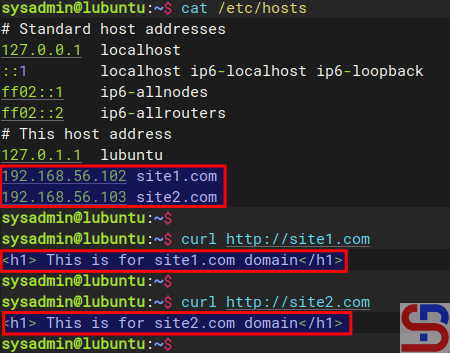
192.168.56.102  site1.com
192.168.56.103   site2.com
Info
Change IP 192.168.56.102 and IP 192.168.56.103 with your Ubuntu IP server.
If your Ubuntu server uses a firewall, type the command below to open the port for Apache:
sudo ufw allow 'Apache Full'
Open your browser and type each of these domains, then there should be a site displayed as in the image below:
http://site1.com
Site site1.com
http://site2.com
Site site2.com
If you use Linux, you can use the command below to check the result:
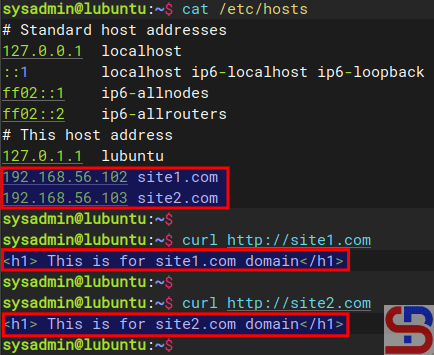
curl http://site1.com
curl http://site2.com
Using the curl command
By default, websites work on the web server using port 80. But you can change port 80 to another port as long as the port is not used on the server. So, if you want the site1.com site to use port 8181, change the /etc/apache2/sites-available/site1.com.conf file and change its contents to something like this:
If you use the firewall in your Ubuntu server, don’t forget to open port 8181 using the command below:
sudo ufw allow 8181
Reload Apache and open it in the browser by typing the command:
http://site1.com:8181
Site site1.com:8181
Note
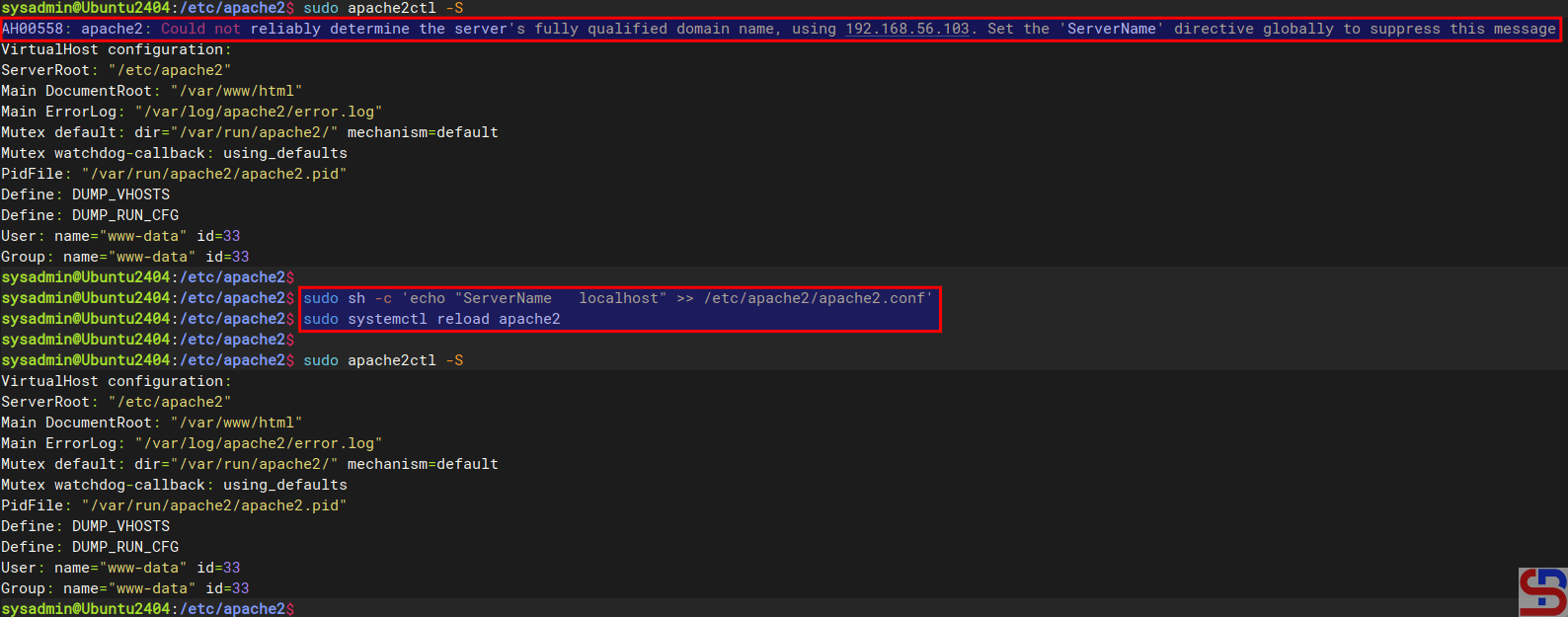
If you want to remove the error like this:
AH00558: apache2: Could not reliably determine the server’s fully qualified domain name, using 192.168.56.103. Set the ‘ServerName’ directive globally to suppress this message
Go to the /etc/apache2/apache2.conf and insert the script below:
ServerName localhost
Reload the Apache, and the error will disappear, like in the image below:
Remove error AH00558
WARNING
You can change the localhost to your domain name, like website1.com or another domain name.
NFS or Network File Sharing is a protocol that allows you to share directories and files with other Linux clients over a network. Similar to locally created folders, an NFS file share is accessible when mounted on a client computer. When you have limited disk space and need to share public data between client machines, NFS is especially helpful.
Problem
How to install and configure NFS on Linux?
Solution
This article will explain how to install and configure NFS on 3 Linux distros: Rockylinux, Ubuntu, and OpenSuse and this article should work in each of their derivatives of the three distros.
A. On the server
Following are the steps to install and configure NFS:
1. Install NFS
I install NFS in the server with IP 192.168.56.2, and to install the NFS application on the Linux server, use the command below:
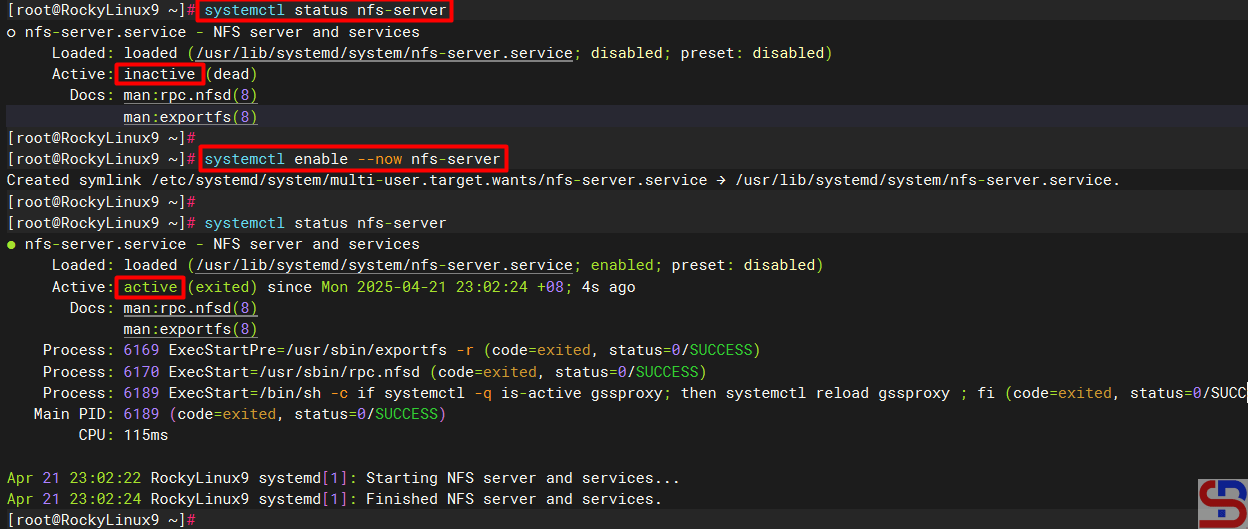
If you see the NFS status is still not on, use the command below to turn on the NFS service:
sudo systemctl enable --now nfs-server
Check the NFS service status
Sometimes you have to check the nfs-mountd service using the command below:
sudo systemctl status nfs-mountd
If the service is not on the server, then use the command below to turn on the service:
sudo systemctl start nfs-mountd
3. Check the rpcbind status
Make sure that the rpcbind service is actively used by NFS for the mapping port. Use the command below to check the status of the service:
sudo systemctl status rpcbind
If the service is not active, use the command below to start the service:
sudo systemctl enable -now rpcbind
4. Check NFS and Portmap
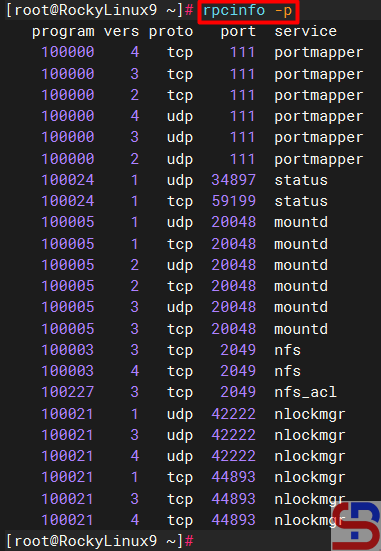
To see if NFS and portmap (Portmap is a server that converts RPC program numbers into DARPA protocol port numbers. It must be running to make RPC calls) are running on the server, use the command below:
sudo rpcinfo -p
Check whether NFS and portmap run in the server or not
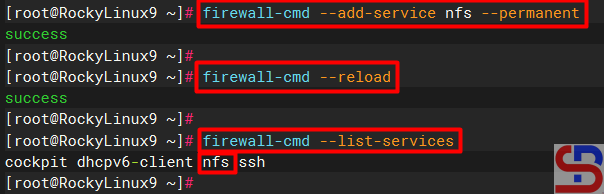
5. Configure firewall
If you still turn on the firewall on Linux, use the command below to open the NFS port (Port NFS is TCP Port 2049):
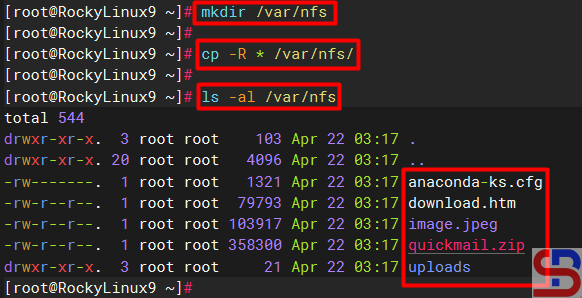
Create a folder to collect NFS files and folders and I make it in the folder /var/nfs using the command below:
mkdir /var/nfs
After that, copy the file(s) and folder(s) that you want to share into the folder as shown below:
Copy the file(s) and folder(s) into the folder sharing
7. Define an Export File
To grant access to NFS clients, you need to define an export file and it is typically located at /etc/exports. Use the format below to define an export file:
/folder/path accessible-host-ip-address(options)
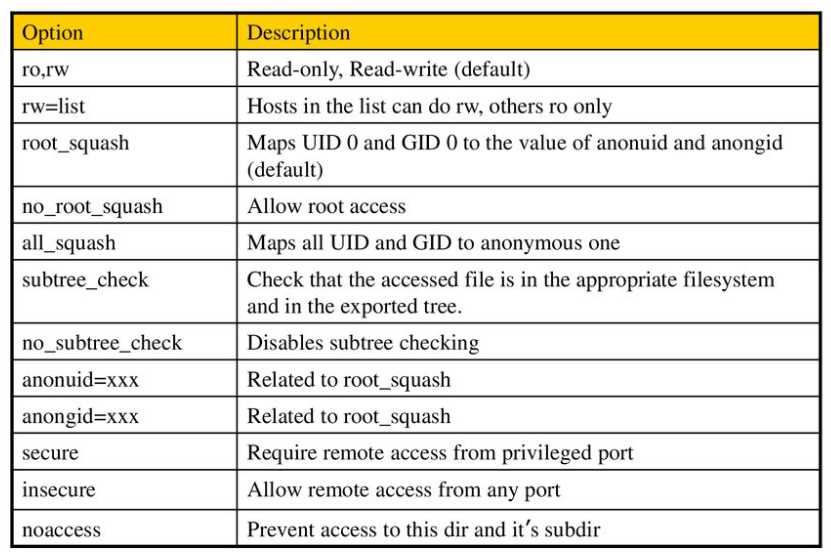
The options you can use can be seen in the image below:
You can use more than one option like (rw,sync,no_subtree_check). By default, NFS uses the ro option where the client can only read the file or folder in the folder sharing. In this article, I only want the folder sharing can only be accessed by users who only use IP 192.168.56.0/24 and the folder can be changed by the users, then use the command below to enter the script into the exports file:
Use the command below to make the folder sharing available to the clients:
sudo exportfs -r
Use the command below to view the exports file:
showmount -e
To see which hosts access file sharing, use the command below:
sudo netstat -an | grep 2049
B. On the client
Following are the steps to install and configure NFS:
1. Install NFS client
Use the command below to install the NFS client:
RockyLinux
sudo dnf install -y nfs-utils
Ubuntu
sudo apt-get install -y nfs-common
OpenSUSE
zypper install -y nfs-client*
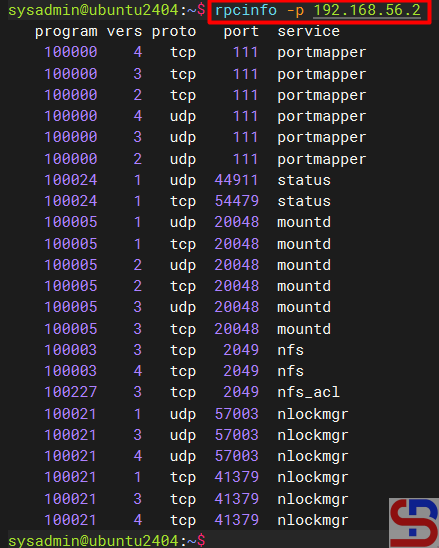
2. Check the ports in the NFS server
Use the command below to check whether the client can access the ports (port 2049 and 111) in the NFS server or not (the IP server NFS is 192.168.56.2):
rpcinfo -p 192.168.56.2
Check the connection between the client to the NFS server
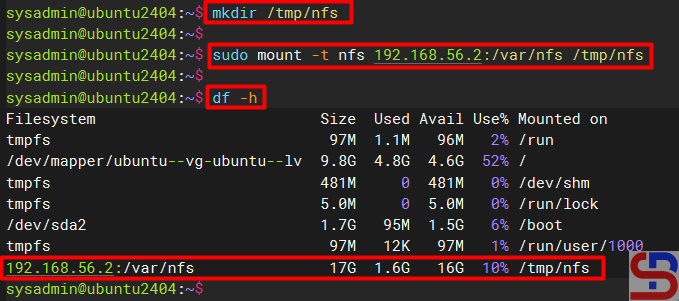
2. Make and mount a folder
Make the folder where we want to mount the NFS shares from the server, for example, I made a folder in /tmp/nfs:
mkdir /tmp/nfs
After that the mount folder with the NFS server using the format below:
sudo mount -t nfs 192.168.56.2:/var/nfs /tmp/nfs
Mount the folder to the folder-sharing
INFO
You can use the -v option so that the above command becomes: sudo mount -v -t nfs 192.168.56.2:/var/nfs /tmp/nfs
to display the logs when mounting so that you can know if there is an error when mounting.
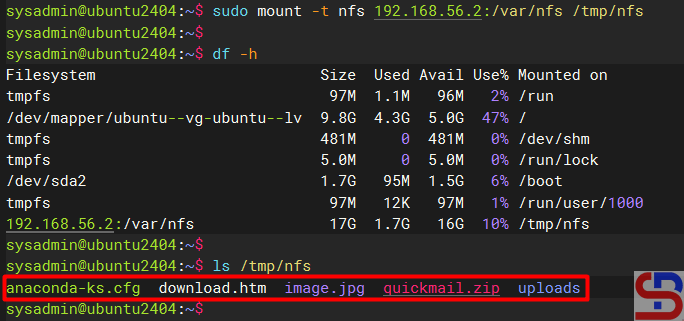
You should access the folder sharing on the NFS server as shown below:
Access to the NFS server
You can use the command below to see the NFS client connection:
sudo mount | grep -i nfs
Check the status of the NFS client
4. Simulation test
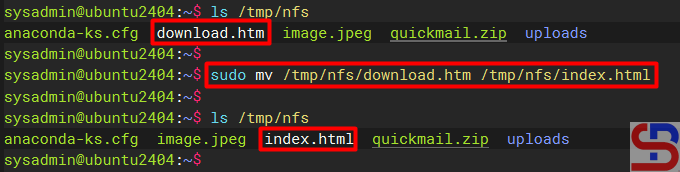
Try to do the simulation by changing the file name in the folder sharing. I try to rename the download.htm file to index.html using the command below:
sudo mv /tmp/nfs/download.htm /tmp/nfs/index.html
The file was successfully changed as shown below:
Rename the file in NFS
5. Configure the fstab file
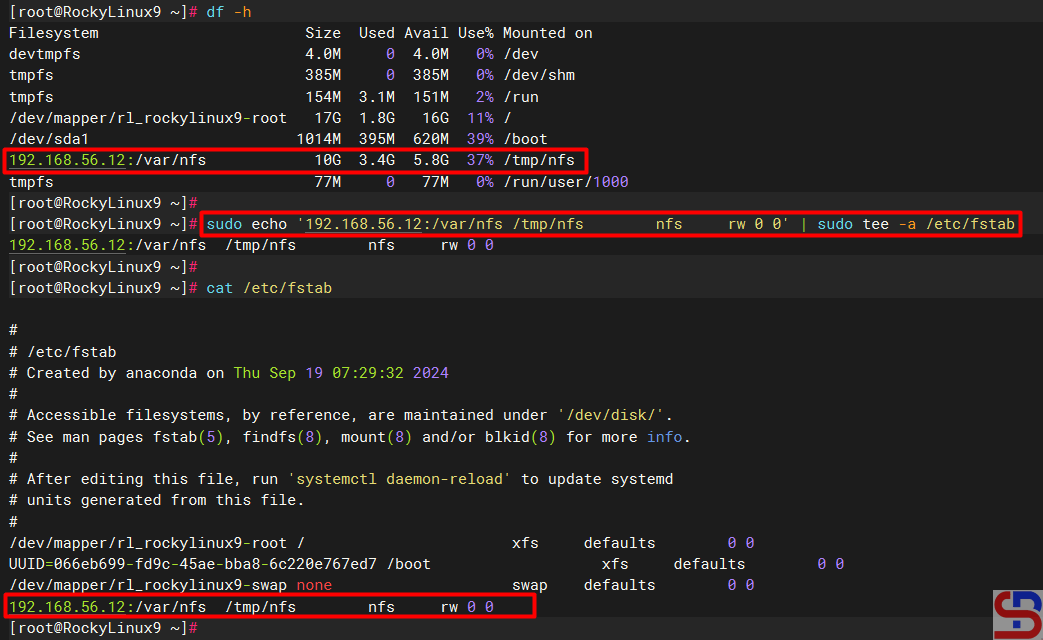
To keep the folder sharing is still connected in the client after the client is rebooted, configure the /etc/fstab file using the command below:
echo '192.168.56.2:/var/nfs /tmp/nfs nfs rw 0 0' | sudo tee -a /etc/fstab
Insert the script to fstab file
C. Errors and solutions
Below are errors that often appear and their solutions:
1. No options for /var/nfs
Sometimes when you run the exportfs -r command, there is an error as below:
exportfs: No options for /var/nfs/192.168.56.0/24(rw) : suggest (sync) to avoid warning exportfs: Failed to stat /var/nfs/192.168.56.0/24(rw): No such file or directory
Error failed to stat
To eliminate the error, check in the /etc/exports file and you have to fix the writing in the file from:
/var/nfs/192.168.56.0/24(rw)
changed into
/var/nfs 192.168.56.0/24(rw)
After that, run the exportfs -r command again and the error should disappear.
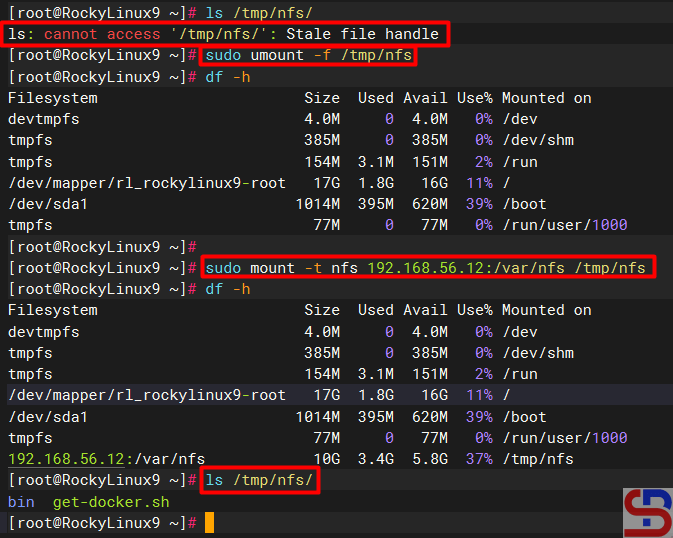
2. Error Stale file handle
When you want to connect a client to the NFS server there is an error like the below (usually this happens if there is an error like number 1 or other causes on the NFS server):
Stale file handle
Stale file handle error
To solve this error you have to unmount on the side of the client and then mount back as shown below:
Solve the stale file handle error
3. RPC: Program not registered
When typing the showmount -e command on the NFS server there is an error as below:
clnt_create: RPC: Program not registered
Error Program Not Registered
The solution is that you have to run the command below so that the nfs-mountd service runs on the server:
systemctl start nfs-mountd
4. Permission denied
When you want to connect to the NFS server or when you want to change the file in the NFS, there is an error like this:
Permission denied
Error Permission denied
The solution is to check the exports file on the NFS server and make sure that the folder has been given permissions as in step 5 in the server section.
Note
If you want to block an IP address of a host so the host can’t access the NFS server, use the command below to block the IP host:
In my experience, you can’t immediately block a client to NFS if the client is still connected to the NFS. You have to wait until the client disconnects to the NFS server, either the host reboots or others.
I have a Linux Ubuntu server version 22.04, and I want to upgrade to the latest version of Ubuntu.
Problem
How to upgrade Ubuntu to the latest version?
Solution
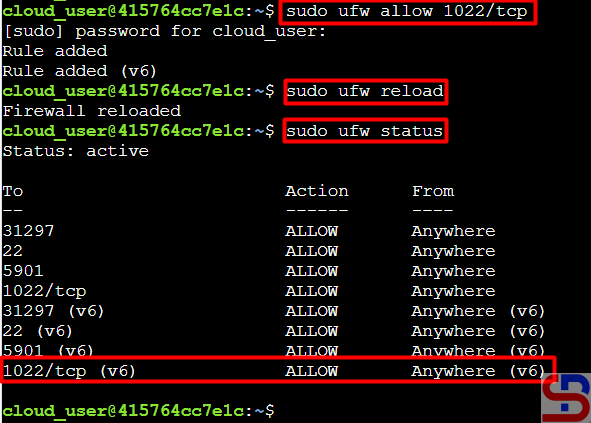
Before you upgrade your Ubuntu version, I think you have to back up your important data to other devices, and have internet to download the packages needed to upgrade. After that, open port 1022 on your laptop or server if you use the firewall using the below commands:
sudo ufw allow 1022/tcp
sudo ufw reload
sudo ufw status
Open the port
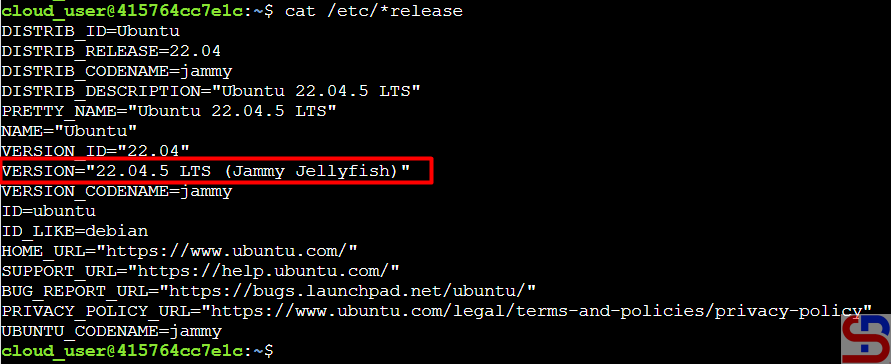
You should know that the Ubuntu version upgrade process can only be done to one major LTS version. So if you have Ubuntu version 20.04 and want to upgrade to the latest version (version 24.04 in November 2024), you have to do a 2x upgrade process, upgrading to version 22.04 first and then to version 24.04. I have Ubuntu version 22.04, like in the image below:
Check the version of Ubuntu
So, I type the command below:
sudo apt update
sudo apt upgrade -y
After that, reboot the server using the command below:
sudo reboot
After reboot, run the command below:
sudo do-release-upgrade
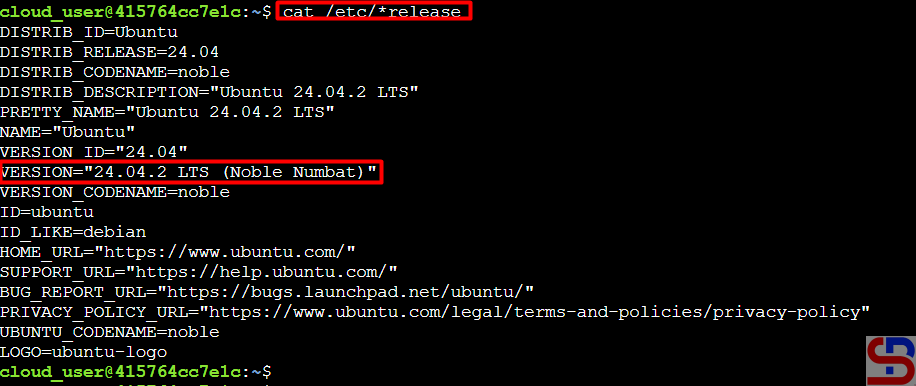
The server will start upgrading to Ubuntu version 24.04. Wait until finished, and sometimes you have to answer the questions asked by the Linux system when upgrading. After the upgrade finishes, check the version of Ubuntu, like in the image below:
Ubuntu was successfully upgraded
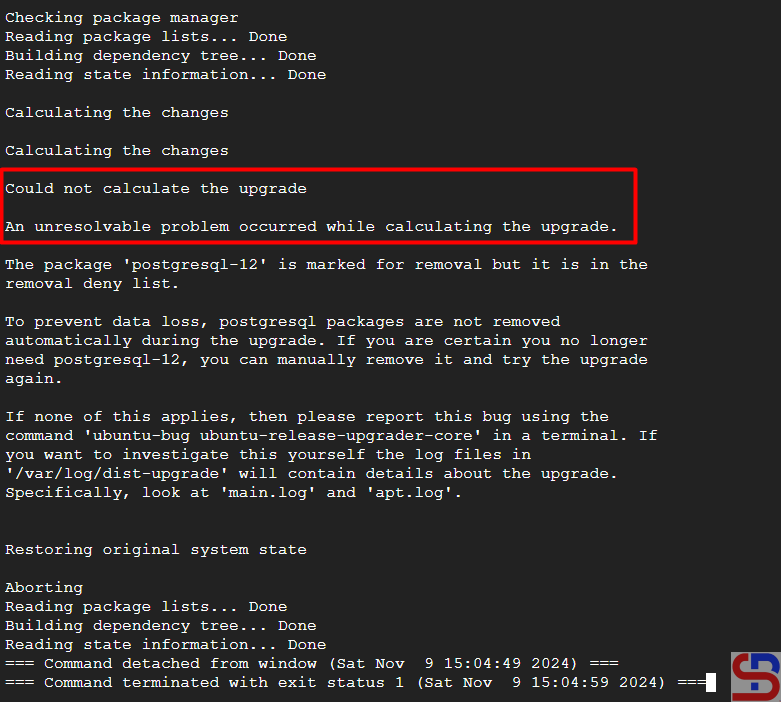
If during the upgrade process, there is a notification like the picture below:
Could not calculate the upgrade
An unresolvable problem occurred while calculating the upgrade.
Error when upgrading Ubuntu
Type the command below to see the errors that occurred during the upgrade process:
cat /var/log/dist-upgrade/main.log | grep ERROR
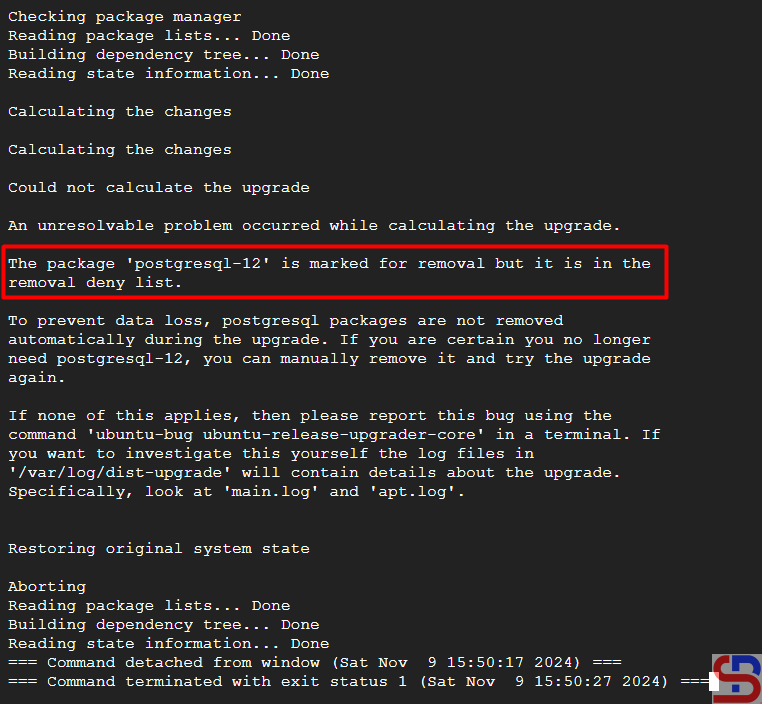
In the log, you have to search for the cause of the error, but actually, you can find the root cause in the notification, like in the image below:
Find the root cause of the error
The root cause is in the postgresql-12 package, so I removed the package and then ran the command below to carry out the upgrade process again:
sudo do-release-upgrade
The Ubuntu upgrade process should be completed until it is finished.
Note
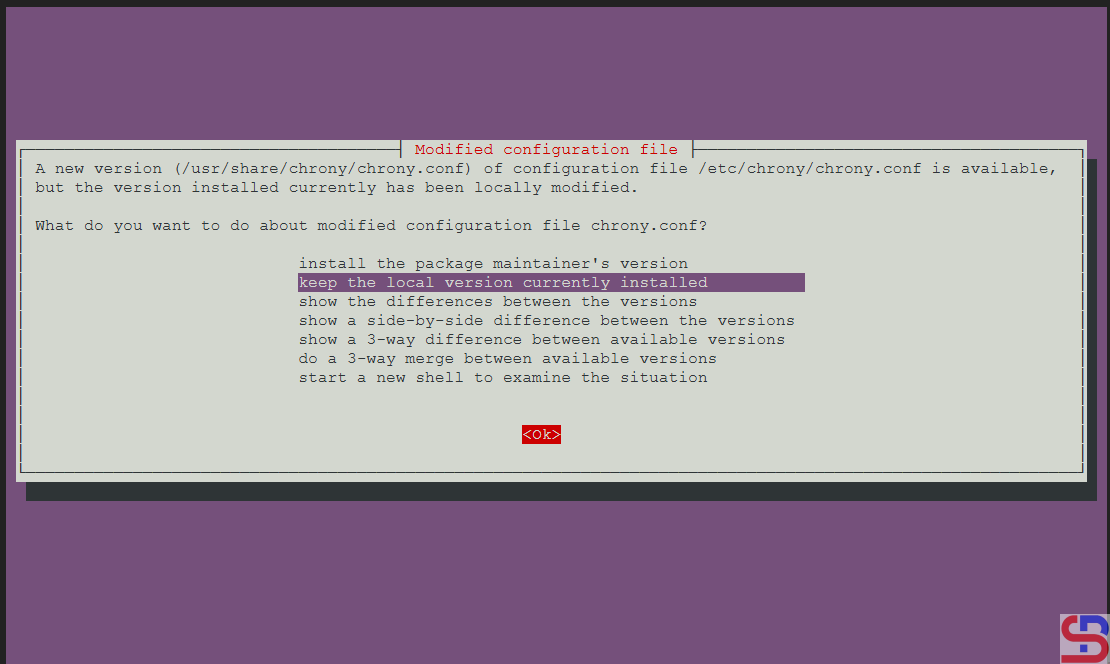
When you upgrade Ubuntu, you have to answer the questions from the Ubuntu system, like in the image below:
Choose the answer when upgrading to Ubuntu
If you don’t want to be bothered by the questions asked by the Linux system during the upgrade process, then use the command below:
How to Protect the Linux Server From an Accidental Reboot?
written by sysadmin | 1 October 2025
As a Sysadmin, accessing a Linux server is a normal daily activity. But sometimes we accidentally make mistakes rebooting or shutting down the production server, causing the server to be inaccessible. Therefore, we need a tool to confirm if someone reboots or shuts down a Linux server.
Problem
How to protect the Linux server from an accidental reboot or shutdown?
Solution
In the Debian/Ubuntu distribution, the molly-guard tool can be used to protect the Linux server from an accidental reboot or shutdown. Use the two commands below to install molly-guard:
sudo apt update
sudo apt-get install molly-guard
After that, try to reboot the server, and there should be a notification like the image below:
A notification appears when trying to reboot the server
Someone who wants to reboot the server must write the server’s hostname. If the nameserver does not match the hostname on the server, the reboot process will not be continued, but if it matches the hostname on the server, the reboot process will be continued.
Try to reboot the server
This is very useful if the sysadmin accidentally types the reboot command on the server. However, this tool not only protects the server from the reboot command, but also other commands such as the poweroff, shutdown, coldreboot, pm-hibernate, pm-suspend, and pm-suspend-hybrid commands.
Try to turn off the server
Note
Keep in mind that this molly-guard tool can only work in the Debian/Ubuntu distribution and its derivatives, and this tool only works on SSH connections. If you access the Linux server without an SSH connection, for example, by directly connecting the keyboard to the Linux server, this tool will not work, so if you run the reboot command, the Linux server will immediately reboot.