Virtual hosts are a feature on a web server, such as Apache or Nginx, to run more than one site on a server. By using this feature, you can easily configure multiple domains on a server and save on operational costs because you only need one server or a public IP. This article will explain how to configure virtual hosts in Apache on Ubuntu.
Problem
How to configure virtual hosts in Apache on Ubuntu?
Solution
Before starting the configuration, make sure that on the Ubuntu server, the Apache application is installed by using the command:
apt update
apt install -y apache2
To see the default settings of Apache in Ubuntu, type the command below:
sudo apache2ctl -S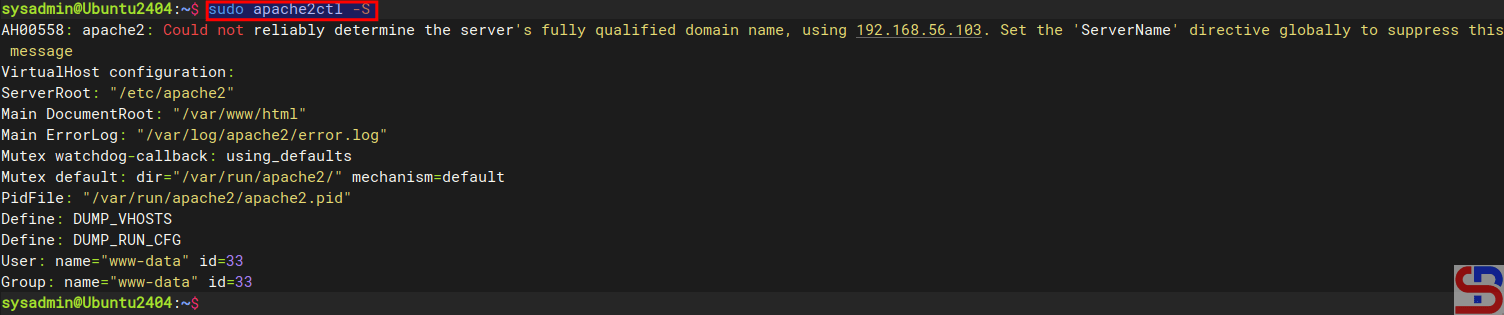
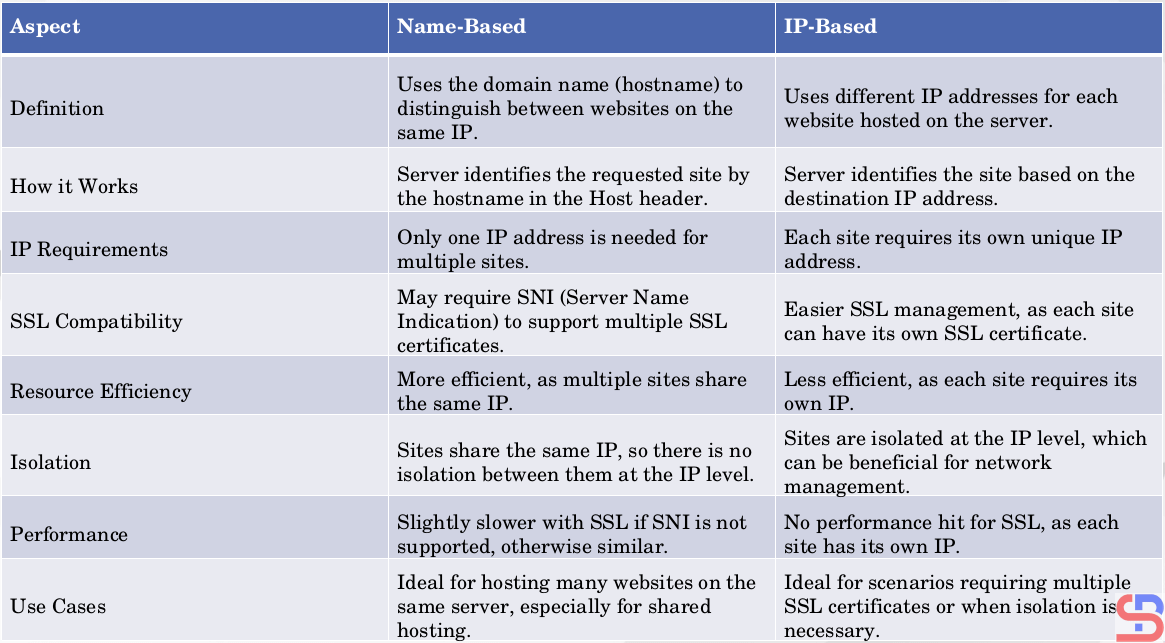
2 types of virtual hosts can be used, name-based and IP-based, and the difference between the two can be seen in the image below:
A. name-based virtual hosts
The meaning of name-based is that you have many websites or domains, but you only have one IP. For example, you have 2 domain names: website1.com and website2.com, but you only have 1 IP, which is 192.168.56.100. Here are the steps to get all three domains to use the same IP:
1. Create the directories and the files
By default, Apache uses the /var/www/html folder as its rootdocument, as shown in the image above. However, to make it easier to configure it, you should create a folder for each of these websites, as shown in the image below:
sudo mkdir -p /var/www/html/website1.com/
sudo mkdir -p /var/www/html/website2.com/
After that, create an index.html file for each domain:
sudo sh -c 'echo "<h1> This is for website1.com domain</h1>" > /var/www/html/website1.com/index.html'
sudo sh -c 'echo "<h1> This is for website2.com domain</h1>" > /var/www/html/website2.com/index.html'
2. Change ownership
Change the ownership of the folders:
sudo chown -R www-data:www-data /var/www/html/website1.com/
sudo chown -R www-data:www-data /var/www/html/website2.com/
sudo chmod -R 755 /var/www/html
3. Configuration of virtual hosts
By default, 2 directories are used to manage the many domains in the virtual hosts running on that server: the sites-available and sites-enabled directories located in the /etc/apache2 directory. The sites-enabled directory contains all the configurations of the website (virtual host) that are available on the server but are not yet activated automatically. In contrast, the sites-enabled directory contains a symlink (symbolic link) to the configuration file that exists in the sites-available directory, and only the files that exist in the sites-enabled directory will be executed and activated by the web server if the web server is restarted or reloaded. Use the command below to create two websites on virtual hosts:
echo '<VirtualHost *:80>' | sudo tee /etc/apache2/sites-available/website1.com.conf > /dev/null
echo '    ServerName website1.com' | sudo tee -a /etc/apache2/sites-available/website1.com.conf > /dev/null
echo '    ServerAlias www.website1.com' | sudo tee -a /etc/apache2/sites-available/website1.com.conf > /dev/null
echo '    ServerAdmin webmaster@website1.com' | sudo tee -a /etc/apache2/sites-available/website1.com.conf > /dev/null
echo '    DocumentRoot /var/www/html/website1.com' | sudo tee -a /etc/apache2/sites-available/website1.com.conf > /dev/null
echo '    ErrorLog ${APACHE_LOG_DIR}/website1-error.log' | sudo tee -a /etc/apache2/sites-available/website1.com.conf > /dev/null
echo '    CustomLog ${APACHE_LOG_DIR}/website1-access.log combined' | sudo tee -a /etc/apache2/sites-available/website1.com.conf > /dev/null
echo '</VirtualHost>' | sudo tee -a /etc/apache2/sites-available/website1.com.conf > /dev/null

echo '<VirtualHost *:80>' | sudo tee /etc/apache2/sites-available/website2.com.conf > /dev/null
echo '    ServerName website2.com' | sudo tee -a /etc/apache2/sites-available/website2.com.conf > /dev/null
echo '    ServerAlias www.website2.com' | sudo tee -a /etc/apache2/sites-available/website2.com.conf > /dev/null
echo '    ServerAdmin webmaster@website2.com' | sudo tee -a /etc/apache2/sites-available/website2.com.conf > /dev/null
echo '    DocumentRoot /var/www/html/website2.com' | sudo tee -a /etc/apache2/sites-available/website2.com.conf > /dev/null
echo '    ErrorLog ${APACHE_LOG_DIR}/website2-error.log' | sudo tee -a /etc/apache2/sites-available/website2.com.conf > /dev/null
echo '    CustomLog ${APACHE_LOG_DIR}/website2-access.log combined' | sudo tee -a /etc/apache2/sites-available/website2.com.conf > /dev/null
echo '</VirtualHost>' | sudo tee -a /etc/apache2/sites-available/website2.com.conf > /dev/null
Then type the command below to enable the Virtual Hosts configuration:
sudo a2ensite website1.com.conf
sudo a2ensite website2.com.conf
Type the command below to disable the default virtual hosts configuration:
sudo a2dissite 000-default.conf
5. Check the configuration
Use the command below to check whether there is an Apache configuration that is an error or not by using the command below:
sudo apache2ctl configtest
If there is no error, then reload Apache using the command below:
sudo systemctl reload apache2
6. Check in the browser
Because this article uses a private IP, you must configure it in the hosts file before you check the browser. If you use Windows, change the hosts file in C:\Windows\System32\drivers\etc\hosts or in /etc/hosts if you use Linux. In the hosts file, add the below script:
192.168.56.102 website1.com website2.com
If your Ubuntu server uses a firewall, type the command below to open the port for Apache:
sudo ufw allow 'Apache Full'
Open your browser and type each of these domains, then there should be a site displayed as in the image below:
http://website1.com
http://website2.com
If you use Linux, you can use the command below to check the result:
curl http://website1.com
curl http://website2.com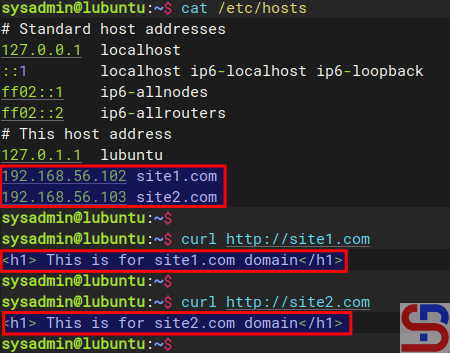
By default, websites work on the web server using port 80. But you can change port 80 to another port as long as the port is not used on the server. For example, if you want the website1.com site to use port 8080, change the /etc/apache2/sites-available/website1.com.conf file and change its contents to something like this:
Listen 8080
<VirtualHost *:8080>
     ServerName website1.com
     ServerAlias www.website1.com
     ServerAdmin webmaster@website1.com
     DocumentRoot /var/www/html/website1.com
     ErrorLog ${APACHE_LOG_DIR}/website1-error.log
     CustomLog ${APACHE_LOG_DIR}/website1-access.log combined
</VirtualHost>
If you use the firewall in the Ubuntu server, don’t forget to open port 8080 using the command below:
sudo ufw allow 8080
Reload Apache and open it in the browser by typing the command:
http://website1.com:8080
B. IP-based virtual hosts
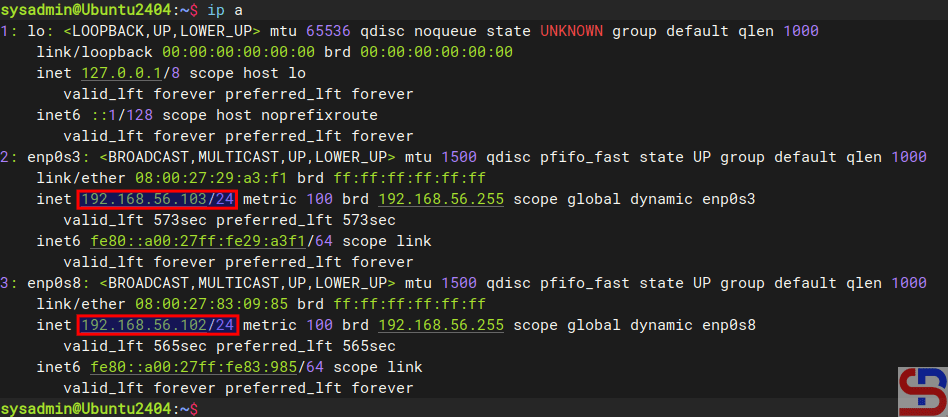
The meaning of IP-based is that you use a different IP address for each website. For example, you have 2 IPs and 2 domains, where IP 192.168.56.102 is for site1.com, and IP 192.168.56.103 is for site2.com. This article will use a server that has 2 IPs, as shown below:
1. Create the directories and the files
By default, Apache uses the /var/www/html folder as its rootdocument, as shown in the image above. However, to make it easier to configure it, you should create a folder for each of these websites, as shown in the image below:
sudo mkdir -p /var/www/html/site1.com/
sudo mkdir -p /var/www/html/site2.com/
After that, create an index.html file for each domain:
sudo sh -c 'echo "<h1> This is for site1.com domain</h1>" > /var/www/html/site1.com/index.html'
sudo sh -c 'echo "<h1> This is for site2.com domain</h1>" > /var/www/html/site2.com/index.html'
2. Change ownership
Change the ownership of the folders:
sudo chown -R www-data:www-data /var/www/html/site1.com/
sudo chown -R www-data:www-data /var/www/html/site2.com/
sudo chmod -R 755 /var/www/html
3. Configuration of virtual hosts
By default, 2 directories are used to manage the many domains in the virtual hosts running on that server: the sites-available and sites-enabled directories located in the /etc/apache2 directory. The sites-enabled directory contains all the configuration of the website (virtual host) that is available on the server, but is not yet activated automatically while the sites-enabled directory contains a symlink (symbolic link) to the configuration file that exists in the sites-available directory and only the files that exist in the site-enabled directory will be executed and activated by the web server if the webserver is restarted or reloaded. Use the command below to create a virtual hosts directory:
echo '<VirtualHost 192.168.56.102:80>' | sudo tee /etc/apache2/sites-available/site1.com.conf > /dev/null
echo '    ServerName site1.com' | sudo tee -a /etc/apache2/sites-available/site1.com.conf > /dev/null
echo '    ServerAlias www.site1.com' | sudo tee -a /etc/apache2/sites-available/site1.com.conf > /dev/null
echo '    ServerAdmin webmaster@site1.com' | sudo tee -a /etc/apache2/sites-available/site1.com.conf > /dev/null
echo '    DocumentRoot /var/www/html/site1.com' | sudo tee -a /etc/apache2/sites-available/site1.com.conf > /dev/null
echo '    ErrorLog ${APACHE_LOG_DIR}/site1-error.log' | sudo tee -a /etc/apache2/sites-available/site1.com.conf > /dev/null
echo '    CustomLog ${APACHE_LOG_DIR}/site1-access.log combined' | sudo tee -a /etc/apache2/sites-available/site1.com.conf > /dev/null
echo '</VirtualHost>' | sudo tee -a /etc/apache2/sites-available/site1.com.conf > /dev/null

echo '<VirtualHost 192.168.56.103:80>' | sudo tee /etc/apache2/sites-available/site2.com.conf > /dev/null
echo '    ServerName site2.com' | sudo tee -a /etc/apache2/sites-available/site2.com.conf > /dev/null
echo '    ServerAlias www.site2.com' | sudo tee -a /etc/apache2/sites-available/site2.com.conf > /dev/null
echo '    ServerAdmin webmaster@site2.com' | sudo tee -a /etc/apache2/sites-available/site2.com.conf > /dev/null
echo '    DocumentRoot /var/www/html/site2.com' | sudo tee -a /etc/apache2/sites-available/site2.com.conf > /dev/null
echo '    ErrorLog ${APACHE_LOG_DIR}/site2-error.log' | sudo tee -a /etc/apache2/sites-available/site2.com.conf > /dev/null
echo '    CustomLog ${APACHE_LOG_DIR}/site2-access.log combined' | sudo tee -a /etc/apache2/sites-available/site2.com.conf > /dev/null
echo '</VirtualHost>' | sudo tee -a /etc/apache2/sites-available/site2.com.conf > /dev/null
Then type the command below to enable the Virtual Hosts configuration:
sudo a2ensite site1.com.conf
sudo a2ensite site2.com.conf
Type the command below to disable the default virtual hosts configuration:
sudo a2dissite 000-default.conf
5. Check the configuration
Use the command below to check whether there is an Apache configuration that is an error or not by using the command below:
sudo apache2ctl configtest
If there is no error, then reload Apache using the command below:
sudo systemctl reload apache2
6. Check in the browser
Because this article uses a private IP, you must configure it in the hosts file before you check the browser. If you use Windows, change the hosts file in C:\Windows\System32\drivers\etc\hosts or in /etc/hosts if you use Linux. In the hosts file, add the below script:
192.168.56.102  site1.com
192.168.56.103   site2.com
If your Ubuntu server uses a firewall, type the command below to open the port for Apache:
sudo ufw allow 'Apache Full'
Open your browser and type each of these domains, then there should be a site displayed as in the image below:
http://site1.com
http://site2.com
If you use Linux, you can use the command below to check the result:
curl http://site1.com
curl http://site2.com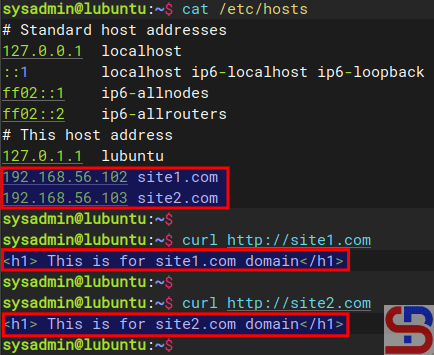
By default, websites work on the web server using port 80. But you can change port 80 to another port as long as the port is not used on the server. So, if you want the site1.com site to use port 8181, change the /etc/apache2/sites-available/site1.com.conf file and change its contents to something like this:
Listen 8181
<VirtualHost 192.168.56.102:8181>
     ServerName site1.com
     ServerAlias www.site1.com
     ServerAdmin webmaster@site1.com
     DocumentRoot /var/www/html/site1.com
     ErrorLog ${APACHE_LOG_DIR}/site1-error.log
     CustomLog ${APACHE_LOG_DIR}/site1-access.log combined
</VirtualHost>
If you use the firewall in your Ubuntu server, don’t forget to open port 8181 using the command below:
sudo ufw allow 8181
Reload Apache and open it in the browser by typing the command:
http://site1.com:8181
Note
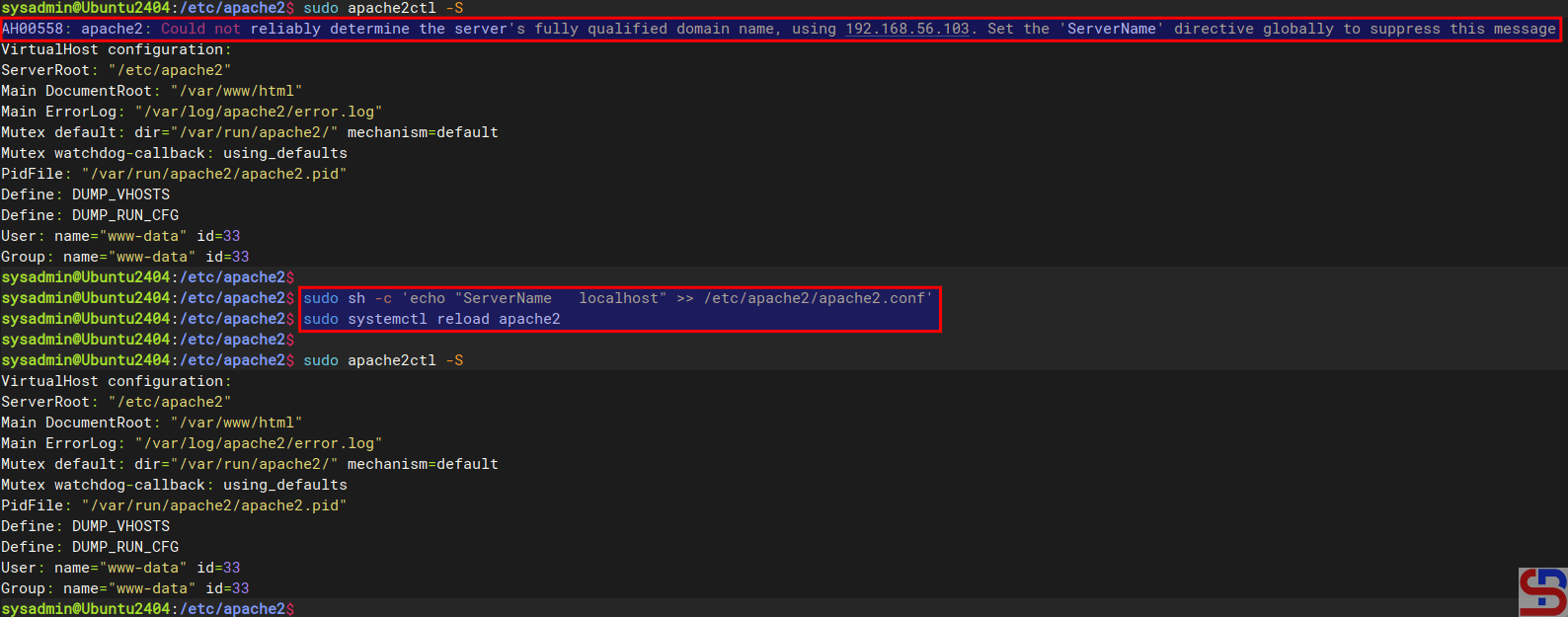
If you want to remove the error like this:
AH00558: apache2: Could not reliably determine the server’s fully qualified domain name, using 192.168.56.103. Set the ‘ServerName’ directive globally to suppress this message
Go to the /etc/apache2/apache2.conf and insert the script below:
ServerName localhost
Reload the Apache, and the error will disappear, like in the image below:
References

