How to Configure UFW to be Port Forwarding?

The previous article explained how to configure the firewalld to become a port forwarding. This article will explain how to configure ufw applications in Ubuntu to become a port forwarding.


Problem

How to configure ufw to be port forwarding?


Solution

There are 2 methods of port forwarding: forward the connection of a port to one IP/device and forward the connection of a port to a different IP/device.

A. Forward to the same IP/device

Suppose you have an Ubuntu server with IP address 192.168.56.102 and want to close port 22 but open port 43210 if someone wants to access the server via SSH. Change the SSH port like in this article, and you have to enable ufw in the server using the command below:

sudo ufw enable


Answer the question by pushing the y button. Now type the below commands to open port 22 and port 43210:

 sudo ufw allow 43210/tcp


Check the SSH port using the below command and make sure the SSH port is pointed to the new port (port 43210) like in the below image:

Check the port


If the port is still connected to port 22, you can go to this article to change the SSH port. Now, try to access the server using the command below:

ssh sysadmin@192.168.56.102 -p 43210
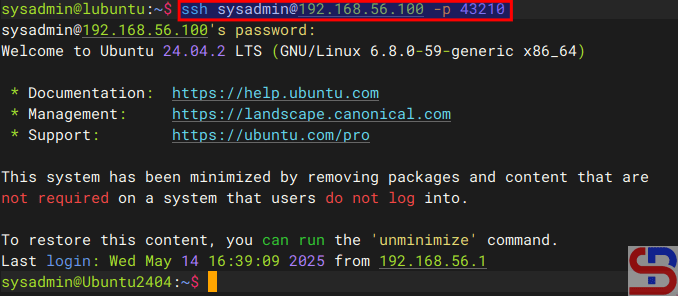
Access to the server via SSH using the port


You should access the server like in the image above. Now, you want to implement the port forwarding in the ufw so the sysadmin doesn’t need to write -p 43210 anymore. So, you have to configure the before.rules file in the /etc/ufw folder. In short, before.rules typically contains rules that handle essential network traffic before ufw’s User-Defined Rules are applied. I think you have to backup the file before you configure the file using the below command:

sudo cp /etc/ufw/before.rules /etc/ufw/before.rules.ori
sudo vi /etc/ufw/before.rules


After that, copy the script below to the file before the *filter section:

# Port forwarding from port 22 to port 43210
*nat
:PREROUTING ACCEPT [0:0]
-A PREROUTING -p tcp --dport 22 -j REDIRECT --to-port 43210
COMMIT
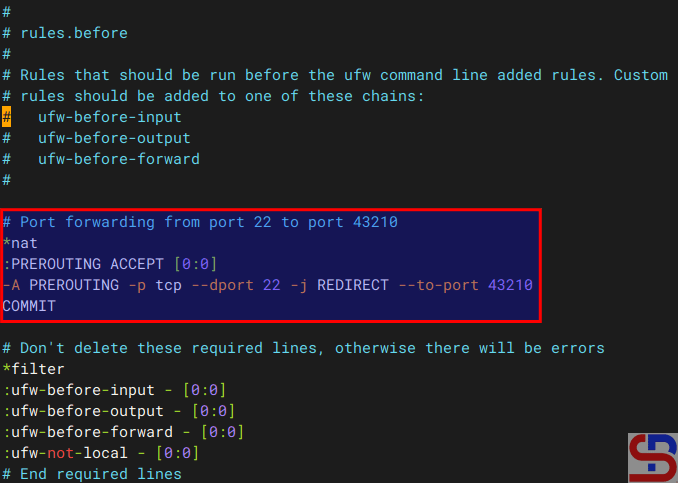
Configure the before.rules file


Restart ufw using the command below:

sudo ufw reload


Now, try to access using the command below:

ssh sysadmin@192.168.56.102


You should access to the server without writing the port anymore like in the image below:
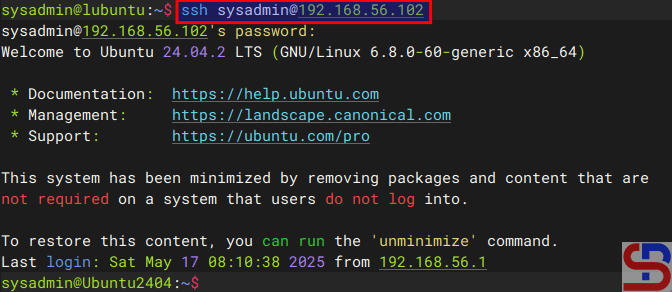
Access to the server without writing the port


B. Forward to the different IP/device

Suppose you have a Ubuntu server with IP address 192.168.56.102 and port 22 is available. You would like users who access the server using SSH to forward to port 22 with IP address 192.168.56.2 using RockyLinux. So, these are the steps:

1. Configure ufw

Check your Ubuntu server to see whether UFW is running on the server using the command below:

sudo ufw status


If it still doesn’t run, use the command below to have ufw run on that server:

sudo ufw enable


Answer the question by pushing the y button. Then, open port 22 by using the command below:

sudo ufw allow 22/tcp


To run the forwarding port on UFW, you must configure the before.rules file in the /etc/ufw folder. In short, before.rules typically contains rules that handle essential network traffic before ufw’s User-Defined Rules are applied. I think you have to backup the file before you configure the file using the below command:

sudo cp /etc/ufw/before.rules /etc/ufw/before.rules.ori
sudo vi /etc/ufw/before.rules


After that, copy the script below to the file before the *filter section:

*nat
:PREROUTING ACCEPT [0:0]
:POSTROUTING ACCEPT [0:0]

# Forward traffic from 192.168.56.102:22 → 192.168.56.2:22
-A PREROUTING -d 192.168.56.102 -p tcp --dport 22 -j DNAT --to-destination 192.168.56.2:22

# Masquerade outgoing traffic (adjust eth0 to your outgoing interface)
-A POSTROUTING -s 192.168.56.0/24 -o eth0 -j MASQUERADE

COMMIT
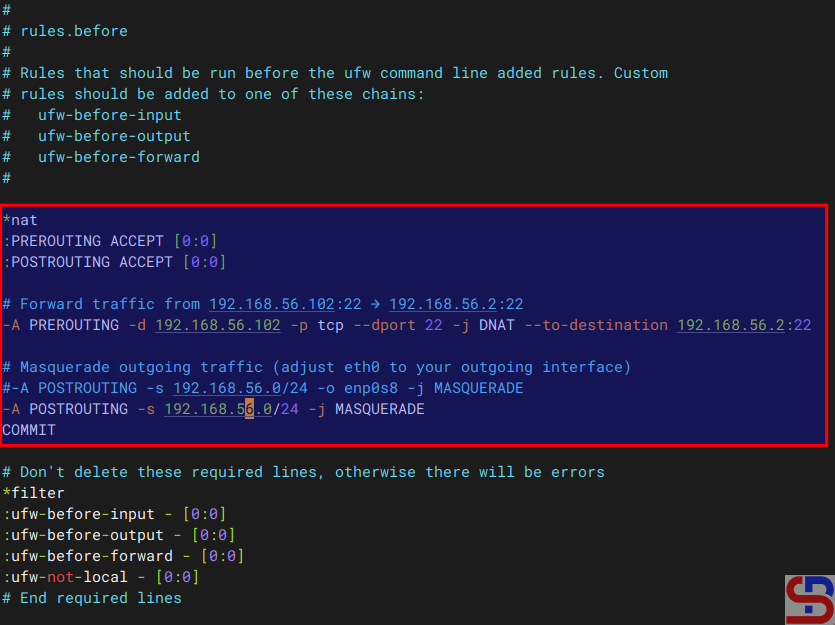
configure ufw to be a port forwarding
Configure the before.rules file


2. Enable IP Forwarding

Go to the /etc/default/ufw file  and change the file from:

DEFAULT_FORWARD_POLICY="DROP"

to

DEFAULT_FORWARD_POLICY="ACCEPT"


After that, go to the /etc/sysctl.conf file and uncomment or add in the file:

net.ipv4.ip_forward=1


And run the below commands:

sudo sysctl -p
sudo ufw reload


3. Test the result

Now, try to access the Ubuntu server which has an IP 192.168.56.102 and you should be forwarded to the Rockylinux server that uses IP 192.168.56.2 like the below image:

ssh sysadmin@192.168.56.102
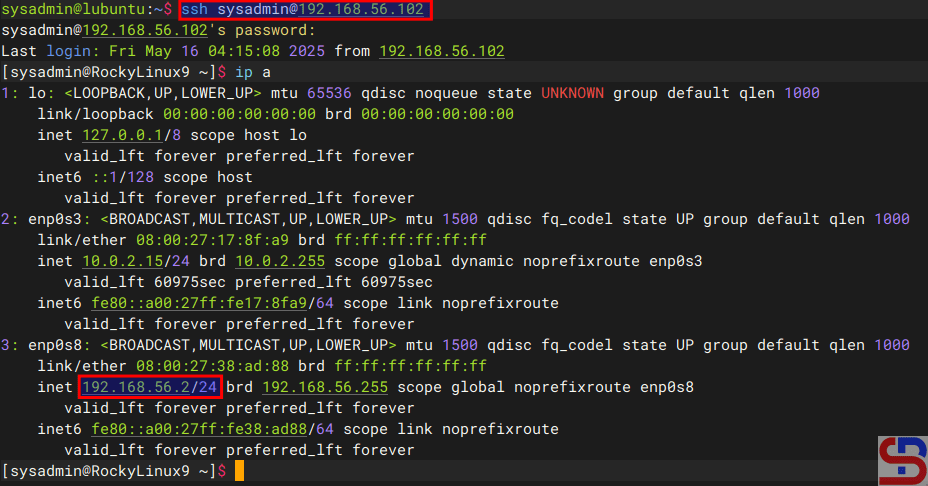
configure ufw to be a port forwarding
Test access


If you have a display like the image above, you have succeeded in making ufw as a forwarding port to a different IP/device.


Note

If you get an error like this:

WARNING: REMOTE HOST IDENTIFICATION HAS CHANGED!
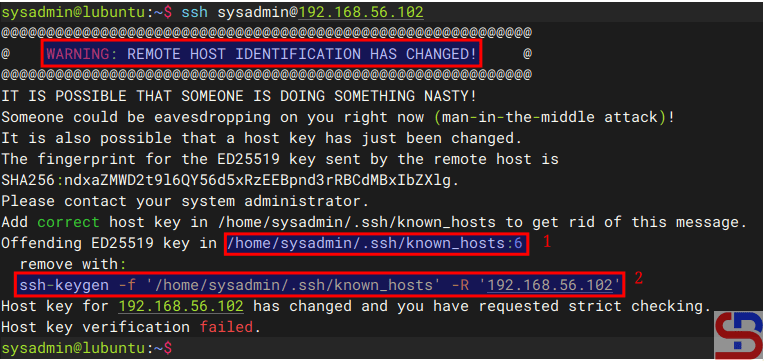
Error when connecting the server via SSH


When you get this error, the system gives the clue to solve this error. Based on the picture above, you can go to the /home/sysadmin/.ssh/known_hosts file and delete line 6 or you run the command below:

ssh-keygen -f '/home/sysadmin/.ssh/known_hosts' -R '192.168.56.102'

 

References

baeldung.com
gist.github.com
tecadmin.net
bobcares.com


How to Access the Server via SSH After Changing the SSH Port?

The previous article explained how to change the SSH port. Nevertheless, after I changed the port, I could not access the server via SSH using the new port.


Problem

How to access the server via SSH after changing the SSH port?


Solution

Let’s say you have changed the SSH port from port 22 to port 43210 by changing it in the /etc/ssh/sshd_config file and checking the port by typing the command below:

sudo grep -E "^Port" /etc/ssh/sshd_config


After that, restart the SSH using the command below:

sudo systemctl restart sshd

resolve the issue after changing the port in SSH
Change to the new port in SSH


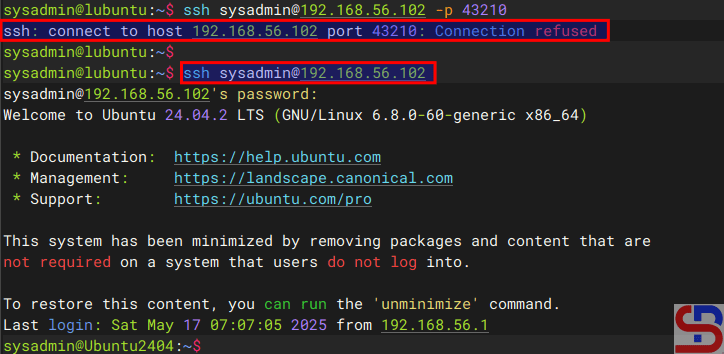
However, you can’t access the server via SSH using port 43210 but can still access via SSH port 22 as shown in the image below:

resolve the issue after changing the port in SSH
Test the result


In the remote, type the command below to check if the SSH port has changed to Port 43210 or not:

sudo ss -tulnp | grep sshd 


If you find the result as shown in the image below:

resolve the issue after changing the port in SSH
Check the port


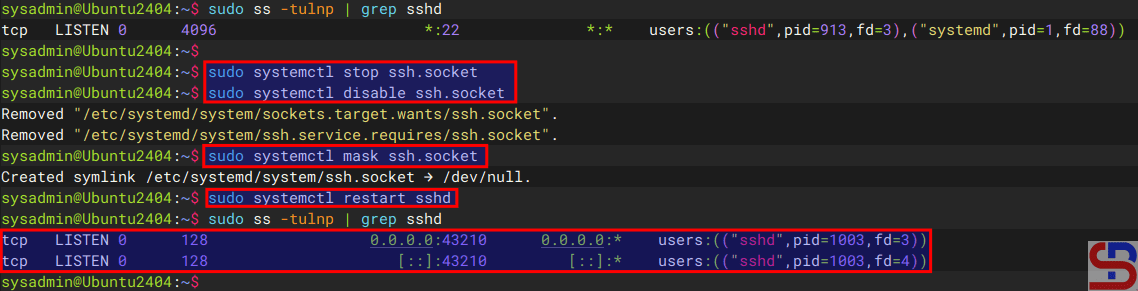
It means the SSH is still connected to port 22 and not to port 43210. Therefore, type the commands below:

sudo systemctl stop ssh.socket
sudo systemctl disable ssh.socket
sudo systemctl mask ssh.socket
sudo systemctl restart sshd


Run the previous command to check the port:

sudo ss -tulnp | grep sshd

access the server via SSH
Check the port


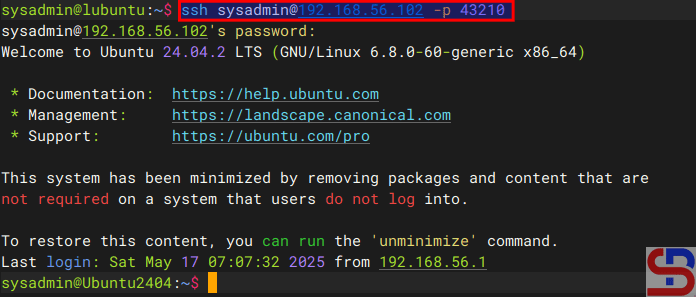
You can see in the image above that the SSH port has changed to port 43210 and you should be able to access the server via SSH using port 43210.

access the server via SSH
Test the result


Note

The socket statistics, or ss, is a tool to display network socket information. This tool has the same function as netstat but has several advantages such as faster, filtering by connection state (e.g., established, time-wait), debugging high-performance networks, and so on.


References

askubuntu.com
rome-rohani.medium.com
discourse.ubuntu.com
community.clearlinux.org
redhat.com


How to Configure Firewalld to be Port Forwarding?

Port forwarding is a networking technique used to redirect communication requests from one port number to another port number, typically across a network boundary such as a router or firewall. This technique can be used with Firewalld, available in RockyLinux, or derivative distros from RHEL such as AlmaLinux, CentOS, and others.


Problem

How to configure Firewalld to be port forwarding?


Solution

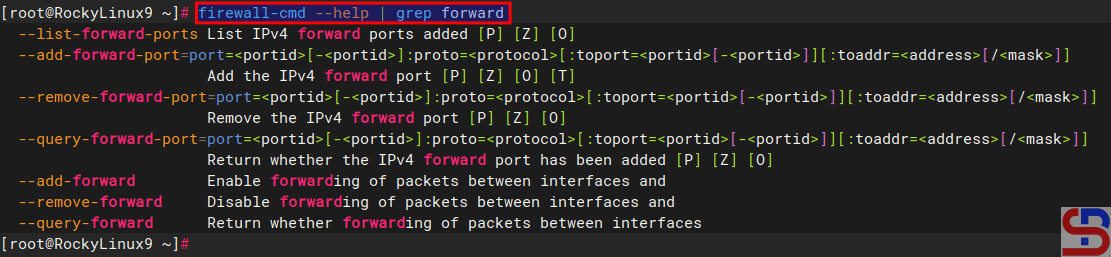
If you want to see the command in firewalls to run port forwarding, type the below command:

firewall-cmd --help | grep forward

The commands in firewalld for port forwarding


There are 2 methods of port forwarding: forward the connection of a port to one IP/device and forward the connection of a port to a different IP/device.

A. Forward to the same IP/device

By default, you must use the format below to forward a port in a device:

firewall-cmd --add-forward-port=port=port-number:proto=tcp|udp|sctp|dccp:toport=port-number


You can add an option  ‐-permanent if you want the rule to remain after reloading or rebooting the system. For example, you have a server with IP 192.168.56.2 where port 22 on the server is closed so to access the server via SSH must use port 43210. If you follow this article, then you must type the command below to access the server:

ssh sysadmin@192.168.56.2 -p 43210

Access the server via SSH using the port


However, by implementing a port forwarding you can access the server without typing the port. Let’s say, the firewalld is in the device, then on the device open port 43210 using the command:

sudo firewall-cmd --add-port=43210/tcp --permanent
sudo firewall-cmd --reload


In the file /etc/sshd/sshd_config, change the port to be as below:

Port 43210


After that restart SSH by using the command:

sudo systemctl restart sshd


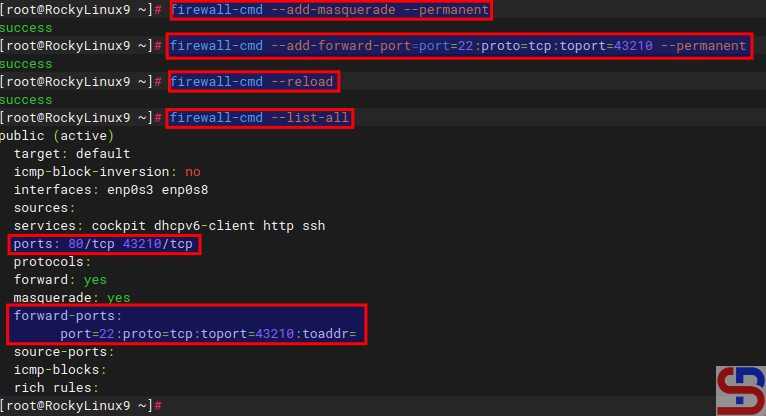
After that, type the commands below to configure the forwarding port in the firewalld:

firewall-cmd --add-masquerade --permanent
firewall-cmd --add-forward-port=port=22:proto=tcp:toport=43210 --permanent
firewall-cmd --reload
firewall-cmd --list-all

The commands to configure firewalld to be port forwarding


type the command below to access the server via SSH:

ssh sysadmin@192.168.56.2


You should be able to enter the server without having to type the 43210 port as shown below:

Access the server via SSH without writing the port


B. Forward to a different IP/device

By default, use the format below to forward a port to a different IP/device:

firewall-cmd --add-forward-port=port=port-number:proto=tcp|udp|sctp|dccp:toport=port-number:toaddr=ip_address


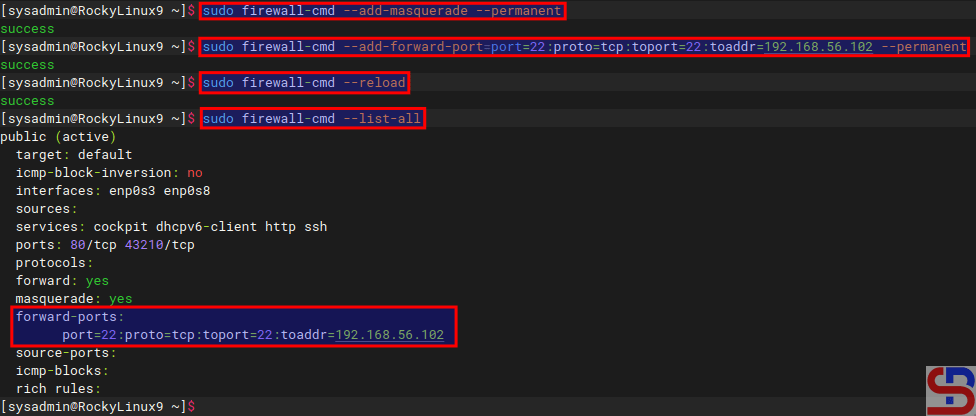
If you want the rule to stay in place after a system reboot or reload, you can add a ‐-permanent option. As an illustration, suppose you have a server with IP address 192.168.56.2 and port 22 is available. You would like users who access port 22 to forward to port 22 with IP address 192.168.56.102. Use the command below to configure firewalls:

firewall-cmd --add-masquerade --permanent
sudo firewall-cmd --add-forward-port=port=22:proto=tcp:toport=22:toaddr=192.168.56.102 --permanent
firewall-cmd --reload
firewall-cmd --list-all

configure Firewalld to be port forwarding
Add a forwarding port to a different IP in firewalld


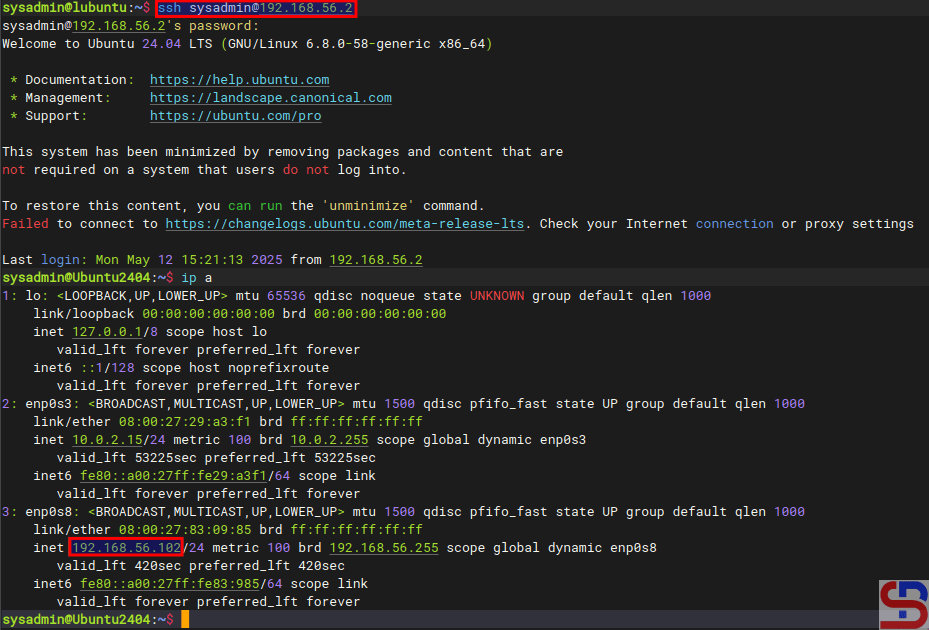
If you type the command below:

ssh sysadmin@192.168.56.2


You will be forwarded to a server that uses IP 192.168.56.102 as shown below:

configure Firewalld to be port forwarding
Forward a port to another IP/device


Note

To see rule forwarding is in the rule in the firewall, besides being able to use the firewall-cmd ‐-list-all command, you can also use the command below:

sudo firewall-cmd --list-forward-ports


then you will see the results as shown below:

configure Firewalld to be port forwarding
Using –list-forward-ports option


And if you want to delete a rule port forwarding in the firewall, then you can simply change the options ‐-add-forward-port to ‐-remove-forward-port so the command will change like in the command below:

sudo firewall-cmd --add-forward-port=port=22:proto=tcp:toport=22:toaddr=192.168.56.102 --permanent

configure Firewalld to be port forwarding
Remove a forwarding port rule


References

docs.redhat.com
youtube.com
musaamin.web.id
faun.pub


How to Change SSH Port?

If you access a device such as a server using an SSH connection, you are using port 22 by default. However, port 22 is often the target of security attacks, so it is recommended that you change the SSH port.


Problem

How to change SSH Port?


Solution

To change the SSH port on a Linux server, go to the /etc/ssh/sshd.config file, look for the line containing Port 22 and set it to the number you want to change. For example,  you want to change the SSH port to port 43210, so change the line as in the script below from:

#Port 22

to

Port 43210


After that, restart the SSH service using the command below:

Ubuntu/Debian

systemctl restart ssh


RockyLinux/AlmaLinux/CentOS & OpenSUSE

systemctl restart sshd


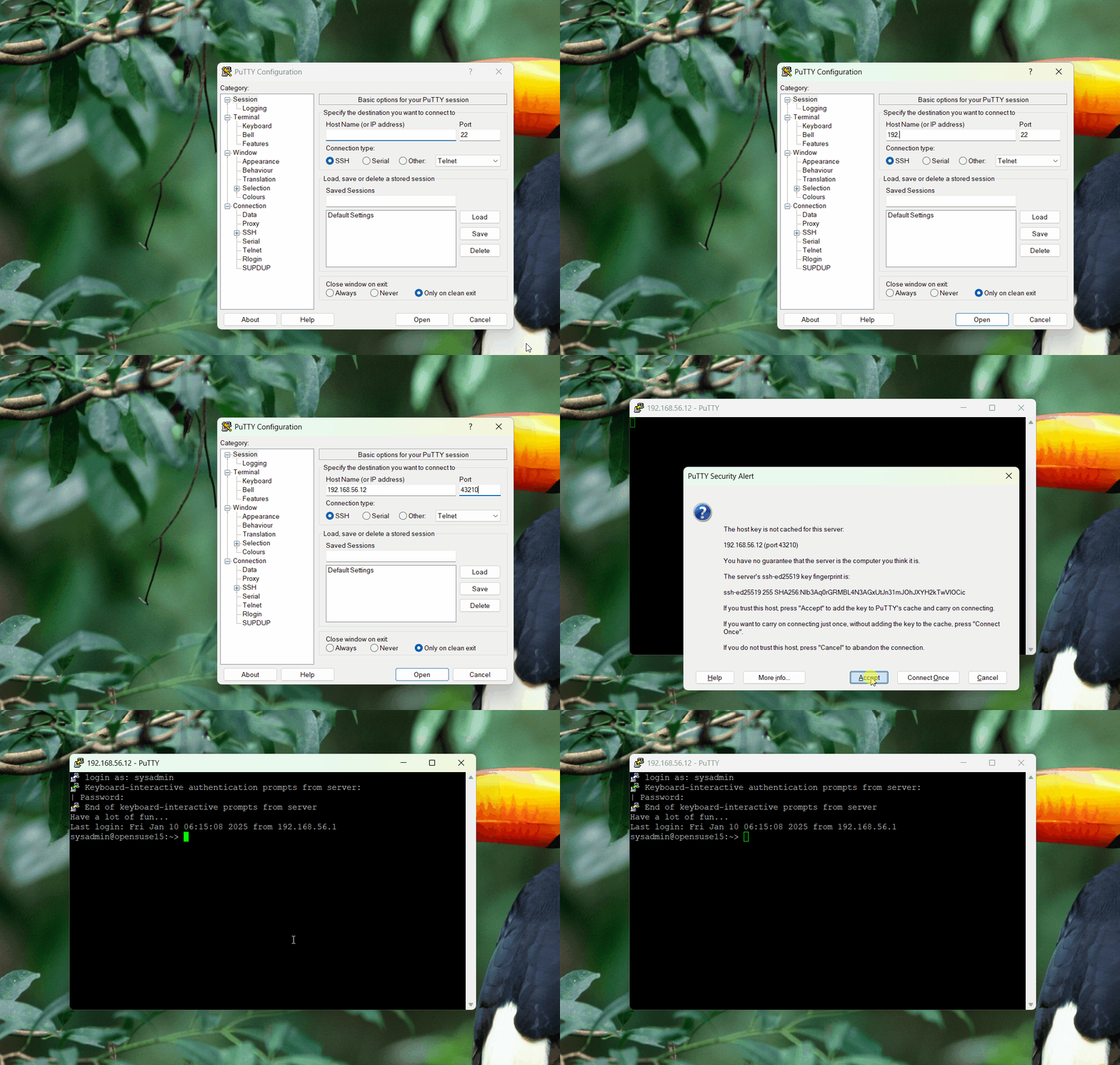
After that, test by accessing SSH using port 43210. If you use Putty, then change port 22 to 43210 as in the image below:

change SSH Port
Change the port in Putty


If you can’t access the Linux server, make sure you have opened the firewall on the server (you can open this page if you use RockyLinux and OpenSUSE, but if you use Ubuntu, you can read it on this page). If you want to access it via a Linux server, then use the format below:

ssh username@your_server_ip -p port_number

Then the format above can be the command below:

ssh sysadmin@192.168.56.12 -p 43210

change SSH Port
Access via SSH using a new SSH port


WARNING
If you run a firewall on your remote server, you must open the port first. If you want to get an explanation of how to open the port, go to this page if you use firewalld or go to this page if you use ufw.


Note

Please note that the port number is from 0-65536, however, these ports are divided into 3 classifications:

  • Port 0-1023 => Well-Known ports, you can not use these ports.
  • Port 1024-49151 => Registered ports, these is a registered ports assigned by IANA (Internet Assigned Numbers Authority), you can or can not use these ports.
  • Port 49152-65535 => Dynamic or Private ports, you can use these ports.


References

jay75chauhan.medium.com
ionos.com
gcore.com
en.wikipedia.org
arubanetworks.com


How to Set Up Passwordless SSH in Putty?

The previous article explained how to create a passwordless SSH login.  However, the article is useful if a sysadmin accesses a Linux server through another Linux server. In general, many sysadmins use PuTTY to access their Linux servers.


Problem

How to set up passwordless SSH in Putty?


Solution

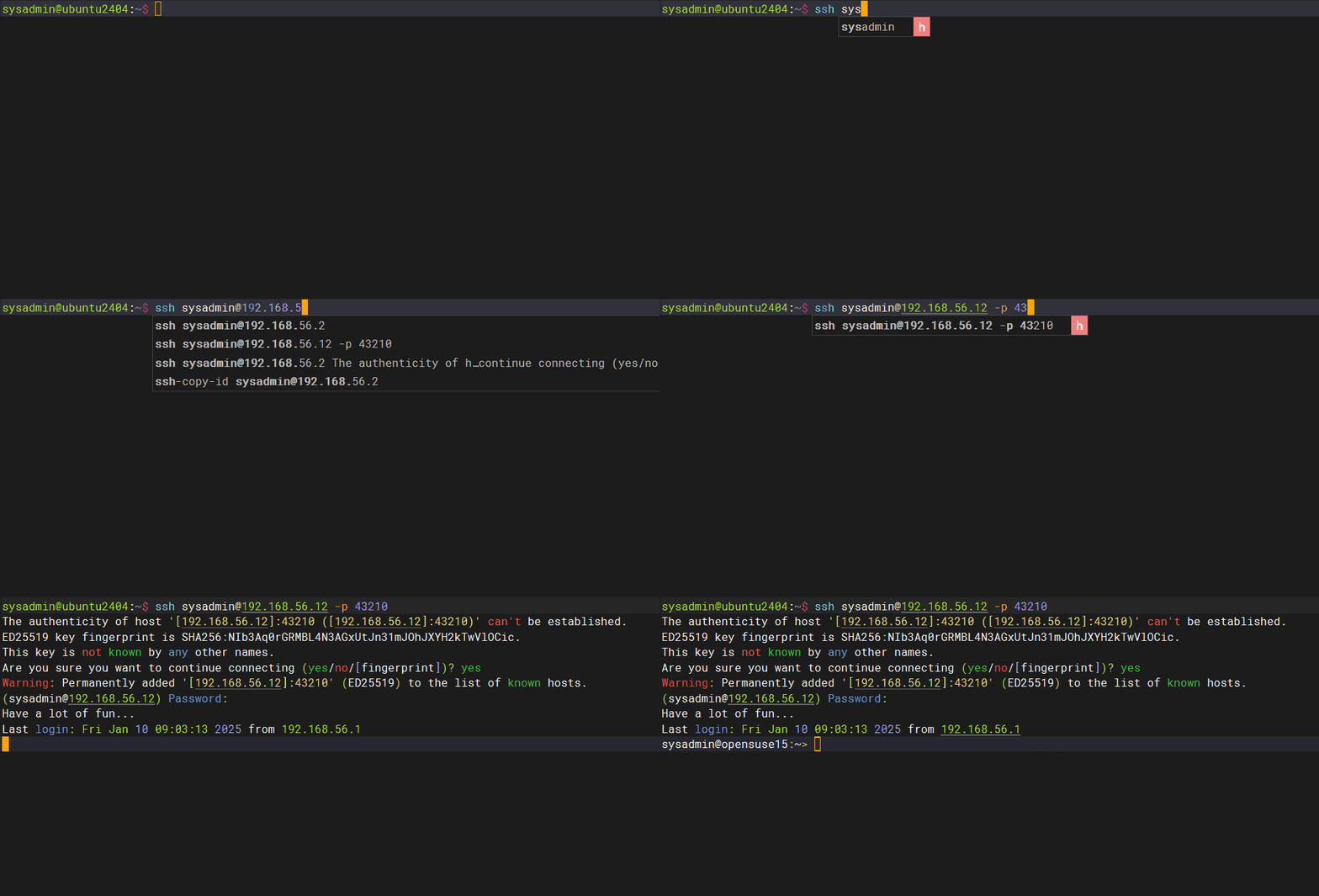
Putty is a tool created by Simon Tatham to access a device using SSH, Telnet, rlogin, and serial protocols. As of January 2025, the stable version of PuTTY is 0.82. You can visit this page to see the latest version and download PuTTY.  Just like accessing a Linux server via SSH from another server, if you access a Linux server using PuTTY, you will be asked to enter a username and password, as in the image below:

Access to the Linux server using PuTTY


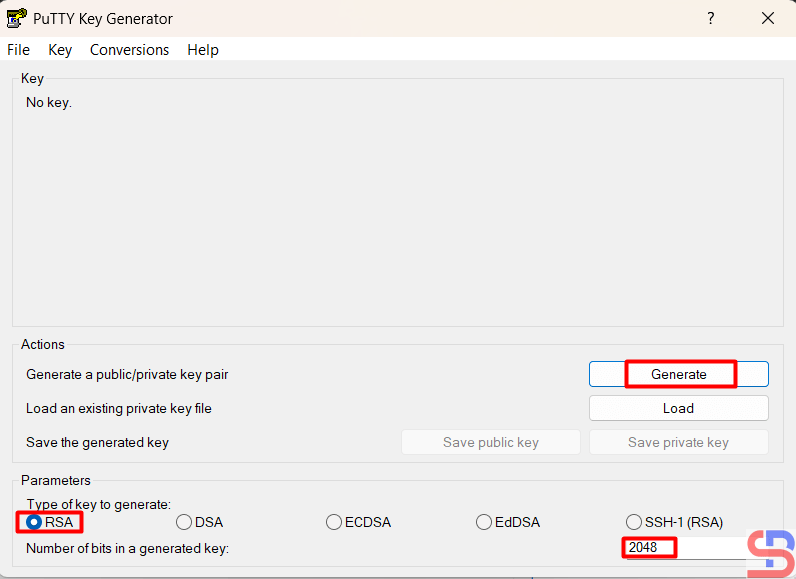
To set up passwordless SSH in Putty, download the Puttygen application here to create your private/public keypair. After that, run the Puttygen application and you can choose the key according to your wishes, but in this article, we use an RSA key with 2048 bits.

Choose the RSA key and click the Generate button


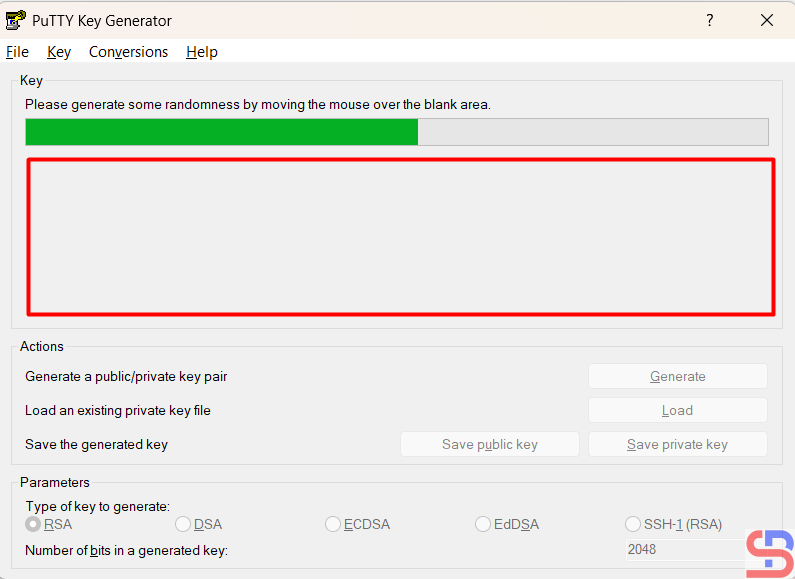
Press the Generate button and move your mouse randomly in the blank area of ​​this application until the key is generated. Please see the image below for more details:

Move your mouse randomly on the blank area


After that, press the save public key and save private key buttons to save the two keys on your computer. Press the Yes button if you are asked a question when you click the Save Private Key button. On your computer, there should be 2 keys as in the image below:

Two key files from puttygen


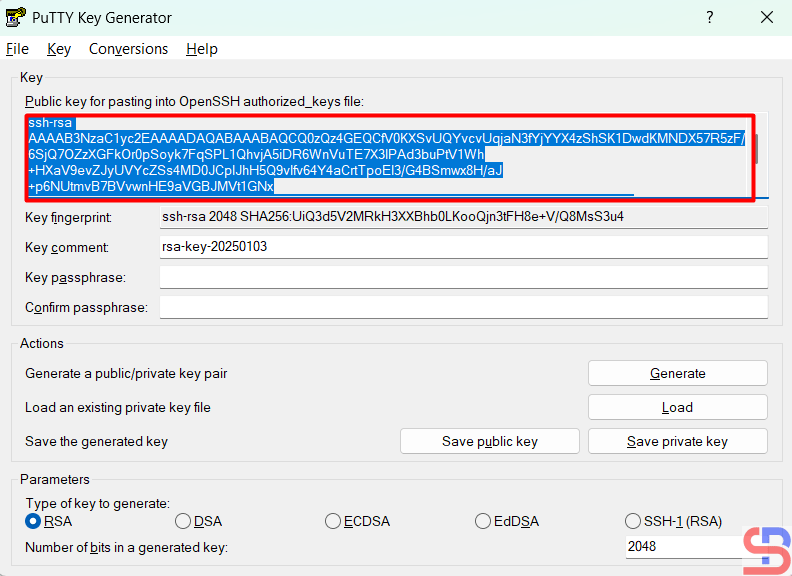
Then copy the public key by opening the public key file or copying it directly from Puttygen, as in the image below:

Copy the public key


After that, go to the remote server, open the .ssh/authorized_keys file, and enter the public key from Puttygen into that file:

Put the public key into the remote server


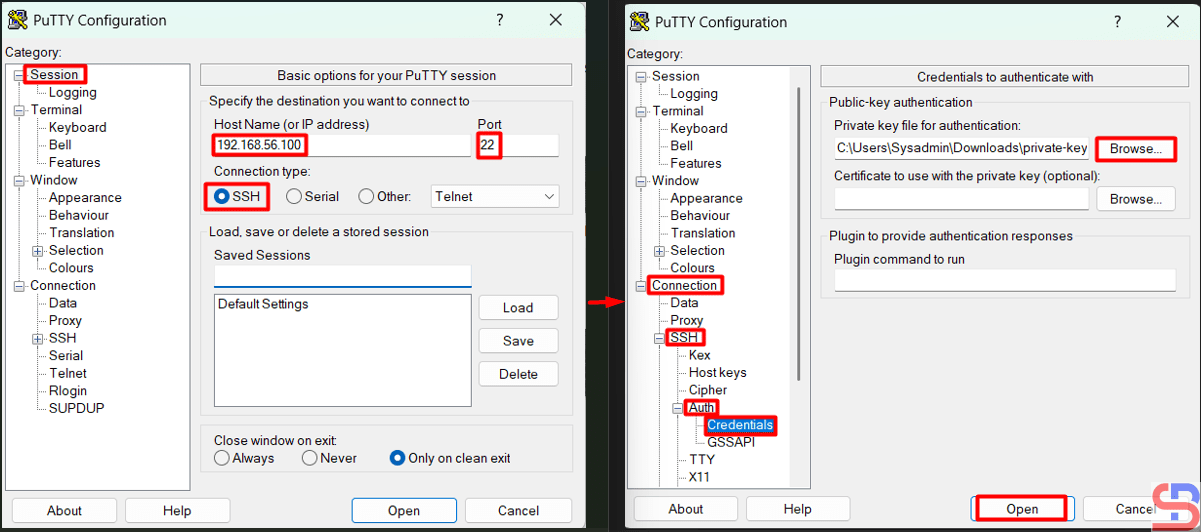
After that, try the remote server to test the SSH Passwordless login. Open Putty, then go to the Session and enter the IP of the remote server in the HostName section. After that, go to the Connection > Auth > Credentials > Browse section in the Private key file for the authentication section as in the image below:

Configure PuTTY to access the Linux server without a password


Press the Enter or Open button, and you should be able to access the server without having to enter a password as in the image below:

Steps to access the Linux server without a password using PuTTY

Note

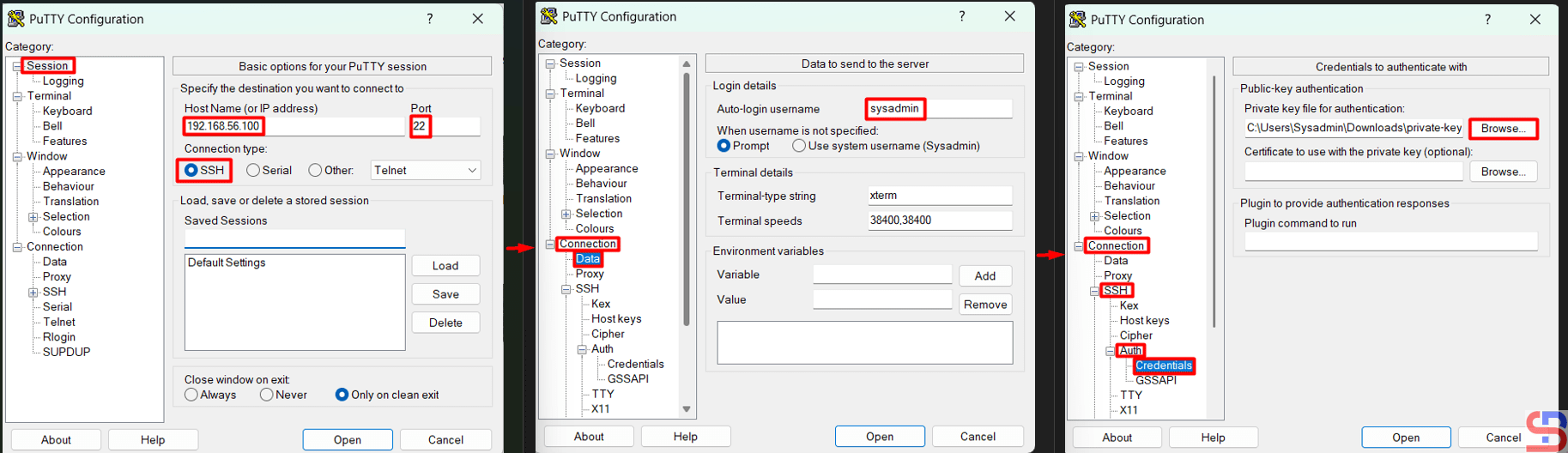
To speed up access to the Linux server, you can also not write your username to Putty by configuring it in Connection > Data > Enter your username in the Auto-login username column, as in the image below:

Steps to not write your username in Putty


Press the Enter or Open button, and you should be able to access the server without having to enter the username and password, as in the image below:

Steps to access the Linux server without a username and password using Putty


References

en.wikipedia.org
portal.nutanix.com
help.dreamhost.com
tecmint.com
filecloud.com


How to Allow Access to the Linux Server Only Using SSH Key Authentication?

By default, the Linux server will ask to enter a username and a password if someone accesses the server via SSH. However, the previous article explained that you can access the Linux server using the passwordless SSH login method. Now I want my Linux servers to only allow access via SSH key authentication or SSH passwordless login.


Problem

How to allow access to the Linux server only using SSH key authentication?


Solution

You can make the security of your Linux server stronger by restricting access to the Linux server using SSH key authentication. It means the remote server can only being able to accessed the server for those who already use SSH passwordless login, so that if another user wants to access the server, it will be rejected. To allow access to the Linux server only using SSH key authentication, change the configuration in the /etc/ssh/sshd_config file by looking for the line containing PasswordAuthentication and setting it to no, as in the script below:

PasswordAuthentication no


After that, restart the SSH service using the command below:

Ubuntu/Debian

systemctl restart ssh


RockyLinux/AlmaLinux/CentOS

systemctl restart sshd


You should not be able to access the server when you try to connect to it using SSH. This means your SSH configuration is correct. Below is an example of an error that occurs when accessing via Putty:

allow access to the Linux server only using SSH key authentication
Can not access the server from Putty


For example, in the previous article, the sysadmin user on the Ubuntu server could access the RockyLinux server because he had used SSH Passwordless Login as in the image below:

Can access the server from the Ubuntu server


I can not access the RockyLinux server if I access it via the OpenSUSE server, as in the image:

Can not access the server from the OpenSUSE server


If you want to add another user to be able to access the server, you have to copy the .ssh/id_rsa.pub file and put it into the remote server in the .ssh/authorized_keys file. You can use the help of a user who can access the server to put the file. Look at the image below, where I have included the id_rsa.pub file for the sysadmin user on the OpenSUSE server on the RockyLinux server:

allow access to the Linux server only using SSH key authentication
Put the id_rsa.pub into the remote server


I tried to connect again to the RockyLinux server using the sysadmin user on the OpenSUSE server. I can access the server as shown in the image below:

allow access to the Linux server only using SSH key authentication
Can access the server from the OpenSUSE server

Note

Make sure the remote server already contains authorized_keys files from other servers so that it doesn’t make things difficult for you in the future.


References

strongdm.com
tecmint.com
linuxize.com


How to Set Up Passwordless SSH Login?

As a sysadmin, remote to a Linux server is a daily job to perform various checks on a Linux server. By default, if a sysadmin accesses a server, the sysadmin must enter a username and password. However, when the sysadmin has many servers, it is sometimes difficult for the sysadmin to enter the password for each server, especially if each server has a different password. Therefore, it needs to be made so that SSH does not need to enter a password when accessing a Linux server via SSH.


Problem

How to set up passwordless SSH Login?


Solution

There are 3 steps to setting up passwordless SSH:

1. Generate a key pair

Use ssh-keygen to generate a key pair consisting of a public key and a private key on the client computer:

ssh-keygen -t rsa


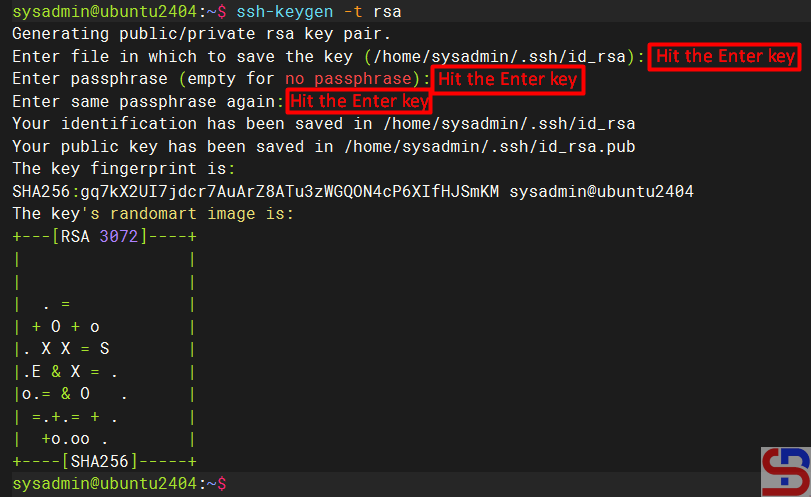
The -t rsa option specifies that the type of the key should be the RSA algorithm. Hit Enter to accept the default.

Running the ssh-keygen command

2. Upload the public key to the remote server

Use ssh-copy-id to propagate the public key to the server:

ssh-copy-id remote_username@remote_server_ip_address

For example, if you want to upload it to the server 192.168.56.2 with the username sysadmin, then use the command below:

ssh-copy-id sysadmin@192.168.56.2


Type yes when prompted and type the password for the remote server.

set up passwordless SSH
Running the ssh-copy-id command


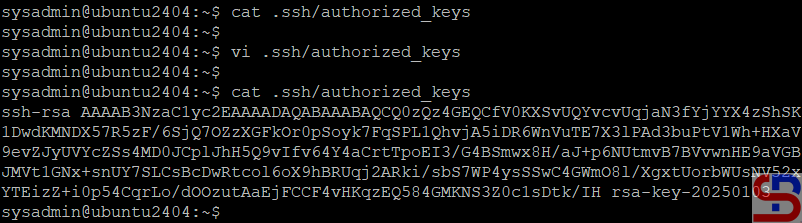
For your information, the id_rsa.pub file will be saved in the .ssh/authorized_keys file on the remote server, like in the image below:

set up passwordless SSH
The authorized_keys file


3. Test login via SSH

Try to connect to the server using SSH, you should be able to directly access the server without entering the password first. For example, I have 2 Linux servers, each of which uses Ubuntu OS with IP 192.168.56.100 and RockyLinux OS with IP 192.168.56.2. I want to access the RockyLinux server from the Ubuntu server without entering a password. I ran the three steps above to set up passwordless SSH on an Ubuntu server, and the results are as in the image below:

set up passwordless SSH
Access the server without entering a username and password

From the image above, you can see that I can directly access the server without entering the server password.


Note

By default, the system will generate a 2048-bit key in the first step when you run the ssh-keygen command. However, if you want to be more secure, you can use 4096-bit encryption by using the command below:

ssh-keygen -t rsa -b 4096


Besides RSA, you can also use several other public key algorithms, such as ECDSA or ED25519. Elliptic Curve Digital Signature Algorithm, or ECDSA, is one of the more complex public key cryptography encryption algorithms that supports three key sizes: 256, 384, and 521 bits. You can use the command below when using ECDSA:

ssh-keygen -t ecdsa -b 521


Ed25519 is an elliptic curve signing algorithm using EdDSA and Curve25519, and this is a new algorithm added in OpenSSH. You can use the command below when using ed25519:

ssh-keygen -t ed25519

Unfortunately, support for this among clients is not yet universal. Therefore, its use in general-purpose applications may not be advisable.


References

strongdm.com
phoenixnap.com
ssh.com
encryptionconsulting.com
cryptography.io