As a sysadmin, remote to a Linux server is a daily job to perform various checks on a Linux server. By default, if a sysadmin accesses a server, the sysadmin must enter a username and password. However, when the sysadmin has many servers, it is sometimes difficult for the sysadmin to enter the password for each server, especially if each server has a different password. Therefore, it needs to be made so that SSH does not need to enter a password when accessing a Linux server via SSH.
Problem
How to set up passwordless SSH Login?
Solution
There are 3 steps to setting up passwordless SSH:
1. Generate a key pair
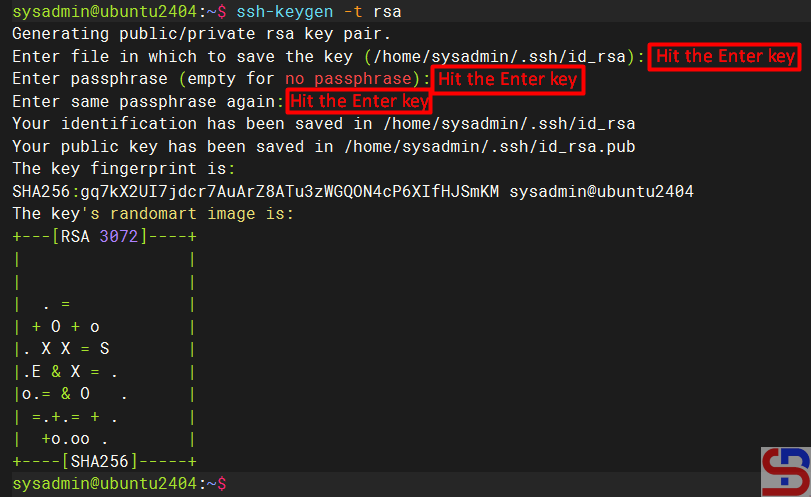
Use ssh-keygen to generate a key pair consisting of a public key and a private key on the client computer:
ssh-keygen -t rsa
The -t rsa option specifies that the type of the key should be the RSA algorithm. Hit Enter to accept the default.
2. Upload the public key to the remote server
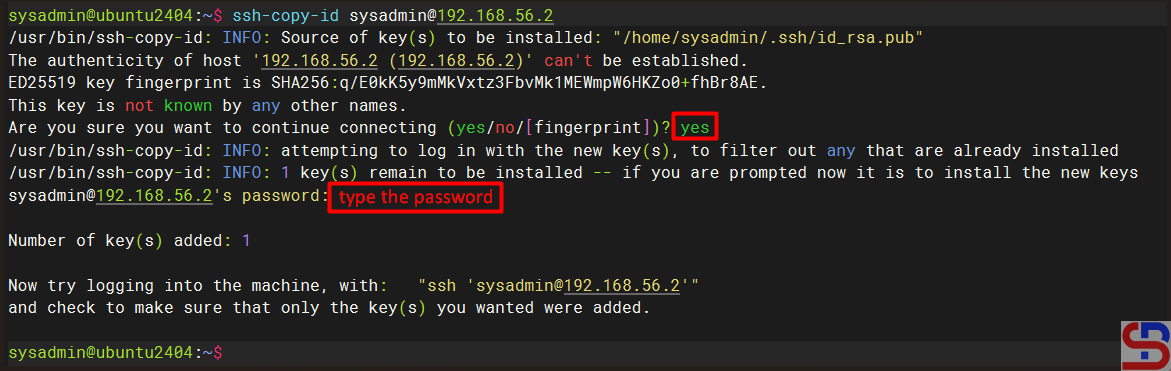
Use ssh-copy-id to propagate the public key to the server:
ssh-copy-id remote_username@remote_server_ip_address
For example, if you want to upload it to the server 192.168.56.2 with the username sysadmin, then use the command below:
ssh-copy-id sysadmin@192.168.56.2
Type yes when prompted and type the password for the remote server.
For your information, the id_rsa.pub file will be saved in the .ssh/authorized_keys file on the remote server, like in the image below:

3. Test login via SSH
Try to connect to the server using SSH, you should be able to directly access the server without entering the password first. For example, I have 2 Linux servers, each of which uses Ubuntu OS with IP 192.168.56.100 and RockyLinux OS with IP 192.168.56.2. I want to access the RockyLinux server from the Ubuntu server without entering a password. I ran the three steps above to set up passwordless SSH on an Ubuntu server, and the results are as in the image below:

From the image above, you can see that I can directly access the server without entering the server password.
Note
By default, the system will generate a 2048-bit key in the first step when you run the ssh-keygen command. However, if you want to be more secure, you can use 4096-bit encryption by using the command below:
ssh-keygen -t rsa -b 4096
Besides RSA, you can also use several other public key algorithms, such as ECDSA or ED25519. Elliptic Curve Digital Signature Algorithm, or ECDSA, is one of the more complex public key cryptography encryption algorithms that supports three key sizes: 256, 384, and 521 bits. You can use the command below when using ECDSA:
ssh-keygen -t ecdsa -b 521
Ed25519 is an elliptic curve signing algorithm using EdDSA and Curve25519, and this is a new algorithm added in OpenSSH. You can use the command below when using ed25519:
ssh-keygen -t ed25519Unfortunately, support for this among clients is not yet universal. Therefore, its use in general-purpose applications may not be advisable.
References
strongdm.com
phoenixnap.com
ssh.com
encryptionconsulting.com
cryptography.io

