VirtualBox has a feature where you can access the files on a folder in your host from your virtual machine. For example, your host is Windows and you want to send some files to your Windows virtual machine.
Problem
How to share a folder between a Windows host and a Windows guest in VirtualBox?
Solution
You can view or change the files from your host system from within the guest system using Oracle VM VirtualBox’s shared folders capability. Shared folders physically reside on the host and are then shared with the guest, which uses a special file system driver in the Guest Additions to talk to the host. For Windows guests, shared folders are implemented as a pseudo-network redirector and the Guest Additions provide a virtual file system For Linux and Oracle Solaris guests. I use VirtualBox version 7.1.4 in this article and below are the steps so that you can share a folder between a Windows host and a Windows guest in VirtualBox:
A. In the Host
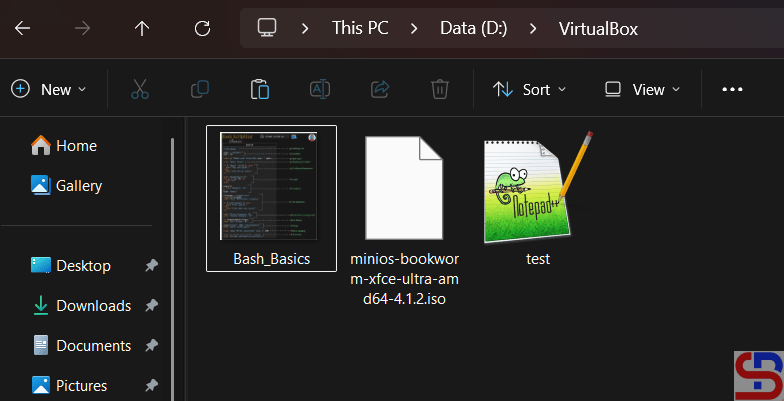
Create a folder on your host and I create a VirtualBox folder on drive D like in the image below:
B. In the Guest (VirtualBox)
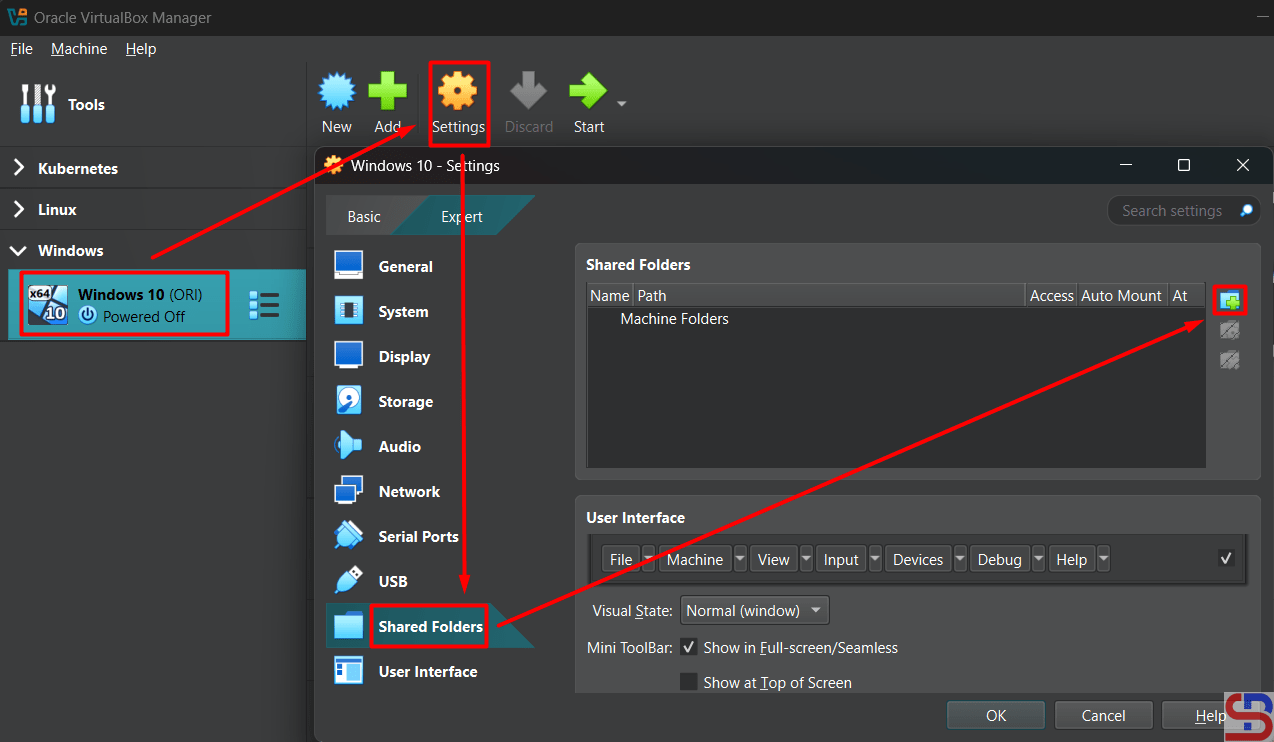
To connect the folder, you need the driver to connect them and the driver has been provided by VirtualBox that is available in an ISO file. Go to this page to install the driver. After you install the driver, configure the shared folder in VirtualBox. Go to Settings – Shared Folders and click the icon like in the image below:
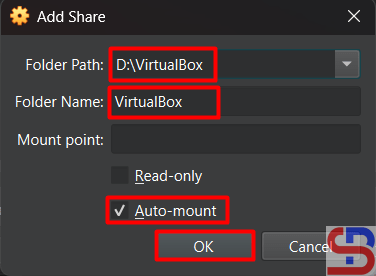
Fill the columns like in the image below:
Click the OK button and the shared folder will appear like in the image below:
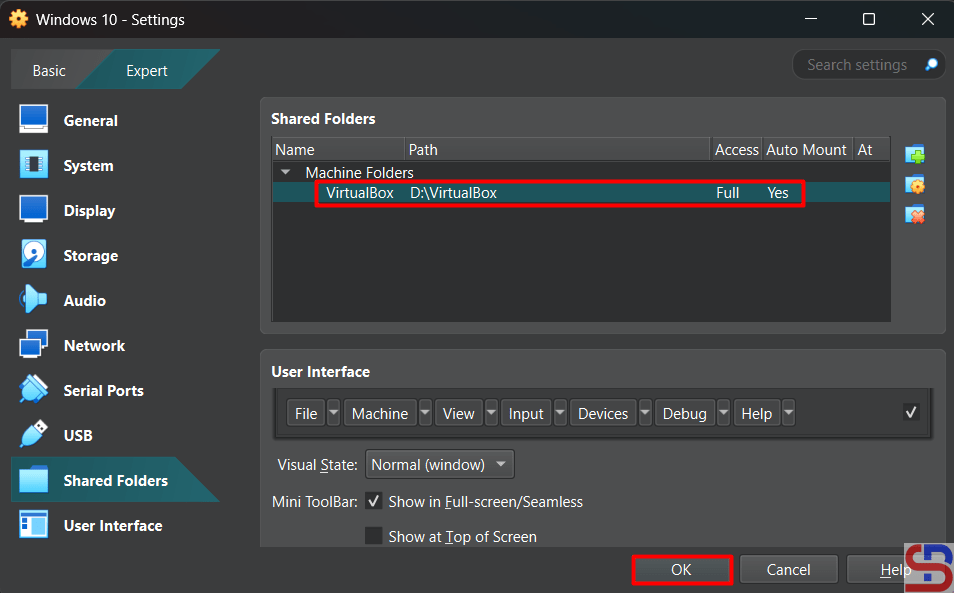
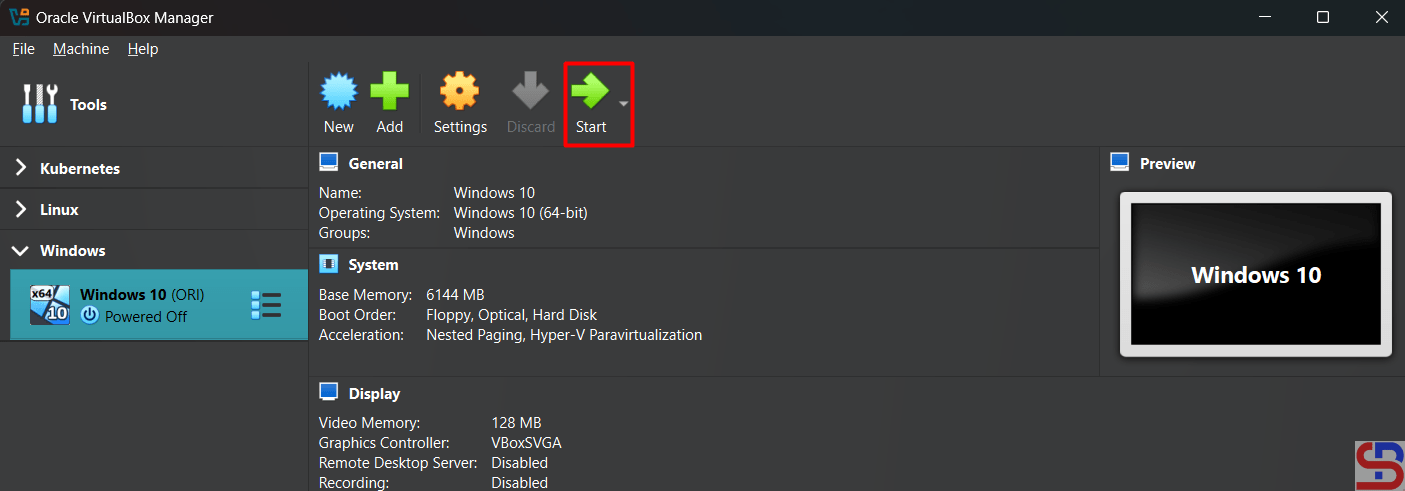
Click the OK button. After that, turn on your virtual machine by clicking the Start button like in the image below:
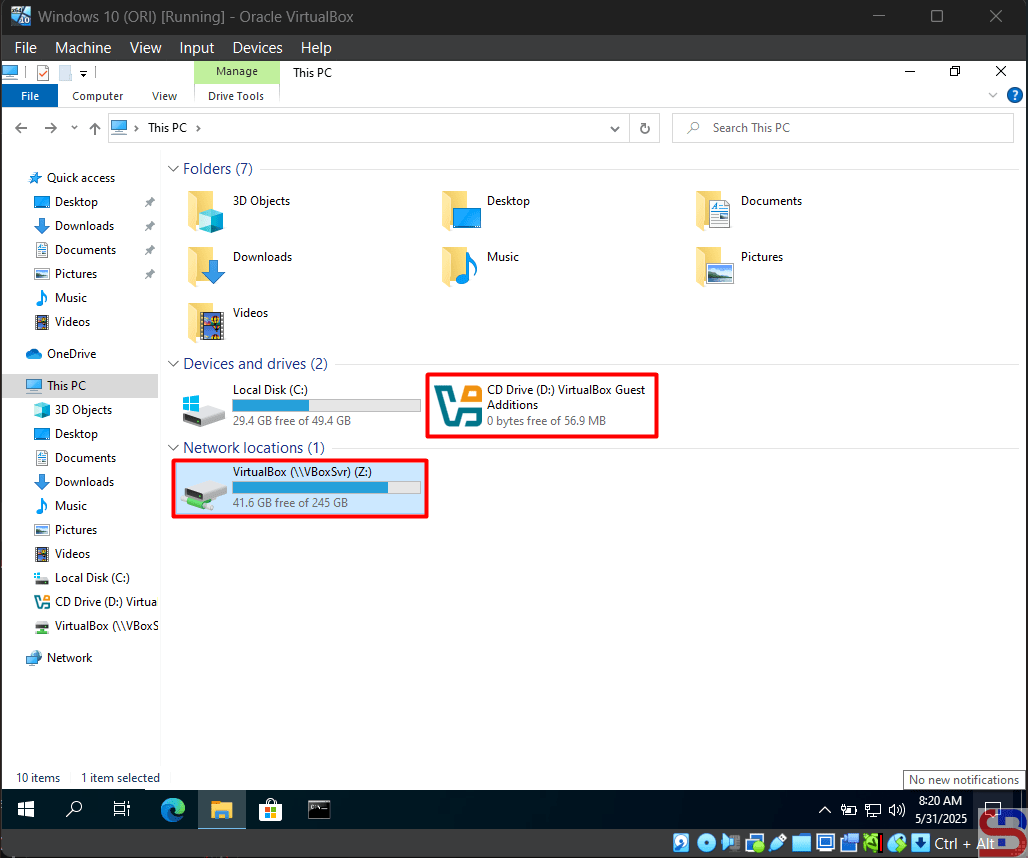
Go to This PC page and you will see the view in the image below:
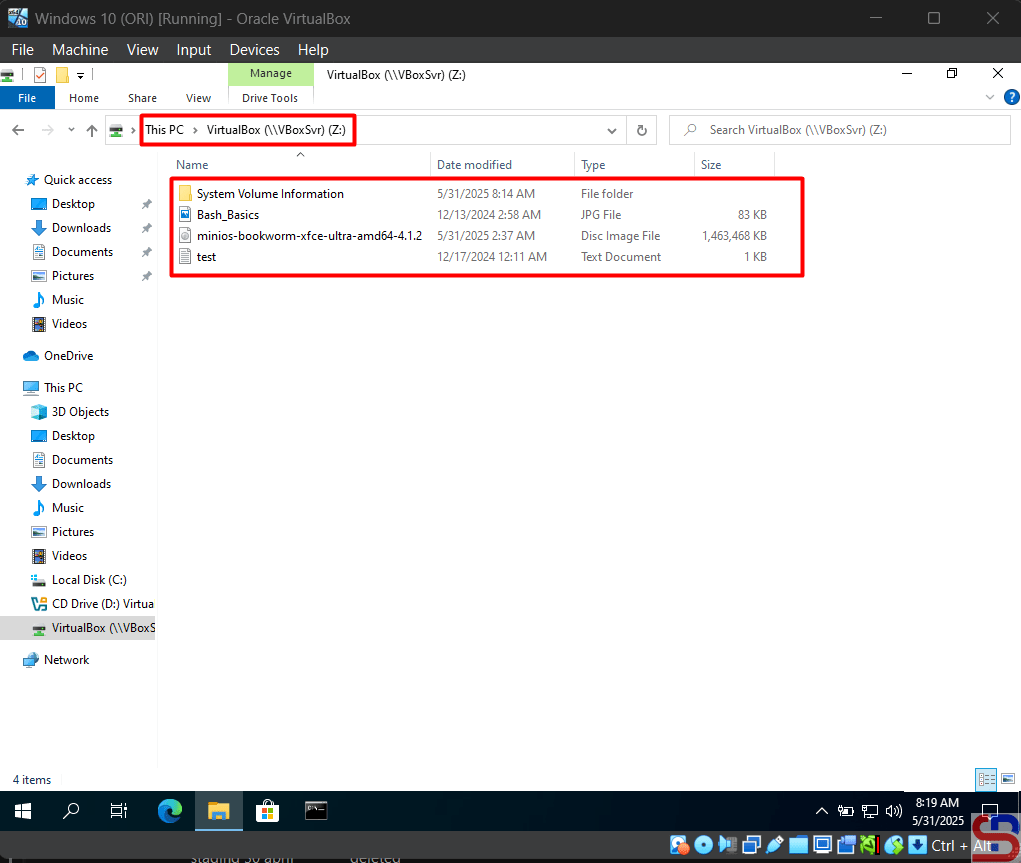
Double-click the VirtualBox (Z:) and you should be able to access the folder like in the image below:
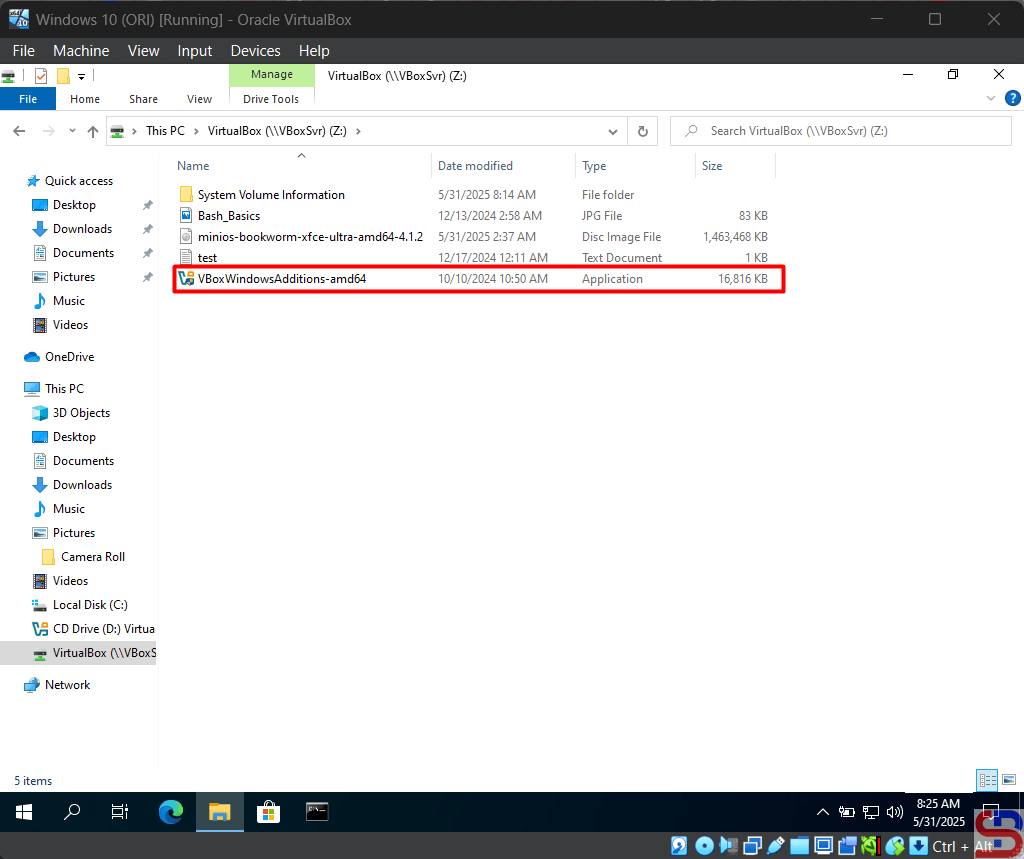
Now, you can access the shared folder and you should add the file like in the image below:
Note
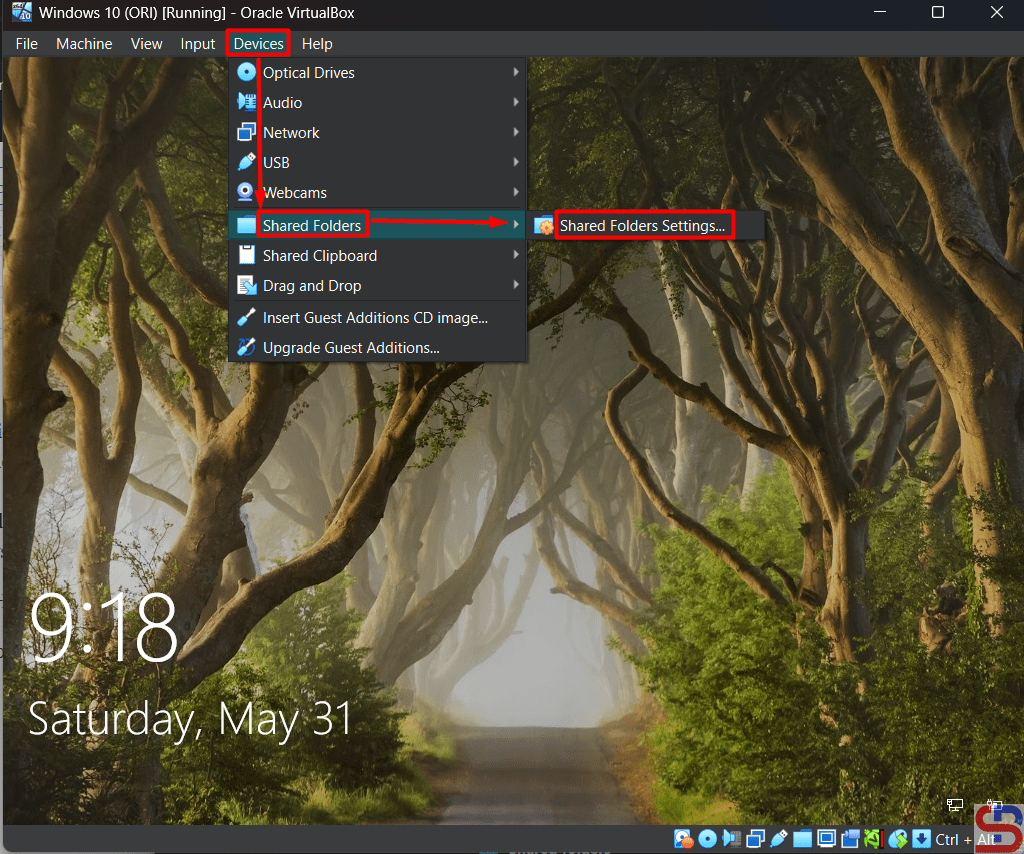
You can configure the shared folder or mount the iso after you turn on the virtual machine like in the image below:
References
virtualbox.org
youtube.com
docs.oracle.com
blogs.oracle.com

