The previous article explained how to create a passwordless SSH login. However, the article is useful if a sysadmin accesses a Linux server through another Linux server. In general, many sysadmins use PuTTY to access their Linux servers.
Problem
How to set up passwordless SSH in Putty?
Solution
Putty is a tool created by Simon Tatham to access a device using SSH, Telnet, rlogin, and serial protocols. As of January 2025, the stable version of PuTTY is 0.82. You can visit this page to see the latest version and download PuTTY. Just like accessing a Linux server via SSH from another server, if you access a Linux server using PuTTY, you will be asked to enter a username and password, as in the image below:

To set up passwordless SSH in Putty, download the Puttygen application here to create your private/public keypair. After that, run the Puttygen application and you can choose the key according to your wishes, but in this article, we use an RSA key with 2048 bits.
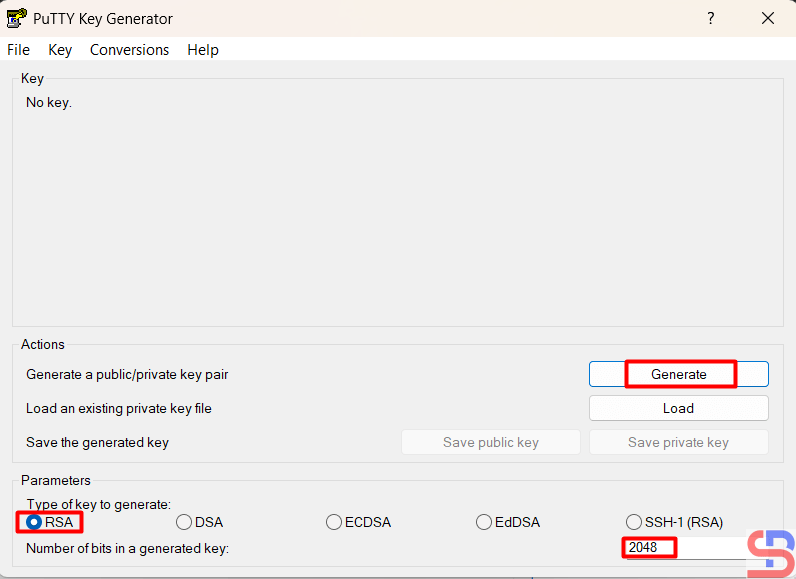
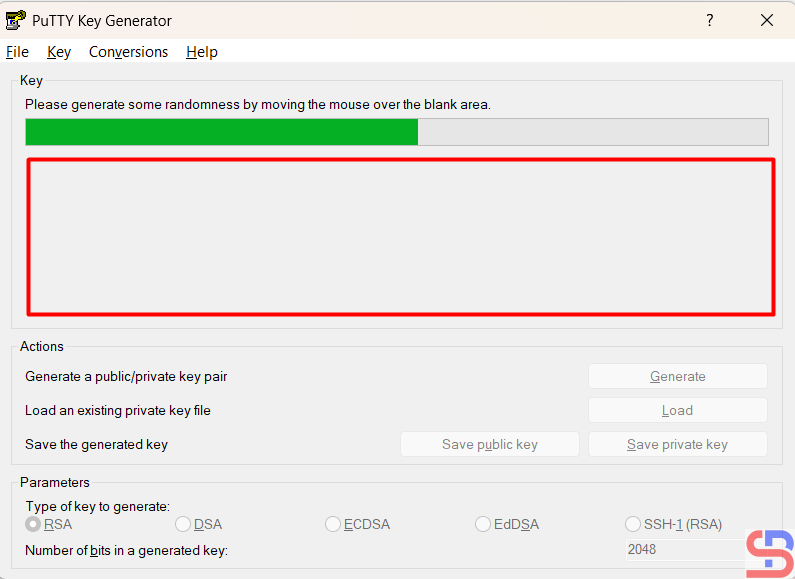
Press the Generate button and move your mouse randomly in the blank area of this application until the key is generated. Please see the image below for more details:
After that, press the save public key and save private key buttons to save the two keys on your computer. Press the Yes button if you are asked a question when you click the Save Private Key button. On your computer, there should be 2 keys as in the image below:

Then copy the public key by opening the public key file or copying it directly from Puttygen, as in the image below:
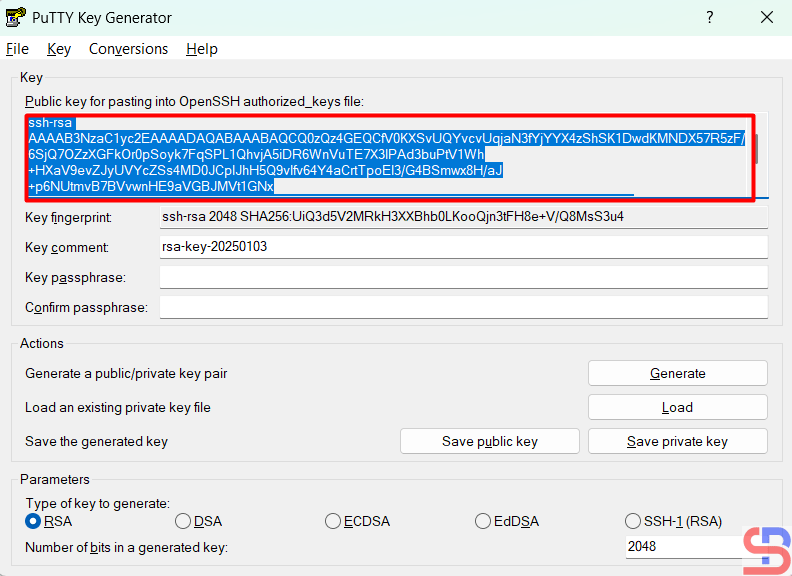
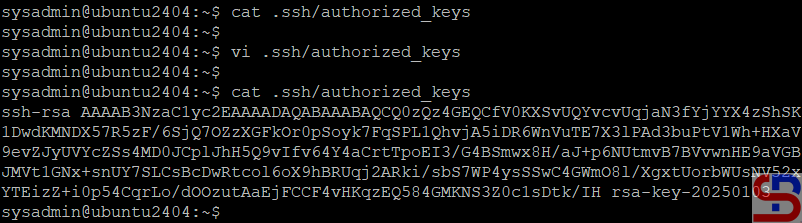
After that, go to the remote server, open the .ssh/authorized_keys file, and enter the public key from Puttygen into that file:
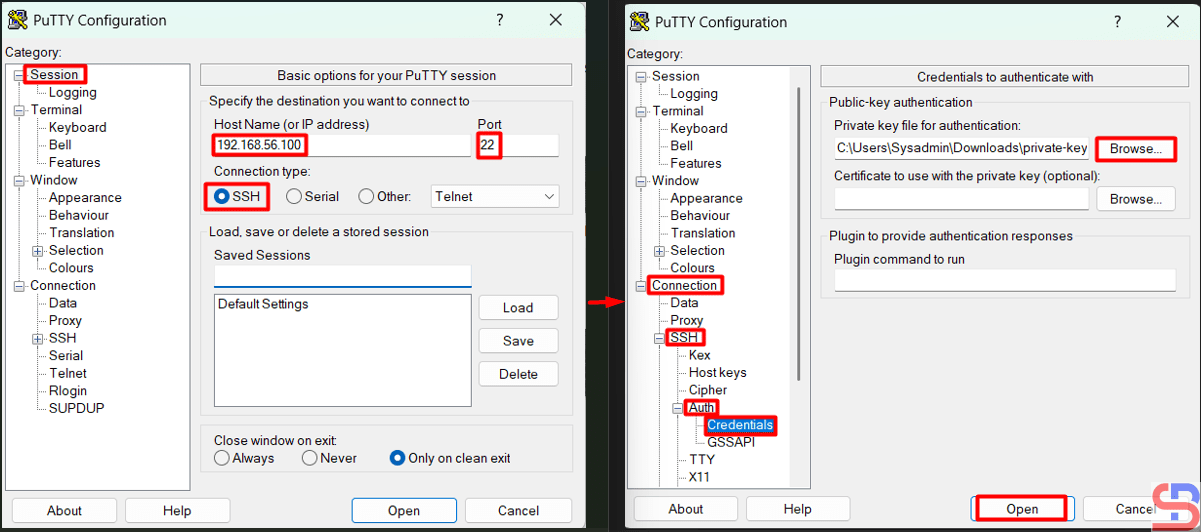
After that, try the remote server to test the SSH Passwordless login. Open Putty, then go to the Session and enter the IP of the remote server in the HostName section. After that, go to the Connection > Auth > Credentials > Browse section in the Private key file for the authentication section as in the image below:
Press the Enter or Open button, and you should be able to access the server without having to enter a password as in the image below:

Note
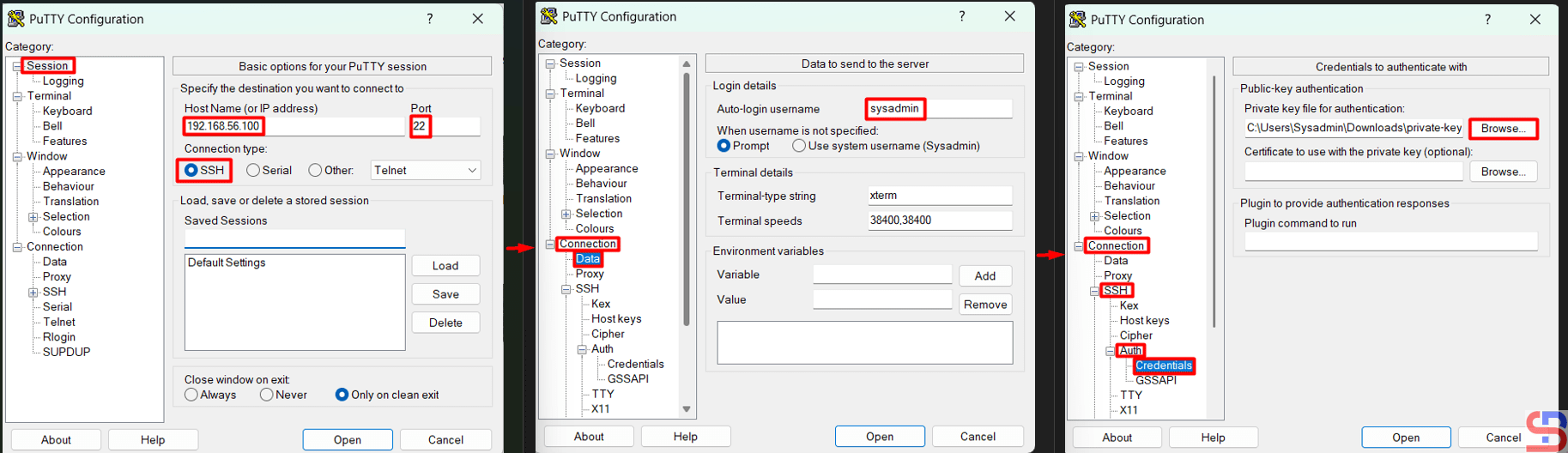
To speed up access to the Linux server, you can also not write your username to Putty by configuring it in Connection > Data > Enter your username in the Auto-login username column, as in the image below:
Press the Enter or Open button, and you should be able to access the server without having to enter the username and password, as in the image below:

References
en.wikipedia.org
portal.nutanix.com
help.dreamhost.com
tecmint.com
filecloud.com

