Zabbix is an open-source software tool to monitor IT infrastructure such as networks, servers, virtual machines, and cloud services.
Problem
How to install Zabbix in Ubuntu?
Solution
Zabbix was first released in 2001, and as of this writing in October 2025, Zabbix has version 7.4. This article will explain how to install Zabbix on an Ubuntu server by using MariaDB and Apache databases.
A. Install Zabbix
Run the commands below to install Zabbix on Ubuntu:
wget https://repo.zabbix.com/zabbix/7.4/release/ubuntu/pool/main/z/zabbix-release/zabbix-release_latest_7.4+ubuntu24.04_all.deb
sudo dpkg -i zabbix-release_latest_7.4+ubuntu24.04_all.deb
sudo apt update
sudo apt install zabbix-server-mysql zabbix-frontend-php zabbix-apache-conf zabbix-sql-scripts zabbix-agent
B. Database Configuration
If your Ubuntu doesn’t have a database, then you can use the MariaDB database by using the command:
sudo apt install mariadb-server
Then, create a password for root in MariaDB using the command:
sudo mariadb-secure-installation
After that, enter MariaDB using the command:
sudo mariadb -uroot -p
Run the commands below (change the password to what you want):
create database zabbix character set utf8mb4 collate utf8mb4_bin;
create user zabbix@localhost identified by 'password';
grant all privileges on zabbix.* to zabbix@localhost;
set global log_bin_trust_function_creators = 1;
quit;
Run the command below to import the initial schema and data, and enter the password you created when you created the Zabbix database in MariaDB:
zcat /usr/share/zabbix/sql-scripts/mysql/server.sql.gz | mysql --default-character-set=utf8mb4 -uzabbix -p zabbix
Then log in to MariaDB again using the command:
sudo mariadb -uroot -p
Run the command below to disable the log_bin_trust_function_creators option after importing the database schema.
set global log_bin_trust_function_creators = 0;
quit;
C. Configure the Zabbix file
After that, you will configure the zabbix file located in /etc/zabbix/zabbix_server.conf. It’s better if you copy the original file as a backup by running the command below:
sudo cp /etc/zabbix/zabbix_server.conf /etc/zabbix/zabbix_server.conf.ori
Fill in the DBPassword section of the file with the password you created for the Zabbix user, so that it is as follows:

Then run the two commands below:
systemctl restart zabbix-server zabbix-agent apache2
systemctl enable zabbix-server zabbix-agent apache2
D. Configure Zabbix
Open your browser and type in the URL below:
http://your_ip_server/zabbix
Then there will be a display like the image below:
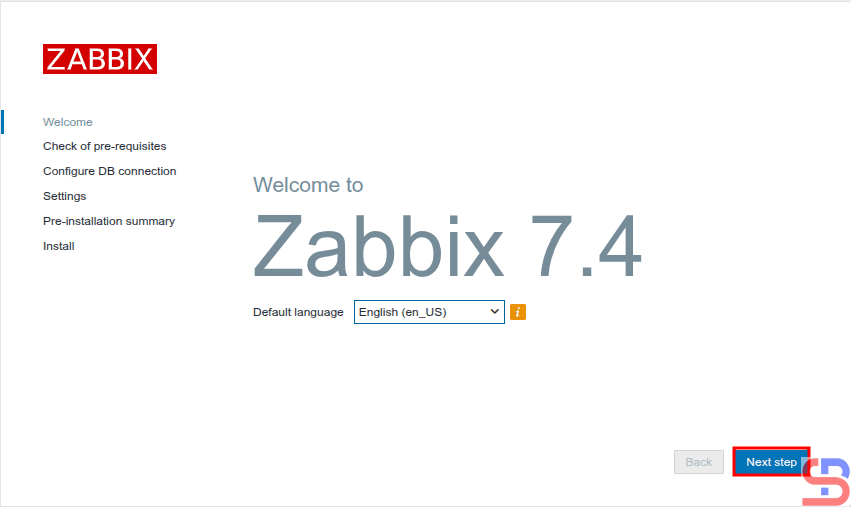
Click the Next step button, and a display similar to the picture below will be present:
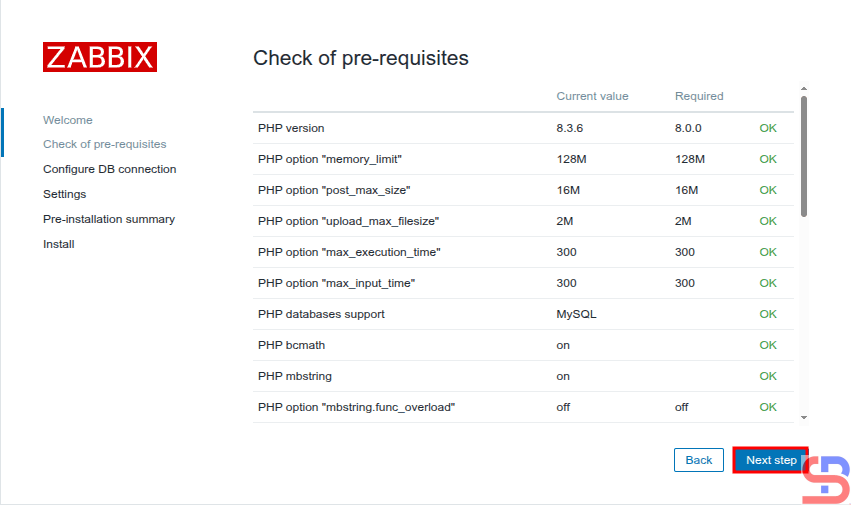
Make sure there is no error like in the image above. After that, click the Next step button, and there will be a screen similar to the one below:
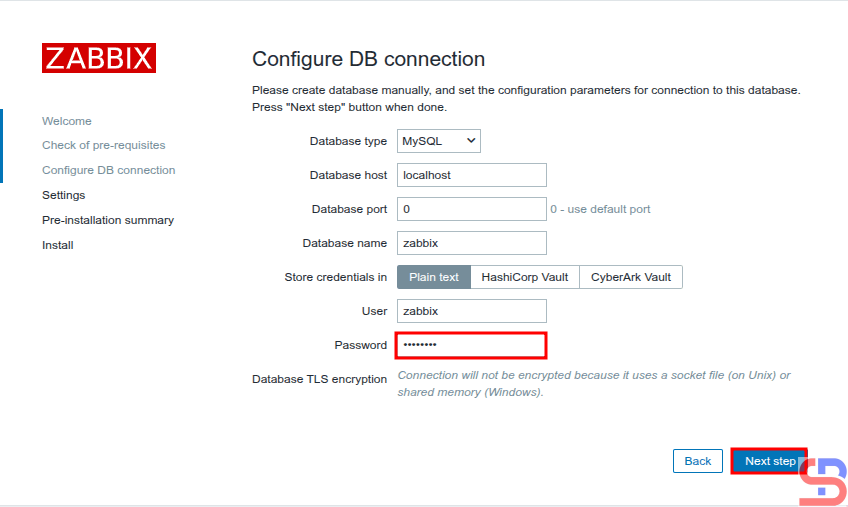
Enter your database password using the Zabbix user, click the Next step button, and a screen similar to the one below will be presented:
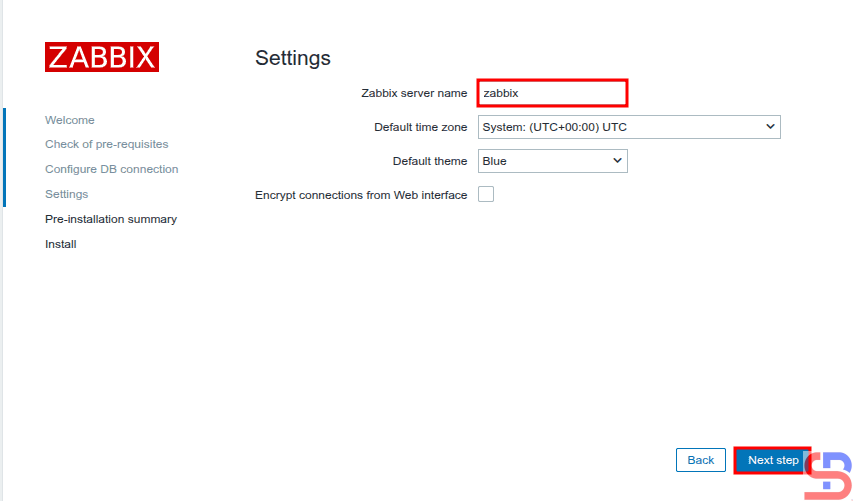
Enter the name of the Zabbix server you want, click the Next step button, and there will be a display like the image below:

Click the Next step button, and there will be a display similar to the image shown below.
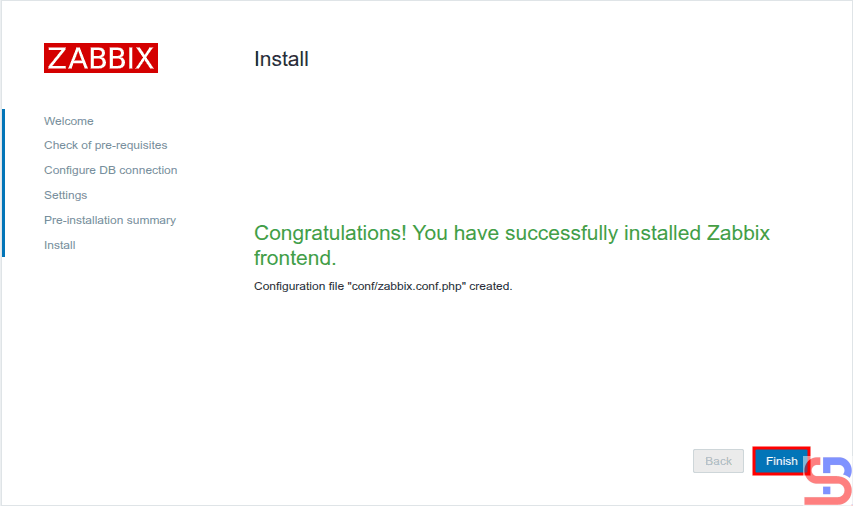
Click the Finish button, and a screen like the one shown below will appear.

For your information, the initial username for Zabbix is Admin and the initial password is zabbix. After you enter the username and password, click the Sign in button, and there will be a display like the image below:
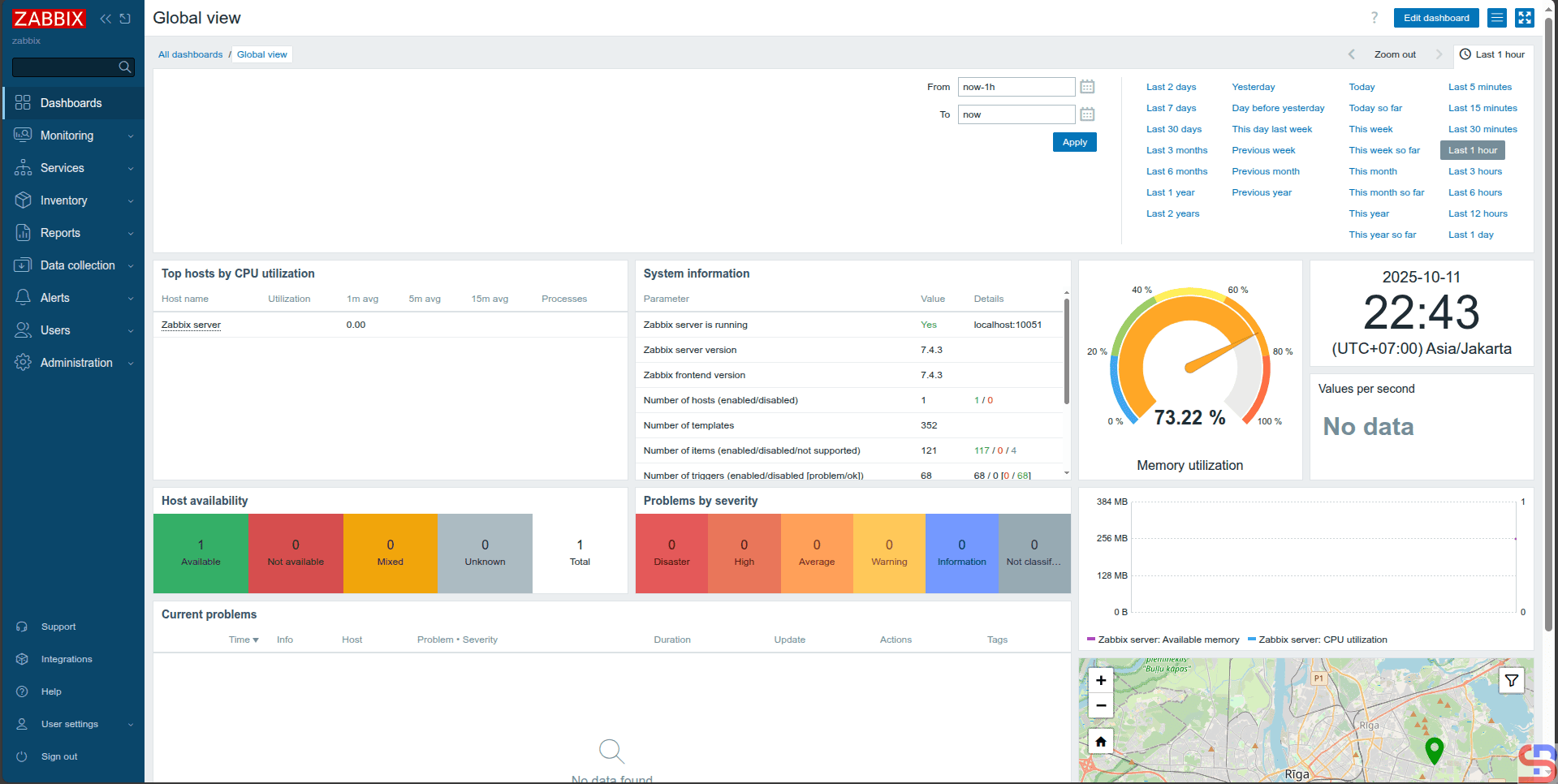
You have successfully installed the Zabbix application on your Ubuntu server.
Note
To install Zabbix on a different operating system, you can go to this page to see how to install Zabbix on your server.
References
en.wikipedia.org
zabbix.com
medium.com

