After you install Docker and learn some basic Docker commands to set up a container, this article will explain how to access a container in Docker.
Problem
How to access a container in Docker?
Solution
There are 2 ways to access a container in Docker:
A. Via CLI
If you want to access a container in Docker, use the format below:
docker exec -it container_id/container_name shell
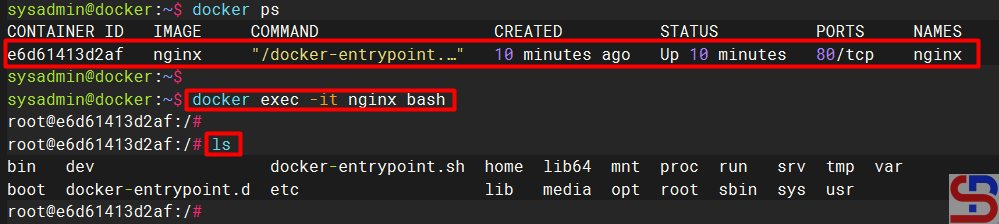
where the -i option is interactive to keep the input active, the -t option is an argument for pseudo -tty (terminal access) allocation, and shell is the program contained in the container and it can be different to be different to the code used in the container likes bash or sh shell, but for more details, please look at the documentation of each image). For example, there is an nginx container that is running, and if you want to access the nginx container, you can use the command below:
docker exec -it nginx bash
After that, you should be able to access the container as shown below:
If you want the results of the command in the container to be shown on the server, then use the format below:
docker exec container_name/container_id bash -c "your-linux-commands"
For example, use the command below:
docker exec webapp1 bash -c "ls -al /bin/sync; echo; ls -al /usr"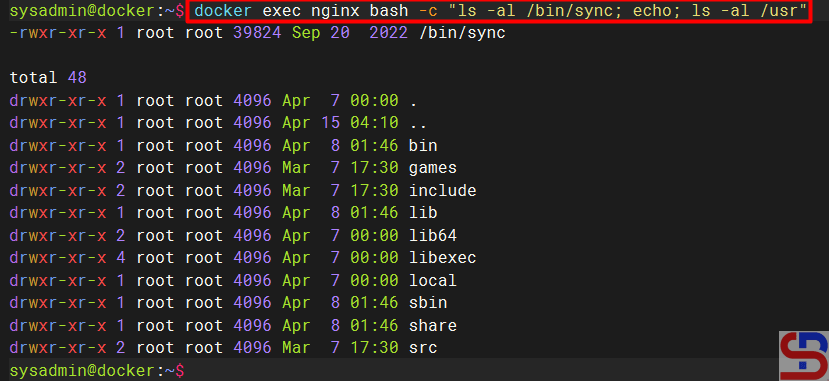
Or you can also use the format below if you only run a command in the container:
docker exec container_name/container_id linux-command
For example, use the command below:
docker exec nginx ls -al /usr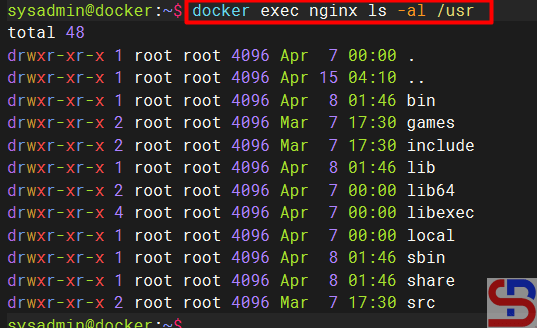
B. Via website
You can access a container through the website, but this method only produces applications that run in the container on the website and do not run commands in the container. Usually, these containers use a web server image such as Apache or Nginx, or applications made by developers. If you want to run these applications and access the application in the browser, use the format below:
docker container run -d --name container_name -p port_server:port_container image_name:tag
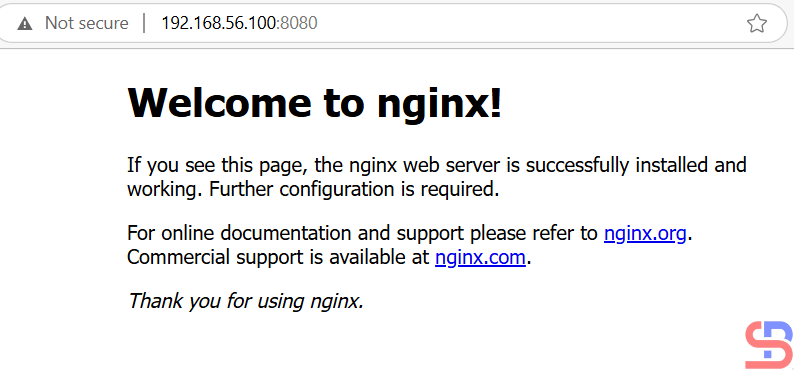
For example, you want to run an nginx container whose application can be seen by using port 8080 on the server, then use the command below:
docker container run -d --name webapp1 -p 8080:80 nginx
Open your browser and type the url below:
http://your_ip_server:8080
There should be a display as below:
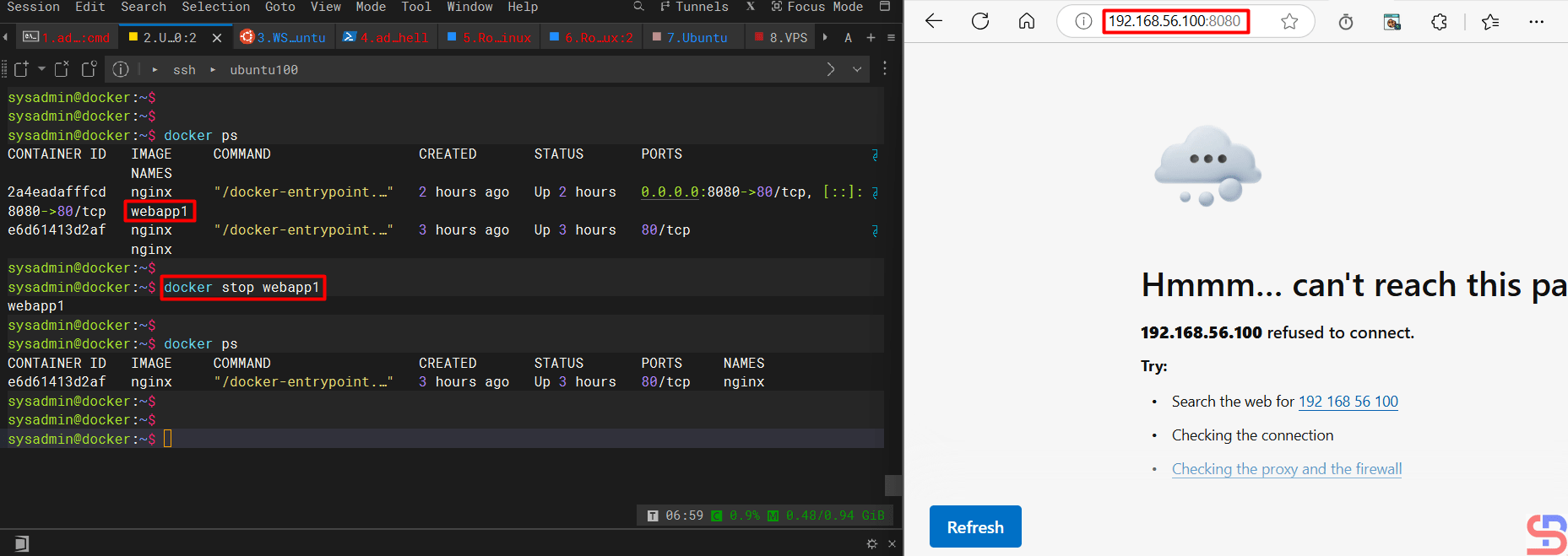
If you stop the container, then the application cannot be accessed through a browser as below:
Note
You can also access a database installed in a container using the commands in this article.
References
docs.docker.com
spacelift.io
youtube.com

