How to Share a Folder Between a Windows Host and a Linux Guest in VirtualBox?

The previous article explained how a folder is shared between a Windows host and a Windows guest in VirtualBox. This article will explain how to share a folder between a Windows host and a Linux guest in VirtualBox.


Problem

How to share a folder between a Windows host and a Linux guest in VirtualBox?


Solution

I use VirtualBox version 7.1.4 in this article and below are the steps so that you can share a folder between a Windows host and a Windows guest in VirtualBox:

A. In the Host

Create a folder on your host and I create a VirtualBox folder on drive D like in the image below:
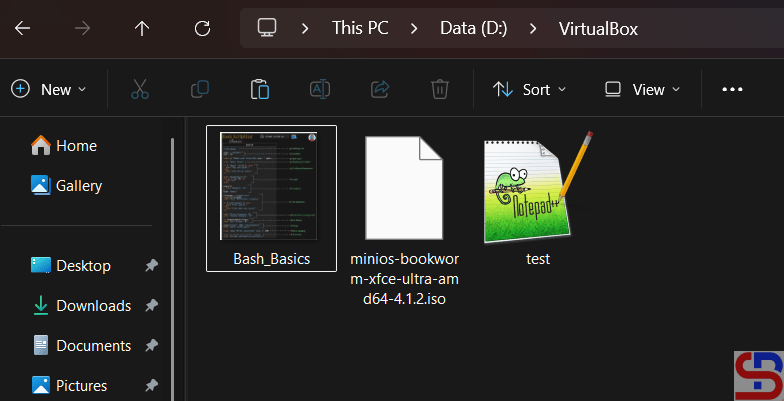
The shared folder


B. In the Guest

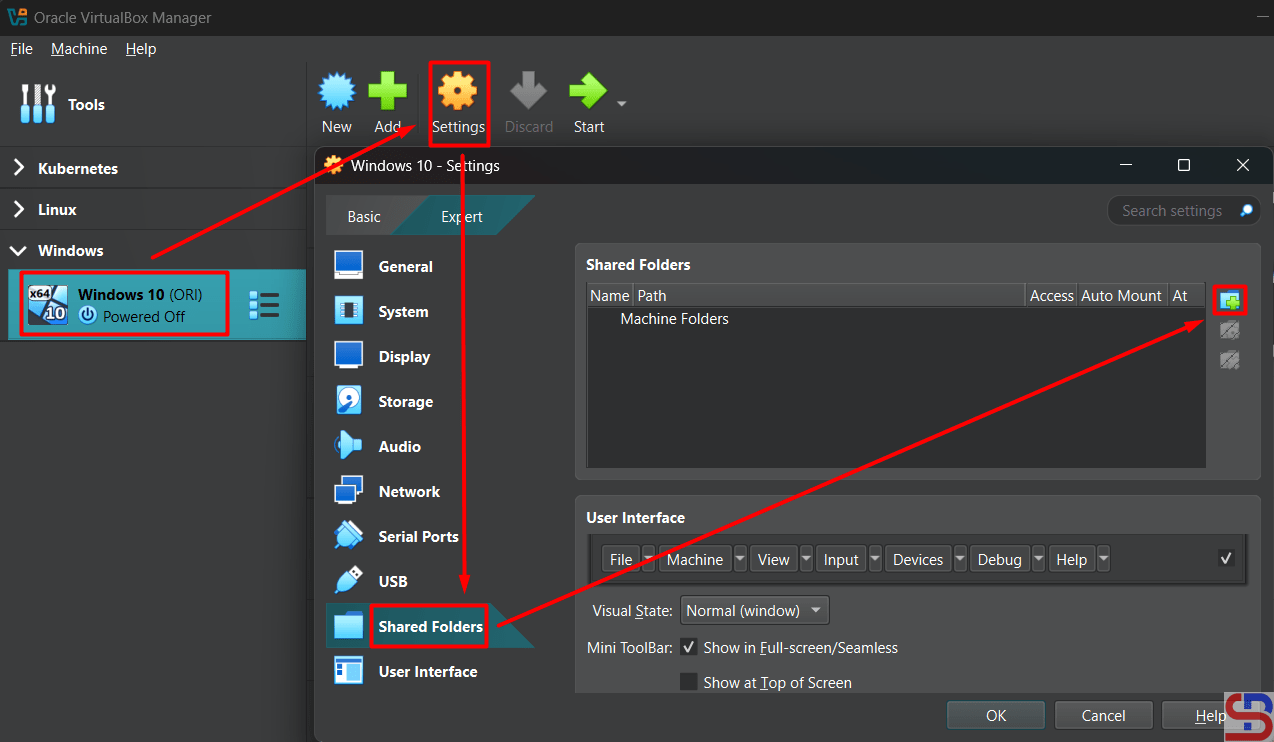
You don’t need to install a driver if you use Linux as a guest. You need to configure the shared folder in VirtualBox. Go to SettingsShared Folders and click the icon like in the image below:

Click the icon in the Shared Folders section


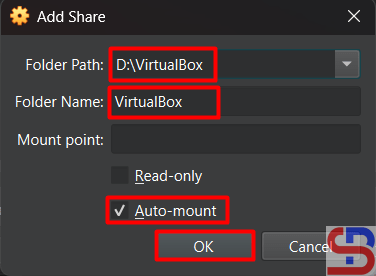
Fill the columns like in the image below:

Settings the shared folders


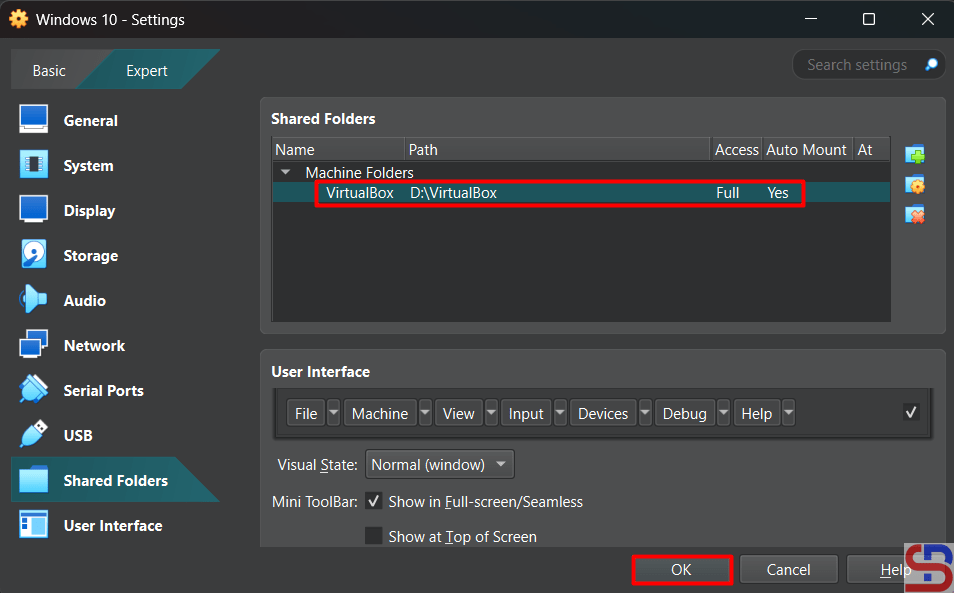
Click the OK button and the shared folder will appear like in the image below:
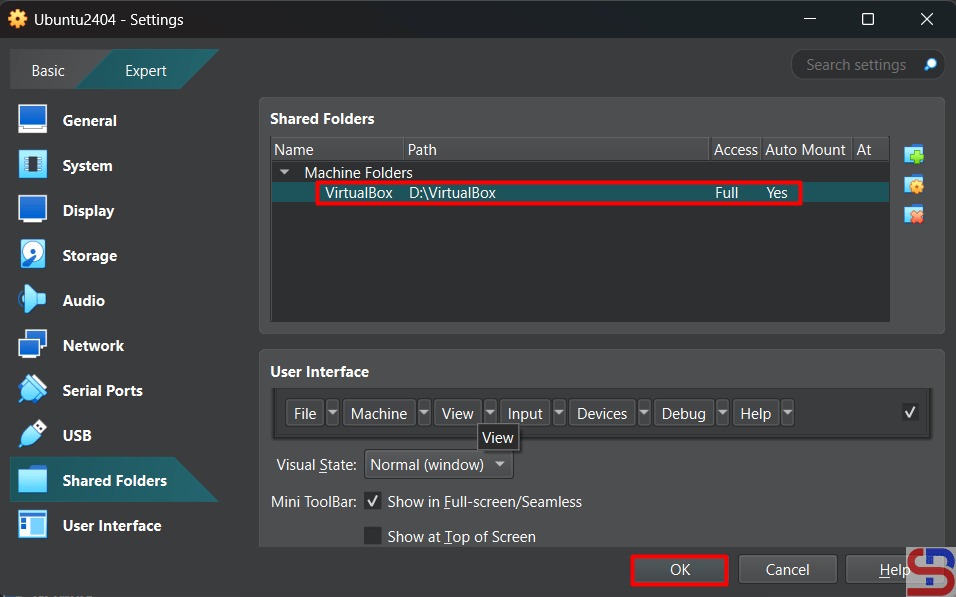
The shared folder appears


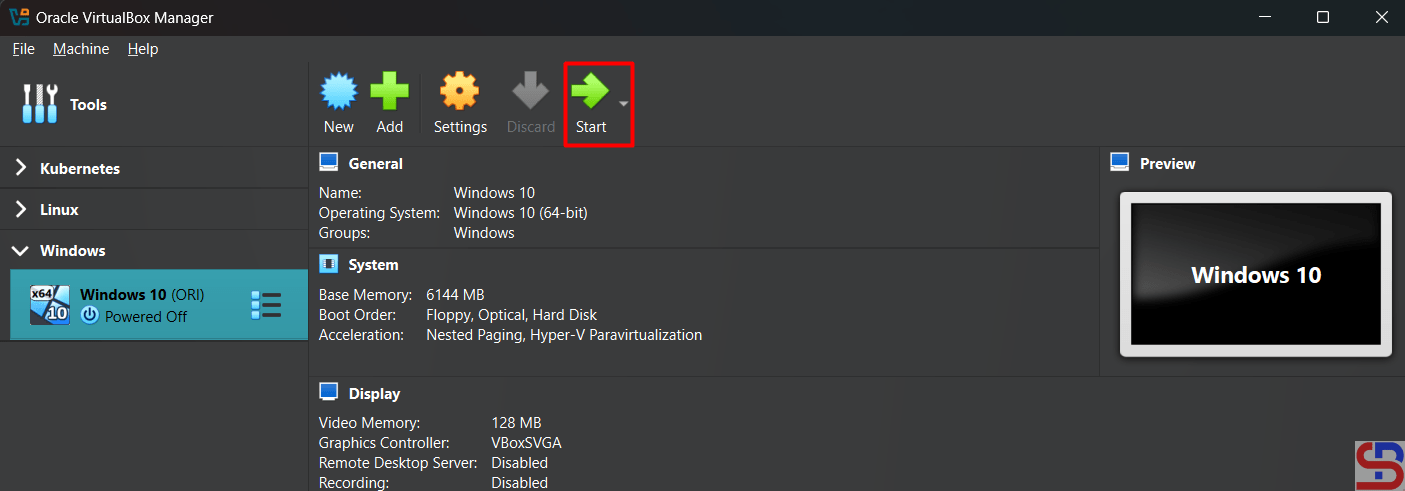
Click the OK button. After that, turn on your virtual machine by clicking the Start button like in the image below:

Turn on the VM


Make a folder in Linux and I created a folder /mnt/shared using the command below:

sudo mkdir /mnt/shared


Execute the below command to mount the shared folder with your folder:

sudo mount -t vboxsf VirtualBox /mnt/shared


And you should be able to access the shared folder as shown in the image below:
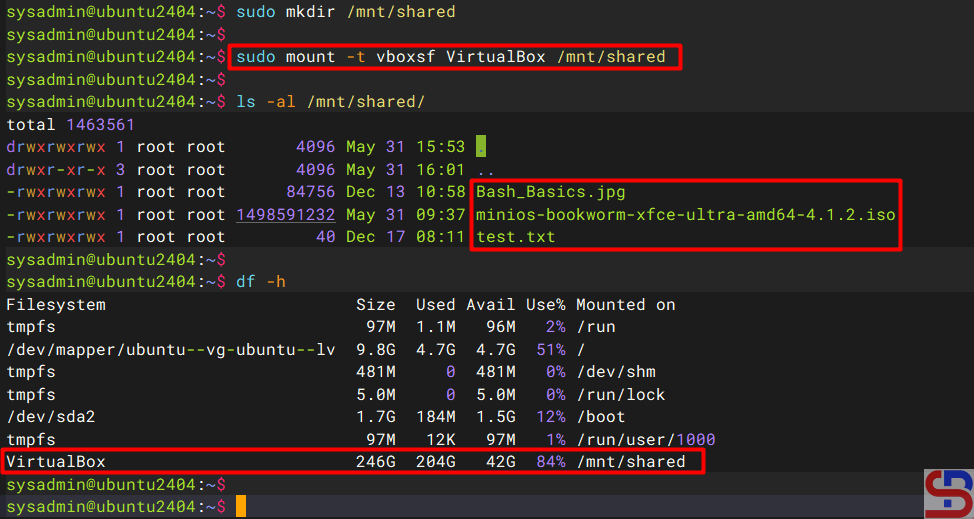
Accessing the shared folder


You can add or remove the file in the shared folder like in the image below:

Create a new file in the shared folder


Note

If you restart the Linux on your virtual machine, you will lose your shared folder and you have to be recreated. To avoid that, then use the command below to configure the /etc/fstab file so that the shared folder is not lost when this virtual machine is restarted:

echo 'VirtualBox       /mnt/shared     vboxsf  rw 0 0' | sudo tee -a /etc/fstab


Any guest using any Linux distribution should be able to follow the above instructions.
 

References

docs.oracle.com
debugpoint.com


How to Share a Folder Between a Windows Host and a Windows Guest in VirtualBox?

VirtualBox has a feature where you can access the files on a folder in your host from your virtual machine. For example, your host is Windows and you want to send some files to your Windows virtual machine. 


Problem

How to share a folder between a Windows host and a Windows guest in VirtualBox?


Solution

You can view or change the files from your host system from within the guest system using Oracle VM VirtualBox’s shared folders capability. Shared folders physically reside on the host and are then shared with the guest, which uses a special file system driver in the Guest Additions to talk to the host. For Windows guests, shared folders are implemented as a pseudo-network redirector and the Guest Additions provide a virtual file system For Linux and Oracle Solaris guests. I use VirtualBox version 7.1.4 in this article and below are the steps so that you can share a folder between a Windows host and a Windows guest in VirtualBox:

A. In the Host
Create a folder on your host and I create a VirtualBox folder on drive D like in the image below:

The shared folder


B. In the Guest (VirtualBox)

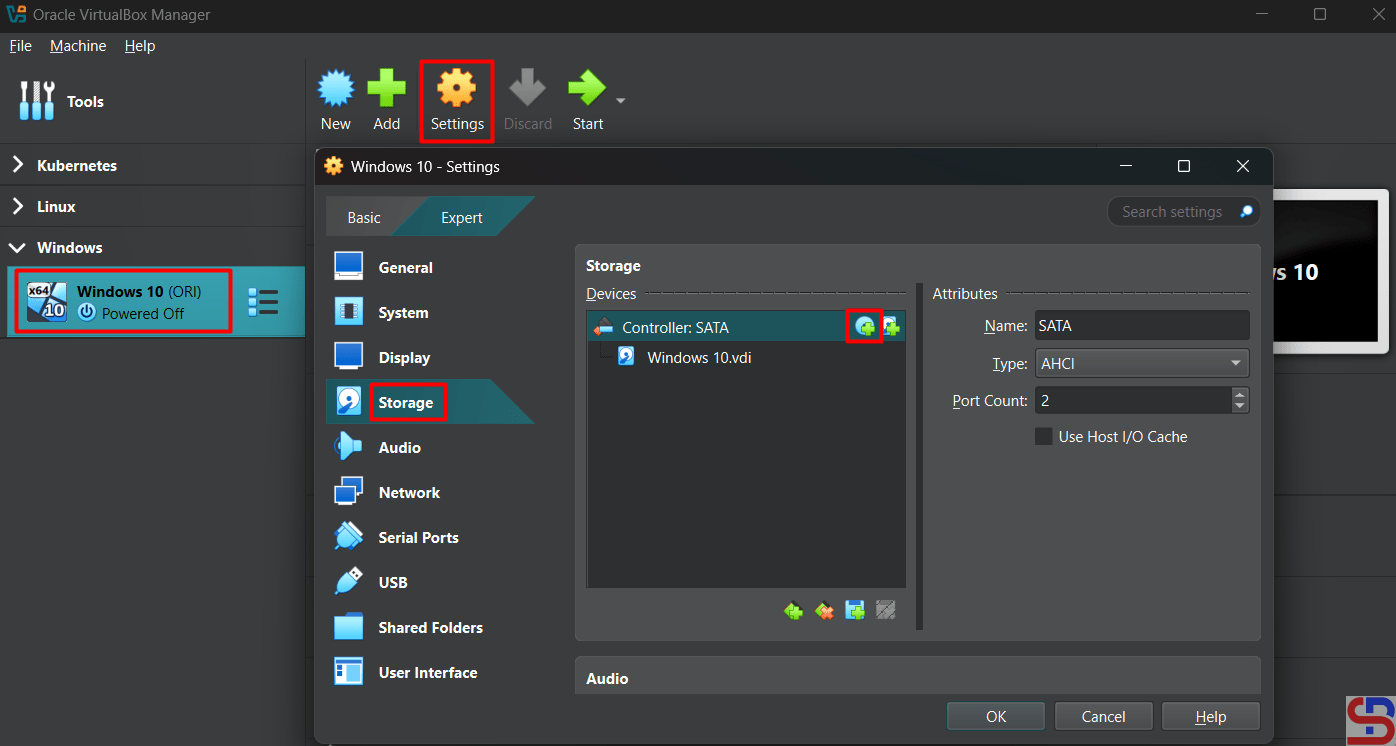
To connect the folder, you need the driver to connect them and the driver has been provided by VirtualBox that is available in an ISO file. Go to this page to install the driver. After you install the driver, configure the shared folder in VirtualBox. Go to SettingsShared Folders and click the icon like in the image below:

share a folder between a Windows host and a Windows guest in VirtualBox
Click the icon in the Shared Folders section


Fill the columns like in the image below:

share a folder between a Windows host and a Windows guest in VirtualBox
Settings the shared folders


Click the OK button and the shared folder will appear like in the image below:

share a folder between a Windows host and a Windows guest in VirtualBox
The shared folder appears


Click the OK button. After that, turn on your virtual machine by clicking the Start button like in the image below:

share a folder between a Windows host and a Windows guest in VirtualBox
Turn on the VM


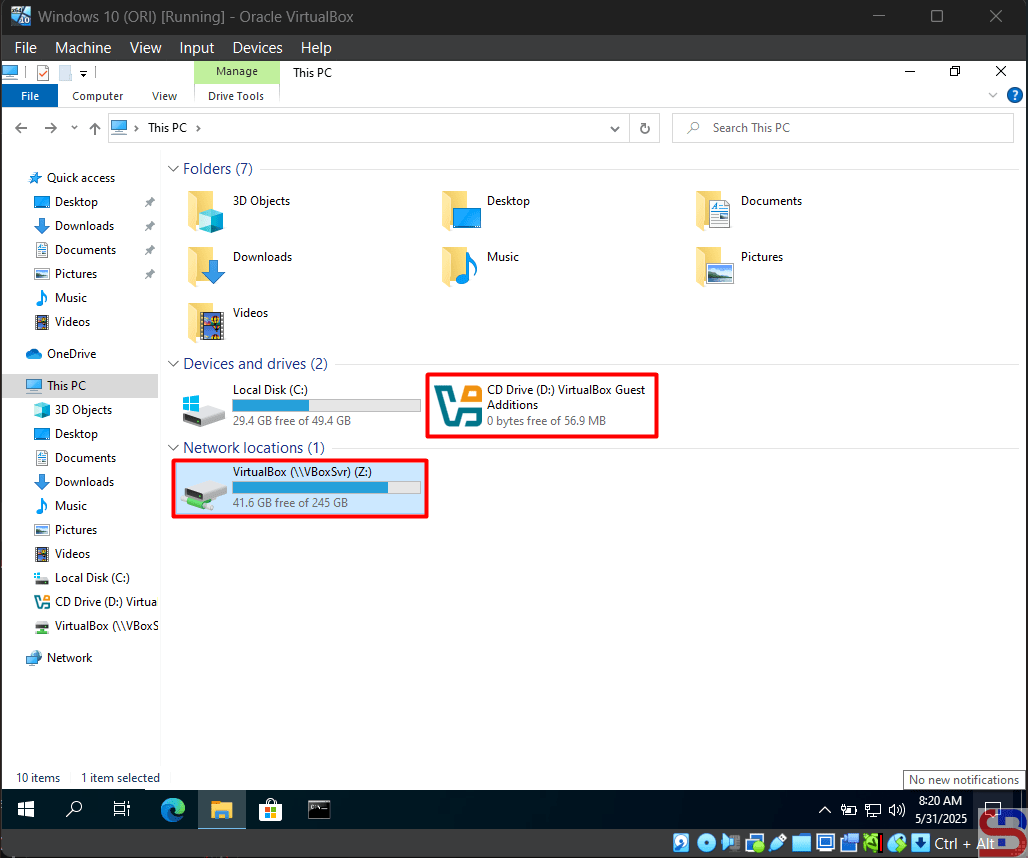
Go to This PC page and you will see the view in the image below:

This PC image


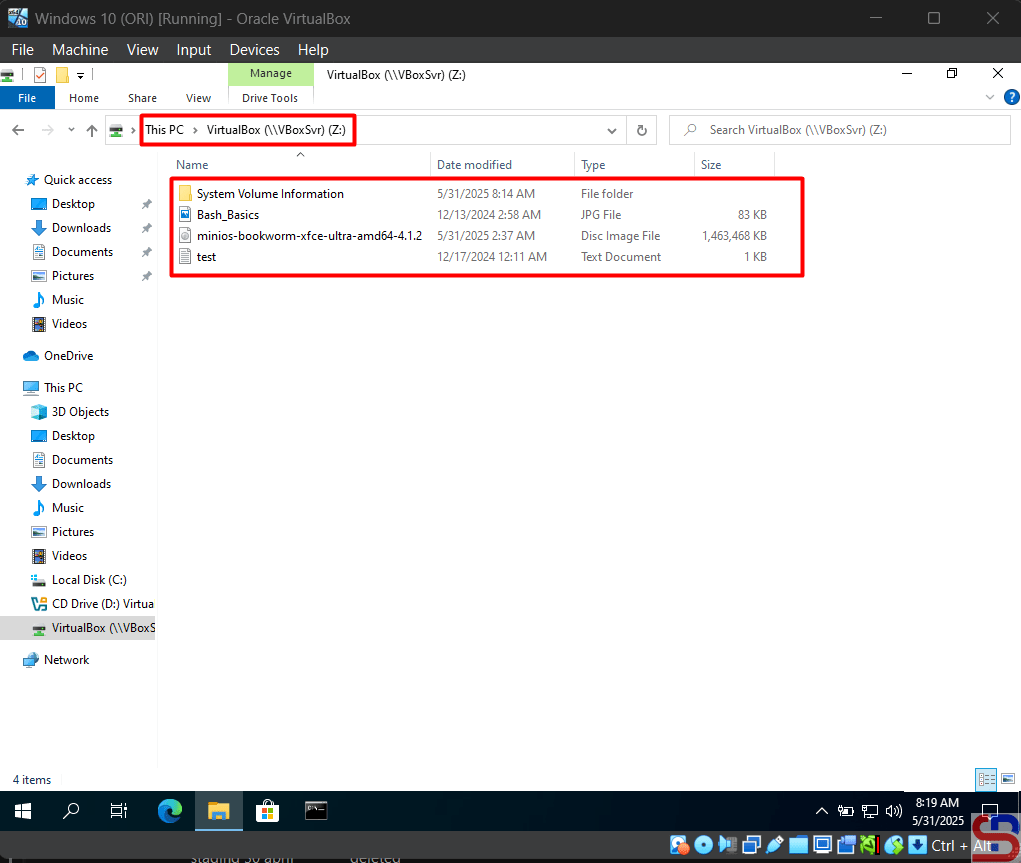
Double-click the VirtualBox (Z:) and you should be able to access the folder like in the image below:

Access the shared folder


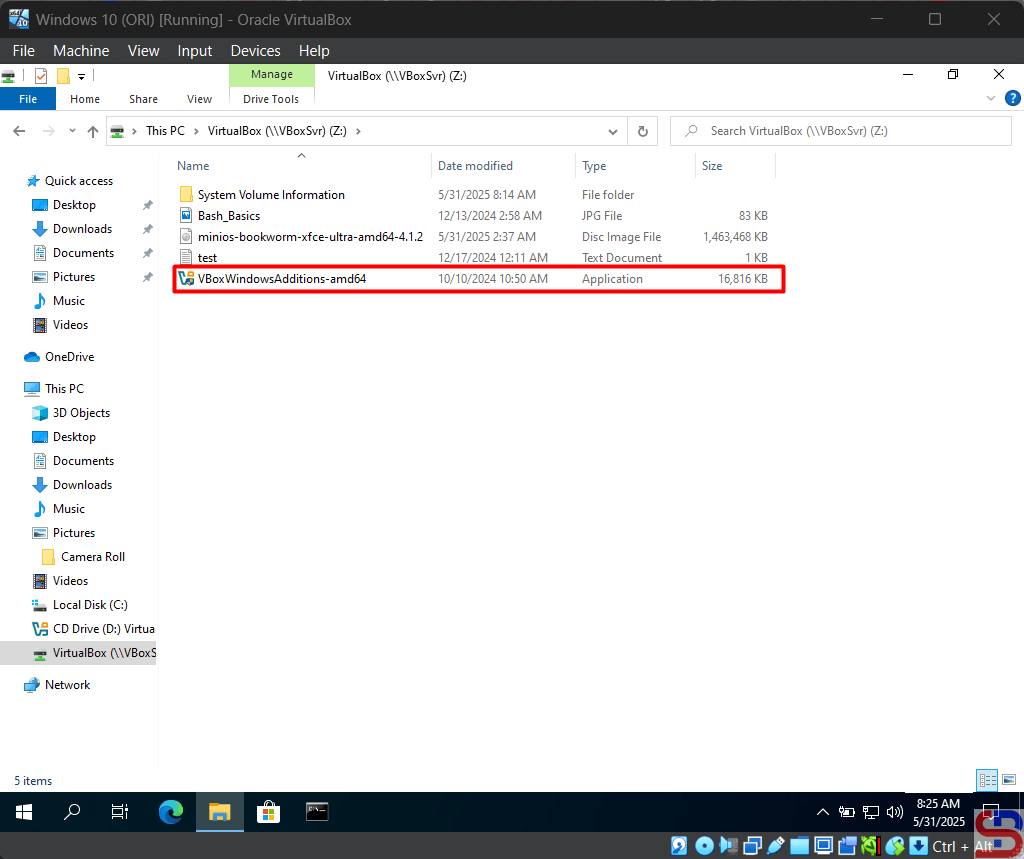
Now, you can access the shared folder and you should add the file like in the image below:

Add the file to the shared folder


Note

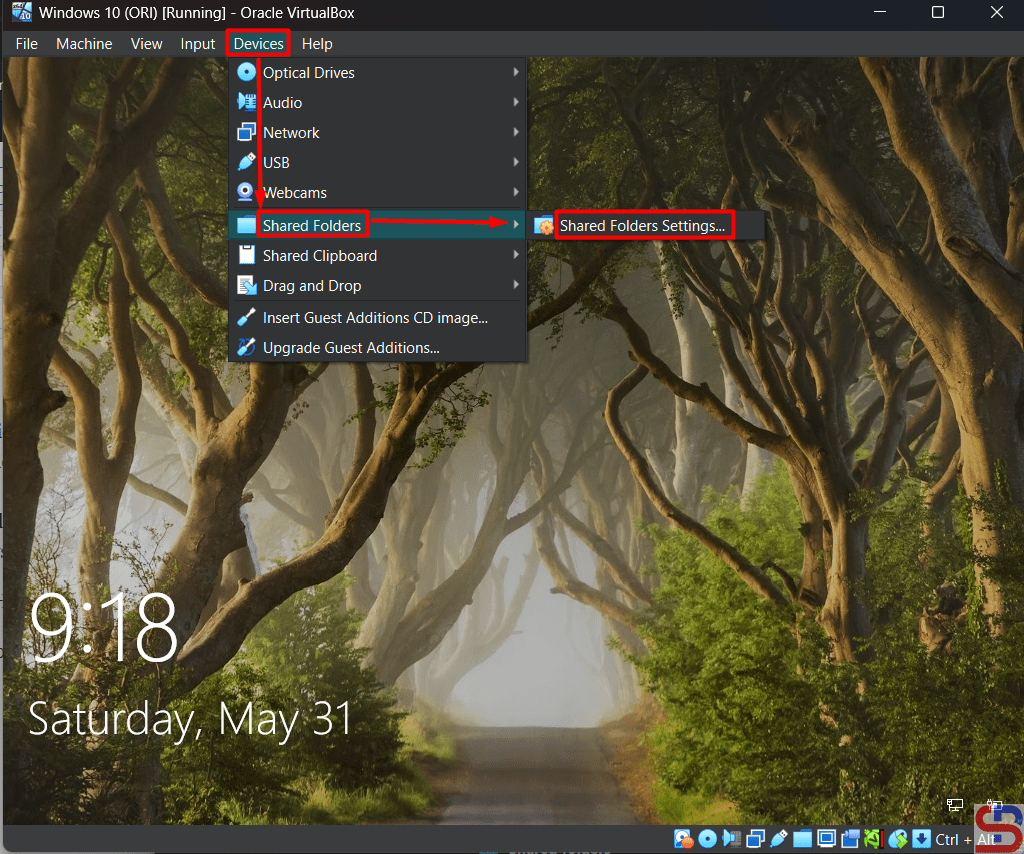
You can configure the shared folder or mount the iso after you turn on the virtual machine like in the image below:

Configure the shared folder after turning on the VM


References

virtualbox.org
youtube.com
docs.oracle.com
blogs.oracle.com


How to Install the VirtualBox Guest Additions?

The Guest Additions in VirtualBox is used to optimize the guest operating system for better performance and usability.


Problem

How to install the VirtualBox Guest Additions?


Solution

The Oracle VM VirtualBox Guest Additions for all supported guest operating systems are provided as a single CD-ROM image file which is called VBoxGuestAdditions.iso. This image file is located in the installation directory of Oracle VM VirtualBox. These are the steps to install the ISO in the Windows and Linux guests.

A. In the Windows guest

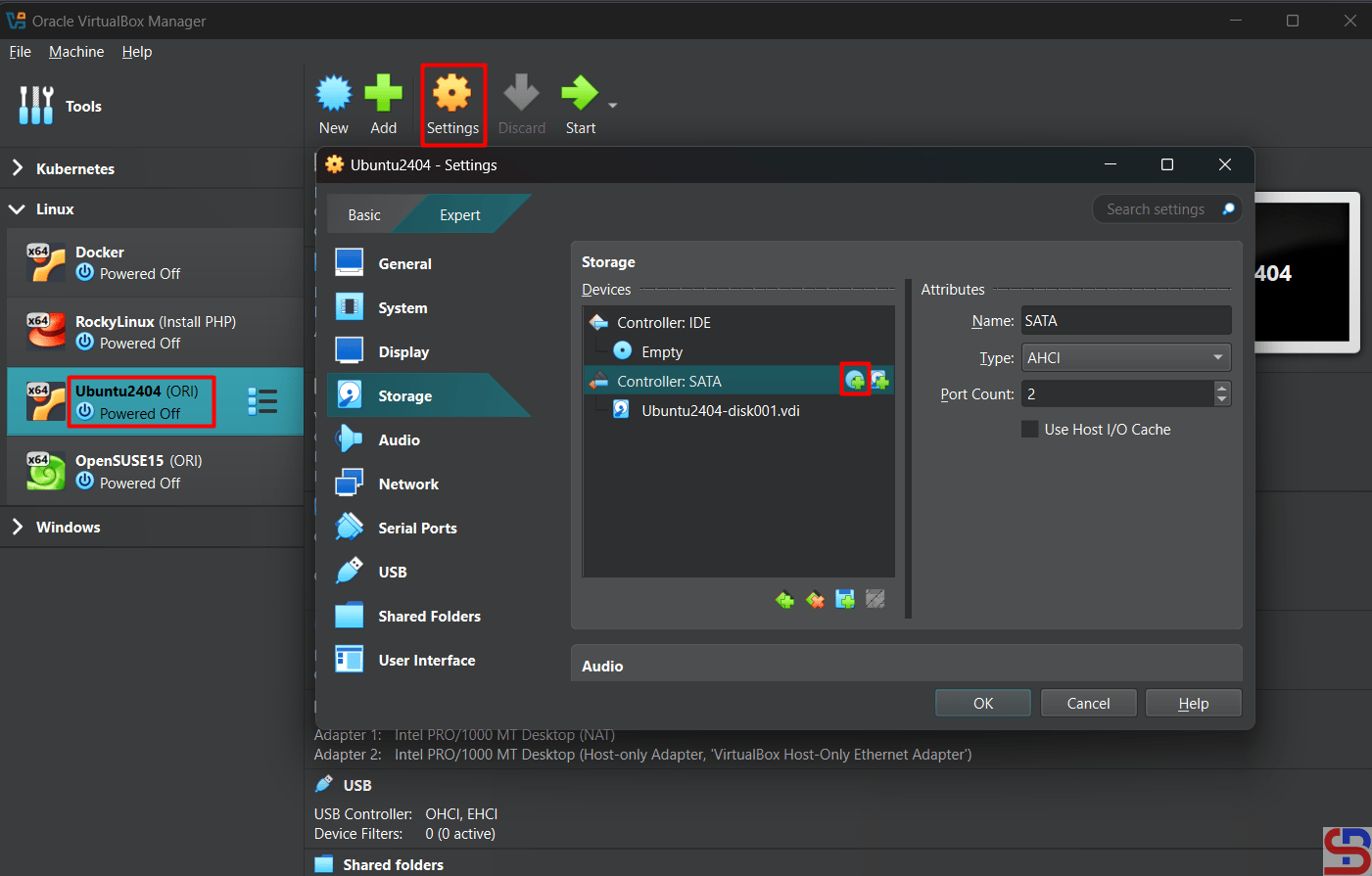
Open your VirtualBox, click your guest or your virtual machine, click SettingsStorage, and then click the icon like in the below image:

Click the icon in the Storage


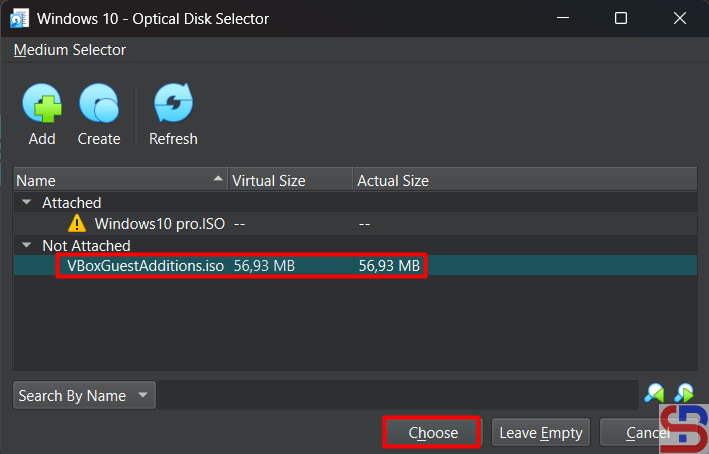
Choose the VBoxGuestAdditions.iso like in the below image:

install the Guest Additions in VirtualBox
Choose the iso


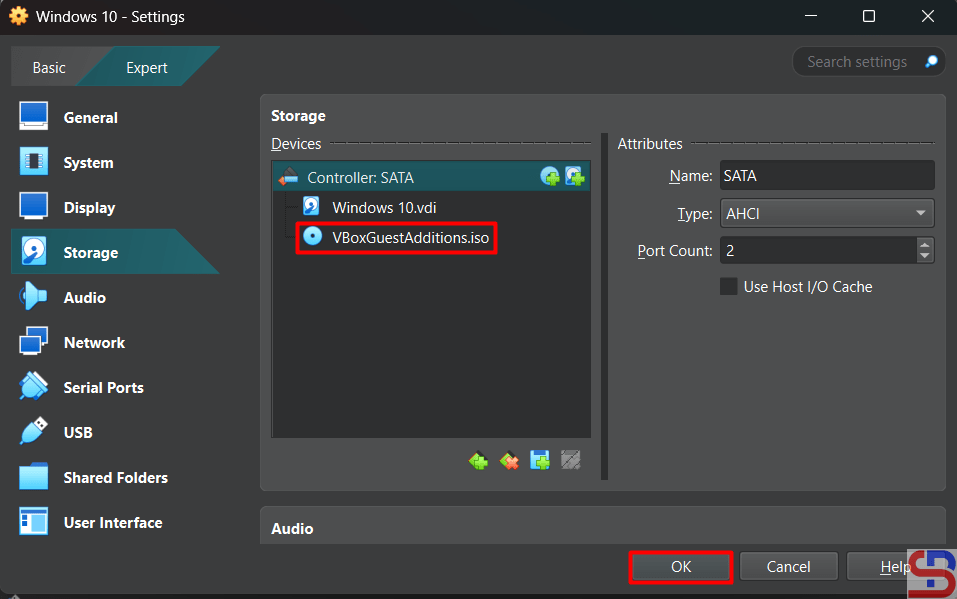
Click the Choose button and the iso will appear like in the image below:

install the Guest Additions in VirtualBox
The iso appear


After that, turn on your virtual machine by clicking the Start button like in the image below:

install the Guest Additions in VirtualBox
Turn on the VM


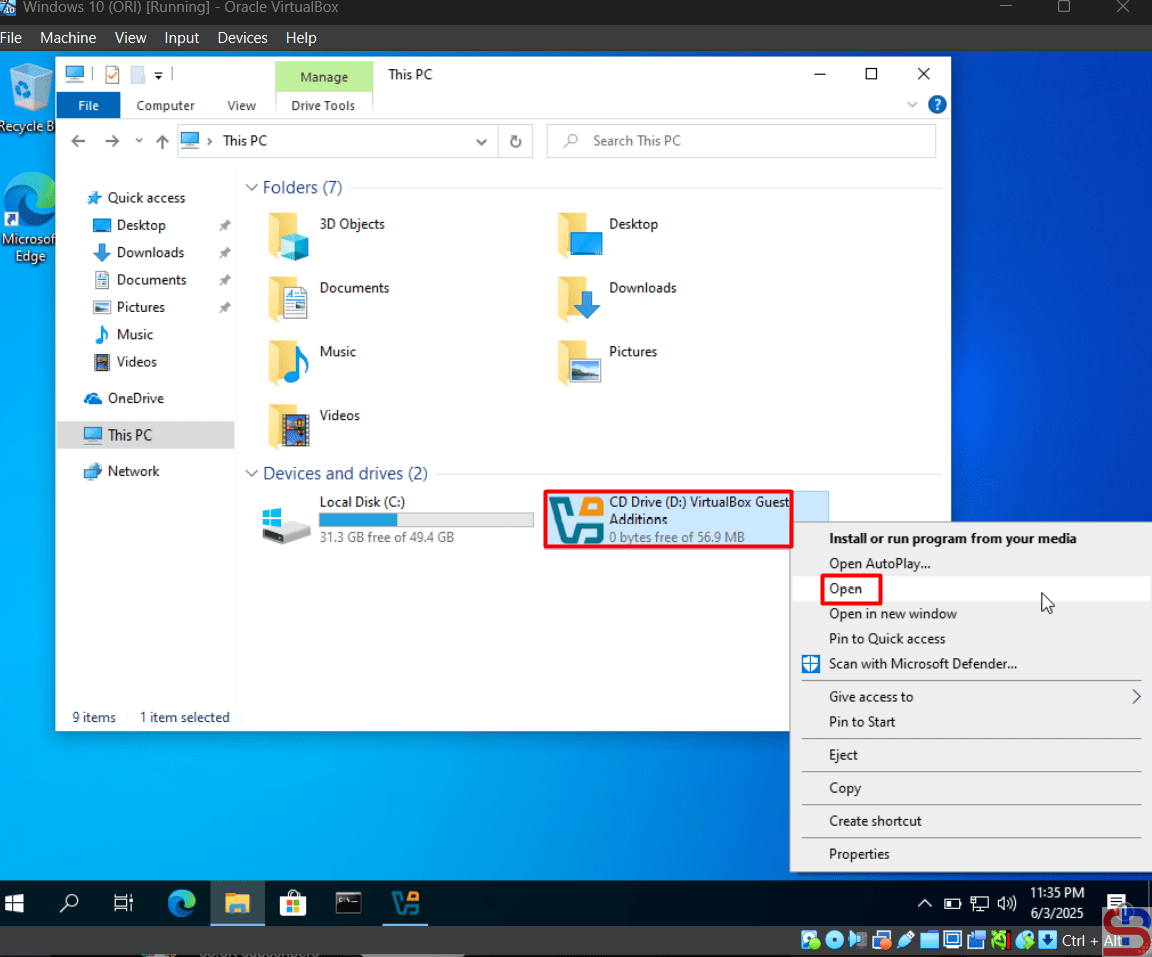
Go to This PC page and you will see the view in the image below:

Right-click the CD


Right-click the CD Drive and click Open, so there is a display like in the image below:

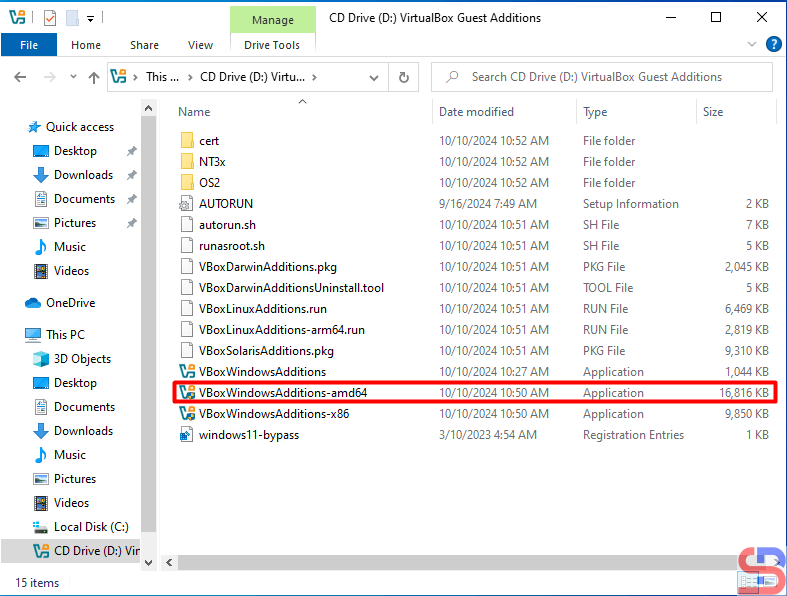
Choose the installer


Double-click on the installer in the red box if your guest is 64-bit, and display it like in the image below:

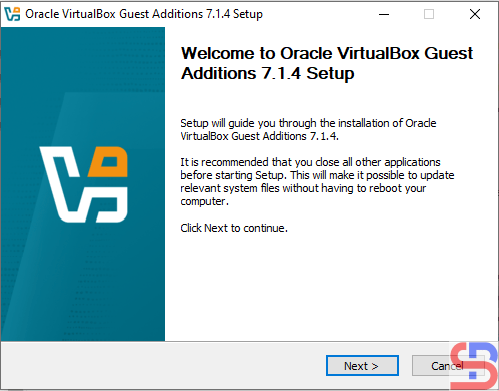
The installation will start


Click the Next button and continue until the driver installation is successful until it displays as shown in the image below:

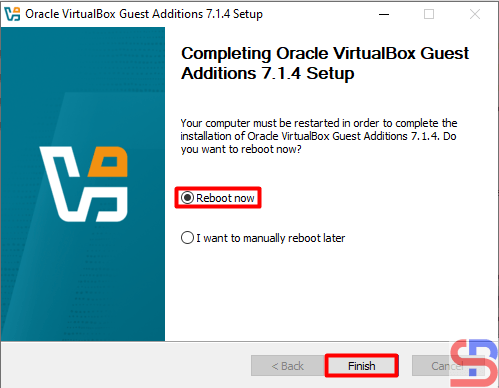
The installation ends


Choose the Reboot now and click the Finish button.


B. In the Linux guest

Open your VirtualBox, click your guest or your virtual machine, click SettingsStorage, and then click the icon like in the below image:

Click the icon in the Storage section


Choose the VBoxGuestAdditions.iso like in the below image:

install the Guest Additions in VirtualBox
Choose the ISO


Click the Choose button and the iso will appear like in the image below:

install the Guest Additions in VirtualBox
The ISO appear


After that, turn on your virtual machine by clicking the Start button like in the image below:

install the Guest Additions in VirtualBox
Turn on the VM


Make a folder in Linux and I created a folder /mnt/cdrom using the command below:

sudo mkdir /mnt/cdrom


Execute the below command to mount the shared folder with your folder:

sudo mount /dev/sr0 /mnt/cdrom/


Install some packages by running the command below:

Ubuntu

sudo apt update
sudo apt install -y bzip2 tar gcc make perl


RockyLinux/AlmaLinux/CentOS

sudo dnf install -y bzip2 tar gcc make perl


OpenSUSE

sudo zypper install -y bzip2 tar gcc make perl


After installation, go to the folder cdrom:

cd /mnt/cdrom


Execute the command below and wait until finish:

sudo sh VBoxLinuxAdditions.run


After that, reboot your virtual machine.


Note

Guest Addition will be very useful if your guest uses graphics such as Windows OS or Linux that have graphics because it will improve performance and usability such as Mouse pointer integration, better video support, shared clipboard, and so on. But if you use the Linux CLI in the guest, this guest addition will not be useful.


References

virtualbox.org
blogs.oracle.com
greenwebpage.com


How to Reboot Windows OS in One Click?

The previous article explained how to shut down Windows OS in one click. This article will explain how to reboot Windows OS in one click.


Problem

How to reboot Windows OS in one click?


Solution

The following steps to reboot the Windows OS in one click:

1. Create a shortcut

Go to the desktop, then right click and select NewShortcut as shown below:

Click New – Shortcut


2. Write a script

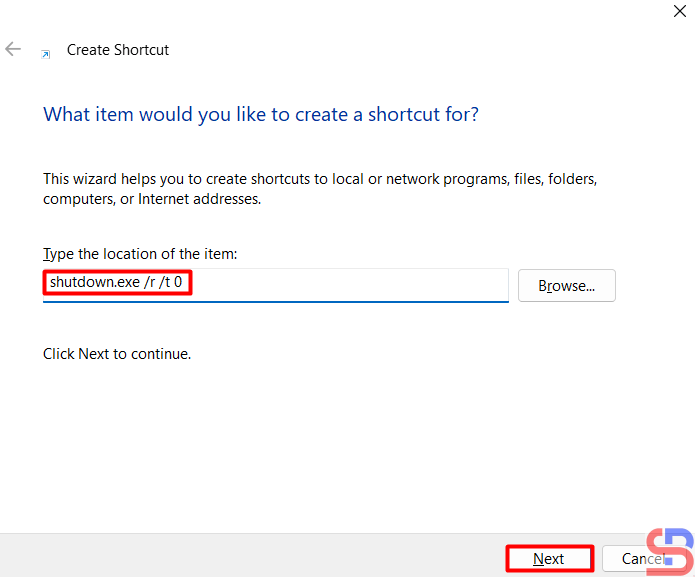
Write the script below:

shutdown.exe /r /t 0


In the section as shown below:

Write the script


Then press the Next button, and then there will be a display as below:

Create a name for the shortcut


You can change the name for the shortcut, and after that, press the Finish button, then there will be a display as below:

Display of the shortcut icon


3. Change the icon

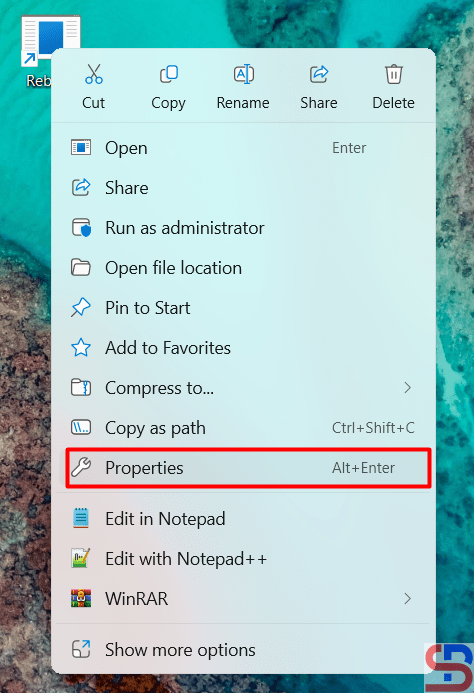
Right-click on the icon, select Properties as shown below:

Click the Properties


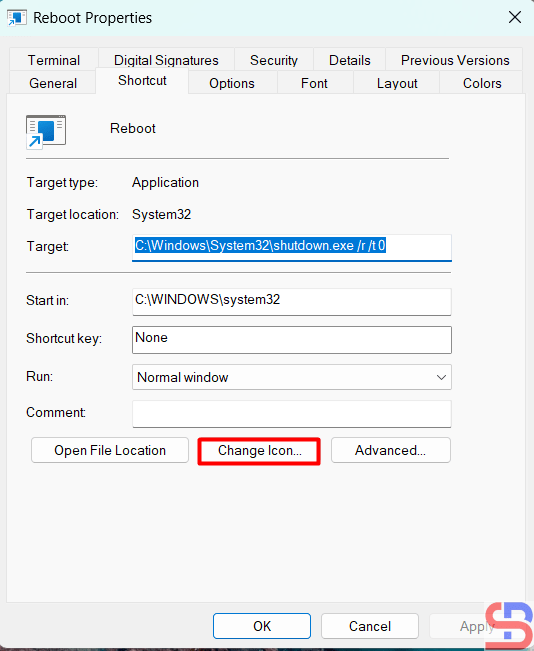
Then click the Change Icon button, and there will be a display as below:

Click the Change Icon button


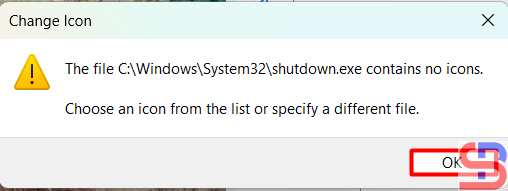
There will be a display as below:

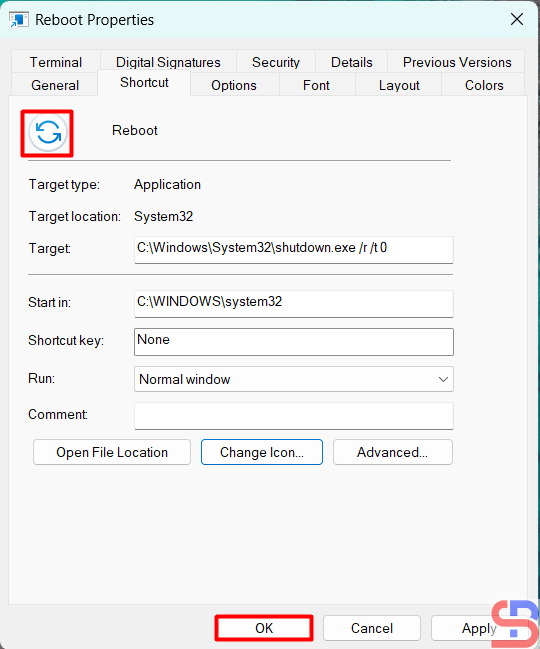
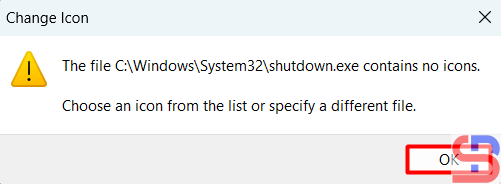
reboot Windows OS in one click
Click the OK button


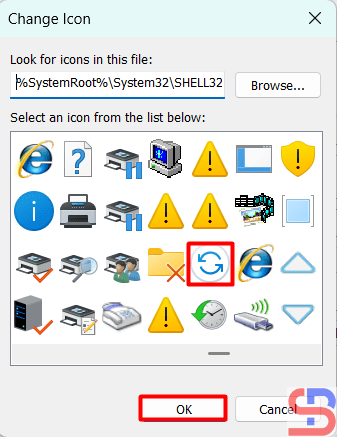
Click the OK button, and after that, you can choose the icon you like, but I chose the icon like in the red box, press OK, then there will be a display as below:

reboot Windows OS in one click
Choose the icon


The shortcut icon will change to what you chose in the previous section. After that, press OK, the shortcut icon will change the image according to what you choose.

reboot Windows OS in one click
The icon is changed


4. Move the icon

Move the icon to the taskbar by dragging it as shown below:

reboot Windows OS in one click
Drag the icon to the Taskbar


After the icon has been moved to the taskbar, you can delete the icon from the desktop.

5. Test the result

After that, try clicking the icon in the taskbar, and your Windows OS should do the shutdown process.


Note

In this article, the time used is 0, so there is no time lag after you click the icon with the shutdown process. You can change it to the time you want, for example, to 5 seconds, so that the script becomes like below:

shutdown.exe /r /t 5


Then there will be a break of 5 seconds after you finish clicking the icon and the shutdown process.


References

boostitco.com
isumsoft.com
wikihow.com


How to Turn Off Windows OS in One Click?

By default, if you want to turn off the Windows OS on a PC, laptop, or server, there are usually three stages to do that. You will press the Start button first, then press the Power button, and after that select the Shut down option. But you can turn off the Windows OS just by pressing one click.


Problem

How to turn off windows OS in one click?


Solution

The following steps to turn off the Windows OS in one click:

1. Create a shortcut

Go to the desktop, then right click and select NewShortcut as shown below:

Click New – Shortcut in the desktop


2. Write a script

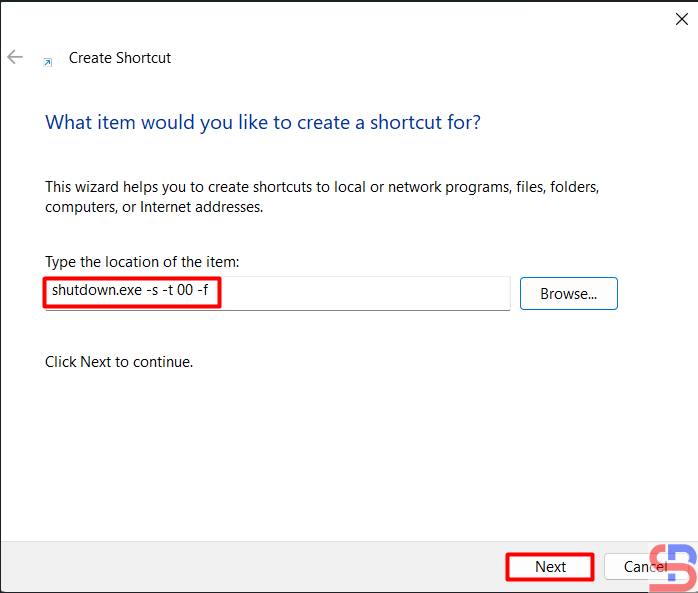
Write the script below:

shutdown.exe -s -t 00 -f


In the section as shown below:

Write the script


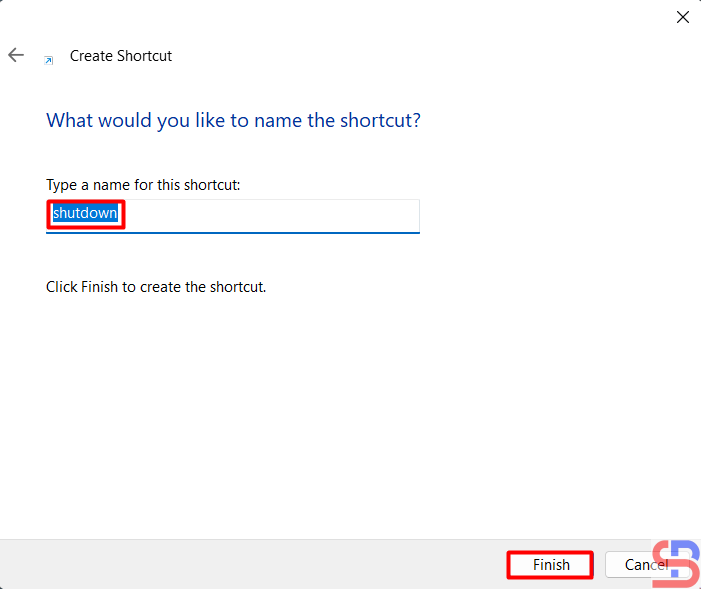
Then press the Next button, and then there will be a display as below:

Create a name for the shortcut


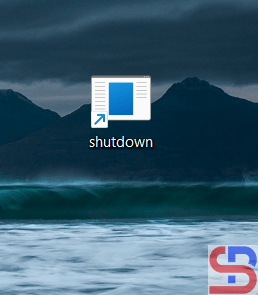
You can change the name for the shortcut, and after that, press the Finish button, then there will be a display as below:

Display of the shortcut icon


3. Change the icon

Right-click on the icon, select Properties as shown below:

Click the Properties of the icon


Then click Change Icon, there will be a display as below:

Click the change Icon


There will be a display as below:

Click the OK button


Click the OK button and after that,, you can choose the icon you like, but I chose the icon in the red box, press OK, then there will be a display as below:

Choose the icon


The shortcut icon will change to what you chose in the previous section. After that, press OK, the shortcut icon will change the image according to what you choose.

The icon is changed


4. Move the icon

Move the icon to the taskbar by dragging it as shown below:

Drag the icon


After the icon has been moved to the taskbar, you can delete the icon from the desktop.

5. Test the result

After that, try clicking the icon in the taskbar, and your Windows OS should do the shutdown process.


Note

In the second part of the script writing, the time used is 0, so there is no time lag after you click the icon with the shutdown process. You can change it to the time you want, for example, to 5 seconds, so that the script becomes like below:

shutdown.exe -s -t 5 -f


Then there will be a break of 5 seconds after you finish clicking the icon and the shutdown process.


References

wikihow.com
cnet.com
facebook.com


How to Make a Virtual Machine’s IP Address on Hyper-V Static?

Throughout my experience using Hyper-V on Windows, if my virtual machine is using a static IP, then if my virtual machine or my laptop is restarted, my virtual machine’s IP will change automatically, even though I have created a static IP on my virtual machine. So I had to change the settings in a few places to keep up with the IP changes on my virtual machine, and it’s very tiring. However, I plan to make the virtual machine’s IP address on Hyper-V static.


Problem

How to make a virtual machine’s IP address on Hyper-V static?


Solution

When you create a virtual machine in Hyper-V, it will use the Default-Switch connection by default. This connection usually has a class B IP, like in the image below on my laptop:

The IP of the Default Switch in my laptop


If I create a virtual machine in Hyper-V, it will usually get an IP in class B as well, and it will change if there is a restart on my virtual machine or my Windows laptop. Therefore, I want to create a static IP in class C on my virtual machine in Hyper-V.

A. On Windows

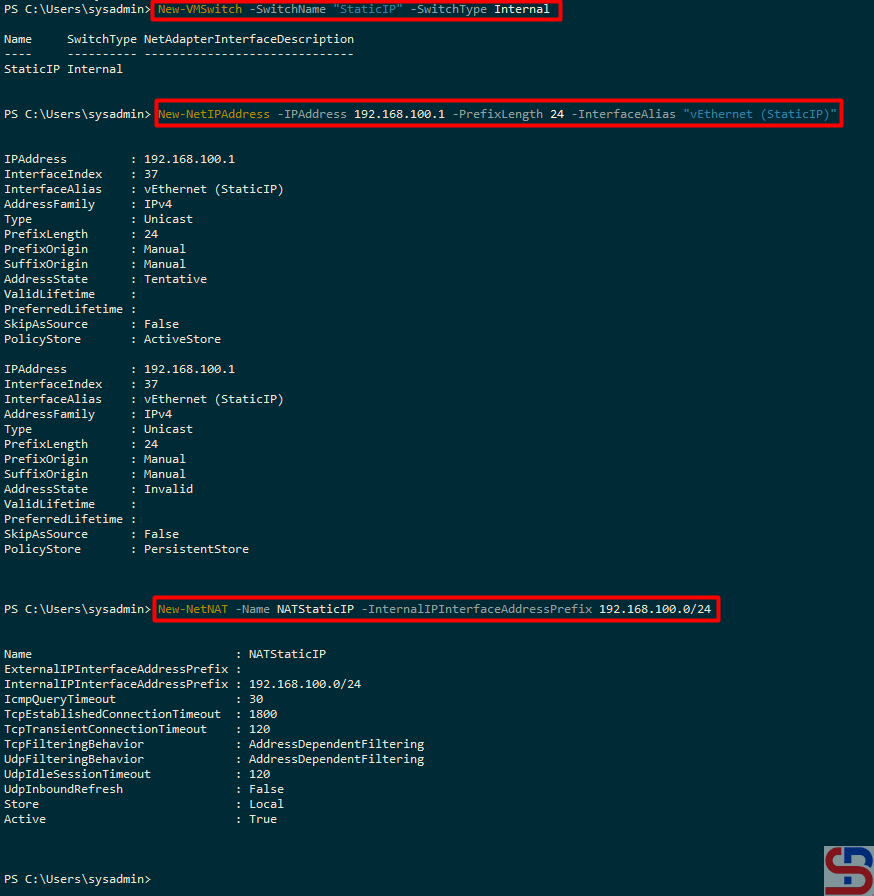
First, I have to create a new Virtual Switch, which I call StaticIP, and I write the following command in PowerShell:

New-VMSwitch -SwitchName "StaticIP" -SwitchType Internal


On the new Virtual Switch, I have to enter the IP address 192.168.100.0/24, so I type in PowerShell like the command below:

New-NetIPAddress -IPAddress 192.168.100.1 -PrefixLength 24 -InterfaceAlias "vEthernet (StaticIP)"


After that, I created an IP NAT for the new Virtual Switch by typing in PowerShell:

New-NetNAT -Name NATStaticIP -InternalIPInterfaceAddressPrefix 192.168.100.0/24


Then there should be a display as in the image below:

Execute the commands


B. Check the Connections

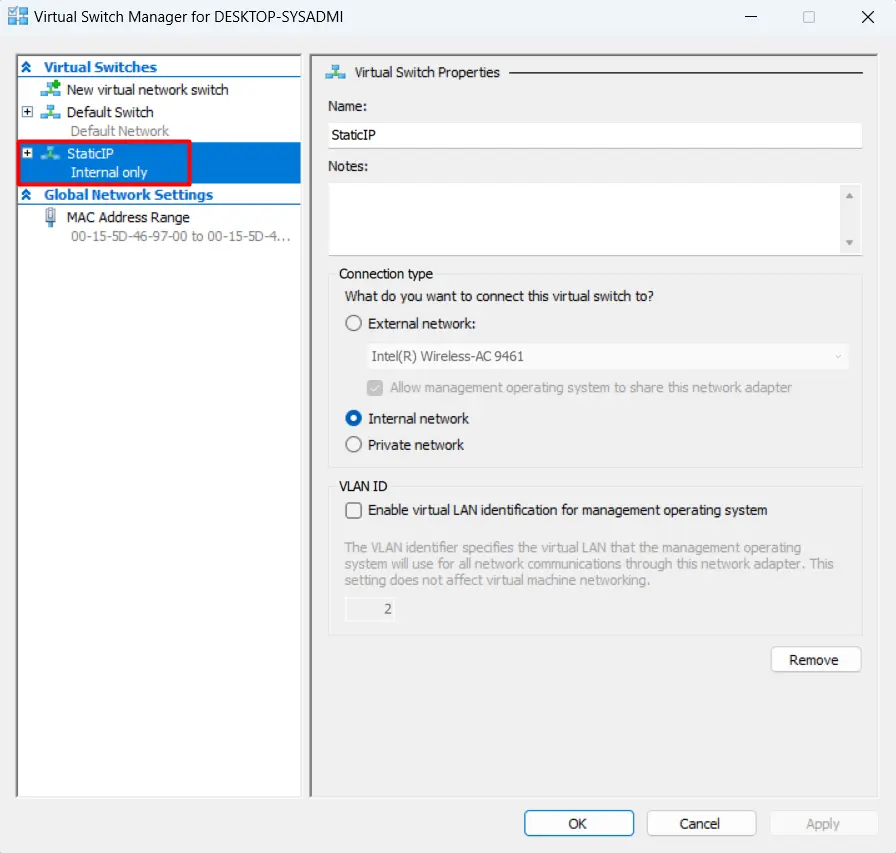
On Hyper-V Manager, there will be a new Virtual Switch Manager named StaticIP as shown below:

New Virtual Switch


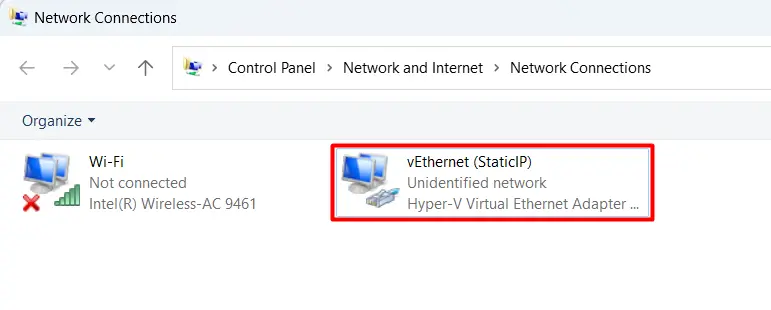
In the Network Connections section, there will be a new adapter as shown below:

New adapter in the Network Connection


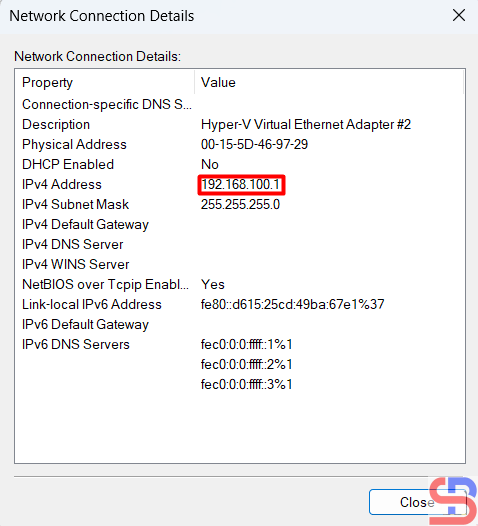
And the IP of the new adapter is 192.168.100.1 as shown below:

make a virtual machine's IP address on Hyper-V static
The IP of the new adapter


Or if you want a more complete IP for all adapters can be seen in the image below:

make a virtual machine's IP address on Hyper-V static
Display all IPs of adapters


B. On a Virtual Machine

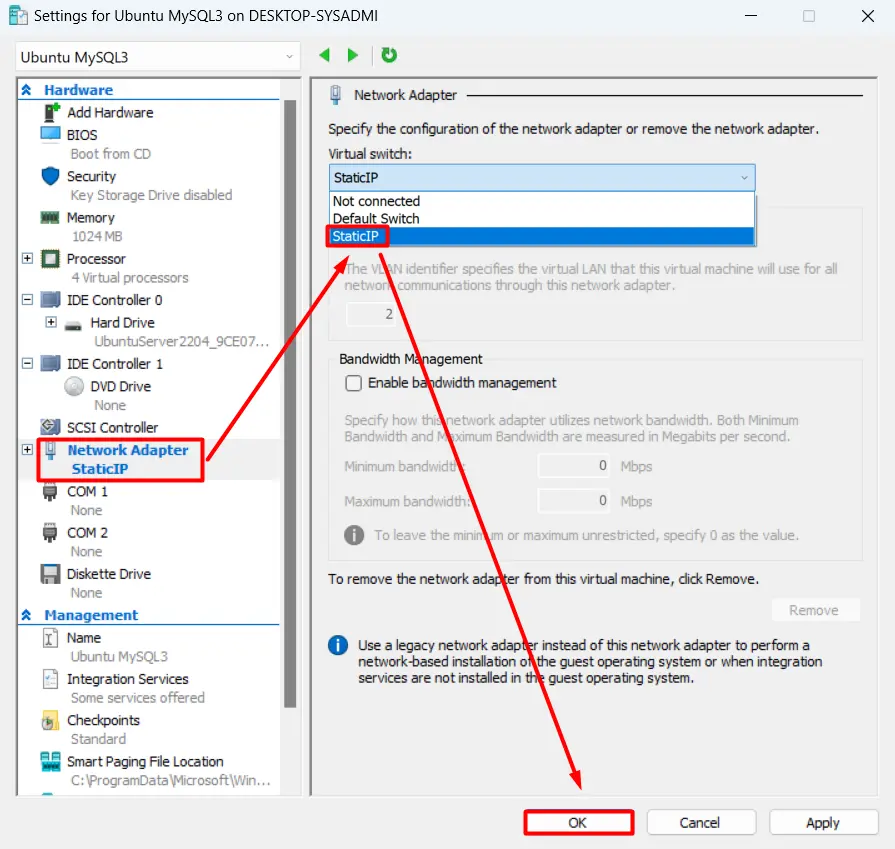
If you have previously created a virtual machine, change the virtual machine settings in the Virtual Switch section, select StaticIP as shown below, and then click the OK button:

make a virtual machine's IP address on Hyper-V static
Select the new Virtual Switch


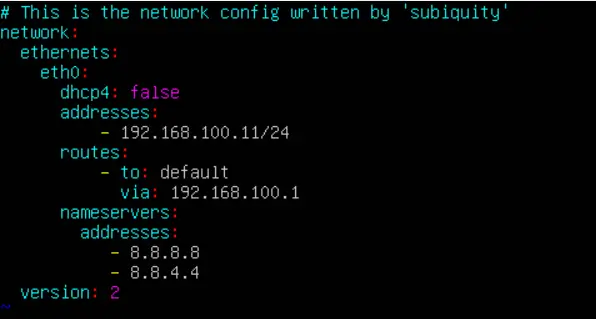
After that, log in to the virtual machine and change the IP. Because I am using Ubuntu, I changed it in the netplan section as shown below:

Change IP in Ubuntu


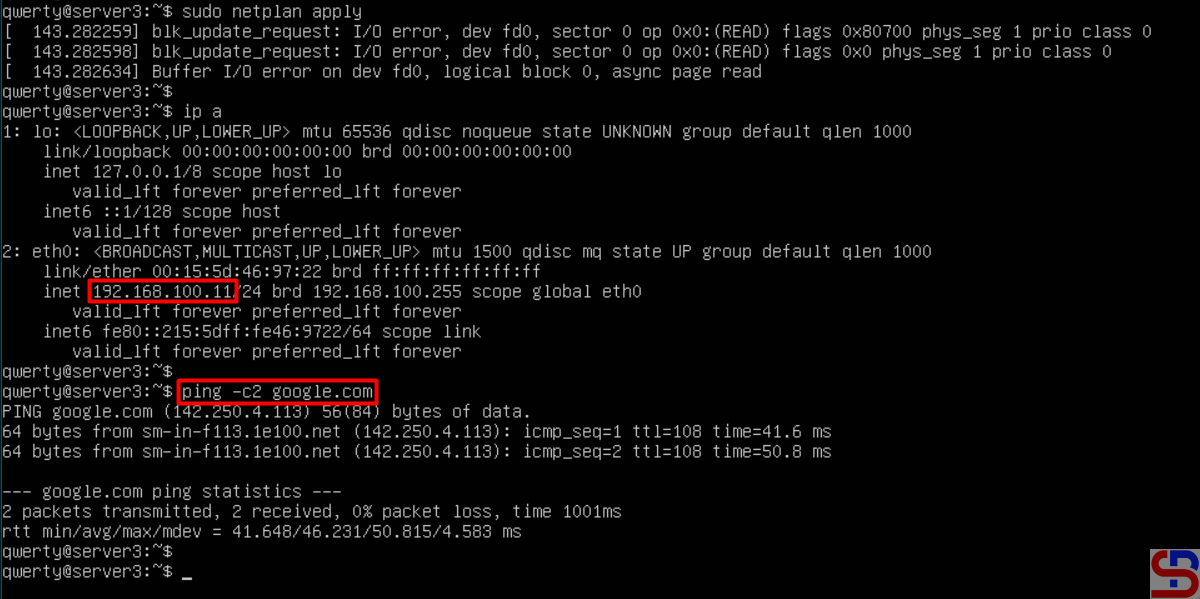
After that, I restarted the network and saw the changed IP as in the picture below:

make a virtual machine's IP address on Hyper-V static
Restart the network in the VM


Based on the picture above, my virtual machine can connect to the internet, making it easier for me to install something from the internet on my virtual machine. After that, I tried to reboot the virtual machine, and the IP of the virtual machine is still the same.


Note

You don’t need the above steps if your virtual machine uses DHCP.


References

mattwalsh.dev
devpress.csdn.net
superuser.com


How to Set Up Passwordless SSH in Putty?

The previous article explained how to create a passwordless SSH login.  However, the article is useful if a sysadmin accesses a Linux server through another Linux server. In general, many sysadmins use PuTTY to access their Linux servers.


Problem

How to set up passwordless SSH in Putty?


Solution

Putty is a tool created by Simon Tatham to access a device using SSH, Telnet, rlogin, and serial protocols. As of January 2025, the stable version of PuTTY is 0.82. You can visit this page to see the latest version and download PuTTY.  Just like accessing a Linux server via SSH from another server, if you access a Linux server using PuTTY, you will be asked to enter a username and password, as in the image below:

Access to the Linux server using PuTTY


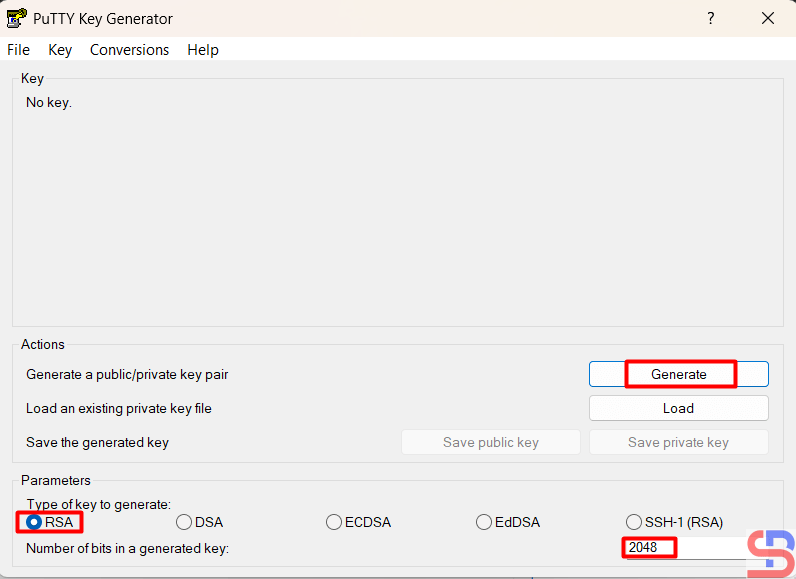
To set up passwordless SSH in Putty, download the Puttygen application here to create your private/public keypair. After that, run the Puttygen application and you can choose the key according to your wishes, but in this article, we use an RSA key with 2048 bits.

Choose the RSA key and click the Generate button


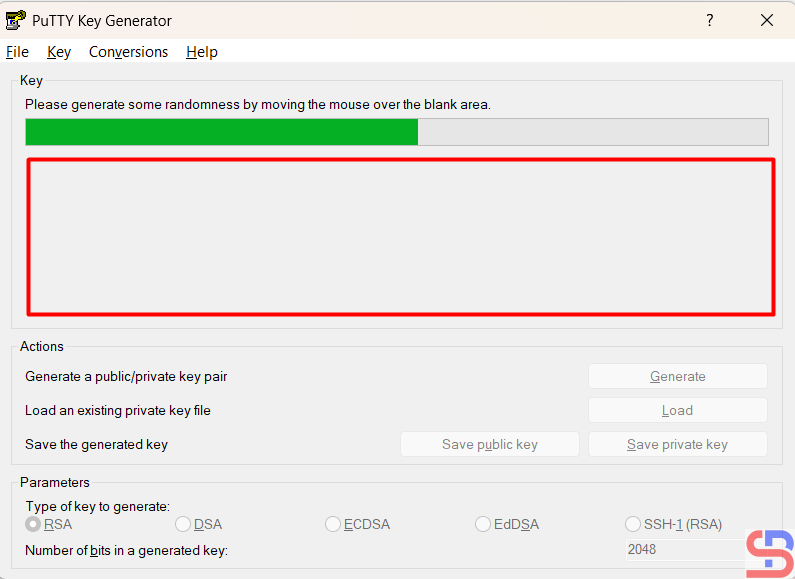
Press the Generate button and move your mouse randomly in the blank area of ​​this application until the key is generated. Please see the image below for more details:

Move your mouse randomly on the blank area


After that, press the save public key and save private key buttons to save the two keys on your computer. Press the Yes button if you are asked a question when you click the Save Private Key button. On your computer, there should be 2 keys as in the image below:

Two key files from puttygen


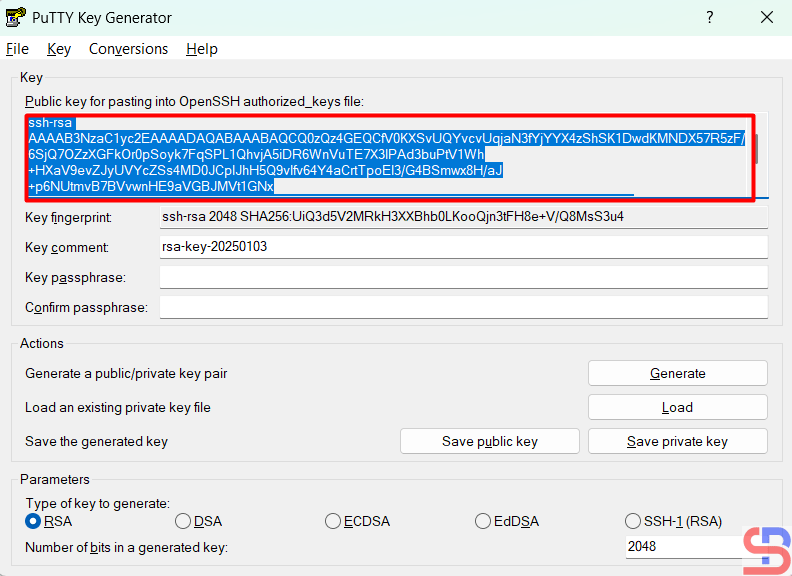
Then copy the public key by opening the public key file or copying it directly from Puttygen, as in the image below:

Copy the public key


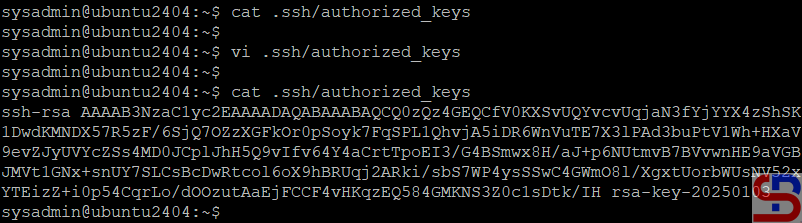
After that, go to the remote server, open the .ssh/authorized_keys file, and enter the public key from Puttygen into that file:

Put the public key into the remote server


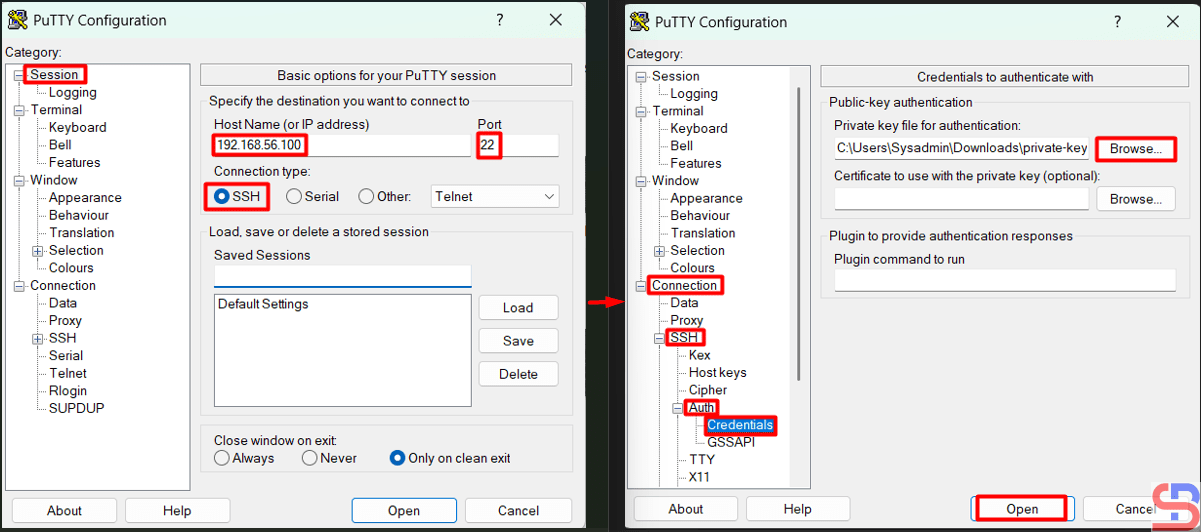
After that, try the remote server to test the SSH Passwordless login. Open Putty, then go to the Session and enter the IP of the remote server in the HostName section. After that, go to the Connection > Auth > Credentials > Browse section in the Private key file for the authentication section as in the image below:

Configure PuTTY to access the Linux server without a password


Press the Enter or Open button, and you should be able to access the server without having to enter a password as in the image below:

Steps to access the Linux server without a password using PuTTY

Note

To speed up access to the Linux server, you can also not write your username to Putty by configuring it in Connection > Data > Enter your username in the Auto-login username column, as in the image below:

Steps to not write your username in Putty


Press the Enter or Open button, and you should be able to access the server without having to enter the username and password, as in the image below:

Steps to access the Linux server without a username and password using Putty


References

en.wikipedia.org
portal.nutanix.com
help.dreamhost.com
tecmint.com
filecloud.com