How to Share a Folder Between Container Hosts?

The previous articles have explained storage connections using volume and bind mount. This article will describe how to share a folder so that containers on other hosts can access it.


Problem

How to share a data folder between container hosts?


Solution

In this article, I use 3 servers where 1 server runs an NFS server with an IP of 192.168.56.12, and 2 servers run Docker with IPs 192.168.56.2 (docker1) and 192.168.56.102 (docker2). You can go to this article about NFS, and I use the /var/nfs folder as a data folder for all containers. After installing NFS on the server, type the following commands to configure NFS in the NFS server:

sudo mkdir /var/nfs
sudo chmod -R 777 /var/nfs
sudo echo "/var/nfs 192.168.56.0/24(rw,sync,no_subtree_check,no_root_squash)" | sudo tee /etc/exports
sudo exportfs -r
sudo touch /var/nfs/test.txt
sudo bash -c 'echo "This is from NFS server" > /var/nfs/test.txt'


Warning
I think you should know the version of NFS you are using by typing the command nfsstat -s so that when creating the container for the nfsvers option, you can fill the option with that version of NFS.


On 2 other Docker hosts, type the command below to make a volume Docker:

docker volume create --driver local \
  --opt type=nfs \
  --opt o=addr=192.168.56.12,rw,nfsvers=4,noatime,nodev,nosuid \
  --opt device=:/var/nfs \
  nfs_volume


After that, type the command below on those 2 Docker hosts to run the container connected to your NFS server:

docker run --rm -it -u root --workdir /root \
  --mount source=nfs_volume,target=/root \
  alpine ash


INFO
The docker run ‐-rm -it image_name shell command is used to run a container, and then you go to the folder / in the container. Add the  ‐-workdir /root option if you want to directly access the /root folder automatically after the container is formed. And if you exit from the container, the container is deleted instantly.


The image below is an example of when a container from docker1 host (192.168.56.2) accesses the NFS server:
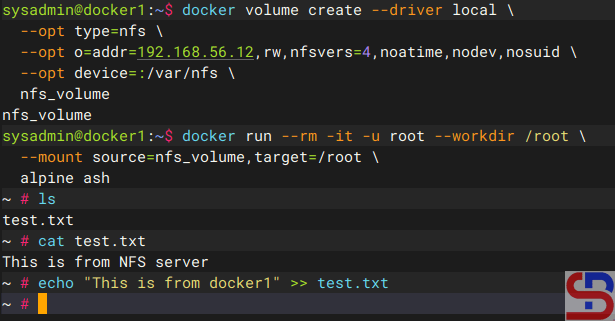
Access the NFS folder from the docker1 host


The image below is an example of when a container from the docker2 host (192.168.56.102) accesses the NFS server:
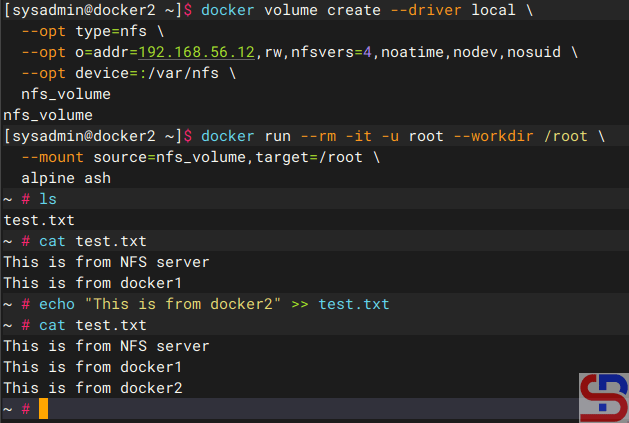
Access the NFS folder from docker2 host


As you can see in the images above, all containers can access the NFS server and can change the files on the NFS server.


Note

On the internet, some developers make a Docker plugin to access NFS servers from containers, such as plugins docker-volume-netshare, nfs- volume-plugin, nfsvol, and so on. I have tried the first 3 plugins, but I always failed when accessing the NFS server using the plugins. But, there is a Docker plugin called docker-volume-sshfs that can access a folder, but the connection does not use NFS; but uses SSH, so you don’t need to install and configure NFS. As long as the folder can still be accessed using SSH, then this Docker plugin can still be used. For example, I create /home/sysadmin/data  as a data folder in IP 192.168.56.12, so I use the commands below to create the folder:

mkdir /home/sysadmin/data
cd /home/sysadmin/data
echo "This is from server" > test.txt


On the 2 Docker hosts, use the command below to install the Docker plugin:

docker plugin install --grant-all-permissions vieux/sshfs DEBUG=1
docker plugin ls

Install Docker plugin vieux/sshfs


Use the command below to create a volume in Docker:

docker volume create \
-d vieux/sshfs \
-o sshcmd=sysadmin@192.168.56.12:/home/sysadmin/data \
-o port=22 \
-o password=qwerty \
ssh_volume 


After that, use the command below to run the container to connect to the folder:

docker run -it --rm \
--workdir /root  \
-v ssh_volume:/root  \
alpine sh


The image below is an example of when a container from docker1 host (192.168.56.2) accesses the data folder:

Access the data folder from docker1 host


The image below is an example of when a container from docker2 host (192.168.56.102) accesses the data folder:

Access the data folder from docker2 host


As you can see in the images above, all containers can access the data folder and can change the files in the folder.
 

References

youtube.dimas-maryanto.com
docs.docker.com


How to Disable a Welcome Message in Ubuntu?

By default, when you connect to an Ubuntu server using SSH, Ubuntu will display a welcome message. But sometimes, the welcome message is not needed or even annoying, so you want to disable the welcome message.


Problem

How to disable a welcome message in Ubuntu?


Solution

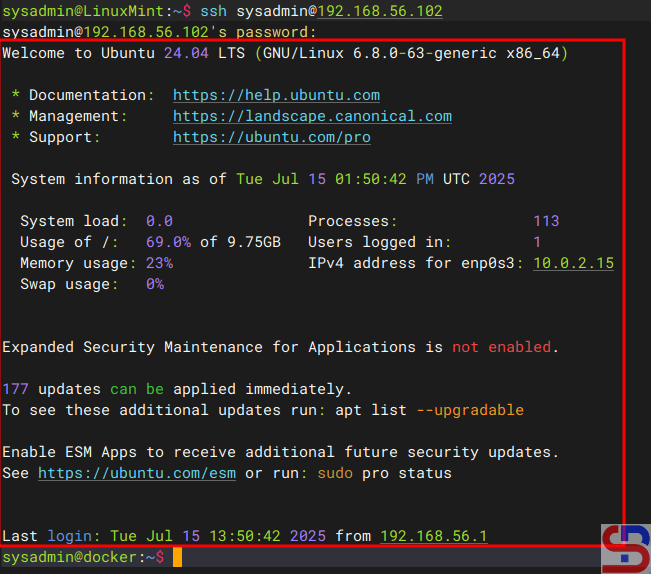
Usually, the welcome message looks like Ubuntu displays information about the Ubuntu server, as shown in the image below:

The welcome message in Ubuntu


There are 2 methods to disable the welcome message:

1. Remove the execute

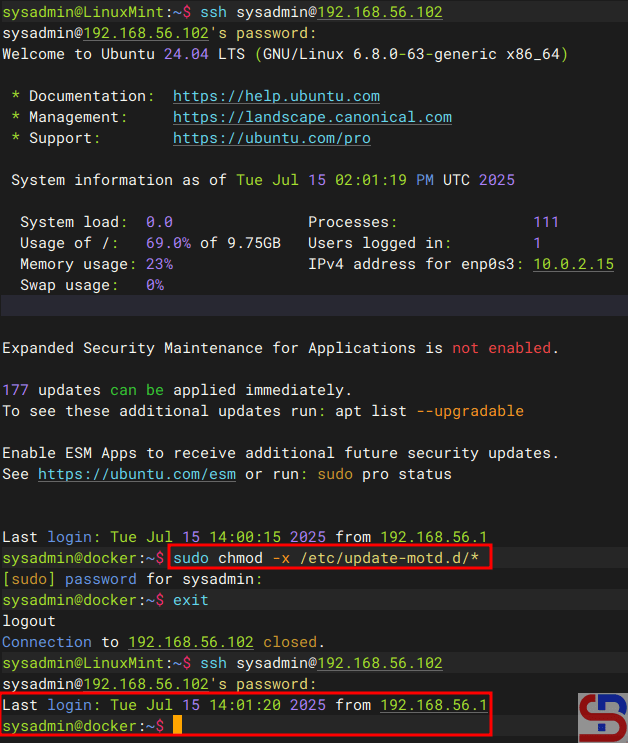
You have to know that the welcome messages are generated by the files residing in /etc/update-motd.d/. So, use the command below to disable the welcome message in Ubuntu:

sudo chmod -x /etc/update-motd.d/*


After you run the above command, every time you access the Ubuntu server, the Ubuntu server does not display a welcome message anymore, but only displays the last login on this server as shown in the image below:

Disable the welcome message by removing the execute


2. Create a file

The second method is to create an empty file known as .hushlogin in your $HOME directory by using the command below:

touch ~/.hushlogin


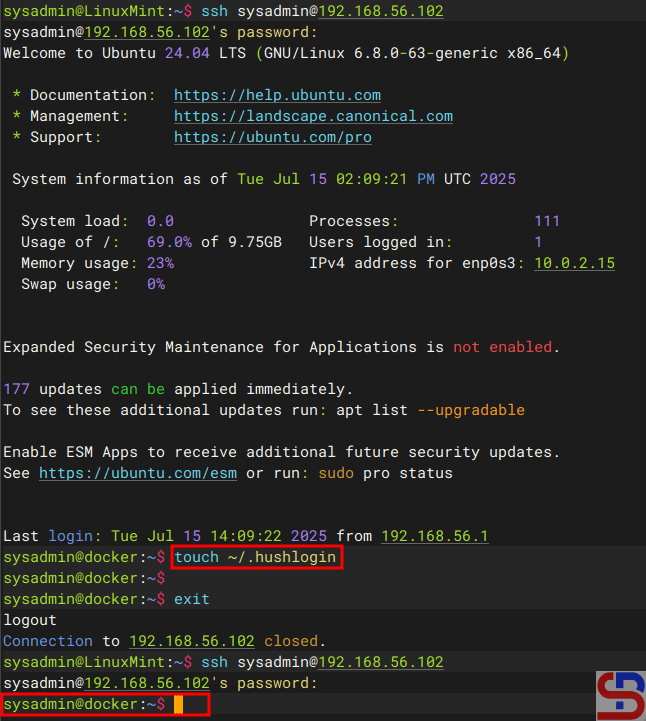
It should be after you do the above command, every time you access the server, the Ubuntu server does not display a welcome message or last login at all, as shown in the image below:

Disable the welcome message by creating a file


Note

If you want to return the default welcome message after you run one of the 2 methods above, then use the command below if you are using the first method:

sudo chmod +x /etc/update-motd.d/*


And use the command below if you are using the second method:

rm ~/.hushlogin


The default welcome message in Ubuntu should appear every time you access the Ubuntu server.


References

askubuntu.com
cyberciti.biz


How to Run a Container Automatically After the Server Reboots?

By default, if a server containing Docker reboots, all Docker containers on that server will shut down. If the server has a lot of containers, you will have to manually turn them on, which is highly exhausting.


Problem

How to run a container automatically after the server reboots?


Solution

In Docker, the restart policy specifies when and how the Docker container will be automatically restarted in the event of a system failure, shutdown, or reboot. There are 4 types of restart policies that you can use:


Restart Policy in Docker

Option Description
no Never restarts automatically and this is a default policy
on-failure Restart only if the exit code ≠ 0 (fail). Can be added to the maximum restart (on-failingure: 5).
always Always restart the container, unless it is stopped manually (docker stop), including when rebooting the server.
unless-stopped Similar to the always option, but it won't restart if the container is stopped manually, even after a reboot.


By default, Docker uses the no option for the restart policy so that the container won’t turn on when the server boots. There are several methods to automatically turn on containers after the server reboots:

Warning
Make sure that Docker on your server is enabled because all containers on that server won’t run automatically after restarting the server if you haven’t enabled Docker.


1. If your container is still not running

Use the format below if you run a container and you want it to turn on automatically after restarting the server:

docker run -d ‐-restart restart_option your_docker_image


If your container name is a webserver that uses the nginx image and you want the container to run automatically after the server reboots, you can use the command below:

docker run -d --restart always --name webserver nginx


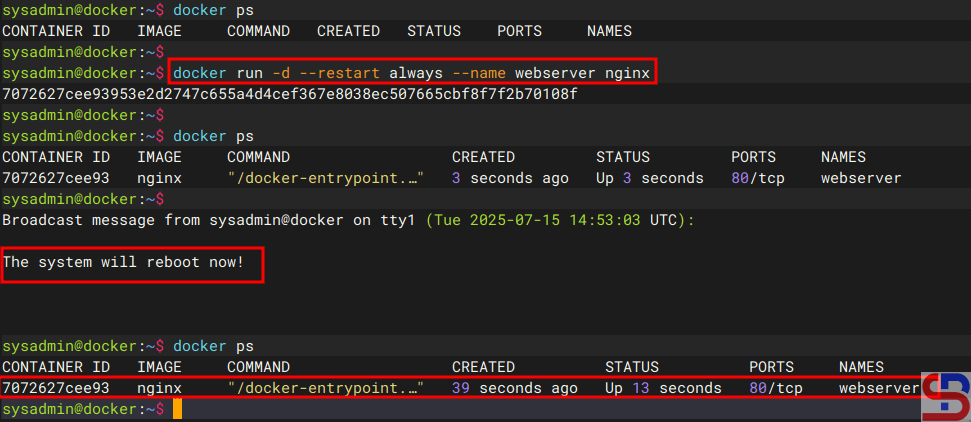
Once the container is running, try restarting the server, and it should continue to run automatically after the server restart, like in the image below:

The container runs automatically after the  server restarts using the always option


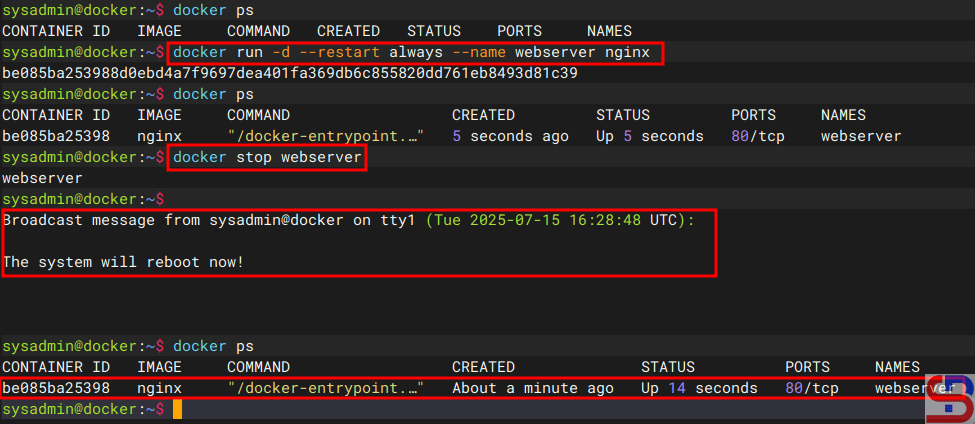
Now, try to stop the container and restart the server, and then the container should still run automatically after the server restarts, like in the image below:

The container still runs automatically after the  server restarts using the always option


2. If your container is running

If a container is running but has not used the restart option, you can use the format below so that the container can run automatically after the server restarts:

docker update --restart unless-stopped container_name_or_id


For example, you see a memcached container that uses a redis image is already running on the server, but has not used the restart option. Use the command below if you want the container to keep running after the server restarts, but if the container previously stopped, then at the time of the server restart, the container still won’t run:

docker update --restart unless-stopped memcached


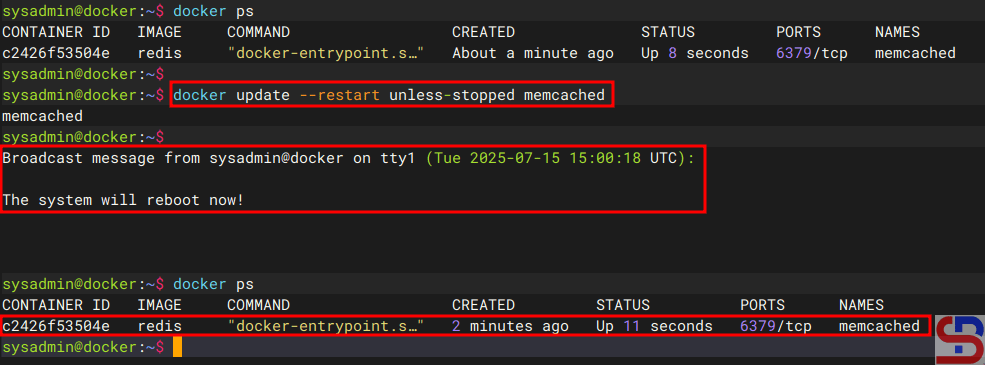
Now, try restarting the server while the container is running, and then the container should still run automatically if the server reboots, like in the image below:

run a container automatically after the server reboots
The container runs automatically after the  server restarts using the unless-stopped option


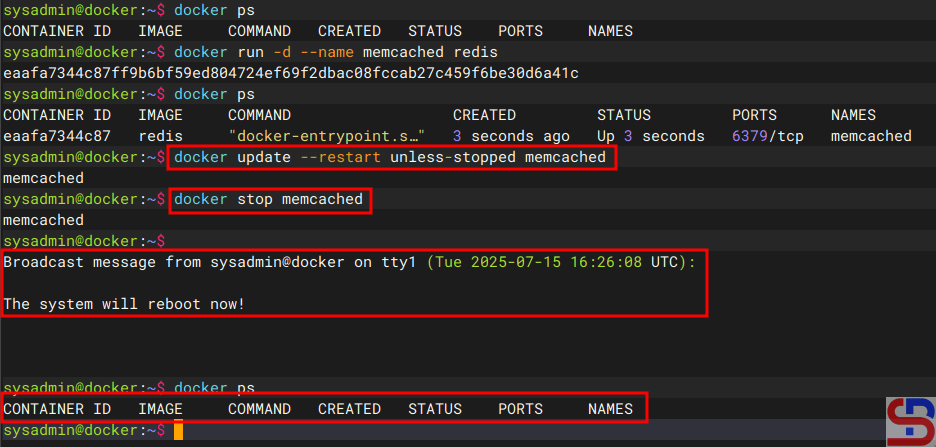
Now, try to stop the container and then restart the server; the container should still not run after the server restarts, like in the image below:

run a container automatically after the server reboots
The container is still not running after the  server restarts using the unless-stopped option


3. Using crontab

The third method of using crontab is to enter the following formats into crontab:

@reboot /usr/bin/docker start container_name_or_id


For example, you want to run the webserver container automatically after restarting the server, so insert the script below into the crontab :

@reboot /usr/bin/docker start webserver


If a container uses a crontab to keep it running after restarting the server, it will continue to run after restarting the server, even if it uses the unless-stopped option and the container is not running before the server is restarted.


Note

If you want a container to run automatically after restarting the server, it is important to note the distinction between using the always and unless-stopped parameters. If the container is a very important application, such as a webserver or database, use the always option for the container, but use the unless-stopped option if the container is a non-essential application.


References

docs.docker.com
stackoverflow.com
betterstack.com
baeldung.com


How to Run Multiple Sessions Using the Screen Tool?

Have you ever been doing a job using a terminal that runs the SSH protocol, whether it’s using a putty or a terminal in Linux, that takes a long time, for example syncing or downloading a file, but has to suddenly stop because the internet network is disconnected or your laptop suddenly shuts down? It is very disappointing because you have to repeat from the beginning of the work, or even more dangerous if you are updating the database, for example, doing an alter table in a database, but suddenly your internet connection is lost. Therefore, you need multiple sessions in one terminal so that if your internet connection or laptop goes down, the process will still run. There are several tools to run multiple sessions, but this article will explain the use of the screen tool.


Problem

How to run multiple sessions using the screen tool?


Solution

Screen or GNU Screen is a terminal application developed by the GNU project in 1987 that is used to create multiplex several virtual consoles, allowing a user to access multiple separate login sessions inside a single terminal window, or detach and reattach sessions from a terminal and keeping them running in the background even if your internet network or laptop goes down.

A. Install the screen

On some Linux distros, this tool is already installed by default, and to check it, use the command below:

screen --version


But if your Linux distro doesn’t have this tool, you can run the command below to install the screen:

RockyLinux/Almalinux/CentOS

yum install screen


Ubuntu/Debian

sudo apt update
sudo apt install screen


OpenSUSE

zypper install screen


B. Run the screen

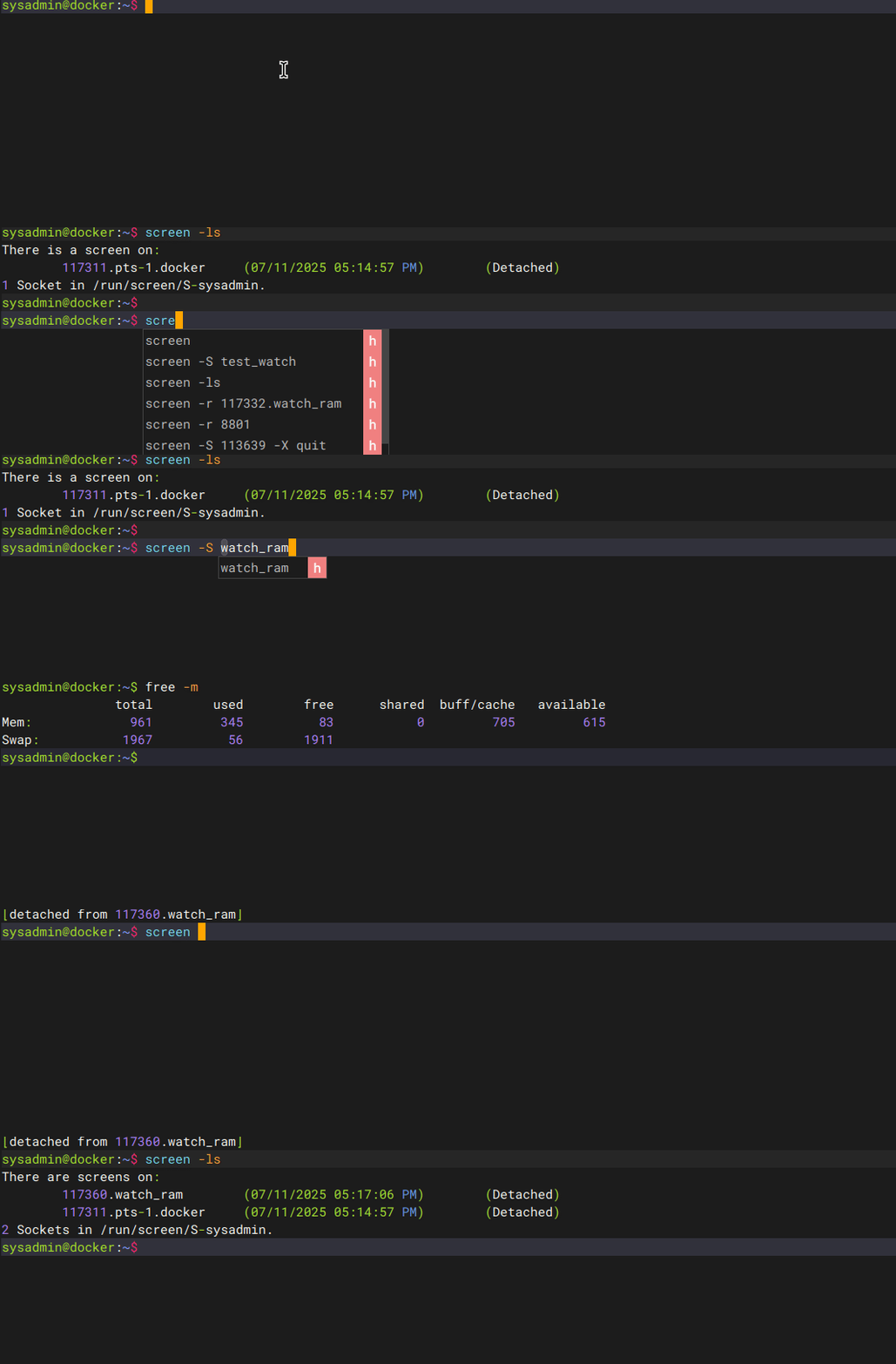
Type the command below to run the screen:

screen


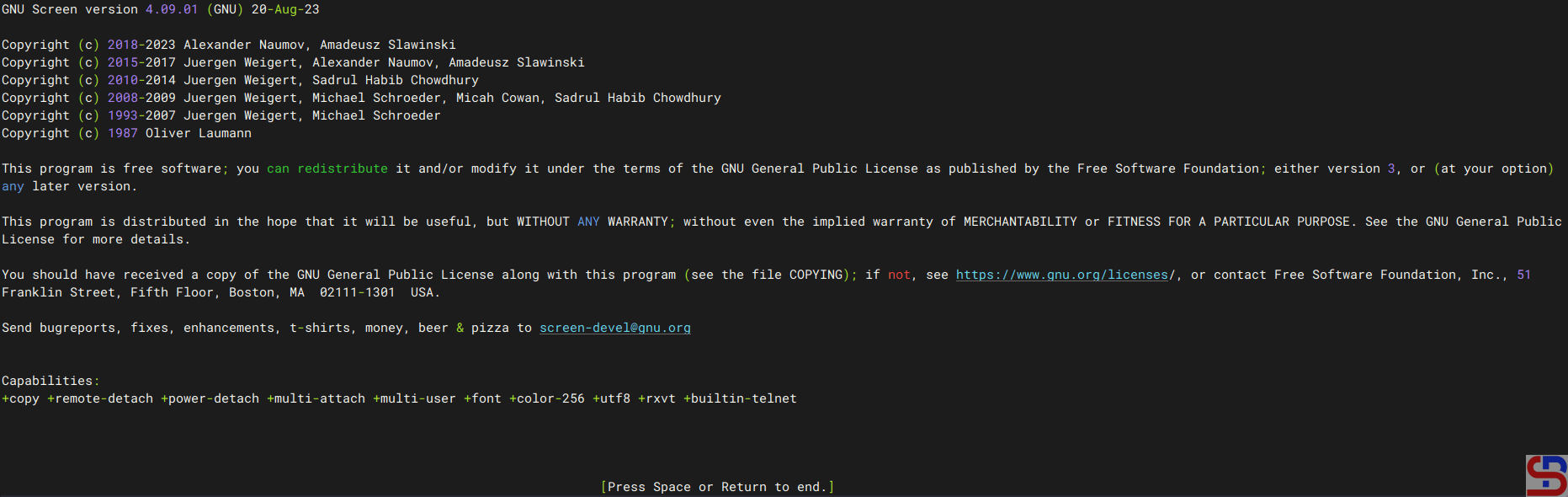
There will be a display like the image below:

The initial display of the screen


Press the Space or Enter key to continue, and after that, you are in the application screen. On the screen, you are free to use the Linux commands you want to run, for example, if you want to run the command:

free -m


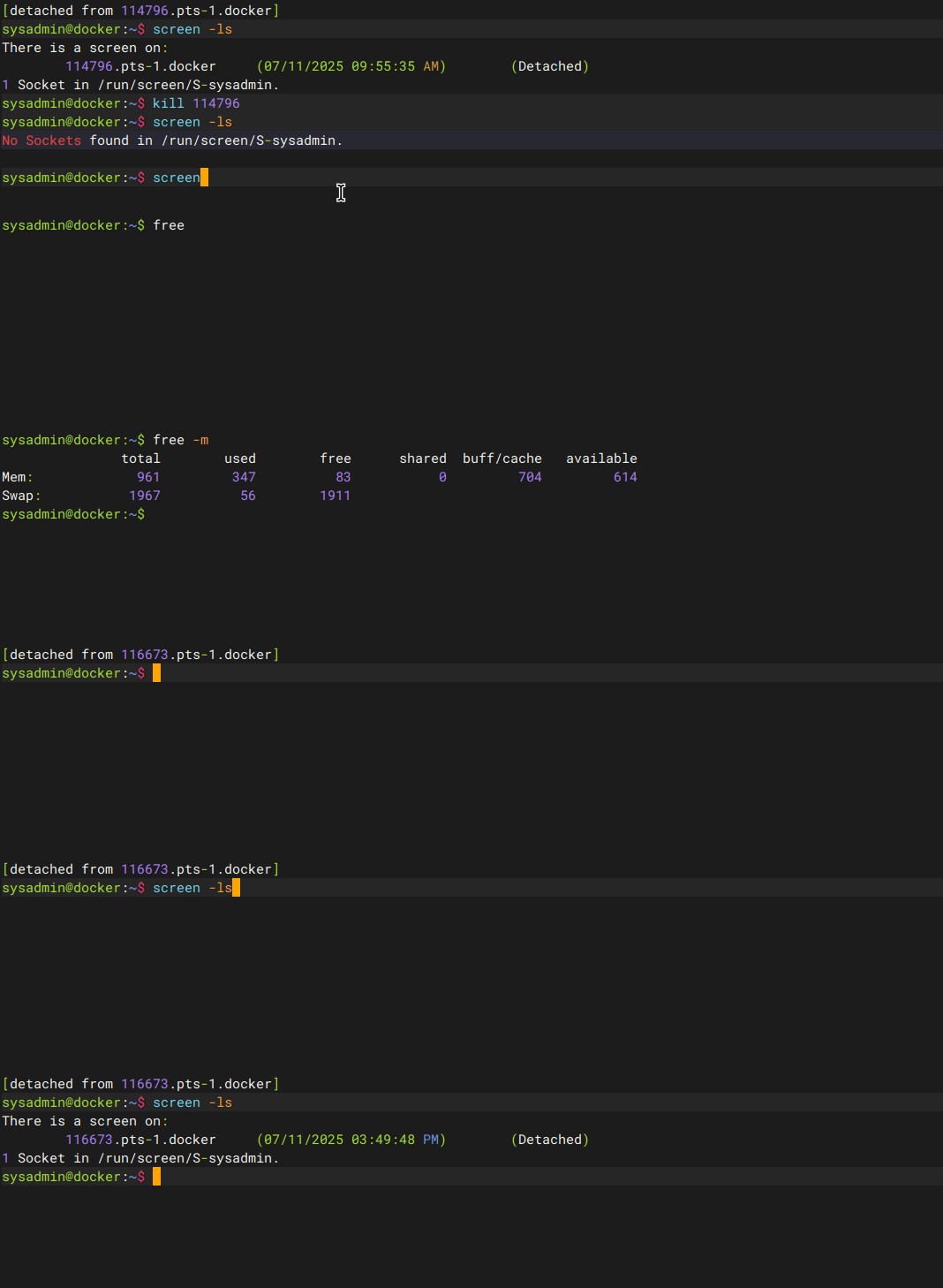
The command will display the size of the memory on the server. If you want to exit the screen but want the command to continue on the screen, press the Ctrl+ad key, then you will return to your default terminal. To view the running screen session, use the command below:

screen -ls


It will look like in the image below:

Running the screen


C. Reattach to the screen session

If you want to reattach the previous screen session, use the format below:

screen -r pid_screen


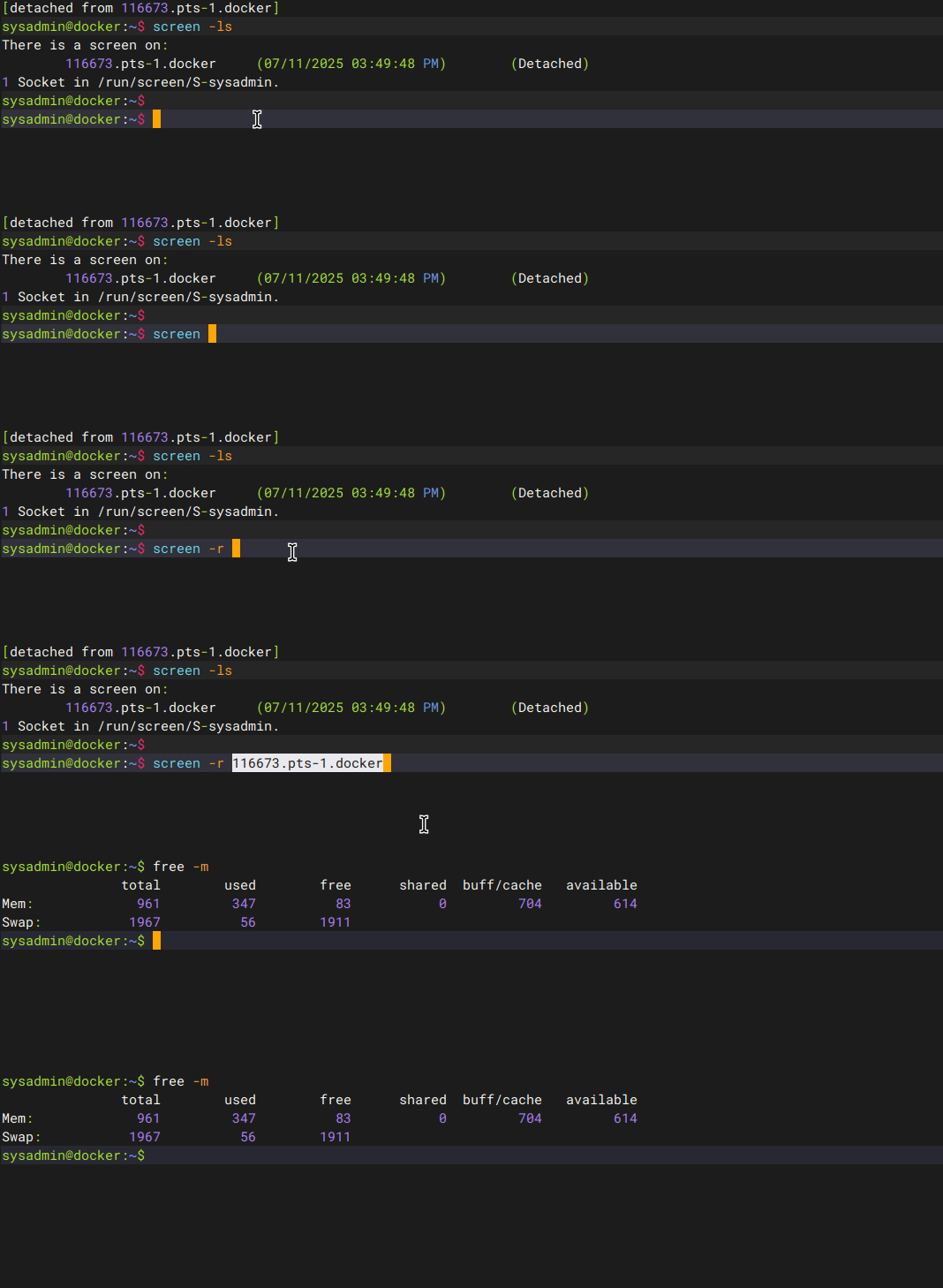
For example, my previous screen session used pid 116673.pts-1.docker, like in the image above. If I want to log in to the previous screen session, I type the command below:

screen -r 116673.pts-1.docker


And I can log into the screen session, and the size of the server memory will be displayed as I leave the screen session, like in the image below:

Reattach to the previous screen


INFO
You can write only the PID number, and there is no need to write the complete PID of a screen session. For example, you have a pid screen like this: 116673.pts-1.docker. So you can type screen -r 116673 instead of type screen -r 116673.pts-1.docker.


D. Naming a screen session

By default, the screen will give a pid in the form of a pid number followed by the terminal type and hostname, as shown in the image above (116673.pts-1.docker). However, it may be confusing to the user if the user uses more than one screen with different processes on each screen. Therefore, you can give a name to distinguish it using the format below:

screen -S screen_session_name


For example, if you want to use a screen to run the watch process, then you can use the command below:

screen -S watch_ram


Naming a screen session


If you display the screen session will look like the image below:

List of screen sessions


From the image above, the screen name will change according to what you wrote, and will no longer use the connection type format and hostname for naming a screen session.

E. Delete a screen session

There are 2 ways to delete a screen session: from inside the screen and from outside the screen.

1. From inside the screen

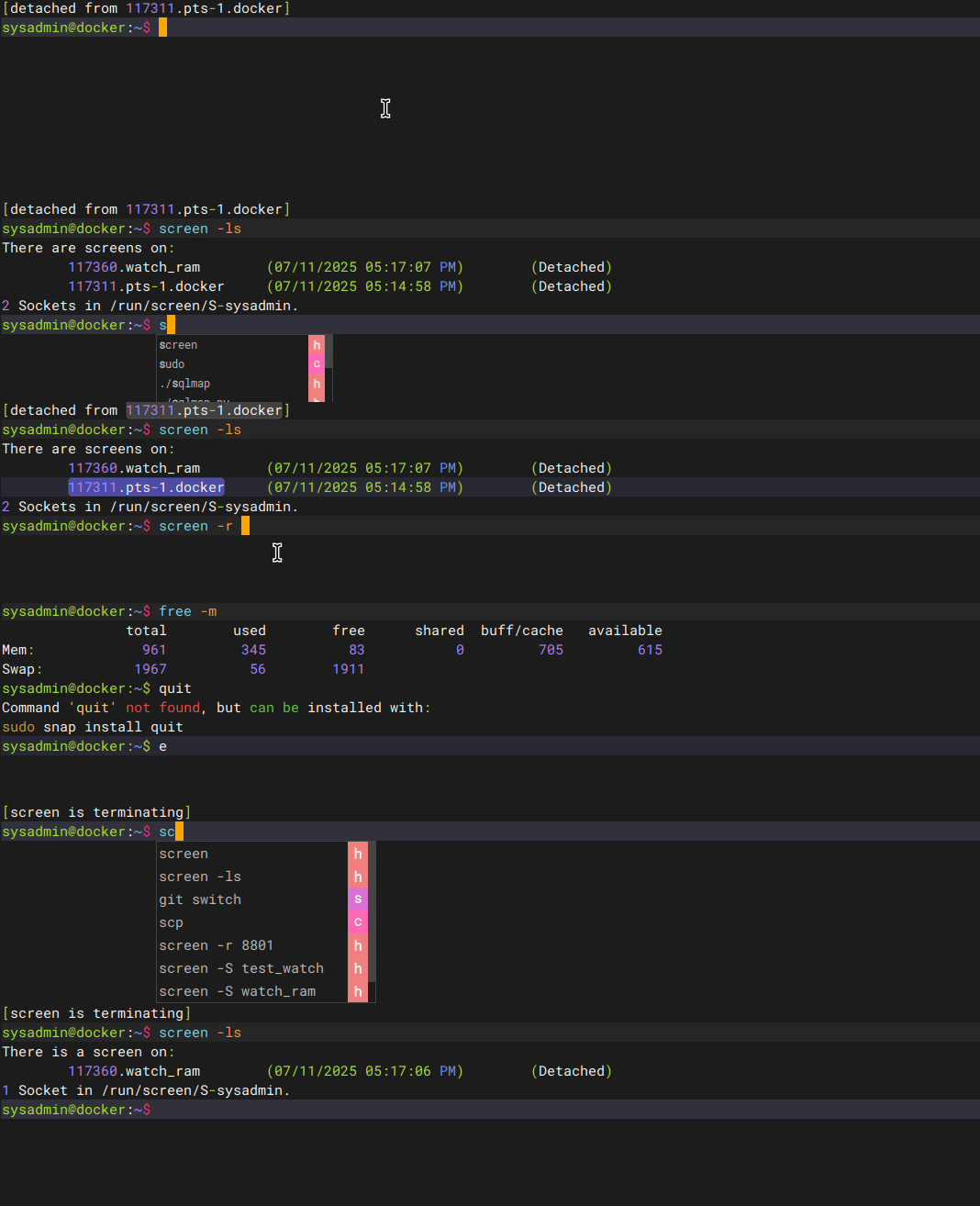
If it is from inside the screen, just type exit or press Ctrl+d for the session to end, the screen session will end, which is marked by the sentence [screen is terminating] on the screen, and the screen session will disappear as shown in the image below:

Delete a screen session from inside the screen


2. From outside the screen

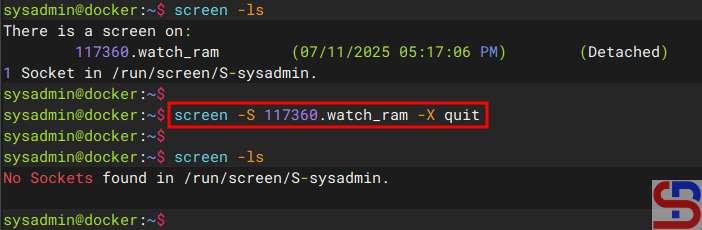
If it is from outside the screen, there are 2 methods to turn off the screen session. The first method is to use the command in the format below:

screen -S screen_session -X quit


Let’s say you have a PID session 117360.watch_ram, and want to turn off the session from outside the screen. You can use the command:

screen -S 117360.watch_ram -X quit


And the screen session should be deleted, like in the image below:

Delete a  screen session from outside the screen using the option -X quit


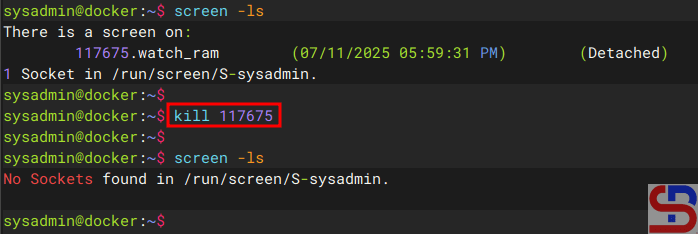
The second method is to use the kill command using the format:

kill pid_screen_session


Let’s say you have a PID session 117675.watch_ram, and want to turn off the session from outside the screen. You can use the command:

kill 117675.watch_ram


And the screen session should be deleted, like in the image below:

Delete a screen session from outside the screen using kill


Note

If you open a screen session on a terminal but suddenly your internet connection is lost, you can open a new terminal and connect to the previous screen session. But after you type the command screen -r pid_screen_session, there is a statement as below:

There is no screen to be resumed matching 1195600.pts-1.linuxmint.

It means that the screen session is already attached somewhere ‐- likely in another terminal, SSH session, or even an old/abandoned connection. You can forcefully take over the session using:

screen -D -r 1195600.pts-1.linuxmint


And you should be able to reattach to the screen session.


References

en.wikipedia.org
hostinger.com
geeksforgeeks.org
veeble.com
baeldung.com


How to Display the Total CPU Size Used by an Application on Linux?

The previous article explained how to display the total size of memory used by applications on Linux. This article will explain how to display the total CPU size used by an application on Linux.


Problem

How to display the total CPU size used by an application on Linux?


Solution

You can use the application commonly used to see processes that run on Linux, such as top and htop, because it will display the CPU usage. Still, I want to display the size of the CPU used by an application because the display of the two commands is still confusing. Here are some scripts that can be used to see the size of the CPU used by an application on Linux:

A. Displays CPU per one application

Run the command below to see the CPU size used by an application (this script will display the size of the CPU used by the Vivaldi browser):

echo "Firefox browser use $(ps -C firefox -o %cpu --no-headers 2>/dev/null \
| awk -v cores=$(nproc) '{sum+=$1} END {if (NR>0) printf "%.1f%% CPU (of %d cores)", \
sum, cores; else print "0% CPU (not running)"}')"


Then the memory used by Firefox will be displayed as shown in the picture below:

Display the size of the total CPU used by Firefox


B. Display the CPU for more than one application

If you want to display the CPU size used by more than one application, use the command below (this script will display the CPU size used by the Vivaldi and Firefox browsers):

for app in firefox-bin vivaldi-bin; do   echo -n "$app: ";   ps -C "$app" -o %cpu --no-headers 2>/dev/null |     awk -v cores=$(nproc) '{
      sum+=$1
    } END {
      if (NR>0) printf "%.1f%% CPU (of %d cores)\n", sum, cores
      else print "0% CPU (not running)"
    }'; done


Then the CPU used by Vivaldi and Firefox browsers will be displayed as shown in the picture below:

Display the size of the total CPU used by Vivaldi and Firefox


C. Displays the 5 apps that use the most CPU

Run the script below to see the 5 Linux applications that use the most CPU:

{ 
  echo -e "Application Name       %CPU"
  ps -eo comm,%cpu --no-headers | awk '{cpu[$1]+=$2} END {for (p in cpu) printf "%-20s %6.2f\n", p, cpu[p]}' | sort -k2 -nr | head -n 5
}


The script above will show the 5 Linux applications that use the most CPU:

display the total CPU size used
Display the Linux applications that use the biggest CPU


Note

If you want to know the simple Linux command to display the memory and CPU of an application, you can use the command below (for this case, I chose the Firefox application):

ps -p $(pgrep -d ',' firefox-bin) -o pid,user,%cpu,%mem,cmd


Then there will be a display as below:

display the total CPU size used
Simple Linux command to display RAM and CPU


References

stackoverflow.com
lindevs.com
tecmint.com


How to Display the Total Memory Size Used by an Application on Linux?

I want to see the total memory size used by an application on Linux.


Problem

How to display the total memory size used by an application on Linux?


Solution

I usually use top or htop to see the process that occurs in Linux. But I want to be more specific to see how much the total size of the memory used by an application on Linux is. After searching on the internet, 2 tools can be used:

A. Using the ps_mem Tool

The ps_mem tool is used to see the use of memory for a program made by Pixelb at Github. To install this tool, make sure you have a Python package on your Linux device. Use the commands below to install ps_mem:

sudo wget -qO /usr/local/bin/ps_mem https://raw.githubusercontent.com/pixelb/ps_mem/master/ps_mem.py
sudo chmod a+x /usr/local/bin/ps_mem


If your Linux device has python3 and its location at /usr/bin/python3 (to know the location of the python, use whereis python3), use the command below so that this tool can run on your device:

sudo ln -s /usr/bin/python3 /usr/bin/python


After that, type the command below whether the ps_mem tool is running or not:

ps_mem --version


To see the options used in this tool, use the command below:

ps_mem --help


In general, the format used to see the size of a memory used in a Linux application is as follows:

ps_mem -S -p $(pgrep application_name)


For example, if you want to see how much memory size is used in the Firefox application, then type the command below:

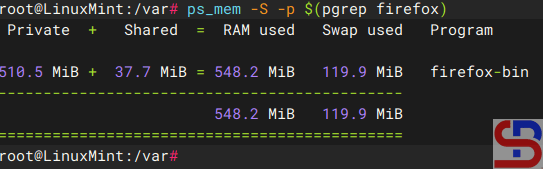
ps_mem -S -p $(pgrep firefox)

Display the size of total memory using ps_mem


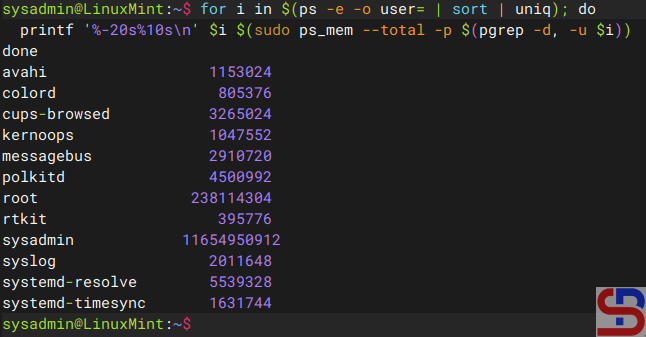
As seen in the picture above, the Firefox application uses memory of 548.2 MB. To see the total memory used per Linux user, you can use the command below:

for i in $(ps -e -o user= | sort | uniq); do
  printf '%-20s%10s\n' $i $(sudo ps_mem --total -p $(pgrep -d, -u $i))
done

Display used memory by user on Linux


INFO
If you want to change the result to Megabytes, use the below command:

for i in $(ps -e -o user= | sort | uniq); do
bytes=$(sudo ps_mem –total -p $(pgrep -d, -u “$i”) 2>/dev/null)
bytes=${bytes:-0}
mb=$(( bytes / 1048576 ))
printf ‘%-20s%10s MB\n’ “$i” “$mb”


B. Using the smem Tool

This tool provides detailed reports on memory usage per process and per user, as well as providing additional information such as USS (Unique Set Size) that is not available in traditional tools such as top or htop. Below is how to install the smem tool:

Ubuntu/Debian

sudo apt update
sudo apt install smem


RockyLinux/AlmaLinux/CentOS

sudo yum install smem 


OpenSUSE

sudo zypper install smem 


Type the command below to run a smem command:

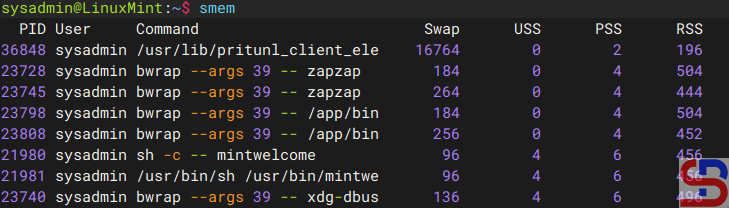
smem


Then the display will appear as shown below:

the smem command


The terms USS, PSS, and RSS can be briefly explained below:

  • USS (Unique Set Size) = Memory used exclusively by the process.
  • PSS (Proportional Set Size) = Shared memory divided among processes.
  • RSS (Resident Set Size) = Total RAM used (including shared).


After that, to display the size of memory used by a Linux application, such as the Vivaldi browser application, you can use the following script:

echo "Vivaldi using memory of $(smem -c "name pss" | grep -i vivaldi | awk -v avail_mem_kb=$(grep MemAvailable /proc/meminfo | awk '{print $2}') -v total_mem_kb=$(grep MemTotal /proc/meminfo | awk '{print $2}') '{sum+=$2} END {if(sum>0) {printf "%.2f MB (%.1f%% of total RAM, %.1f%% of available RAM)", sum/1024, (sum/total_mem_kb)*100, (sum/avail_mem_kb)*100} else {print "0 MB (0% of total RAM, 0% of available RAM)"}}')"

display the total memory size
Display the size of the total memory that is used for Vivaldi using smem


If you want to display the memory size used by more than one application, such as Vivaldi and Brave browser applications, copy the script below:

for app in vivaldi  brave; do    avail_mem_kb=$(grep MemAvailable /proc/meminfo | awk '{print $2}');   total_mem_kb=$(grep MemTotal /proc/meminfo | awk '{print $2}');   sum=$(smem -c "name pss" | grep -i "$app" | awk '{s+=$2} END {print s+0}');      LC_NUMERIC=C printf "%s using memory of %.2f MB (%.1f%% of total RAM, %.1f%% of available RAM)\n"     "$app" "$(echo "$sum/1024" | bc -l)" "$(echo "($sum/$total_mem_kb)*100" | bc -l)" "$(echo "($sum/$avail_mem_kb)*100" | bc -l)"; done

Display the size of the total memory of two Linux applications using smem


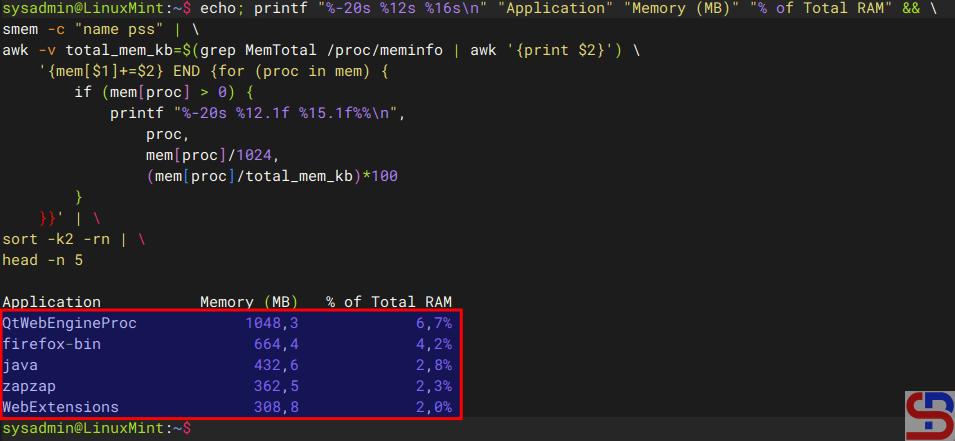
If you want to see the applications on your Linux device that use the most memory, copy the script below where the script will display the 5 Linux applications that use the most memory:

echo; printf "%-20s %12s %16s\n" "Application" "Memory (MB)" "% of Total RAM" && \
smem -c "name pss" | \
awk -v total_mem_kb=$(grep MemTotal /proc/meminfo | awk '{print $2}') \
    '{mem[$1]+=$2} END {for (proc in mem) { 
        if (mem[proc] > 0) {
            printf "%-20s %12.1f %15.1f%%\n", 
                proc,
                mem[proc]/1024, 
                (mem[proc]/total_mem_kb)*100
        }
    }}' | \
sort -k2 -rn | \
head -n 5

display the total memory size
List of 5 top application that use the biggest memory in Linux


Note

If you compare the results of the two tools, you can see the results obtained are almost the same as in the picture below:

display the total memory size
Comparison result of ps_mem and smem tools


If you want to see the total size of memory used by an application on Linux easily then you can use the ps_mem tool. However, if you want to see a list of Linux applications that use the most memory, you can use the smem application.


References

stackoverflow.com
lindevs.com
tecmint.com


How to Display Hidden Files and Folder Sizes on Linux?

To see the total size of a folder in Linux usually sysadmin uses the command du -sh*. However, this command has a drawback because it only displays the size of all files and folders visible in the Linux folder but cannot display the size of the files and folders hidden in a Linux folder.


Problem

How to display hidden files and folder sizes on Linux?


Solution

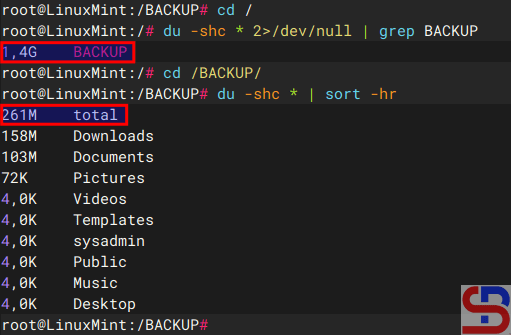
I have a BACKUP folder with a total folder size of 1.4GB, but, when I go to the folder and run the command du -sh *, it turns out that the size of all the files and folders in the folder is only 261 MB as shown in the image below:

Total size of the folder


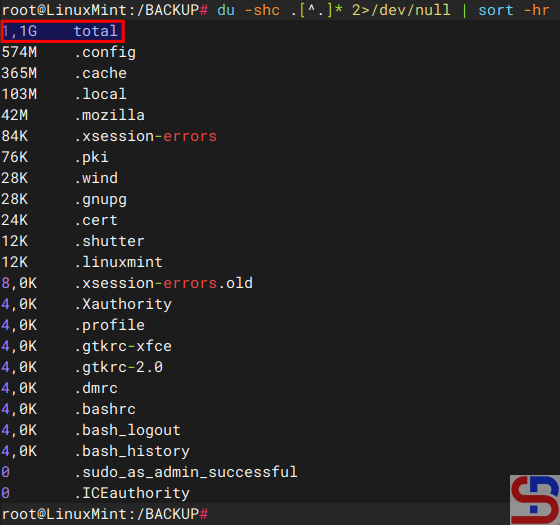
So there is a difference of 1.1 GB from the total size of the BACKUP folder. The difference is that the du -sh* command does not count the hidden files and folders in a Linux folder. To display hidden files and folder sizes on Linux, use the command below:

du -shc .[^.]* 2>/dev/null | sort -hr


and it will look like in the image below:

Total size of the hidden files/folders


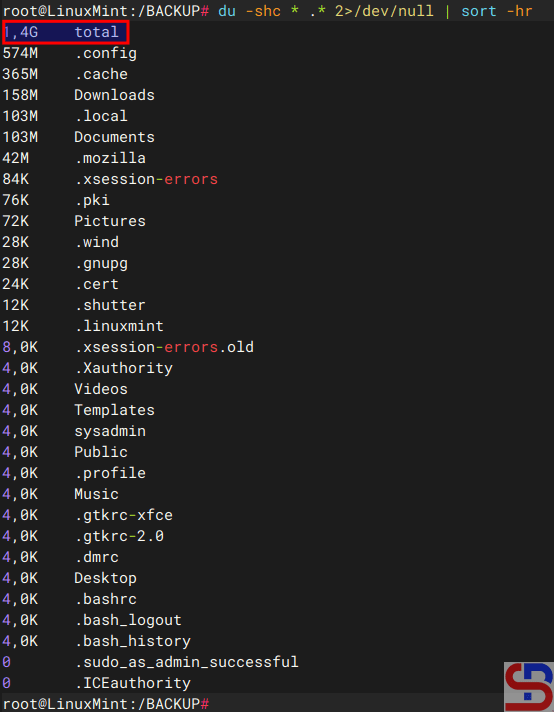
As seen in the image above, the command only displays hidden files and directories and shows a total of 1.1 GB of hidden files and folders. If you want to display the size of the entire file or folder, both hidden and visible, use the command below:

du -shc * .* 2>/dev/null | sort -hr


there will be a display like the image below:

display hidden files and folder sizes
Total size of all the files/folders


You can see the total size of a file and folder, both visible and hidden, like the image above.


Note

You can view file sizes and directories on Linux by using an application named ncdu. To install it, enter the following command:

Ubuntu/Debian

sudo apt update
sudo apt ncdu


RockyLinux/AlmaLinux/CentOS

sudo dnf install epel-release
sudo dnf update
sudo dnf install ncdu


OpenSUSE

sudo zypper refresh
sudo zypper install ncdu


Next, choose the folder you wish to view to see the overall size of the files and folders included within. If you want to see the total of all folders in Linux, log in as a root user and type the command below:

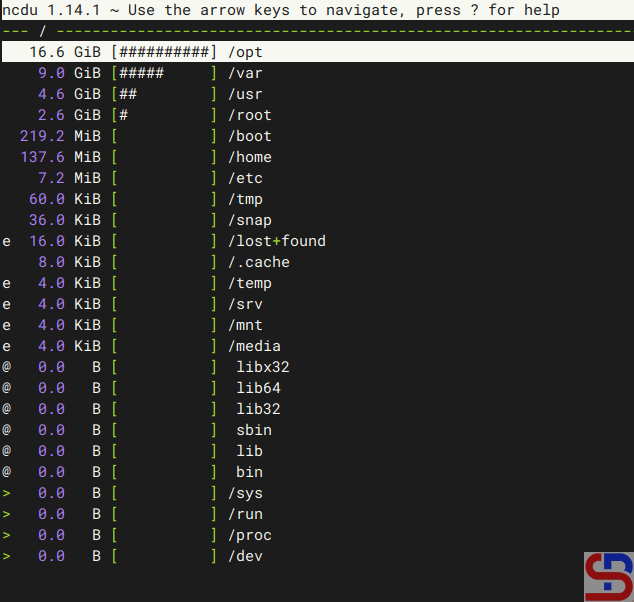
ncdu -x /


then the application will scan and after the scanning process is complete it will display the total size of all folders in Linux as shown in the image below:

display hidden files and folder sizes
Total size of all folders in Linux


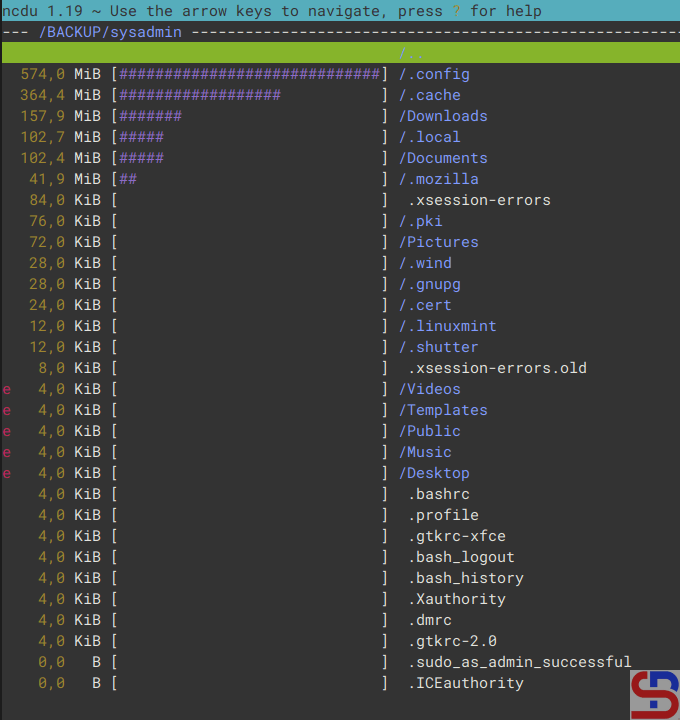
Please select the folder you want to enter and press the Enter key to enter the folder. I choose the BACKUP folder and push the Enter button, it will display like the image below:
display hidden files and folder sizes
Enter into the BACKUP folder


The -x option in the above command means that he will ignore other mounted filesystems outside where the root filesystem is hosted. If you want to use more options in this application, please read the description using the command below:

man ncdu


References

askubuntu.com
unix.stackexchange.com
stackoverflow.com