How to Configure Virtual Hosts in Apache on RockyLinux?

The previous article explained how to create virtual hosts in Ubuntu. This article will explain how to configure virtual hosts in Apache on Rocky Linux or derivatives of RHEL, such as Almalinux, CentOS, and so on.


Problem

How to configure virtual hosts in Apache on RockyLinux?


Solution

Before starting the configuration, make sure that on the RockyLinux server, the Apache application is installed by using the command:

yum install -y httpd


To see the default settings of Apache in RockyLinux, type the command below:

sudo httpd -S
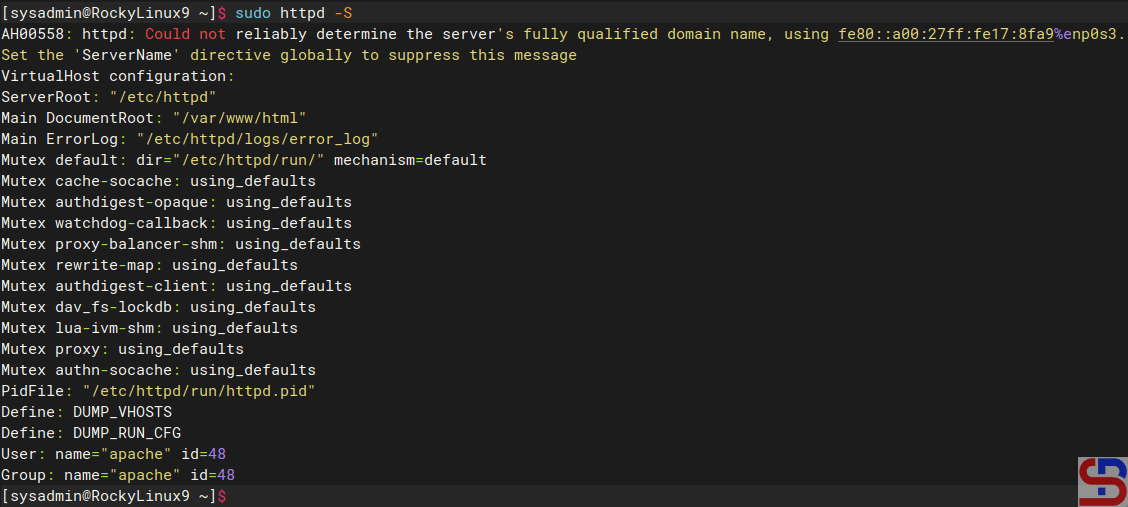
Display default Apache configuration


2 types of virtual hosts can be used, name-based and IP-based, and the difference between the two can be seen in the image below:
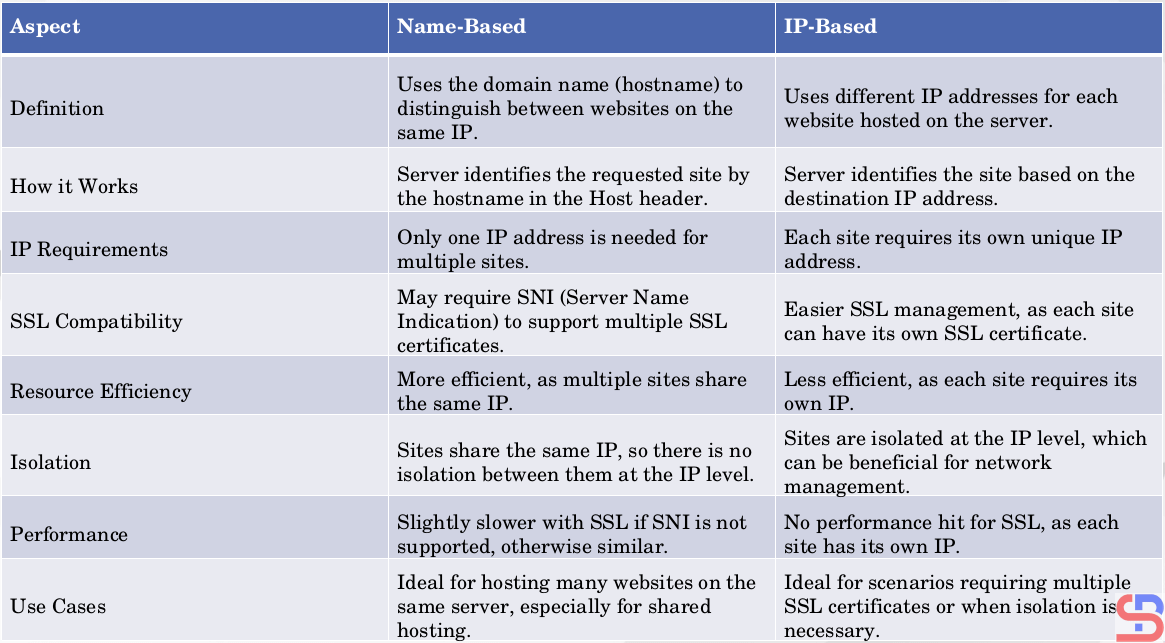
Comparison of name-based and IP-based in virtual hosts


WARNING
This article uses a private IP, not a public IP.


A. name-based virtual hosts

The meaning of name-based is that you have many websites or domains, but you only have one IP. For example, you have 2 domain names: website1.com and website2.com, but you only have 1 IP, which is 192.168.56.2. Here are the steps to get all three domains to use the same IP:

1. Create the directories and the files

By default, Apache uses the /var/www/html folder as its rootdocument, as shown in the image above. However, to make it easier to configure it, you should create a folder for each of these websites, as shown in the image below:


sudo mkdir -p /var/www/html/website1.com/
sudo mkdir -p /var/www/html/website2.com/


WARNING
You can change the above directory to another directory, but for the next steps, you have to follow the directory you created.


After that, create an index.html file for each domain:

sudo sh -c 'echo "<h1> This is for website1.com domain</h1>" > /var/www/html/website1.com/index.html'
sudo sh -c 'echo "<h1> This is for website2.com domain</h1>" > /var/www/html/website2.com/index.html'


2. Change ownership

Change the ownership of the folders:

sudo chown -R apache:apache /var/www/html/website1.com/
sudo chown -R apache:apache /var/www/html/website2.com/
sudo chmod -R 755 /var/www/html


3. Configuration of virtual hosts

Unlike Ubuntu and its derivatives, which use the sites-available and sites-enabled folders in configuring virtual hosts, by default, RockyLinux and its derivatives do not use both folders, but the virtual hosts configuration is inserted into the /etc/httpd/conf.d/ folder. Therefore, type the command below to create two domains in the virtual hosts:

echo "<VirtualHost *:80>" | sudo tee /etc/httpd/conf.d/website1.com.conf > /dev/null
echo "     ServerName website1.com"  | sudo  tee -a /etc/httpd/conf.d/website1.com.conf > /dev/null
echo "     ServerAlias www.website1.com"    |  sudo  tee -a /etc/httpd/conf.d/website1.com.conf > /dev/null
echo "     ServerAdmin webmaster@website1.com"   | sudo  tee -a /etc/httpd/conf.d/website1.com.conf > /dev/null
echo "     DocumentRoot /var/www/html/website1.com"  | sudo  tee -a /etc/httpd/conf.d/website1.com.conf > /dev/null
echo "     ErrorLog logs/website1-error.log"   | sudo  tee -a /etc/httpd/conf.d/website1.com.conf > /dev/null
echo "     CustomLog logs/website1-access.log combined"   | sudo  tee -a /etc/httpd/conf.d/website1.com.conf > /dev/null
echo "</VirtualHost>"   | sudo  tee -a /etc/httpd/conf.d/website1.com.conf > /dev/null

echo "<VirtualHost *:80>"  | sudo tee /etc/httpd/conf.d/website2.com.conf > /dev/null
echo "     ServerName website2.com"  | sudo  tee -a /etc/httpd/conf.d/website2.com.conf > /dev/null
echo "     ServerAlias www.website2.com"  | sudo  tee -a  /etc/httpd/conf.d/website2.com.com >  /dev/null
echo "     ServerAdmin webmaster@website2.com"  | sudo  tee -a /etc/httpd/conf.d/website2.com.conf > /dev/null
echo "     DocumentRoot /var/www/html/website2.com"   | sudo  tee -a  /etc/httpd/conf.d/website2.com.conf > /dev/null
echo "     ErrorLog logs/website2-error.log"   | sudo  tee -a /etc/httpd/conf.d/website2.com.conf > /dev/null
echo "     CustomLog logs/website2-access.log combined"   | sudo  tee -a /etc/httpd/conf.d/website2.com.conf > /dev/null
echo "</VirtualHost>"   | sudo  tee -a /etc/httpd/conf.d/website2.com.conf > /dev/null


WARNING
You can change *:80 to your IP server like 192.168.56.2:80.


4. Check the configuration

Use the command below to check whether there is an Apache configuration that is an error or not by using the command below:

sudo apachectl configtest


If there is no error, then reload Apache using the command below:

sudo systemctl reload httpd


WARNING
Use the command above if there is a change in the configuration of virtual hosts in each domain.


5. Check in the browser

Because this article uses a private IP, you must configure it in the hosts file before you check the browser. If you use Windows, change the hosts file in C:\Windows\System32\drivers\etc\hosts or in /etc/hosts if you use Linux. In the hosts file, add the below script:

192.168.56.2  website1.com website2.com


Info
Change IP 192.168.56.2 with your RockyLinux IP server.


By default, Rockylinux activates the firewall, so you have to open the HTTP port using the command below:

firewall-cmd --add-service=http --permanent
firewall-cmd --reload


Open your browser and type each of these domains, then there should be a site displayed as in the image below:

http://website1.com

Site website1.com


http://website2.com

site website2.com


If you use Linux, you can use the command below to check the result:

curl http://website1.com
curl http://website2.com
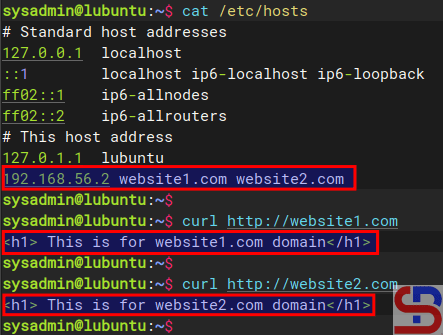
Using the curl command


By default, websites work on the web server using port 80. But you can change port 80 to another port as long as the port is not used on the server. For example, if you want the website1.com site to use port 8080, change the /etc/httpd/conf.d/website1.com.conf file and change its contents to something like this:

Listen 8080
<VirtualHost *:8080>
     ServerName website1.com
     ServerAlias www.website1.com
     ServerAdmin webmaster@website1.com
     DocumentRoot /var/www/html/website1.com
     ErrorLog logs/website1-error.log
     CustomLog logs/website1-access.log combined
</VirtualHost>


Don’t forget to open the 8080 port on the Rockylinux server and reload Apache using the command below:

firewall-cmd --add-port=8080/tcp --permanent
firewall-cmd --reload
sudo systemctl reload apache


Open your browser and type the command below:

http://website1.com:8080

Site website1.com:8080


B. IP-based virtual hosts

The meaning of IP-based is that you use a different IP address for each website. For example, you have 2 IPs and 2 domains, where IP 192.168.56.2 is for site1.com, and IP 192.168.56.104 is for site2.com. This article will use a server that has 2 IPs, as shown below:
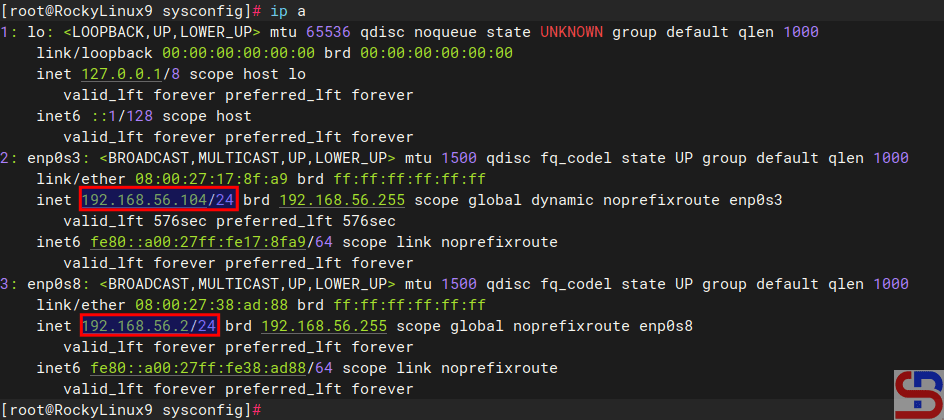
Using 2 NICs in a server


1. Create the directories and the files

By default, Apache uses the /var/www/html folder as its rootdocument, as shown in the image above. However, to make it easier to configure it, you should create a folder for each of these websites, as shown in the image below:


sudo mkdir -p /var/www/html/site1.com/
sudo mkdir -p /var/www/html/site2.com/


WARNING
You can change the above directory to another directory, but for the next steps, you have to follow the directory you created.


After that, create an index.html file for each domain:

sudo sh -c 'echo "<h1> This is for site1.com domain</h1>" > /var/www/html/site1.com/index.html'
sudo sh -c 'echo "h1> This is for site2.com domain</h1>" > /var/www/html/site2.com/index.html'


2. Change ownership

Change the ownership of the folders:

sudo chown -R apache:apache /var/www/html/site1.com/
sudo chown -R apache:apache /var/www/html/site2.com/
sudo chmod -R 755 /var/www/html


3. Configuration of virtual hosts

Unlike Ubuntu and its derivatives, which use the sites-available and sites-enabled folders in configuring virtual hosts, by default, RockyLinux and its derivatives do not use both folders, but the virtual hosts configuration is inserted into the /etc/httpd/conf.d/ folder. Therefore, type the command below to create two domains in the virtual hosts:

echo "<VirtualHost 192.168.56.2:80>" | sudo tee /etc/httpd/conf.d/website1.com.conf > /dev/null
echo "     ServerName website1.com"  | sudo  tee -a /etc/httpd/conf.d/website1.com.conf > /dev/null
echo "     ServerAlias www.website1.com"    |  sudo  tee -a /etc/httpd/conf.d/website1.com.conf > /dev/null
echo "     ServerAdmin webmaster@website1.com"   | sudo  tee -a /etc/httpd/conf.d/website1.com.conf > /dev/null
echo "     DocumentRoot /var/www/html/website1.com"  | sudo  tee -a /etc/httpd/conf.d/website1.com.conf > /dev/null
echo "     ErrorLog logs/website1-error.log"   | sudo  tee -a /etc/httpd/conf.d/website1.com.conf > /dev/null
echo "     CustomLog logs/website1-access.log combined"   | sudo  tee -a /etc/httpd/conf.d/website1.com.conf > /dev/null
echo "</VirtualHost>"   | sudo  tee -a /etc/httpd/conf.d/website1.com.conf > /dev/null

echo "<VirtualHost 192.168.56.104:80>"  | sudo tee /etc/httpd/conf.d/website2.com.conf > /dev/null
echo "     ServerName website2.com"  | sudo  tee -a /etc/httpd/conf.d/website2.com.conf > /dev/null
echo "     ServerAlias www.website2.com"  | sudo  tee -a  /etc/httpd/conf.d/website2.com.com >  /dev/null
echo "     ServerAdmin webmaster@website2.com"  | sudo  tee -a /etc/httpd/conf.d/website2.com.conf > /dev/null
echo "     DocumentRoot /var/www/html/website2.com"   | sudo  tee -a  /etc/httpd/conf.d/website2.com.conf > /dev/null
echo "     ErrorLog logs/website2-error.log"   | sudo  tee -a /etc/httpd/conf.d/website2.com.conf > /dev/null
echo "     CustomLog logs/website2-access.log combined"   | sudo  tee -a /etc/httpd/conf.d/website2.com.conf > /dev/null
echo "</VirtualHost>"   | sudo  tee -a /etc/httpd/conf.d/website2.com.conf > /dev/null


4. Check the configuration

Use the command below to check whether there is an Apache configuration that is an error or not by using the command below:

sudo apachectl configtest


If there is no error, then reload Apache using the command below:

sudo systemctl reload httpd


WARNING
Use the command above if there is a change in the configuration of virtual hosts in each domain.


5. Check in the browser

Because this article uses a private IP, you must configure it in the hosts file before you check the browser. If you use Windows, change the hosts file in C:\Windows\System32\drivers\etc\hosts or in /etc/hosts if you use Linux. In the hosts file, add the below script:

192.168.56.2   site1.com 
192.168.56.104 site2.com


Info
Change IP 192.168.56.2 & IP 192.168.56.104 with your RockyLinux IP server.


By default, Rockylinux activates the firewall, so you have to open the HTTP port using the command below:

firewall-cmd --add-service=http --permanent
firewall-cmd --reload


Open your browser and type each of these domains then there should be a site displayed as in the image below:

http://site1.com

Site site1.com


http://site2.com

Site site2.com


If you use Linux, you can use the command below to check the result:

curl http://site1.com
curl http://site2.com
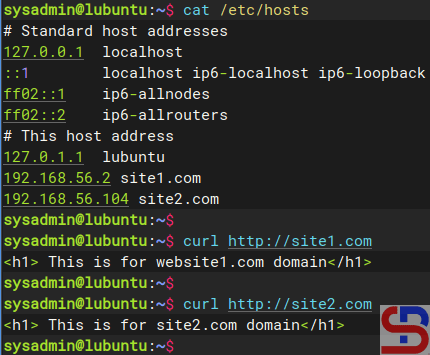
Using the curl command


By default, websites work on the web server using port 80. But you can change port 80 to another port as long as the port is not used on the server. So, if you want the site1.com site to use port 8181, change the /etc/httpd/conf.d/website1.com.conf file and change its contents to something like this:

Listen 8181
<VirtualHost 192.168.56.102:8181>
     ServerName site1.com
     ServerAlias www.site1.com
     ServerAdmin webmaster@site1.com
     DocumentRoot /var/www/html/site1.com
     ErrorLog logs/site1-error.log CustomLog logs/site1-access.log combined </VirtualHost>


If you use the firewall in your Ubuntu server, don’t forget to open port 8181 using the command below:

sudo firewall-cmd --add-port=8181/tcp --permanent 
sudo firewall-cmd --reload 
sudo systemctl reload apache


Reload Apache and open it in the browser by typing the command:

http://site1.com:8181

Site site1.com:8181


Note

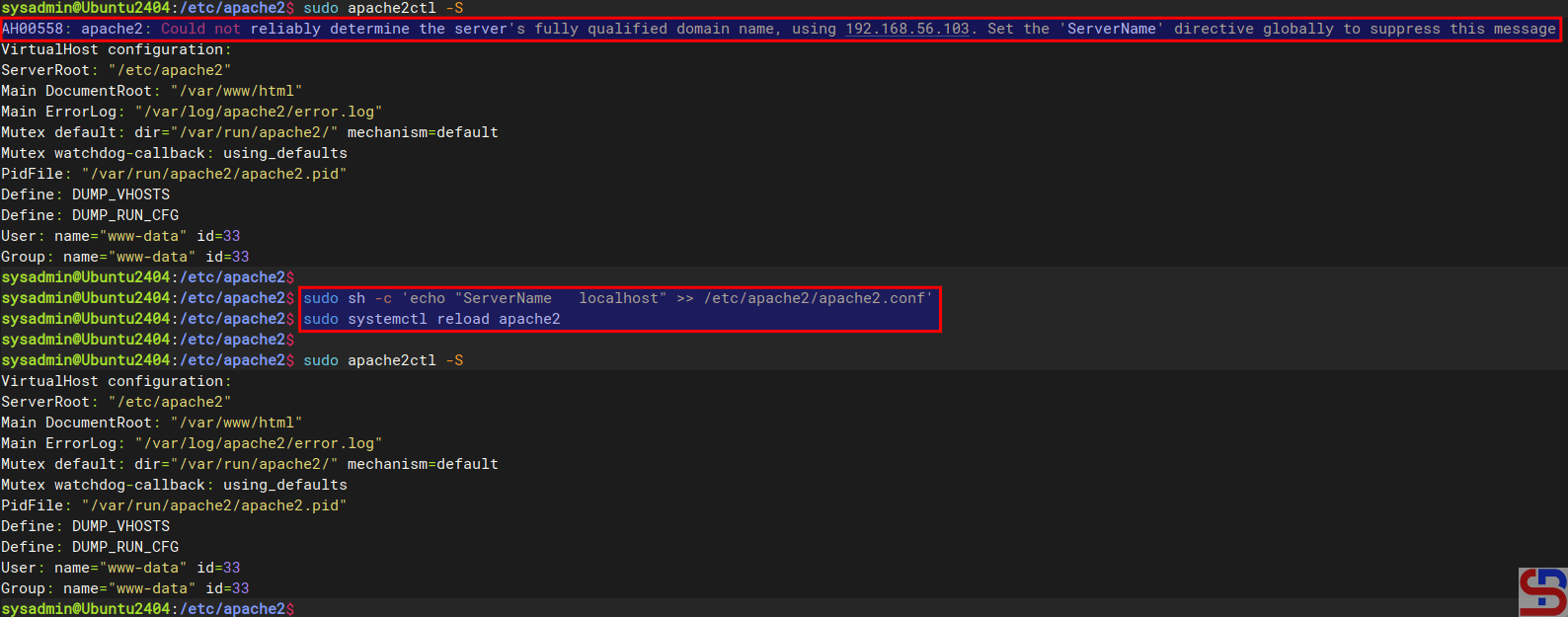
If you want to remove the error like this:

AH00558: httpd: Could not reliably determine the server’s fully qualified domain name, using 192.168.56.103. Set the ‘ServerName’ directive globally to suppress this message


Go to the /etc/httpd/conf/httpd.conf and insert the script below:

ServerName localhost


Reload the Apache, and the error will disappear, like in the image below:
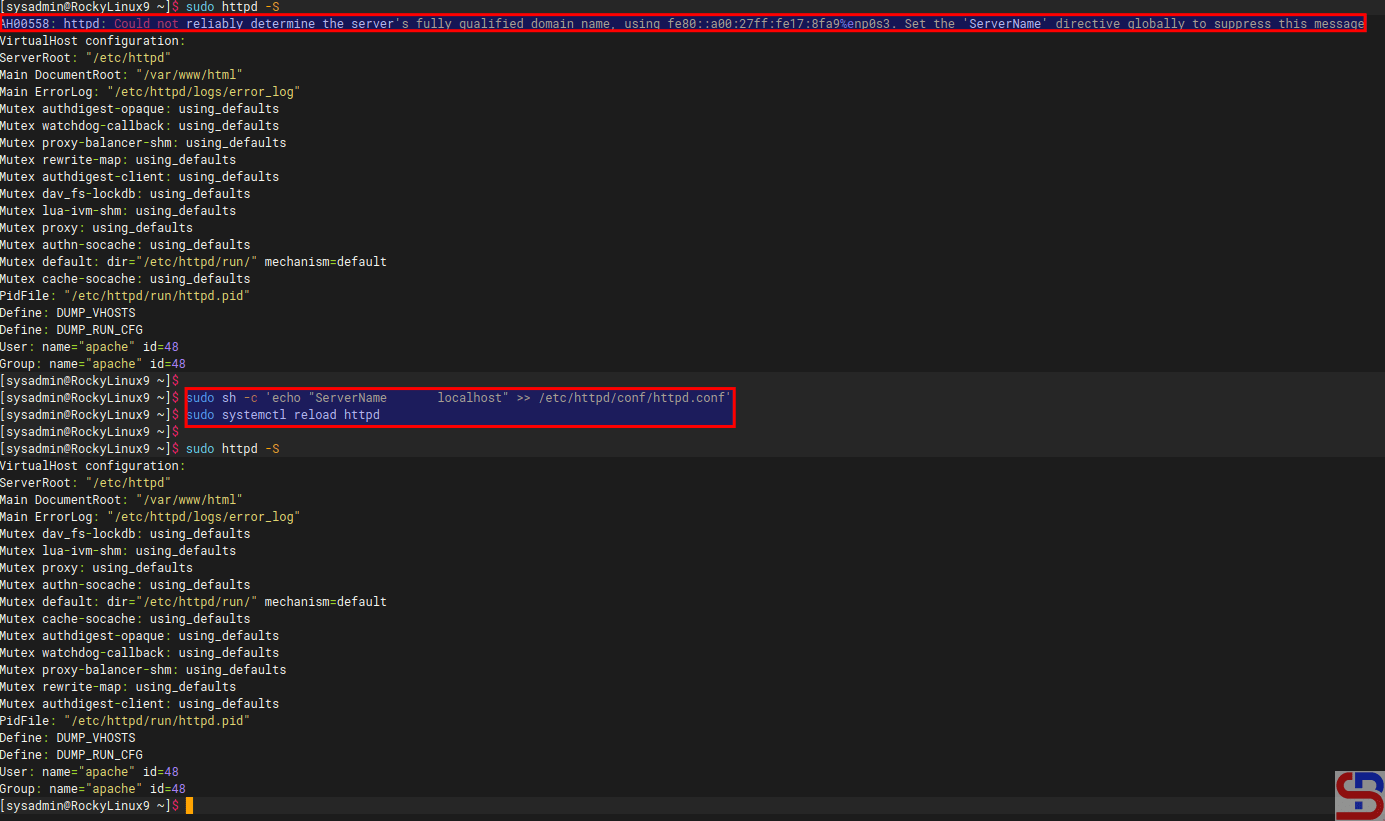
Remove error AH00558


References



How to Configure Virtual Hosts in Apache on Ubuntu?

Virtual hosts are a feature on a web server, such as Apache or Nginx, to run more than one site on a server. By using this feature, you can easily configure multiple domains on a server and save on operational costs because you only need one server or a public IP. This article will explain how to configure virtual hosts in Apache on Ubuntu.


Problem

How to configure virtual hosts in Apache on Ubuntu?


Solution

Before starting the configuration, make sure that on the Ubuntu server, the Apache application is installed by using the command:

apt update
apt install -y apache2


To see the default settings of Apache in Ubuntu, type the command below:

sudo apache2ctl -S

Display default Apache configuration


2 types of virtual hosts can be used, name-based and IP-based, and the difference between the two can be seen in the image below:

Comparison of name-based and IP-based in virtual hosts


WARNING
This article uses a private IP, not a public IP.


A. name-based virtual hosts

The meaning of name-based is that you have many websites or domains, but you only have one IP. For example, you have 2 domain names: website1.com and website2.com, but you only have 1 IP, which is 192.168.56.100. Here are the steps to get all three domains to use the same IP:

1. Create the directories and the files

By default, Apache uses the /var/www/html folder as its rootdocument, as shown in the image above. However, to make it easier to configure it, you should create a folder for each of these websites, as shown in the image below:

sudo mkdir -p /var/www/html/website1.com/
sudo mkdir -p /var/www/html/website2.com/


WARNING
You can change the above directory to another directory, but for the next steps, you have to follow the directory you created.


After that, create an index.html file for each domain:

sudo sh -c 'echo "<h1> This is for website1.com domain</h1>" > /var/www/html/website1.com/index.html'
sudo sh -c 'echo "<h1> This is for website2.com domain</h1>" > /var/www/html/website2.com/index.html'


2. Change ownership

Change the ownership of the folders:

sudo chown -R www-data:www-data /var/www/html/website1.com/
sudo chown -R www-data:www-data /var/www/html/website2.com/
sudo chmod -R 755 /var/www/html


3. Configuration of virtual hosts

By default, 2 directories are used to manage the many domains in the virtual hosts running on that server: the sites-available and sites-enabled directories located in the /etc/apache2 directory. The sites-enabled directory contains all the configurations of the website (virtual host) that are available on the server but are not yet activated automatically. In contrast, the sites-enabled directory contains a symlink (symbolic link) to the configuration file that exists in the sites-available directory, and only the files that exist in the sites-enabled directory will be executed and activated by the web server if the web server is restarted or reloaded. Use the command below to create two websites on virtual hosts:

echo '<VirtualHost *:80>' | sudo tee /etc/apache2/sites-available/website1.com.conf > /dev/null
echo '    ServerName website1.com' | sudo tee -a /etc/apache2/sites-available/website1.com.conf > /dev/null
echo '    ServerAlias www.website1.com' | sudo tee -a /etc/apache2/sites-available/website1.com.conf > /dev/null
echo '    ServerAdmin webmaster@website1.com' | sudo tee -a /etc/apache2/sites-available/website1.com.conf > /dev/null
echo '    DocumentRoot /var/www/html/website1.com' | sudo tee -a /etc/apache2/sites-available/website1.com.conf > /dev/null
echo '    ErrorLog ${APACHE_LOG_DIR}/website1-error.log' | sudo tee -a /etc/apache2/sites-available/website1.com.conf > /dev/null
echo '    CustomLog ${APACHE_LOG_DIR}/website1-access.log combined' | sudo tee -a /etc/apache2/sites-available/website1.com.conf > /dev/null
echo '</VirtualHost>' | sudo tee -a /etc/apache2/sites-available/website1.com.conf > /dev/null

echo '<VirtualHost *:80>' | sudo tee /etc/apache2/sites-available/website2.com.conf > /dev/null
echo '    ServerName website2.com' | sudo tee -a /etc/apache2/sites-available/website2.com.conf > /dev/null
echo '    ServerAlias www.website2.com' | sudo tee -a /etc/apache2/sites-available/website2.com.conf > /dev/null
echo '    ServerAdmin webmaster@website2.com' | sudo tee -a /etc/apache2/sites-available/website2.com.conf > /dev/null
echo '    DocumentRoot /var/www/html/website2.com' | sudo tee -a /etc/apache2/sites-available/website2.com.conf > /dev/null
echo '    ErrorLog ${APACHE_LOG_DIR}/website2-error.log' | sudo tee -a /etc/apache2/sites-available/website2.com.conf > /dev/null
echo '    CustomLog ${APACHE_LOG_DIR}/website2-access.log combined' | sudo tee -a /etc/apache2/sites-available/website2.com.conf > /dev/null
echo '</VirtualHost>' | sudo tee -a /etc/apache2/sites-available/website2.com.conf > /dev/null


WARNING
You can change *:80 to your IP server like 192.168.56.102:80.


Then type the command below to enable the Virtual Hosts configuration:

sudo a2ensite website1.com.conf
sudo a2ensite website2.com.conf


Type the command below to disable the default virtual hosts configuration:

sudo a2dissite 000-default.conf


WARNING
If you want to change the configuration of virtual hosts, you have to change it in the sites-available directory and not in the sites-enabled directory.


5. Check the configuration

Use the command below to check whether there is an Apache configuration that is an error or not by using the command below:

sudo apache2ctl configtest 


If there is no error, then reload Apache using the command below:

sudo systemctl reload apache2 


WARNING
Use the command above if there is a change in the configuration of virtual hosts in each domain.


6. Check in the browser

Because this article uses a private IP, you must configure it in the hosts file before you check the browser. If you use Windows, change the hosts file in C:\Windows\System32\drivers\etc\hosts or in /etc/hosts if you use Linux. In the hosts file, add the below script:

192.168.56.102  website1.com website2.com


Info
Change IP 192.168.56.102 with your Ubuntu IP server.


If your Ubuntu server uses a firewall, type the command below to open the port for Apache:

sudo ufw allow 'Apache Full'


Open your browser and type each of these domains, then there should be a site displayed as in the image below:

http://website1.com

Site website1.com


http://website2.com

site website2.com


If you use Linux, you can use the command below to check the result:

curl http://website1.com
curl http://website2.com

Using the curl command


By default, websites work on the web server using port 80. But you can change port 80 to another port as long as the port is not used on the server. For example, if you want the website1.com site to use port 8080, change the /etc/apache2/sites-available/website1.com.conf file and change its contents to something like this:

Listen 8080
<VirtualHost *:8080>
     ServerName website1.com
     ServerAlias www.website1.com
     ServerAdmin webmaster@website1.com
     DocumentRoot /var/www/html/website1.com
     ErrorLog ${APACHE_LOG_DIR}/website1-error.log
     CustomLog ${APACHE_LOG_DIR}/website1-access.log combined
</VirtualHost>


If you use the firewall in the Ubuntu server, don’t forget to open port 8080 using the command below:

sudo ufw allow 8080


Reload Apache and open it in the browser by typing the command:

http://website1.com:8080

Site website1.com:8080


B. IP-based virtual hosts

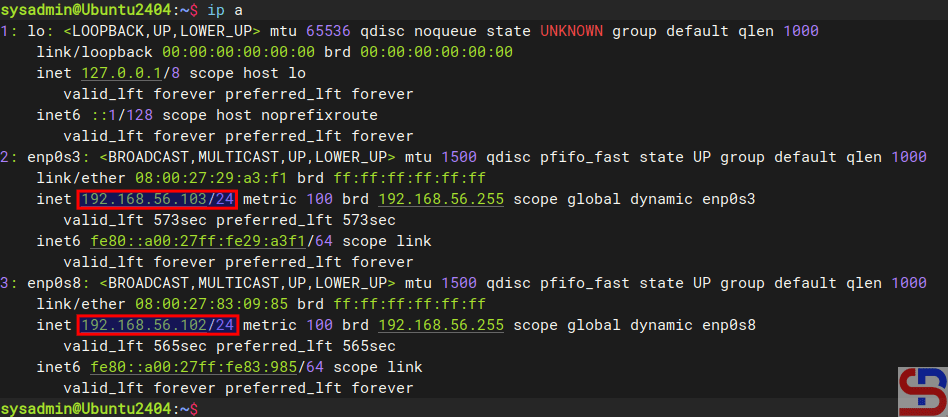
The meaning of IP-based is that you use a different IP address for each website. For example, you have 2 IPs and 2 domains, where IP 192.168.56.102 is for site1.com, and IP 192.168.56.103 is for site2.com. This article will use a server that has 2 IPs, as shown below:

configure virtual hosts in Apache
Using 2 NICs in a server


1. Create the directories and the files

By default, Apache uses the /var/www/html folder as its rootdocument, as shown in the image above. However, to make it easier to configure it, you should create a folder for each of these websites, as shown in the image below:

sudo mkdir -p /var/www/html/site1.com/
sudo mkdir -p /var/www/html/site2.com/


WARNING
You can change the above directory to another directory, but for the next steps, you have to follow the directory you created.


After that, create an index.html file for each domain:

sudo sh -c 'echo "<h1> This is for site1.com domain</h1>" > /var/www/html/site1.com/index.html'
sudo sh -c 'echo "<h1> This is for site2.com domain</h1>" > /var/www/html/site2.com/index.html'


2. Change ownership

Change the ownership of the folders:

sudo chown -R www-data:www-data /var/www/html/site1.com/
sudo chown -R www-data:www-data /var/www/html/site2.com/
sudo chmod -R 755 /var/www/html


3. Configuration of virtual hosts

By default, 2 directories are used to manage the many domains in the virtual hosts running on that server: the sites-available and sites-enabled directories located in the /etc/apache2 directory. The sites-enabled directory contains all the configuration of the website (virtual host) that is available on the server, but is not yet activated automatically while the sites-enabled directory contains a symlink (symbolic link) to the configuration file that exists in the sites-available directory and only the files that exist in the site-enabled directory will be executed and activated by the web server if the webserver is restarted or reloaded. Use the command below to create a virtual hosts directory:

echo '<VirtualHost 192.168.56.102:80>' | sudo tee /etc/apache2/sites-available/site1.com.conf > /dev/null
echo '    ServerName site1.com' | sudo tee -a /etc/apache2/sites-available/site1.com.conf > /dev/null
echo '    ServerAlias www.site1.com' | sudo tee -a /etc/apache2/sites-available/site1.com.conf > /dev/null
echo '    ServerAdmin webmaster@site1.com' | sudo tee -a /etc/apache2/sites-available/site1.com.conf > /dev/null
echo '    DocumentRoot /var/www/html/site1.com' | sudo tee -a /etc/apache2/sites-available/site1.com.conf > /dev/null
echo '    ErrorLog ${APACHE_LOG_DIR}/site1-error.log' | sudo tee -a /etc/apache2/sites-available/site1.com.conf > /dev/null
echo '    CustomLog ${APACHE_LOG_DIR}/site1-access.log combined' | sudo tee -a /etc/apache2/sites-available/site1.com.conf > /dev/null
echo '</VirtualHost>' | sudo tee -a /etc/apache2/sites-available/site1.com.conf > /dev/null

echo '<VirtualHost 192.168.56.103:80>' | sudo tee /etc/apache2/sites-available/site2.com.conf > /dev/null
echo '    ServerName site2.com' | sudo tee -a /etc/apache2/sites-available/site2.com.conf > /dev/null
echo '    ServerAlias www.site2.com' | sudo tee -a /etc/apache2/sites-available/site2.com.conf > /dev/null
echo '    ServerAdmin webmaster@site2.com' | sudo tee -a /etc/apache2/sites-available/site2.com.conf > /dev/null
echo '    DocumentRoot /var/www/html/site2.com' | sudo tee -a /etc/apache2/sites-available/site2.com.conf > /dev/null
echo '    ErrorLog ${APACHE_LOG_DIR}/site2-error.log' | sudo tee -a /etc/apache2/sites-available/site2.com.conf > /dev/null
echo '    CustomLog ${APACHE_LOG_DIR}/site2-access.log combined' | sudo tee -a /etc/apache2/sites-available/site2.com.conf > /dev/null
echo '</VirtualHost>' | sudo tee -a /etc/apache2/sites-available/site2.com.conf > /dev/null


WARNING
If you want to change the configuration of virtual hosts, you have to change it in the sites-available directory and not in the sites-enabled directory.


Then type the command below to enable the Virtual Hosts configuration:

sudo a2ensite site1.com.conf
sudo a2ensite site2.com.conf


Type the command below to disable the default virtual hosts configuration:

sudo a2dissite 000-default.conf


5. Check the configuration

Use the command below to check whether there is an Apache configuration that is an error or not by using the command below:

sudo apache2ctl configtest


If there is no error, then reload Apache using the command below:

sudo systemctl reload apache2


WARNING
Use the command above if there is a change in the configuration of virtual hosts in each domain.


6. Check in the browser

Because this article uses a private IP, you must configure it in the hosts file before you check the browser. If you use Windows, change the hosts file in C:\Windows\System32\drivers\etc\hosts or in /etc/hosts if you use Linux. In the hosts file, add the below script:

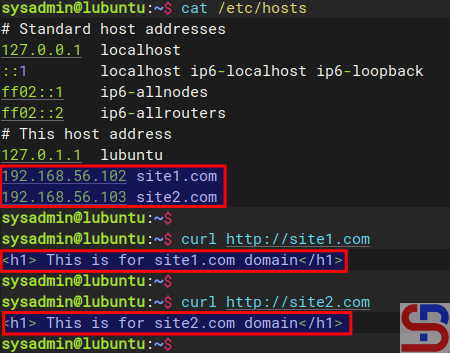
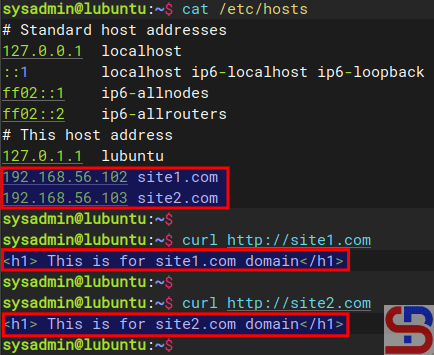
192.168.56.102  site1.com 
192.168.56.103   site2.com


Info
Change IP 192.168.56.102 and IP 192.168.56.103 with your Ubuntu IP server.


If your Ubuntu server uses a firewall, type the command below to open the port for Apache:

sudo ufw allow 'Apache Full'


Open your browser and type each of these domains, then there should be a site displayed as in the image below:

http://site1.com

configure virtual hosts in Apache
Site site1.com


http://site2.com

configure virtual hosts in Apache
Site site2.com


If you use Linux, you can use the command below to check the result:

curl http://site1.com
curl http://site2.com

Using the curl command


By default, websites work on the web server using port 80. But you can change port 80 to another port as long as the port is not used on the server. So, if you want the site1.com site to use port 8181, change the /etc/apache2/sites-available/site1.com.conf file and change its contents to something like this:

Listen 8181
<VirtualHost 192.168.56.102:8181>
     ServerName site1.com
     ServerAlias www.site1.com
     ServerAdmin webmaster@site1.com
     DocumentRoot /var/www/html/site1.com
     ErrorLog ${APACHE_LOG_DIR}/site1-error.log
     CustomLog ${APACHE_LOG_DIR}/site1-access.log combined
</VirtualHost>


If you use the firewall in your Ubuntu server, don’t forget to open port 8181 using the command below:

sudo ufw allow 8181


Reload Apache and open it in the browser by typing the command:

http://site1.com:8181

configure virtual hosts in Apache
Site site1.com:8181


Note

If you want to remove the error like this:

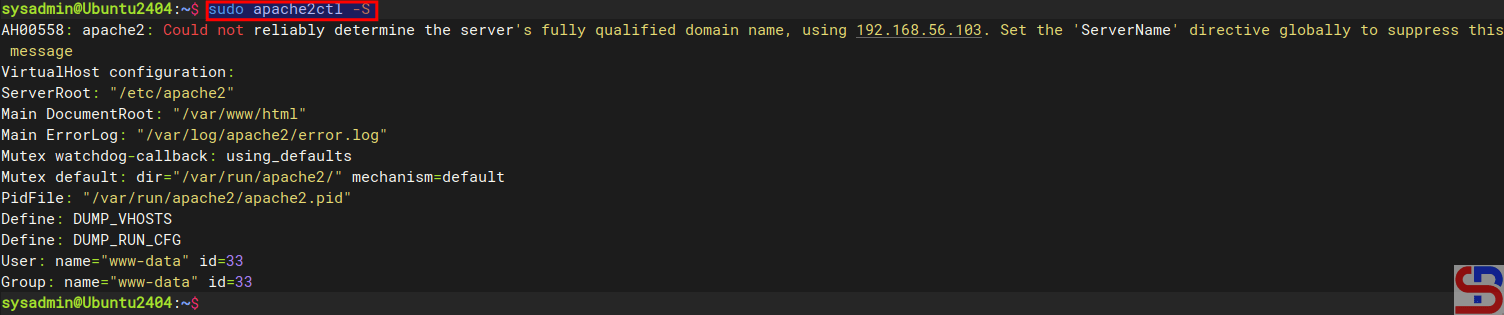
AH00558: apache2: Could not reliably determine the server’s fully qualified domain name, using 192.168.56.103. Set the ‘ServerName’ directive globally to suppress this message

Go to the /etc/apache2/apache2.conf and insert the script below:

ServerName localhost


Reload the Apache, and the error will disappear, like in the image below:

Remove error AH00558


WARNING
You can change the localhost to your domain name, like website1.com or another domain name.


References


How to Storage Mount Using Bind Mount on Docker?

The previous article explained how to make storage using volume in Docker. This article will explain how to make storage using Bind Mount.


Problem

How to storage mount using bind mount on Docker?


Solution

A bind mount is a method of hosting a directory or file that is directly mounted into a container. Since they aren’t isolated by Docker, both non-Docker processes on the host and container processes can modify the mounted files simultaneously. So, you can change the data from the host, and those changes will be reflected in the container. This method is useful for development environments where code must be updated and tested in real-time. There are 2 ways when use bind mount:

A. using -v option

This option (using -v or ‐-volume) uses three fields, separated by colon characters (:). The fields must be in the correct order, and the meaning of each field is not immediately obvious. To use this option, use the format below:

docker run -d –name container_name -v /path/folder/in/server:/path/folder/in/container[:opts] image_name:tag


INFO
opts is the abbreviation for options like readonly, private, z, Z, and so on. The third field is optional, and is separated by colon characters.  You can see the options and their descriptions on this page.


To see more detailed information about mounting a container, use the format below:

docker inspect container_name -f "{{json .Mounts}}" | python3 -m json.tool


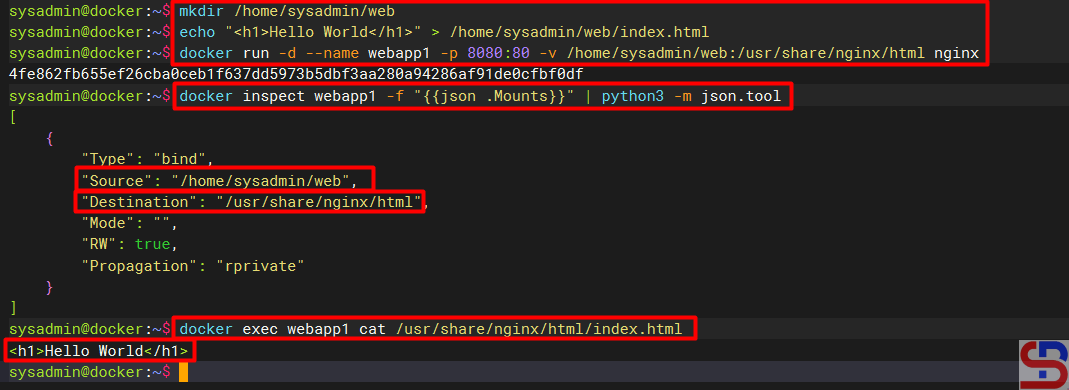
For example, you want to create a container with a nginx webserver that can be accessed with port 8080 with sources in folder /home/sysadmin/web and destination to the folder /usr/share/nginx/html on container, so first make a web folder in the server, and create a simple site then create a container using the command below:

mkdir /home/sysadmin/web
echo "<h1>Hello World</h1>" > web/index.html
docker run -d --name webapp1 -p 8080:80 -v /home/sysadmin/web:/usr/share/nginx/html nginx
docker inspect webapp1 -f "{{json .Mounts}}" | python3 -m json.tool
docker exec webapp1 cat /usr/share/nginx/html/index.html

Execute the commands


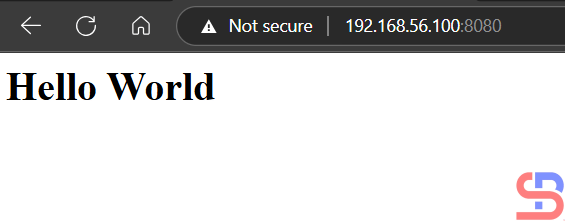
You can see from the image above that the index.html file in the container only displays the hello world sentence, so when you open the browser then the displays in the browser as shown below:

The display of the website


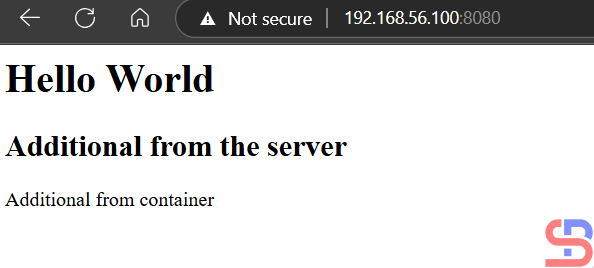
You can change the appearance of the website in the index.html file on the server or in the container. For example, you add the script below to the file on the server:

echo "<h2>Additional from server</h2>" >> web/index.html


Likewise, if you add the script below to the container:

docker exec webapp1 bash -c "echo Additional from container >> /usr/share/nginx/html/index.html"


Both scripts will be included in the index.html file and will be displayed on the website as shown below:

Display of the website after additional scripts


B. Using ‐-mount Option

In general, these options are more explicit and verbose. This option consists of multiple key-value pairs, separated by commas, and each consisting of a <key>=<value> tuple. The biggest difference is that the -v syntax combines all the options in one field, while the –mount syntax separates them. The –mount syntax is more verbose than -v or –volume, but the order of the keys is not significant, and it is easier to understand. To use this option, use the format below:

docker run -d --name container_name --mount type=type_mount,source=/path/folder/in/server,destination=/path/folder/in/container[,<key>=<value>...] image_name:tag


INFO
The third field is optional, and is separated by commas like readonly, bind-propagation, and so on. You can see the options and their descriptions on this page.


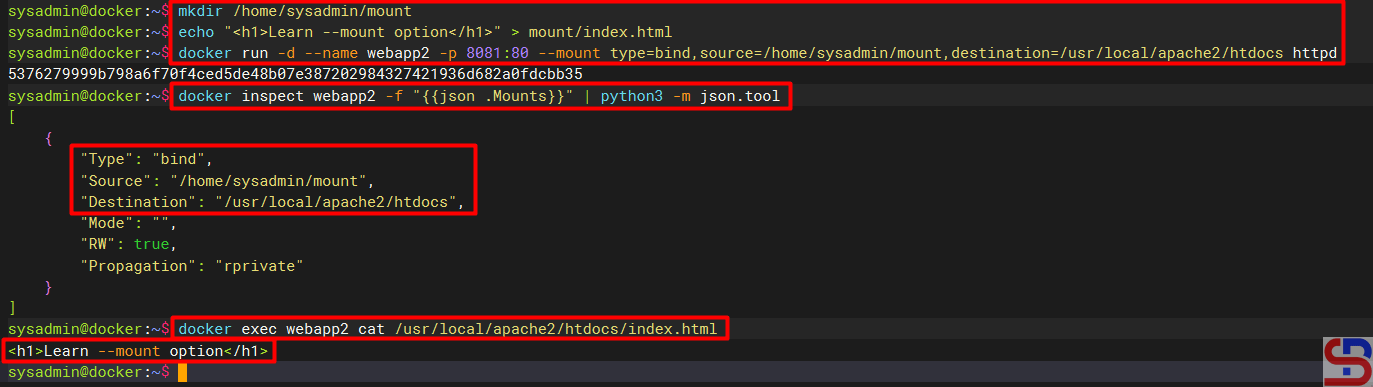
For example, you want to create a container with an Apache web server that can be accessed on port 8081 with sources in the folder /home/sysadmin/mount and destination to the folder /usr/local/apache2/htdocs on the container, so first make the mount folder in the server, then make the container using the command below:

mkdir /home/sysadmin/mount
echo "<h1>Learn --mount option</h1>" > mount/index.html
docker run -d --name webapp2 -p 8081:80 --mount type=bind,source=/home/sysadmin/mount,destination=/usr/local/apache2/htdocs httpd
docker inspect webapp2 -f "{{json .Mounts}}" | python3 -m json.tool
docker exec webapp2 cat /usr/local/apache2/htdocs/index.html

Execute the commands


Like using the -v option, you can change the appearance of the website in the index.html file on the server or in the container. For example, you add the script below to the file on the server:

echo "<h2>Additional from server</h2>" >> mount/index.html


Likewise, if you add the script below to the container:

docker exec webapp2 bash -c "echo Additional from container >> /usr/local/apache2/htdocs/index.html"


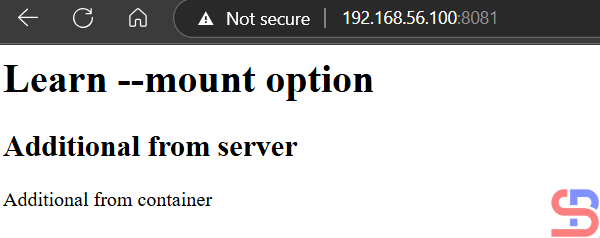
Both scripts will be included in the index.html file and will be displayed on the website as shown below:

Display of the website after additional scripts


Note

The only difference between the two options above is how the commands are executed; otherwise, the results would be identical.


References
youtube.dimas-maryanto.com
youtube.com
docs.docker.com
docker.com
linkedin.com


How to Install and Configure NFS on Linux?

NFS or Network File Sharing is a protocol that allows you to share directories and files with other Linux clients over a network. Similar to locally created folders, an NFS file share is accessible when mounted on a client computer. When you have limited disk space and need to share public data between client machines, NFS is especially helpful.


Problem

How to install and configure NFS on Linux?


Solution

This article will explain how to install and configure NFS on 3 Linux distros: Rockylinux, Ubuntu, and OpenSuse and this article should work in each of their derivatives of the three distros.

A. On the server

Following are the steps to install and configure NFS:

1. Install NFS

I install NFS in the server with IP 192.168.56.2, and to install the NFS application on the Linux server, use the command below:

RockyLinux

sudo dnf install -y nfs-utils 


Ubuntu

sudo apt update -y 
sudo apt-get install -y nfs-kernel-server 


OpenSUSE

sudo zypper install -y nfs-kernel-server nfs-utils


2. Check NFS status

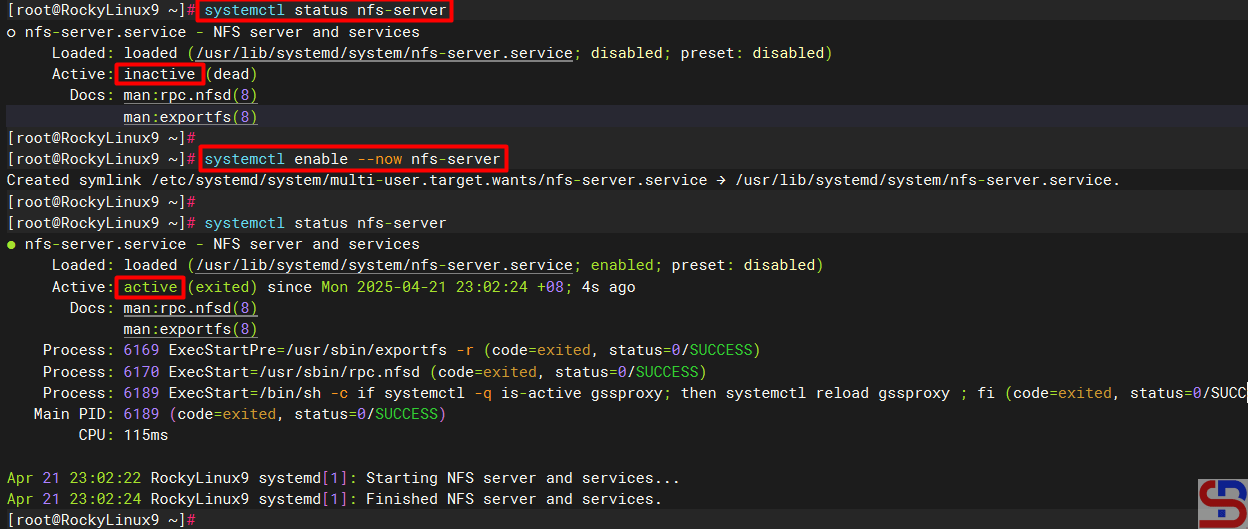
Type the command below to check the NFS status:

systemctl status nfs-server


If you see the NFS status is still not on, use the command below to turn on the NFS service:

sudo systemctl enable --now nfs-server


install and configure NFS on Linux
Check the NFS service status


Sometimes you have to check the nfs-mountd service using the command below:

sudo systemctl status nfs-mountd


If the service is not on the server, then use the command below to turn on the service:

sudo systemctl start nfs-mountd


3. Check the rpcbind status

Make sure that the rpcbind service is actively used by NFS for the mapping port. Use the command below to check the status of the service:

sudo systemctl status rpcbind


If the service is not active, use the command below to start the service:

sudo systemctl enable -now rpcbind 


4. Check NFS and Portmap

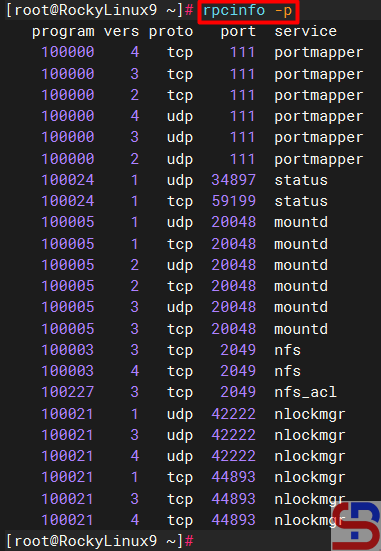
To see if NFS and portmap (Portmap is a server that converts RPC program numbers into DARPA protocol port numbers. It must be running to make RPC calls) are running on the server, use the command below:

sudo rpcinfo -p

install and configure NFS on Linux
Check whether NFS and portmap run in the server or not


5. Configure firewall

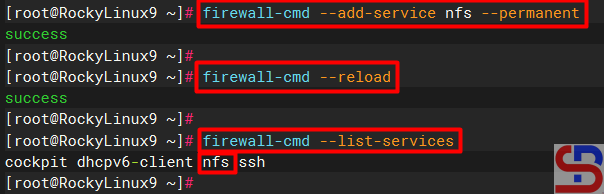
If you still turn on the firewall on Linux, use the command below to open the NFS port (Port NFS is TCP Port 2049):

RockyLinux & OpenSUSE

firewall-cmd --add-service nfs --permanent
firewall-cmd --reload
firewall-cmd --list-services

install and configure NFS on Linux
Open the NFS port in RockyLinux


Ubuntu

sudo ufw allow nfs
sudo ufw status verbose


Use the command below to open the rpcbind port (rpcbind port is TCP Port 111):

Rockylinux & OpenSUSE

firewall-cmd --add-port=111/tcp --permanent
firewall-cmd --reload
firewall-cmd --list-ports


Ubuntu

sudo ufw allow 111
sudo ufw status verbose


6. Make a folder sharing

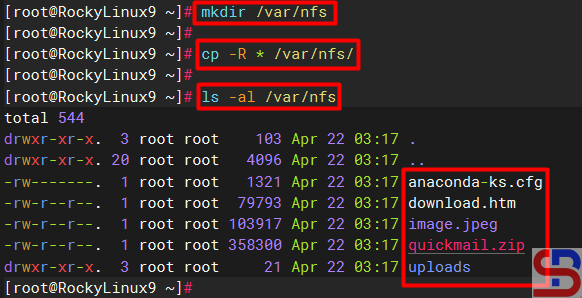
Create a folder to collect NFS files and folders and I make it in the folder /var/nfs using the command below:

mkdir /var/nfs


After that, copy the file(s) and folder(s) that you want to share into the folder as shown below:

install and configure NFS on Linux
Copy the file(s) and folder(s) into the folder sharing


7. Define an Export File

To grant access to NFS clients, you need to define an export file and it is typically located at /etc/exports. Use the format below to define an export file:

/folder/path     accessible-host-ip-address(options)


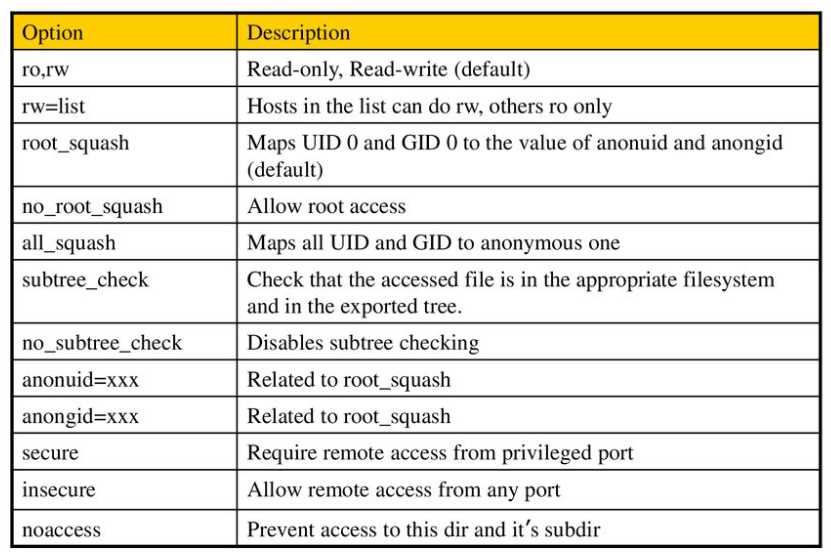
The options you can use can be seen in the image below:

Options in NFS (Image credit for slideplayer.com)


You can use more than one option like (rw,sync,no_subtree_check). By default, NFS uses the ro option where the client can only read the file or folder in the folder sharing. In this article, I only want the folder sharing can only be accessed by users who only use IP 192.168.56.0/24 and the folder can be changed by the users, then use the command below to enter the script into the exports file:

sudo echo "/var/nfs		192.168.56.0/24(rw)" > /etc/exports


Then change the permissions so that the files and folders in the folder sharing can be changed using the command below:

RockyLinux & OpenSUSE

chown -R nobody:nobody /var/nfs
sudo chmod -R 775 /var/nfs


Ubuntu

chown -R nobody:nogroup /var/nfs
sudo chmod -R 775 /var/nfs


8. Export exports file

Use the command below to make the folder sharing available to the clients:

sudo exportfs -r


Use the command below to view the exports file:

showmount -e


To see which hosts access file sharing, use the command below:

sudo netstat -an | grep 2049


B. On the client

Following are the steps to install and configure NFS:

1. Install NFS client

Use the command below to install the NFS client:

RockyLinux

sudo dnf install -y nfs-utils 


Ubuntu

sudo apt-get install -y nfs-common


OpenSUSE

zypper install -y nfs-client*


2. Check the ports in the NFS server

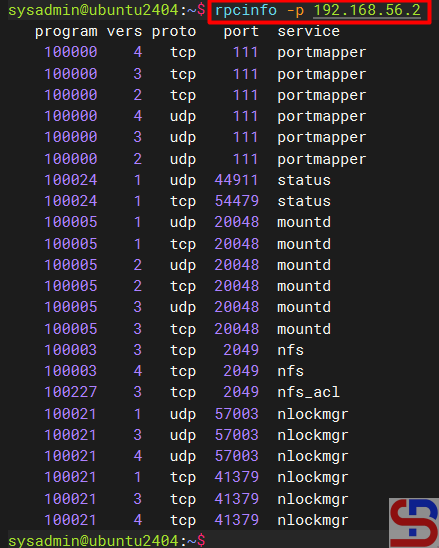
Use the command below to check whether the client can access the ports (port 2049 and 111) in the NFS server or not (the IP server NFS is 192.168.56.2):

rpcinfo -p 192.168.56.2

install and configure NFS on Linux
Check the connection between the client to the NFS server


2. Make and mount a folder

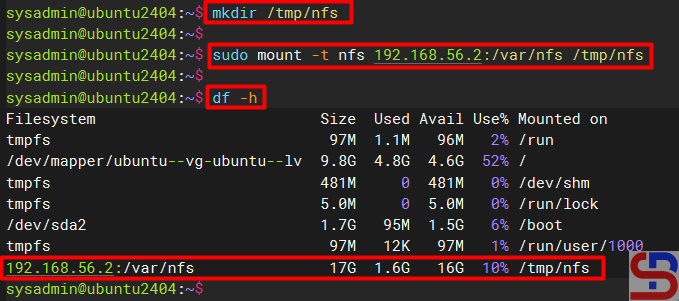
Make the folder where we want to mount the NFS shares from the server, for example, I made a folder in /tmp/nfs:

mkdir /tmp/nfs


After that the mount folder with the NFS server using the format below:

sudo mount -t nfs 192.168.56.2:/var/nfs /tmp/nfs

Mount the folder to the folder-sharing


INFO
You can use the -v option so that the above command becomes:
sudo mount -v -t nfs 192.168.56.2:/var/nfs /tmp/nfs
to display the logs when mounting so that you can know if there is an error when mounting.


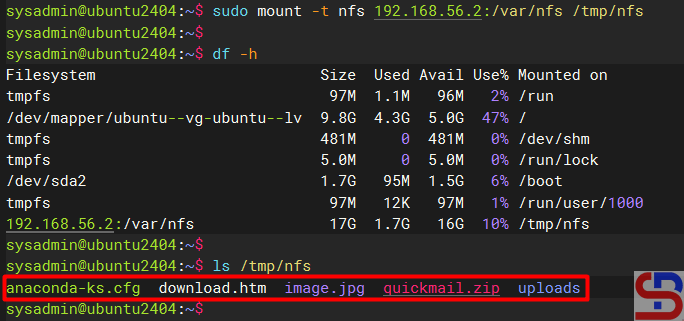
You should access the folder sharing on the NFS server as shown below:

Access to the NFS server


You can use the command below to see the NFS client connection:

sudo mount | grep -i nfs

Check the status of the NFS client


4. Simulation test

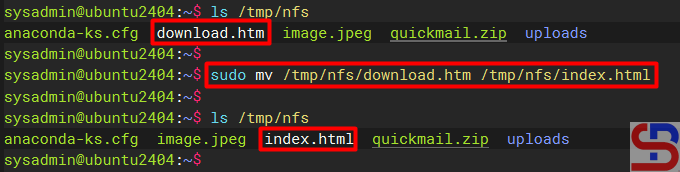
Try to do the simulation by changing the file name in the folder sharing. I try to rename the download.htm file to index.html using the command below:

sudo mv /tmp/nfs/download.htm /tmp/nfs/index.html


The file was successfully changed as shown below:

Rename the file in NFS


5. Configure the fstab file

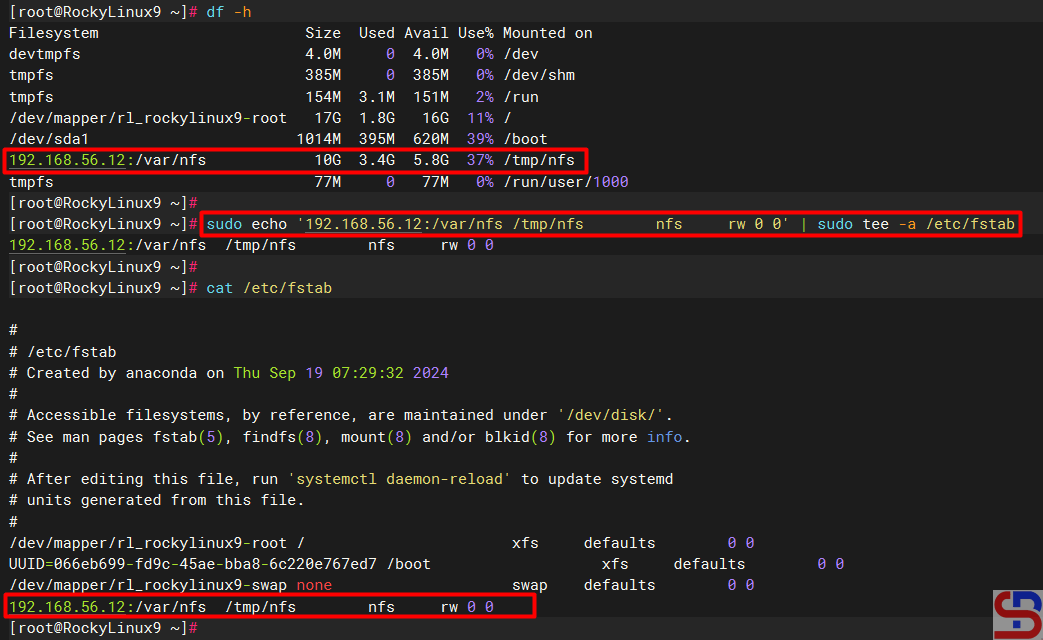
To keep the folder sharing is still connected in the client after the client is rebooted, configure the /etc/fstab file using the command below:

echo '192.168.56.2:/var/nfs	/tmp/nfs	nfs	rw 0 0' | sudo tee -a /etc/fstab

install and configure nfs on linux
Insert the script to fstab file


C. Errors and solutions

Below are errors that often appear and their solutions:

1. No options for /var/nfs

Sometimes when you run the exportfs -r command, there is an error as below:

exportfs: No options for /var/nfs/192.168.56.0/24(rw) : suggest (sync) to avoid warning
exportfs: Failed to stat /var/nfs/192.168.56.0/24(rw): No such file or directory

install and configure nfs on linux
Error failed to stat


To eliminate the error, check in the /etc/exports file and you have to fix the writing in the file from:

/var/nfs/192.168.56.0/24(rw)

changed into

/var/nfs   192.168.56.0/24(rw)

After that, run the exportfs -r command again and the error should disappear.

2. Error Stale file handle

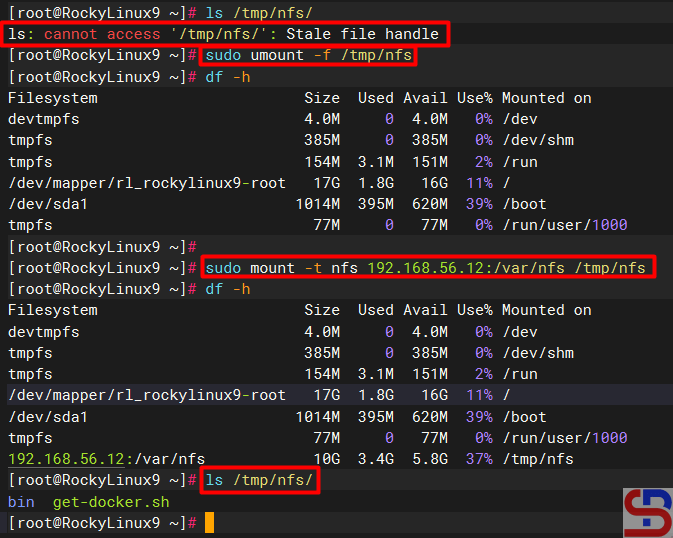
When you want to connect a client to the NFS server there is an error like the below (usually this happens if there is an error like number 1 or other causes on the NFS server):

Stale file handle

Stale file handle error


To solve this error you have to unmount on the side of the client and then mount back as shown below:

install and configure nfs on linux
Solve the stale file handle error


3. RPC: Program not registered

When typing the showmount -e command on the NFS server there is an error as below:

clnt_create: RPC: Program not registered

install and configure nfs on linux
Error Program Not Registered


The solution is that you have to run the command below so that the nfs-mountd service runs on the server:

systemctl start nfs-mountd


4. Permission denied

When you want to connect to the NFS server or when you want to change the file in the NFS, there is an error like this:

Permission denied

Error Permission denied


The solution is to check the exports file on the NFS server and make sure that the folder has been given permissions as in step 5 in the server section.


Note

If you want to block an IP address of a host so the host can’t access the NFS server, use the command below to block the IP host:

sudo firewall-cmd --permanent --add-rich-rule='rule family="ipv4" source address="192.168.56.100" port port="2049" protocol="tcp" reject'
sudo firewall-cmd --permanent --add-rich-rule='rule family="ipv4" source address="192.168.56.100" port port="111" protocol="tcp" reject'
sudo firewall-cmd --permanent --add-rich-rule='rule family="ipv4" source address="192.168.56.100" port port="2049" protocol="udp" reject'
sudo firewall-cmd --permanent --add-rich-rule='rule family="ipv4" source address="192.168.56.100" port port="111" protocol="udp" reject'
sudo firewall-cmd --reload
sudo firewall-cmd --list-rich-rules


and should the client with IP 192.168.56.100 not be able to access the folder sharing as shown in the image below:

install and configure nfs on linux
Can not mount to NFS server


If you want to delete an IP address of a host then the option ‐-add-rich-rule becomes ‐-remove-rich-rule so that the command becomes as command below:

sudo firewall-cmd --permanent --remove-rich-rule='rule family="ipv4" source address="192.168.56.100" port port="2049" protocol="tcp" reject'
sudo firewall-cmd --permanent --remove-rich-rule='rule family="ipv4" source address="192.168.56.100" port port="111" protocol="tcp" reject'
sudo firewall-cmd --permanent --remove-rich-rule='rule family="ipv4" source address="192.168.56.100" port port="2049" protocol="udp" reject'
sudo firewall-cmd --permanent --remove-rich-rule='rule family="ipv4" source address="192.168.56.100" port port="111" protocol="udp" reject'
sudo firewall-cmd --reload
sudo firewall-cmd --list-rich-rules


WARNING
In my experience, you can’t immediately block a client to NFS if the client is still connected to the NFS. You have to wait until the client disconnects to the NFS server, either the host reboots or others.


References


How to Connect Storage Mount Using Volume Mount on Docker?

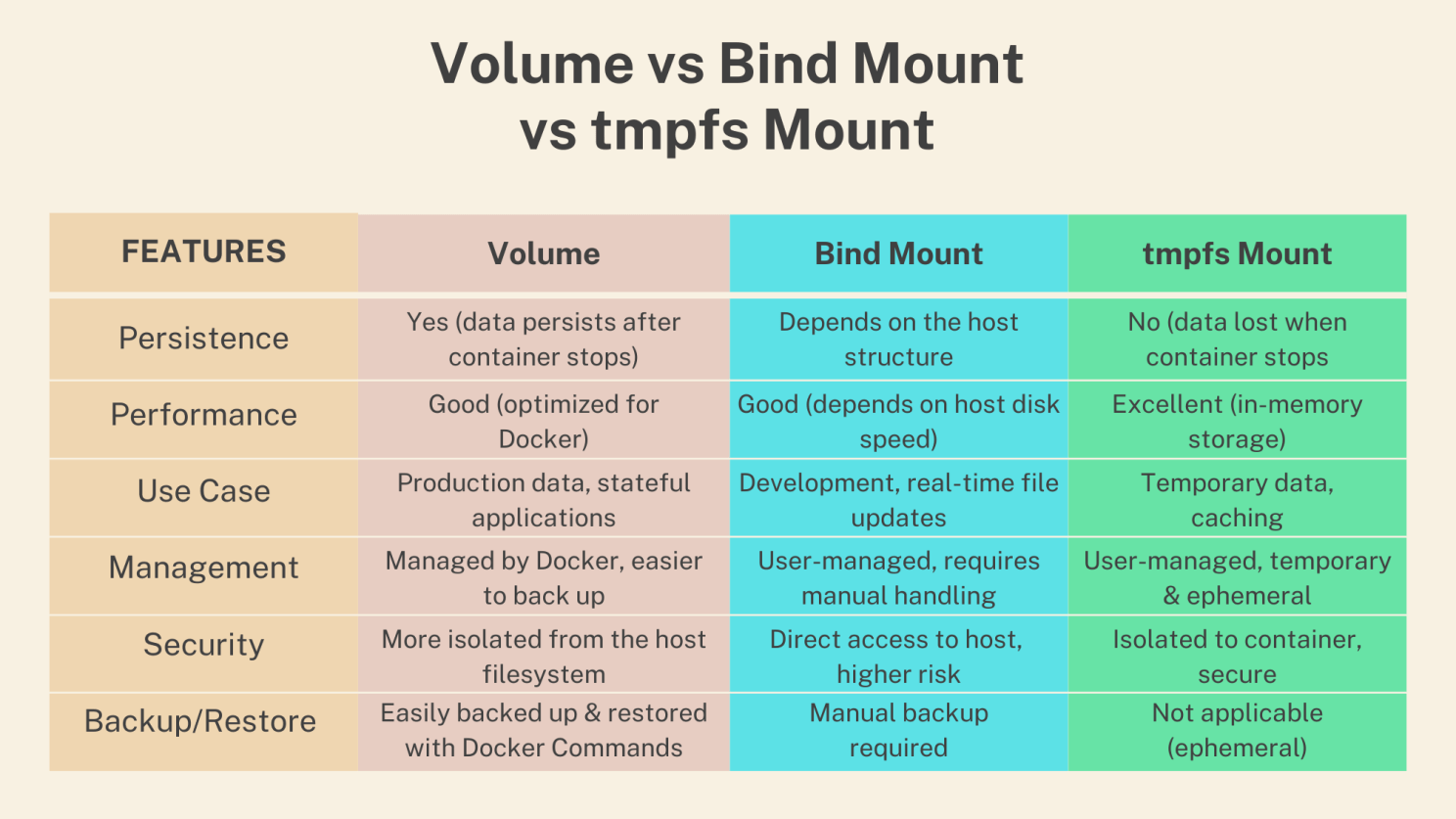
The previous article explained how to access the database installed in a container. But you must know that if you delete the container, it will automatically delete the database too. Therefore, you must create a storage to store a database so that if you delete the container, either intentionally or unintentionally, the database will remain. By default, Docker supports the following types of storage mounts for storing data outside of the container’s writable layer: volume mounts, bind mounts, and tmpfs mounts, each with its unique characteristics and use cases. This article will explain how to connect storage mount using volume mount. You can see a summary of the three types of storage here.


Problem

How to connect storage mount using volume mount on Docker?


Solution

Volumes are persistent storage mechanisms managed by the Docker daemon. It is stored in the filesystem on the host in /var/lib/docker/volumes folder, but to interact with the data in the volume, you must mount the volume to a container. Volumes are ideal for performance-critical data processing and long-term storage needs and are also suitable for sharing data between containers since volumes can be attached to multiple containers.

A. List, remove and create the volume

To see the volume on the server, use the command below:

docker volume ls


To remove a volume, use the command below:

docker volume rm volume_name


Use the command below to remove all unused volumes:

docker volume prune


By default, there is no volume if there is no container on the server. But if there is a container that uses storage like a container that uses a database image, the volume will form automatically. To see which containers that use volume can use the command below:

docker container inspect webapp postgresdb mysqldb -f '{{ .Name }} => {{json .Mounts}}'


Display the container that uses volume


You can create a new volume using the format below:

docker volume create volume_name


Use the command below if you want to create a mysql_vol volume:

docker volume create mysql_vol


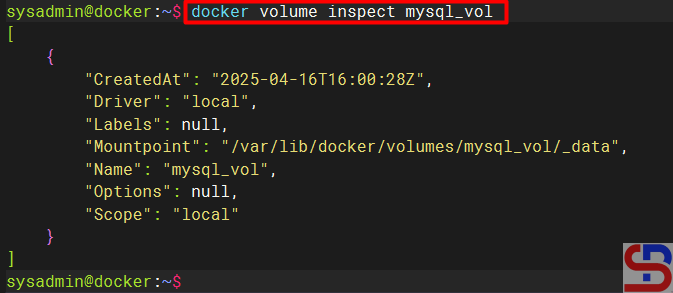
To see this volume information in detail, use the command below:

docker volume inspect mysql_vol

make storage using volume mount on Docker
Inspect the volume


B. Connect storage mount to a container

After that, make a new container where the container mounts to the volume you created using the format below:

docker run -d --name container_name -v volume_name:/path/folder/in/container image_name


You can see more detailed information on mounting a container, using the format below:

docker inspect container_name -f "{{json .Mounts}}" | python3 -m json.tool


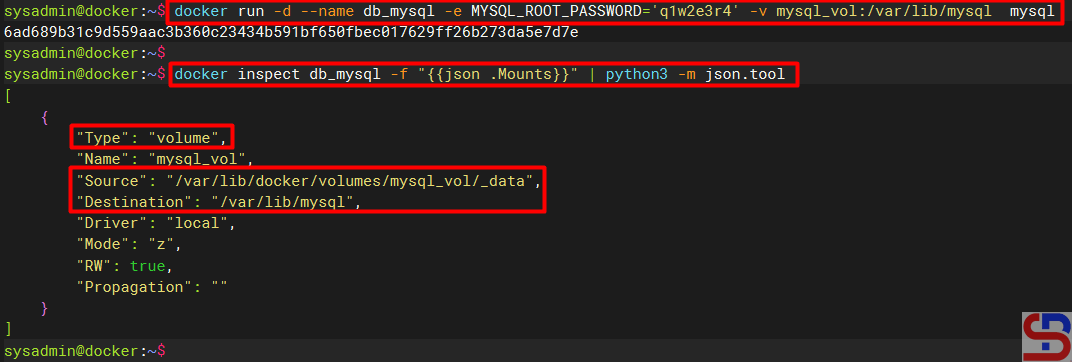
For example, use the command below if you want to create a db_mysql container with a password q1w2e3r4 using mysql_vol volume in the folder /var/lib/mysql :

docker run -d --name db_mysql -e MYSQL_ROOT_PASSWORD='q1w2e3r4' -v mysql_vol:/var/lib/mysql  mysql
docker inspect db_mysql -f "{{json .Mounts}}" | python3 -m json.tool


Run the container and check the mount


C. Simulate remove the container

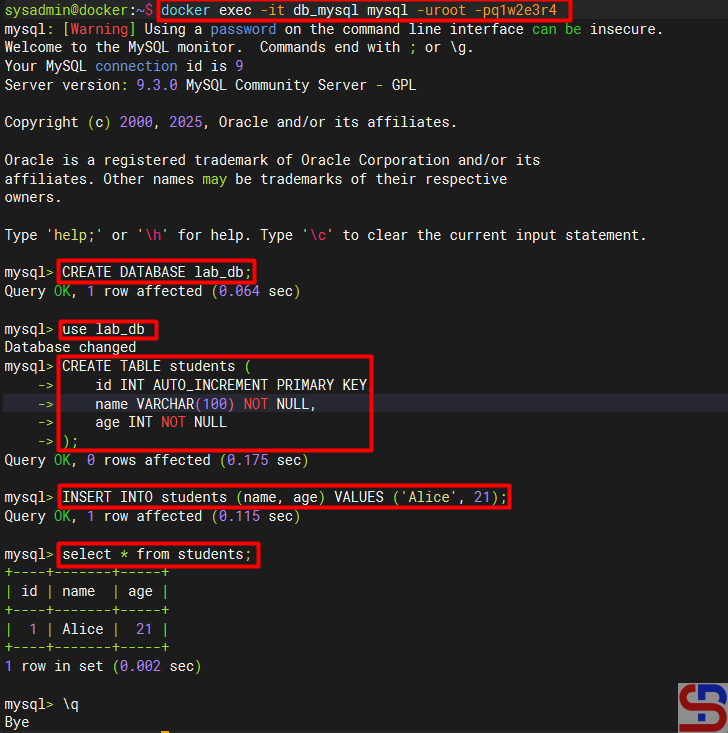
After that, try to enter the container by using the command below:

docker exec -it db_mysql mysql -uroot -pq1w2e3r4


Create a database and fill it as shown in the image below:

make storage using volume mount on Docker
Create a database


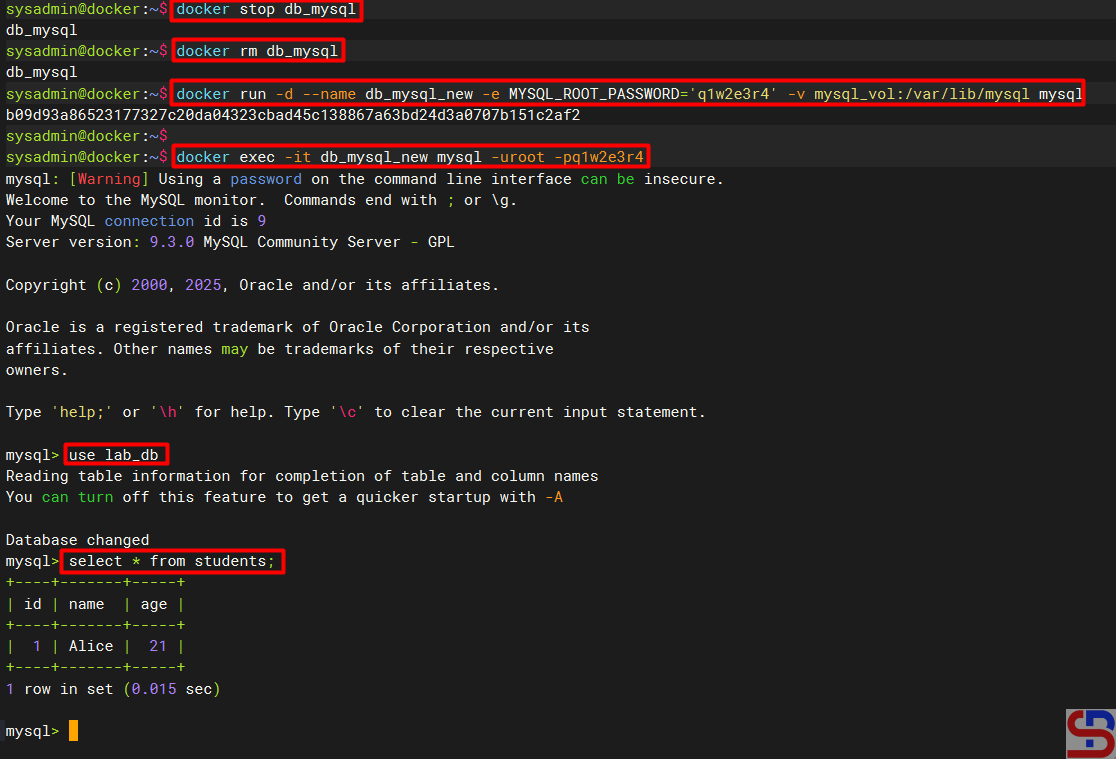
Then, try to simulate by deleting the container and creating a new container where the data is put into the mysql_vol volume in the /var/lib/mysql folder using the command below:

docker stop db_mysql
docker rm db_mysql
docker run -d --name db_mysql_new -e MYSQL_ROOT_PASSWORD='q1w2e3r4' -v mysql_vol:/var/lib/mysql mysql


Access the container by using the command:

docker exec -it db_mysql_new mysql -uroot -pq1w2e3r4


The lab_db database should still be accessible using the container you just created, as shown in the image below:

make storage using volume mount on Docker
The database can still be accessed


D. Share data in the volume among containers

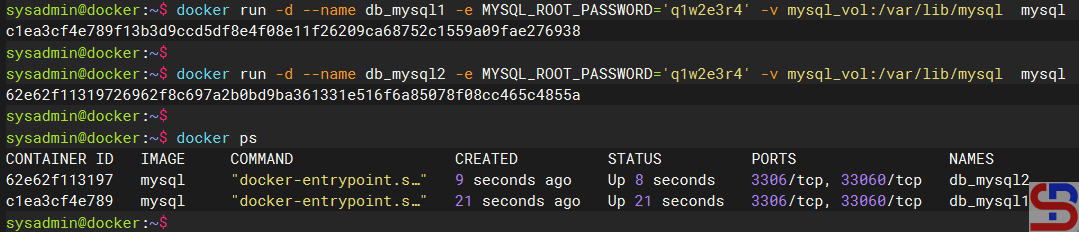
Let’s do a simulation to share the data that is in the volume with more than one container on a single server. In this article, 2 containers will be created that are connected to a mysql_vol volume. Type the command below to make 2 containers:

docker run -d --name db_mysql1 -e MYSQL_ROOT_PASSWORD='q1w2e3r4' -v mysql_volume:/var/lib/mysql  mysql
docker run -d --name db_mysql2 -e MYSQL_ROOT_PASSWORD='q1w2e3r4' -v mysql_volume:/var/lib/mysql  mysql
docker ps

Create 2 containers


After that, type the command below to create a database and insert the data via container db_mysql1:

docker exec db_mysql bash -c "mysql -uroot -pq1w2e3r4 -e \"CREATE DATABASE db_school; USE db_school; CREATE TABLE students (id INT AUTO_INCREMENT PRIMARY KEY, name VARCHAR(100) NOT NULL, age INT NOT NULL); INSERT INTO students (name, age) VALUES ('bob', 21), ('John', 22);select * from students;\""


Then there will be a display below:

Execute the command to create a database and insert data


From the picture above, there are 2 data in the student table in the db_school database. Type the command below to add data to the table from container db_mysql2:

docker exec db_mysql1 bash -c "mysql -uroot -pq1w2e3r4 -e \"USE db_school; INSERT INTO students (name, age) VALUES ('Laura', 20), ('Andrew', 23);select * from students;\""

Execute the command to add data


In the picture above, there are 4 data in the student table so that the Docker volume data can be shared between containers on a server well.


Note

You can see the picture below to see the difference between the three storage:

Types of storage in Docker (Image credit from linkedin.com)


References
docs.docker.com
medium.com
linkedin.com
hub.docker.com
youtube.com


How to Download a Package With Its Dependencies in RockyLinux?

To install a package on RockyLinux distro which is a derivative of RHEL and derivatives such as AlmaLinux or CentOS and others, just type yum install or dnf install and follow by the name of the package to be installed, then the package will be directly installed immediately on the server. But sometimes I just want to download a package with its dependencies for some purposes like installing into the server that can’t connect to the internet or just for some experiments.


Problems

How to download a package with its dependencies in RockyLinux?


Solution

There are 2 methods to download a package with all its dependencies without installing the package on the server and both methods work successfully on RockyLinux9:

A. Using downloadonly plugin

To execute this method, use the format below:

yum install --downloadonly --downloaddir=/folder/path/in/linux package_name -y


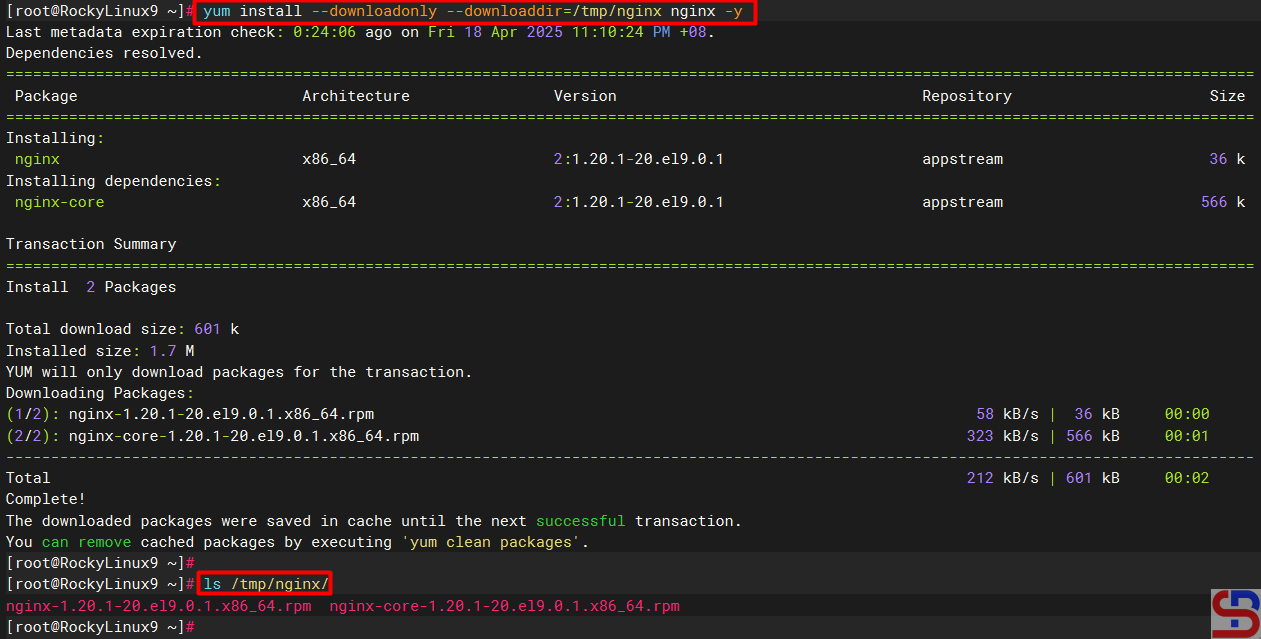
For example, suppose you want to download nginx packages along with their dependencies, and all the packages are contained in the /tmp/nginx folder, use the following command:

yum install --downloadonly --downloaddir=/tmp/nginx nginx -y


After you run the above command, the nginx package and its dependencies files should be in the /tmp/nginx folder as shown below:

Download a nginx file using downloadonly option


By default, if you forget to type the ‐-downloaddir option, it will be stored in the /var/cache/dnf/appstream-*/packages folder.


B. Using yumdownloader

Run the command below to install the yum-utils package:

yum install yum-utils


Then to execute this method, use the format below:

yumdownloader --destdir=/path/in/linux --resolve package_name -y


For example, suppose you want to download a vim package and it is stored in the /root/vim folder, then use the command below:

yumdownloader --destdir=/root/vim --resolve vim -y


After you run the above command, the vim package and its dependencies files should be in the /root/vim folder as shown below:

Download a vim package using yumdownloader


By default, if you forget to type the ‐-destdir option, the package and its dependencies will be saved in the folder where the command is run. If for example the command is executed in /root then the package and its dependencies files will be stored in the /root folder.


Warning
You can download more than one package either using the first method or the second method, but this is not recommended because there will be mixing between dependencies files in one folder so that it makes confusion. So it is recommended to download only one package in one folder.


Note

If you have installed a package on the server and you want to download the package along with the dependencies files, but you use the downloadonly plugin then you can’t download the package like in the image below:

Failed to download a package


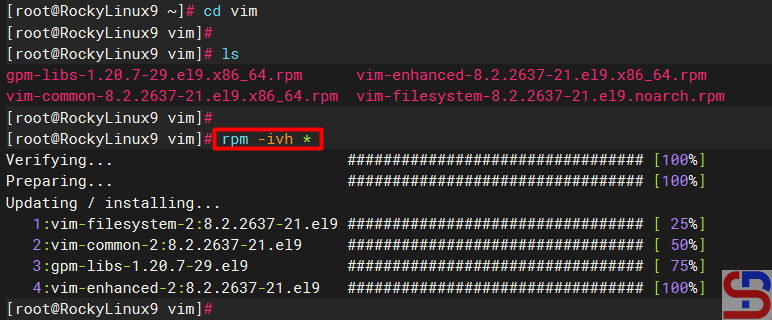
so you have to remove the package from the server first and then you can download the package by running the previous command. However, you can still download packages that are already installed on the server if you use yumdownloader. And if you want to install the downloaded package along with its dependency files then go to the downloaded folder and type the command below:

rpm -ivh *


so you can install the package easily and quickly like in the image below:

Install a package with its dependencies


References
access.redhat.com
dbpilot.net
ostechnix.com


How to Manage the User(s) in MariaDB?

The previous article already explained how to create a database and a table in MariaDB. This article will explain how to manage the user(s) in MariaDB.


Problem

How to manage the user(s) in MariaDB?


Solution

Here are the commands to manage user(s) in MariaDB:

INFO
The use of capital letters in this article is only to distinguish between original commands from MariaDB and data from the user. You don’t have to use the capital letters when running these commands, but you can use all lowercase letters.


1. Display all users

Type the command below to display all the users in MariaDB:

SELECT User,Host FROM mysql.user;

Display all users in MariaDB


You can see in the picture above that by default, there are only 3 users in MariaDB.


2. Create a user with a password

Use the format below to create a user with a password:

CREATE USER 'username'@'ip_address' IDENTIFIED BY 'password_user';


For example, If you want to create a user with the name james and its password 123456, then type the command below:

CREATE USER 'james'@'localhost' IDENTIFIED BY '123456';


If you want to create a John user with a qwerty password but the user can only access the database via the IP with subnet 192.168.56.0/24, type the command below:

CREATE USER 'john'@'192.168.56.%' IDENTIFIED BY 'qwerty';


But if you also want to create a judith user with a password 1q2w3e4r and the user can access the database from any network, then type the command below:

CREATE USER 'judith'@'%' IDENTIFIED BY '1q2w3e4r';

Create the users


To see the options for this command, you can go to this page.


4. Rename user

Use the format below to change the user name:

RENAME USER 'username1'@'ip_address' TO 'username2'@'ip_address'


For example, you want to change the name of james to bob by typing the command below:

RENAME USER 'james'@'localhost' TO 'bob'@'localhost';

Rename the user


You can also change the IP address using the command:

RENAME USER 'bob'@'localhost' TO 'bob'@'192.168.56.%';

Rename the IP address


To see the options for this command, you can go to this page.


5. Alter user

Use the format below to change the user in MariaDB:

ALTER USER 'username' option1 option2 ... optionN;


For example, if you want to change the user james’ password, then use the command below:

ALTER USER 'james'@'localhost' IDENTIFIED BY 'qwerty';

Change the password using the alter command


To see the options for this command, you can go to this page.


6. Grant a user

If you only make a user in Mariadb without giving access to the user, then the user will not be able to enter the existing database in Mariadb. By default, only the root user gets access to all databases in Mariadb. To add a user to have access, use the format below:

GRANT option1 ON option2 TO 'username'@'ip_address;


Option1 is for privileges options at a database or a table level, and option2 is for which database or table the user can access by the user. To see the options for this command, you can go to this page. For example, the user bob can only access the db_office database and then use the command below:

GRANT ALL ON db_office.* TO 'bob'@'192.168.56.%'; 


If you want to provide access to the user john to only be able to do the select command for the employee table in the db_office database, then use the command below:

GRANT SELECT ON db_office.employees TO 'john'@'192.168.56.%';


and provide a judith user to access the entire database, use the command below:

GRANT ALL ON *.* TO 'judith'@'%'; 


You can also combine the grant command by giving a password to a user by typing the command below:

GRANT ALL ON db_office.* TO 'richard'@'192.168.56.%' IDENTIFIED BY 'qwerty';


To see the grant of a user, for example, a judith user, type the command below:

SHOW GRANTS for 'judith';

Display grant for a user


Warning
If you want to see the grant of a user but you do not enter the IP address of the user’s host, as in the picture above, then by default, MariaDB will assume ‘%’ as the host. Therefore, it is recommended that you type the IP address of the user to display the grant status of the user.


If you want to see what grant access is given to a user but forget each IP host address from the user-user in MariaDB, then use this command:

select distinct concat('SHOW GRANTS FOR ', QUOTE(user), '@', QUOTE(host), ';') as query from mysql.user;

Display all grants for each user


7. Make a role

By default, if you have many users and sometimes these users have the same access, it is recommended to create a role. A role bundles many privileges together. Use the format below to create a role:

CREATE ROLE role_name;


To see the options in this command, please go to this page. For example, if you want to make a qa and a dev role in MariaDB, then use the command below to make the role:

CREATE ROLE qa;
CREATE ROLE dev;


To see all the roles in MariaDB, use the command below:

SELECT User FROM mysql.user WHERE is_role='Y';

Create the role


After that, use the grant command to access the db_office database based on the roles as the command below:

GRANT SELECT ON db_office.* TO qa;
GRANT ALL ON db_office.* TO dev;


Then enter the user bob into the qa role and judith into the dev role with the command below:

GRANT qa TO 'bob'@'192.168.56.%';
GRANT dev to 'judith'@'%';


To see users who have entered into the roles in Mariadb, use the command below:

SELECT * FROM mysql.roles_mapping;

Grant role to the user


8. Delete access

If you want to delete access to a user, whether it’s a role or a grant. Use the format below if you want to delete a user’s role:

REVOKE role_name FROM 'user'@'ip_address';


For example, if you want to delete the qa role from the user bob, use the command below:

REVOKE qa FROM 'bob'@'192.168.56.%';

Revoke a user’s role


Use the format below if you want to delete a grant:

REVOKE option1 ON option2 FROM 'user'@'ip_address';


Option1 is for privileges options at a database or a table level, and option2 is for which database or table. If you want to see a deeper explanation of this command, go to this page. For example, if you want to delete richard’s grant in the db_office database, then use the command below:

REVOKE ALL PRIVILEGES ON db_office.* FROM 'richard'@'192.168.56.%';

Revoke the user’s grant


9. Delete a user

To delete a user, use the format below:

DROP USER username;


If you want to see a deeper explanation of this command, please go to this page. For example, if you want to delete the judith user in MariaDB, then use the command below:

DROP USER judith;

Delete the user


But if you find a user who has 2 names that are the same, but the IP host address is different, then you must use the format below:

DROP USER 'username'@'ip_address';


For example, you want to delete one of the user bobs that has an IP 192.168.56.%, Then use the command below:

DROP USER 'bob'@'192.168.56.%';

Delete the user with a certain IP


Note

To provide grant access to one of the users, it must first be asked what his needs are for accessing a database so that the MariaDB database can be more secure.


References

mariadb.com
gist.github.com
cyberciti.biz
severalnines.com