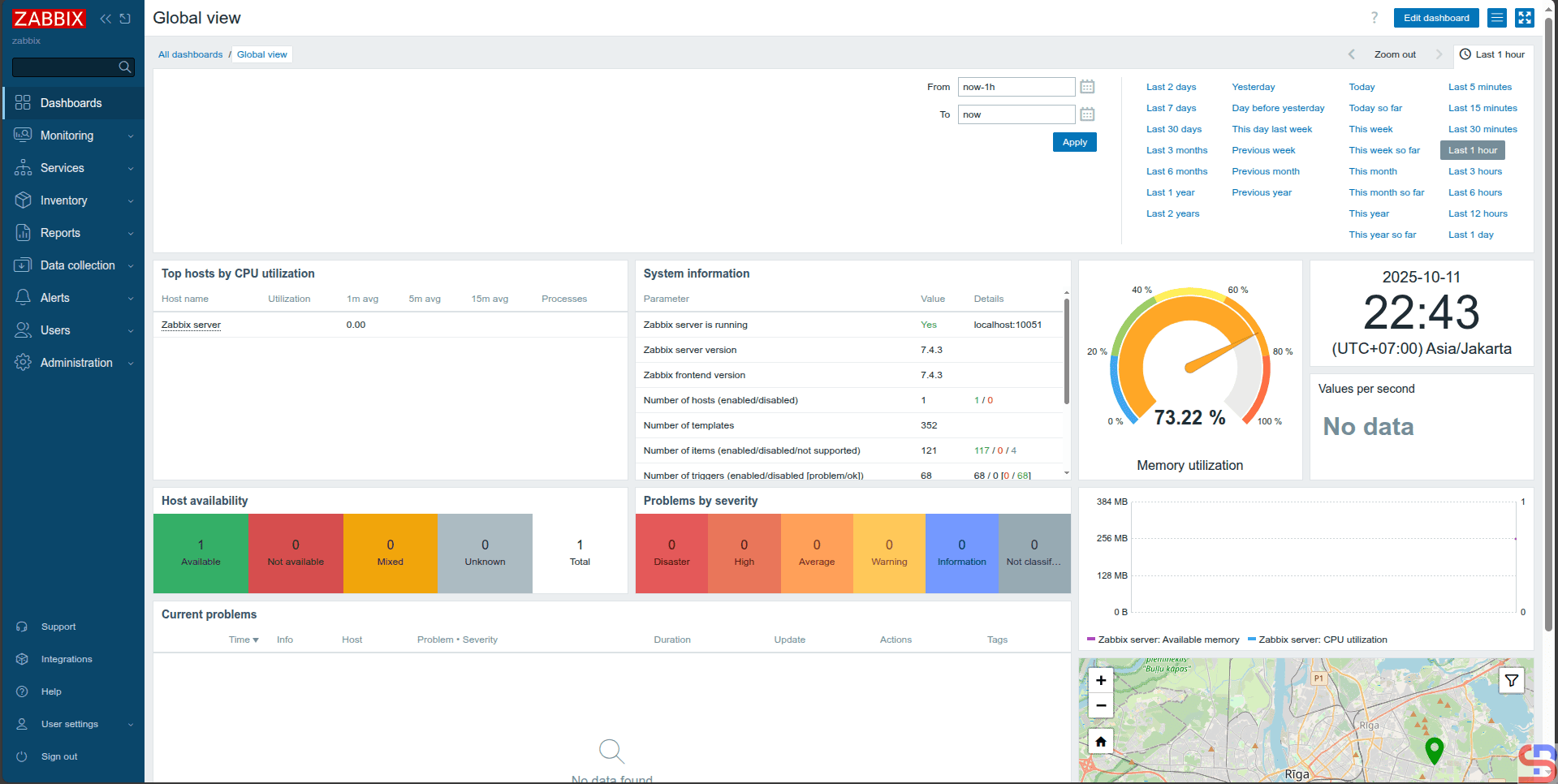
How to Display the Results of a Script in Zabbix?

I want to create a monitoring to check if a site is in an error state or not using a script, and the results of this script will be sent to Zabbix for monitoring.


Problem

How to display the results of a script in Zabbix?


Solution

For example, I have a sysadminpedia.com site and want to monitor the site. The way I do monitoring is to look for wordpress writing on the site, and if the wordpress writing is not on the site, it means that the site has an error. I use a bash script to monitor the word on sysadminpedia.com. For the site to be monitored by Zabbix based on the results of the script I created, follow the steps below:

1. Create a script

Log in to the Zabbix server, and you can use any folder to create your script, but I created a special folder for scripts in Zabbix using the command:

sudo mkdir -p /etc/zabbix/scripts


Then create a bash script in a folder with the file name check-sysadminpedia-site.sh and copy the script below:

#!/bin/bash

# Fetch the website content
content=$(curl -s https://sysadminpedia.com)

# Check if the word "wordpress" exists (case-insensitive)
if echo "$content" | grep -iq "wordpress"; then
  echo 1
else
  echo 0
fi


2. Change the user, group, and permission

Change the user and group on the file using the command below:

chown -R zabbix:zabbix /etc/zabbix/scripts/check-sysadminpedia-site.sh


After that, type the following command to make the script run:

chmod +x /etc/zabbix/scripts/check-sysadminpedia-site.sh


3. Configure in the zabbix_agent file

Add the below script in the file /etc/zabbix/zabbix_agentd.conf:

UserParameter=check-sysadminpedia-site,/etc/zabbix/scripts/check-sysadminpedia-site.sh


4. Restart zabbix_agent

Restart the Zabbix agent using the following commands:

systemctl daemon-reload
systemctl restart zabbix-agent


5. Configure Zabbix

Go to your Zabbix application, select the Host you want to enter to display the results of this monitoring in Zabbix. I choose to use the Zabbix server host: Monitoring > Hosts > Zabbix server > Items in the CONFIGURATION like in the image below:

Click Items in the CONFIGURATION section


And there will be a display like the following: 

Click the Create item button


Click the Create item button, and then there will be a display as shown below:

Click the Test button


I fill in the fields as in the image above, click the Test button, and then there will be a display as in the image below:

Click the Get value and test button


Click the Get value and test button, and in the Value section, there will be a value generated, either it is 1 or 0, according to the value in the bash script, as in the image below:

Click the Cancel button


You see from the image above, the Value is 1. Click the Cancel button, then it will return to the previous view, like the image below:

Click the Add button


After you press the Add button, there will be the text Item added as in the image below:

Succeed in adding an Item


6. Create a graph

Then, create a graph for the result of the script by selecting the host that will display the result of the bash script. I choose to use the Zabbix server host: Monitoring > Hosts > Zabbix server > Graphs in the CONFIGURATION section, like the image below:

Click the Graphs in the CONFIGURATION section


And there will be a display as shown in the image below:

Click the Create Graph button


Click Create Graph, then there will be a display as below:
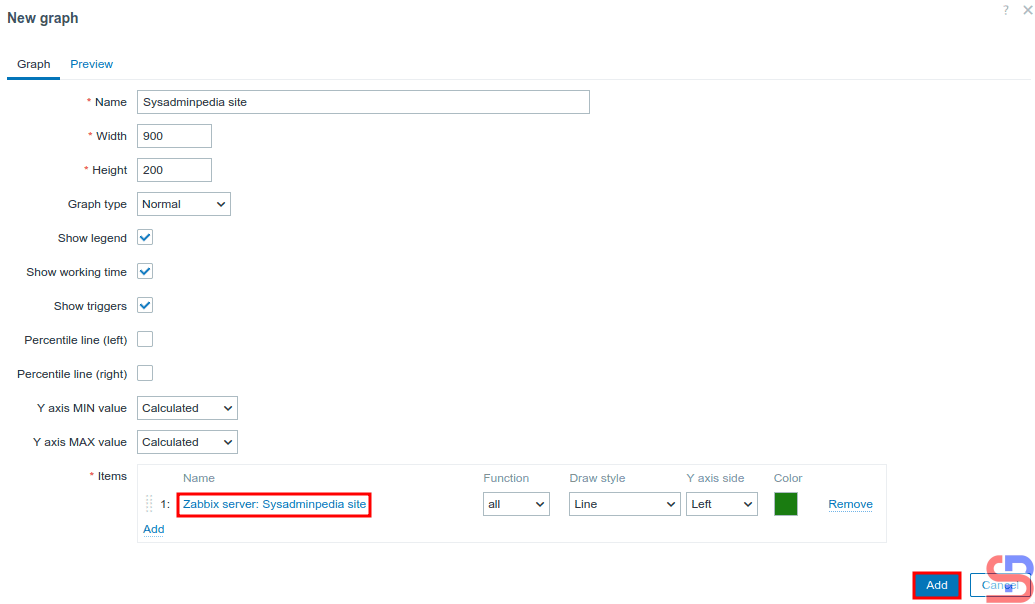
Click the Add button


After that, click the Add button then there will be the text Graph Added as in the image below:

Succeed in adding a Graph


7. Display the graph

Wait a while, and to see the graph, you can go to Monitoring > Hosts > Zabbix server > Graphs in the View section, as shown in the image below:
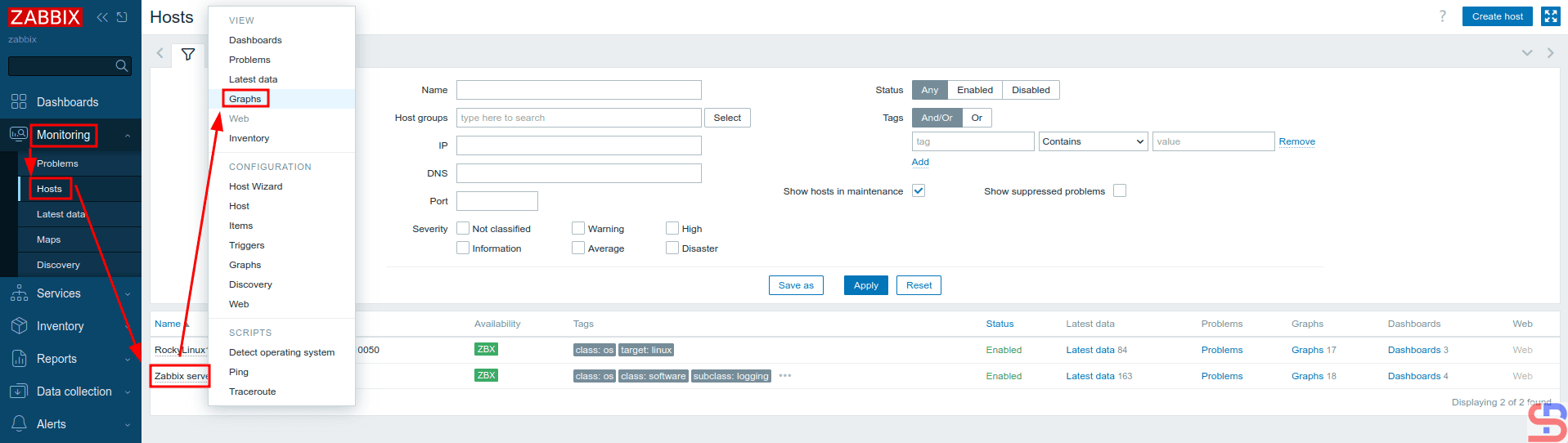
Click the Graphs in the VIEW section


Click the Filter button as shown in the image below:

Click the Filter button


Then there will be a display as shown in the image below:

Type the name of the graph and click the Apply button


Type the name of the graph in the Name field, then click Apply, and  then there should be a display below:
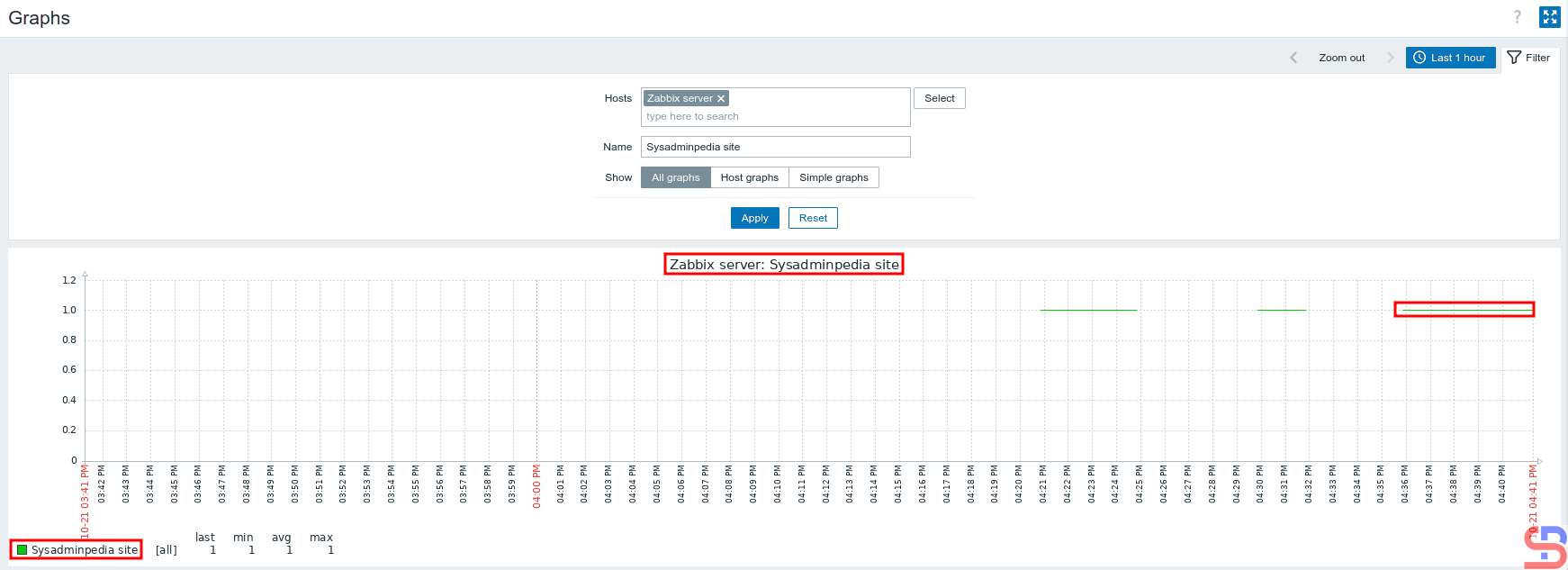
The graph from your script


If the site has an error, as known as there is no word wordpress, the graph will look as below:

When your script produces the error


And you successfully created a graph in Zabbix from the result of a script you made yourself.


Note

In this article, I used the Zabbix server to insert a script that monitors the server. However, you can use another host for your script, so you can do points 1 to 4 in the explanation above on another host.
 

References

blog.zabbix.com
youtube.com
sbcode.net


How to Add a Linux Host to be Monitored by Zabbix?

The previous article explained how to install the Zabbix application on Ubuntu. This article will explain how to add a Linux host to be monitored by Zabbix.


Problem

How to add a Linux host to be monitored by Zabbix?


Solution

This article will add a RockyLinux10 host, which will be monitored by Zabbix with IP 192.168.56.104, while the Zabbix server IP is 192.168.56.101. So that the host can be monitored by Zabbix, you must install the Zabbix-Agent on the host. Here are the steps:

A. On Remote Host

Check whether on your RockyLinux server, you have the file /etc/yum.repos.d/epel.repo. Don’t worry if your server does not have the epel.repo file, but if the file exists on your server, you can add the script below:

excludepkgs=zabbix*


After that, run the commands below:

rpm -Uvh https://repo.zabbix.com/zabbix/7.4/release/rocky/10/noarch/zabbix-release-latest-7.4.el10.noarch.rpm
dnf clean all 
dnf install zabbix-agent -y


After you install the zabbix agent, go to copy the file /etc/zabbix/zabbix_agentd.conf as a backup:

cp /etc/zabbix/zabbix_agentd.conf /etc/zabbix/zabbix_agentd.conf.ori


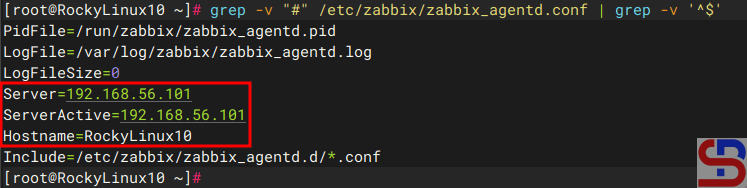
Then go into the file and change the Server section to your Zabbix server IP (which in this article is IP 192.168.56.101), and in the Hostname section, you are free to fill in, and I changed it to RockyLinux10, so the file looks like the one below:

The zabbix_agentd.conf file


If your RockyLinux server has a firewall, open port 10050 using the command:

firewall-cmd --permanent --zone=public --add-port=10050/tcp
firewall-cmd --reload


Then run the two commands below:

systemctl restart zabbix-agent
systemctl enable zabbix-agent


To view the log on zabbix-agent, open the file /var/log/zabbix/zabbix_agentd.log on your server.


B. On the Zabbix server

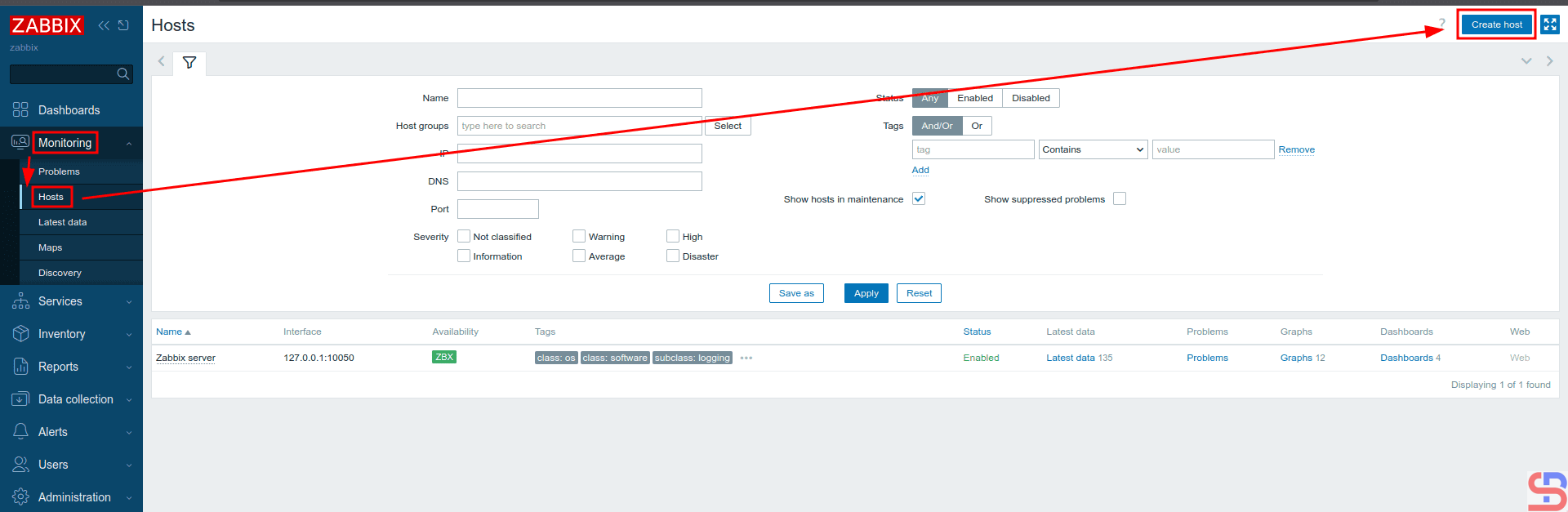
On the Zabbix server, enter the Zabbix application via your browser, then select Monitoring > Hosts > Create Host as in the image below:

Add the host to Zabbix


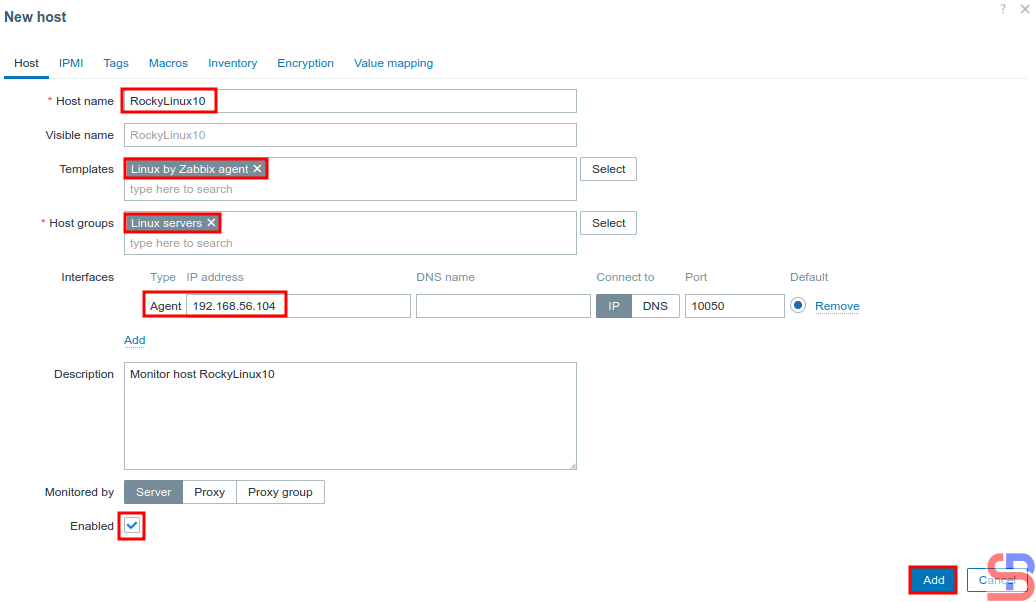
After that, there will be a display like below. You have to fill in the columns according to the host you will monitor. I filled them in as shown in the image below:

Configure a new host in Zabbix


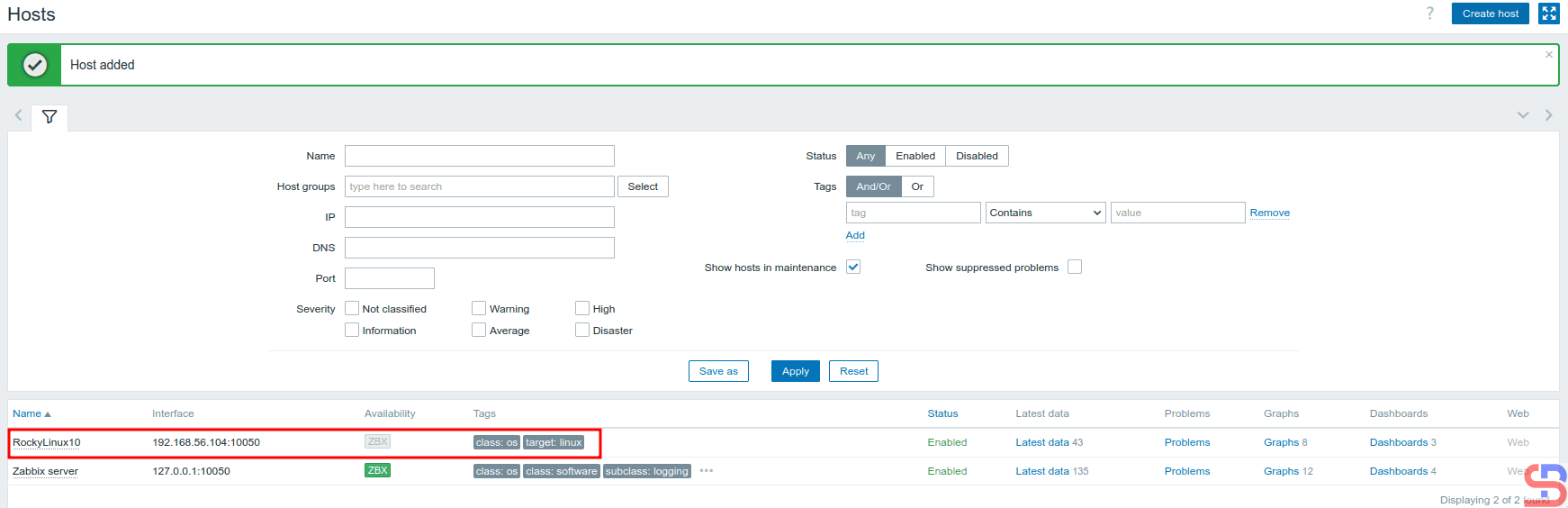
When finished, click the Add button, and you will see a display like the one below:

add a Linux host to be monitored by Zabbix
After the Host added


Wait a few moments, and the Zabbix application should be able to monitor your host, which is marked with the word ZBX in green, as in the image below:

Zabbix monitors the host


To see the graph of the host, click on the words Graphs, so there will be a display like the one below:

add a Linux host to be monitored by Zabbix
The graphs of the host


And you have successfully added a host to the Zabbix application.


Note

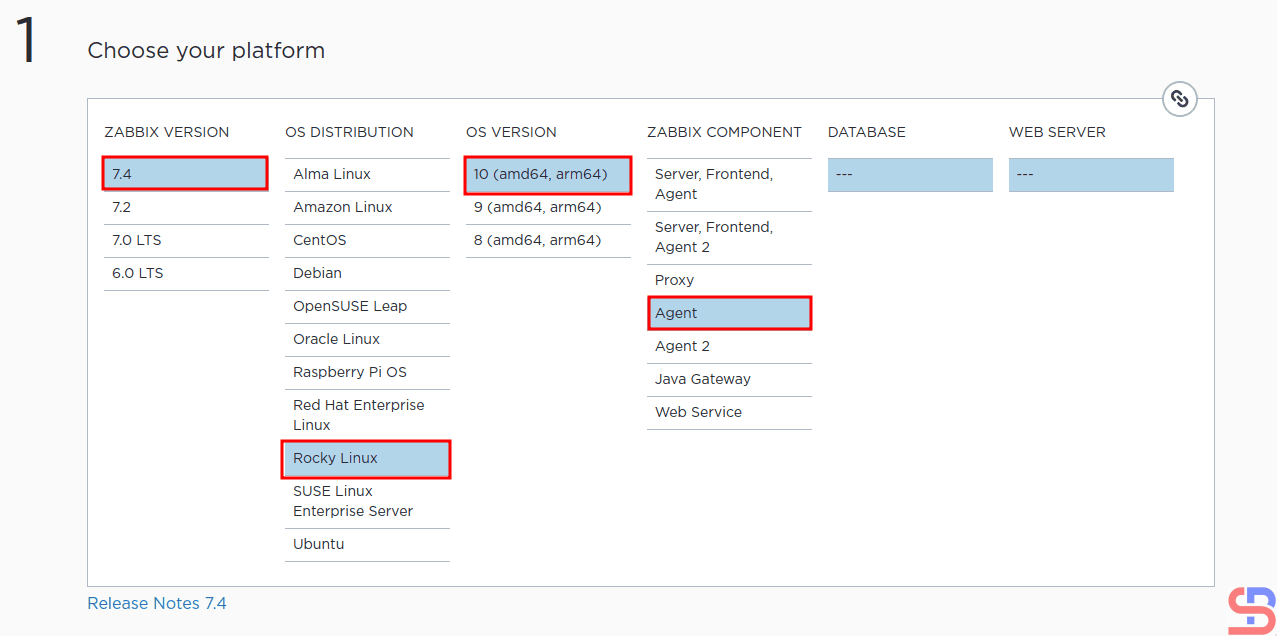
If you want to add a host that Zabbix wants to monitor, you can go to this address to see the steps to install the Zabbix agent on your server. Make sure the Zabbix version selected is the same as the Zabbix version running on the server. The following is an example image for installing the Zabbix agent on the RockyLinux10 host, which is used as an example in this article:

add a Linux host to be monitored by Zabbix
Choose the OS host to install Zabbix Agent


And don’t forget to open Port 10050 on the host you want to monitor so that the Zabbix application can access that host.


References

tecadmin.net
zabbix.com
bestmonitoringtools.com


How to Install Zabbix On Ubuntu?

Zabbix is an open-source software tool to monitor IT infrastructure such as networks, servers, virtual machines, and cloud services.


Problem

How to install Zabbix in Ubuntu?


Solution

Zabbix was first released in 2001, and as of this writing in October 2025, Zabbix has version 7.4. This article will explain how to install Zabbix on an Ubuntu server by using MariaDB and Apache databases.

A. Install Zabbix

Run the commands below to install Zabbix on Ubuntu:

wget https://repo.zabbix.com/zabbix/7.4/release/ubuntu/pool/main/z/zabbix-release/zabbix-release_latest_7.4+ubuntu24.04_all.deb
sudo dpkg -i zabbix-release_latest_7.4+ubuntu24.04_all.deb
sudo apt update
sudo apt install zabbix-server-mysql zabbix-frontend-php zabbix-apache-conf zabbix-sql-scripts zabbix-agent


B. Database Configuration

If your Ubuntu doesn’t have a database, then you can use the MariaDB database by using the command:

sudo apt install mariadb-server


Then, create a password for root in MariaDB using the command:

sudo mariadb-secure-installation 


After that, enter MariaDB using the command:

sudo mariadb -uroot -p


Run the commands below (change the password to what you want):

create database zabbix character set utf8mb4 collate utf8mb4_bin;
create user zabbix@localhost identified by 'password';
grant all privileges on zabbix.* to zabbix@localhost;
set global log_bin_trust_function_creators = 1;
quit; 


Run the command below to import the initial schema and data, and enter the password you created when you created the Zabbix database in MariaDB:

zcat /usr/share/zabbix/sql-scripts/mysql/server.sql.gz | mysql --default-character-set=utf8mb4 -uzabbix -p zabbix 


Then log in to MariaDB again using the command:

sudo mariadb -uroot -p


Run the command below to disable the log_bin_trust_function_creators option after importing the database schema.

set global log_bin_trust_function_creators = 0;
quit; 


C. Configure the Zabbix file

After that, you will configure the zabbix file located in /etc/zabbix/zabbix_server.conf. It’s better if you copy the original file as a backup by running the command below:

sudo cp /etc/zabbix/zabbix_server.conf /etc/zabbix/zabbix_server.conf.ori


Fill in the DBPassword section of the file with the password you created for the Zabbix user, so that it is as follows:

Configuration on zabbix_server.conf file


Then run the two commands below:

systemctl restart zabbix-server zabbix-agent apache2
systemctl enable zabbix-server zabbix-agent apache2


D. Configure Zabbix

Open your browser and type in the URL below:

http://your_ip_server/zabbix


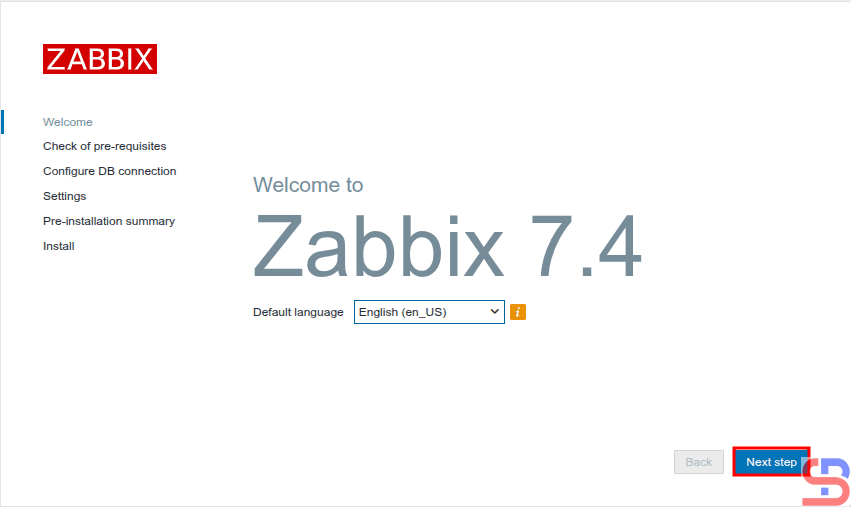
Then there will be a display like the image below:

Configure Zabbix using your browser


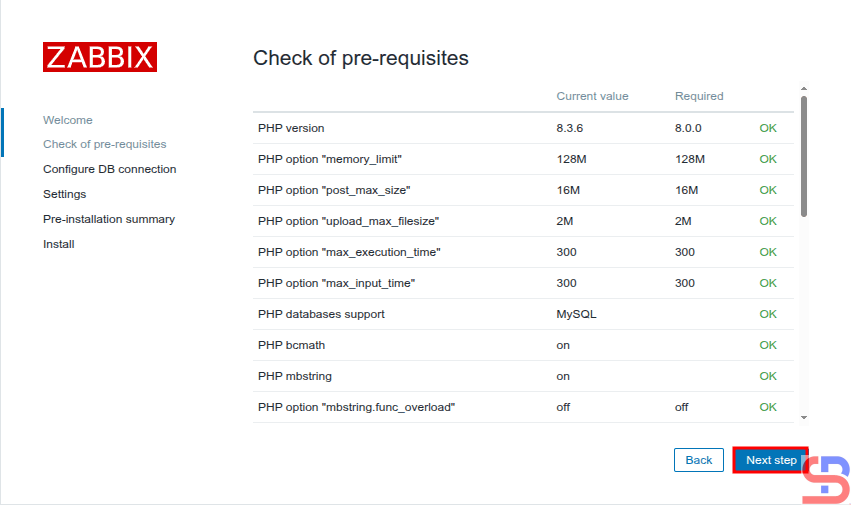
Click the Next step button, and a display similar to the picture below will be present:

Checking of pre-requisites


Make sure there is no error like in the image above. After that, click the Next step button, and there will be a screen similar to the one below:

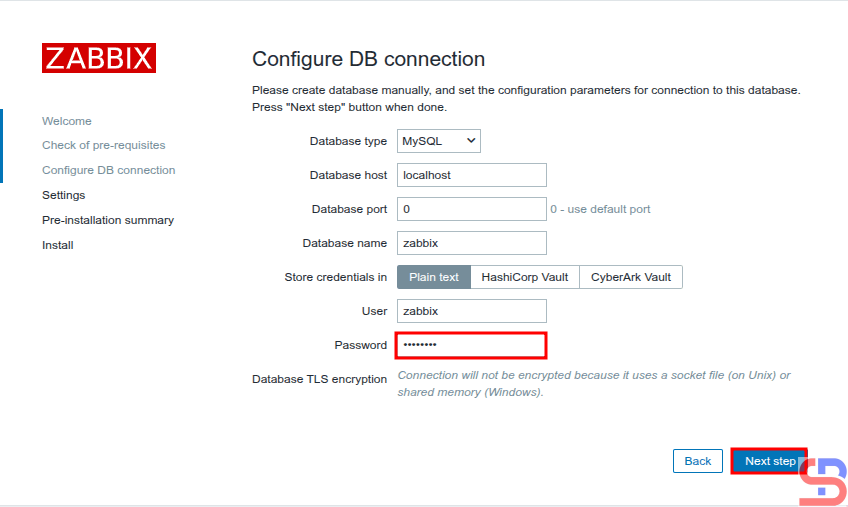
Enter the password of MariaDB


Enter your database password using the Zabbix user, click the Next step button, and a screen similar to the one below will be presented:

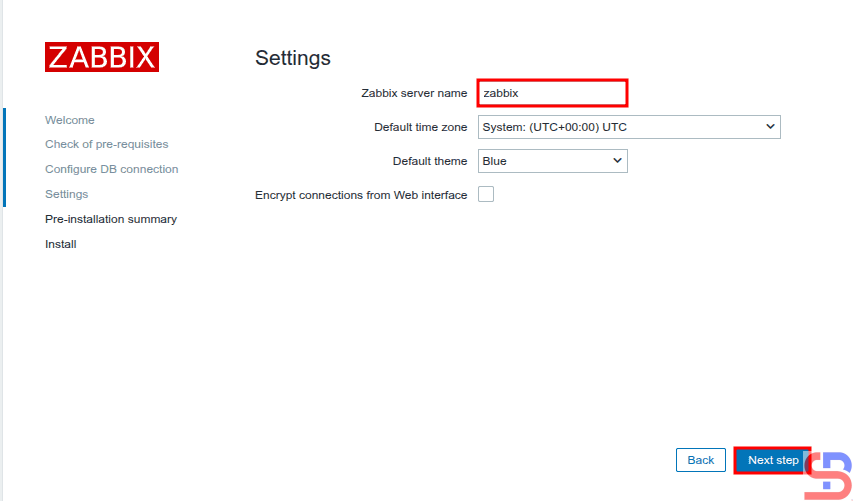
Enter the server name of Zabbix


Enter the name of the Zabbix server you want, click the Next step button, and there will be a display like the image below:

install Zabbix in Ubuntu
Pre-installation summary


Click the Next step button, and there will be a display similar to the image shown below.

install Zabbix in Ubuntu
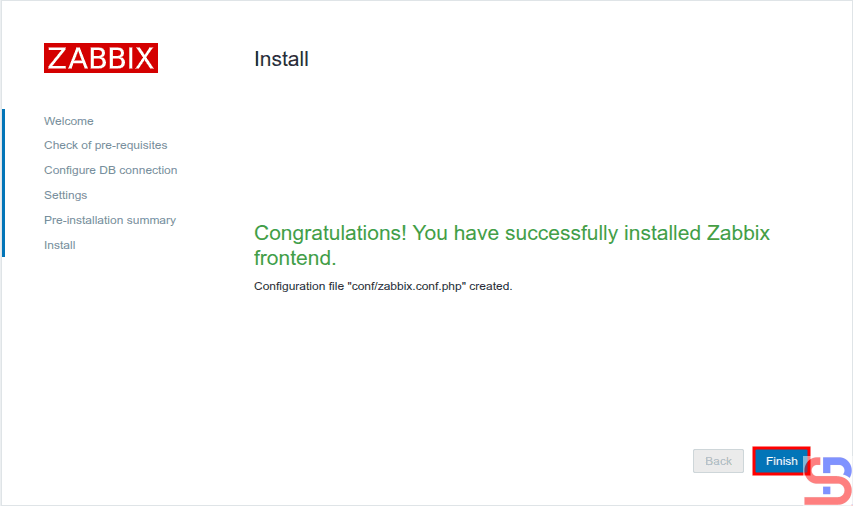
Finish installation


Click the Finish button, and a screen like the one shown below will appear.

install Zabbix in Ubuntu
Enter the username and password of Zabbix


For your information, the initial username for Zabbix is Admin and the initial password is zabbix. After you enter the username and password, click the Sign in button, and there will be a display like the image below:

install Zabbix in Ubuntu
The initial display of Zabbix


You have successfully installed the Zabbix application on your Ubuntu server.


Note

To install Zabbix on a different operating system, you can go to this page to see how to install Zabbix on your server.


References

en.wikipedia.org
zabbix.com
medium.com