How to Protect phpMyAdmin Using Nginx?

The previous article explained how to install phpMyAdmin with the nginx web server. This article will explain how to protect phpMyAdmin from unauthorized users using nginx.


Problem

How to protect phpMyAdmin using nginx?


Solution

There are several methods to protect phpMyAdmin using nginx:

1. Allowing certain IPs

The phpMyAdmin application can only be accessed by users who have certain IP addresses. For example, you want the IP localhost, and only 192.168.56.1 to be able to access phpMyAdmin. Then add the script below to the /etc/nginx/sites-available/default file in the location /phpmyadmin section:

allow 127.0.0.1;
allow 192.168.56.1;
deny all;


For more details, take a look at the image below:

Allowing certain IPS


After that, use the command below to reload nginx:

sudo nginx -t
sudo systemctl reload nginx


If any user who uses an IP other than the localhost and 192.168.56.1 wants to access phpMyAdmin, then that user will not be able to access phpMyAdmin, as shown in the image below:

Forbidden access


2. Add a password

To make it safer, phpMyAdmin should be given additional HTTP Auth so that users who want to access the application must enter a password. Use the command below to install HTTP auth:

sudo apt install apache2-utils
sudo htpasswd -c /etc/nginx/.phpmyadmin admin


Enter the password that you want, and then in the /etc/nginx/sites-available/default file, add the script below:

auth_basic 'Restricted';
auth_basic_user_file /etc/nginx/.phpmyadmin;


So the default file will look like the image below:

Adding HTTP Auth in Nginx


After that, use the command below to reload nginx:

sudo nginx -t
sudo systemctl reload nginx


Open the browser, and when you access phpMyAdmin, it should be there should be a display like below:

Enter username and password when accessing phpMyAdmin


Enter the username: admin and the password you created previously. If there are no errors, you can access phpMyAdmin.


3. Change the URL

By default, if you want to access phpMyAdmin, then you type the command below:

http://ip_server/phpmyadmin


However, for security reasons, it is best to replace the word phpMyAdmin with another word, for example, pma, so that the site address changes to:

http://ip_server/pma


Therefore, in the default file, change the file by deleting the /phpmyadmin section with the script below:

location /pma {
        alias /usr/share/phpmyadmin/;
        index index.php;

        allow 127.0.0.1;
        allow 192.168.56.1;
        deny all;

        auth_basic "Restricted";
        auth_basic_user_file /etc/nginx/.phpmyadmin;

        location ~ \.php$ {
        include snippets/fastcgi-php.conf;
        fastcgi_pass unix:/run/php/php8.3-fpm.sock;
        fastcgi_param SCRIPT_FILENAME $request_filename;
        }

        location ~* \.(css|js|jpg|jpeg|gif|png|ico|html|xml|txt)$ {
        expires 30d;
        access_log off;
        }
    }


so that the default file changes to look like the image below:

Change the URL in Nginx


Use the command below to reload nginx:

sudo nginx -t
sudo systemctl reload nginx


Open http://ip_server/pma in your browser, then you should be able to access phpMyAdmin as in the image below:

Change the URL


Note

There is one more method so that your phpMyAdmin application can be secure, namely, using SSL. You can use a Let’s Encrypt SSL certificate for your phpMyAdmin site because the certificate is free. However, if you want the phpmyadmin application not to be accessed by the public, I think,  then there is no need to use SSL.
 

References

digitalocean.com
serverfault.com
httpd.apache.org


How to Install phpMyAdmin With Nginx on Ubuntu?

The previous article has explained how to install the phpMyAdmin application on Linux using the Apache web server. This article explains how to configure phpMyAdmin using nginx on Ubuntu.


Problem

How to install phpMyAdmin with nginx on Ubuntu?


Solution

Follow the steps below to install phpMyAdmin with Nginx on Ubuntu:

1. Update repo

Use the command below to update the Ubuntu repo:

sudo apt update -y


2. Install MariaDB

Next, install the MariaDB database using the command:

sudo apt install mariadb-server mariadb-client -y


Once finished, use the command below to change the root password in MariaDB:

sudo mysql_secure_installation

Change the root password


Then check whether the database is up or not using the command below:

sudo systemctl status mariadb


3. Install PHP

Install PHP by using the command below:

sudo apt install php php-fpm php-mysql php-cli php-curl php-gd php-mbstring php-xml php-zip -y


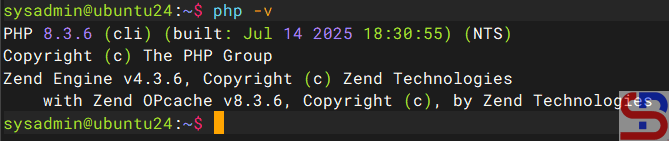
Then check the version of PHP that you just installed by using the command below:

php -v

Check the php version


Usually, when installing PHP, the Apache package will also be installed on the server. Therefore, delete Apache using the command:

sudo apt remove apache2-* -y


4. Install phpMyAdmin

Use the command below to install phpMyAdmin:

sudo apt install phpmyadmin -y


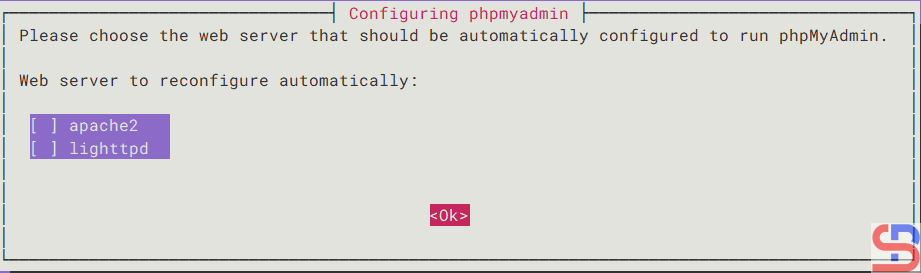
At the time of installation, there are several pop-ups that you must answer, such as the selection of the web server you are using, as shown in the image below:

Choose the Ok button


Just select the button Ok, then the process of installation will continue. A few seconds later, there will be a pop-up as below to insert the phpMyAdmin in the database:

Choose the Yes button


Select the button Yes, and there’s a pop-up to enter the password for the user phpmyadmin in the database as in the picture below:

Enter the password for the phpmyadmin user


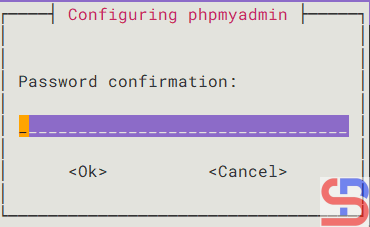
Enter the password you want, select the OK button, and there will be another pop-up to confirm the password as in the image below:

Password confirmation


Enter the same password and select the Ok button, then the phpMyAdmin installation process will continue until completion.


5. Install nginx

Install nginx by using the command below:

sudo apt install nginx -y


After that, configure Nginx so that it can be integrated with phpMyAdmin. Copy the default file using the command below:

sudo cp /etc/nginx/sites-available/default /etc/nginx/sites-available/default.ori


Then in the default file, copy the script below:

server {
    listen 80;
    server_name _;
    root /var/www/html;
    index index.php index.html;

    location / {
        try_files $uri $uri/ =404;
    }

    location /phpmyadmin {
        root /usr/share/;
        index index.php;

        location ~ ^/phpmyadmin/(.+\.php)$ {
            try_files $uri =404;
            root /usr/share/;
            fastcgi_pass unix:/run/php/php8.3-fpm.sock;
            fastcgi_index index.php;
            fastcgi_param SCRIPT_FILENAME $document_root$fastcgi_script_name;
            include fastcgi_params;
        }

        location ~* ^/phpmyadmin/(.+\.(css|js|jpg|jpeg|gif|png|ico|html|xml|txt))$ {
            root /usr/share/;
        }
    }
}


Warning
You have to be careful when writing the php-fpm version in the fastcgi_pass_unix section because there will be an error if the version is different from the one installed on the server. To see the version installed on the server, use the command below:

ls -l /run/php/


After that, use the command below to check whether the nginx configuration has errors or not:

sudo nginx -t


If there are no errors, then you can run the command below to reload nginx:

sudo systemctl reload nginx


6. Open phpMyAdmin

Open your browser and type:

http://ip_server/phpmyadmin


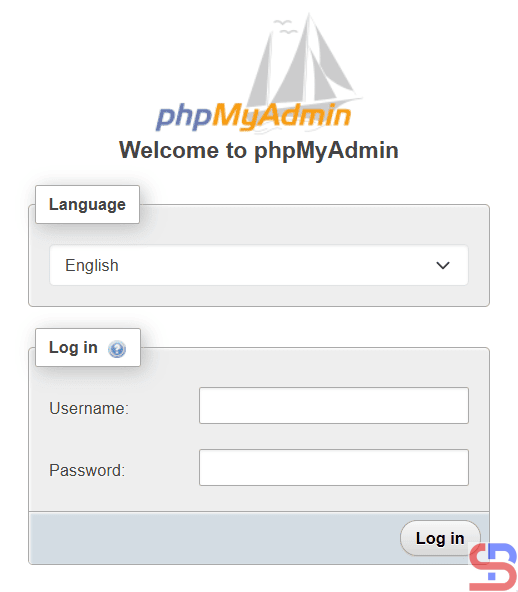
Then there should be a display like below:

Open phpMyAdmin in the browser


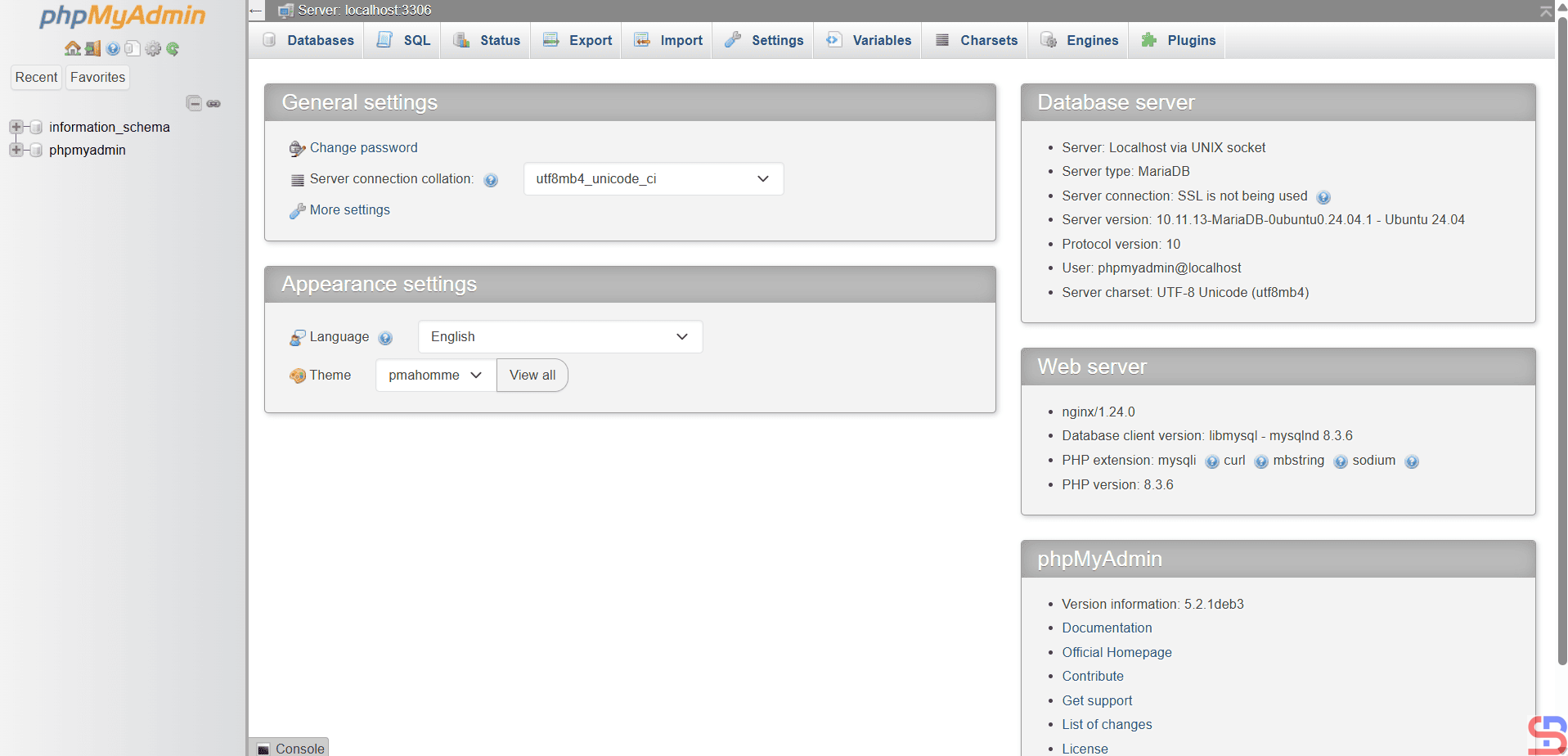
Enter the database username and password, for example, using the user phpmyadmin with the password that you created when installing phpMyAdmin, then there will be a display like the one below:

Display of phpMyAdmin using phpmyadmin user


Note

If you want the phpMyAdmin application to be more secure, you can look at this page.


References

markaicode.com
linuxbabe.com
hostman.com