How to Manage the User(s) in MariaDB?

The previous article already explained how to create a database and a table in MariaDB. This article will explain how to manage the user(s) in MariaDB.


Problem

How to manage the user(s) in MariaDB?


Solution

Here are the commands to manage user(s) in MariaDB:

INFO
The use of capital letters in this article is only to distinguish between original commands from MariaDB and data from the user. You don’t have to use the capital letters when running these commands, but you can use all lowercase letters.


1. Display all users

Type the command below to display all the users in MariaDB:

SELECT User,Host FROM mysql.user;

Display all users in MariaDB


You can see in the picture above that by default, there are only 3 users in MariaDB.


2. Create a user with a password

Use the format below to create a user with a password:

CREATE USER 'username'@'ip_address' IDENTIFIED BY 'password_user';


For example, If you want to create a user with the name james and its password 123456, then type the command below:

CREATE USER 'james'@'localhost' IDENTIFIED BY '123456';


If you want to create a John user with a qwerty password but the user can only access the database via the IP with subnet 192.168.56.0/24, type the command below:

CREATE USER 'john'@'192.168.56.%' IDENTIFIED BY 'qwerty';


But if you also want to create a judith user with a password 1q2w3e4r and the user can access the database from any network, then type the command below:

CREATE USER 'judith'@'%' IDENTIFIED BY '1q2w3e4r';

Create the users


To see the options for this command, you can go to this page.


4. Rename user

Use the format below to change the user name:

RENAME USER 'username1'@'ip_address' TO 'username2'@'ip_address'


For example, you want to change the name of james to bob by typing the command below:

RENAME USER 'james'@'localhost' TO 'bob'@'localhost';

Rename the user


You can also change the IP address using the command:

RENAME USER 'bob'@'localhost' TO 'bob'@'192.168.56.%';
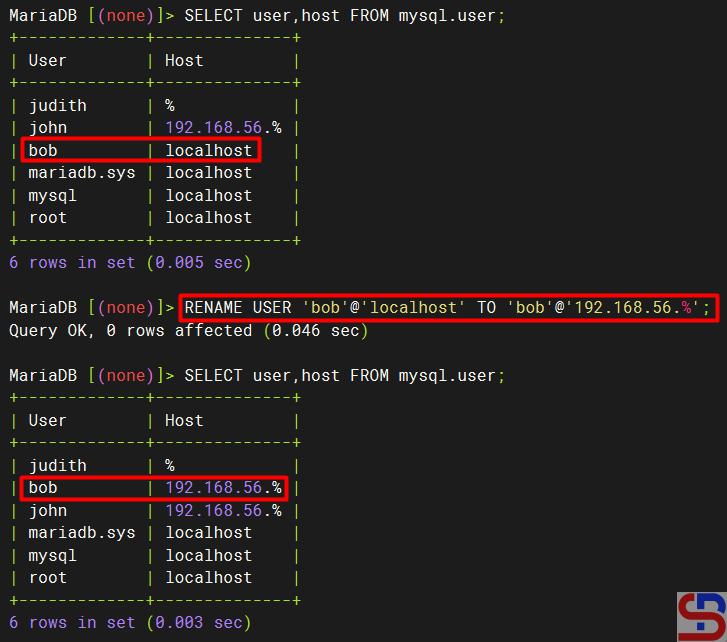
Rename the IP address


To see the options for this command, you can go to this page.


5. Alter user

Use the format below to change the user in MariaDB:

ALTER USER 'username' option1 option2 ... optionN;


For example, if you want to change the user james’ password, then use the command below:

ALTER USER 'james'@'localhost' IDENTIFIED BY 'qwerty';

Change the password using the alter command


To see the options for this command, you can go to this page.


6. Grant a user

If you only make a user in Mariadb without giving access to the user, then the user will not be able to enter the existing database in Mariadb. By default, only the root user gets access to all databases in Mariadb. To add a user to have access, use the format below:

GRANT option1 ON option2 TO 'username'@'ip_address;


Option1 is for privileges options at a database or a table level, and option2 is for which database or table the user can access by the user. To see the options for this command, you can go to this page. For example, the user bob can only access the db_office database and then use the command below:

GRANT ALL ON db_office.* TO 'bob'@'192.168.56.%'; 


If you want to provide access to the user john to only be able to do the select command for the employee table in the db_office database, then use the command below:

GRANT SELECT ON db_office.employees TO 'john'@'192.168.56.%';


and provide a judith user to access the entire database, use the command below:

GRANT ALL ON *.* TO 'judith'@'%'; 


You can also combine the grant command by giving a password to a user by typing the command below:

GRANT ALL ON db_office.* TO 'richard'@'192.168.56.%' IDENTIFIED BY 'qwerty';


To see the grant of a user, for example, a judith user, type the command below:

SHOW GRANTS for 'judith';

Display grant for a user


Warning
If you want to see the grant of a user but you do not enter the IP address of the user’s host, as in the picture above, then by default, MariaDB will assume ‘%’ as the host. Therefore, it is recommended that you type the IP address of the user to display the grant status of the user.


If you want to see what grant access is given to a user but forget each IP host address from the user-user in MariaDB, then use this command:

select distinct concat('SHOW GRANTS FOR ', QUOTE(user), '@', QUOTE(host), ';') as query from mysql.user;

Display all grants for each user


7. Make a role

By default, if you have many users and sometimes these users have the same access, it is recommended to create a role. A role bundles many privileges together. Use the format below to create a role:

CREATE ROLE role_name;


To see the options in this command, please go to this page. For example, if you want to make a qa and a dev role in MariaDB, then use the command below to make the role:

CREATE ROLE qa;
CREATE ROLE dev;


To see all the roles in MariaDB, use the command below:

SELECT User FROM mysql.user WHERE is_role='Y';

Create the role


After that, use the grant command to access the db_office database based on the roles as the command below:

GRANT SELECT ON db_office.* TO qa;
GRANT ALL ON db_office.* TO dev;


Then enter the user bob into the qa role and judith into the dev role with the command below:

GRANT qa TO 'bob'@'192.168.56.%';
GRANT dev to 'judith'@'%';


To see users who have entered into the roles in Mariadb, use the command below:

SELECT * FROM mysql.roles_mapping;

Grant role to the user


8. Delete access

If you want to delete access to a user, whether it’s a role or a grant. Use the format below if you want to delete a user’s role:

REVOKE role_name FROM 'user'@'ip_address';


For example, if you want to delete the qa role from the user bob, use the command below:

REVOKE qa FROM 'bob'@'192.168.56.%';

Revoke a user’s role


Use the format below if you want to delete a grant:

REVOKE option1 ON option2 FROM 'user'@'ip_address';


Option1 is for privileges options at a database or a table level, and option2 is for which database or table. If you want to see a deeper explanation of this command, go to this page. For example, if you want to delete richard’s grant in the db_office database, then use the command below:

REVOKE ALL PRIVILEGES ON db_office.* FROM 'richard'@'192.168.56.%';

Revoke the user’s grant


9. Delete a user

To delete a user, use the format below:

DROP USER username;


If you want to see a deeper explanation of this command, please go to this page. For example, if you want to delete the judith user in MariaDB, then use the command below:

DROP USER judith;

Delete the user


But if you find a user who has 2 names that are the same, but the IP host address is different, then you must use the format below:

DROP USER 'username'@'ip_address';


For example, you want to delete one of the user bobs that has an IP 192.168.56.%, Then use the command below:

DROP USER 'bob'@'192.168.56.%';

Delete the user with a certain IP


Note

To provide grant access to one of the users, it must first be asked what his needs are for accessing a database so that the MariaDB database can be more secure.
 

References

mariadb.com
gist.github.com
cyberciti.biz
severalnines.com


How to Manage a Database and its Table(s) in MariaDB?

After installing MariaDB on your Linux server, you must know some basic MariaDB commands.


Problem

How to manage a database and its table(s) in MariaDB?


Solution

Below are the basic commands of MariaDB to manage a database and its table(s):

1. Access to the MariaDB database

Use the format below to access MariaDB:

mariadb -h ip_address -u username -p


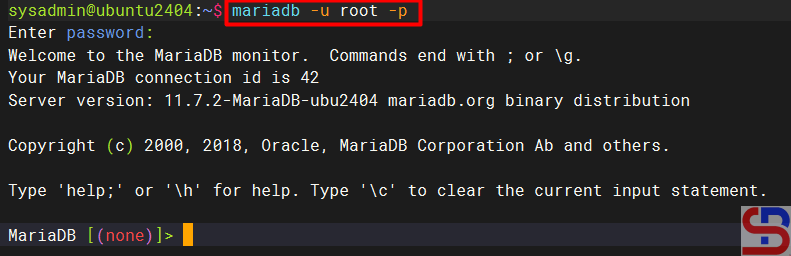
If you access MariaDB from the server using the root user directly, type the command below:

mariadb -u root -p


Enter the password for the root in MariaDB, and if the password is appropriate then you can access MariaDB as in the image below:

Access to MariaDB


INFO
The use of capital letters in this article is only to distinguish between original commands from MariaDB and data from the user. You don’t have to use the capital letters when running these commands, but you can use all lowercase letters.


2. Creating a new database

Use the format below to create a new database:

CREATE DATABASE database_name;


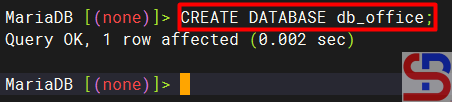
You can see the options for this command on this page. For example, if you want to create a new database called db_office, use the command below;

CREATE DATABASE db_office;

Create a new database


3. See the entire database

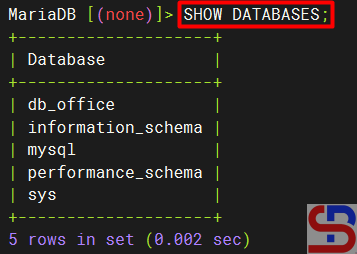
Type the command below to see all the databases stored in MariaDB:

SHOW DATABASES;

Display all databases


4. Select a database

Use the format below to select the database you want to access:

USE db_name;


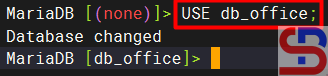
For example, if you want to access the db_office database, then type the command below:

USE db_office;

Select the database


5. Create a table

Use the format below to create a new table:

CREATE TABLE table_name (name_of_column1 column_data_type1, name_of_column2 column_data_type2, ...);


You can see the options for this command on this page. Type the command below to create an employee table:

CREATE TABLE employee (name varchar (100), age int (3));

Create a new table


You can see data types that can be used on this page.


6. Display the entire table(s)

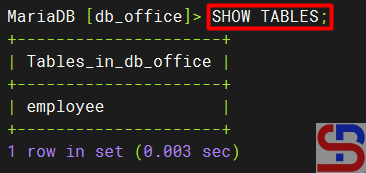
Use the command below to display the entire table in a database:

SHOW TABLES;

Show all tables


7. Display the table structure

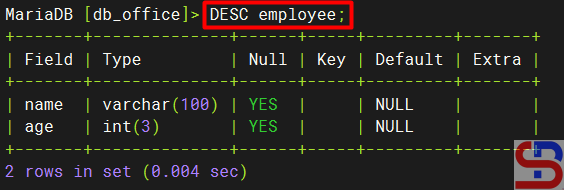
Use the command below to display the table structure:

DESC table_name;


For example, if you want to see the employee table structure, then use the command below:

DESC employee;

Display a table structure


8. Add a column

Use the format below to make a column in table:

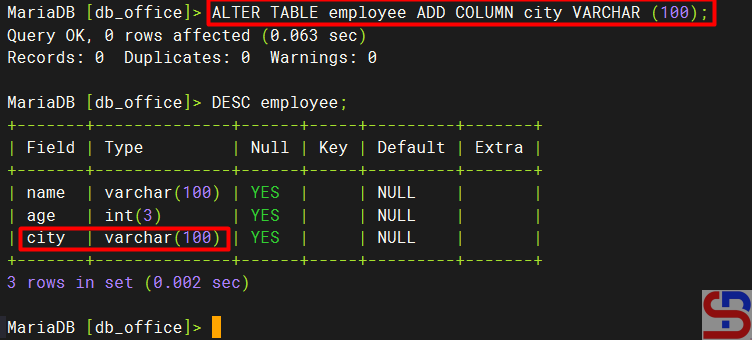
ALTER TABLE db_name ADD COLUMN column_name type (nnn);


You can see the options for this command on this page. For example, if you want to add to the city column in the employee table, use the command below:

ALTER TABLE employee ADD COLUMN city VARCHAR (100);

Add a new column


9. Insert data into the table

Use the format below to enter data in a table:

INSERT INTO table_name (Column1, Column2,…, ColumnN) VALUES (Value1,…ValueN), (Value1,…ValueN);


You can see the options for this command on this page. Type the command below if you want to insert 2 data to the employee table:

INSERT INTO employee (name,age,city) VALUES ('bob',21,'New York'), ('John',22,'Chicago');

Insert data into the table


INFO
If you want to insert a value in the form of a number, the number does not have to be flanked with an apostrof (‘…’) sign, whereas if it is a character or a combination of characters and numbers, it must be flanked with an apostrof (‘…’).


10. Displays data in a table

Use the format below to display all data in a table:

SELECT option1 FROM table_name option2;


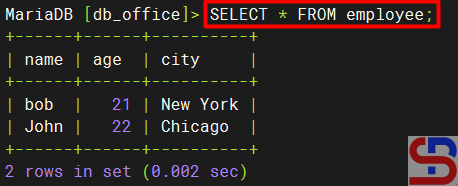
You can see the options for this command on this page. For example, use the command below to display all data in the employee table:

SELECT * FROM employee;

manage a database and its table(s) in MariaDB
Display all the data


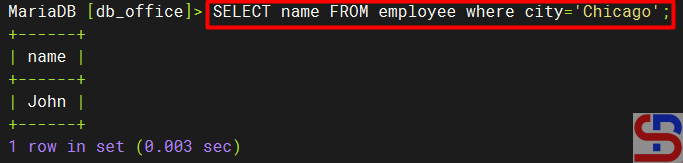
Or, if you want to display the name of the user who lives in the city of Chicago then use the command below:

SELECT name FROM employee where city='Chicago';

Display the data with a condition


11. Update data

Use the format below to update data in a table:

UPDATE table_name SET columnX=valueX WHERE columnY=valueY;


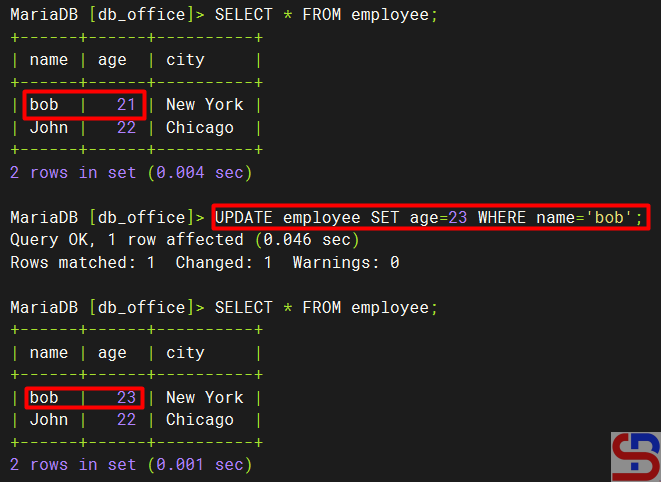
You can see the options for this command on this page. For example, if you want to update the age of the employee named Bob, use the command below:

UPDATE employee SET age=23 WHERE name='bob';

manage a database and its table(s) in MariaDB
Update data


12. Delete Data

Use the format below to delete one or more rows of a table:

DELETE FROM table_name WHERE column=value;


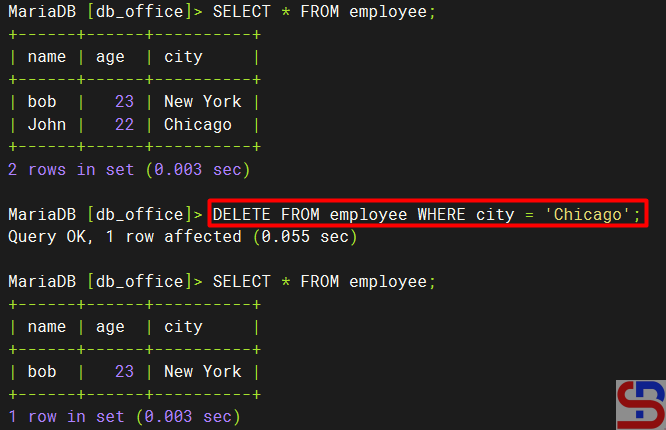
You can see the options for this command on this page. For example, if you want to delete the data where the user is in Chicago, then use the command below:

DELETE FROM employee WHERE city='Chicago';

manage a database and its table(s) in MariaDB
Delete the data


13. Delete the column

Use the format below to make changes in the table:

ALTER TABLE db_name DROP COLUMN column_name;


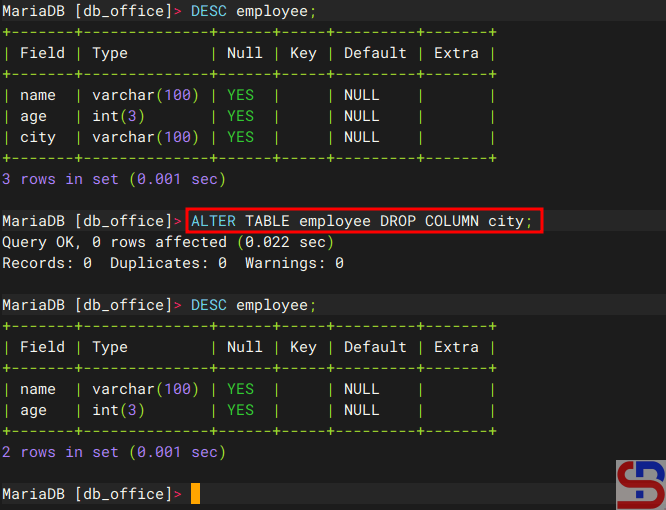
If you want to delete the column, for example, city, you can use the following command:

ALTER TABLE employee DROP COLUMN city;

Delete the column


14. Empty the table

You can delete all data in a table with the format as below:

TRUNCATE table_name;


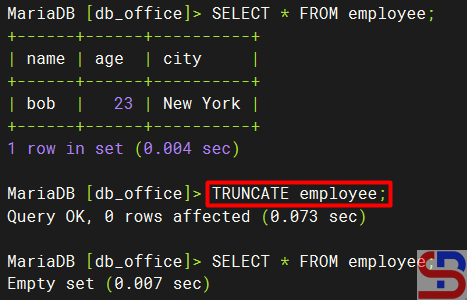
You can see the options for this command on this page. For example, if you want to delete all the data in the employee table, then type the command below:

TRUNCATE employee;

manage a database and its table(s) in MariaDB
Truncate the table


15. Change a table name

You can change the name of the table using the format below:

RENAME TABLE old_table_name TO new_table_name;


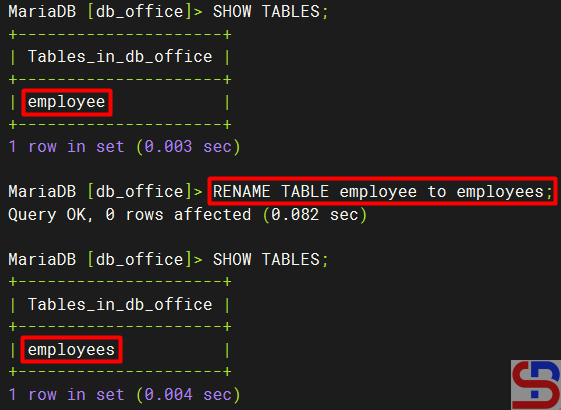
You can see the options for this command on this page. Use the command below if, for example, you want to change the name of the employee table to employees:

RENAME TABLE employee to employees;

manage a database and its table(s) in MariaDB
Rename the table


16. Delete a table

Use the format below to delete a table:

DROP TABLE table_name;


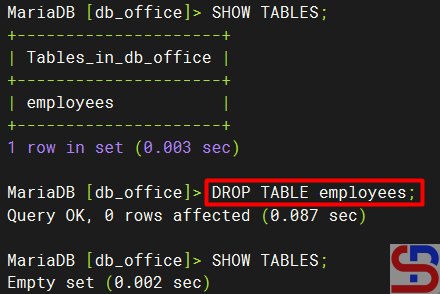
You can see the options for this command on this page. For example, if you want to delete the employee table, then use the command below:

DROP TABLE employees;

manage a database and its table(s) in MariaDB
Delete the table


17. Delete a database

To delete a database, use the format below:

DROP DATABASE database_name;


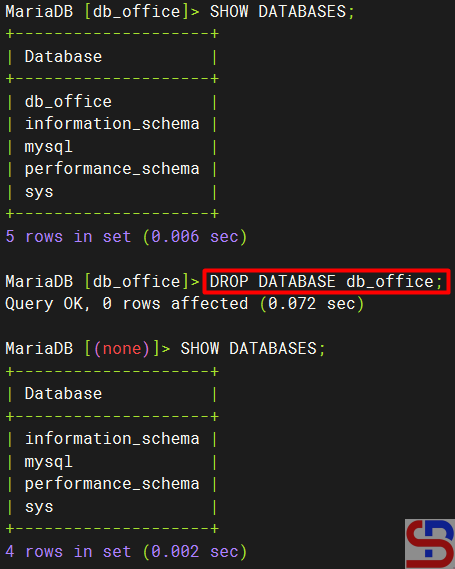
You can see the options for this command on this page. For example, if you want to delete the db_office database, then type the command below:

DROP DATABASE db_office;

manage a database and its table(s) in MariaDB
Delete the database


18. Quit from the database

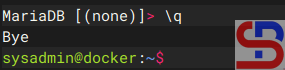
To quit from the database, run the command below:

\q

Quit from the database


Note

The next article will explain how to access a database using a user.


References

MariaDB.com
bertvv.github.io
zuar.com
educba.com
gist.github.com


How to Install the Latest Version of MariaDB on the Linux Server?

MariaDB is one of the widely used open-source database applications that was first released in 2009. This database was named MySQL, but in 2008, Sun Microsystems acquired MySQL, so the MySQL database maker made MariaDB as a free version. But sometimes when you install MariaDB on your Linux server, your MariaDB version is not the latest version.


Problem

How to install the latest version of MariaDB on the Linux server?


Solution

As of this writing, the latest MariaDB version is 11.7.2. Use the command below to create a MariaDB repository on your Linux server:

curl -LsS https://r.mariadb.com/downloads/mariadb_repo_setup | sudo bash


and the process will occur as shown image below:

Install the Latest Version of the MariaDB
Running the command


After that, install MariaDB based on the Linux server distribution that you use:

Redhat-Based Version (Centos, Almalinux, Rockylinux)

yum install MariaDB-server MariaDB-client MariaDB-backup


Ubuntu/Debian

sudo apt-get install mariadb-server mariadb-client mariadb-backup


OpenSUSE

sudo zypper install MariaDB-server MariaDB-client MariaDB-backup


After MariaDB has been installed on your Linux server, use the command below to see the MariaDB version that you have installed:

mysql -V

Checking the MariaDB version


After that, use the command below to see the status of MariaDB:

systemctl status mariadb

Display the status of service


You can see the image above that MariaDB’s service is on. However, if MariaDB’s service is still not on, use the command below to turn on the MariaDB service:

systemctl start mariadb

To run MariaDB after turning on the server, use the command below:

systemctl enable mariadb

Enable MariaDB

After that, to MariaDB becomes safe, use one of the commands below:

sudo mariadb_secure_installation

OR

sudo mariadb-secure-installation


Then there will be a display as in the image below:

Running the command


By default, there is no password when accessing MariaDB so press the Enter button to continue the process. After that, you must answer the questions displayed, including creating a new password as shown below:

Write the password


Then, continue until the process is finished. The next article will explain how to manage a database and its table(s) in MariaDB.


Note

Use the command below if you want to see the option when you run the command to make a repo:

curl -LsS https://r.mariadb.com/downloads/mariadb_repo_setup | sudo bash -s -- --help


If you want to install a certain version of MariaDB, for example, version 11.4, then you can use the command below:

curl -LsS https://r.mariadb.com/downloads/mariadb_repo_setup | sudo bash -s -- --mariadb-server-version="mariadb-11.4"


If you want to download a script, use the command below:

curl -LO https://r.mariadb.com/downloads/mariadb_repo_setup


References

mariadb.com
devopscube.com