In general, sysadmins will use the free -m command to see how much server memory is on the Linux server and how much is used. However, I want to display the server memory percentage on my Linux.
Problem
How to display server memory percentage on Linux?
Solution
If you run free -m on your Linux server, you will see something like this in the image below:

a. Display the memory used
Use the command below to display the memory used in percent form:
free -m | grep Mem | awk '{print $3/$2 * 100.0}' | sed 's/$/%/'
b. Display available free memory
Use the command below to display available free memory in percent form:
free -m | grep Mem | awk '{print $4/$2 * 100.0}' | sed 's/$/%/'
c. Display the cache memory
Use the command below to display the cache memory in percent form:
free -m | grep Mem | awk '{print $6/$2 * 100.0}' | sed 's/$/%/'
d. Integrate with bash script
If you want the percentage of memory to be put into the bash script for comparison, then the percentage should be changed from a fraction to an integer. Take a look at an example of a bash script below:
#!/bin/bash

# Take the percentage of memory usage
mem_usage=$(free -m | grep Mem | awk '{print $3/$2 * 100.0}')
echo Usage Memory: $mem_usage

# Change to integer for comparison
mem_usage_int=${mem_usage%.*}

# Check condition
if [ $mem_usage_int -gt 80 ]; then
    echo "High Memory: ${mem_usage_int}% used"
else
    echo "Low Memory: ${mem_usage_int}% used"
fi
Note
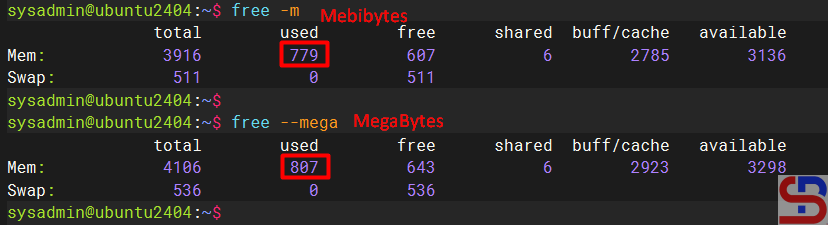
Sysadmins, including me, often think that using the free -m command will display memory in Megabytes (MB), even though the command will display memory in Mebibytes. To display memory in Megabytes, run the free –mega command, where 1 Mebibyte (MiB) is the same as 1,048 Megabytes. Look at the image below to see the difference between Mebibytes and Megabytes:
References
stackoverflow.com
baeldung.com
mathda.com

