The previous article explained the basic commands in the PostgreSQL database. This article will explain how to set up a user in PostgreSQL.
Problem
How to manage a user in PostgreSQL?
Solution
By default, PostgreSQL runs MD5 encryption to save PostgreSQL user passwords in the pg_authid table. However, since PostgreSQL version 10 and later, PostgreSQL has added scram-sha-256 encryption, which is more secure compared to MD5 encryption. To use this encryption, you have to go to the /etc/postgresql/18/main/postgresql.conf file if you use PostgreSQL 18 and look for the word scram-sha-256 in the file, and open the fence located to the left of the word so it looks like the one below:
password_encryption = scram-sha-256
Then restart PostgresQL using the command:
sudo systemctl restart postgresql
A. List all users
To see all users in PostgreSQL, type the following command:
\du
List all users in PostgreSQL
By default, PostgreSQL uses the postgres user to access all databases in PostgreSQL.
B. Create a new user
To create a new user in PostgreSQL, use the format below on the PostgreSQL server:
For example, if you want to create a mydb_user user with the password qwerty, then use the command below:
create user mydb_user with encrypted password 'qwerty';
Create a user in PostgreSQL
C. Change user password
To change the password in PostgreSQL, use the format below:
ALTER USERusername WITH PASSWORD 'your_password';
For example, if you want to change the password for the mydb_user to q1w2e3, then use the command below:
ALTER USER mydb_user WITH PASSWORD 'q1w2e3';
Change the password in PostgreSQL
D. Create a user privilege
To give the user privileges for a database in PostgreSQL using the format below:
GRANTpermission_typeONdb_nameTOusername;
For example, in the previous article, you created a mydb database, so use the command below to grant all permission types:
grant all privileges on database mydb to mydb_user;
Grant all to the user in PostgreSQL
If you want a user to only be able to view the mydb database for the sysadmin user, use the command below:
CREATE user john with encrypted password '123456';
GRANT CONNECT ON DATABASE mydb TO john;
\c mydb
GRANT USAGE ON SCHEMA public TO john;
GRANT SELECT ON ALL TABLES IN SCHEMA public TO john;
Grant viewer only in PostgreSQL
To see the grants you have made in PostgreSQL, use the command:
\l+
List all grants in PostgreSQL
E. Remove a user privilege
If you want to remove a privilege from a user, you can use the format below:
REVOKEpermission_typeONtable_nameFROMuser_name;
For example, if you want to remove a privilege for mydb_user, use the command below:
REVOKE all privileges on database mydb FROM mydb_user;
Revoke all grants from a user
Or, use the below command if you want to revoke from user john:
REVOKE CONNECT on database mydb FROM john;
Revoke connect only from a user
F. Delete a user
Use the format below to delete a user in PostgreSQL:
DROP USERusername;
If you want to delete mydb_user, use the command below:
DROP user mydb_user;
Error when dropping a user in PostgreSQL
You can see from the image above, there is an error when you want to delete a user. So, you have to remove some objects that depend on it. Use the command below:
REVOKE all privileges on database mydb FROM mydb_user;
and then delete the user using the below command:
DROP user mydb_user;
Drop a user in PostgreSQL
Note
If you want a user to only be able to access the PostgreSQL database for a certain time, for example, until January 31, 2030, use the command below:
Previously, you often used a Docker image that you downloaded from Docker Hub. But now, you want to create a Docker image for your own application needs.
Problem
How to create a Docker image?
Solution
To create a Docker image, you must create a Dockerfile.
A. Dockerfile
Dockerfile is a script that contains a set of instructions used to create a Docker image using the format:
#comment
INSTRUCTION arguments
You should know that Docker runs Dockerfile files sequentially from top to bottom, and this file does not have a file extension, so just write Dockerfile. To make things easier, it is best to place this Dockerfile in the same location as the files needed to create a Docker image, so that it is easier to create. That way, to create a Docker image, just run the command:
docker build -timage_name.
B. Instructions
The following are the standard Dockerfile instructions:
1. FROM instruction
This instruction is the first command to perform a build stage in the Dockerfile with the example below:
FROM alpine:3
Using the FROM instruction
2. LABEL instruction
To add metadata to the Docker image you create, where the metadata is additional information, such as the name of the application, creator, website, and so on.
FROM alpine:3

LABEL author="sysadmin"
LABEL company="sysadminpedia" website="https://www.sysadminpedia.com"
Using the LABEL instruction
3. WORKING DIRECTORY instruction
This instruction specifies directories/folders to execute instructions in the container. By default, if there is no working directory, then the container will go to the / folder automatically. If the workdir does not exist, the directory will automatically be created, and then, after we determine the location of the workdir, the directory will be used as a place to execute the next instruction. If the workdir’s location is a relative path, then it will automatically enter the directory of the previous workdir. Workdir can also be used as a path for the first location when it enters the container.
FROM alpine:3

LABEL author="sysadmin"
LABEL company="sysadminpedia" website="https://www.sysadminpedia.com"

WORKDIR /app
Using the WORKDIR instruction
4. RUN instruction
This instruction is a command in the image during the build stage, where the results of the RUN command will be committed to changes to the image, so that the RUN command will only be executed during the Docker build process, and this command will not be executed again and when you run the docker container from the image the RUN command will not be executed.
FROM alpine:3

LABEL author="sysadmin"
LABEL company="sysadminpedia" website="https://www.sysadminpedia.com"

WORKDIR /app

RUN mkdir hello
RUN echo "Hello World" > "hello/world.txt"
Using the RUN instruction
5. USER instruction
To change the user or user group when Docker images are run, because by default, Docker will use the root user, and we can change it by using the user instruction, with the note that the user must be created first.
FROM alpine:3

LABEL author="sysadmin"
LABEL company="sysadminpedia" website="https://www.sysadminpedia.com"

WORKDIR /app

RUN mkdir hello
RUN echo "Hello World" > "hello/world.txt"

RUN addgroup -S app_group
RUN adduser -S -D -h /app app_user app_group
RUN chown -R app_user:app_group /app
USER app_user
Using the USER instruction
6. ENTRYPOINT instruction
An instruction in the Dockerfile specifies the main command that is executed when the container is started, and this is the main process of the container.
FROM alpine:3

LABEL author="sysadmin"
LABEL company="sysadminpedia" website="https://www.sysadminpedia.com"


WORKDIR /app

RUN mkdir hello
RUN echo "Hello World" > "hello/world.txt"

RUN addgroup -S app_group
RUN adduser -S -D -h /app app_user app_group
RUN chown -R app_user:app_group /app
USER app_user

ENTRYPOINT ["cat", "hello/world.txt"]
Using the ENTRYPOINT instruction
7. COMMAND instruction
An instruction that is used when the Docker container is running and will not be executed during the build image process. You cannot add more than one CMD instruction in an image, and if there is more than one instruction in an image, then the last CMD instruction will be executed. If there is an ENTRYPOINT instruction, then the CMD instruction becomes an argument from the ENTRYPOINT instruction. Examples of its use are as below:
FROM alpine:3

LABEL author="sysadmin"
LABEL company="sysadminpedia" website="https://www.sysadminpedia.com"

WORKDIR /app

RUN mkdir hello
RUN echo "Hello World" > hello/world.txt

RUN addgroup -S app_group
RUN adduser -S -D -h /app app_user app_group
RUN chown -R app_user:app_group /app
USER app_user

ENTRYPOINT ["cat"]

CMD ["hello/world.txt"]
The Dockerfile file above seems to be the command cat hello/world.txt, as in the picture below:
Using the CMD instruction
If there is no ENTRYPOINT, the CMD itself can be executed directly as a container command, as in the Dockerfile file below:
FROM alpine:3

LABEL author="sysadmin"
LABEL company="sysadminpedia" website="https://www.sysadminpedia.com"

WORKDIR /app

RUN mkdir hello
RUN echo "Hello World" > hello/world.txt

RUN addgroup -S app_group
RUN adduser -S -D -h /app app_user app_group
RUN chown -R app_user:app_group /app
USER app_user

CMD ["cat", "hello/world.txt"]
8. COPY instruction
To add files from the source to the destination folder in a Docker image folder. For example, if you want to copy all files with the extension .txt from a folder on the server, put them in the hello folder in the Docker image.
FROM alpine:3

LABEL author="sysadmin"
LABEL company="sysadminpedia" website="https://www.sysadminpedia.com"

WORKDIR /app

RUN mkdir hello
RUN echo "Hello World" > "hello/world.txt"

RUN addgroup -S app_group
RUN adduser -S -D -h /app app_user app_group
RUN chown -R app_user:app_group /app
USER app_user

COPY *.txt hello

CMD ["cat", "hello/world.txt"]
Using the COPY instruction
You can see in the image that in the folder on the server, there is an nginx.conf file and a tar.gz file, but the files that are copied are only files with the extension .txt, such as the COPY command in the Dockerfile file.
9. ADD instruction
To add files from the source to the destination folder in the Docker image, and this command can detect if a source file is a compressed file, such as gzip, and will automatically extract it in the destination folder, and can also support adding multiple files at once. The difference with COPY is that COPY can only copy files, while ADD, in addition to copying, can also download the source from the URL and automatically extract compressed files. The best way to practice is to use COPY as much as possible, but if you really need to extract compressed files, then use the ADD command.
FROM alpine:3

LABEL author="sysadmin"
LABEL company="sysadminpedia" website="https://www.sysadminpedia.com"

WORKDIR /app

RUN mkdir hello
RUN echo "Hello World" > "hello/world.txt"

RUN addgroup -S app_group
RUN adduser -S -D -h /app app_user app_group
RUN chown -R app_user:app_group /app
USER app_user

COPY *.txt hello

ADD *.gz hello

CMD ["cat", "hello/world.txt"]
Using the ADD instruction
The crontab and hosts files are extracted from the etc.tar.gz file, and this explains that when you use the COPY instruction to copy a compressed file, the file will be extracted automatically in the container.
10. .dockerignore File
To specify which file(s) or folder(s) we ignore when the process of copying or adding file(s) or folder(s) to the Docker image. Because when doing the copy or add process, Docker will read the file named .dockerignore first. Create a .dockerignore file and then fill it with example.txt and qwerty.txt. Then, create the files example.txt and qwerty.txt in that folder, and they should not be copied to the folder in the Docker image.
Using the .dockerignore file
11. EXPOSE instruction
To tell the container which port to listen port on a specific number and protocol. Actually, EXPOSE will not publish any ports, but is only for documentation to inform the creator of the Docker container that this Docker image will use a specific port when run in a Docker container. For example, as below:
FROM alpine:3

LABEL author="sysadmin"
LABEL company="sysadminpedia" website="https://www.sysadminpedia.com"

WORKDIR /app

RUN mkdir hello
RUN echo "Hello World" > "hello/world.txt"

RUN addgroup -S app_group
RUN adduser -S -D -h /app app_user app_group
RUN chown -R app_user:app_group /app
USER app_user

ADD *.txt hello

COPY *.gz hello

EXPOSE 8080

CMD ["cat", "hello/world.txt"]
To see the open ports on this Docker image, use the command as shown in the image below:
Using the EXPOSE instruction
To create a container using this Docker image and see the open ports on this container, use the command as shown in the image below:
Display the EXPOSE instruction in the container
12. ENVIRONMENT VARIABLE instruction
To change the environment variables either during the build stage or when running in a Docker Container. The ENV defined in the Dockerfile can be reused using the ${ENV_NAME} syntax.
FROM alpine:3

LABEL author="sysadmin"
LABEL company="sysadminpedia" website="https://www.sysadminpedia.com"

WORKDIR /app

RUN mkdir hello
RUN echo "Hello World" > "hello/world.txt"

RUN addgroup -S app_group
RUN adduser -S -D -h /app app_user app_group
RUN chown -R app_user:app_group /app
USER app_user

COPY *.txt hello

ADD *.gz hello

EXPOSE 8080

ENV APP_PORT=8080
EXPOSE ${APP_PORT}

CMD ["cat", "hello/world.txt"]
The Environment Variable created using the ENV instruction is stored in the Docker image and can be viewed using the docker image inspect command.
Using the ENV instruction
Environment variables can be changed in value when creating a Docker container with the docker command using the –env-key=value option. So if you use the Dockerfile above, which uses APP_PORT=8080, but you want to use APP_PORT=9090, then you can use the command:
Using the ENV instruction when creating a container
13. VOLUME instruction
To create the volume automatically when creating the container, and all the files contained in the volume are automatically copied to the Docker Volume, even though we didn’t create the Docker Volume when creating the Docker Container. It is suitable for cases when the application stores data in a file, so that the data can be automatically and safely stored in the Docker Volume.
FROM alpine:3

LABEL author="sysadmin"
LABEL company="sysadminpedia" website="https://www.sysadminpedia.com"

WORKDIR /app

RUN mkdir hello
RUN echo "Hello World" > "hello/world.txt"

RUN addgroup -S app_group
RUN adduser -S -D -h /app app_user app_group
RUN chown -R app_user:app_group /app
USER app_user

COPY *.txt hello

ADD *.gz hello

ENV APP_PORT=8080
EXPOSE ${APP_PORT}

ENV APP_DATA=/logs
VOLUME ${APP_DATA}

CMD ["cat", "hello/world.txt"]
Using the VOL instruction
Then, create a container from the Docker image and inspect it with the keyword Mounts. List the volume on the server, and it should be the same as in the image below:
Display the volume
14. ARGUMENT instruction
To define variables that can be used by the user to send when performing a Docker build process, use the –build-arg key=value command. This instruction is only used during the build time process, which means that when running in a Docker container, this instruction will not be used any differently from the ENV used. Accessing variables from ARG is the same as accessing variables from ENV using ${variable_name}.
FROM alpine:3

LABEL author="sysadmin"
LABEL company="sysadminpedia" website="https://www.sysadminpedia.com"

WORKDIR /app

RUN mkdir hello
RUN echo "Hello World" > "hello/world.txt"

RUN addgroup -S app_group
RUN adduser -S -D -h /app app_user app_group
RUN chown -R app_user:app_group /app
USER app_user

COPY *.txt hello

ADD *.gz hello

ENV APP_PORT=8080
EXPOSE ${APP_PORT}

ARG app=qwerty
RUN mv hello/world.txt hello/${app}.txt

CMD ["cat", "hello/${app}.txt"]
Using the ARG instruction
As you can see in the image above, the file name changes to qwerty.txt, which corresponds to the arguments you wrote in Docker. If you want to change the argument when creating a Docker image, then you can change it by adding the –build-arg app=pass option so that the file becomes pass.txt, as shown in the image below:
Using the ARG when creating a Docker image
Based on the image above, you can see that the file name has changed to pass.txt. However, you have to know that when you run the container and run the log command, it will display as shown in the picture below:
Error when opening the log
You can see in the image above that there is an error in the container log. This is because ARGs can only be accessed at build time, while CMDs are executed at runtime, so if you want to use ARG at runtime, then you need to insert the ARG into ENV, and your Dockerfile will be as below:
FROM alpine:3

LABEL author="sysadmin"
LABEL company="sysadminpedia" website="https://www.sysadminpedia.com"

WORKDIR /app

RUN mkdir hello
RUN echo "Hello World" > "hello/world.txt"

RUN addgroup -S app_group
RUN adduser -S -D -h /app app_user app_group
RUN chown -R app_user:app_group /app
USER app_user

COPY *.txt hello

ADD *.gz hello

ENV APP_PORT=8080
EXPOSE ${APP_PORT}

ARG app=qwerty
RUN mv hello/world.txt hello/${app}.txt

CMD ["cat", "hello/${app}.txt"]
15. Health CHECK instruction
To tell Docker if the container is still running properly or not. If there is a HEALTHCHECK, the container will automatically have a health status from the beginning with a starting value. If successful, it has a healthy value, and if it fails, it has an unhealthy value.
Actually, it was the developers who created the Dockerfile as an image for their applications to run on Docker. However, as a sysadmin, you should also understand the instructions in the Dockerfile so that you can help developers if there is an error in their Docker, or maybe also to create a Docker image for sysadmin purposes.
As a sysadmin, Crontab is an important tool for running scripts that you want to run at a certain time.
Problem
How to configure crontab in Linux?
Solution
Cron is a command you can use in the shell to set up a task, like a command or a script, to run automatically at certain times, dates, or intervals. It was made by AT&T Bell Laboratories and first came out in May 1975.
A. Format crontab
Cron works based on a crontab file, which tells it what tasks to run and when. Crontab has 2 sections: a time section that has 5 items, where each item has a different parameter, and the command section to be executed. For more details, see the image below:
If you want to run a file once a week, you can use the crontab configuration as below:
@weekly cd /home/sysadmin;./time.sh
2. Every time you reboot
Use the crontab configuration below if you want to run a file every time the server reboot is completed:
@reboot cd /home/sysadmin;./time.sh
3. Every 5 minutes from 1 to 7
Use the crontab configuration below if you want to run a file every 5 minutes from 1 to 7 (i.e., 01:00, 01:05, 01:10, up until 07:55):
*/5 * * * * cd /home/sysadmin;./time.sh
4. Every 10:30 on 1,10,20,30
If you run a file every 10:30 on 1,10,20,30, use the crontab configuration as below:
30 10 1,10,20,30 * * cd /home/sysadmin;./time.sh
5. Every first Monday of every month, at 7 a.m.
Use the crontab configuration below if you want to run a file every first Monday of every month, at 7 a.m:
0 7 1-7 * 1 cd /home/sysadmin;./time.sh
6. Every 15 minutes after rebooting
If you run a file every 15 minutes after rebooting, use the crontab configuration as below:
@reboot sleep 900 && cd /home/sysadmin;./waktu.sh
7. Every last Saturday of every month
If you want to run a file every last Saturday of every month, then you have to create a script file first example, last_saturday.sh, as below:
cat sabtu.sh
#!/bin/bash


TODAY=$(date +%Y-%m-%d)
NEXT_SATURDAY_MONTH=$(date -d "next Saturday" +%m)
CURRENT_MONTH=$(date +%m)

# If the next Saturday is in the next month,
# it means that this Saturday is the last Saturday of the month
if [ "$NEXT_SATURDAY_MONTH" != "$CURRENT_MONTH" ]; then
    echo "$(date '+%Y-%m-%d %H:%M:%S') - Running last Saturday of month job" >> /home/sysadmin/last_saturday.log
    /home/sysadmin/time.sh
else
    echo "$(date '+%Y-%m-%d %H:%M:%S') - Skipped (not last Saturday)" >> /home/sysadmin/last_saturday.log
fi
And in the crontab, config like below:
0 0 * * 6 cd /home/sysadmin;./last_saturday.sh
This script will only work on Saturdays in each month, and if there is a Saturday in the following month, then this script will not run. To see the log for this script, go to /home/sysadmin/last_saturday.log, and here is a sample of the log:
last_saturday.log
Note
For crontab to run properly, use absolute paths for files and commands. And don’t forget to make sure the script can be executed and preferably in the script file, to include logs so that it can be traced if there are errors. To see the log in Linux whether crontab is running or not on Ubuntu/Debian, you can use the command below:
sudo grep CRON /var/log/syslog
Use the command below if you are using RHEL/RockyLinux/AlmaLinux:
sudo grep CRON /var/log/cron
If you can’t find the cron log in the file, then open the file /etc/rsyslog.d/50-default.conf and search for the word cron. After that, remove the comment mark # behind the cron word. Then restart the service using the command:
How to Manage a Database and its Table(s) in PostgreSQL?
written by sysadmin | 8 November 2025
The previous article explained how to install a PostgreSQL database on Linux. This article will explain the basics of commands in a PostgreSQL database.
Problem
How to manage a database and its table(s) in PostgreSQL?
Solution
Below are the basic commands of PostgreSQL to manage a database and its table(s):
1. Access to the PostgreSQL database
Use the command below to access PostgreSQL:
sudo -u postgres psql
Access to the PostgreSQL
INFO
The use of capital letters in this article is only to distinguish between original commands from PostgreSQL and data from the user. You don’t have to use the capital letters when running these commands, but you can use all lowercase letters.
2. List all databases
Use the command below to list all databases in PostgreSQL:
\l
List all databases
3. Creating a new database
Use the format below to create a new database:
CREATE DATABASEdatabase_name;
You can see the options for this command on this page. For example, if you want to create a new database called mydb, use the command below;
CREATE DATABASE mydb;
Create a new database
4. Connect to the database
Use the format below to connect to the database:
\cdb_name;
For example, if you want to connect to the mydb database, type the following command:
You can see the options for this command on this page. Type the command below to create an employee table:
CREATE TABLE employee (name varchar (100), age int);
Create a table
6. Display all tables
Use the command below to display all the tables:
\dt
Display all table
7. Display the table structure
Use the format below to display the table structure:
\dtable_name;
For example, if you want to display the employee table structure, run the command below:
\d employee;
Describe a table
If you want to display more information about the table, type the command below:
\d+ employee;
Display more information in a table
8. Add the column
Use the format below to make a column in the table:
ALTER TABLEtable_nameADD columncolumn_nametype(nnn);
You can see the options for this command on this page. For example, if you want to add to the city column in the employee table, use the command below:
ALTER TABLE employee ADD column city varchar(100);
You can see the options for this command on this page. Type the command below if you want to insert 2 data to the employee table:
INSERT INTO employee (name,age,city) VALUES ('bob',21,'New York'), ('John',22,'Chicago');
Insert data
INFO
If you want to insert a value in the form of a number, the number does not have to be flanked with an apostrof (‘…’) sign, whereas if it is a character or a combination of characters and numbers, it must be flanked with an apostrof (‘…’).
10. Displays data in a table
Use the format below to display all data in a table:
SELECToption1FROMtable_name option2;
You can see the options for this command on this page. For example, use the command below to display all data in the employee table:
You can see the options for this command on this page. For example, if you want to update the age of the employee named Bob, use the command below:
UPDATE employee SET age=23 WHERE name='bob';
Update the data
12. Delete data
Use the format below to delete one or more rows of a table:
DELETE FROMtable_nameWHEREcolumn=value;
You can see the options for this command on this page. For example, if you want to delete the data where the user is in Chicago, use the command below:
DELETE FROM employee WHERE city='Chicago';
Delete the data
13. Delete the column
Use the format below to make changes in the table:
ALTER TABLEdb_nameDROP COLUMNcolumn_name;
If you want to delete the column, for example, city, you can use the following command:
ALTER TABLE employee DROP COLUMN city;
Delete the column
14. Empty the table
You can delete all data in a table with the format as below:
TRUNCATEtable_name;
You can see the options for this command on this page. For example, if you want to delete all the data in the employee table, type the command below:
TRUNCATE employee;
Truncate the table
15. Change a table name
You can change the name of the table using the format below:
ALTER TABLE old_table_name RENAME TO new_table_name;
You can see the options for this command on this page. Use the command below if, for example, you want to change the name of the employee table to employees:
ALTER TABLE employee RENAME TO employees;
Rename the table
16. Delete a table
Use the format below to delete a table:
DROP TABLEtable_name;
You can see the options for this command on this page. For example, if you want to delete the employee table, use the command below:
DROP TABLE employees;
Delete the table
17. Delete a database
To delete a database, use the format below:
DROP DATABASEdatabase_name;
You can see the options for this command on this page. For example, if you want to delete the mydb database, type the command below:
DROP DATABASE mydb;
Delete the database
17. Quit from the database
To quit from the database, run the command below:
\q
Quit from the database
Note
Actually, the basic commands for PostgreSQL and MariaDB are almost the same, with only there is a slight difference between the two databases.
I want to create a monitoring to check if a site is in an error state or not using a script, and the results of this script will be sent to Zabbix for monitoring.
Problem
How to display the results of a script in Zabbix?
Solution
For example, I have a sysadminpedia.com site and want to monitor the site. The way I do monitoring is to look for wordpress writing on the site, and if the wordpress writing is not on the site, it means that the site has an error. I use a bash script to monitor the word on sysadminpedia.com. For the site to be monitored by Zabbix based on the results of the script I created, follow the steps below:
1. Create a script
Log in to the Zabbix server, and you can use any folder to create your script, but I created a special folder for scripts in Zabbix using the command:
sudo mkdir -p /etc/zabbix/scripts
Then create a bash script in a folder with the file name check-sysadminpedia-site.sh and copy the script below:
#!/bin/bash

# Fetch the website content
content=$(curl -s https://sysadminpedia.com)

# Check if the word "wordpress" exists (case-insensitive)
if echo "$content" | grep -iq "wordpress"; then
  echo 1
else
  echo 0
fi
2. Change the user, group, and permission
Change the user and group on the file using the command below:
Go to your Zabbix application, select the Host you want to enter to display the results of this monitoring in Zabbix. I choose to use the Zabbix server host: Monitoring > Hosts > Zabbix server > Items in the CONFIGURATION like in the image below:
Click Items in the CONFIGURATION section
And there will be a display like the following:
Click the Create item button
Click the Create item button, and then there will be a display as shown below:
Click the Test button
I fill in the fields as in the image above, click the Test button, and then there will be a display as in the image below:
Click the Get value and test button
Click the Get value and test button, and in the Value section, there will be a value generated, either it is 1 or 0, according to the value in the bash script, as in the image below:
Click the Cancel button
You see from the image above, the Value is 1. Click the Cancel button, then it will return to the previous view, like the image below:
Click the Add button
After you press the Add button, there will be the text Item added as in the image below:
Succeed in adding an Item
6. Create a graph
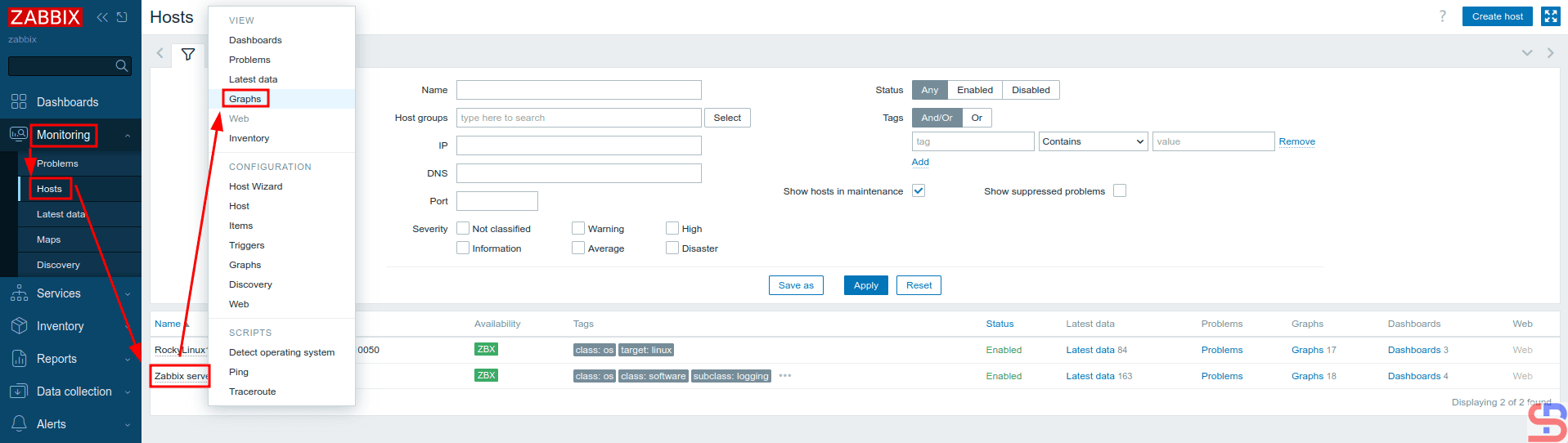
Then, create a graph for the result of the script by selecting the host that will display the result of the bash script. I choose to use the Zabbix server host: Monitoring > Hosts > Zabbix server > Graphs in the CONFIGURATION section, like the image below:
Click the Graphs in the CONFIGURATION section
And there will be a display as shown in the image below:
Click the Create Graph button
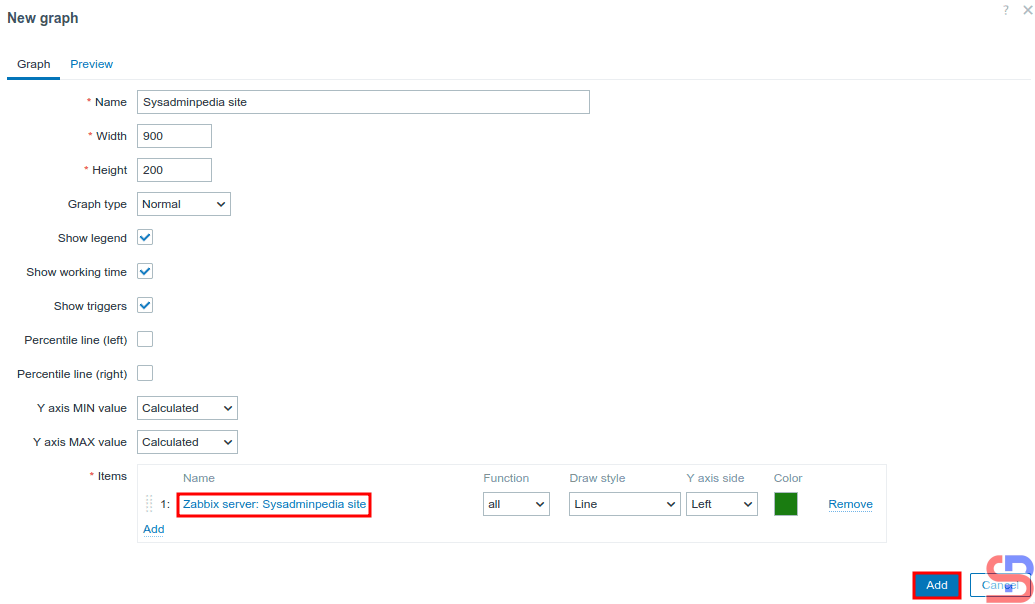
Click Create Graph, then there will be a display as below:
Click the Add button
After that, click the Add button then there will be the text Graph Added as in the image below:
Succeed in adding a Graph
7. Display the graph
Wait a while, and to see the graph, you can go to Monitoring > Hosts > Zabbix server > Graphs in the View section, as shown in the image below:
Click the Graphs in the VIEW section
Click the Filter button as shown in the image below:
Click the Filter button
Then there will be a display as shown in the image below:
Type the name of the graph and click the Apply button
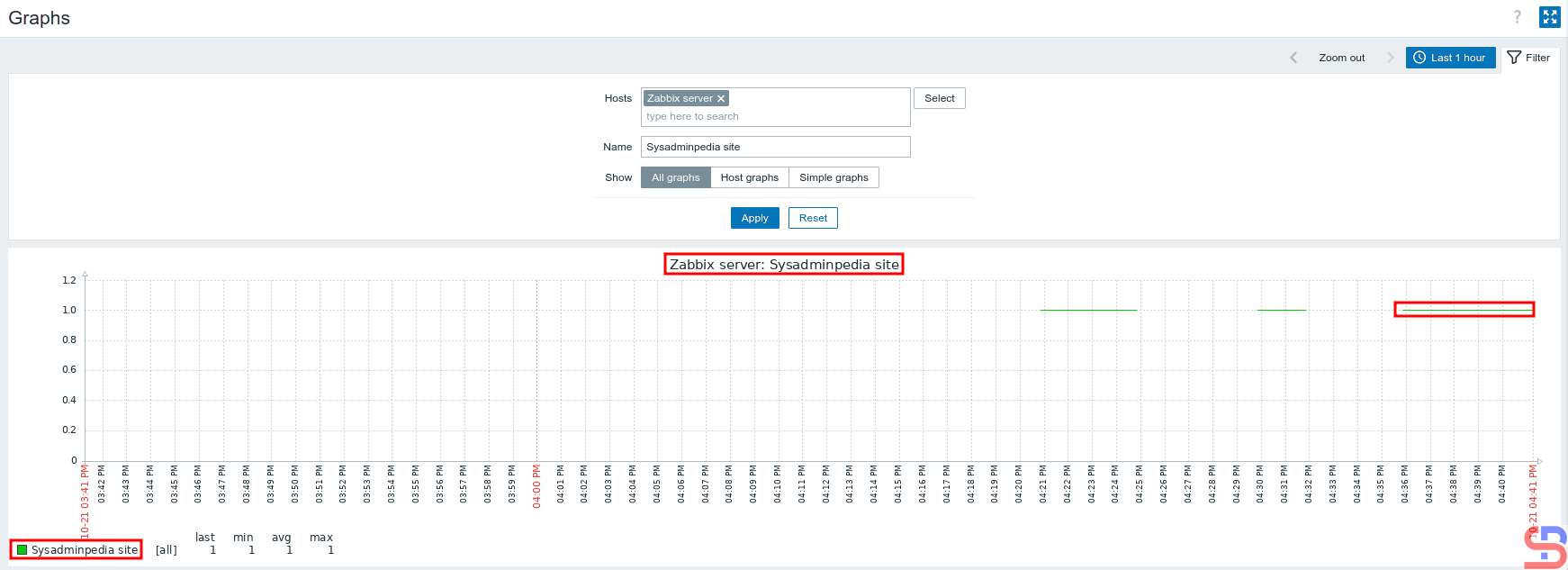
Type the name of the graph in the Name field, then click Apply, and then there should be a display below:
The graph from your script
If the site has an error, as known as there is no word wordpress, the graph will look as below:
When your script produces the error
And you successfully created a graph in Zabbix from the result of a script you made yourself.
Note
In this article, I used the Zabbix server to insert a script that monitors the server. However, you can use another host for your script, so you can do points 1 to 4 in the explanation above on another host.
How to Add a Linux Host to be Monitored by Zabbix?
written by sysadmin | 8 November 2025
The previous article explained how to install the Zabbix application on Ubuntu. This article will explain how to add a Linux host to be monitored by Zabbix.
Problem
How to add a Linux host to be monitored by Zabbix?
Solution
This article will add a RockyLinux10 host, which will be monitored by Zabbix with IP 192.168.56.104, while the Zabbix server IP is 192.168.56.101. So that the host can be monitored by Zabbix, you must install the Zabbix-Agent on the host. Here are the steps:
A. On Remote Host
Check whether on your RockyLinux server, you have the file /etc/yum.repos.d/epel.repo. Don’t worry if your server does not have the epel.repo file, but if the file exists on your server, you can add the script below:
excludepkgs=zabbix*
After that, run the commands below:
rpm -Uvh https://repo.zabbix.com/zabbix/7.4/release/rocky/10/noarch/zabbix-release-latest-7.4.el10.noarch.rpm
dnf clean all
dnf install zabbix-agent -y
After you install the zabbix agent, go to copy the file /etc/zabbix/zabbix_agentd.conf as a backup:
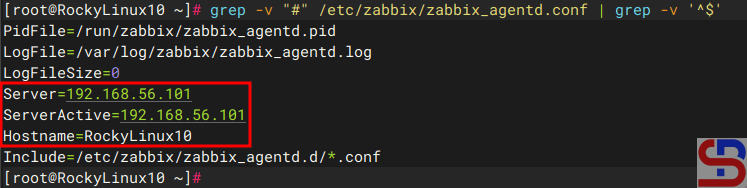
Then go into the file and change the Server section to your Zabbix server IP (which in this article is IP 192.168.56.101), and in the Hostname section, you are free to fill in, and I changed it to RockyLinux10, so the file looks like the one below:
The zabbix_agentd.conf file
If your RockyLinux server has a firewall, open port 10050 using the command:
To view the log on zabbix-agent, open the file /var/log/zabbix/zabbix_agentd.log on your server.
B. On the Zabbix server
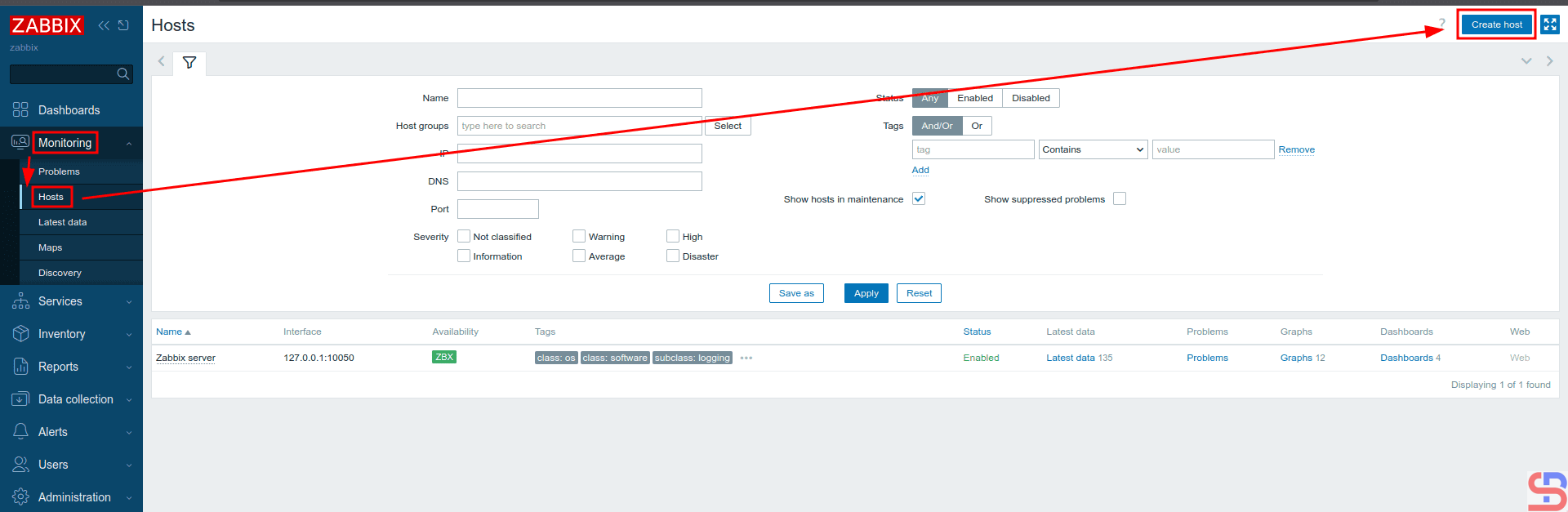
On the Zabbix server, enter the Zabbix application via your browser, then select Monitoring > Hosts > Create Host as in the image below:
Add the host to Zabbix
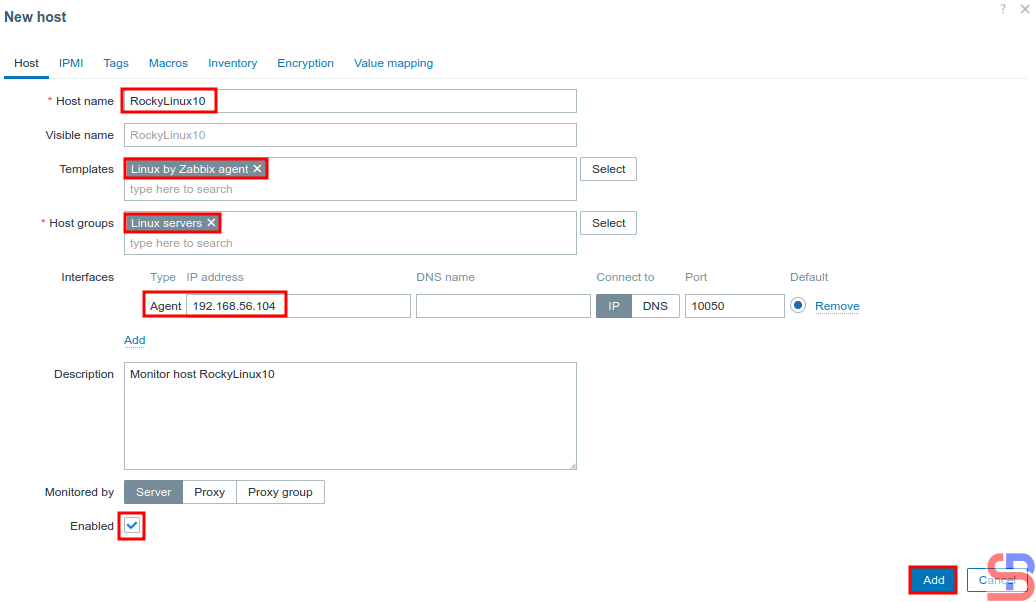
After that, there will be a display like below. You have to fill in the columns according to the host you will monitor. I filled them in as shown in the image below:
Configure a new host in Zabbix
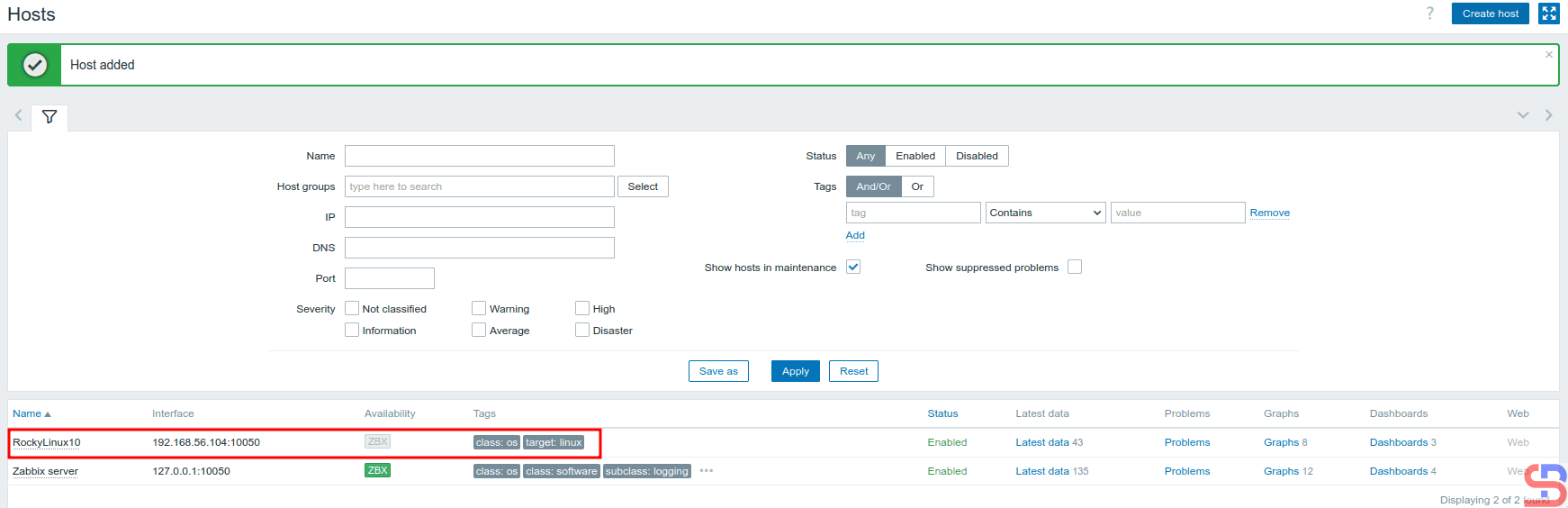
When finished, click the Add button, and you will see a display like the one below:
After the Host added
Wait a few moments, and the Zabbix application should be able to monitor your host, which is marked with the word ZBX in green, as in the image below:
Zabbix monitors the host
To see the graph of the host, click on the words Graphs, so there will be a display like the one below:
The graphs of the host
And you have successfully added a host to the Zabbix application.
Note
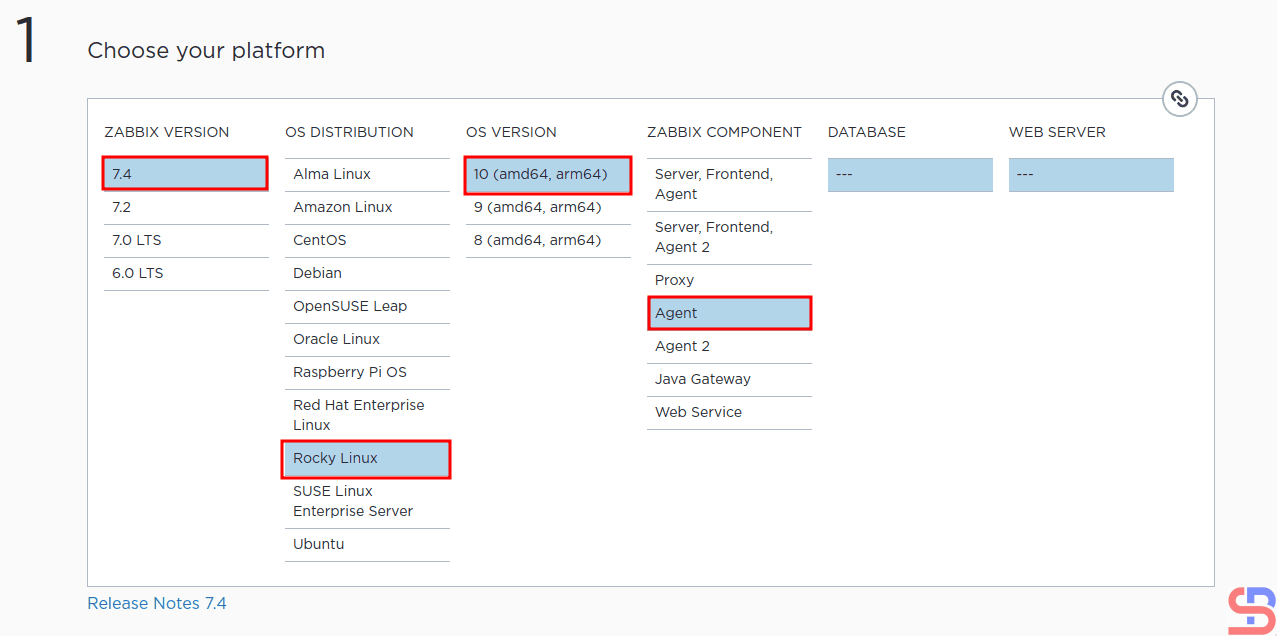
If you want to add a host that Zabbix wants to monitor, you can go to this address to see the steps to install the Zabbix agent on your server. Make sure the Zabbix version selected is the same as the Zabbix version running on the server. The following is an example image for installing the Zabbix agent on the RockyLinux10 host, which is used as an example in this article:
Choose the OS host to install Zabbix Agent
And don’t forget to open Port 10050 on the host you want to monitor so that the Zabbix application can access that host.
Zabbix is an open-source software tool to monitor IT infrastructure such as networks, servers, virtual machines, and cloud services.
Problem
How to install Zabbix in Ubuntu?
Solution
Zabbix was first released in 2001, and as of this writing in October 2025, Zabbix has version 7.4. This article will explain how to install Zabbix on an Ubuntu server by using MariaDB and Apache databases.
A. Install Zabbix
Run the commands below to install Zabbix on Ubuntu:
If your Ubuntu doesn’t have a database, then you can use the MariaDB database by using the command:
sudo apt install mariadb-server
Then, create a password for root in MariaDB using the command:
sudo mariadb-secure-installation
After that, enter MariaDB using the command:
sudo mariadb -uroot -p
Run the commands below (change the password to what you want):
create database zabbix character set utf8mb4 collate utf8mb4_bin;
create user zabbix@localhost identified by 'password';
grant all privileges on zabbix.* to zabbix@localhost;
set global log_bin_trust_function_creators = 1;
quit;
Run the command below to import the initial schema and data, and enter the password you created when you created the Zabbix database in MariaDB:
zcat /usr/share/zabbix/sql-scripts/mysql/server.sql.gz | mysql --default-character-set=utf8mb4 -uzabbix -p zabbix
Then log in to MariaDB again using the command:
sudo mariadb -uroot -p
Run the command below to disable the log_bin_trust_function_creators option after importing the database schema.
set global log_bin_trust_function_creators = 0;
quit;
C. Configure the Zabbix file
After that, you will configure the zabbix file located in /etc/zabbix/zabbix_server.conf. It’s better if you copy the original file as a backup by running the command below:
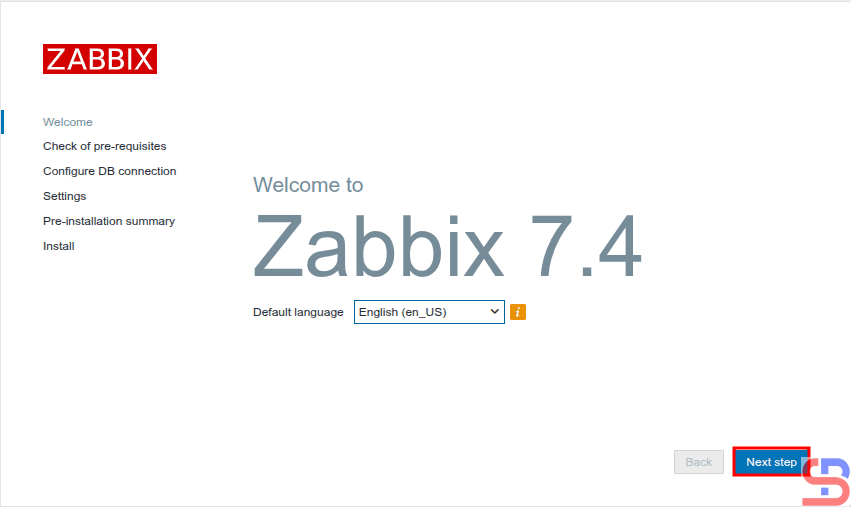
Then there will be a display like the image below:
Configure Zabbix using your browser
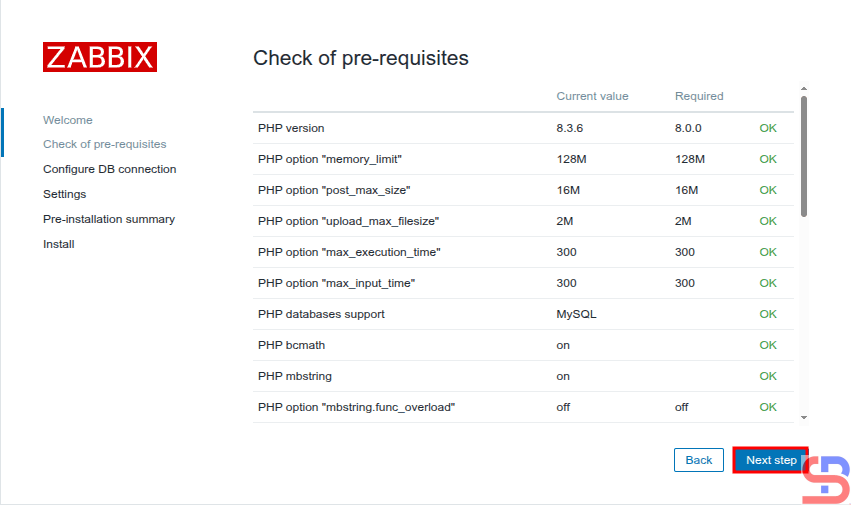
Click the Next step button, and a display similar to the picture below will be present:
Checking of pre-requisites
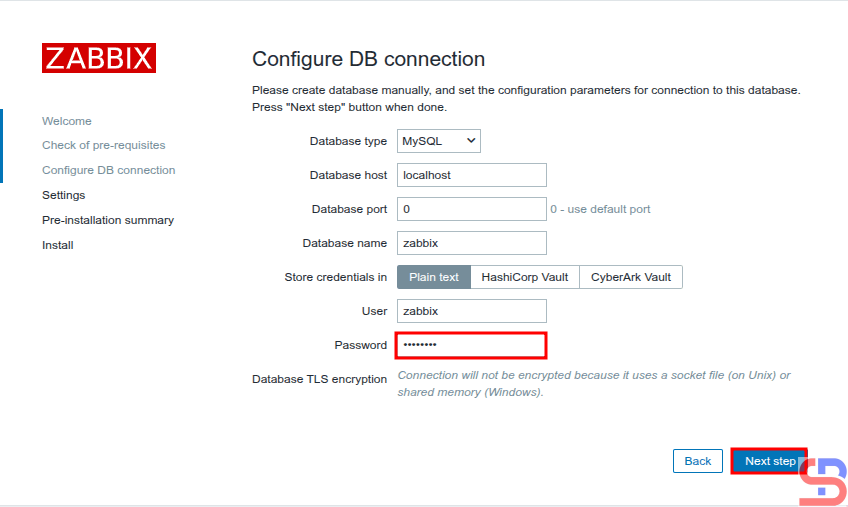
Make sure there is no error like in the image above. After that, click the Next step button, and there will be a screen similar to the one below:
Enter the password of MariaDB
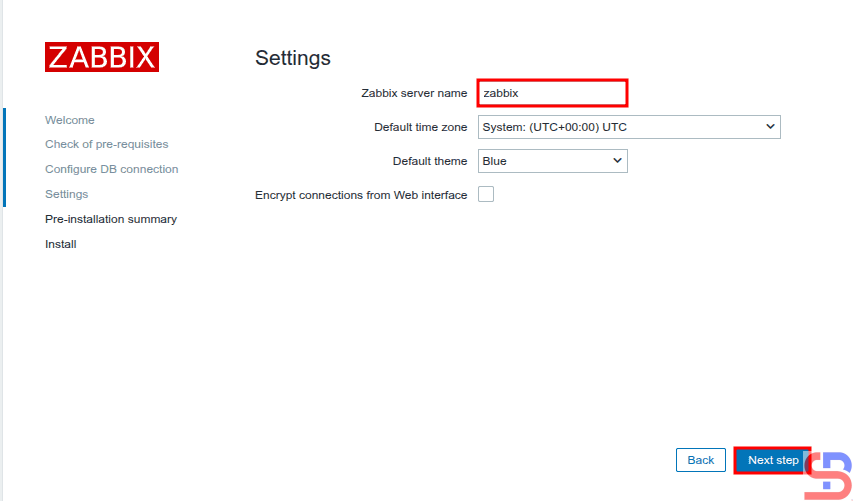
Enter your database password using the Zabbix user, click the Next step button, and a screen similar to the one below will be presented:
Enter the server name of Zabbix
Enter the name of the Zabbix server you want, click the Next step button, and there will be a display like the image below:
Pre-installation summary
Click the Next step button, and there will be a display similar to the image shown below.
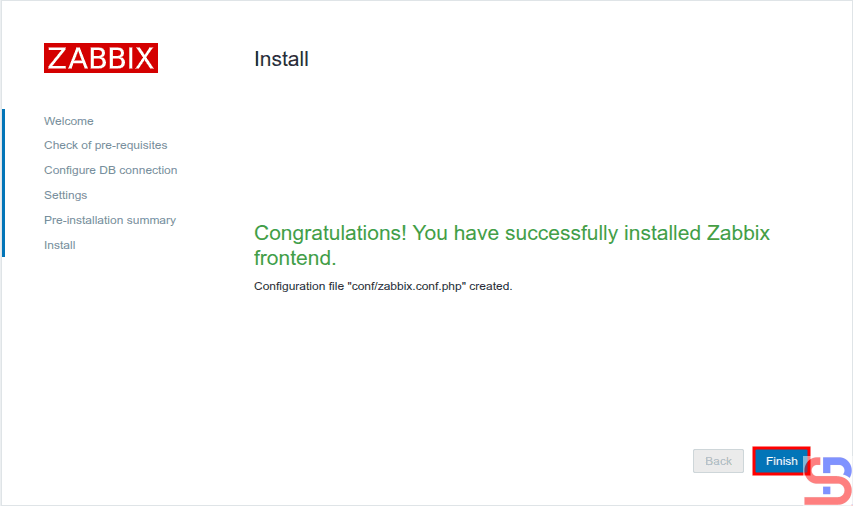
Finish installation
Click the Finish button, and ascreenliketheoneshownbelowwillappear.
Enter the username and password of Zabbix
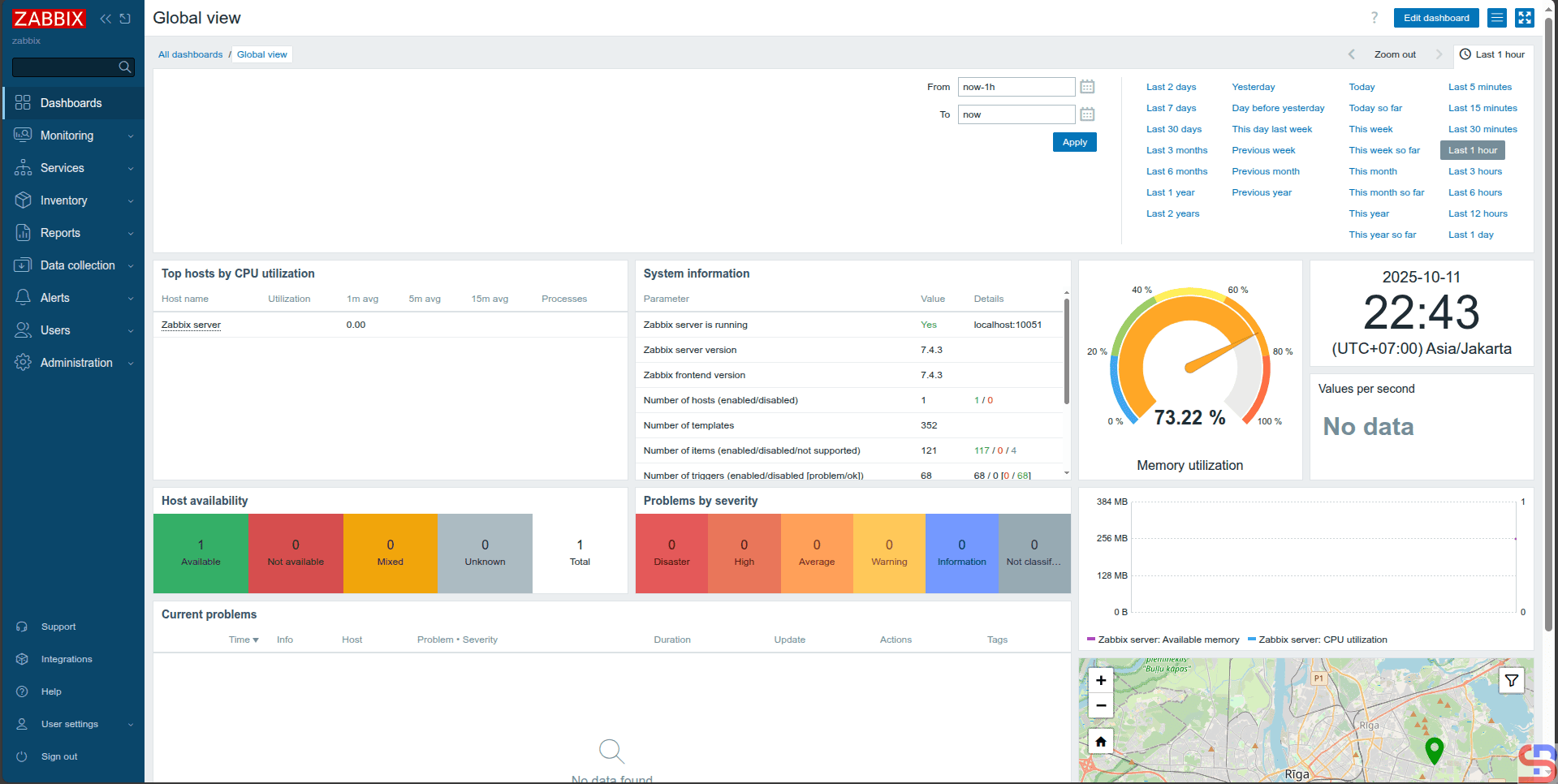
For your information, the initial username for Zabbix is Admin and the initial password is zabbix. After you enter the username and password, click the Sign in button, and there will be a display like the image below:
The initial display of Zabbix
You have successfully installed the Zabbix application on your Ubuntu server.
Note
To install Zabbix on a different operating system, you can go to this page to see how to install Zabbix on your server.