After you install the Nagios application on the Ubuntu/Debian server, by default, Nagios Core does not provide a web-based interface to manage Nagios configuration for adding/deleting/changing hosts and services. Therefore, some developers create a web-based interface so users can manage the hosts and services easily. This article will explain how to install the NagiosQL application to set up the device or service on Nagios.
Problem
How to install NagiosQL in Ubuntu/Debian?
Solution
NagiosQL is a professional, web-based configuration tool for Nagios 2.x/3.x/4.x and other Nagios-based monitoring tools. It is designed for large enterprise requirements as well as small environments, and any Nagios functionality is supported. I ran the steps below in Ubuntu 24.04, and I think it will work in Debian too. Here are the steps to install the NagioSQL application, and
A. Install the dependencies
Use the following command to install the dependencies:
sudo apt update
sudo apt-get install -y php libmcrypt-dev php-cli php-gd php-curl php-mysql php-ldap php-zip php-fileinfo php-pear gcc php-dev php zlib1g-dev libssh2-1 libssh2-1-dev php-ssh2  mariadb-server build-essential
sudo pear channel-update pear.php.net
sudo pear install HTML_Template_IT
B. Install PHP Modules
After that, install PHP Modules using the following command:
sudo pecl install mcrypt
C. Configure PHP
Type the following commands to configure PHP:
echo "extension=mcrypt.so" >> /etc/php/*/apache2/php.ini
echo "date.timezone=Asia/Singapore"  >> /etc/php/*/apache2/php.ini
sudo systemctl restart apache2
D. Configure the database
Start MariaDB and give the password using the following commands:
sudo systemctl start mariadb
sudo mariadb-secure-installation
Access to MariaDB using the following command:
mariadb -uroot -p
Type your root password and then run the following commands to create a database for NagiosQL:
CREATE DATABASE nagiosql;
GRANT ALL PRIVILEGES ON nagiosql.* TO `nagiosql_user`@`%` IDENTIFIED BY 'qwerty';
FLUSH PRIVILEGES;
E. Download NagiosQL
Download the latest release of the NagiosQL application, as of this writing (August 2025), has reached version 3.5.0, and configure it by typing the commands below:
cd /tmp/
wget https://sourceforge.net/projects/nagiosql/files/latest/download -O nagiosql.tar.gz
tar -zxvf nagiosql.tar.gz
sudo cp -vprf nagiosql-*/ /usr/local/nagios/share/nagiosql
F. Configure files and folders
Copy the commands below to configure files and folders:
sudo mkdir /usr/local/nagios/etc/nagiosql;
sudo mkdir /usr/local/nagios/etc/nagiosql/hosts;
sudo mkdir /usr/local/nagios/etc/nagiosql/services;
sudo mkdir /usr/local/nagios/etc/nagiosql/backup;
sudo mkdir /usr/local/nagios/etc/nagiosql/backup/hosts;
sudo mkdir /usr/local/nagios/etc/nagiosql/backup/services;
sudo chown nagios:nagcmd /usr/local/nagios/var/rw
sudo chown nagios:nagcmd /usr/local/nagios/var/rw/nagios.cmd
sudo chown nagios:www-data /usr/local/nagios/etc/nagios.cfg;
sudo chown nagios:www-data /usr/local/nagios/etc/cgi.cfg;
sudo chown nagios:www-data /usr/local/nagios/etc/resource.cfg;
sudo chown nagios:www-data /usr/local/nagios/var/spool/checkresults;
sudo chown nagios:www-data /usr/local/nagios/bin/nagios;
sudo chmod 775 /usr/local/nagios/etc/
sudo chmod 777 /usr/local/nagios/bin/nagios
sudo chmod -R 777 /usr/local/nagios/share/nagiosql/config
sudo chmod -R 6775 /usr/local/nagios/etc/nagiosql;
sudo chmod 660 /usr/local/nagios/var/rw/nagios.cmd;
sudo chmod 775 /usr/local/nagios/etc/;
sudo chmod 664 /usr/local/nagios/etc/nagios.cfg;
sudo chmod 664 /usr/local/nagios/etc/cgi.cfg;
sudo chmod g+x /usr/local/nagios/var/rw/;
sudo chgrp www-data /usr/local/nagios/etc/;
sudo chgrp www-data /usr/local/nagios/etc/nagios.cfg;
sudo chgrp www-data /usr/local/nagios/etc/cgi.cfg;
sudo sed -i 's/^cfg/#cfg/' /usr/local/nagios/etc/nagios.cfg
echo "" | sudo tee -a /usr/local/nagios/etc/nagios.cfg
echo "cfg_dir=/usr/local/nagios/etc/nagiosql" | sudo tee -a /usr/local/nagios/etc/nagios.cfg
G. Configure NagiosQL in the browser
Next, configure the application in the browser by typing the command in the browser:
http://your_ip_server/nagios/nagiosql
If the browser asks to insert the username and password, insert your Nagios username and password.
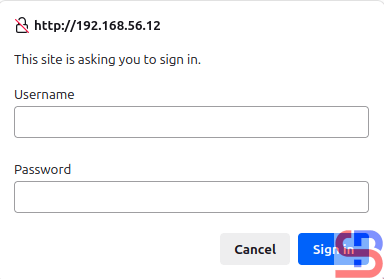
After you insert the password, there will be a display like this:
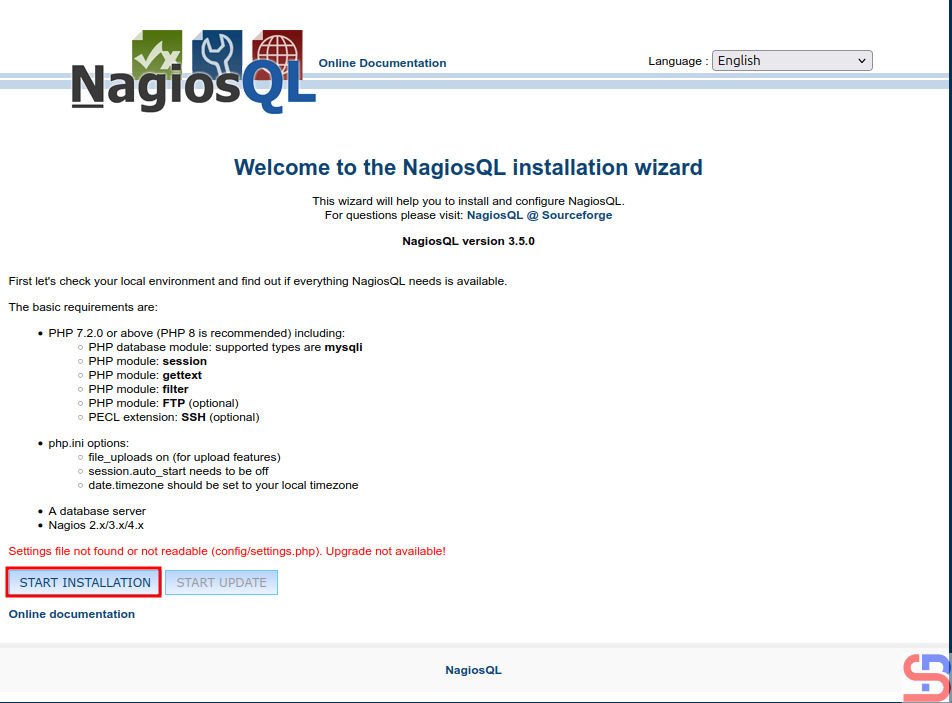
Click the START INSTALLATION button, and there is a display like the image below:
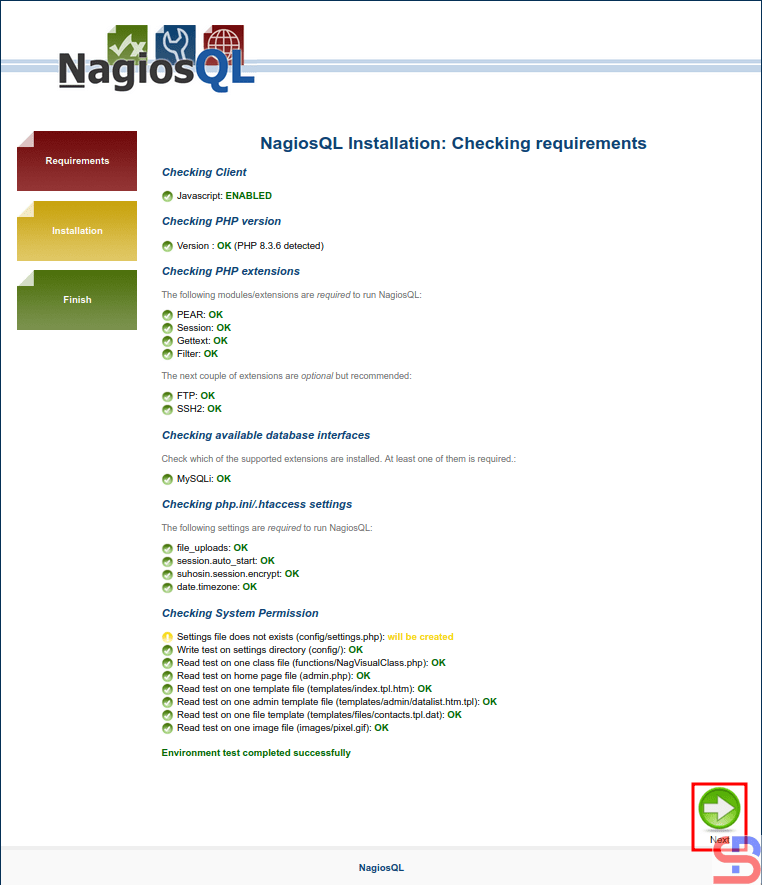
Make sure there is no error like in the image above. Click the Next button, and it will be an image like this:
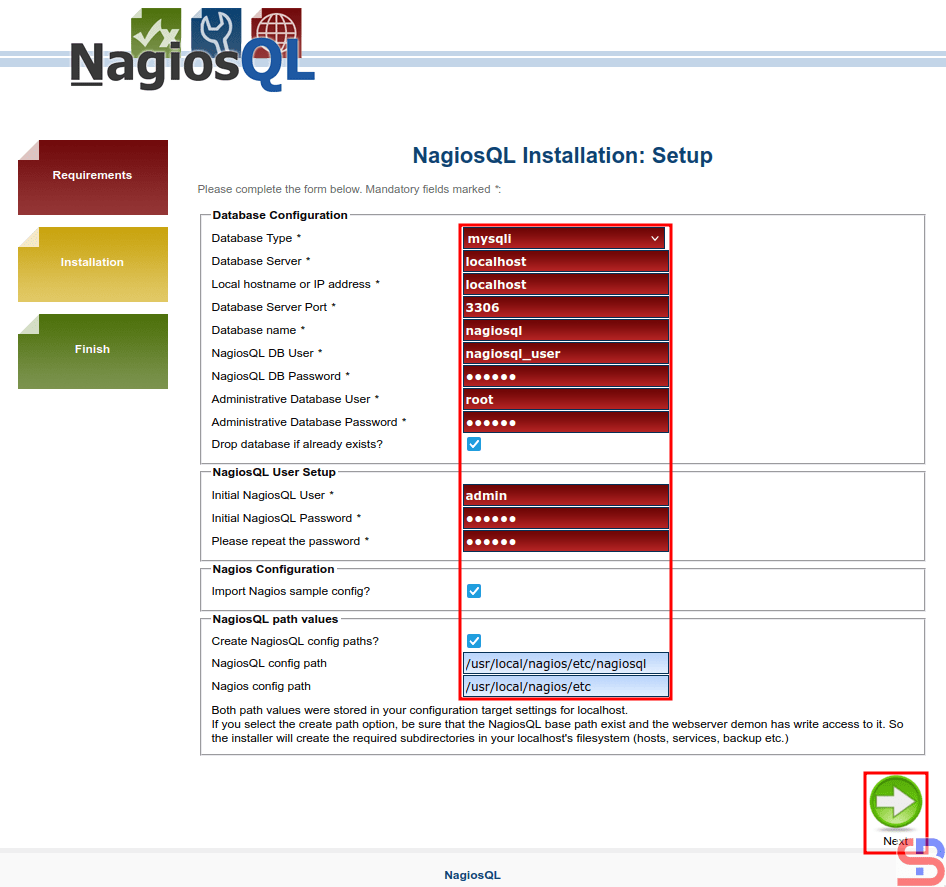
You must fill in the configuration columns, and I fill in like in this image above. After you fill it out, press the Next button, and there is a display like the image below:
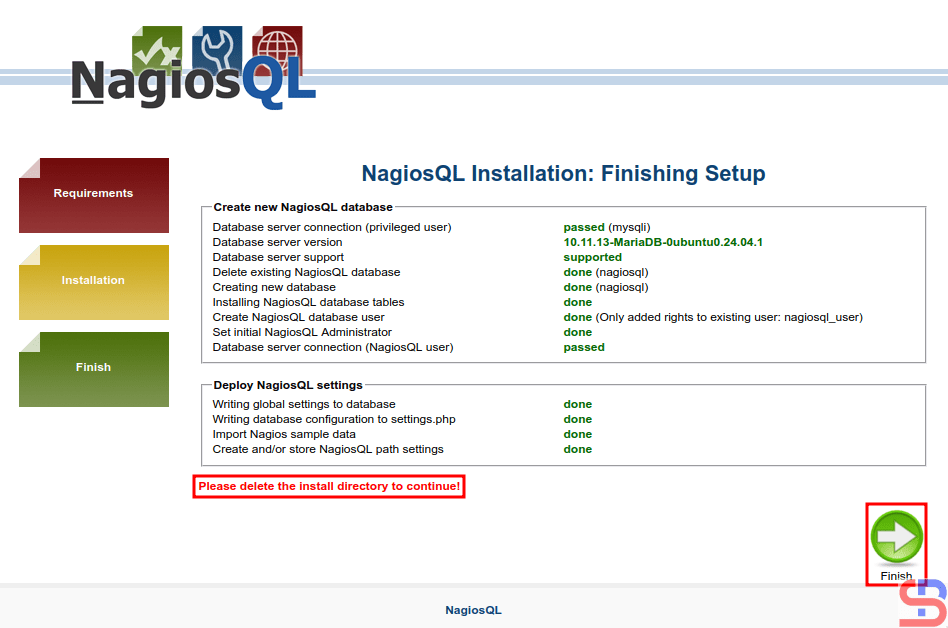
Before you click the Finish button, use the command below to delete the install directory:
rm -rf /usr/local/nagios/share/nagiosql/install/
After that, click the Finish button, and it should display an image like the image below:
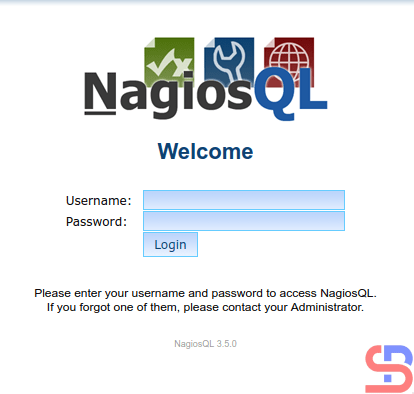
Enter the username (admin) and password, and if nothing is wrong, the NagiosQL application will appear like the image below:
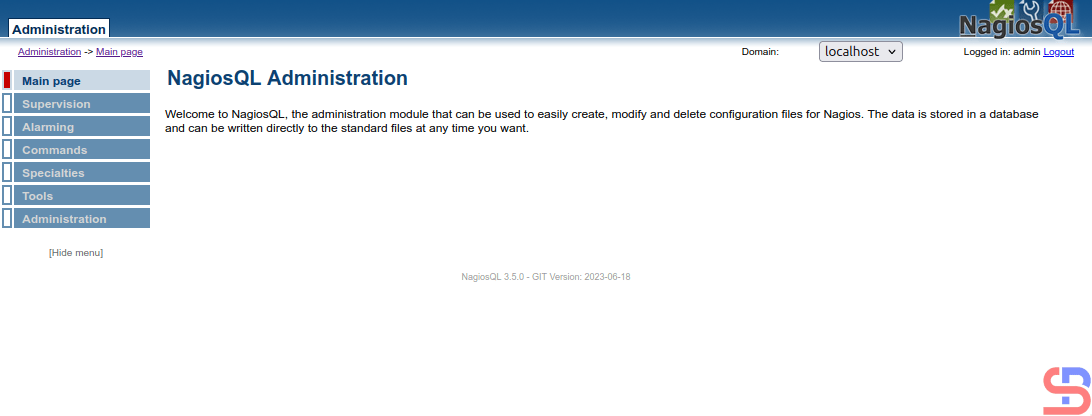
Now, configure the NagiosQL application to integrate it with Nagios. Click Administration > Config targets > Modify, like in the image below:
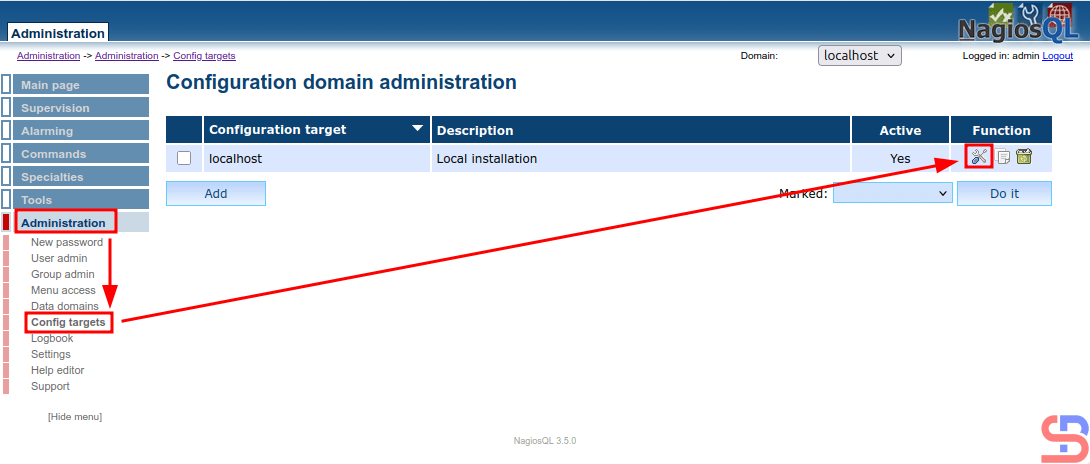
And there will be a display like the image below:
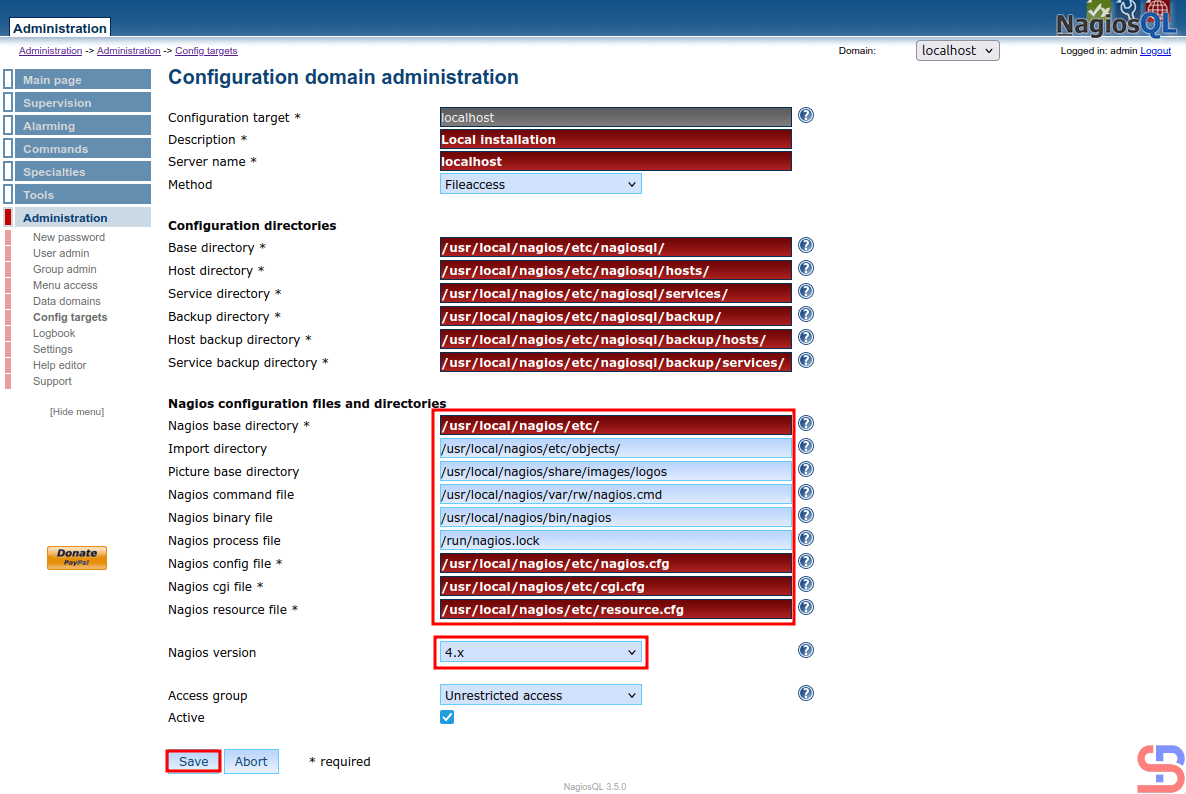
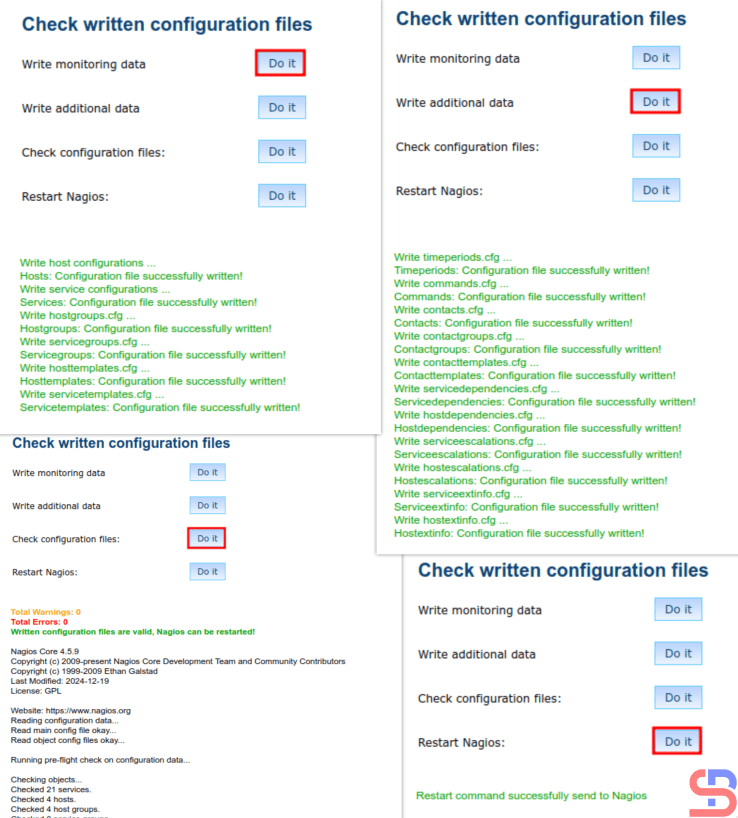
Configure in the red box like my configuration in the image above, and click the Save button. After that, go to Tools > Nagios control and click all the buttons like the image below, and make sure there is no error:
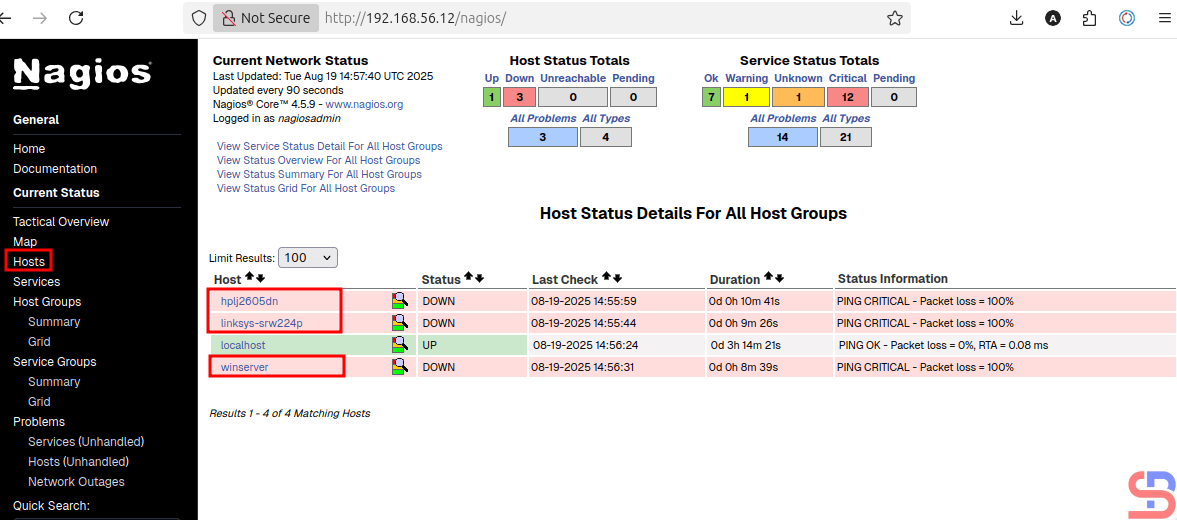
Now go to the Nagios application in the Hosts page and make sure that on the page, 3 default hosts appear in Nagios (hplj2605dn, linksys-srw224p, and winserver) besides localhost, like in the image below:
Now go to the Services section, and there should be services that appear on the 3 new default hosts:
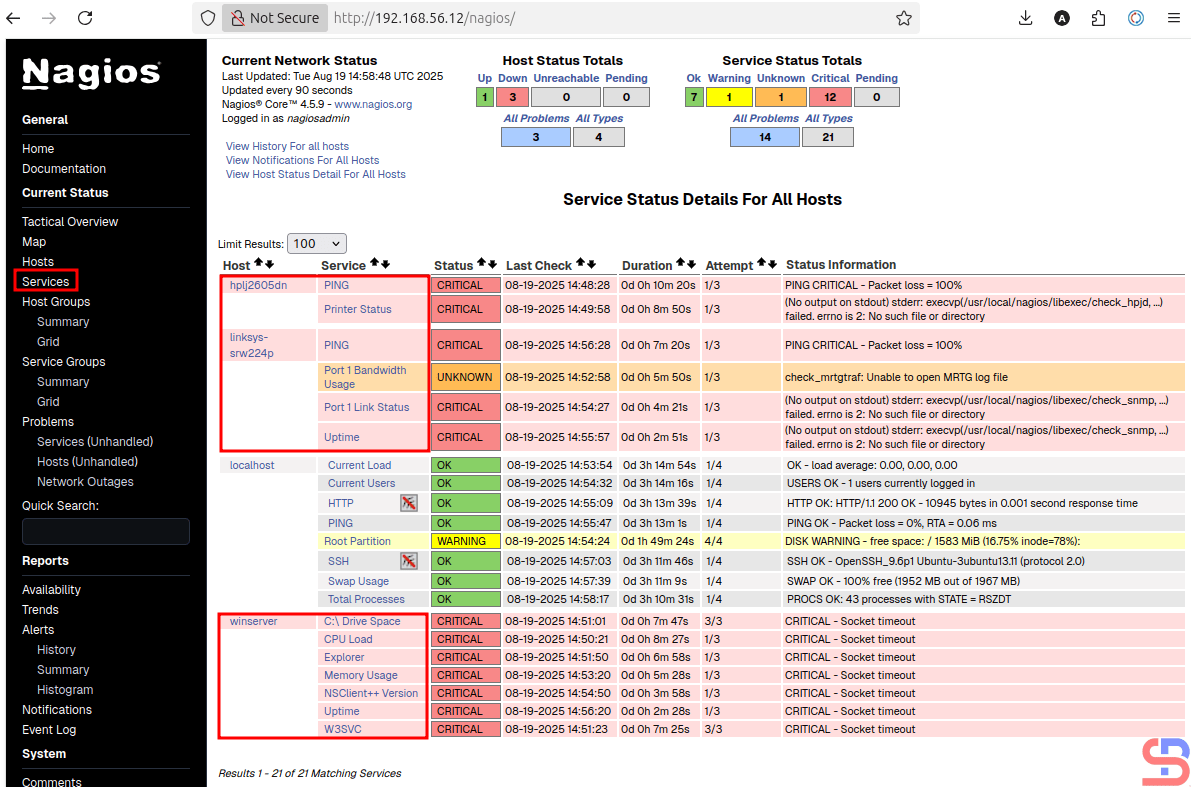
If there are 3 additional hosts in the Hosts and Services section in Nagios, you have successfully integrated the Nagios application with the NagiosQL application.
Note
You have to be careful when filling in the Configuration domain administration section, because if it is wrong in this section, then the NagiosQL application will not run properly
References

