How to Install and Configure NFS on Linux?

NFS or Network File Sharing is a protocol that allows you to share directories and files with other Linux clients over a network. Similar to locally created folders, an NFS file share is accessible when mounted on a client computer. When you have limited disk space and need to share public data between client machines, NFS is especially helpful.


Problem

How to install and configure NFS on Linux?


Solution

This article will explain how to install and configure NFS on 3 Linux distros: Rockylinux, Ubuntu, and OpenSuse and this article should work in each of their derivatives of the three distros.

A. On the server

Following are the steps to install and configure NFS:

1. Install NFS

I install NFS in the server with IP 192.168.56.2, and to install the NFS application on the Linux server, use the command below:

RockyLinux

sudo dnf install -y nfs-utils 


Ubuntu

sudo apt update -y 
sudo apt-get install -y nfs-kernel-server 


OpenSUSE

sudo zypper install -y nfs-kernel-server nfs-utils


2. Check NFS status

Type the command below to check the NFS status:

systemctl status nfs-server


If you see the NFS status is still not on, use the command below to turn on the NFS service:

sudo systemctl enable --now nfs-server
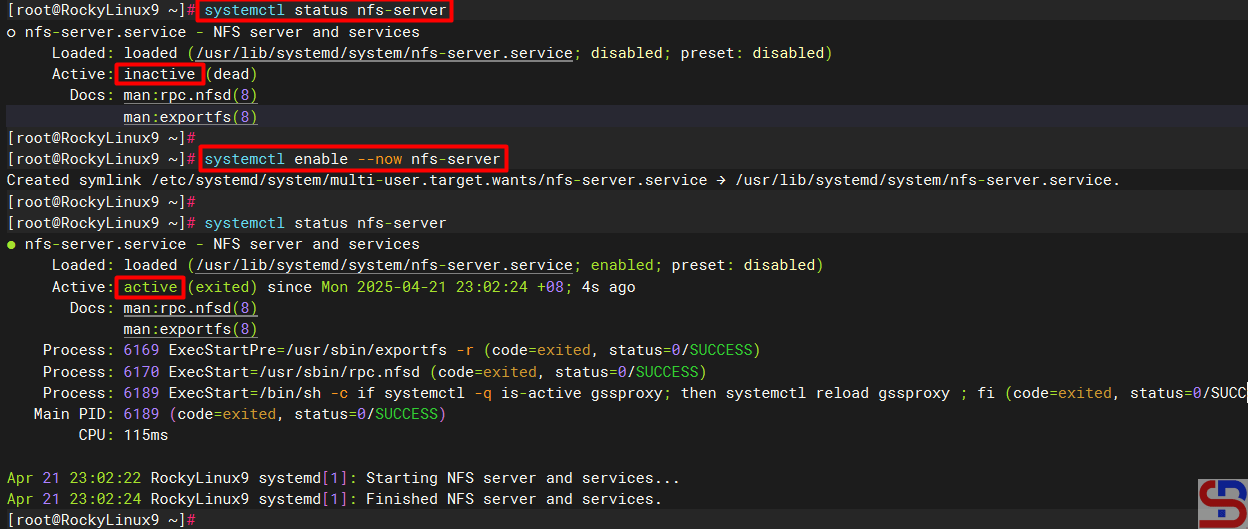
 

install and configure NFS on Linux
Check the NFS service status


Sometimes you have to check the nfs-mountd service using the command below:

sudo systemctl status nfs-mountd


If the service is not on the server, then use the command below to turn on the service:

sudo systemctl start nfs-mountd


3. Check the rpcbind status

Make sure that the rpcbind service is actively used by NFS for the mapping port. Use the command below to check the status of the service:

sudo systemctl status rpcbind


If the service is not active, use the command below to start the service:

sudo systemctl enable -now rpcbind 


4. Check NFS and Portmap

To see if NFS and portmap (Portmap is a server that converts RPC program numbers into DARPA protocol port numbers. It must be running to make RPC calls) are running on the server, use the command below:

sudo rpcinfo -p
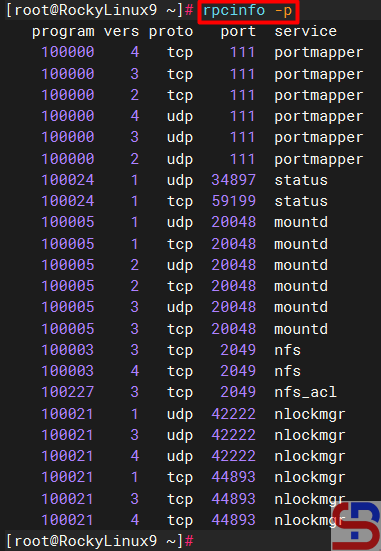
install and configure NFS on Linux
Check whether NFS and portmap run in the server or not


5. Configure firewall

If you still turn on the firewall on Linux, use the command below to open the NFS port (Port NFS is TCP Port 2049):

RockyLinux & OpenSUSE

firewall-cmd --add-service nfs --permanent
firewall-cmd --reload
firewall-cmd --list-services
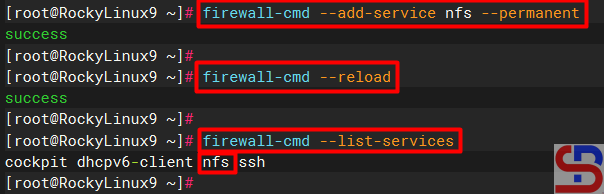
install and configure NFS on Linux
Open the NFS port in RockyLinux


Ubuntu

sudo ufw allow nfs
sudo ufw status verbose


Use the command below to open the rpcbind port (rpcbind port is TCP Port 111):

Rockylinux & OpenSUSE

firewall-cmd --add-port=111/tcp --permanent
firewall-cmd --reload
firewall-cmd --list-ports


Ubuntu

sudo ufw allow 111
sudo ufw status verbose


6. Make a folder sharing

Create a folder to collect NFS files and folders and I make it in the folder /var/nfs using the command below:

mkdir /var/nfs


After that, copy the file(s) and folder(s) that you want to share into the folder as shown below:
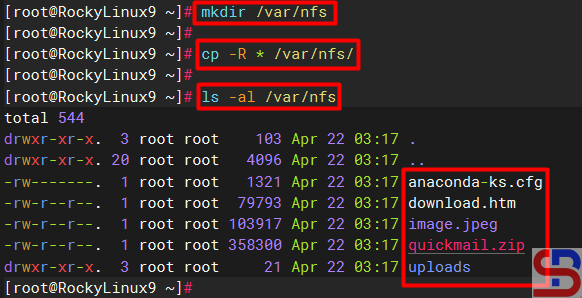
install and configure NFS on Linux
Copy the file(s) and folder(s) into the folder sharing


7. Define an Export File

To grant access to NFS clients, you need to define an export file and it is typically located at /etc/exports. Use the format below to define an export file:

/folder/path     accessible-host-ip-address(options)


The options you can use can be seen in the image below:
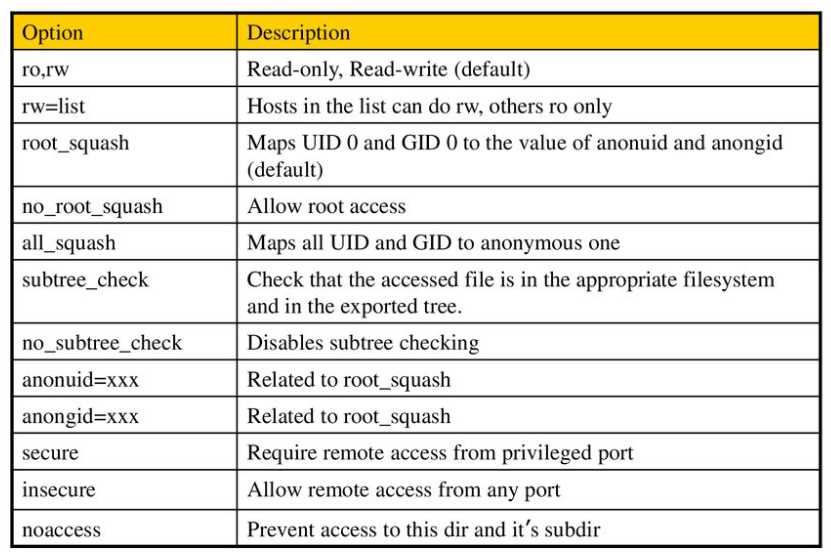
Options in NFS (Image credit for slideplayer.com)


You can use more than one option like (rw,sync,no_subtree_check). By default, NFS uses the ro option where the client can only read the file or folder in the folder sharing. In this article, I only want the folder sharing can only be accessed by users who only use IP 192.168.56.0/24 and the folder can be changed by the users, then use the command below to enter the script into the exports file:

sudo echo "/var/nfs		192.168.56.0/24(rw)" > /etc/exports


Then change the permissions so that the files and folders in the folder sharing can be changed using the command below:

RockyLinux & OpenSUSE

chown -R nobody:nobody /var/nfs
sudo chmod -R 775 /var/nfs


Ubuntu

chown -R nobody:nogroup /var/nfs
sudo chmod -R 775 /var/nfs


8. Export exports file

Use the command below to make the folder sharing available to the clients:

sudo exportfs -r


Use the command below to view the exports file:

showmount -e


To see which hosts access file sharing, use the command below:

sudo netstat -an | grep 2049


B. On the client

Following are the steps to install and configure NFS:

1. Install NFS client

Use the command below to install the NFS client:

RockyLinux

sudo dnf install -y nfs-utils 


Ubuntu

sudo apt-get install -y nfs-common


OpenSUSE

zypper install -y nfs-client*


2. Check the ports in the NFS server

Use the command below to check whether the client can access the ports (port 2049 and 111) in the NFS server or not (the IP server NFS is 192.168.56.2):

rpcinfo -p 192.168.56.2
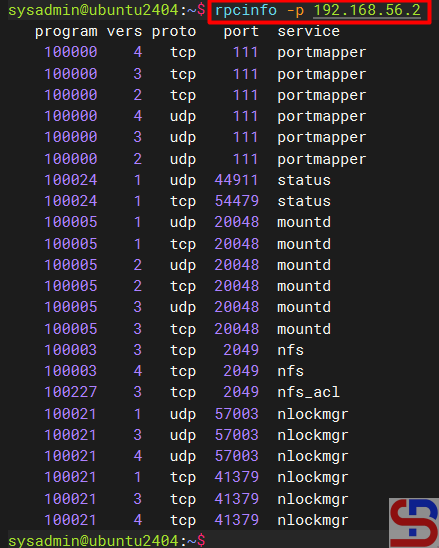
install and configure NFS on Linux
Check the connection between the client to the NFS server


2. Make and mount a folder

Make the folder where we want to mount the NFS shares from the server, for example, I made a folder in /tmp/nfs:

mkdir /tmp/nfs


After that the mount folder with the NFS server using the format below:

sudo mount -t nfs 192.168.56.2:/var/nfs /tmp/nfs
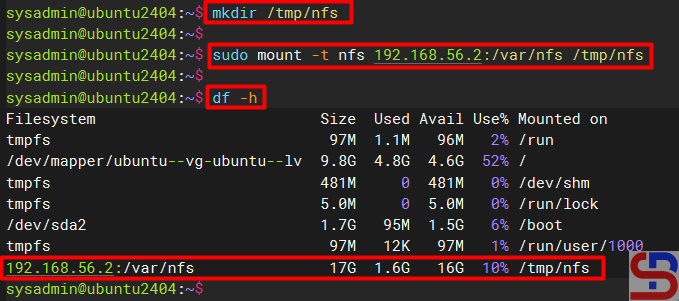
Mount the folder to the folder-sharing


INFO
You can use the -v option so that the above command becomes:
sudo mount -v -t nfs 192.168.56.2:/var/nfs /tmp/nfs
to display the logs when mounting so that you can know if there is an error when mounting.


You should access the folder sharing on the NFS server as shown below:
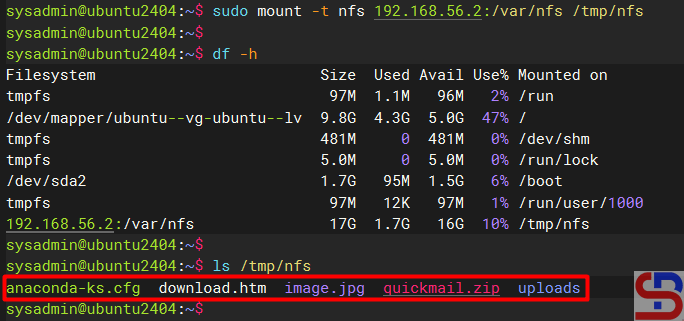
Access to the NFS server


You can use the command below to see the NFS client connection:

sudo mount | grep -i nfs

Check the status of the NFS client


4. Simulation test

Try to do the simulation by changing the file name in the folder sharing. I try to rename the download.htm file to index.html using the command below:

sudo mv /tmp/nfs/download.htm /tmp/nfs/index.html


The file was successfully changed as shown below:
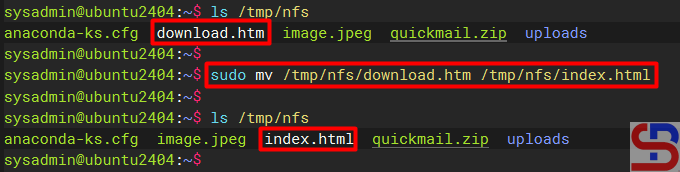
Rename the file in NFS


5. Configure the fstab file

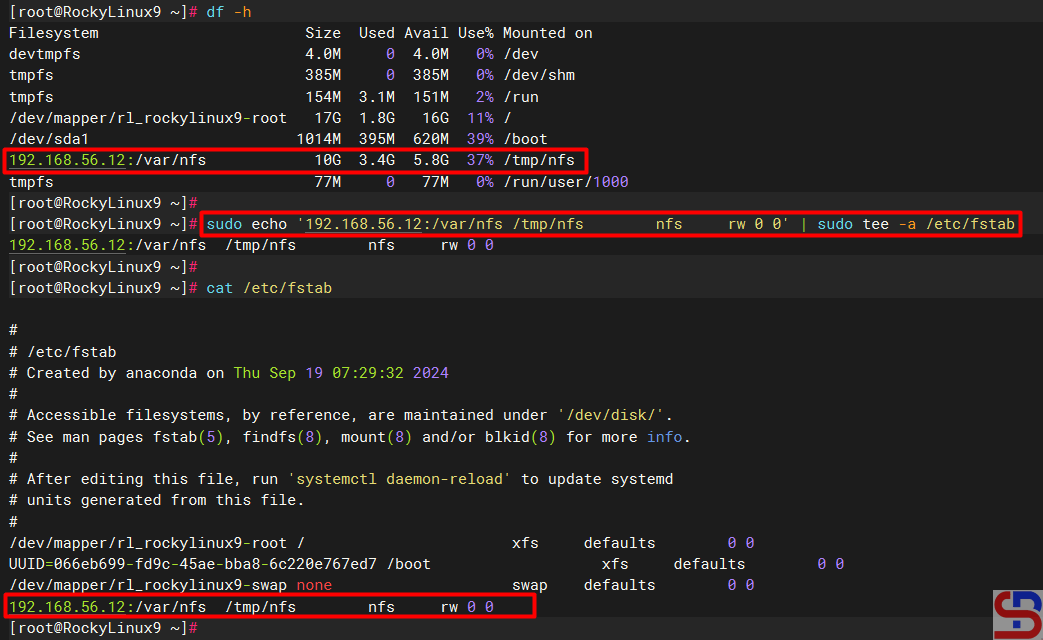
To keep the folder sharing is still connected in the client after the client is rebooted, configure the /etc/fstab file using the command below:

echo '192.168.56.2:/var/nfs	/tmp/nfs	nfs	rw 0 0' | sudo tee -a /etc/fstab
install and configure nfs on linux
Insert the script to fstab file


C. Errors and solutions

Below are errors that often appear and their solutions:

1. No options for /var/nfs

Sometimes when you run the exportfs -r command, there is an error as below:

exportfs: No options for /var/nfs/192.168.56.0/24(rw) : suggest (sync) to avoid warning
exportfs: Failed to stat /var/nfs/192.168.56.0/24(rw): No such file or directory

install and configure nfs on linux
Error failed to stat


To eliminate the error, check in the /etc/exports file and you have to fix the writing in the file from:

/var/nfs/192.168.56.0/24(rw)

changed into

/var/nfs   192.168.56.0/24(rw)

After that, run the exportfs -r command again and the error should disappear.

2. Error Stale file handle

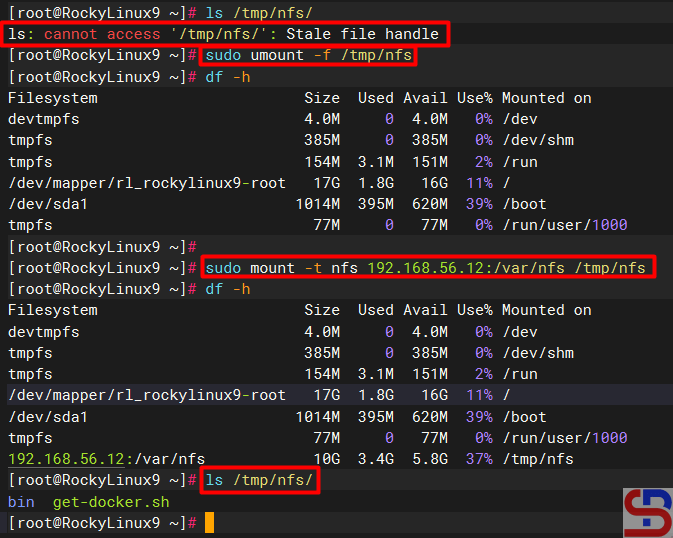
When you want to connect a client to the NFS server there is an error like the below (usually this happens if there is an error like number 1 or other causes on the NFS server):

Stale file handle

Stale file handle error


To solve this error you have to unmount on the side of the client and then mount back as shown below:
install and configure nfs on linux
Solve the stale file handle error


3. RPC: Program not registered

When typing the showmount -e command on the NFS server there is an error as below:

clnt_create: RPC: Program not registered

install and configure nfs on linux
Error Program Not Registered


The solution is that you have to run the command below so that the nfs-mountd service runs on the server:

systemctl start nfs-mountd


4. Permission denied

When you want to connect to the NFS server or when you want to change the file in the NFS, there is an error like this:

Permission denied

Error Permission denied


The solution is to check the exports file on the NFS server and make sure that the folder has been given permissions as in step 5 in the server section.


Note

If you want to block an IP address of a host so the host can’t access the NFS server, use the command below to block the IP host:

sudo firewall-cmd --permanent --add-rich-rule='rule family="ipv4" source address="192.168.56.100" port port="2049" protocol="tcp" reject'
sudo firewall-cmd --permanent --add-rich-rule='rule family="ipv4" source address="192.168.56.100" port port="111" protocol="tcp" reject'
sudo firewall-cmd --permanent --add-rich-rule='rule family="ipv4" source address="192.168.56.100" port port="2049" protocol="udp" reject'
sudo firewall-cmd --permanent --add-rich-rule='rule family="ipv4" source address="192.168.56.100" port port="111" protocol="udp" reject'
sudo firewall-cmd --reload
sudo firewall-cmd --list-rich-rules


and should the client with IP 192.168.56.100 not be able to access the folder sharing as shown in the image below:

install and configure nfs on linux
Can not mount to NFS server


If you want to delete an IP address of a host then the option ‐-add-rich-rule becomes ‐-remove-rich-rule so that the command becomes as command below:

sudo firewall-cmd --permanent --remove-rich-rule='rule family="ipv4" source address="192.168.56.100" port port="2049" protocol="tcp" reject'
sudo firewall-cmd --permanent --remove-rich-rule='rule family="ipv4" source address="192.168.56.100" port port="111" protocol="tcp" reject'
sudo firewall-cmd --permanent --remove-rich-rule='rule family="ipv4" source address="192.168.56.100" port port="2049" protocol="udp" reject'
sudo firewall-cmd --permanent --remove-rich-rule='rule family="ipv4" source address="192.168.56.100" port port="111" protocol="udp" reject'
sudo firewall-cmd --reload
sudo firewall-cmd --list-rich-rules

 

WARNING
In my experience, you can’t immediately block a client to NFS if the client is still connected to the NFS. You have to wait until the client disconnects to the NFS server, either the host reboots or others.


References


How to Make a Linux User Have the sudo Function?

SUDO stands for “SuperUser DO” and it is a program for Unix-like computer operating systems that enables users to run programs with the security privileges of another user, by default, the superuser. With sudo, a normal user can install or delete an application, change the server network, or even reboot or shut down the server.


Problem

How to make a Linux user have the sudo function?


Solution

This article will explain how to make a Linux user have the sudo function on RockyLinux/AlmaLinux/CentOS, Ubuntu/Debian, and OpenSUSE distros. For example, you want to add the user john to these distros and want that user to be able to use the sudo function. As far as I know, there are two methods to do it:

1. Change the sudoers file

Open the /etc/sudoers file or use the command below:

visudo


Add to the file the user name as in the image below:

Add the user in the sudoers file


After that, save the file and then try to add a new user using the user john, if there is a display like the image below:

Choose number 1


Then select number 1, and the user should successfully add a new user as in the image above.

2. Add the user to the sudo group

Add the user to the sudo group, where the name of this sudo group can vary in each distro. To see the name of the sudo group, look in the sudoers file and look for a sentence similar to ‘Allows people in group to execute any command‘. For example, in RockyLinux and OpenSUSE, the name of the sudo group is wheel, sudo in Ubuntu, and don’t forget to make sure to uncomment the section as in the image below:

Check the sudo group in the sudoers file


Then type the command below so that a user can use sudo:

RockyLinux & OpenSUSE

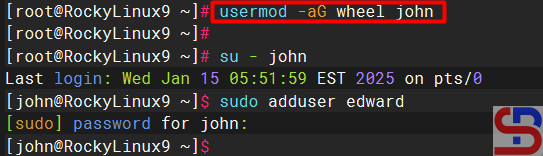
usermod -aG wheel john

make a Linux user have the sudo function
Add the user to the sudo group


Ubuntu/Debian

usermod -aG sudo john


Note

The two methods above can provide the sudo feature to a user on Linux so that the user can run commands that can only be executed by root if the user uses the sudo command by writing down the password. However, if you want the bob user not to have to enter a password when running the sudo command, then in the sudoers file, type the script below:

bob             ALL=(ALL)       NOPASSWD: ALL


Use the command below if you want the robin user to only be able to perform reboot commands using sudo, but not other commands using sudo:

robin           ALL=(ALL)     /usr/sbin/reboot

make a Linux user have the sudo function
Give the partial sudo function to the user


References

en.wikipedia.org
askubuntu.com
phoenixnap.com
hostinger.com


How to Install gcloud on a Linux Server?

The previous articles explained how to install gcloud on Ubuntu/Debian distros and RockyLinux/AlmaLinux/CentOS distros. This article will explain how to install gcloud on Linux.


Problem

How to install gcloud on a Linux server?


Solution

If you use Linux other than the Ubuntu/Debian distro and the RockyLinux/AlmaLinux/CentOS distro, and you want to install gcloud on your Linux distro, then below are the steps (I use OpenSUSE 15 distro):

A. Install gcloud

As far as I know, there are 2 methods for installing on a Linux server, and both methods recommend using a user other than root.

1. Use the script

Before you install gcloud using the script, make sure there are tar and curl packages, and Python version 3.8 and up on your server. You can check it with the following command:

python3 --version


After that, use the following command to download and install the script:

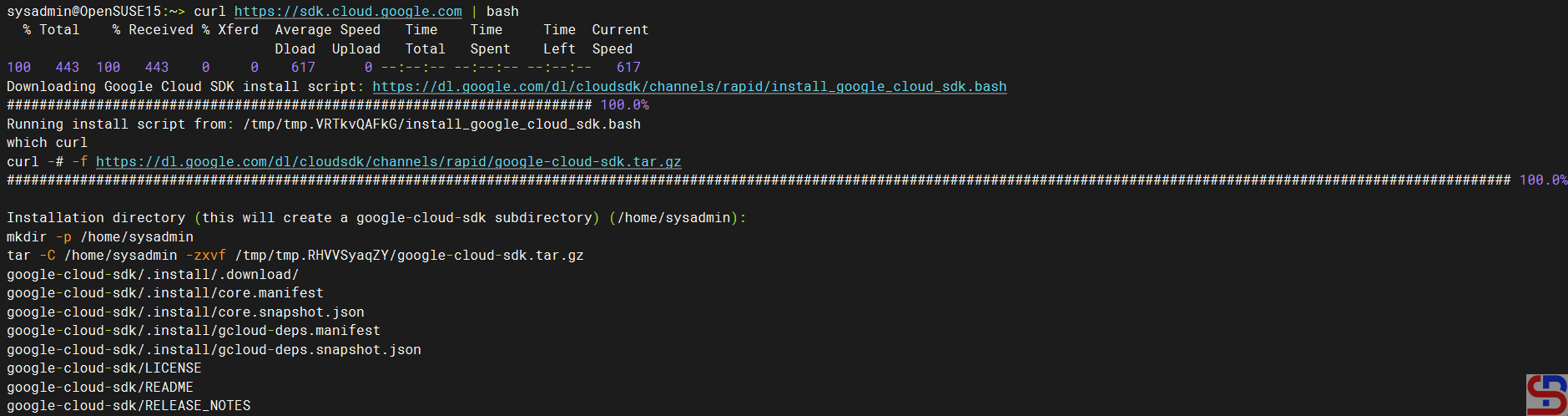
curl https://sdk.cloud.google.com | bash


Then you will see a display like the one below:

Install gcloud using the script


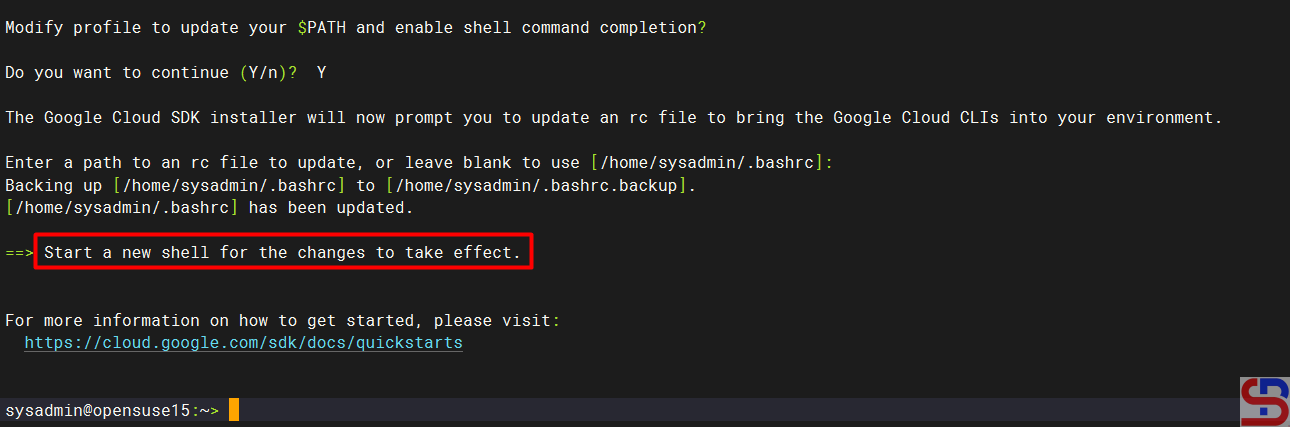
Wait until it’s finished, and you will see a display like the one below:

install gcloud on a Linux server
Installation complete


From the image above, you are asked to create a new SSH connection so that the effect can be seen, and type the command below:

./google-cloud-sdk/bin/gcloud version

Execute the gcloud version command


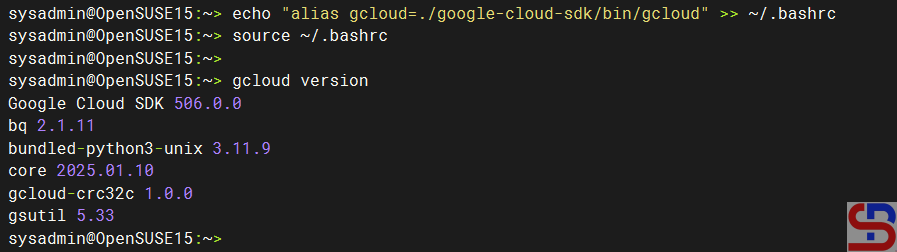
If you want to type the gcloud command without having to type ./google-cloud-sdk/bin/gcloud, then run the command below:

echo "alias gcloud=./google-cloud-sdk/bin/gcloud" >> ~/.bashrc
source ~/.bashrc

Make an alias for gcloud


2. Using the installer

Run the following commands to install gcloud on your Linux server:

curl -O https://dl.google.com/dl/cloudsdk/channels/rapid/downloads/google-cloud-cli-linux-x86_64.tar.gz
tar -xf google-cloud-cli-linux-x86_64.tar.gz 
./google-cloud-sdk/install.sh


After installation completes, use the following command to test the gcloud command:

./google-cloud-sdk/bin/gcloud version


B. Connect to GCP

After you install gcloud on your server, type the command below:

gcloud init


Then there will be a display like the image below:

Click the link


Click the Ctrl+Click button in the red box to open the link in a browser, or if you have difficulty, copy what is in the red box and place it in your browser so you will see a display like the one below:

Click the account


Click on the Google account that will access GCP, then there will be a display like the image below:

Click the Continue button


Click the Continue button, then the display below will appear:

Click the Allow button


Click the Allow button, then the display below will appear:

Click the Copy button


Click the Copy button, and paste it into the CLI on your server as in the image below:

Paste the code


Select the project and configure the zone as in the image above. After that, the gcloud configuration is complete.

C. Test gcloud

Now, try gcloud to access your GCP. I try to list my virtual machine in GCP using the below command:

gcloud compute instances list


Then the display below will appear:

install gcloud on a Linux server
Display virtual machine in GCP using gcloud


If you get a display like the one above, you have successfully used gcloud to access your GCP.


Note

If you have many projects on your GCP, you can choose one of these projects as the starting point for your gcloud on GCP. You can switch projects using the command:

gcloud config set project PROJECT_ID

Change PROJECT_ID to the project ID you want to switch to.


References

cloud.google.com
liquidweb.com
bacancytechnology.com


How to Open And Close a Port on RockyLinux Server?

By default, the RockyLinux/AlmaLinux/CentOS distro provides two firewalls, iptables and firewalld. This article will explain how to open and close a port using Firewalld on the distro. If you have opened and closed a port using Firewalld, you don’t need to open and close a port in iptables.


Problem

How to open and close a port on the RockyLinux server?


Solution

A. Check the Firewalld status

By default, the Firewalld package is installed automatically using the command:

systemctl status firewalld

Check the status of Firewalld


From the picture above, you can see that the firewall on the server is already running. If the Firewalld is not already running, use the command below:

systemctl enable --now firewalld


But if on your server there is no firewall package, you can install it using the command below:

yum install -y firewalld


B. Check the zones

Firewalld uses zones and services, compared to iptables, which use chains and rules. Zones are a collection of rules that have been set for what network connections should be permitted based on the level of confidence in the network connected to the system. We can determine the name of the network interface and the network source into zones. To see the zones in firewalld and which zone is the default, use the command below:

firewall-cmd --get-zones
firewall-cmd --get-default-zone

Show all zones in Firewalld


From the picture above, there are 9 zones, and the explanation can be seen in the picture below, which is sorted from the most trusted

The zones in Firewalld (Image credit for linuxteck.com)


To view all settings for all zones, use the following command:

firewall-cmd --list-all-zones

View all the settings in Firewalld


But, if you want to view all settings in a specific zone, for example, a public zone, use the following command:

firewall-cmd --zone=public --list-ports


C. Open the Port

Now, if you want to open port 43210 with TCP protocol, use the command below:

firewall-cmd --add-port=43210/tcp --permanent
firewall-cmd --reload

Open the port


Use the command below to see the ports that have been opened:

firewall-cmd --list-ports

List all opened ports


D. Open the port from a certain IP

If you want to open a port from a certain IP, for example, you  only allow IP 192.168.56.100 to access port 22 on this server, then use the command below:

firewall-cmd --zone=public --add-rich-rule 'rule family=ipv4 source address=192.168.56.100 port port=22 protocol=tcp accept'
firewall-cmd --reload
firewall-cmd --list-rich-rules
Allow the IP to a certain port


If you want to reject a host with IP 192.168.56.100 to access port 22, use the command below:

sudo firewall-cmd --permanent --add-rich-rule='rule family="ipv4" source address="192.168.56.100" port port="22" protocol="tcp" reject'
firewall-cmd --reload
firewall-cmd --list-rich-rules

Block the IP to a certain port


E. Close the port from a certain IP

If you want to close a port from a certain IP, for example, you  block a host with  IP 192.168.56.100 from accessing port 22 on this server, then use the command below:

sudo firewall-cmd --permanent --remove-rich-rule='rule family="ipv4" source address="192.168.56.100" port port="22" protocol="tcp" accept'
firewall-cmd --reload
firewall-cmd --list-rich-rules

Remove the IP to a certain port


INFO
In short, if you want to delete the rich rule, then change the option –add-rich-rule to –remove-rich-rule.


F. Close the port

Use the command below to close the newly opened port 43210:

firewall-cmd --remove-port=43210/tcp --permanent
firewall-cmd --reload

open and close a port on the RockyLinux
Close the port in Firewalld


G. Open the service

Apart from using ports, Firewalld can also open and close services on the server. To see the services that have been opened, type the command below:

firewall-cmd --list-services

open and close a port on the RockyLinux
List all opened services


You can see in the picture above that the distro only opens 3 services. If you want to open the SMTP service, use the command below:

firewall-cmd --add-service=smtp --permanent
firewall-cmd --reload

open and close a port on the RockyLinux
Add the service to the firewall


H. Close the service

To delete the SMTP service in Firewalld, use the command below:

firewall-cmd --remove-service=smtp --permanent 
firewall-cmd --reload

open and close a port on the RockyLinux
Close the service in Firewalld


Note

If you use the OpenSUSE distro, you can use the above commands to open and close a port, like in the image below:

open and close a port on the RockyLinux
The Firewalld commands in OpenSUSE


References