How to Install PHPMyAdmin on Linux?

By default, if you want to access the MariaDB database, then you have to access it using the CLI. However, this method is a bit difficult, especially for those who are not used to the CLI. So you need an application that can display the database in the GUI, and you can interact with the database using the application. One application that is often used is the PHPMyAdmin application.


Problem

How to install PHPMyAdmin on Linux?


Solution

phpMyAdmin is an open-source, free MySQL and MariaDB administration tool, and as of this writing (November 2025), this application has version 5.2.3. This application is a web application and is written using PHP. Before installing the PHPMyAdmin application, you must have installed the database on your Linux server, and you must have provided a password for the database. Here is how to install the PHPMyAdmin application on Linux, based on the distro:

Ubuntu/Debian

sudo apt update
sudo apt install phpmyadmin php-mbstring php-zip php-gd php-json php-curl


RockyLinux/AlmaLinux/CentOS

yum install httpd
yum install php-phpmysql


OpenSUSE

sudo zypper install apache2
sudo zypper install php7 php7-mysql apache2-mod_php7 phpMyAdmin


This article will install PHPMyAdmin on Ubuntu 24.04 and run the command below:

sudo apt update
sudo apt install phpmyadmin php-mbstring php-zip php-gd php-json php-curl


During installation, a pop-up will appear as below:

Select the web server


Select the web server used, and I use the Apache web server, and click OK. Then there will be another pop-up like below:

Configuring phpmyadmin


Choose Yes, and the installation will continue, but after that, you must enter the password for phpadmin as in the image below:

Enter the password


Enter your password, click Ok, and then there will be an email confirmation as in the image below:

Password confirmation


Enter your password again, click Ok, and the installation process will continue. And you have to wait until the installation process is complete. After that, open your browser and type the URL below:

http;//your_ip_server/phpmyadmin


There should be a display like the image below:

Enter username and password


If there is no display like the one above, it looks like you have to open port 80 on your server. Enter your username and password in your MySQL/MariaDB Database, and if there are no errors, then there will be a display like in the image below:

Access to PHPMyAdmin


To see all the databases in your database, click Database as shown in the image below:

List all databases


You can also perform queries in the SQL section, as in the image below:

Execute query in PHPMyAdmin


And you can see the history of queries that you have done in PHPMyAdmin in the console section, as in the image below:

Show the history of the query in PHPMyAdmin


And in the console section, you can also perform queries by pressing Ctrl+Enter after you write the query. In fact, this application also provides an advisor feature to provide recommendations for your MariaDB database, as shown in the image below:
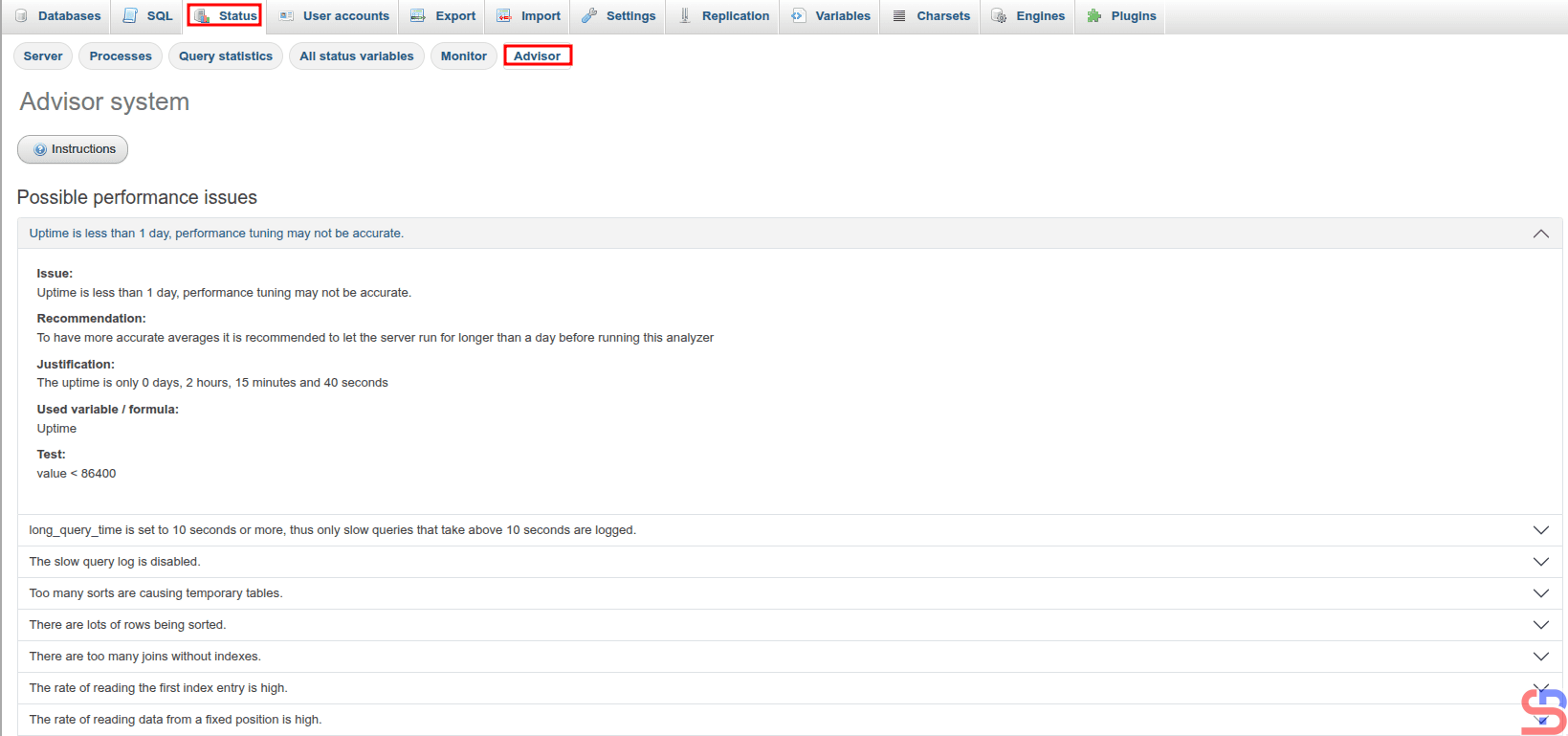
Recommendation for your database in phpMyAdmin


Note

It is highly recommended to restrict access to the PHPMyAdmin application. Therefore, this application should only be allowed on certain IPs, for example, office IPs. And you can make these restrictions in the /etc/apache2/conf-available/phpmyadmin.conf file in the /usr/share/phpmyadmin section. For example, if you want only IP 192.168.56.1 to be able to access this application, then add the script below:

# Limit IP
    Order Deny,Allow
    Deny from All
    Allow from sysadminpedia.com
    Allow from 192.168.56.1
    Allow from 127.0.0.1

IP limitation in PHPMyAdmin


After that, restart your web server. Now you can’t open the phpMyAdmin application except at the IP you have specified in the phpmyadmin.conf file


References

en.wikipedia.org
digitalocean.com
tutorialspoint.com
synaptica.info
linuxblog.io


How to Restore the Database in MariaDB?

The previous articles have explained how to perform a database backup in MariaDB. This article will explain how to perform a database restore in MariaDB.


Problem

How to restore the database in MariaDB?


Solution

There are several methods to perform the database restore in MariaDB:

1. Restore the entire database

To restore the backup file of the entire database, use the format below:

mysql -u username -p < backup_file.sql


Use the command below if your backup file name is backup_all_databases.sql:

mysql -u root -p < backup_all_databases.sql


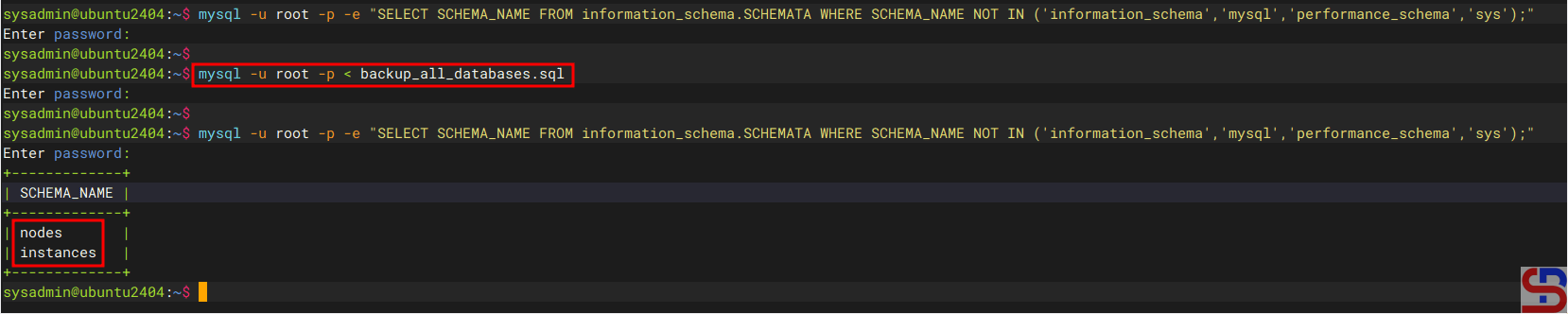
After you run the above command, the database will be restored in MariaDB as shown in the image below:

Restore all databases in MariaDB


2. Restore a database

Use the following format to restore a database’s backup file:

mysql -u username -p -e'create database new_database;' < backup_file.sql


If you want to restore the nodes database, then you can use the command below:

mysql -uroot -p -e'create database nodes;' < backup_nodes_db.sql


After you run the command above, MariaDB will restore the database like in the image below:

Restore a database in MariaDB


3. Restore the table(s)

If you want to restore the table(s), you can follow the format below:

mysql -u username -p db_name < table_backup_file.sql


So, use the command below if you want to restore the tables in the nodes database:

mysql -u root -p nodes < table_backup_file.sql


4. Restore a compressed backup file

There are two methods to restore a compressed backup file:

a. Restore the .gz backup file

If you want to restore a .gz backup file, use the format below:

gunzip < database.sql.gz | mysql -u username -p -e'create database new_database;'


For example, if you want to restore a database that uses .gz compression, then use the command below:

gunzip < nodes_backup_db.sql.gz | mysql -u root -p -e'create database nodes;'

Restore a database that is compressed using .gz compression


b. Restore the .gz backup file

If you want to restore a .bz2 backup file, use the format below (but make sure your server has already installed the bzip2 package):

bunzip2 < database.sql.bz2 | mysql -u username -p -e'create database new_database;'


For example, if you want to restore a database that uses .bz2 compression, then use the command below:

bunzip2 < nodes.sql.bz2 | mysql -u root -p -e'create database nodes;'

Restore a database that is compressed using .bz2 compression


Note

You can restore a database backup file that is compressed using method number 4, whether you compress when backing up the database or after backing up the database.


References

mariadb.com
stackoverflow.com
serverfault.com
bitbook.io


How to Back up the Database in MariaDB?

I want to back up the database in MariaDB.


Problem

How to back up the database in MariaDB?


Solution

Before doing a backup, it is highly recommended to ensure that there are no transactions in the database. Maybe you can turn off the application that is connected to the database or turn off the connection to the database so that it will produce a good backup file. In this article, I have 3 databases to use as an example, like the image below:

Example of databases


And below are the commands to back up the MariaDB database:

1. Back up the entire database

If you want to back up all databases in MariaDB, use the format below:

mariadb-dump -u username -p --all-databases > backup_file_name.sql


So, run the command below to back up your entire database:

mariadb-dump -u root -p --all-databases > backup_all_databases.sql


2. Backup a database

If you want to back up a database in MariaDB, use the format below:

mariadb-dump -u username -p db_name > backup_file_name.sql


So, run the command below if you want to back up the nodes database:

mariadb-dump -u root -p nodes > backup_nodes_db.sql


3. Backup more than one database

If you want to back up more than one database, use the format below:

mariadb-dump -u username -p db1_name db2_name > backup_file_name.sql


So, if you want to back up the nodes and image databases, use the format below:

mariadb-dump -uroot -p --databases nodes image > backup_nodes_and_image_db.sql


4. Backup database only

When you back up a database, by default, the database will be backed up in its entirety, both the database and the database structure. But sometimes you just want to back up the database without the structure, so you can use the format below:

mariadb-dump -u username -p --no-create-db --no-create-info db_name > dbname_db_only.sql


So, if you want to back up the database only for the nodes database, you can use the command below:

mariadb-dump -u root -p --no-create-db --no-create-info nodes > nodes_db_only.sql


5. Backup the database structure only

If you want to back up the database structure only, without the need to back up the database, then you can use the format below:

mariadb-dump -u username -p -–no-data db_name > dbname_structure_only.sql


So, use the command below if you want to back up the structure only for the nodes database: 

mariadb-dump -u root -p --no-data nodes > nodes_structure_only.sql


6. Backup table only

If you want to back up the specific table only in a database, you can use the format below:

mariadb-dump -u username -p db_name table1 table2 > backup_table1_table2_dbname.sql


So, if you want to back up 2 tables in the nodes database for babel and category tables, use the command below:

mariadb-dump -uroot -p nodes babel category > backup_babel_category_nodes.sql


7. Backup with compression

By default, when people perform database backups, they will usually use .sql as an extension of the database backup file. But actually, you can compress the database backup files when you do a backup. There are 2 methods of compressing database backups, namely using the tar.gz method and the .bz2 method. If you want to use the first method, use the format below:

mariadb-dump -u username -p db_name | gzip -9 -c > db_backup_file.sql.gz


Suppose you want to compress the nodes database, then use the command below:

mariadb-dump -u root -p nodes | gzip -9 -c > nodesdb_backup_file.sql.gz


And if you want to use bz2 compression when backing up databases, then make sure that the bz2 package is already installed on your server. If the package is not already installed, use the command below:

RockyLinux/AlmaLinux/CentOS

dnf install bzip2


Ubuntu/Debian

sudo install bzip2


OpenSUSE

zypper install bzip2


After you install the package, try to back up your database using the format below:

mariadb-dump -u username -p db_name | bzip2 > database.sql.bz2


If you want to back up your database, for example nodes database, run the below command:

mariadb-dump -u root -p nodes | bzip2 > nodes_backup_db.sql.bz2


Below is a comparison image of the size of the backup file that does not use compression, uses .tar.gz compression, and .bz2 compression:

Comparison size file


Warning
If you use compression when backing up the database, it will take longer than if you don’t use compression. And if you use bz2 compression, then the time spent will be longer than using .tar.gz.


Note

You should know that the mariadb-dump command has many useful options, including the ‐-single-transaction and ‐-lock-tables options. If you have a database that uses the InnoDB storage engine, then you should use the ‐-single-transaction option because this option starts a transaction before dumping and reads data from a consistent snapshot without locking the tables for extended periods, allowing concurrent reads and writes. However, if you are using the MyISAM storage engine, you can use the ‐-lock-tables option when backing up the database in MariaDB. If your database has a different storage engine, it is recommended to back up the database partially; some tables that use InnoDB use the ‐-single-transaction option, and some tables that use MyISAM use the ‐-lock-tables option when backing up the database.


References

mariadb.com
tecmint.com
linode.com
serversforhackers.com


How to Display the Storage Engine in MariaDB?

If you are a user of the MariaDB database, you should know about the term storage engine.


Problem

How to display the storage engine in MariaDB?


Solution

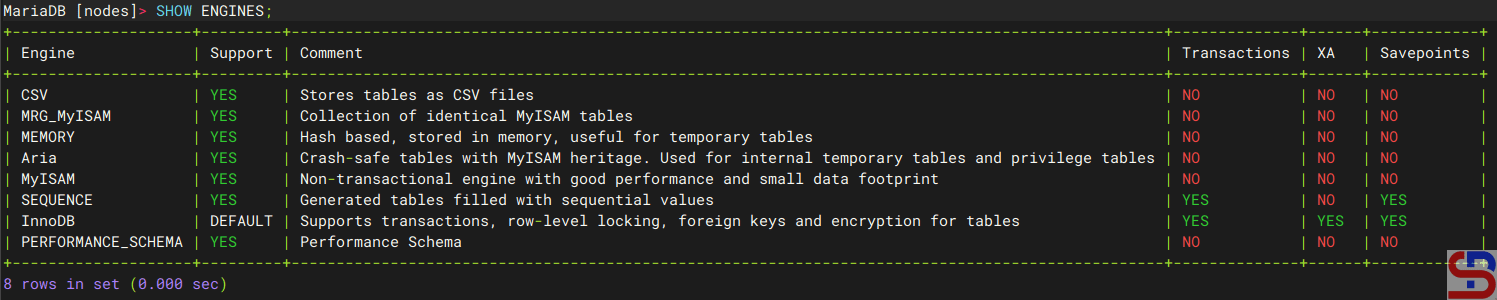
A database engine (or storage engine) is the underlying software component that a database management system (DBMS) uses to create, read, update, and delete (CRUD) data from a database. To see a list of all available storage engines on the server, use the command below in the MariaDB prompt:

SHOW ENGINES;


and it will appear as shown in the image below:

Display all the storage engines in MariaDB


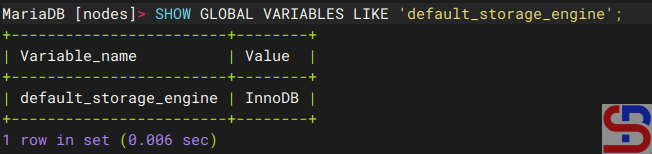
From the image above, you can see that InnoDB is the default storage engine in MariaDB. You can also use the command below to see the default storage engine in MariaDB:

SHOW GLOBAL VARIABLES LIKE 'default_storage_engine';

Display the default storage engine in MariaDB


You can change the default storage engine by using the command below, which changes the default storage engine to MyISAM:

SET GLOBAL default_storage_engine='MyISAM';


Or you can use the below command if the session default storage engine supersedes the global default during this session:

SET SESSION default_storage_engine='MyISAM';


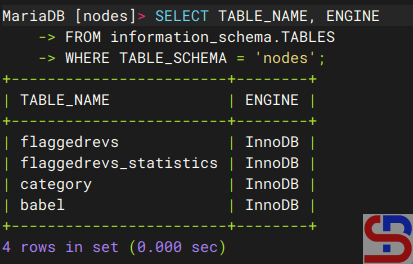
You should know that the storage engine is used per table and not per database, and to see it, you can use the command below:

SELECT TABLE_NAME, ENGINE
FROM information_schema.TABLES
WHERE TABLE_SCHEMA = 'nodes';


and the result will look like below:

Display the storage engine used in the table


From the image above, it can be seen that all tables in the nodes database use InnoDB, so it can be said that the nodes database uses InnoDB. However, one database (schema) can have a table with a different engine, and the query below is the sample to create 2 tables that use different storage engines:

CREATE TABLE product (
    id INT PRIMARY KEY,
    name VARCHAR(100)
) ENGINE=InnoDB;

CREATE TABLE access_log (
    id INT PRIMARY KEY AUTO_INCREMENT,
    time DATETIME,
    user VARCHAR(50)
) ENGINE=MyISAM;


where the product table uses InnoDB and the table access_log uses MyISAM. If a database uses various storage engines and you want to know how many storage engines are used, you can use the query below:

SELECT ENGINE, COUNT(*) AS Number_of_tables
FROM information_schema.TABLES
WHERE TABLE_SCHEMA = 'db_name'
GROUP BY ENGINE;


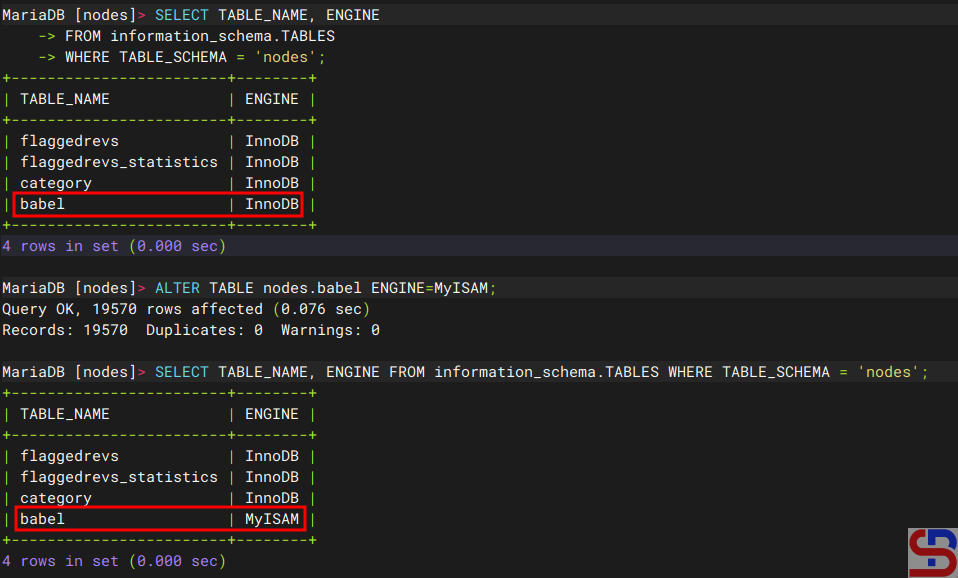
You can change the storage engine of a table by using the query below, for example, change it to MyISAM:

ALTER TABLE database_name.table_name ENGINE=MyISAM;

Change the storage engine in the table


Note

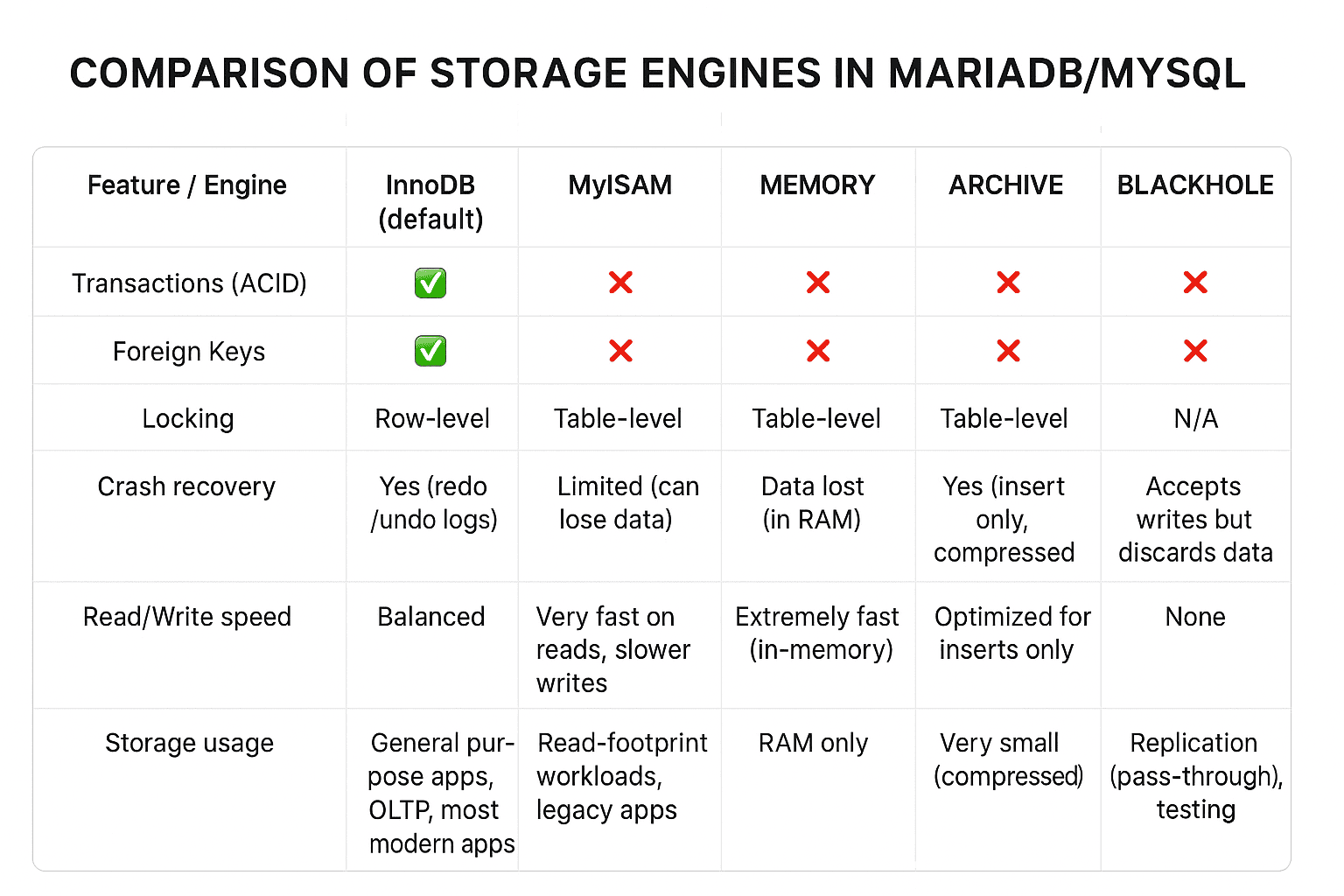
As explained above, there are many storage engines that you can use. But before you decide to use a storage engine, you should first find out the advantages and disadvantages of each storage engine, and to briefly see the differences between storage engines in the image below:

Comparison between the storage engines


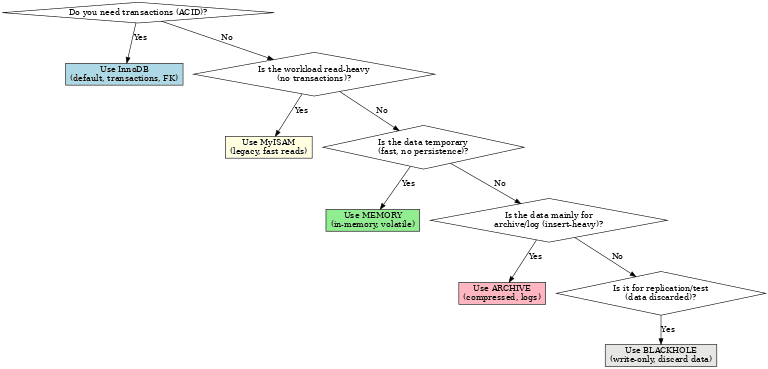
And below is a flowchart to determine the storage engines you will use:

Flowchart to choose the storage engine


However, as far as I know, among the many choices of storage engines, generally people use 2 types of storage engines, namely InnoDB and MyISAM. Maybe you can see the difference between the two through this site.


References


How to Display All Databases Created by the User in MariaDB?

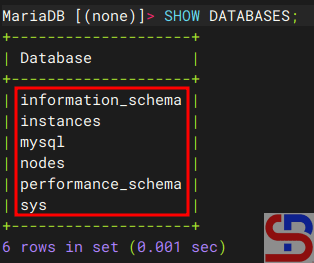
By default, in MariaDB, 4 databases are automatically created by the database system, namely information_schema, mysql, performance_schema, and sys. But I just want to display a database created by the user and not the default system databases.


Problem

How to display all databases created by the user in MariaDB?


Solution

If you use the show databases command after you access successfully accessing MariaDB, it will display all databases created by the user and default system databases, as shown below:

Display all databases


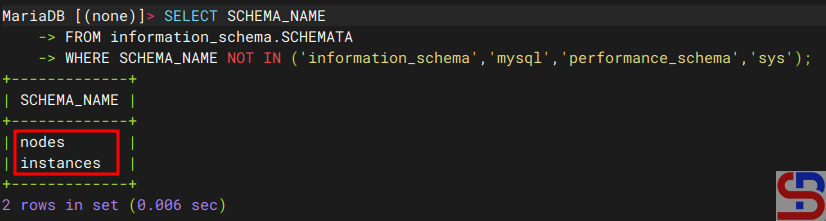
If you want to list only User-Created Databases, you can use a query as below:

SELECT SCHEMA_NAME
FROM information_schema.SCHEMATA
WHERE SCHEMA_NAME NOT IN ('information_schema','mysql','performance_schema','sys');


and it will display like the image below:

Display only User-Created Databases


Note

If you want to run the Linux command to display all databases created by the user only, use the command below:

mysql -u root -p -e "SELECT SCHEMA_NAME FROM information_schema.SCHEMATA WHERE SCHEMA_NAME NOT IN ('information_schema','mysql','performance_schema','sys');"


And you will see the result like the image below:

Display only User-Created Databases using the Linux command


References

stackoverflow.com
kinsta.com


How to Display the Total Size of the Entire MariaDB Database in the CLI?

I want to know the total size of the entire MariaDB database.


Problem

How to display the total size of the entire MariaDB database in the CLI?


Solution

There are two methods for displaying the total size of the entire MariaDB database in the CLI:

1. Using a query

If you have entered the MariaDB database, you can use the command below to display the total size of a MariaDB database:

SELECT table_schema AS "Database", 
ROUND(SUM(data_length + index_length) / 1024 / 1024, 2) AS "Size (MB)" 
FROM information_schema.TABLES 
GROUP BY table_schema; 


The above query will display the total size of the entire MariaDB database in MegaBytes (MB) as shown in the image below:

Display the total size of the databases using the query in Megabytes


If you want to display in Gigabytes (GB), use the command below:

SELECT table_schema AS "Database", 
ROUND(SUM(data_length + index_length) / 1024 / 1024 / 1024, 2) AS "Size (GB)" 
FROM information_schema.TABLES 
GROUP BY table_schema;


so that it will display as shown in the image below:

Display the total size of the databases using the query in GigaBytes


2. Using Linux Command

If you want to display the total size of the entire MariaDB database using Linux commands, use the command below:

mariadb -u root -p -e "
SELECT table_schema AS 'Database',
ROUND(SUM(data_length + index_length) / 1024 / 1024, 2) AS 'Size (MB)'
FROM information_schema.TABLES
GROUP BY table_schema;"


If you run the above command, it will display like the image below:

Display the total size of the databases using the Linux command in Megabytes


If you want to display it in GigaBytes, use the command below:

mariadb -u root -p -e "
SELECT table_schema AS 'Database',
ROUND(SUM(data_length + index_length) / 1024 / 1024 / 1024, 2) AS 'Size (GB)'
FROM information_schema.TABLES
GROUP BY table_schema;"


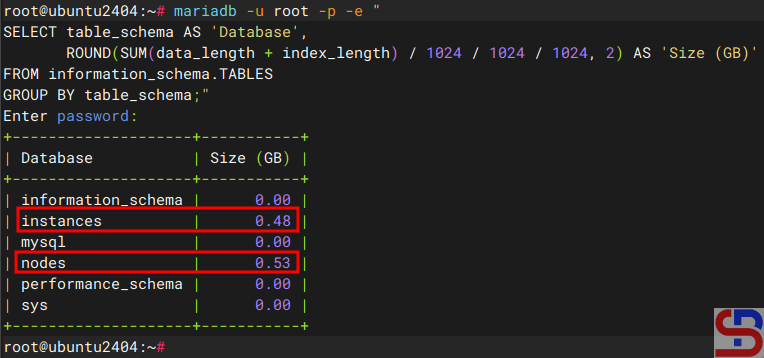
and it will display like the image below:

Display the total size of the databases using the Linux command in Gigabytes


Or in a short time, you can use the Linux command below to see the total size of the entire database in MariaDB:

cd /var/lib/mysql/
du -sh *

Display the total size of the databases using the Linux command


Note

If you want to display the total size of the entire MariaDB database in KiloBytes, then in the ROUND(SUM(data_length + index_length) section, simply divide it by 1024 so that it becomes as follows:

mariadb -u root -p -e "
SELECT table_schema AS "Database",
ROUND(SUM(data_length + index_length) / 1024 , 2) AS "Size (KB)"
FROM information_schema. TABLES
GROUP BY table_schema;"


And if you want to display in TeraBytes size, then in the ROUND(SUM(data_length + index_length) section, divide by 1024 4 times, so that the command is as follows:

mariadb -u root -p -e "
SELECT table_schema AS 'Database',
ROUND(SUM(data_length + index_length) / 1024 / 1024 / 1024 / 1024 , 2) AS 'Size (KB)'
FROM information_schema.TABLES
GROUP BY table_schema;"


References

a2hosting.com
database.guide
tecmint.com


How to Reset MariaDB Root Password?

I want to access the MariaDB database using the root user, but I forgot the password of the root user.


Problem

How to reset MariaDB root password?


Solution

When I insert my password root to access MariaDB, here is the error:

Error when accessing MariaDB


Here are the steps to reset the root password in MariaDB:

1. Stop the service

Use the command below to stop MariaDB’s service:

sudo systemctl stop mariadb


2. Running Mariadb in Safe Mode

Run the command below to run the MariaDB service without access rights and networks:

sudo mysqld_safe --skip-grant-tables --skip-networking &


3. Change the password

Enter MariaDB using the command:

sudo mariadb -uroot -p


Press the Enter button and after that, type the commands below, and I use the qwerty password as my new password:

FLUSH PRIVILEGES;
ALTER USER root@localhost IDENTIFIED BY 'qwerty';
FLUSH PRIVILEGES;
exit


4. Stop MariaDB

Use the command below to stop MariaDB’s service:

sudo mysqladmin -u root -p shutdown


Enter the password you just created if you are asked to enter a password.


5. Running the Service

Run the command below to turn on MariaDB’s service:

sudo systemctl start mariadb


6. Try a new password

Enter MariaDB by using the password that you created previously using the command below:

sudo mariadb -u root -p


Insert your new password, and if you type the correct password, then you should be able to enter Mariadb as in the image below:

Test your new password to access MariaDB


Note

Maybe as an alternative to storing passwords for the root user in MariaDB, you can store the password in a file, but using an encrypted Vim editor.


References

musaamin.web.id
serverspace.io
vexxhost.com
stackoverflow.com