Besides providing application images, Docker also provides database images such as PostgreSQL, MySQL, MariaDB, MongoDB, and so on for its users. As with databases installed on a physical server, which requires entering a username and password to access it, Docker also requires you to enter a username and password to use the database, commonly known as an environment variable.
Problem
How to run environment variables in Docker?
Solution
An environment variable is a dynamically named value that can affect how running processes behave on a computer. They are part of the environment in which a process runs. For example, a running process can query the value of the TEMP environment variable to discover a suitable location to store temporary files, or the HOME or USERPROFILE variable to find the directory structure owned by the user running the process. To find out whether a Docker image can use environment variables, you must check the documentation of the Docker image. Still, in general, Docker images in the form of databases such as MySQL, PostgreSQL, or MongoDB use environment variables.
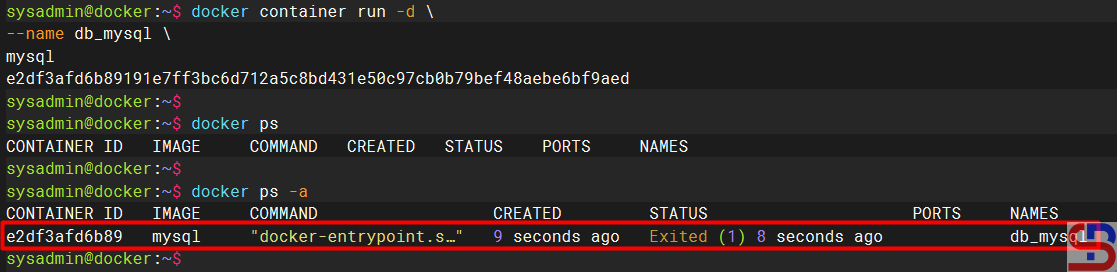
Please note that if you install an image container that uses an environment variable, for example, installing a MySQL database in a container, but you don’t include an environment variable like in the command below:
docker container run -d \
--name db_mysql \
mysql
The container will not run as shown in the image below:
Create a container without using environment variables
Docker has parameters that we can use to send environment variables to the application contained in the container by adding the ‐-env or -e option when we create the container, following the format below:
docker container run -d --namecontainer_name--env KEY1="value" --env KEY2="value"image:tag
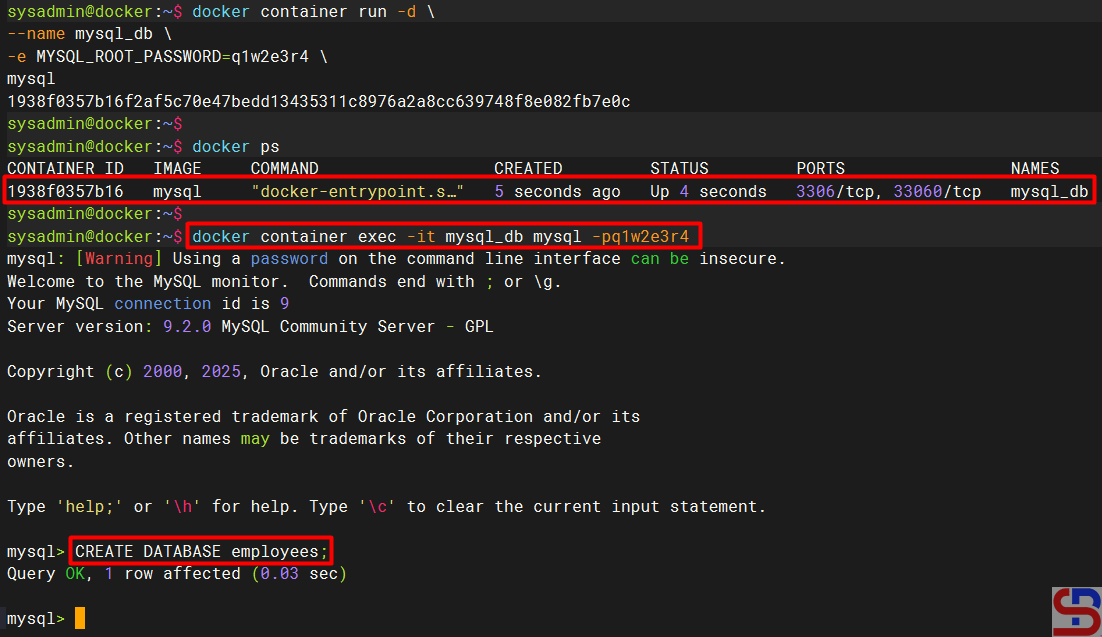
This article will use the MySQL Docker image as a case example. In the documentation, several variables are provided, such as MYSQL_ROOT_PASSWORD, MYSQL_DATABASE, and so on. So, if you want to install MySQL in the container, you have to insert the environment variable. So, if you want to create a MySQL container with root password q1w2e3r4, then run the command below:
docker container run -d \
--name mysql_db \
-e MYSQL_ROOT_PASSWORD=q1w2e3r4 \
mysql
After that, try to access the MySQL database by running the command below:
docker container exec -it db_mysql mysql -pq1w2e3r4
You will enter the database in the container, like in the image below:
Create the container using environment variables
And you can use database commands as usual, like in the image above.
Note
Besides using the -e or ‐-env parameter arguments, you can use a file to save the environment variables, commonly known as Env-File, using the VAR=VALUE format. Use the format below to run the container that uses Env-File like in the format below:
docker container run -d --namecontainer_name--env-file=filename container_name
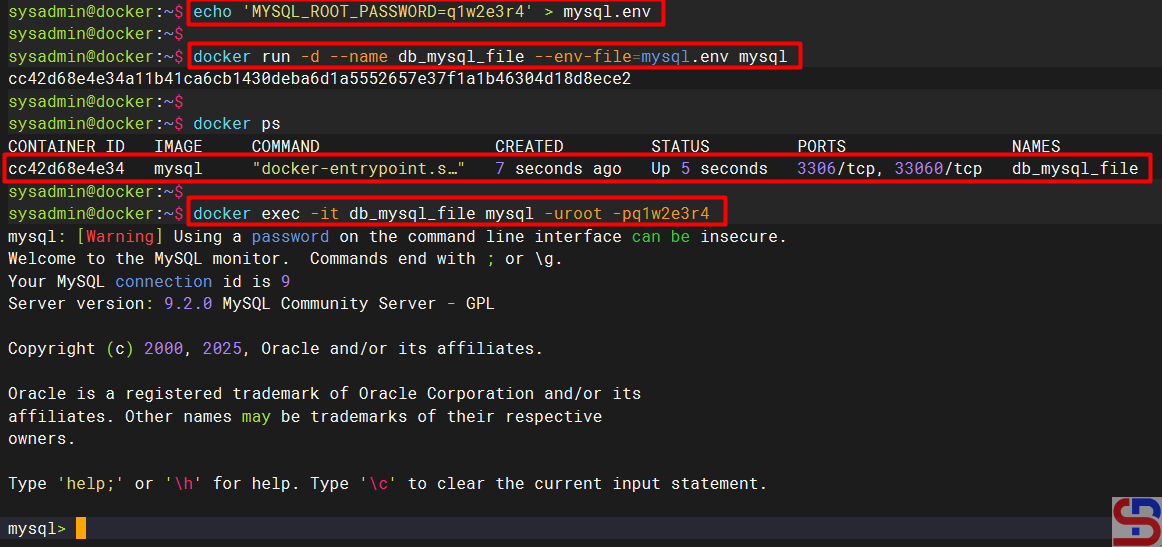
First, you create the file, which usually ends with .env or .env.prod or .env.dev, and I create mysql.env. After that, you add to the file the script below:
MYSQL_ROOT_PASSWORD=q1w2e3r4
Run the command below to create a new container for MySQL using the environment file:
docker run -d --name db_mysql_file --env-file=mysql.env mysql
The MySQL container will be created, and you can access the database in the container like in the command below:
If you want to access a container in Docker, use the format below:
docker exec -itcontainer_id/container_name shell
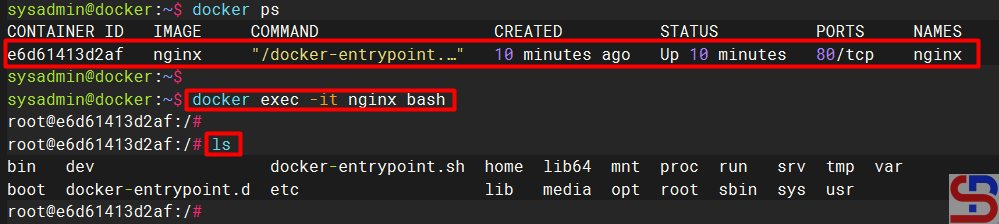
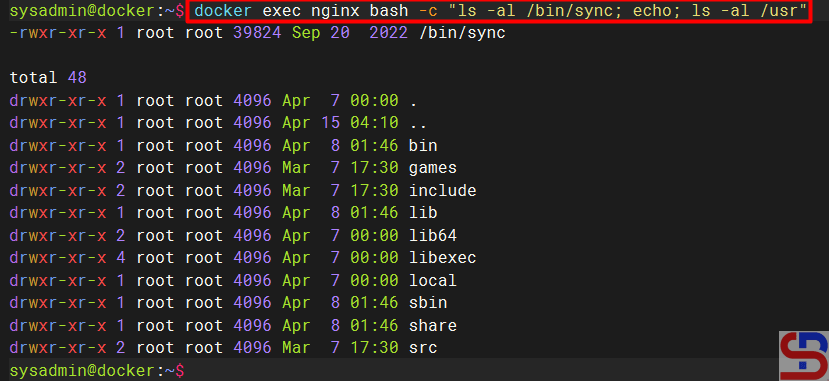
where the -i option is interactive to keep the input active, the -t option is an argument for pseudo -tty (terminal access) allocation, and shell is the program contained in the container and it can be different to be different to the code used in the container likes bash or sh shell, but for more details, please look at the documentation of each image). For example, there is an nginx container that is running, and if you want to access the nginx container, you can use the command below:
docker exec -it nginx bash
After that, you should be able to access the container as shown below:
Access into the container
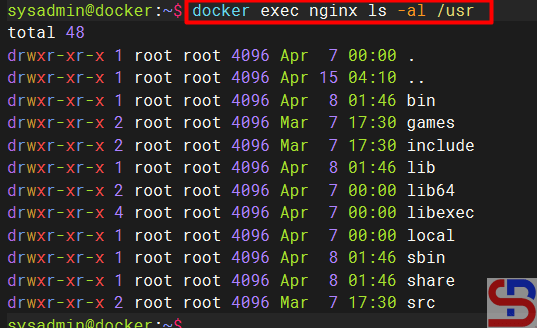
If you want the results of the command in the container to be shown on the server, then use the format below:
You can access a container through the website, but this method only produces applications that run in the container on the website and do not run commands in the container. Usually, these containers use a web server image such as Apache or Nginx, or applications made by developers. If you want to run these applications and access the application in the browser, use the format below:
docker container run -d --namecontainer_name-pport_server:port_container image_name:tag
For example, you want to run an nginx container whose application can be seen by using port 8080 on the server, then use the command below:
docker container run -d --name webapp1 -p 8080:80 nginx
Run the container with the accessed port
Open your browser and type the url below:
http://your_ip_server:8080
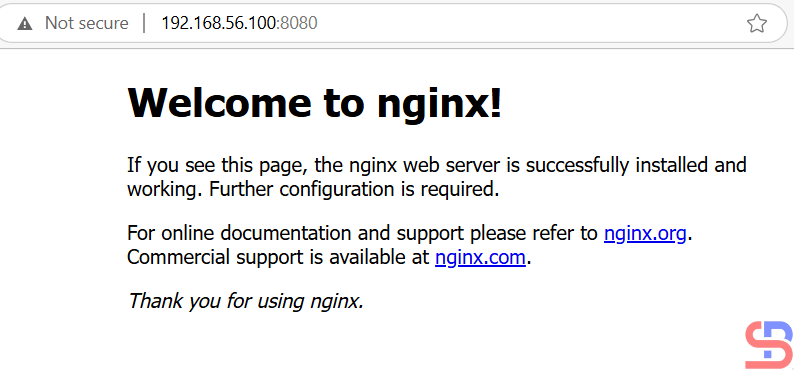
There should be a display as below:
Display the application on the website
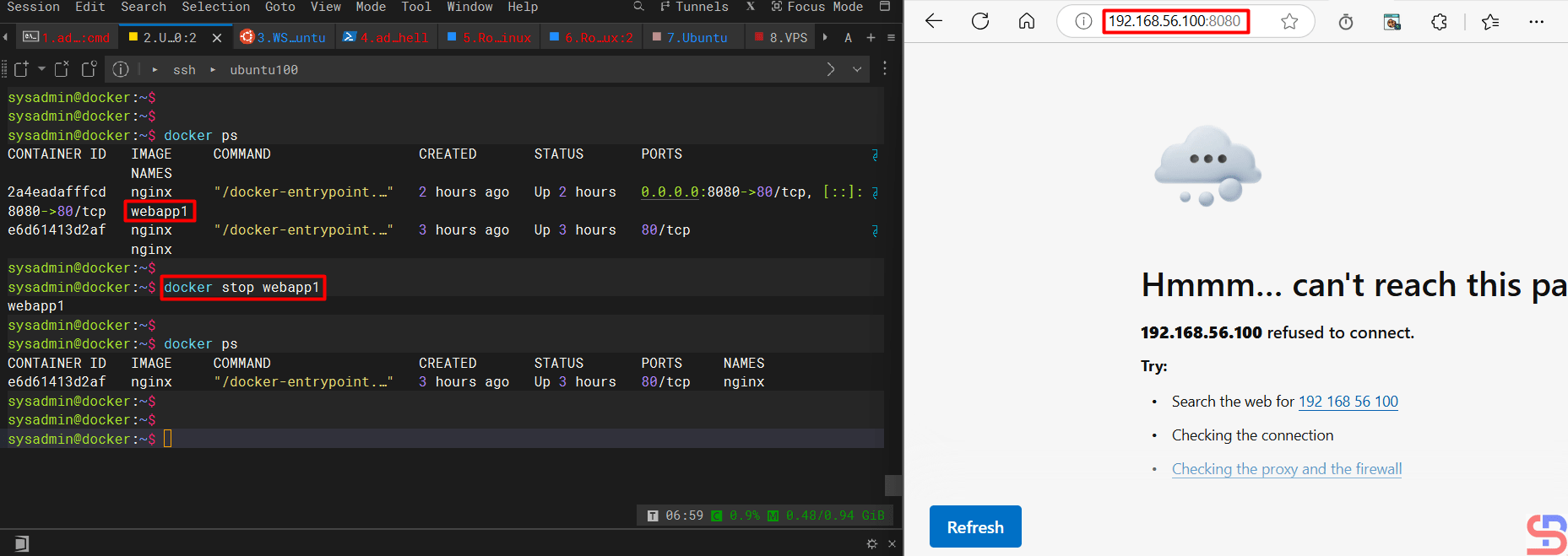
If you stop the container, then the application cannot be accessed through a browser as below:
Turn off the container
Note
You can also access a database installed in a container using the commands in this article.
The previous article explained how to monitor an entire container in Docker. In addition to monitoring, you should also limit the resource usage of each container so that server performance remains in good condition.
Problem
How to limit resources in Docker?
Solution
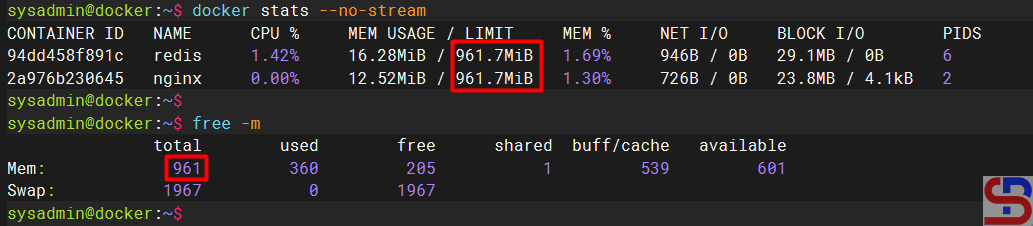
If you run the docker stats command, the command will display the resource container as shown in the image below:
Display stats of the Docker
As you can see in the image above, there are 2 containers running, and both containers have a memory limit of 941 MB, where the memory size is the size of the memory of the server. This is dangerous because the application in the container can use all the memory or CPU on the server, causing the server to run abnormally. Therefore, you should limit the use of resources in the container.
A. RAM limitation
There are 2 types of memory limitations in Docker:
The hard limit is a maximum value that cannot be exceeded. When a container exceeds a hard memory limit, Docker takes aggressive actions such as terminating the container so that there will be an OOM or Out Of Memory error in the container. The options used in Docker are ‐‐memory or -m.
The soft limit is a limit that can be temporarily exceeded. When a soft limit is reached, Docker warns the user but does not take immediate action. The option used is ‐‐memory-reservation.
If you use swap on the server, you can use the ‐‐memory-swap option to allocate available swap memory to the container. This swap memory must be larger than the hard limit, usually twice larger than the hard limit. If you want to use a percentage for memory swap, use the ‐‐memory-swappiness option.
To limit the memory on the new container, use the format below:
docker run -d --memory='hard_limit_value' --namedocker_name docker-image
For example, if you want to limit the memory on a container of 512 MB with a soft limit of 256 MB, then I run the command below:
docker run -d --memory='512m' --name nginx nginx
Run Docker with limited memory
You can immediately change the container memory when the container is running using the format below:
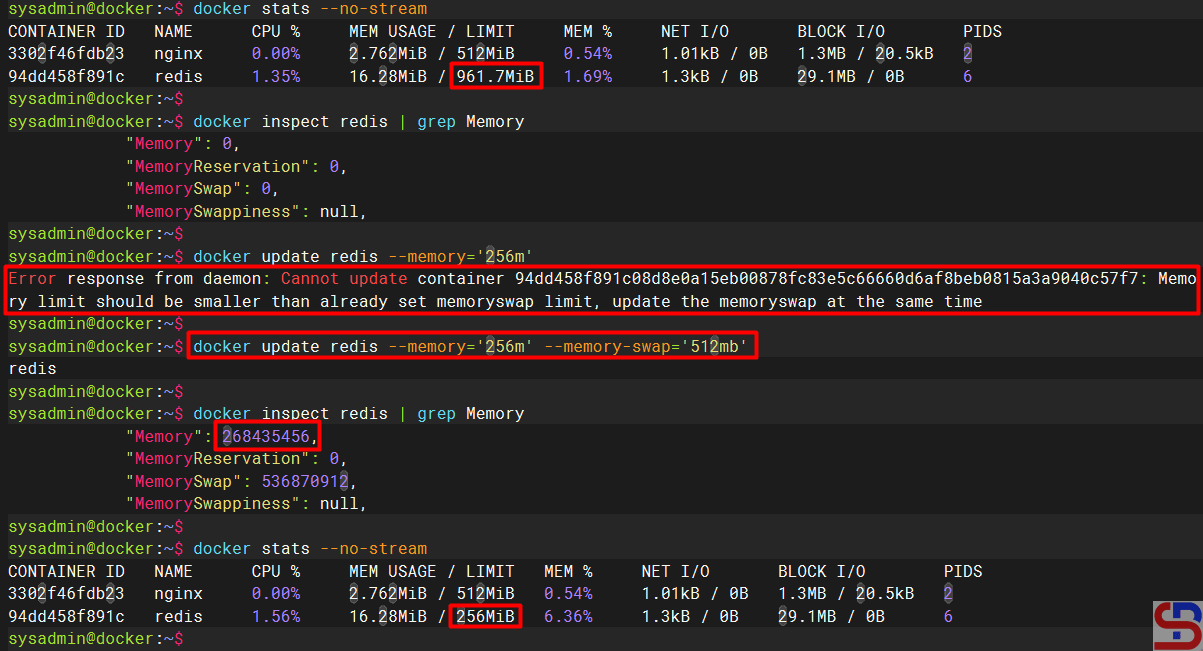
For example, I want to change the Redis container memory from 971 MB to 256 MB using the command below:
Error when updating memory
But when running the command, there is an error as below:
Error Response from Daemon: Cannot Update Container 94DD458F891C08D8E0A15EB00878FC83E5C6660D6AF8Beb0815A3A9040C57F7: Memory Limit Should Be Smaller Than Already Set Time
To overcome the error, update the memory container swap, whose value must be greater than the memory value. Therefore, use the command below to increase the memory of a container:
And the container memory value should have changed as shown below:
Update the memory in a container
B. CPU limitation
Before you limit the CPU in the container, you need to know how many CPU cores there are on your server by using the command below:
nproc
To limit the CPU used in the container, use the ‐‐cpus option to determine how many CPU cores can be used in a container. If your server has two CPUs and you set ‐‐cpus=’1.5′, the container is guaranteed at most one and a half of the CPUs and this is the equivalent of setting ‐‐cpu-period=’100000′ and ‐‐cpu-quota=’150000′ (cpu-period is used with cpu-quota to configure the CPU scheduler with defaults to 100000 microseconds and cpu-quota is used with cpu-period to configure the CPU scheduler). Use the format below to limit the CPU in the container:
docker run -d --cpus='cpu_value' --namedocker_name docker_image:tag
You can see the details of the CPU used by a container by using the format below:
docker inspect nginx | grep -e Cpu -e cpu
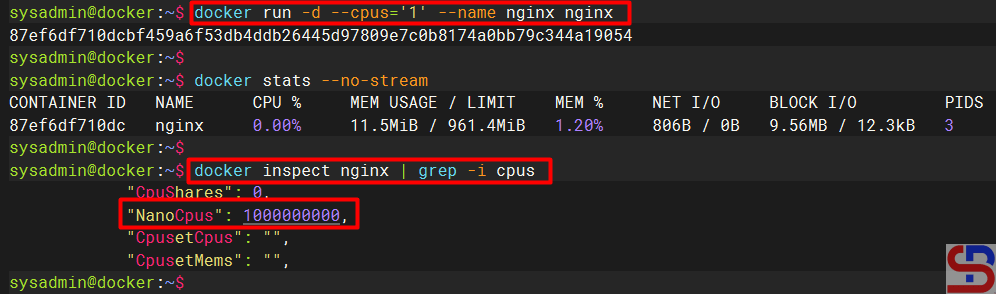
For example, I want to limit the CPU to 1, so I run the command below:
docker run -d --cpus='1' --name nginx nginx
Run a container with a limited CPU
Warning
You have to be careful in determining the CPU limitations of a container because if you limit the CPU too much (for example, giving 0.5 CPU to the container even though the container can run using 1 CPU) or give a CPU limitation that is greater than the CPU the server uses (for example The server CPU only has 1 CPU but you give the container 2 CPUs) then the container will immediately turn off automatically.
You can use the ‐‐cpu-shares option for a container to control the share of CPU cycles available, whose default value is 1024. This option is like a soft limit option on memory, so if you run the command below:
docker run -d --cpu-shares='2048' --name webapp1 nginx
If there is more than 1 container on a host and CPU cycles are constrained, then the webapp1 container will receive 2x more CPU than the other containers. You can update the CPU in a running container using the format:
docker update docker_name --cpus='cpu_value'
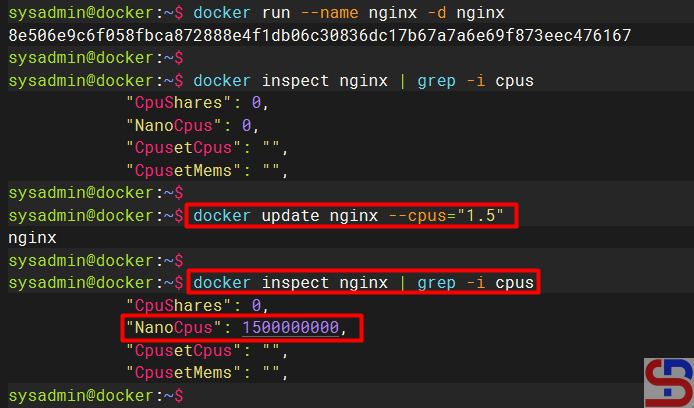
For example, I have 2 CPUs on the server, and initially, I use all the CPUs in the webapp1 container. Then, I wanted to update the CPU on the container to 1.5, so I ran the command below:
docker update webapp1 --cpus='1.5' nginx
Update the CPU in a container
C. HDD limitation
As of this writing (April 2025), the HDD limitation can only be used for btrfs, overlay2, windowsfilter, and zfs storage drivers. For the overlay2 storage driver, the size option is only available if the backing filesystem is xfs and mounted with the pquota mount option. Type the command below to see the Docker settings on the server:
docker info | grep -e 'Filesystem' -e 'Support' -e 'Storage'
Run the command above, and here is the result:
Check the filesystem
To limit the hard disk in a container, follow the format below:
docker run -d --namenginx--storage-opt size=1gnginx
If I want to limit my hard disk in a container, I run the command below:
docker run -d --name nginx --storage-opt size=1g nginx
But, I have an error like the image below:
docker: Error response from daemon: –storage-opt is supported only for overlay pver xfs with ‘pquota’ mount option
Error when limiting HDD for a container
From the image above, I can’t limit the HDD to the container because my Backing Filesystem in my server still uses extfs, not xfs. So, if I want to limit my HDD in my containers, I have to change my Backing Filesystem in my server. So I made an experiment by turning off Docker and deleting the Docker folder using the command below:
Then I inserted an additional hard disk into the existing server, and then I converted the file system to xfs using the commands below:
sudo mkfs.xfs /dev/sdb1
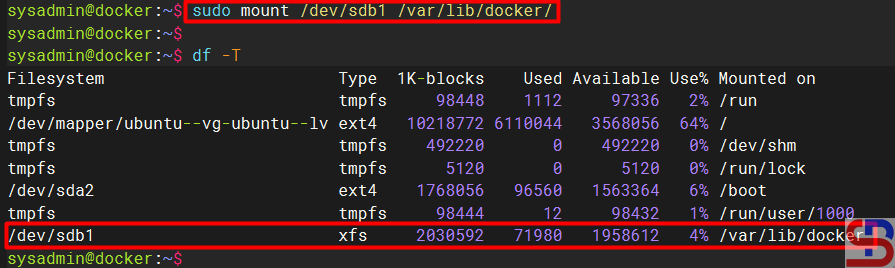
sudo mount /dev/sdb1 /var/lib/docker
Create xfs filesystem
And I added to the /etc/fstab file the script below:
echo '/dev/sdb1 /var/lib/docker xfs defaults,quota,prjquota,pquota,gquota 0 0' | sudo tee -a /etc/fstab
I rebooted the server to test whether the fstab file settings were correct. After that, I tried to create a container by limiting the container’s hard disk to 1GB using the command below:
docker run -d --name nginx --storage-opt size=1g nginx
Limiting HDD in a container
Note
You can combine more than one restriction above by using one command. For example, if you want to limit memory, CPU, and HDD in a container, then you can run the command below:
As far as I know, Sysadmin only limits the use of RAM and CPU in Docker, but rarely limits HDD in Docker. If you want to limit resources in Docker, you must discuss it with the developers so that there are no problems with the application in the future.
After you run containers in Docker on your server or your Docker Host, you should monitor all existing containers to find out the performance of each container.
Problem
How to monitor containers in Docker?
Solution
There are 2 methods for container monitors in Docker:
A. Via CLI
In CLI, to monitor all containers in Docker, you can use the command:
docker stats
You will see the display as below:
Using the docker stats command
From the image above, you can see that the command displays the results in streaming, and to exit from the command above, press Ctrl+Z or Ctrl-C. If you don’t want to display the results in streaming mode, then use the command below:
docker stats --no-stream
Display monitor containers in Docker without stream
B. Via Website
If you want to monitor Docker via a website, you can use the Portainer tool. Portainer is a tool for managing containers through a browser that can support Docker host, Docker Swarm, Nomad, and Kubernetes. It has 2 components, namely Portainer Server, which is used to manage containers, networks, and environments, and Portainer Agent is the component installed on another Docker system to enable communication with the server. Portainer has 2 editions, namely Portainer Business Edition or PBE and Portainer Community Edition or PCE, where both editions at the time of this writing (April 2025) have version 2.27.3. This article will discuss how to install Portainer Community Edition. Here are the steps:
1. Create Docker Volume
Type the command below to create a new volume in Docker:
docker volume create portainer_data
2. Install Portainer
Type the command below to install the latest version of Portainer:
The following command can be used to determine whether Portainer is operating or not:
docker ps
Check the container
4. Access the Portainer
After that, open your browser and type:
https://your_IP_server:9443
There will be an image like below:
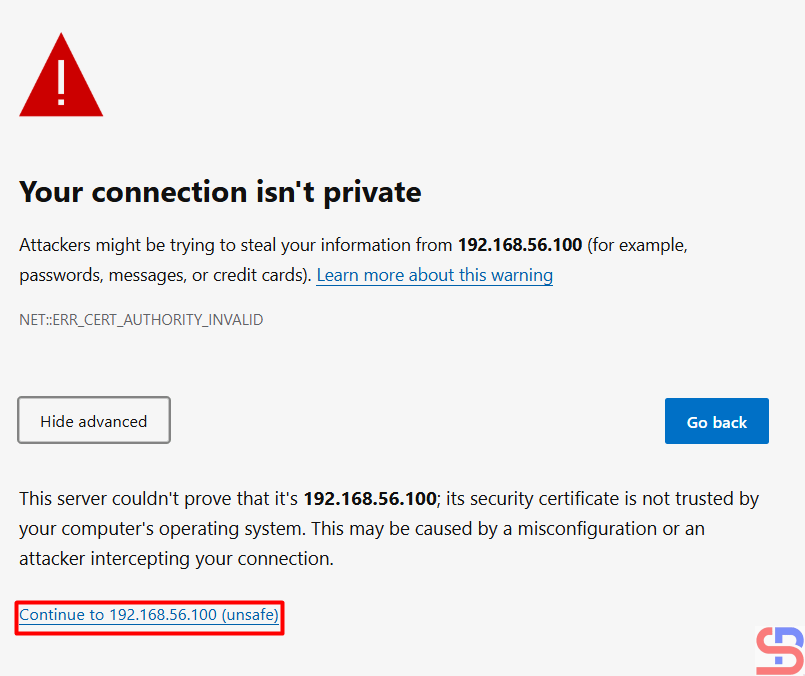
Click Advanced
A picture similar to the one below will appear when you click the Advanced button:
Click the unsafe link
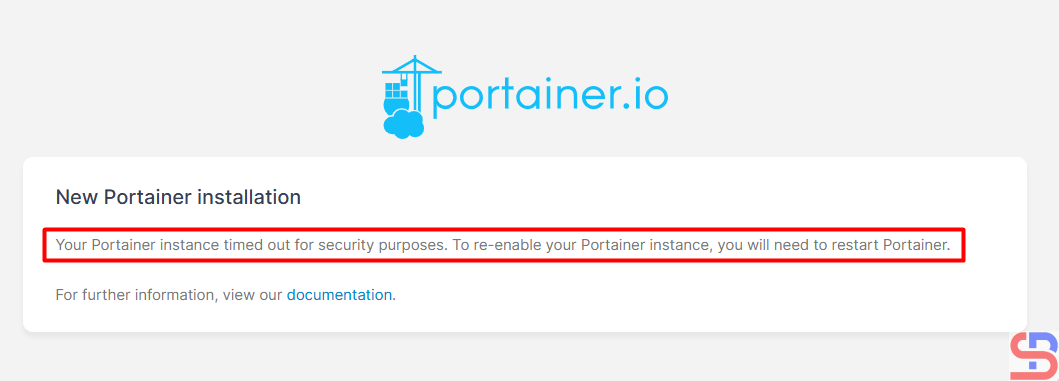
Click the unsafe link in your browser, and then there will be an image like below:
Restart Portainer
If you have an error like the picture above, then restart Portainer by running the command below:
docker restart portainer
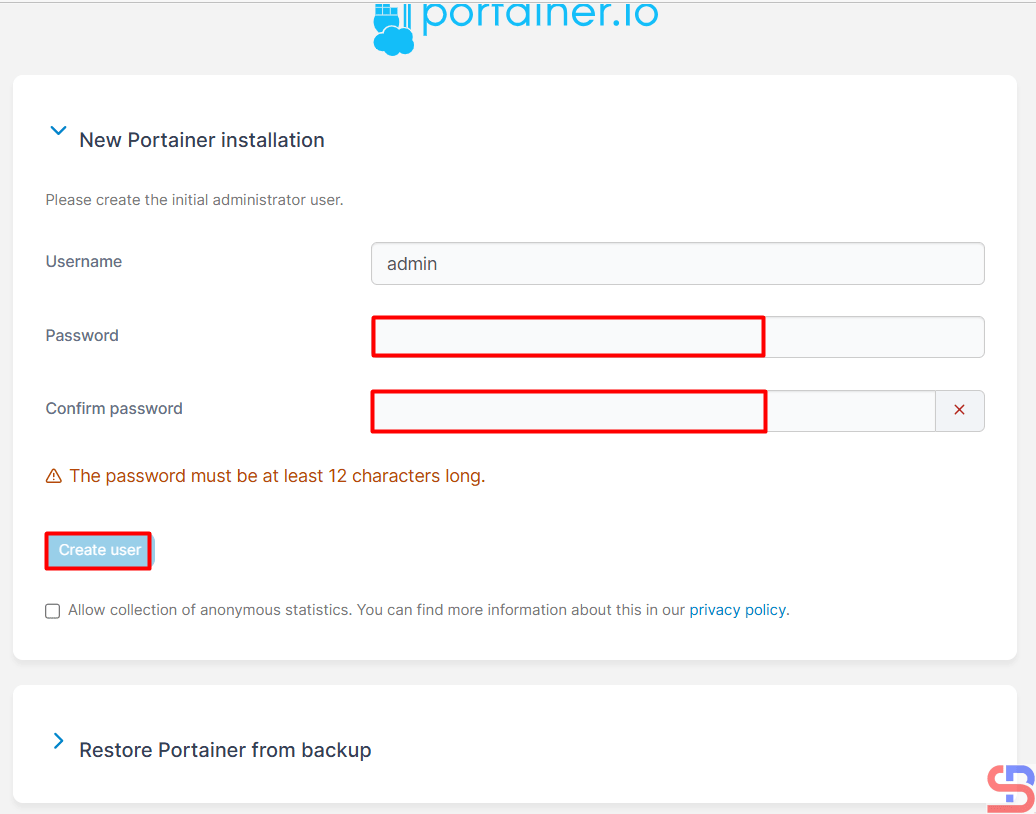
Enter the desired name and password, then click the Create user button, and you will see an image below:
Write the username and password
The Portainer dashboard will appear. Click the Get Started box like in the above image, and there will be an image below:
Click the Get Started box
There will be an image below:
The Portainer dashboard
Click on the red box, and there will be an image below:
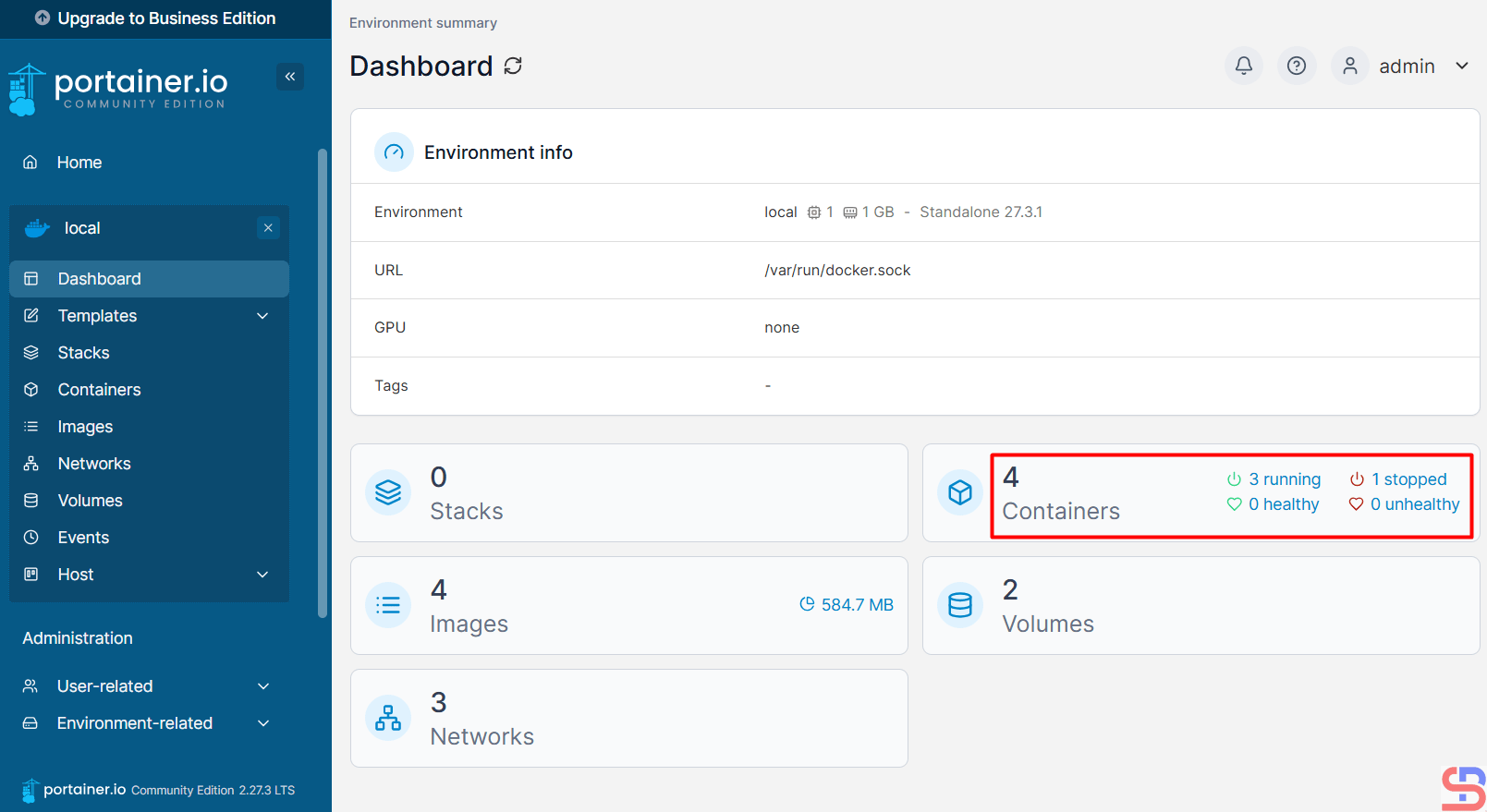
The information about the container(s) in Docker
I have 4 containers in my server, but I want to detail each container, so I click in the red box, and there will be an image below:
The detailed information of each container
If I want to display the resource of the Redis instance, click the icon in the red box, and there will be a display below:
The resource is displayed in a container
If I want to access a container, I click the icon like in the red box:
Click the icon to access the container
There will be a display like in the image below:
Click the Connect button after you choose the options
Select the command used in the container and select the desired user. After that, click the Connect button, and there will image like in the image below:
Access to the container
You can access the inside of the container and give the Linux command from your browser to the container. From this tool, you can see the images in your Docker when you click Images, like in the image below:
Display the Images
You can display the Volume in Docker after you click the Volumes, like in the image below:
Display the Volumes
Note
If you want to monitor Docker on another server using Portainer, you have to install the agent using the command below:
By default, if you want to create a Docker container on your server, you can download the required image directly using the docker pull command. But sometimes, there are some cases where you cannot download the image directly from the internet, and you have to back up the existing image and then restore the image to a server.
Problem
How to back up and restore Docker image(s)?
Solution
I have a server that, due to security issues, cannot be connected to the internet, while on the server, many applications run using Docker. Because it cannot directly download the Docker image, I have to download the Docker image on a server that is connected to the internet, and then the image will be installed on this server.
A. Backup Docker image
To back up a Docker image, use the format below:
docker image save -oimage_name.tar image_name:tag
For example, if you want to back up the nginx image, then use the command below:
docker image save -o nginx.tar nginx
Wait until the process is complete, and if it is finished, the backup image file will be formed as shown below:
Back up one Docker image
But use the format below if you want to back up more than one image:
docker image save -oimage1_name.tar image2_name:tag ...
I have more than one Docker image on my server, so I want to back up all the images so I can run the images on my other server, which is not connected to the internet. Then use the command below to back up the docker image of more than one Docker image:
docker image save -o all_images.tar alpine redis nginx
And the backup image file should be formed according to the image below:
Backup more than one docker image
B. Restore Image Docker
After you back up the Docker image, move your Docker image to the desired server. To restore the Docker image, use the format below:
docker image load -iimage_name.tar
So I restored the Docker image backup file using the command below:
docker image load -i nginx.tar
Then the Nginx image will be restored on the server as shown below:
Restore one Docker image
With the same command, you can also restore more than one image using the command below:
docker image load -i all_images.tar
Then all Docker images will be restored on that server, like in the image below:
Restore more than one Docker image
Note
You can use the command below to back up the Docker image using the format below:
docker saveimage_name| gzip -c >image_name.tgz
So if you want to back up the Nginx image, use the command below:
docker save nginx | gzip -c > nginx.tgz
The advantage of using this command is that the size of the backup file is much smaller than using the previous command, as shown in the image below:
Back up the Docker image using another command
To restore, use the format below:
gunzip -cfilename.tgz| docker load
So if you want to restore more than one image, use the command below:
gunzip -c all_images.tgz | docker load
And the Docker image will be restored on the server.
Restore the backup Docker image using another command
The previous article explained how to install Docker on Linux. This article will explain how to manage a container in Docker.
Problem
How to manage a container in Docker?
Solution
To manage a container in Docker, you have to remember basic Docker commands. And here are the basic Docker commands:
1. Search for container images
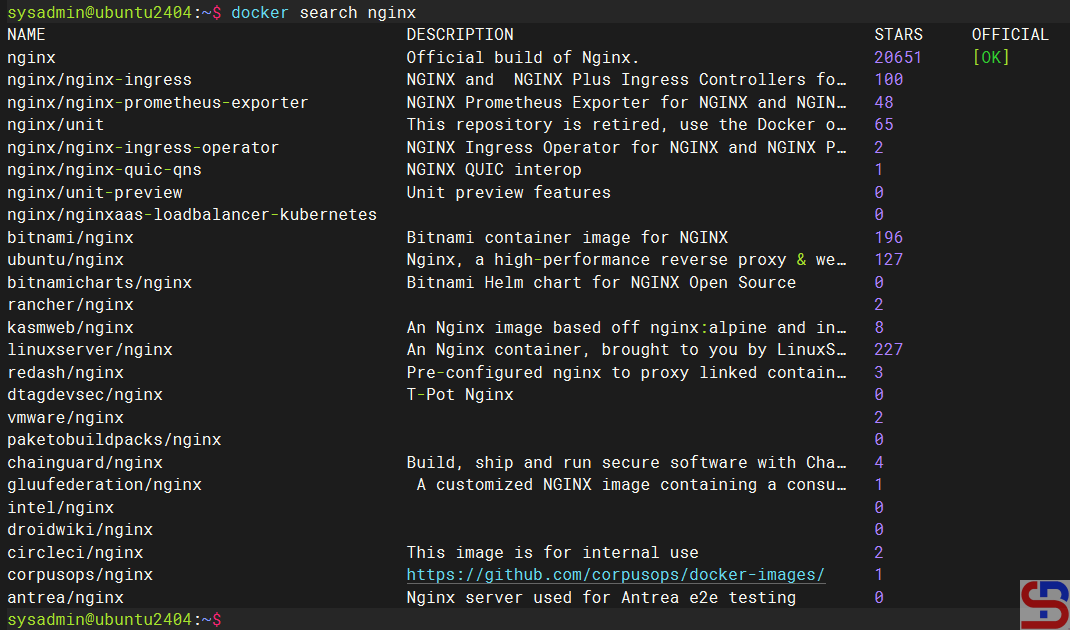
To run containers in Docker, we need a Docker image. A Docker image is an immutable (unchangeable) file that contains the source code, libraries, dependencies, tools, and other files needed for an application to run. The place to store Docker images is known as the Docker registry, which by default uses the Docker Hub located at hub.docker.com. If you are looking for a container image in Docker, use the format below:
docker search container_name
For example, if you want to find an nginx image, then use the command below:
docker search nginx
Searching the nginx image
2. Download the Docker image
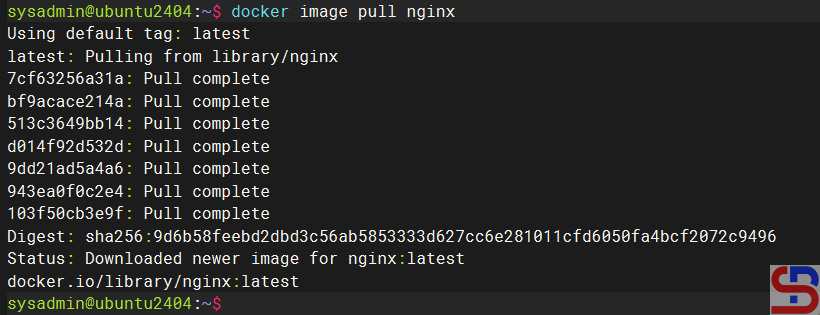
To download the Docker image, use the following format:
docker image pullimage_name:tag_version
where the tag_version is the version of the image, and if you don’t write the tag, it is considered that you want to install the latest version of the image. For example, if you want to download the newest version of the nginx image, use the command:
docker image pull nginx
Download the nginx image
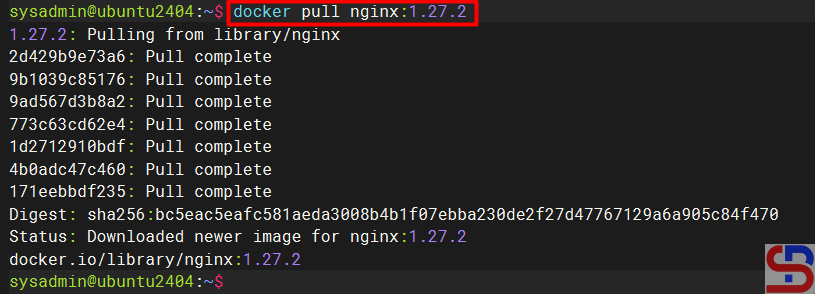
But if you want to download nginx with a certain version, for example, version 1.27.2, then use the command:
docker image pull nginx:1.27.2
Download the nginx with a certain version
3. List the Docker image(s)
To display the Docker image that you have downloaded, use the command below:
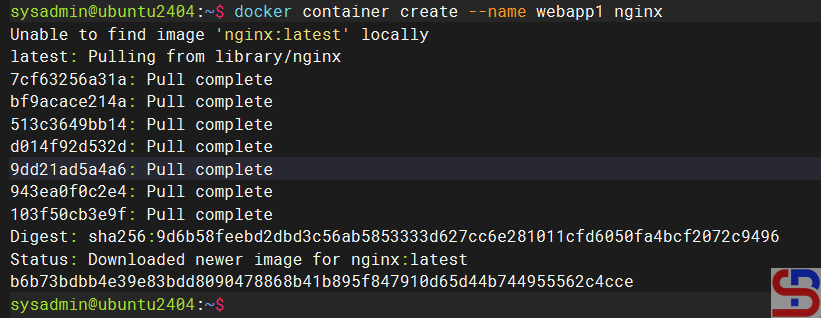
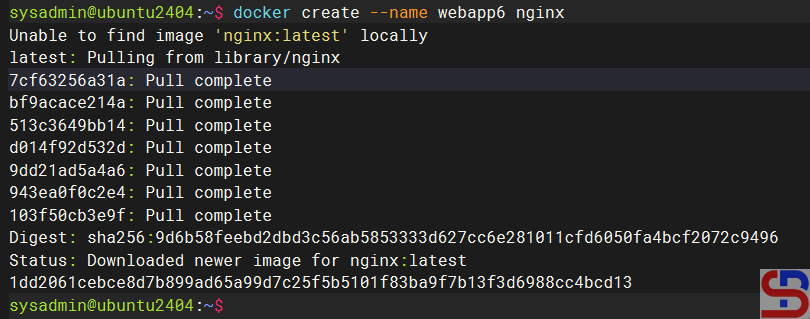
For example, if you want to create a container with the name webapp1, which contains the nginx application, then use the command below:
docker container create --name webapp1 nginx
When you use this command, Docker will first check whether the nginx image is on the server. If the image is not on the server, then Docker will download the nginx image, and after that, it will create an nginx container, and the image will remain on your server, as shown in the image below:
Create the container
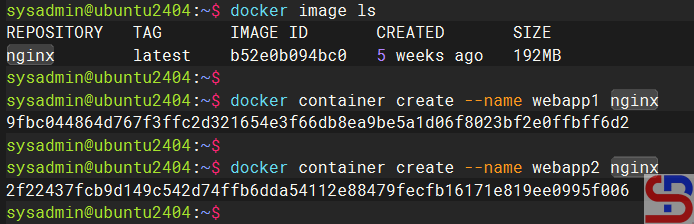
You can use an image to create multiple containers as long as the container names are different, as in the image below:
Create the containers with 1 image
5. List the status of the container(s)
To display the container status, you can use the command:
docker ps
List the status of running Docker
Maybe you are confused about why there is no container status displayed, even though you have made 2 containers before. Remember that the docker ps command only displays the ongoing container status. While the 2 containers you made had not been running, you just made a container. If you want to display all container statuses, use the command below:
You can use the command below to resume the container:
docker container unpause webapp1
Resume the container
8. Run a container with a single command
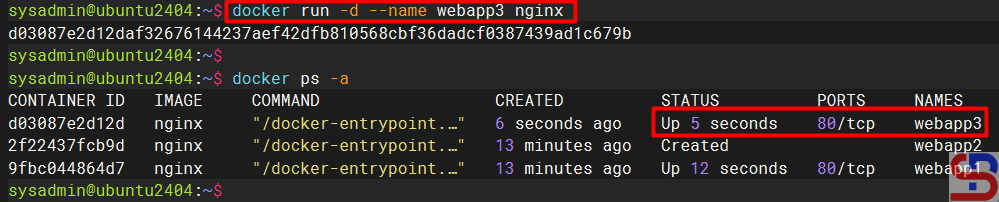
As explained above, if you want to run a container, you have to download the image first, create a container, and turn on the container (see numbers 2, 4, and 6). There is a command that can summarize the three commands above, using the format below:
docker run -d --namecontainer_id/container_name image_name:tag
where the -d option is to run the container in the background. So if you want to run a container with the name webapp2, which contains the nginx application, then use the command below:
docker run -d --name webapp3 nginx
Run the container
9. Display the size of Docker
To display how large Docker is installed on your server, use the command below:
docker system df
Display the size of Docker
To display a Docker size in detail, use the command below:
docker system df -v
Display the size of the Docker
10. Display logs
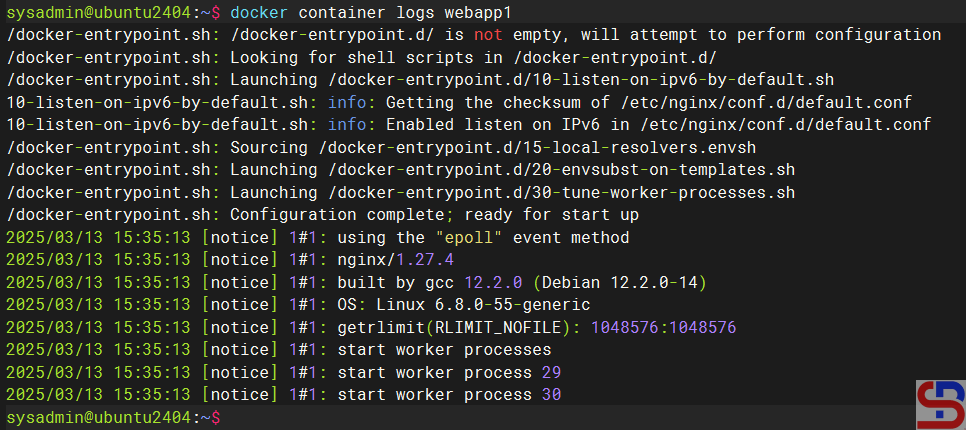
To display logs of the running container to check something, follow the format below:
docker container logscontainer_id/container_name
So, run the command below to check the logs of your container:
docker container logs webapp1
Display logs in the container
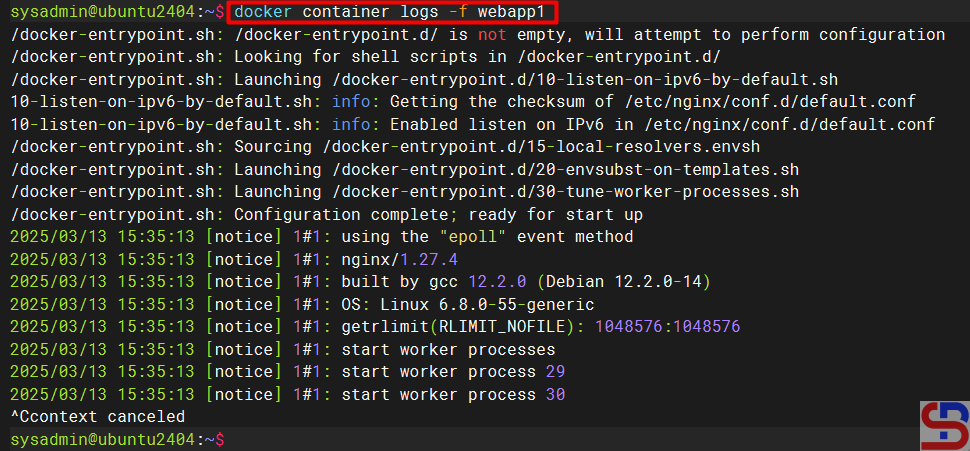
If you want to display real-time logs of the container, give an option -f like in the below command:
docker container logs -f webapp1
Press Ctrl-C to exit the log.
Display real-time logs in the container
11. Inspect the container
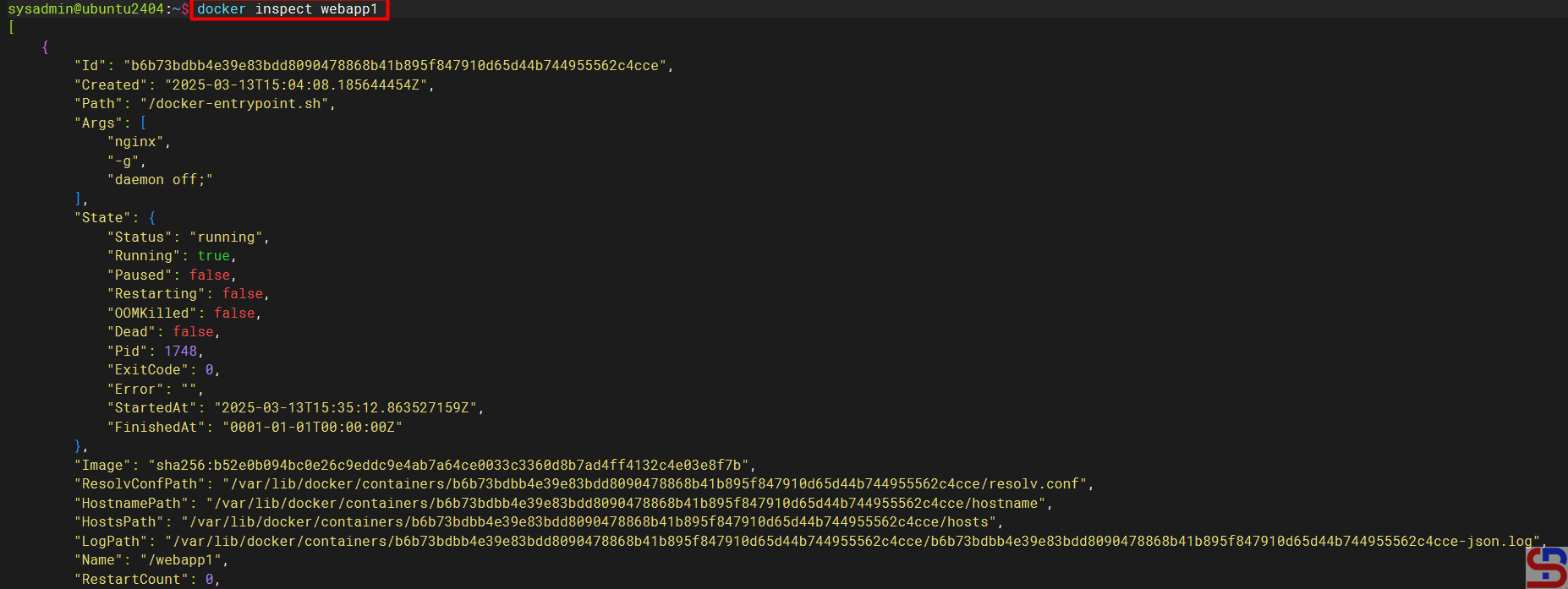
To display detailed information about a container, use the following format:
docker inspectcontainer_name/container_id
So, if you want to see the detailed information about the container that you created before, use the command below:
docker inspect webapp1
Inspect the container
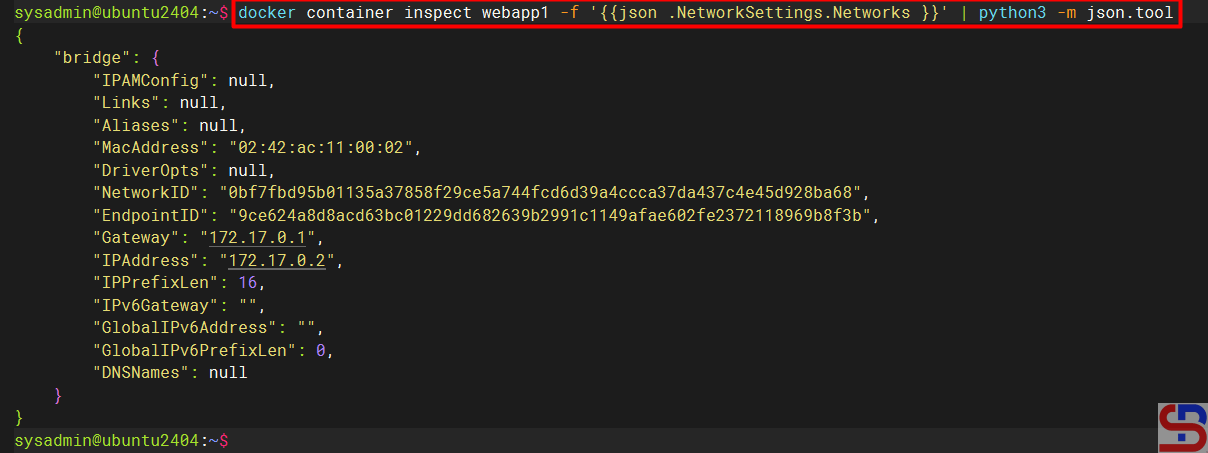
If you only want to display specific items when running the inspect command, use the following format:
For example, if I want to stop my container, then use the command below:
docker container stop webapp1
Stop the container
You can stop all the containers running with the below command:
docker stop webapp1 webapp2
Stop more than one container
Or use the below command to stop all the running containers:
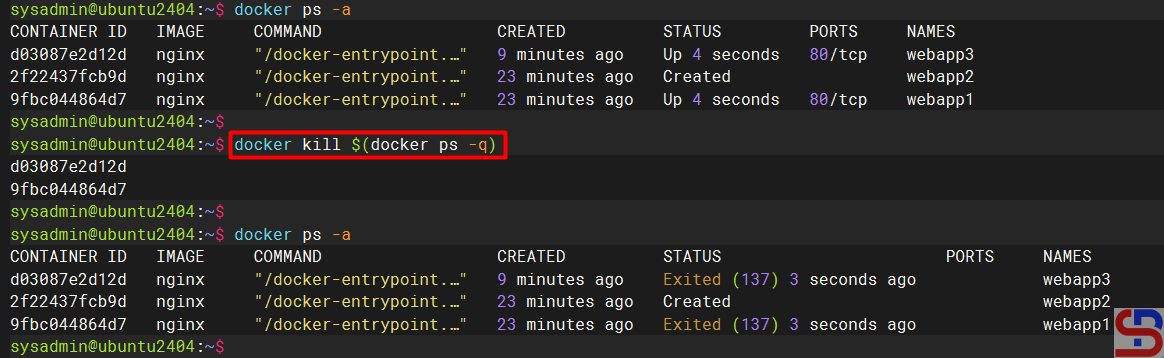
docker kill $(docker ps -q)
Stop all running containers
13. Remove the container(s)
Before you remove the container, you have to stop the container first. To delete a container that’s already turned off, use the format below:
docker container rmcontainer_id/container_name
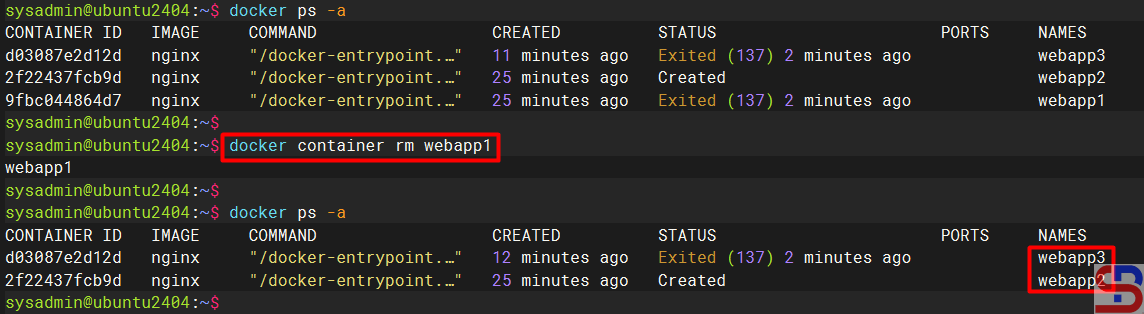
Run the command below to remove the container:
docker container rm webapp1
Delete the container
By default, you can’t remove a container if the container is still running. You can use the command below to delete the container even if the container is still running, but it is not recommended:
docker container rm -f webapp2
Force delete the running container
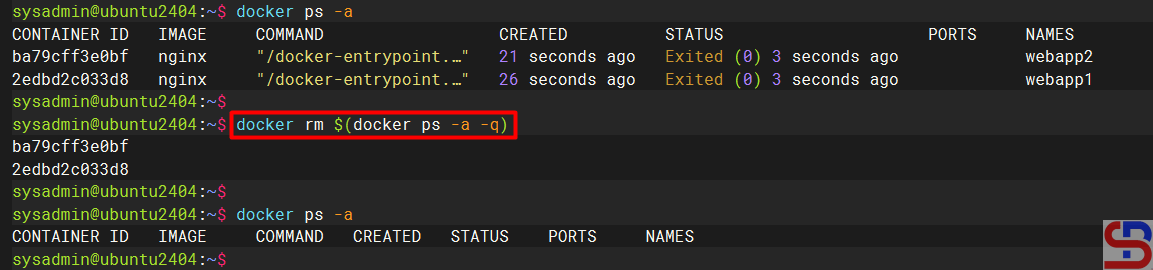
If you have a lot of containers that are no longer used and you don’t want to delete them one by one, you can use the command below to delete all the unused containers:
docker rm $(docker ps -a -q)
Delete all the stop containers
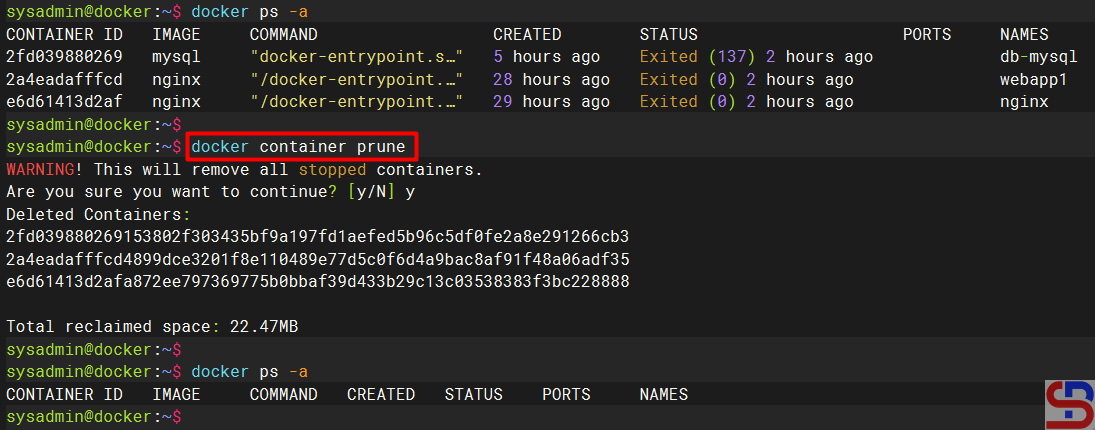
You can also use the command below to delete all the stop containers:
docker container prune
Delete the stop containers using the prune command
14. Delete the image(s)
To delete the Docker image that you have already downloaded, use the format below:
docker image rmimage_name
Run the image below if you want to delete the nginx image:
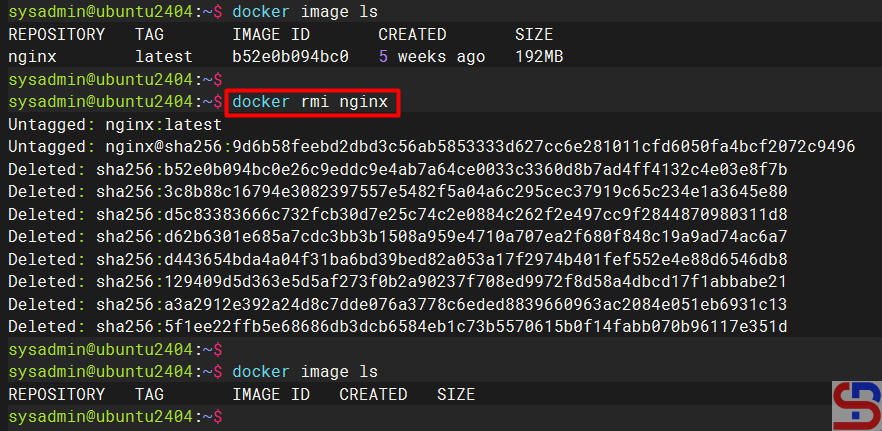
docker image rm nginx
Delete the image
However, you must know that you can’t delete the Docker image if the image is still running in the container. So you must remove the container first before you delete the image. If you want to delete multiple Docker images, use the following format:
docker image rmimage_name1 image_name2 ...
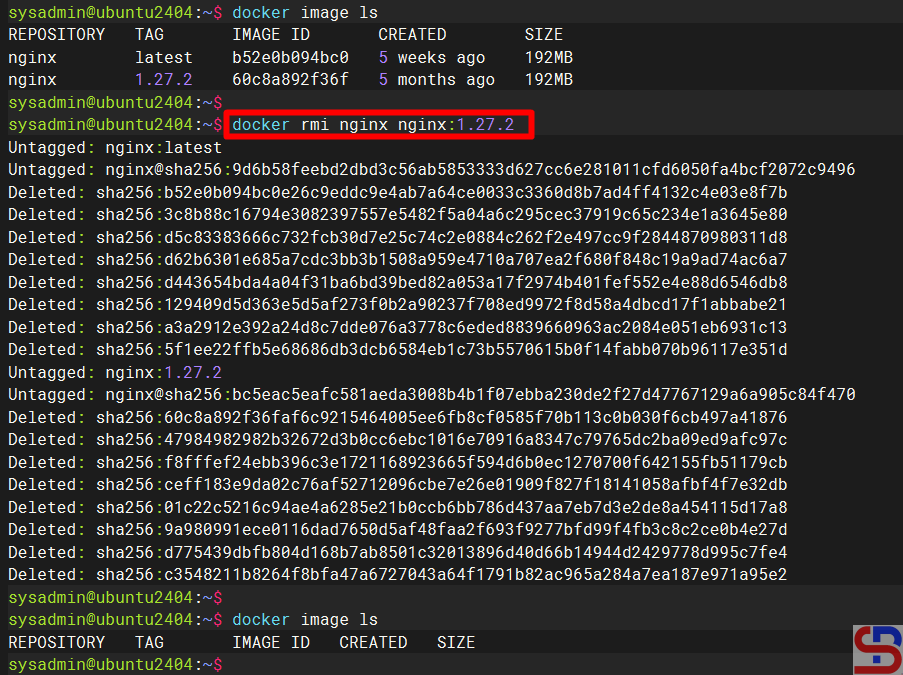
So if you want to delete the nginx image and nginx:1.27.2 at once, then use the command below:
docker image rm nginx nginx:1.27.2
Delete more than one image
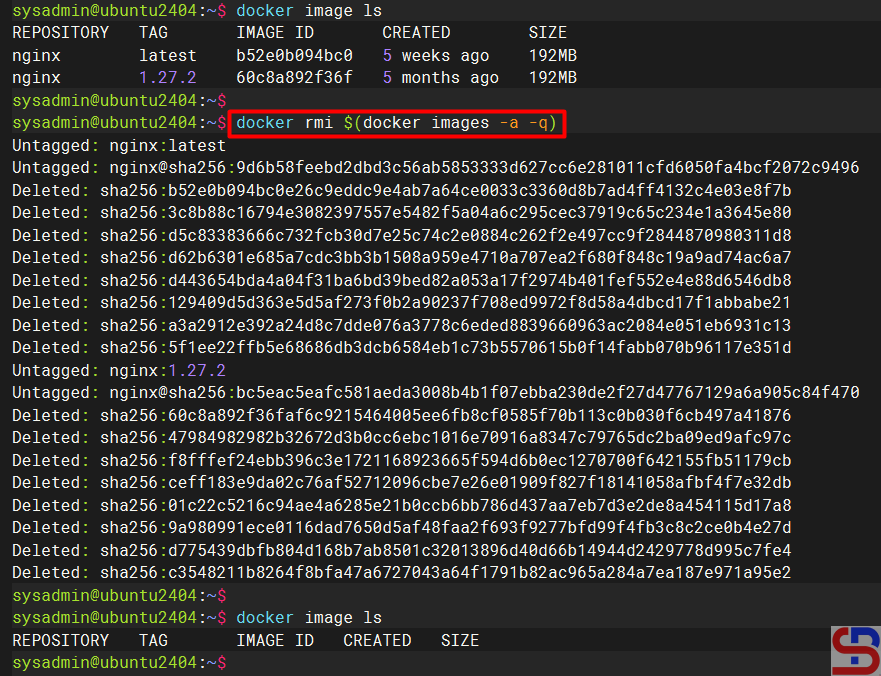
And if you want to delete all the images, you can use the command below:
docker rmi $(docker images -a -q)
Delete all the images
Or, you can use the command below to remove the unused images:
docker image prune -a
Delete all the unused images using the prune command
Note
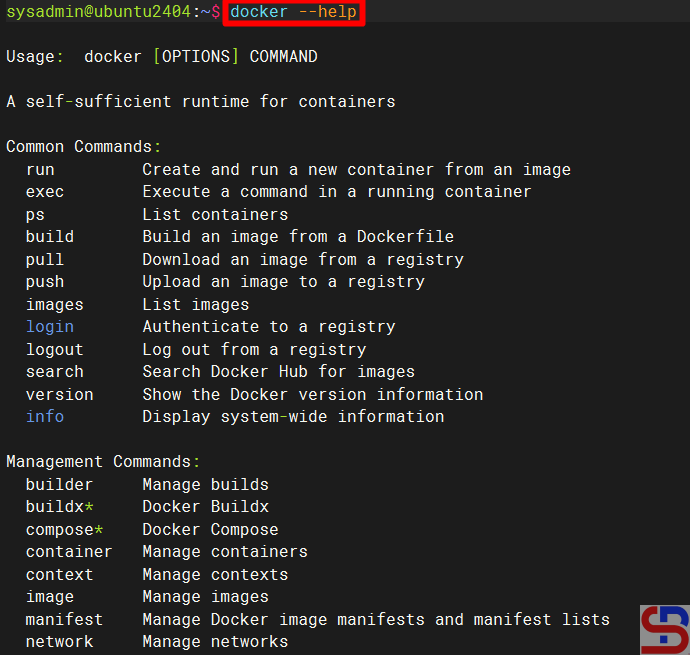
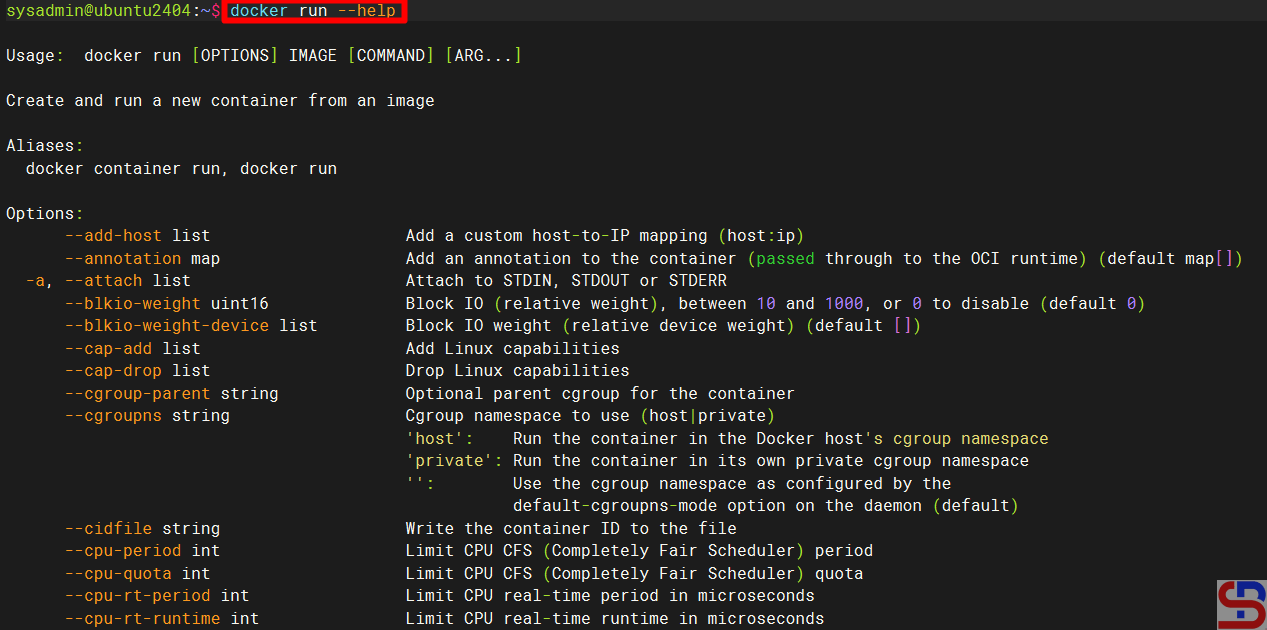
If you forget or don’t know what command to use in Docker, use the following command:
docker --help
Using the docker help command
After that, if you want to know the options in the Docker command, then use the following format:
dockercommand --help
For example, if you want to know the options of the run command in Docker, then type the command below:
docker run --help
Using the docker run help command
You can shorten all the Docker container commands to just the docker command to shorten the typing time. For example, if you want to create a container, you can use the command:
A Docker is a platform for developing, shipping, and running container applications. Docker is like installing a virtual machine application on your laptop or server, whether it’s VirtualBox, VMWare, or Xen, so you can test various operating systems or applications on it without putting your laptop or server in danger.
Problem
How to install Docker on the Linux server?
Solution
A. Docker summary
The key differentiator between containers and virtual machines is that virtual machines virtualize an entire machine down to the hardware layers, and containers only virtualize software layers above the operating system level. Take a look at the image below to make the difference between virtual machines and Docker clearer:
Comparison of Docker and Virtual Machine Architecture (image credit from atlassian.com)
The table below shows the comparison between virtual machines and Docker:
Comparison between Docker and virtual machine (Image credit from huawei.com)
Below is a brief explanation of the terms in Docker:
𝗗𝗼𝗰𝗸𝗲𝗿 𝗣𝘂𝗹𝗹: Downloads images from Docker Hub if not locally available
𝗗𝗼𝗰𝗸𝗲𝗿 𝗕𝘂𝗶𝗹𝗱: Creates a local image using a Dockerfile, enabling custom images
𝗗𝗼𝗰𝗸𝗲𝗿 𝗣𝘂𝘀𝗵:Uploads images to Docker Hub, allowing sharing
𝗗𝗼𝗰𝗸𝗲𝗿 𝗥𝘂𝗻: Takes an image to run a container, useful for starting web servers or other applications
𝗗𝗼𝗰𝗸𝗲𝗿 𝗜𝗺𝗮𝗴𝗲: Read-only templates forming the base of containers, including all application dependencies
𝗗𝗼𝗰𝗸𝗲𝗿 𝗖𝗹𝗶𝗲𝗻𝘁: Interacts with Docker, sending instructions to the Docker daemon to execute tasks
𝗗𝗼𝗰𝗸𝗲𝗿 Daemon: Handles all requests, including building, running, and distributing containers
𝗗𝗼𝗰𝗸𝗲𝗿 𝗖𝗼𝗻𝘁𝗮𝗶𝗻𝗲𝗿𝘀: Include everything needed to run an application, such as code, libraries, and configurations
𝗗𝗼𝗰𝗸𝗲𝗿 𝗥𝗲𝗴𝗶𝘀𝘁𝗿𝘆: Stores Docker images, with Docker Hub as a public registry and the option to create private ones
The image below is a picture of how the Docker works:
To see the version of Docker you installed, use the command below:
docker info
Running the docker info command
D. Test the application in Docker
After that, to see whether Docker is running well on the server, use the command below to run the hello-world container on your server:
docker run hello-world
If you have got the error like the image below:
Error when running the docker run command
ERROR: permission denied while trying to connect to the Docker daemon socket at unix:///var/run/docker.sock: Get “http://%2Fvar%2Frun%2Fdocker.sock/v1.47/info”: dial unix /var/run/docker.sock: connect: permission denied
Then you have to run the following command:
sudo usermod -aG docker $USER
Log out of your server and log in again. After that, you should be able to run the Docker commands like in the image below:
Test the Docker run command
That way, your Docker application is ready to use.
Note
You don’t have to use Docker to create and run containers, but you can use other applications such as podman, buildah, cri-o, etc. However, Docker is the most popular at the moment. Also, the terms and workings of various container applications are almost the same, so if you understand the terms and workings of Docker, then you will also understand the terms and workings of other container applications. To learn about basic commands in Docker, go to this page.