How to Replace a String in Multiple Files in a Linux Folder?
written by sysadmin | 17 January 2026
I want to replace a string that is in multiple files in a Linux folder.
Problem
How to replace a string in multiple files in a Linux folder?
Solution
For example, I want to search for the database.php word scattered across multiple PHP files in a folder, and I use the Linux command below:
grep -R database.php *
Find the string in multiple folders
In the image above, the word is scattered across multiple Linux files and in different Linux folders. So that you don’t go into the file that is in a different folder one by one and then change the word database.php, for example, to config.php manually, but you can run the command below:
find . -type f -name "*.php" -exec sed -i 's/database\.php/config.php/g' {} +
which results in the image below:
Replace the string in multiple folders
In the image above, you can see that the word has been successfully changed to config.php, which is not found when you search for database.php. If you just change the database.php word to config.php in a folder, as shown in the image below:
Find the string in a folder
You can use the format below to replace the word:
sed -i's/old_word/new_word/g' filename
So you can run the command below to change the word database.conf to config.php
sed -i 's/database\.php/config.php/g' *.php
So it will look like the image below:
Replace the string in a folder
In the image above, you can see that the string database.php has been changed to config.php.
Note
If you’re still unsure about running the two commands above to change a word scattered across multiple files, you can preview the results you expect. For example, if you want to preview the results first before you permanently change the changes in a folder, then you can run the command below:
sed 's/database\.php/config.php/g' *.php | grep database.php
and the result will be as shown in the image below:
Preview the result
And if you want to automatically back up when changing a string in multiple files, then use the command below:
sed -i.bak 's/database\.php/config.php/g' *.php
Then the result will be as shown in the image below:
Back up the file(s) automatically
In the image, you can see that files that have the word database.php are automatically backed up to files with the .bak extension.
How to Backup And Restore Uptime Kuma Database in Docker?
written by sysadmin | 17 January 2026
The previous article explained how to install Uptime Kuma using Docker on Linux. This article will explain how to back up and restore the Kuma uptime database in Docker.
Problem
How to back up and restore the Uptime Kuma database in Docker?
Solution
Below are the steps to back up and restore the Uptime Kuma database in Docker:
A. Database SQLite
Here is the method to back up and restore a SQLite database in Docker:
1. Backup database
If you want to back up the Uptime Kuma database in Docker, you can run the command below to get the Kuma database on your host:
docker run --rm
  -v uptime-kuma:/data
  -v $(pwd):/backup
  alpine tar czf /backup/kuma-backup.tar.gz /data
After that, look in your current folder; the database should appear like the image below:
Back up the uptime Kuma database
However, if you want to back up automatically, then follow the steps below:
a. Create a backup folder on the host
Run the commands below to create a backup folder in the host:
Before you restore the database, make sure the container has been running first. If you want to restore the Uptime Kuma database that you have previously backed up, then you can run the command below on the host:
docker run --rm \
  -v uptime-kuma:/data \
  -v /opt/kuma-backup:/backup \
  alpine \
  tar xzf /backup/kuma-backup-YYYYMMDD-HHMMSS.tar.gz -C /
If the restore process is complete, the hosts that were monitored in the previous container should be monitored again by the new container.
B. Database MariaDB
Here is the method to back up and restore a MariaDB database in Docker:
1. Backup database
If you want to back up the MariaDB database in Docker, you can run the command below to get the database on your host:
And you can insert the script above in the crontab.
2. Restore database
Before you restore the database, make sure the container has been running first. If you want to restore the database that you have previously backed up, then you can run the command below on the host:
How to Display All Crontabs Running Using a Bash Script?
written by sysadmin | 17 January 2026
I would like to know who is running crontab on the Linux server.
Problem
How to display all crontabs running using a Bash script?
Solution
By default, run the command below if you want to display the crontab command:
crontab -l
However, if you want to display another user, for example, user john, use the command below:
sudo crontab -l -u john
If you want to see all users running crontab, then you can run the command below:
Ubuntu/Debian
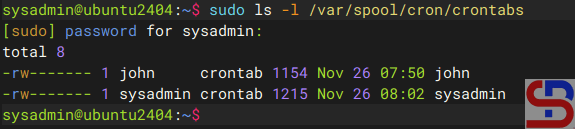
ls -l /var/spool/cron/crontabs
Displays all users running crontab
RockyLinux/AlmaLinux/RHEL/CentOS
ls -l /var/spool/cron/
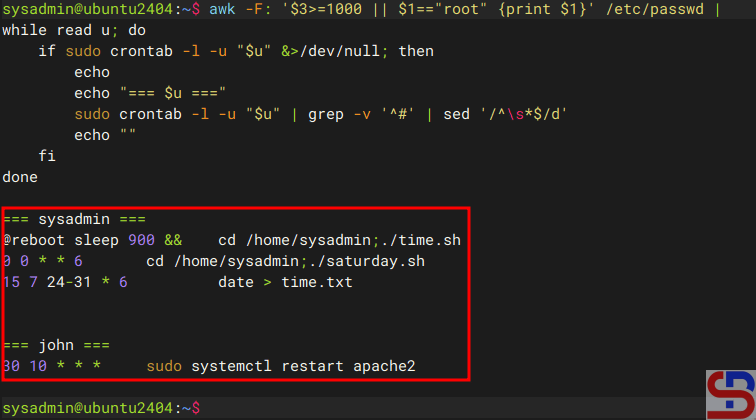
Use the command below if you want to see all users running crontab and display each user’s crontab at the same time:
awk -F: '$3>=1000 || $1=="root" {print $1}' /etc/passwd |
while read u; do
    if sudo crontab -l -u "$u" &>/dev/null; then
        echo
        echo "=== $u ==="
        sudo crontab -l -u "$u" | grep -v '^#' | sed '/^\s*$/d'
        echo ""
    fi
done
Displays all users running crontab and their script(s) on crontab
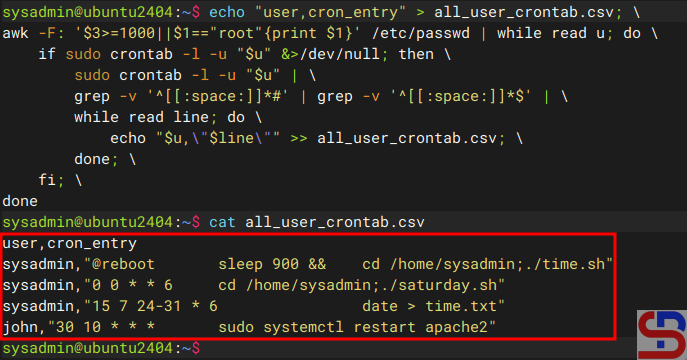
If you want the result of the above command to be entered as a CSV file, then run the command below:
echo "user,cron_entry" > all_user_crontab.csv; \
awk -F: '$3>=1000||$1=="root"{print $1}' /etc/passwd | while read u; do \
    if sudo crontab -l -u "$u" &>/dev/null; then \
        sudo crontab -l -u "$u" | \
        grep -v '^[[:space:]]*#' | grep -v '^[[:space:]]*$' | \
        while read line; do \
            echo "$u,\"$line\"" >> all_user_crontab.csv; \
        done; \
    fi; \
done
Run the command to display all the users and their crontab, and save it to the CSV file
However, if you want to display all crontabs, whether run by the user or the Linux system, then you can use the command below:
#!/bin/bash

clean_output() {
    grep -v '^[[:space:]]*#' | grep -v '^[[:space:]]*$'
}

echo "=== SYSTEM CRONTABS ==="
echo ""

# Main crontab system
if [[ -f /etc/crontab ]]; then
    echo "--- /etc/crontab ---"
    clean_output < /etc/crontab
    echo ""
fi

# Cron.d directory
if [[ -d /etc/cron.d ]]; then
    echo "--- /etc/cron.d/ ---"
    for f in /etc/cron.d/*; do
        [[ -f "$f" ]] || continue
        echo "File: $f"
        clean_output < "$f"
        echo ""
    done
fi

# Cron.daily, cron.hourly, cron.weekly, cron.monthly
for dir in daily hourly weekly monthly; do
    path="/etc/cron.$dir"
    if [[ -d "$path" ]]; then
        echo "--- /etc/cron.$dir/ ---"
        # List script names only (normally no '#' inside)
        ls -1 "$path"
        echo ""
    fi
done

echo "=== USER CRONTABS ==="
echo ""

# All user in /etc/passwd
for user in $(cut -f1 -d: /etc/passwd); do
    uid=$(id -u "$user" 2>/dev/null)
    [[ $? -ne 0 ]] && continue
    if [[ $uid -lt 1000 && $user != "root" ]]; then
        continue
    fi

    crontab_content=$(sudo crontab -l -u "$user" 2>/dev/null | clean_output)

    if [[ -n "$crontab_content" ]]; then
        echo "--- Crontab for user: $user ---"
        echo "$crontab_content"
        echo ""
    fi
done
And use the script below if you want to insert the result into a CSV file:
#!/bin/bash

OUTPUT="cron_inventory.csv"

echo "type,owner,source,cron_entry" > "$OUTPUT"

filter_clean() {
    grep -v '^[[:space:]]*#' | grep -v '^[[:space:]]*$'
}

#############################################
# SYSTEM CRONTAB
#############################################

if [[ -f /etc/crontab ]]; then
    cat /etc/crontab | filter_clean | while read line; do
        echo "system,root,/etc/crontab,\"$line\"" >> "$OUTPUT"
    done
fi

#############################################
# /etc/cron.d
#############################################

if [[ -d /etc/cron.d ]]; then
    for file in /etc/cron.d/*; do
        [[ -f "$file" ]] || continue
        cat "$file" | filter_clean | while read line; do
            echo "system,root,$file,\"$line\"" >> "$OUTPUT"
        done
    done
fi

#############################################
# cron.daily / cron.hourly / cron.weekly / cron.monthly
#############################################

for dir in daily hourly weekly monthly; do
    path="/etc/cron.$dir"
    if [[ -d "$path" ]]; then
        for script in "$path"/*; do
            [[ -f "$script" ]] || continue
            echo "system,root,$path,$(basename "$script")" >> "$OUTPUT"
        done
    fi
done

#############################################
# USER CRONTABS
#############################################

for user in $(cut -f1 -d: /etc/passwd); do
    uid=$(id -u "$user" 2>/dev/null)
    [[ $? -ne 0 ]] && continue
    if [[ $uid -lt 1000 && $user != "root" ]]; then
        continue
    fi

    crontab -l -u "$user" 2>/dev/null | filter_clean | while read line; do
        echo "user,$user,crontab,\"$line\"" >> "$OUTPUT"
    done
done

echo "== CSV generated: $OUTPUT =="
Note
By displaying users who use crontab on a Linux server, you can save your time and effort investigating if there are commands running at a certain time on that server.
How to Convert the Comma(s) into the Space(s) on a Linux File?
written by sysadmin | 17 January 2026
The previous article explained how to convert spaces into commas in a Linux file. This article will explain how to convert a comma into a space on Linux.
Problem
How to convert the comma(s) into the space(s) on a Linux file?
Solution
For example, you have a test.txt file as shown below:
The test.txt file
So that the file is a comma sign into a space, then use the command below:
cat test.txt | tr ',' ' '
So the results will be like the picture below:
Convert the comma to a space using the tr command
You can also use the command below to convert the comma(s) to the space(s):
Convert the comma to a space using the sed command
Note
If your file uses other symbols besides the comma symbol, for example, the symbol of the colon(:), just change the comma into a colon on the two commands above. For example, if you use the tr command, then use the command below:
How to Convert the Space(s) to a Comma in a Linux File?
written by sysadmin | 17 January 2026
I want to convert the space(s) in a Linux file to a comma.
Problem
How to convert the space(s) to a comma in a Linux file?
Solution
For example, you have a test.txt file as shown in the image below:
The test.txt file
Use the command below if you want to convert the space to a comma:
tr -s '[:blank:]' ',' < test.txt
So that your file will convert to the image below:
Convert a space to a comma
Not only that, the command can also be used if you have a file that has irregular spaces as shown in the image below:
Convert an irregular space to a comma
Even the above command can also convert the free space created using the Tab key, as shown in the image below:
Convert a Tab space to a comma
You can also use the below command in addition to the above command to make the space(s) in a Linux file a comma:
sed 's/\s\+/,/g' < test.txt
Convert the space(s) using the sed command
Note
If you want the free space to convert to something other than a comma, for example, to a colon (:), Then convert the comma in both commands above to become a colon as in the command below:
The previous article explained how to convert a column into a row in a Linux file. This article will explain how to convert a row into a column.
Problem
How to convert a row to a column in a Linux file?
Solution
Suppose you have a test.txt file as below:
The test.txt file
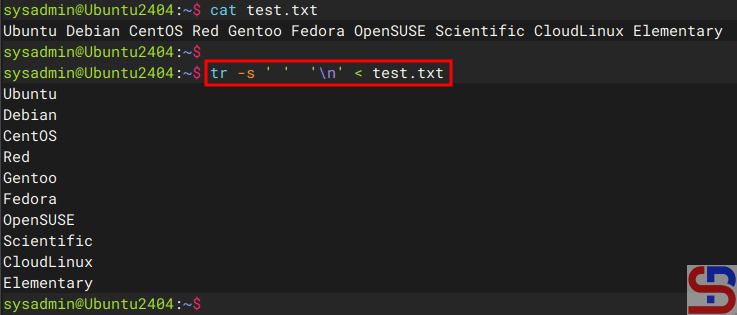
Use the command below to convert the file into a column:
tr -s ' ' '\n' < test.txt
Then the file will become like the image below:
Using the tr command
Or you can use the command below:
fmt -1 test.txt
so that the file will be as shown in the image below:
Using the fmt command
Note
If you want to enter the results in a file, for example, the result.txt file, then you can use the standard output redirection or stdout on Linux. For example, you use the tr command to change the file, so you can use the command below:
tr -s ' ' '\n' < test.txt > result.txt
Then the results of these changes are in the result.txt file as shown below:
Using the redirection to save the result
Likewise, by using another command above, you can simply add stdout at the end of the command.
How to Convert a Column into a Row in a Linux File?
written by sysadmin | 17 January 2026
I want to convert a file containing a column into a row in a Linux file.
Problem
How to convert a column into a row in a Linux file?
Solution
For your information, columns are vertical, or what you arrange from top to bottom, while rows are horizontal, or what you can arrange from left to right. Consider the picture below to distinguish between columns and rows:
Columns vs rows
For example, you have a test.txt file as shown below:
If you want to enter the results in a file, for example, the result.txt file, then you can use the standard output redirection or stdout on Linux. For example, you use the awk command to change the file, so you can use the command below: