Swap space is a portion of hard drive storage that has been set aside for the operating system to temporarily store data that it can no longer hold in RAM. So, if the system needs more memory resources and the RAM is full, inactive pages in memory are moved to the swap space. Swap space can be a dedicated swap partition (recommended), a swap file, or a combination of swap partitions and swap files. You can use a swap file as a swap space if your server does not create a partition when installing Linux.
Problem
How to create a swap file as a swap space?
Solution
First, you have to check the type of filesystem that you use by running the command below:
df -T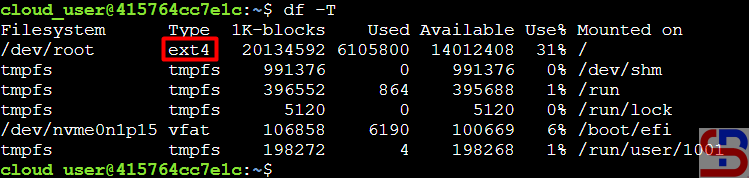
If you use the ext4 or xfs filesystem, you can use the steps below in this article. Type the command below to see whether the swap is already on your Linux server or not:
cat /proc/swaps
If the above command results are as shown below, then your server hasn’t used a swap:

After that, check how much hard disk size on your Linux server and determine the size of the swap file you need. You should know that the size of the swap file will reduce the size of your hard disk. Generally, the swap size is twice the size of the RAM server, so if your Linux server RAM is 1 GB, the swap size is 2 GB. In this article, we use 2GB for the swap file. Type the command below to create a 2GB swap file:
sudo fallocate -l 2G /swapfile
ls -lh /swapfile
Then give the command below so that the users can not read the swap file:
sudo chmod 0600 /swapfile
Set up the swap file with the command:
sudo mkswap /swapfile
Enable the new swap space for paging and swapping by typing the following:
sudo swapon /swapfile
And then run this command to verify:
sudo swapon --show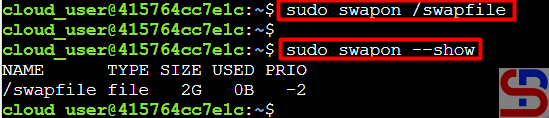
You can see if the swap space is available on your Linux server after creating a swap file:

To make the swap file permanent, you have to add the swap file to the fstab file using the command below:
echo '/swapfile none swap sw 0 0' | sudo tee -a /etc/fstab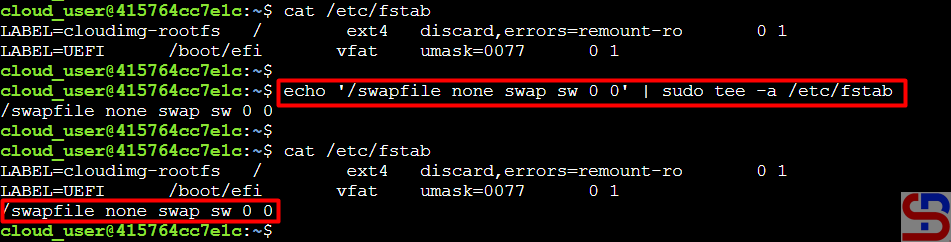
If you want, you can reboot the server to see whether the swap is still there after you reboot the server.
Note
You can determine how often your Linux system exchanges data from RAM to the swap space using swappiness parameters by giving a value between 0 to 100, representing the percentage. If you give a value that is close to zero, the Linux system will not write data to the disk unless it is necessary. But if you give a value that is close to 100, the Linux system will write more data into the swap to keep more free RAM space. By default, the Linux system gives a value of 60 in the file/proc/sys/vm/swappiness, and if you want to change the value, for example, to 20, then you can change it using the command below:
sudo sysctl vm.swappiness=20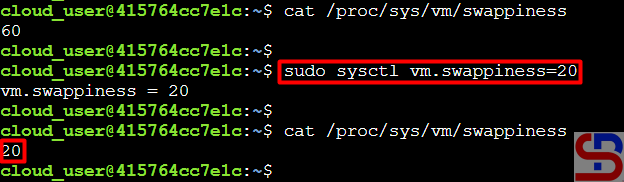
But if you reboot the server, the swappiness value will return to the initial value. So if you want the swappiness value to remain, add the script below to the /etc/sysctl.conf file:
vm.swappiness=20
References
digitalocean.com
docs.redhat.com
docs.oracle.com

