How to Turn Off Windows OS in One Click?
By default, if you want to turn off the Windows OS on a PC, laptop, or server, there are usually three stages to do that. You will press the Start button first, then press the Power button, and after that select the Shut down option. But you can turn off the Windows OS just by pressing one click.
Problem
How to turn off windows OS in one click?
Solution
The following steps to turn off the Windows OS in one click:
1. Create a shortcut
Go to the desktop, then right click and select New – Shortcut as shown below:

2. Write a script
Write the script below:
shutdown.exe -s -t 00 -f
In the section as shown below:
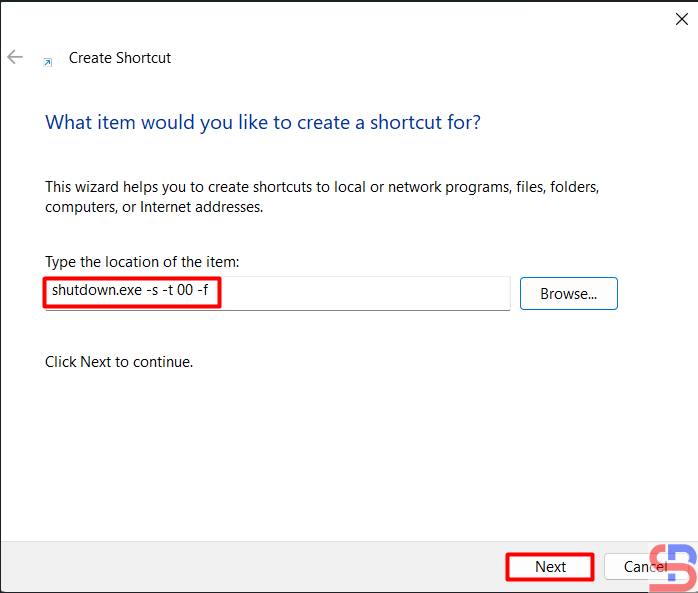
Then press the Next button, and then there will be a display as below:
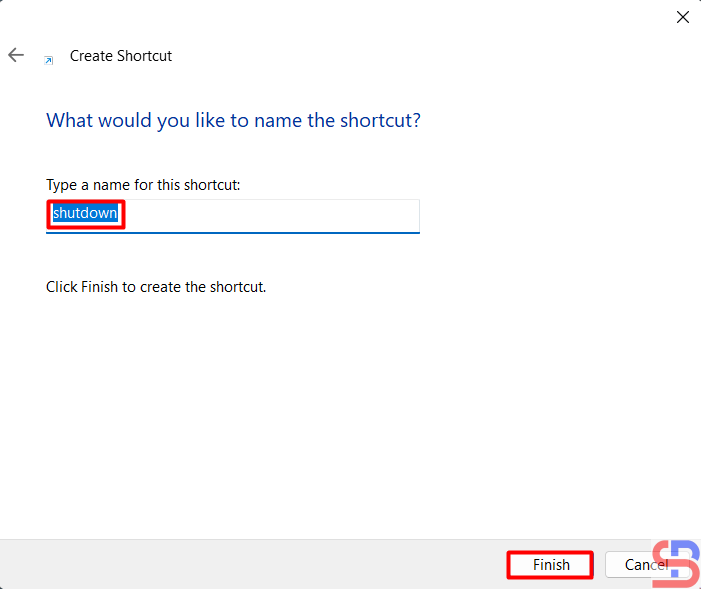
You can change the name for the shortcut, and after that, press the Finish button, then there will be a display as below:
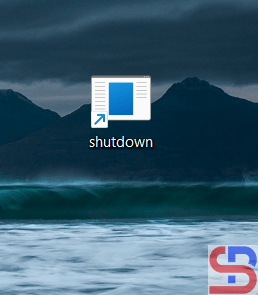
3. Change the icon
Right-click on the icon, select Properties as shown below:

Then click Change Icon, there will be a display as below:

There will be a display as below:
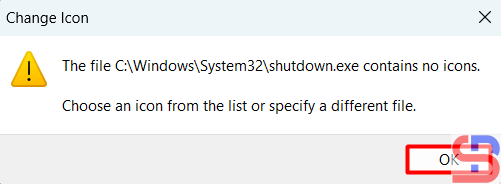
Click the OK button and after that,, you can choose the icon you like, but I chose the icon in the red box, press OK, then there will be a display as below:

The shortcut icon will change to what you chose in the previous section. After that, press OK, the shortcut icon will change the image according to what you choose.

4. Move the icon
Move the icon to the taskbar by dragging it as shown below:

After the icon has been moved to the taskbar, you can delete the icon from the desktop.
5. Test the result
After that, try clicking the icon in the taskbar, and your Windows OS should do the shutdown process.
Note
In the second part of the script writing, the time used is 0, so there is no time lag after you click the icon with the shutdown process. You can change it to the time you want, for example, to 5 seconds, so that the script becomes like below:
shutdown.exe -s -t 5 -f
Then there will be a break of 5 seconds after you finish clicking the icon and the shutdown process.