How to Reduce the Size of a File on Linux?
One that often causes the hard drive on the Linux device to decrease its size is the number of very large files that are usually logged by an application. Therefore, as a Sysadmin, you must maintain and supervise the files so that the size is not too large. This article will explain how to reduce the size of a file on Linux.
Problem
How to reduce the size of a file on Linux?
Solution
There are several methods to reduce a file in Linux, and assume that you have a log.txt file measuring 4 GB.
A. Up to 0 Bytes
There are several methods to reduce the file size to 0 bytes:
1. Using the colon command
Use the below command to reduce the file to 0 bytes:
: > log.txt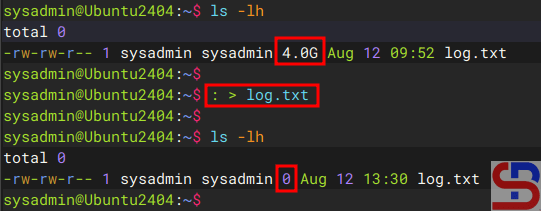
2. Using the cat command
To decrease the file to 0 bytes, use the command below:
cat /dev/null > log.txt
3. Using the echo command
Use the command below to reduce the file size to zero bytes.:
echo -n > log.txt
4. Using the redirection command
To get the file down to zero bytes, use the command below:
> log.txt
5. Using the truncate command
To shrink the file to zero bytes, use the command below:
truncate -s 0 log.txt
B. Up to 1 Byte
To reduce the file size to 1 byte, use the command below:
echo "" > log.txt
C. Reduce the file size to a certain size
To reduce the file size to a certain size (for example, make the file size 100 M), use the following command:
truncate -s 100M log.txt
Note
By using the command above, you can reduce the size of a file, causing the size of the hard disk on the Linux device to increase. And if you experience failure in reducing the file size, then usually the problem is with the write permissions on the file. Use the command below so that the file gets write permission to reduce the file size:
sudo sh -c '> filename'
Change the filename to your real filename. After that, run one of the commands above, and the file size should be reduced.