How to Open and Close a Port in Ubuntu?
The previous article explained how to open and close ports in RockyLinux/AlmaLinux/CentOS. This article will explain how to open and close a port in Ubuntu.
Problem
How to open and close a port in Ubuntu?
Solution
A. Check the firewall
By default, Ubuntu and Debian use the UFW or Uncomplicated Firewall application as the default firewall, and it is installed automatically when you install Ubuntu/Debian. If the firewall is not installed on your Ubuntu/Debian distro, use the command below:
sudo apt install ufw
To see whether ufw is running or not, use the command below:
sudo ufw status
From the image above, you can see that the application is not yet active. To enable it, type the command below:
sudo ufw enable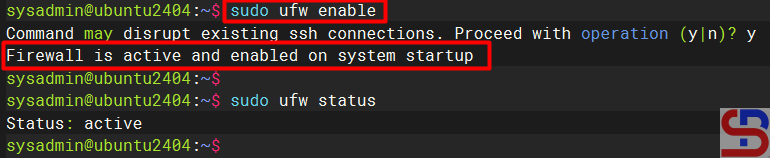
If you want to see the complete current status of the firewall, use the command below:
sudo ufw status verbose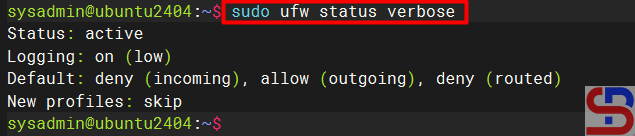
By default, the firewall only opens the OpenSSH service, which you can view by using the command below:
sudo ufw app list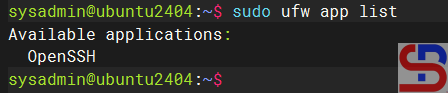
B. Open the port
To open a port, for example, port 43210, use the command below:
sudo ufw allow 43210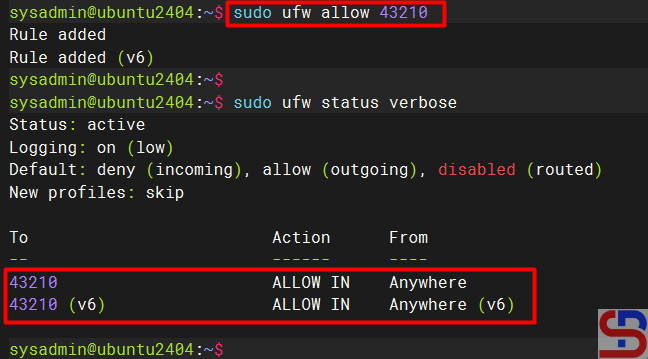
To open a port range, for example, from port numbers 45000 to 45010 with the TCP protocol, use the command below:
sudo ufw allow 45000:45010/tcp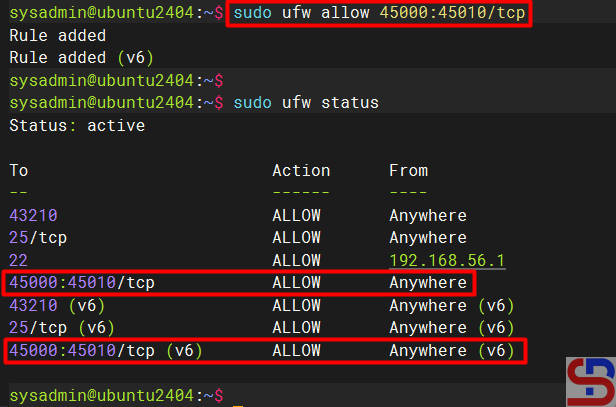
C. Open the service
You can see from the image above that port 43210 has been opened on your Ubuntu server. You can also use the service name when opening a port. For example, if you want to open the SMTP service on your Ubuntu server, then use the command below:
sudo ufw allow smtp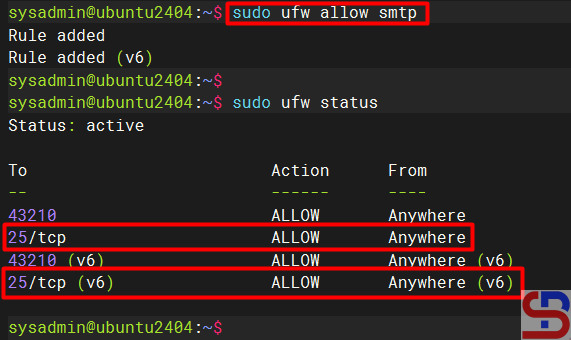
D. Open the port from a certain IP
If you want to open a port from a certain IP, for example, you only allow IP 192.168.56.1 to access port 22 on this server, then use the command below:
sudo ufw allow from 192.168.56.1 to any port 22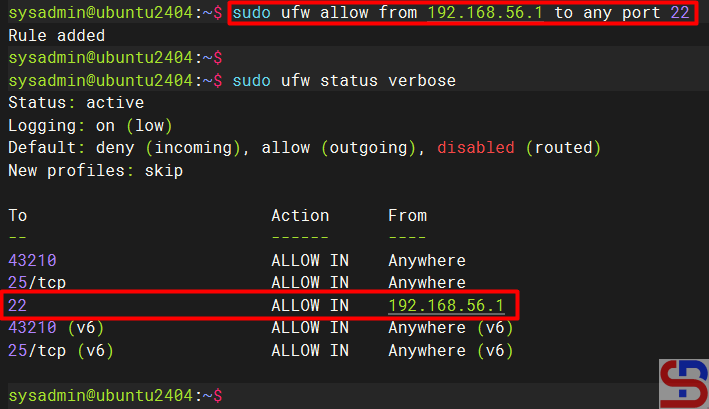
To allow the 192.168.56.0 subnet to the SMTP service, use the command below:
sudo ufw allow from 192.168.56.0/24 to any port 25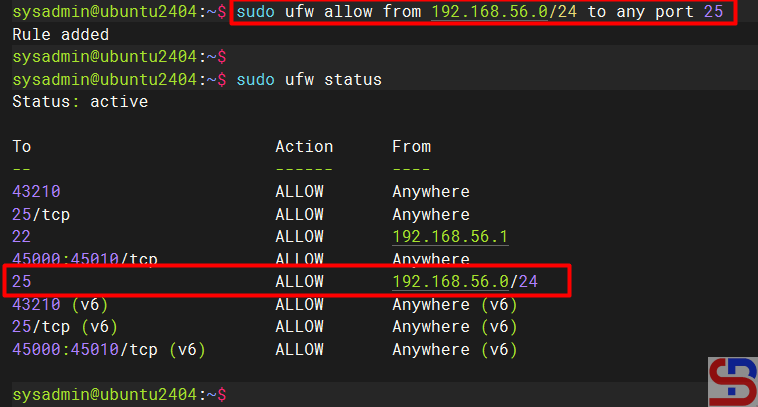
E. Close the port
To close port 25, use the command below:
sudo ufw deny 25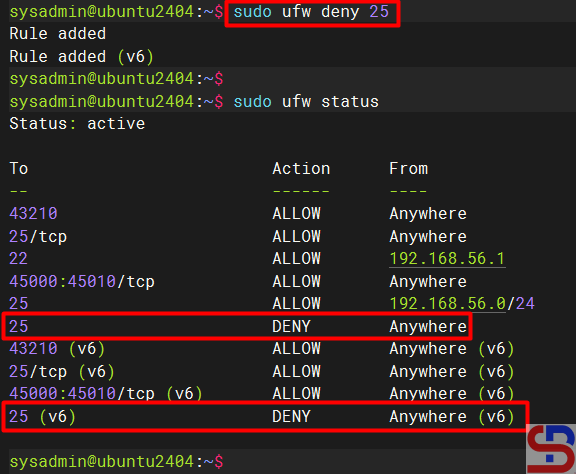
F. Delete the port
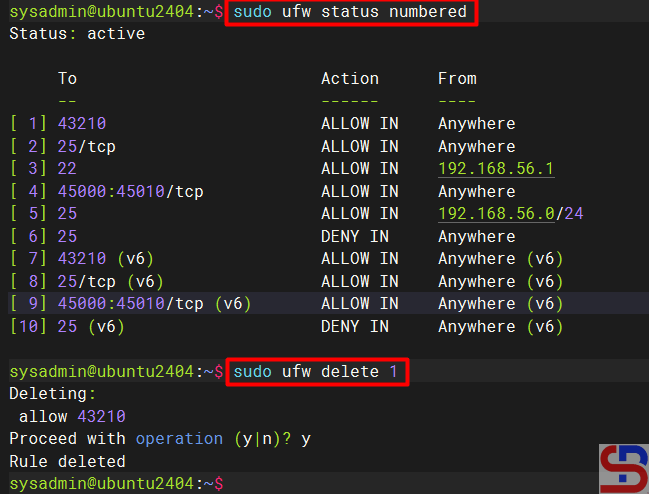
You can also close a port and delete the port that has been opened, for example, port 43210, using the syntax below:
sudo ufw delete number
Note
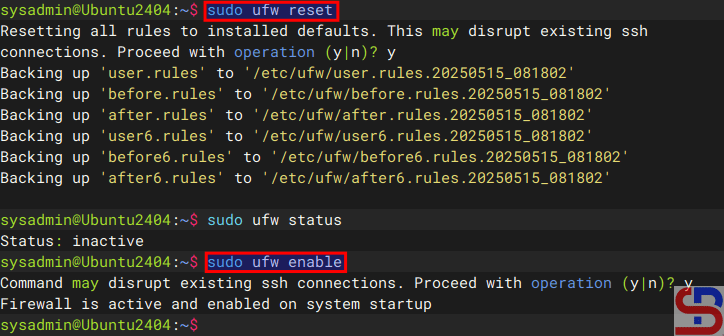
You can remove all the rules in ufw by using the command below:
sudo ufw reset
After that, enable the ufw by using the command below:
sudo ufw enable
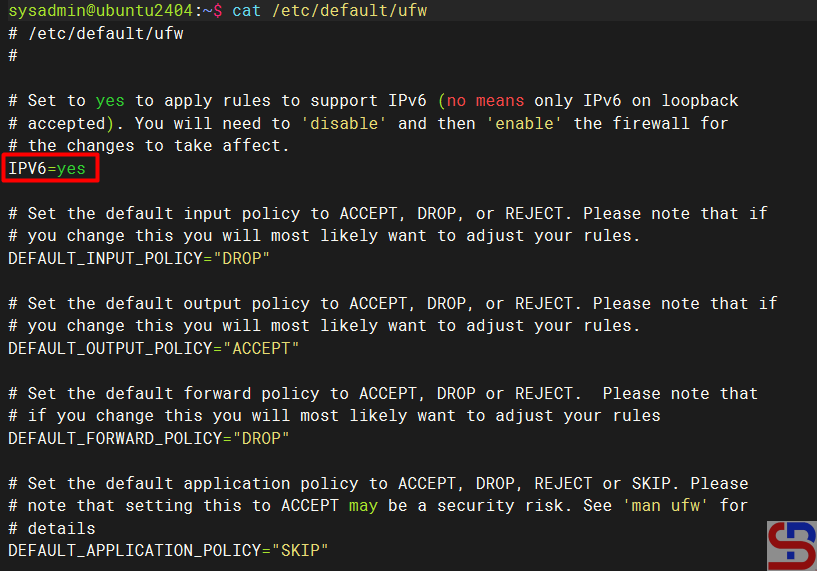
By default, if you open a port, it will automatically open in IPv4 and IPv6, and likewise, if you close the port. To see the UFW settings, open the /etc/default/ufw file.
References
cyberciti.biz
phoenixnap.com
digitalocean.com
help.ubuntu.com
askubuntu.com