How to Move the Partition to a New Partition in the Linux Server?
If you install a Linux server, you will usually install it with only one partition and not separate the other partitions. Problems will arise if one of these partitions uses a large enough hard disk, resulting in you running out of HDD space on your Linux server.
Problem
How to move the partition to a new partition in the Linux server?
Solution
In this article, I use the Ubuntu Server OS, and this article should be applied to any Linux distribution. Currently, the condition of the hard disk on my Ubuntu server is like the image below:

From the image above, the root partition only has a free HDD of 9 percent. After I checked, it turned out that the cause was the /var partition, which took up a lot of hard disk so I want to move the /var partition to the new partition.
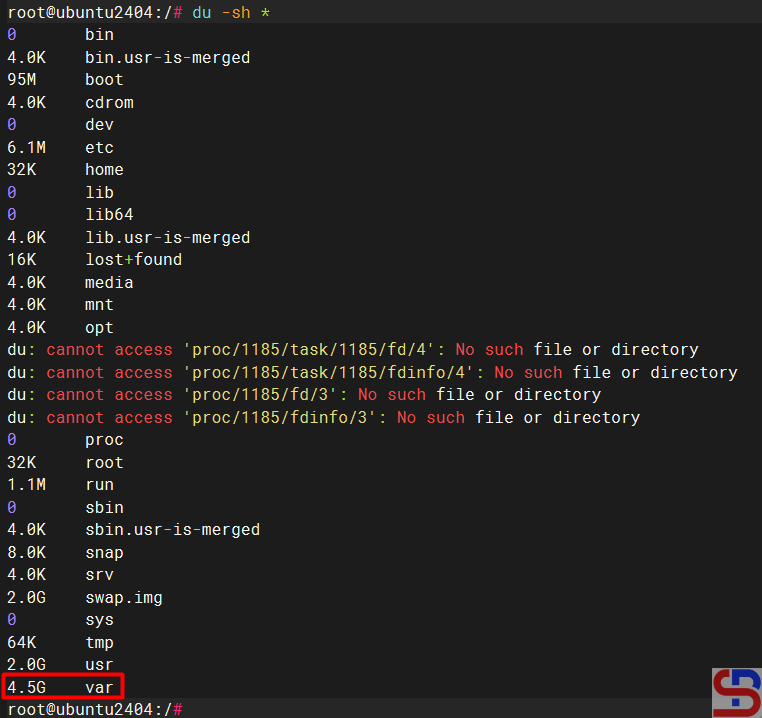
Here are the steps to move the partition to a new partition in the Linux Server:
1. Add a new hard drive
I insert a new 10 GB HDD into my Linux server. After that, I check if the new HDD is detected by Linux using the command:
fdisk -l
From the image above, it can be seen that the new HDD was detected by Linux with a partition in sdb.
2. Create a new partition
Run the command below to create a new partition in Linux (Adjust to the hard disk partition detected on your Linux server after typing the fdisk -l command):
fdisk /dev/sdb
Press the n and p keys, then the number ,1 and enter 2x, then press the w button as seen in the image below:

Then create a filesystem from the new HDD, and I want to use ext4 for the filesystem of the new HDD using the command:
mkfs.ext4 /dev/sdb1
3. Create and mount a new folder
After that, create a new folder using the command:
mkdir /mnt/newvar
Then, mount the new partition to the new folder using the command:
mount /dev/sdb1 /mnt/newvar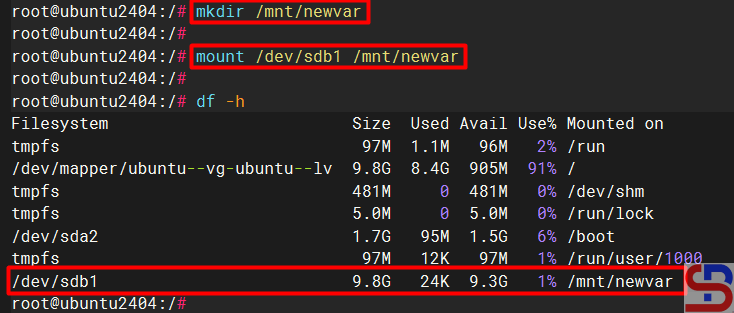
4. Enter maintenance mode
Type the command below:
init 1to enter the rescue mode:

After that, press the Enter button to enter maintenance mode.
5. Copy the folder
Go to the /var folder and copy all the files and folders in the folder into a new folder by typing the following commands:
cd /var
cp -ax * /mnt/newvar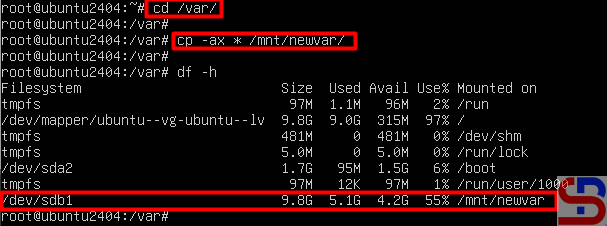
6. Rename the folder
Once the copy process is complete, change the /var folder to the var.old folder and then create a new /var folder using the command:
cd /
mv var var.old
mkdir /var
7. Mount the new folder
Next, do umount on the /sdb1 partition by using the command:
umount /dev/sdb1
And mount the /sdb1 partition to the new /var folder using the command:
mount /dev/sdb1 /var
8. Change the fstab file
Change the /etc/fstab file by adding the following script to the file:
/dev/sdb1 /var ext4 defaults 0 0
9. Restart the server
After that, restart the Linux server and make sure there is no problem when the Linux server reboots.
10. Delete the folder
If the Linux server has finished restarting, then you can delete the var.old folder so that the size of the hard disk of the root partition increases by using the command:
cd /
rm -rf var.old
Note
Reboot the server again to make sure there are no problems after you delete the var.old folder. You can use the steps above when you want to move another folder to a new partition in the Linux server.