How to Manage Networking in Docker?
Docker has a network system to regulate communication between one container and another container, your Docker host(server), and the outside world.
Problem
How to manage networking in Docker?
Solution
Docker provides six network drivers that you can use, as shown in the image below:
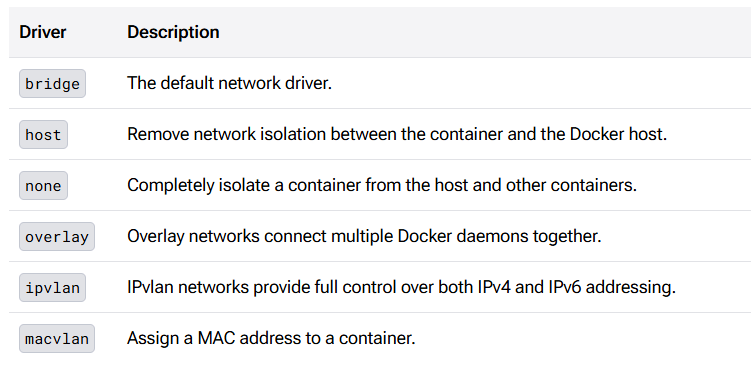
You can see from the image above that the bridge is a default network driver, so if you do not specify a driver, then this type of network is created. To see the types of network drivers on your server, use the command below:
docker network ls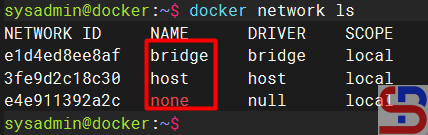
To see the configuration details of each network driver, use the command below:
docker network inspect bridge host none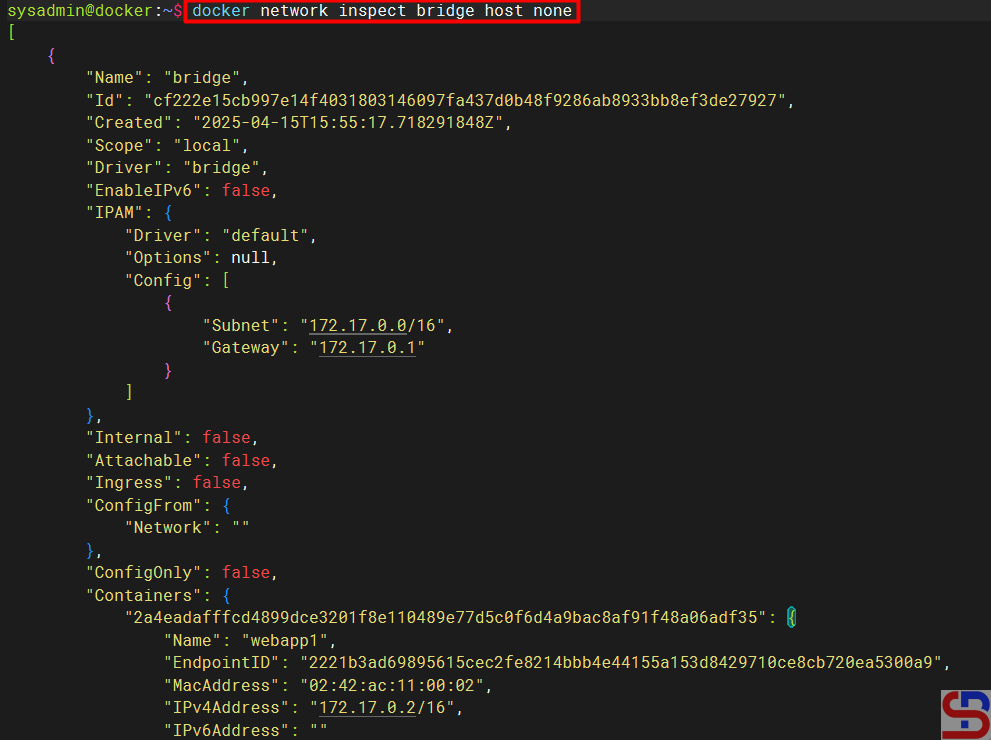
To see the type of driver network used in each container, use the command below:
docker ps -q | xargs docker inspect | jq '[.[] | {Name: .Name[1:], Networks: (.NetworkSettings.Networks | to_entries | map({(.key): .value.Driver}) | add)}]'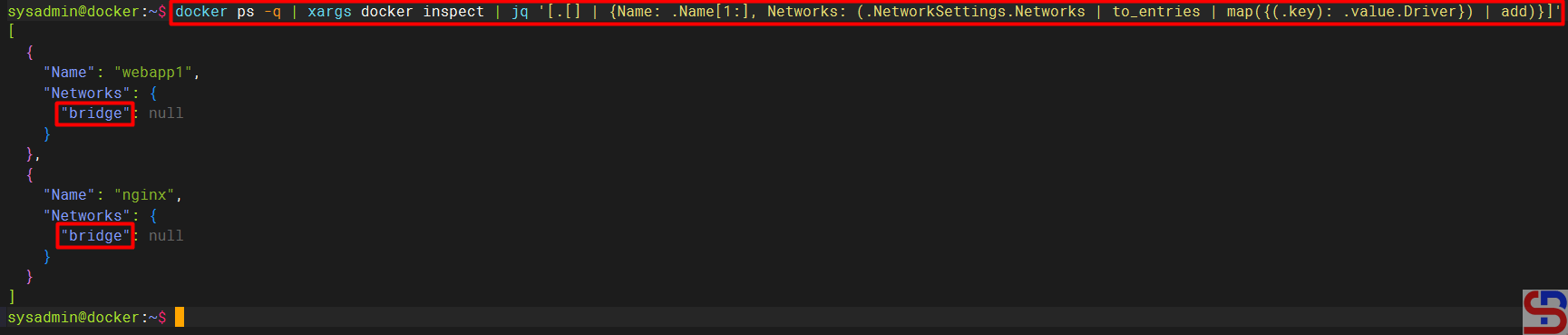
To see the IP of each container, for example, in the nginx container, use the command below:
docker inspect -f '{{range.NetworkSettings.Networks}}{{.IPAddress}}{{end}}' nginx
To communicate between one container with another container, both containers must have the same gateway. For example, you have made two containers, so by default, the two containers will use a network bridge driver so that it has the same gateway. Use the command below to see the two container IPs:
docker ps -q | xargs docker inspect | jq '[.[] | {Name: .Name[1:], IPAddress: .NetworkSettings.IPAddress, Gateway: .NetworkSettings.Gateway}]'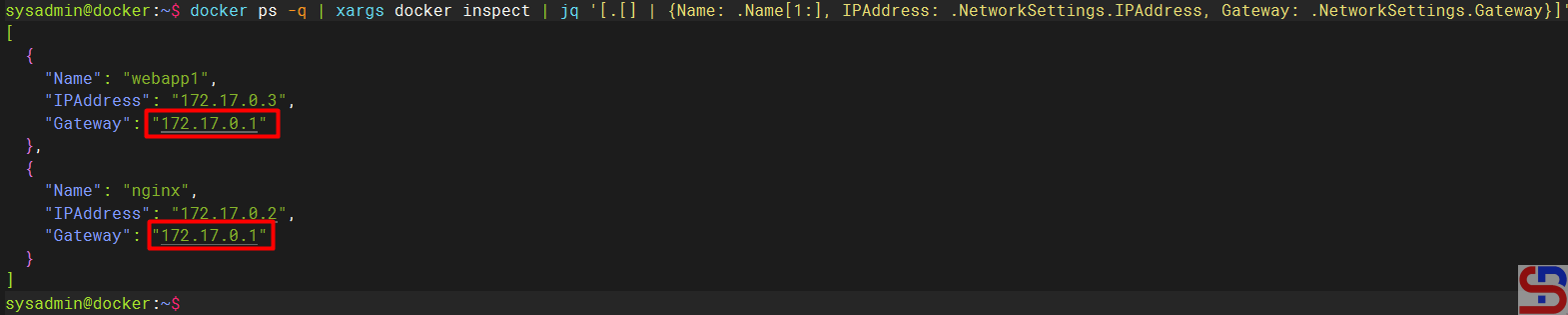
Then try to enter one of the containers and ping to another container using the command:
docker exec webapp1 ping -c2 172.17.0.2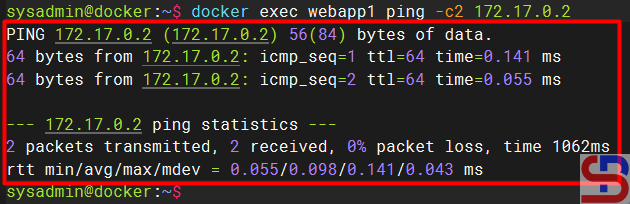
And the containers should be able to communicate with each other like the image above.
apt update;apt install iputils-ping
A. Create a new network
You can create a new network on the server for your own needs using the format below:
docker network create network_name --driver driver_name
For example, you want to create an app-network network using a bridge driver, then use the command below:
docker network create app-network --driver bridge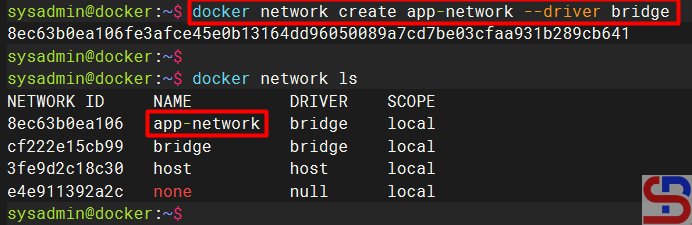
After that, try to use the command below to see the detailed information of the app-network:
docker network inspect app-network
You can see from the picture above that the IP and Gateway from the app-network have been made automatically. You can make an IP and a Gateway according to what you want. For example, you want to create a new network with the name db-network, which has a range of IP 10.10.1.0/24 and Subnet 10.10.0.0/16 and Gateway 10.10.1.254, then use the command below:
docker network create -d bridge db-network \
--subnet=10.10.0.0/16 \
--ip-range=10.10.1.0/24 \
--gateway=10.10.1.254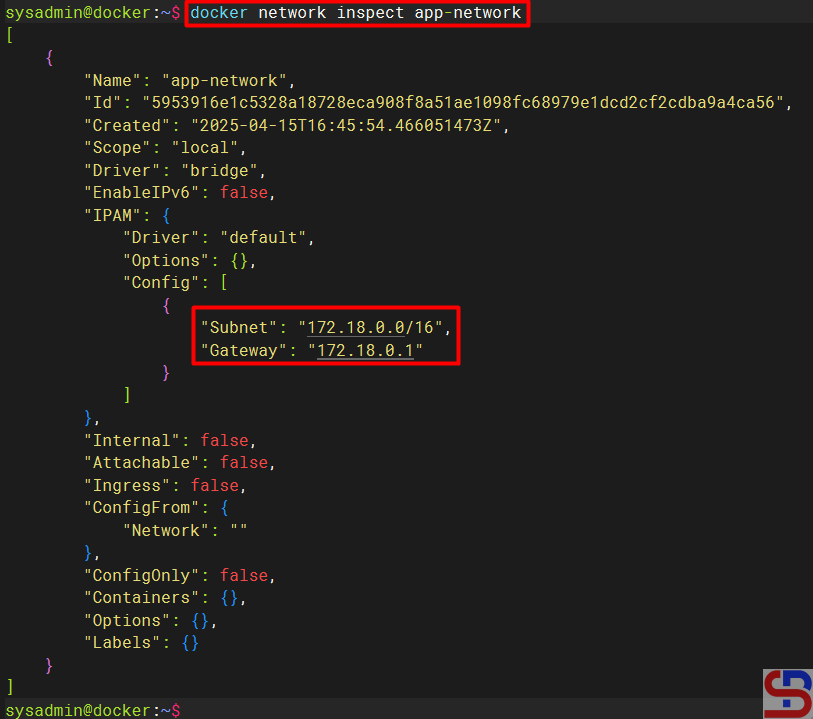
Use the command below to display network information details easily:
docker network inspect db-network -f '{{json .IPAM}}' | python3 -m json.tool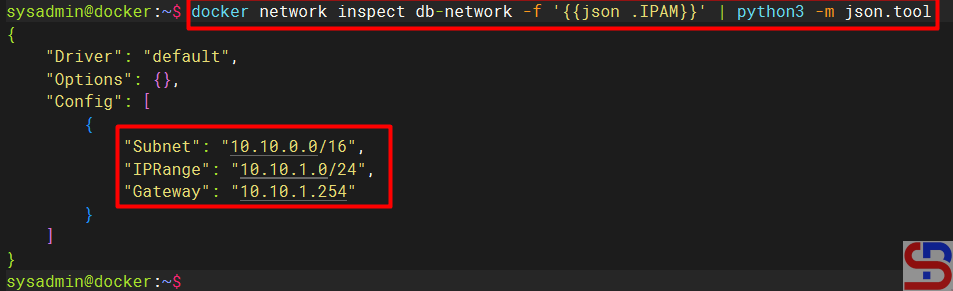
From the image above, you can see that the IP, Subnet, and Gateway on the network are the same as what you want.
B. Connecting a network to a container
If you connect the current container to a network, use the format below:
docker network connect network-name container-name
For example, if you want to connect the webapp1 container to the app-network network, use the command below:
docker network connect app-network webapp1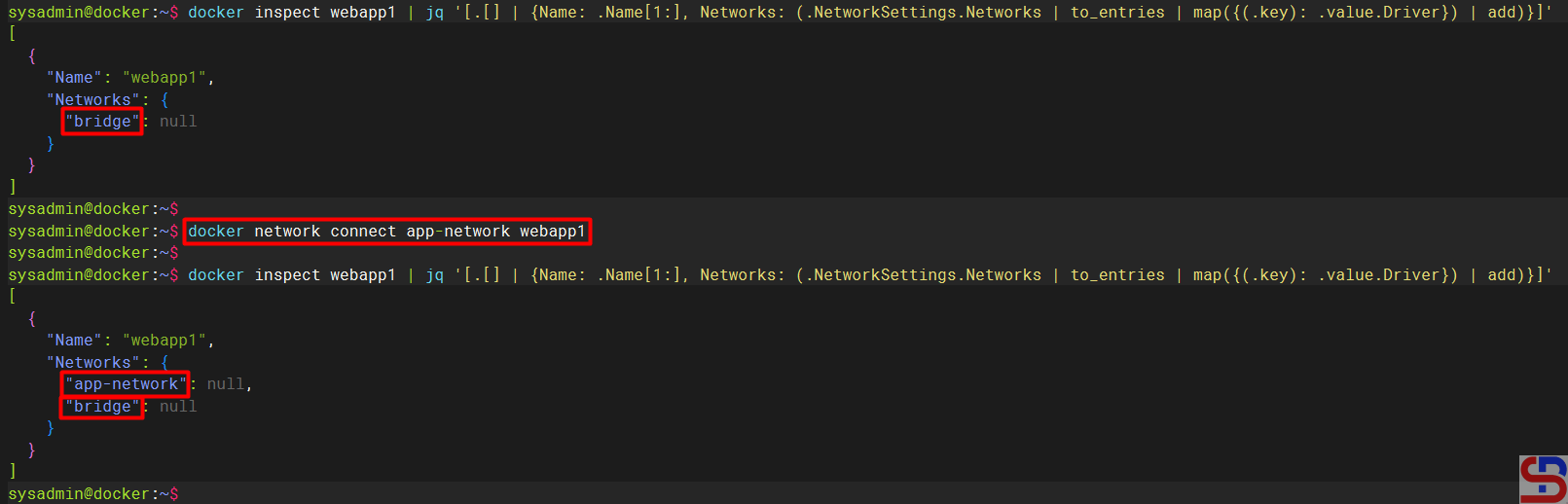
If you want to create a new container by directly connecting to a network, use the format below:
docker container run --name container_name --network network_name image:tag
For example, if you want to create a db-mysql container on the db-network network, use the command below:
docker run -d --name db-mysql --network db-network -e MYSQL_ROOT_PASSWORD='q1w2e3r4' mysql
C. Disconnect a network in the container
To disconnect a network in the container, use the format below:
docker network disconnect network_name container_name
For example, if you want to break the app-network network from the webapp1 container, use the format below:
docker network disconnect network1 webapp1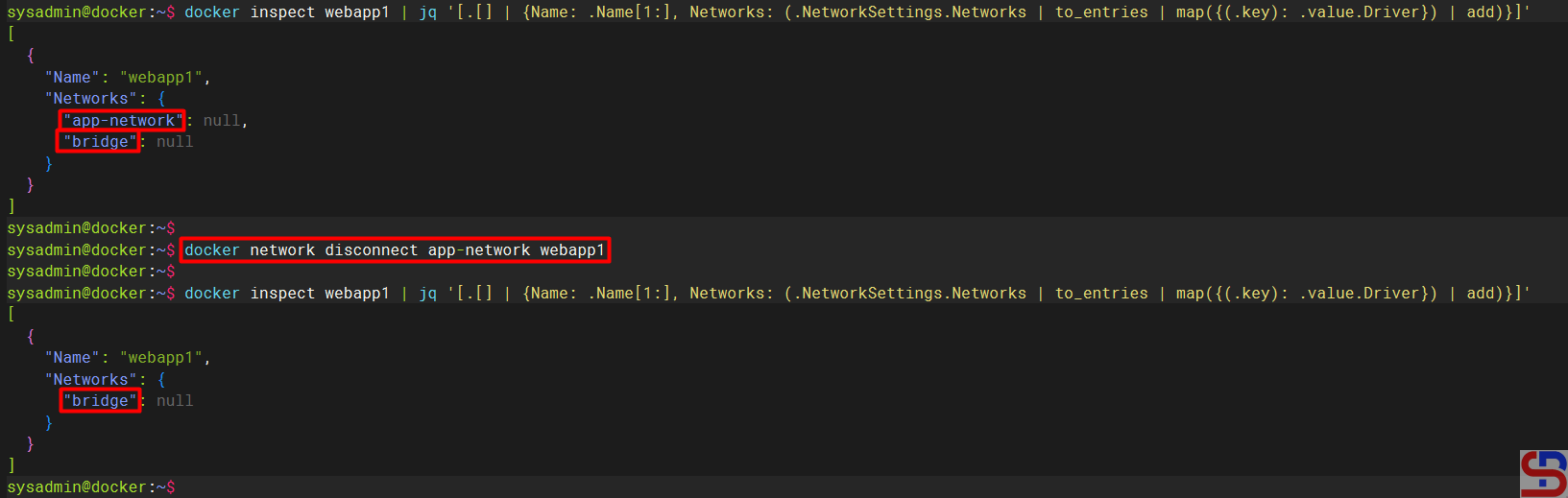
D. Removing a network
To remove a network, use the format below:
docker network rm network_name
For example, I want to delete the app-network network, use the command below:
docker network rm app-network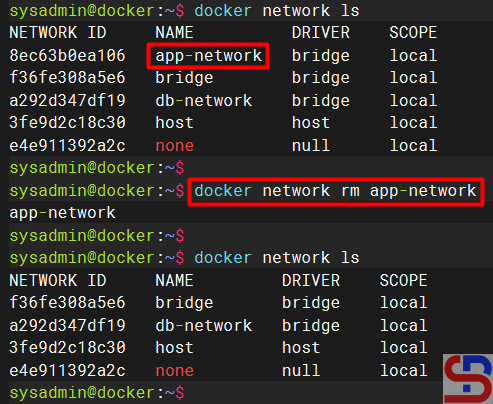
Note
You must be careful when setting the network in Docker because if you set the wrong network, one or several containers will not be connected, which causes the application that runs on the Docker will be disturbed.
References
docs.docker.com
spacelift.io
youtube.dimas-maryanto.com
stackoverflow.com
youtube.com