How to Manage a Container in Docker?
The previous article explained how to install Docker on Linux. This article will explain how to manage a container in Docker.
Problem
How to manage a container in Docker?
Solution
To manage a container in Docker, you have to remember basic Docker commands. And here are the basic Docker commands:
1. Search for container images
To run containers in Docker, we need a Docker image. A Docker image is an immutable (unchangeable) file that contains the source code, libraries, dependencies, tools, and other files needed for an application to run. The place to store Docker images is known as the Docker registry, which by default uses the Docker Hub located at hub.docker.com. If you are looking for a container image in Docker, use the format below:
docker search container_name
For example, if you want to find an nginx image, then use the command below:
docker search nginx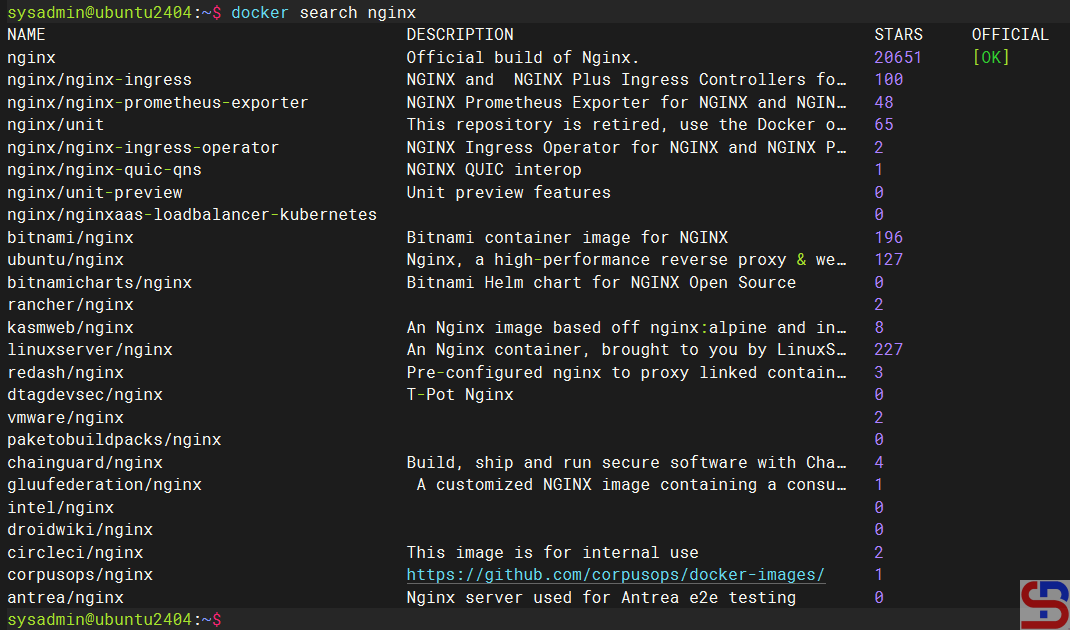
2. Download the Docker image
To download the Docker image, use the following format:
docker image pull image_name:tag_version
where the tag_version is the version of the image, and if you don’t write the tag, it is considered that you want to install the latest version of the image. For example, if you want to download the newest version of the nginx image, use the command:
docker image pull nginx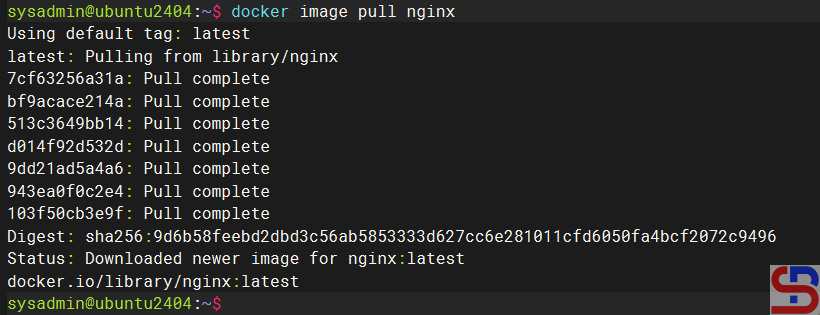
But if you want to download nginx with a certain version, for example, version 1.27.2, then use the command:
docker image pull nginx:1.27.2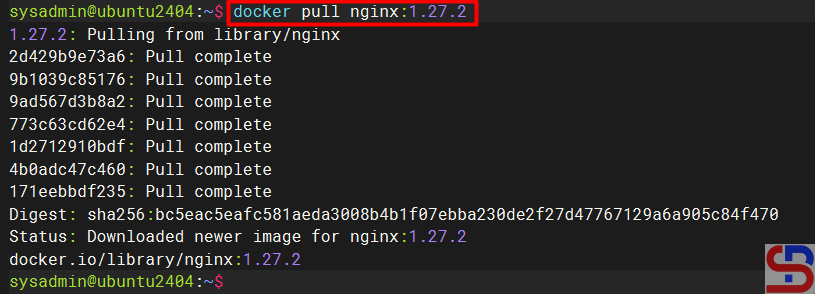
3. List the Docker image(s)
To display the Docker image that you have downloaded, use the command below:
docker image ls
Or you can use the command below:
docker images
4. Create a container
You can create the container using the format:
docker container create –name container_name image_name:tag
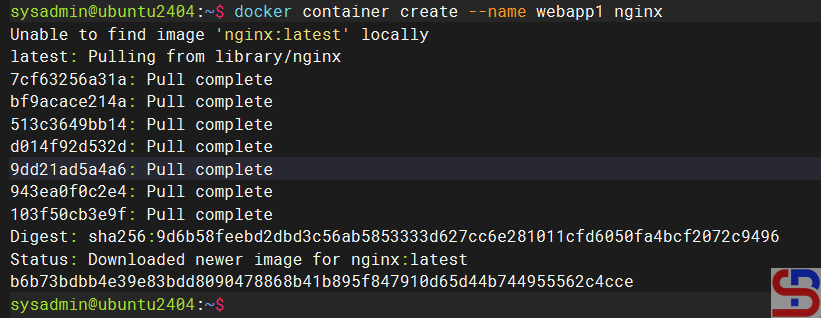
For example, if you want to create a container with the name webapp1, which contains the nginx application, then use the command below:
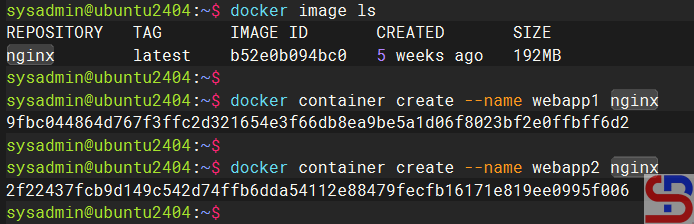
docker container create --name webapp1 nginx
When you use this command, Docker will first check whether the nginx image is on the server. If the image is not on the server, then Docker will download the nginx image, and after that, it will create an nginx container, and the image will remain on your server, as shown in the image below:
You can use an image to create multiple containers as long as the container names are different, as in the image below:
5. List the status of the container(s)
To display the container status, you can use the command:
docker ps
Maybe you are confused about why there is no container status displayed, even though you have made 2 containers before. Remember that the docker ps command only displays the ongoing container status. While the 2 containers you made had not been running, you just made a container. If you want to display all container statuses, use the command below:
docker ps -a
6. Turn on the container
To turn on a container, you can use the format:
docker container start container_id/container_name
Usually, I use container_name instead of container_id because it’s easier to memorize, so I run the following command:
docker container start webapp1
7. Pause the container
You can pause a container with the following format:
docker container pause container_id/container_name
So, you can use the command below to pause the container:
docker container pause webapp1
To resume the container, use the following format:
docker containers unpause container_id/container_name
You can use the command below to resume the container:
docker container unpause webapp1
8. Run a container with a single command
As explained above, if you want to run a container, you have to download the image first, create a container, and turn on the container (see numbers 2, 4, and 6). There is a command that can summarize the three commands above, using the format below:
docker run -d --name container_id/container_name image_name:tag
where the -d option is to run the container in the background. So if you want to run a container with the name webapp2, which contains the nginx application, then use the command below:
docker run -d --name webapp3 nginx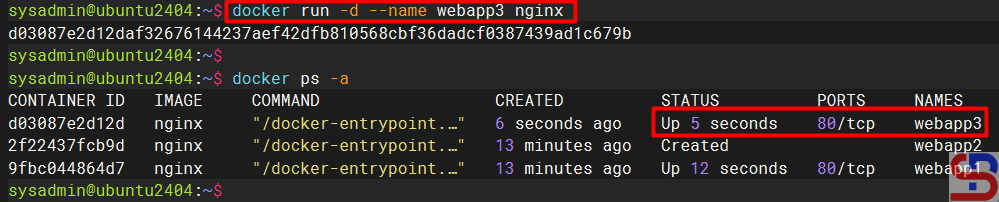
9. Display the size of Docker
To display how large Docker is installed on your server, use the command below:
docker system df
To display a Docker size in detail, use the command below:
docker system df -v
10. Display logs
To display logs of the running container to check something, follow the format below:
docker container logs container_id/container_name
So, run the command below to check the logs of your container:
docker container logs webapp1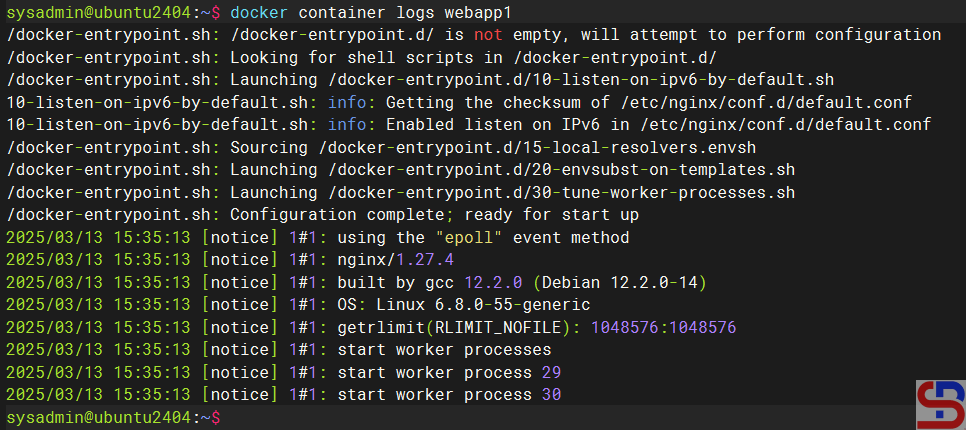
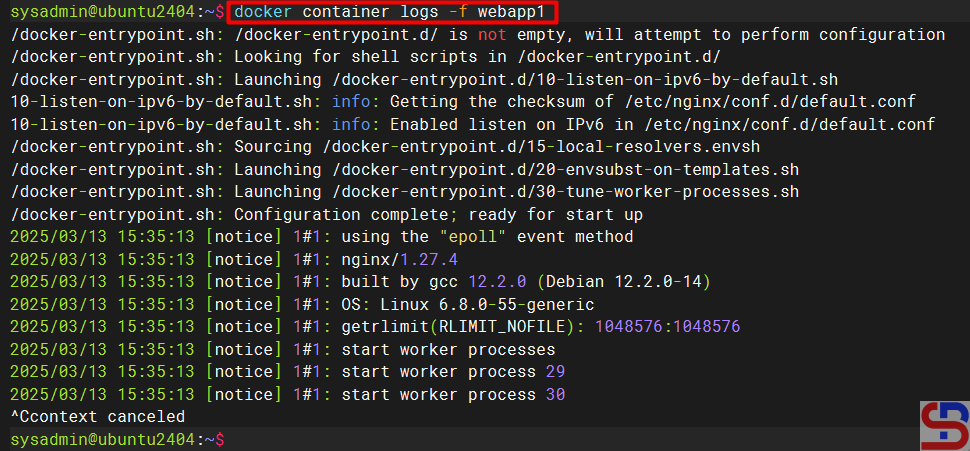
If you want to display real-time logs of the container, give an option -f like in the below command:
docker container logs -f webapp1Press Ctrl-C to exit the log.
11. Inspect the container
To display detailed information about a container, use the following format:
docker inspect container_name/container_id
So, if you want to see the detailed information about the container that you created before, use the command below:
docker inspect webapp1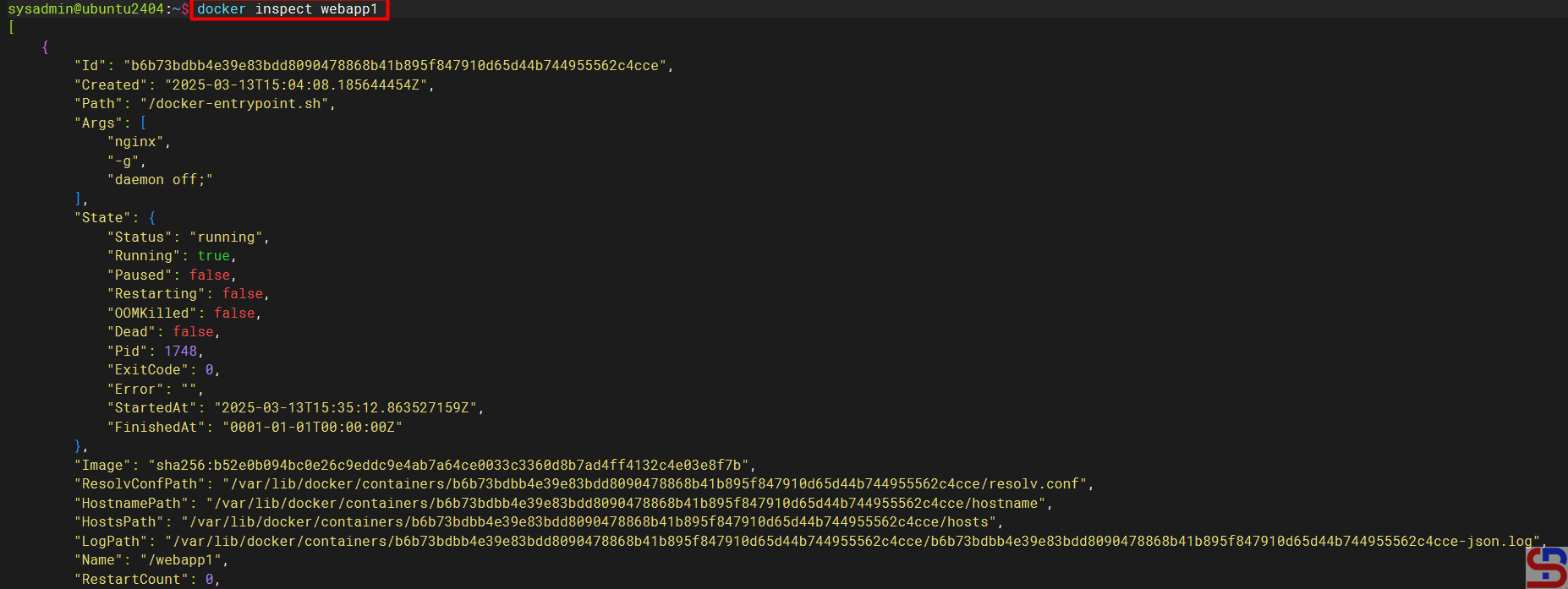
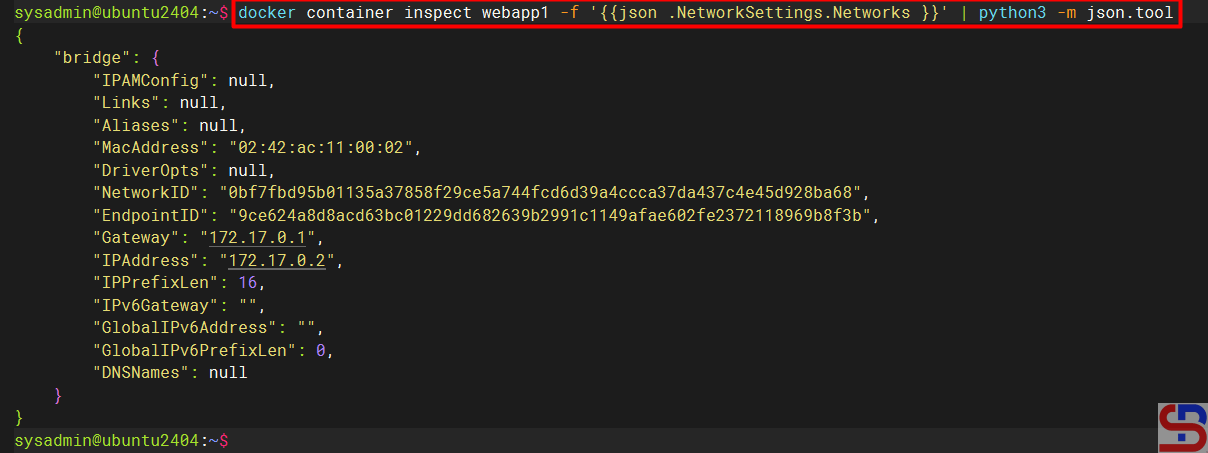
If you only want to display specific items when running the inspect command, use the following format:
docker container inspect container_name/container_id -f '{{json .the item_you_want_to_display<.sub_item> }}' | python -m json.tool
So if you want to display only the network section when using the Docker inspect command, use the command below:
docker container inspect webapp1 -f '{{json .NetworkSettings.Networks }}' | python3 -m json.tool
12. Stop the container(s)
To stop the container, use the format below:
docker container stop container_id/container_name
For example, if I want to stop my container, then use the command below:
docker container stop webapp1
You can stop all the containers running with the below command:
docker stop webapp1 webapp2
Or use the below command to stop all the running containers:
docker kill $(docker ps -q)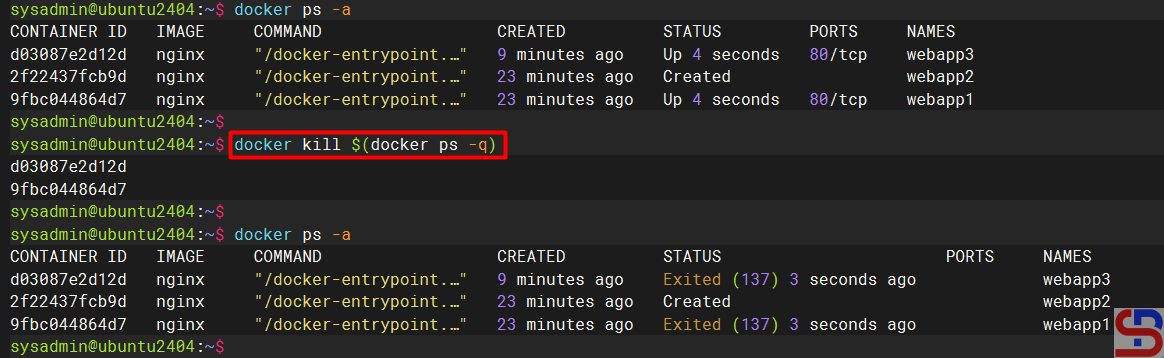
13. Remove the container(s)
Before you remove the container, you have to stop the container first. To delete a container that’s already turned off, use the format below:
docker container rm container_id/container_name
Run the command below to remove the container:
docker container rm webapp1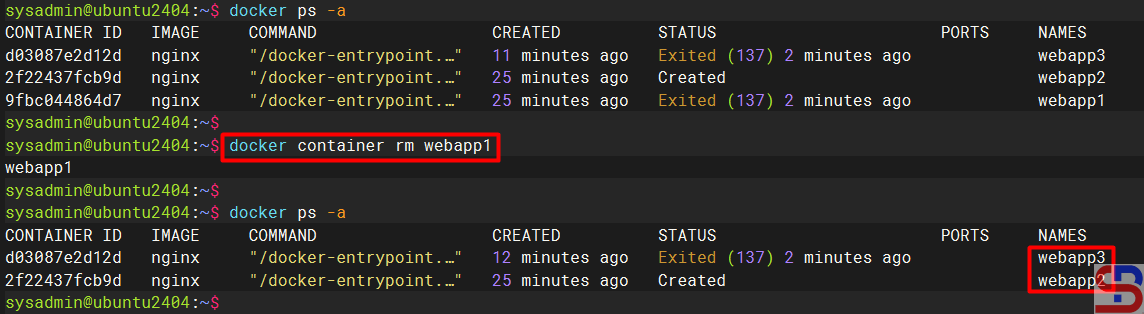
By default, you can’t remove a container if the container is still running. You can use the command below to delete the container even if the container is still running, but it is not recommended:
docker container rm -f webapp2
If you have a lot of containers that are no longer used and you don’t want to delete them one by one, you can use the command below to delete all the unused containers:
docker rm $(docker ps -a -q)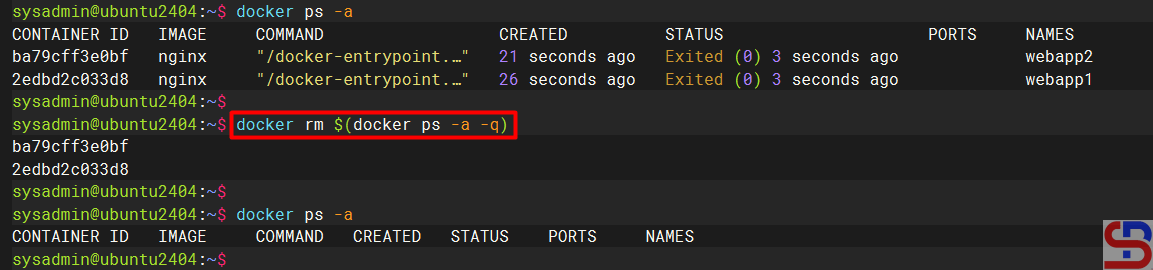
You can also use the command below to delete all the stop containers:
docker container prune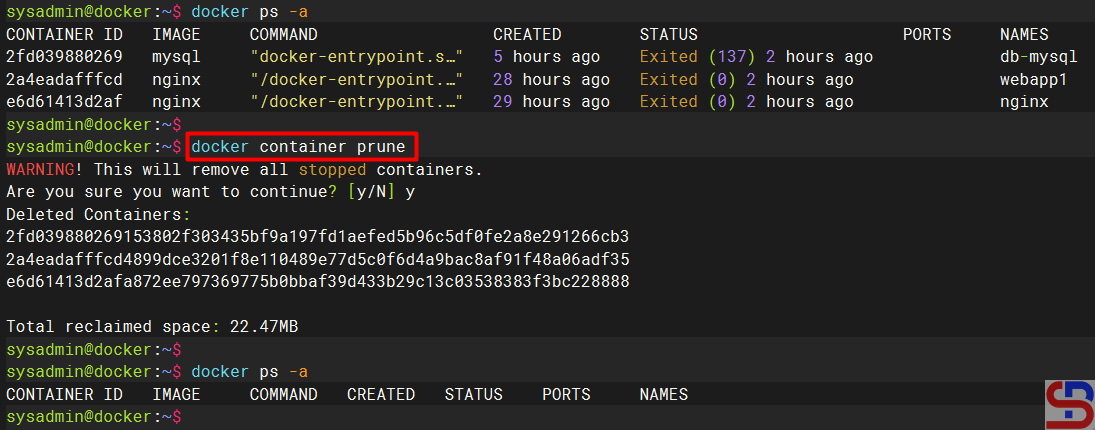
14. Delete the image(s)
To delete the Docker image that you have already downloaded, use the format below:
docker image rm image_name
Run the image below if you want to delete the nginx image:
docker image rm nginx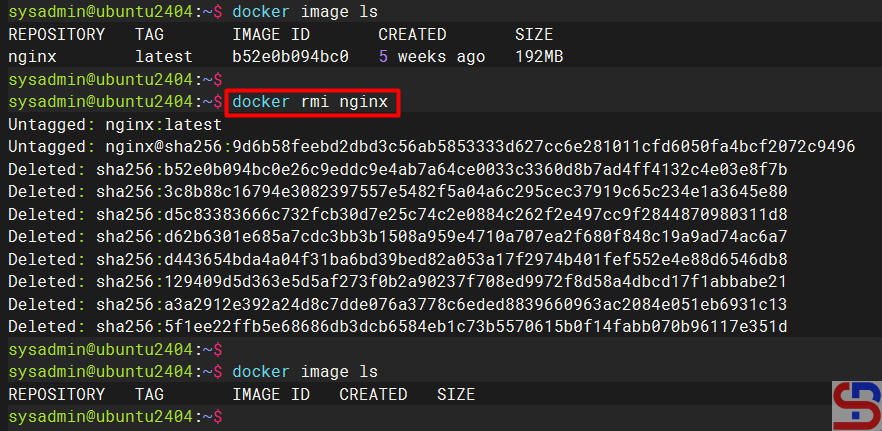
However, you must know that you can’t delete the Docker image if the image is still running in the container. So you must remove the container first before you delete the image. If you want to delete multiple Docker images, use the following format:
docker image rm image_name1 image_name2 ...
So if you want to delete the nginx image and nginx:1.27.2 at once, then use the command below:
docker image rm nginx nginx:1.27.2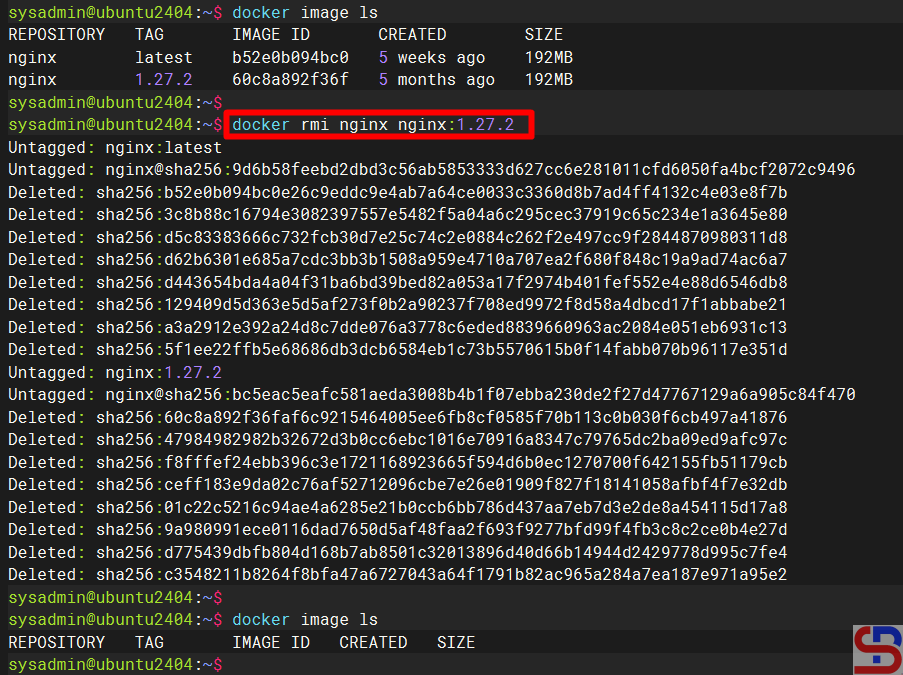
And if you want to delete all the images, you can use the command below:
docker rmi $(docker images -a -q)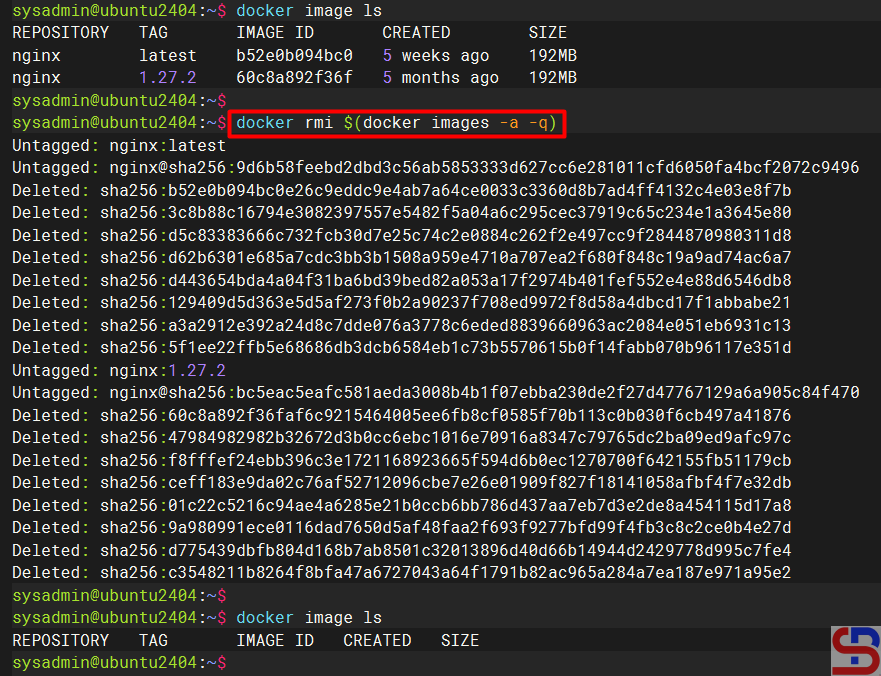
Or, you can use the command below to remove the unused images:
docker image prune -a
Note
If you forget or don’t know what command to use in Docker, use the following command:
docker --help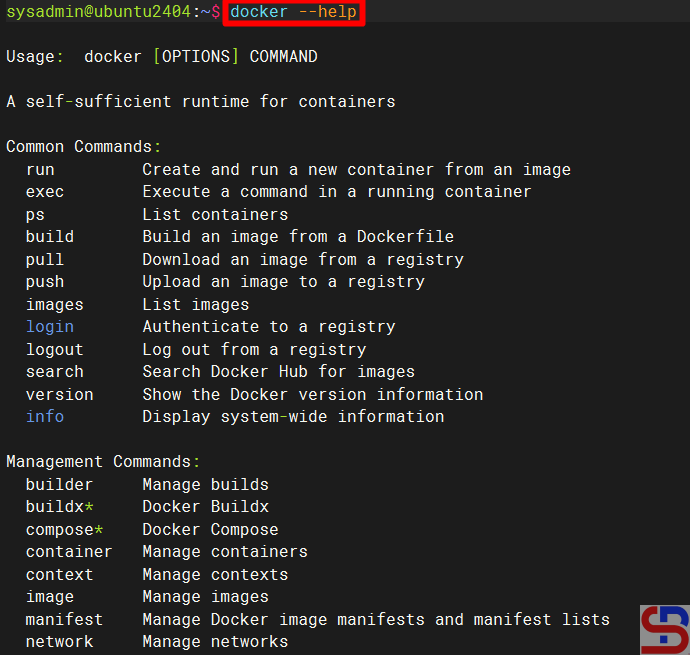
After that, if you want to know the options in the Docker command, then use the following format:
docker command --help
For example, if you want to know the options of the run command in Docker, then type the command below:
docker run --help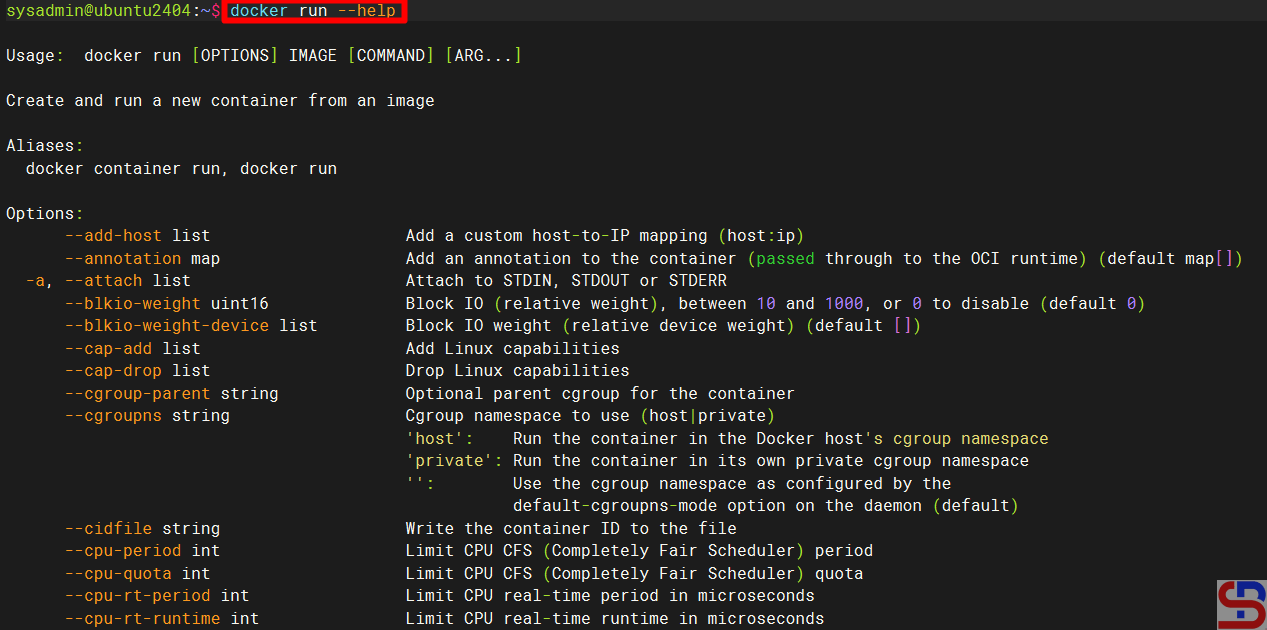
You can shorten all the Docker container commands to just the docker command to shorten the typing time. For example, if you want to create a container, you can use the command:
docker create --name webapp6 nginx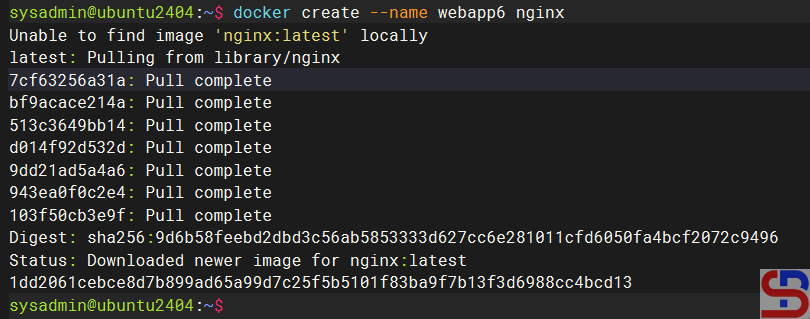
References
geeksforgeeks.org
mygreatlearning.com
youtube.com
youtube.dimas-maryanto.com