How to Limit the Use of CPU in Linux?
A large application that consumes a lot of CPU on a Linux server will cause unusual server conditions. Therefore, you have to limit the use of the CPU for the application.
Problem
How to limit the use of CPU in Linux?
Solution
You can use the cpulimit tool to limit CPU use. Below is the command to install the tool in Linux:
Debian/Ubuntu
sudo apt update
sudo apt-get install cpulimit -y
RockyLinux/AlmaLinux/CentOS
yum install epel-release -y
yum install cpulimit -y
OpenSUSE15
zypper install -y cpulimit
Here are some methods using the cpulimit command:
A. Using ‐-pid option
To use the ‐-pid or -p option, you need to know the PID of an application that you want to limit its CPU usage. To run this cpulimit tool, use the format below:
cpulimit --pid xxx --limit xxx --background
Where PID is the ID number of the ongoing application, you can see by using the format below:
ps aux | grep application_name
The limit is a percentage figure from the CPU that you want to limit for the use of the application. We will use the bash script to simulate this CPU server to be high. Create a high_cpu.sh file and copy the script below
#!/bin/bash

# Simple infinite loop that uses 100% CPU
while true
do
    :  # No-op (no operation) to keep CPU busy
done
Run the command below to give permission and run this bash script:
chmod +x high_cpu.sh
./high_cpu.sh &
Run the top command on another terminal, and as you can see in the image below, the script uses 99 percent of the CPU on the server:
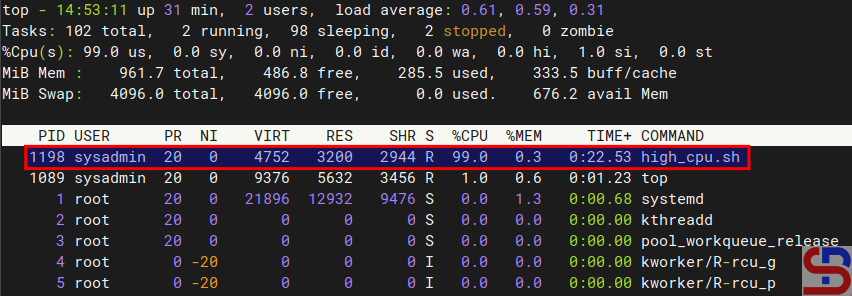
Now run the cpulimit command by limiting this script to run using only 50 percent of the CPU on this server:
cpulimit --pid 1198 --limit 50 --background
If you look at the top command, this script is no longer utilizing 99 percent of the CPU on this server.
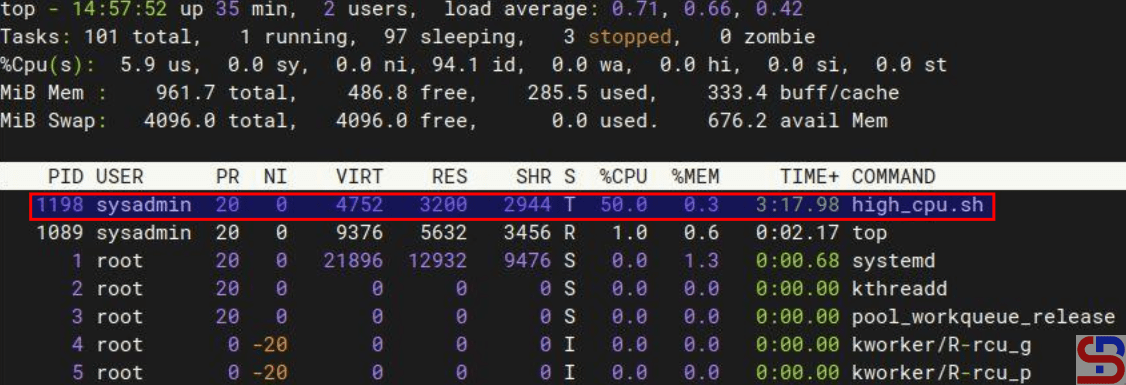
The disadvantage of using the ‐-pid option is that if the application is restarted, the PID of the application will change, and you have to change the cpulimit command. So, there is another option where you just write the name of the application in the cpulimit command using the ‐-exe option.
B. Using ‐-exe option
To use the ‐-exe or -e option, you need to know the application name that you want to limit its CPU usage. To run this cpulimit tool, use the format below:
cpulimit --exe application_name --limit xxx --background
We will use the bash script to simulate a CPU server to be high with many PIDs. Create a pids_high_cpu.sh file in the folder /etc and copy the script below:
#!/bin/bash

# Number of processes to spawn
num_processes=5

# Function to keep the CPU busy in each child process
cpu_intensive_task() {
    while true
    do
        :  # No-op command to keep the CPU busy
    done
}

# Spawn the specified number of processes, redirecting output to /dev/null
for ((i=0; i<num_processes; i++))
do
    cpu_intensive_task > /dev/null 2>&1 &  # Run the task in the background and suppress output
done

# Optionally, wait for all background processes to complete (won't happen unless manually killed)
wait
Run the command below to give permission and run this bash script:
chmod +x /etc/pids_high_cpu.sh
/etc/pids_high_cpu.sh &
Run the top command on another terminal. As you can see in the image below, the script has many PIDs and uses a lot of CPU resources on the server:
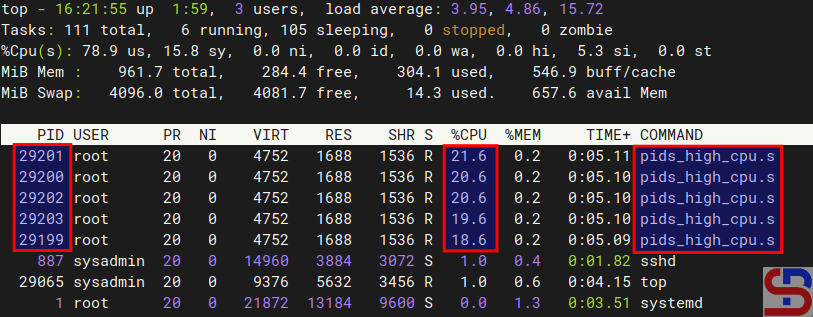
Run the cpulimit command to restrict this script to utilizing just 50% of the server’s CPU:
sudo cpulimit --exe pids_high_cpu.sh --limit 50 --background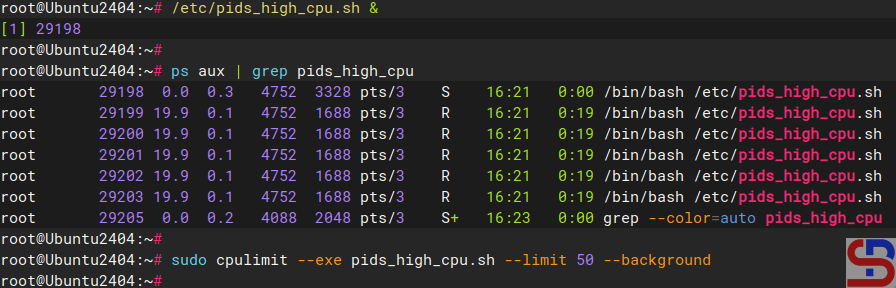
C. Using ‐-path option
Besides using the ‐-exe option, you can also use the ‐-path option or -P option. To use this option, you have to know the path of the application that you want to limit its CPU usage. Use the format below to run the ‐-path option in the cpulimit command:
cpulimit --path /folder/path/of/the/application --limit xxx --background
For the same case, type the command below to use the cpulimit command with the ‐-path option to limit CPU usage to 65 percent for pids_high_cpu.sh application in the /etc folder:
cpulimit --path /etc/pids_high_cpu.sh --limit 65 --background
@reboot cpulimit --path /etc/pids_high_cpu.sh --limit 65 --background
Note
If you see an application running that generates a lot of PIDs, as shown in the image below:
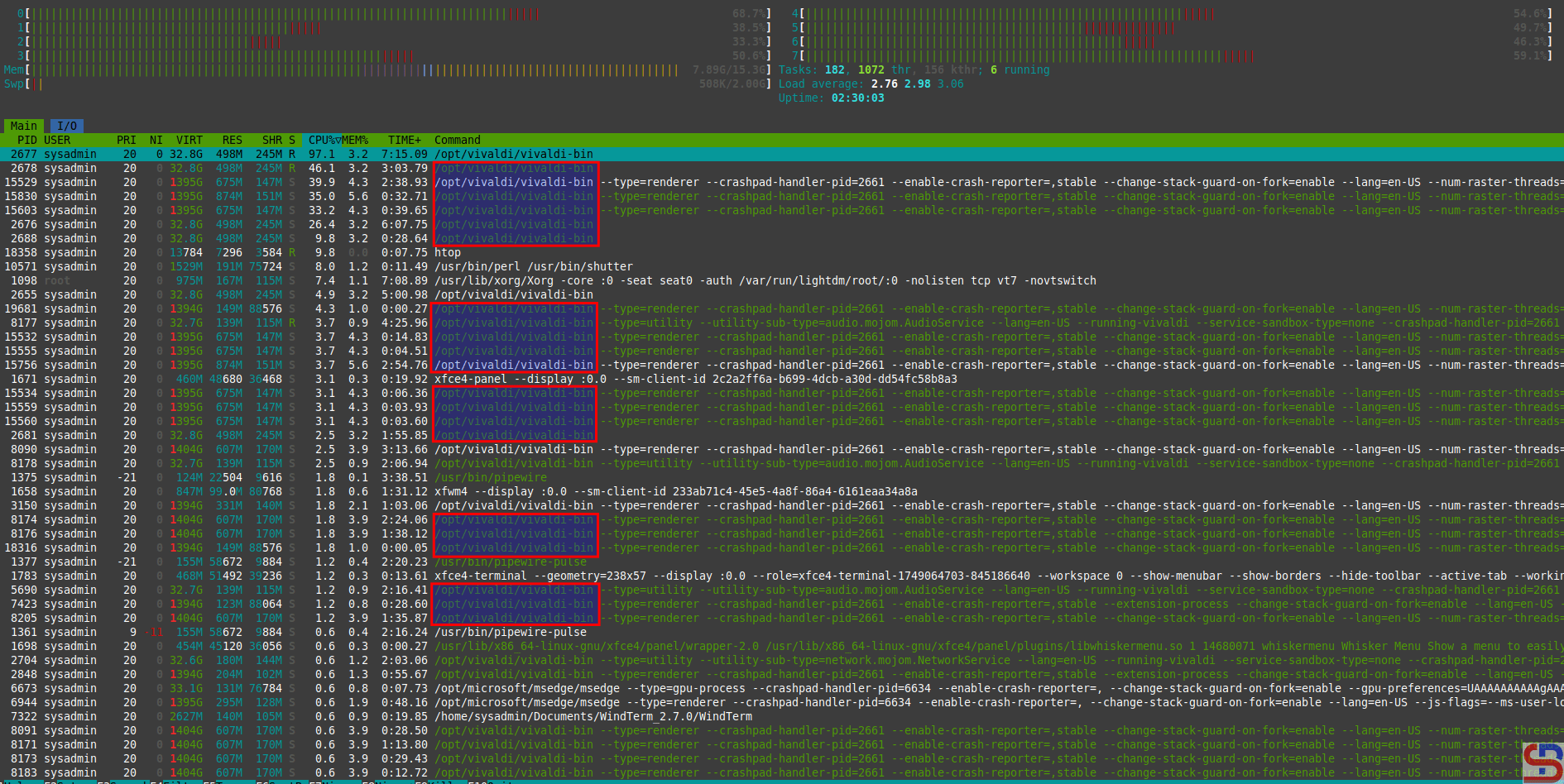
From the picture above, you can see that the application Vivaldi has many PIDs. So, you have to write a script to restrict apps with numerous PIDs. Here is a copy of the bash script:
#!/bin/bash

LIMIT=50
PROCESS_NAME="vivaldi-bin"

# Kill existing cpulimit instances related to vivaldi-bin
pkill -f "cpulimit -p" 2>/dev/null

# Get all vivaldi PIDs
PIDS=$(pidof $PROCESS_NAME)

if [[ -z "$PIDS" ]]; then
  echo "[$(date)] $PROCESS_NAME not running."
  exit 0
fi

echo "[$(date)] Limiting CPU for PIDs: $PIDS"

# Start cpulimit for each PID in background
for pid in $PIDS; do
  cpulimit -p "$pid" -l "$LIMIT" > /dev/null 2>&1 &
done
Change the LIMIT and PROCESS_NAME sections according to your needs and permit the script to be executed. If the script runs, it will limit the CPU to the PIDs.

Enter the script into the crontab using the script below:
#Limit CPU vivaldi
*/30 * * * *     /root/limit_vivaldi.sh
@reboot         /root/limit_vivaldi.sh
The script will restart every 30 minutes, and if the device restarts, the script will start automatically.
References
tecmint.com
linuxsec.org
id.ubunlog.com
linuxsec.org
youtube.com