How to Install gcloud on Ubuntu?
The previous article explained how the install gcloud on RockyLinux/AlmaLinux/CentOS. This article will explain how to install gcloud on Ubuntu.
Problem
How to install gcloud on Ubuntu?
Solution
Here are the steps to install gcloud on Ubuntu/Debian:
A. Install gcloud
As far as I know, there are 3 methods to install gcloud on Ubuntu/Debian and the methods recommend using a user other than root.
1. Using the script
Before you download the script, install the packages using the command below:
sudo apt update
sudo apt-get install curl tar
Use the below command to download and install the script:
curl https://sdk.cloud.google.com | bash
Then you will see a display like the one below:

Wait until it’s finished, and you will see a display like the one below:
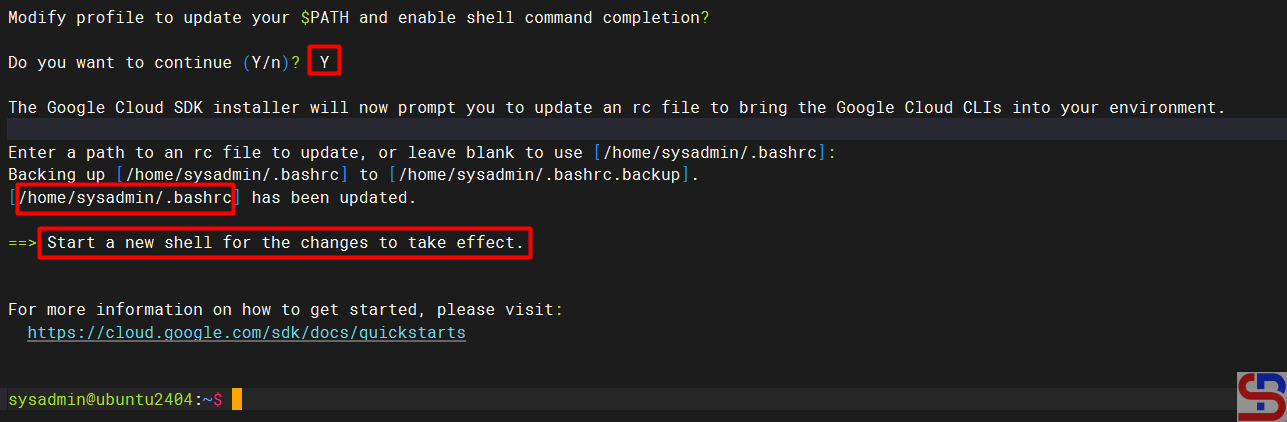
From the image above, you are asked to create a new SSH connection so that the effect can be seen, and type the command below:
gcloud version
However, you can use the command below:
source /home/sysadmin/.bashrc
So you don’t need to create a new SSH connection to run the gcloud version command, which results in the image below:

2. Using the repository
Type the following commands to install gcloud on the Ubuntu/Debian distro:
sudo apt update
echo 'deb [signed-by=/usr/share/keyrings/cloud.google.gpg] https://packages.cloud.google.com/apt cloud-sdk main' | sudo tee -a
sudo apt-get -y install apt-transport-https ca-certificates gnupg
curl https://packages.cloud.google.com/apt/doc/apt-key.gpg | sudo apt-key --keyring /usr/share/keyrings/cloud.google.gpg add -
sudo apt update
sudo apt-get install -y google-cloud-sdk
3. Using the snap
Run the below command to install gcloud:
sudo snap install google-cloud-sdk --classic
B. Connect to GCP
After you install gcloud on your server, type the command below:
gcloud init
Then there will be a display like the image below:

You can open the link in a browser by clicking the Ctrl+Click button located in the red box. If you are having trouble doing so, copy what is included in the red box and paste it into your browser. This will allow you to view a display similar to the one that is shown below:

When you click on your Google account, that will allow you to access GCP, and a display similar to the one shown below will appear:

After you click the Continue button, the screen below will show:

When you click the Allow button, the screen below will show:

Click the Copy button, and paste it into the CLI on your server as in the image below:

Select the project and configure the zone as in the image above. After that, the gcloud configuration is complete, like in the image below:

C. Test gcloud
Now, try gcloud to access your GCP. I try to list my virtual machine in GCP using the below command:
gcloud compute instances list
Then the display below will appear:

If you get a display like the image above, then you have successfully used your GCloud to access your GCP.
Note
If you have many projects on your GCP, you can choose one of these projects as the starting point for your gcloud on GCP. You can switch projects using the command:
gcloud config set project PROJECT_IDChange PROJECT_ID to the project ID you want to switch to.
References
cloud.google.com
liquidweb.com
bacancytechnology.com
attuneops.io
tecadmin.net