How to Create a Recycle Bin on Linux CLI?
By default, as of this writing (February 2025), there is no recycle bin function like in Windows in the Linux CLI. This is very dangerous if you accidentally delete an important file or folder on your Linux CLI; the file or folder will disappear forever. Therefore, you have to create a recycle bin on the Linux CLI.
Problem
How to create a Recycle Bin on Linux CLI?
Solution
You must first determine where the recycle bin is located, and this article uses the .trash folder as a recycle bin on the Linux server. Then type the command below to carry out the folder function as a recycle bin (you can change the .trash folder to the name of the folder you want):
echo "alias rm='mkdir -p "$HOME/.trash" && mv -b -t "$HOME/.trash"'" >> ~/.bashrc
After that, run the command below:
source ~/.bashrc
For example, you want to delete the Linux.gif file from the folder /home/sysadmin, so I use the command below to delete it:
rm /home/sysadmin/Linux.gif
After that, check the .trash folder and you will see that the file you deleted is still in the folder.

So, now the Recycle Bin function in the Linux server runs normally. If you want to return the file to the previous folder, then type the command below:
mv ~/.trash/linux.gif /home/sysadmin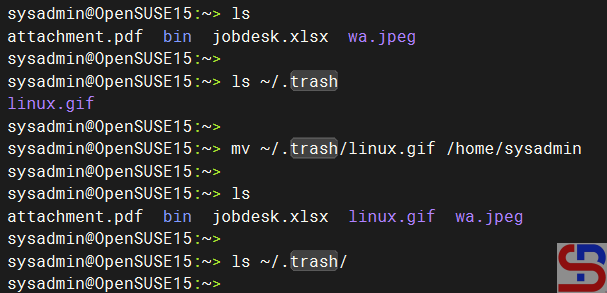
But if you want to delete the file, you must enter the .trash folder, then type the commands below:
cd ~/.trash
alias rm='rm -i'
rm -rf Linux.gif
source ~/.bashrc
If you want to delete all files or folders in the .trash folder, then type the command below:
cd ~/.trash
alias rm='rm -i'
rm -rf *
source ~/.bashrc
Remember that you must always run the source ~/.bashrc command. After you delete the .trash folder, the file or folder you delete will be in the .trash folder. If not, the file or folder will disappear forever from your Linux server.
Note
You must know that if you use sudo to delete a file or folder, the file or folder will disappear forever and will not be stored in the .trash folder as shown below:

So, be careful when you delete file(s) or folder(s) using sudo.