How to Install Uptime Kuma Application on Ubuntu?

The previous articles explained how to install the uptime kuma application on Docker, either using the SQLite database or using the MariaDB database on Docker or using the MariaDB database on the host. This article will explain how to install the uptime kuma application without using Docker but using packages. 


Problem

How to install uptime kuma application on Ubuntu?


Solution

Here are the steps to install uptime kuma application on Ubuntu:

1. Install the packages

Run the commands below to install the required packages:

sudo apt update -y
sudo apt install nginx mariadb-server git -y


Then, install nodejs using the command below:

curl -fsSL https://deb.nodesource.com/setup_lts.x | sudo -E bash - && sudo apt install -y nodejs


After that, download the uptime kuma application by running the command below:

git clone https://github.com/louislam/uptime-kuma.git
cd uptime-kuma/


Next, copy the commands below to install the uptime kuma application:

sudo npm run setup
sudo npm install pm2 -g 
sudo pm2 install pm2-logrotate
sudo pm2 start server/server.js --name uptime-kuma
sudo pm2 startup


2. Configure MariaDB

Access MariaDB and run the queries below:

Akses ke MariaDB dan jalankan query-query di Bawah ini:
CREATE DATABASE uptime_kuma; 
CREATE USER 'kuma-user'@'%' IDENTIFIED BY 'kumapass123'; 
GRANT ALL PRIVILEGES ON uptime_kuma.* TO 'kuma-user'@'%'; 
FLUSH PRIVILEGES; 
\q


3. Configure web server

If you use Apache, create a file at /etc/apache2/sites-available/kuma.conf and copy the script below to the file:

<VirtualHost *:80>
ServerName yourdomain.com
DocumentRoot /var/www/html/

ProxyPass / http://localhost:3001/
RewriteEngine on
RewriteCond %{HTTP:Upgrade} websocket [NC]
RewriteCond %{HTTP:Connection} upgrade [NC]
RewriteRule ^/?(.*) "ws://localhost:3001/$1" [P,L]

ErrorLog ${APACHE_LOG_DIR}/error.log
CustomLog ${APACHE_LOG_DIR}/access.log combined

</VirtualHost>


then run the command below:

sudo a2enmod rewrite
sudo a2enmod proxy
sudo a2enmod proxy_http
sudo a2ensite kuma.conf


Check if there is an error in Apache and if there is no error, reload Apache using the command below:

apachectl -t
sudo systemctl reload apache2


INFO
If your server is running an nginx webserver, then in the file /etc/nginx/conf.d/uptime-kuma.conf insert the script below:

server {
    listen 80;
    server_name uptime-kuma.yourdomainname.com;

    location / {
        proxy_pass         http://localhost:3001;
        proxy_http_version 1.1;
        proxy_set_header   Upgrade $http_upgrade;
        proxy_set_header   Connection "upgrade";
        proxy_set_header   Host $host;
        proxy_set_header   X-Real-IP $remote_addr;
        proxy_set_header   X-Forwarded-For $proxy_add_x_forwarded_for;
        proxy_set_header   X-Forwarded-Proto $scheme;

        # Added WebSocket support
        proxy_set_header   Sec-WebSocket-Key $http_sec_websocket_key;
        proxy_set_header   Sec-WebSocket-Version $http_sec_websocket_version;
        proxy_set_header   Sec-WebSocket-Extensions $http_sec_websocket_extensions;

        # Improve performance of this reverse proxy
        proxy_buffering    off;
    }

    # Redirect HTTP to HTTPS if needed for encryption
    # Uncomment the following lines if you have SSL enabled
    # return 301 https://$host$request_uri;
}


Use the command below to check if there is an error in the nginx configuration and then reload nginx:

sudo nginx -t
sudo systemctl reload nginx


4. Access uptime kuma

Open your browser, and type:

http://ip_server:3001


then there will be a display like below:

Click the MariaDB/MySQL button


Click MariaDB/MySQL, your screen will appear similar to the picture below:

Fill in the columns for the database


Enter in the columns above the values ​​that correspond to the query commands. Click the Next button, your screen will show up similar to the one below:

Setting up the database


You have to wait until finish, and after that, your screen will appear similar to the image shown below:

Fill in the columns for the admin account


Enter in the columns above the value you want and press the Create button then a display will appear similar to the image provided below:

Display of uptime kuma application


If you want to monitor the website, click the Add New Monitor button at the top left of the site , an image similar to the one shown will appear:

Create a new host or a website to monitor in uptime kuma


Fill in the required fields (at least fill in the Monitor Type, Friendly Name, and URL columns) and press the Save button, then the host you have filled in will look like in the image below:

Monitor the host

If you just want to display the status without displaying many attributes then you can click the Status Pages button at the top right of the site like the image below:

Click the Status Pages button


After you press the Status Pages button, the following image will appear: 

Create the Status Page page


Click the New Status Page button, and an image will appear similar to the one shown below:

Create the Status Page page


Enter the name and slug you want (I wrote the sites for the name and slug), then press the Next button, then there will be a display as below:

Insert the host or the monitor in the Status Page


Enter the host you want to display on the Status Page, after that click the Save button, then there will be a display as below:

Display of Status Page


You can see that the hosts to be monitored look simpler and you can give the URL to other parties to also monitor these hosts.


Note

If you want to check the status of uptime kuma in the server, run the command below :

sudo pm2 status server/server.js --name uptime-kuma

Check the status of uptime kuma


But if you want stop uptime kuma in the server, run the command below :

sudo pm2 stop server/server.js --name uptime-kuma

Stop status kuma service


References

uptimekuma.org
hostmycode.in
youtube.com


How to Install Uptime Kuma in Docker with MariaDB on the Host?

The previous article explained how to install the Kuma uptime application using Docker and using the MariaDB database which also runs on Docker. This article will explain about installing the Kuma uptime application using Docker but using MariaDB on the host.


Problem

How to install uptime kuma in docker with MariaDB on the host?


Solution

Here are the steps to install the kuma uptime application using docker but using MariaDB on the host:

1. Configure MariaDB

Make sure you have installed the MariaDB database on your server and then change the file /etc/mysql/mariadb.conf.d/50-server.cnf in the bind-address section to be as below:

bind-address            = 0.0.0.0


Next, restart MariaDB using the command:

sudo systemctl restart mariadb


After that, access to MariaDB and run the command below:

CREATE DATABASE uptime_kuma;
CREATE USER 'kuma-user'@'%' IDENTIFIED BY 'kumapass123';
GRANT ALL PRIVILEGES ON uptime_kuma.* TO 'kuma-user'@'%';
FLUSH PRIVILEGES;
\q


2. Create a docker compose file

Create a compose folder in the /opt folder using the command below:

sudo mkdir -p /opt/compose/uptime-kuma/
cd /opt/compose/uptime-kuma/


After that, create a docker-compose.yaml file and copy the script below:

services:
  uptime-kuma:
    image: louislam/uptime-kuma:2
    container_name: uptime-kuma
    restart: unless-stopped
    ports:
      - "3001:3001"
    extra_hosts:
      - "host.docker.internal:host-gateway"
    environment:
      UPTIME_KUMA_DB_TYPE: mariadb
      UPTIME_KUMA_DB_HOSTNAME: host.docker.internal
      UPTIME_KUMA_DB_PORT: 3306
      UPTIME_KUMA_DB_NAME: ${MARIADB_DATABASE}
      UPTIME_KUMA_DB_USERNAME: ${MARIADB_USER}
      UPTIME_KUMA_DB_PASSWORD: ${MARIADB_PASSWORD}
    volumes:
      - kuma-data:/app/data

volumes:
  kuma-data:


After that, create a .env file like the below script (The value must be the same as the value you ran the query in MariaDB):

MARIADB_DATABASE=uptime_kuma
MARIADB_USER=kuma-user
MARIADB_PASSWORD=kumapass123
MARIADB_ROOT_PASSWORD=qwerty


Run the below command to turn on the docker compose:

docker compose up -d


To check if the containers are running or not, use the command below:

docker ps


After you type the commands, your screen will show up similar to the one below:

Check the running container


3. Configure webserver

If you use Apache, create a file at /etc/apache2/sites-available/kuma.conf and copy the script below to the file:

<VirtualHost *:80>
ServerName yourdomain.com
DocumentRoot /var/www/html/

ProxyPass / http://localhost:3001/
RewriteEngine on
RewriteCond %{HTTP:Upgrade} websocket [NC]
RewriteCond %{HTTP:Connection} upgrade [NC]
RewriteRule ^/?(.*) "ws://localhost:3001/$1" [P,L]

ErrorLog ${APACHE_LOG_DIR}/error.log
CustomLog ${APACHE_LOG_DIR}/access.log combined

</VirtualHost>


then run the command below:

sudo a2enmod rewrite
sudo a2enmod proxy
sudo a2enmod proxy_http
sudo a2ensite kuma.conf


Check if there is an error in Apache and if there is no error, reload Apache using the command below:

apachectl -t
sudo systemctl reload apache2


INFO
If your server is running an nginx webserver, then in the file /etc/nginx/conf.d/uptime-kuma.conf insert the script below:

server {
    listen 80;
    server_name uptime-kuma.yourdomainname.com;

    location / {
        proxy_pass         http://localhost:3001;
        proxy_http_version 1.1;
        proxy_set_header   Upgrade $http_upgrade;
        proxy_set_header   Connection "upgrade";
        proxy_set_header   Host $host;
        proxy_set_header   X-Real-IP $remote_addr;
        proxy_set_header   X-Forwarded-For $proxy_add_x_forwarded_for;
        proxy_set_header   X-Forwarded-Proto $scheme;

        # Added WebSocket support
        proxy_set_header   Sec-WebSocket-Key $http_sec_websocket_key;
        proxy_set_header   Sec-WebSocket-Version $http_sec_websocket_version;
        proxy_set_header   Sec-WebSocket-Extensions $http_sec_websocket_extensions;

        # Improve performance of this reverse proxy
        proxy_buffering    off;
    }

    # Redirect HTTP to HTTPS if needed for encryption
    # Uncomment the following lines if you have SSL enabled
    # return 301 https://$host$request_uri;
}


Use the command below to check if there is an error in the nginx configuration and then reload nginx:

sudo nginx -t
sudo systemctl reload nginx


4. Access uptime kuma

Open your browser, and type:

http://ip_server:3001


then there will be a display like below:

Fill in the columns for the admin account


Enter in the columns above the value you want and press the Create button then a display will appear similar to the image provided below:

Display of uptime kuma


If you want to make sure uptime kuma use MariaDB database, run the command below:

docker logs uptime-kuma | grep DB


Your screen will appear similar to the picture shown below:

Check the running database

If you want to monitor the website, click the Add New Monitor button at the top left, an image similar to the one shown will appear:

Create a new host or a website to monitor in uptime kuma


Fill in the required fields (at least fill in the Monitor Type, Friendly Name, and URL columns) and press the Save button, then the host you have filled in will look like in the image below:

Monitor the host or the website


If you just want to display the status without displaying many attributes then you can click the Status Pages button at the top right of the site like the image below:

Click the Status Page button


After you press the Status Page button, the following image will appear: 

Create the Status Page page


Click the New Status Page button, and an image will appear similar to the one shown below:

Create the Status Page page


Enter the name and slug you want (I wrote the sites for the name and slug), then press the Next button, then there will be a display as below:

Insert the host or the monitor in the Status Page


Enter the host you want to display on the Status Page, after that click the Save button, then there will be a display as below:

Display of Status Page


You can see that the hosts to be monitored look simpler and you can give the URL to other parties to also monitor these hosts.


Note

Go to this page if you want to backup the MariaDB database and for how to restore the database, you can go to this page.


References

sysadminpedia.com
magnus919.com
uptimekuma.org


How to Install Uptime Kuma And MariaDB in Docker?

The previous article explained how to install the Uptime Kuma application using Docker. However, by default, Uptime Kuma uses a SQLite database, and you want to change the database to MariaDB for some reasons.


Problem

How to install Uptime Kuma and MariaDB in Docker?


Solution

Although SQLite serves as a superb embedded database option for numerous scenarios, certain inherent limitations render it inappropriate for particular applications. If your application has a large amount of traffic and uses a lot of write modes simultaneously, and the data growth is very fast, your application is not suitable for using a SQLite database. Likewise, with the Uptime Kuma application. If you monitor many hosts using low intervals, it will cause very fast data growth, so you have to think about another database solution besides the SQLite database.

1. Create a Docker Compose file

Create a compose folder in the /opt folder using the command below:

sudo mkdir -p /opt/compose/uptime-kuma/
cd /opt/compose/uptime-kuma/


After that, create docker-compose.yaml file and copy the script below:

services:
  mariadb:
    image: mariadb:11.4
    container_name: mariadb
    restart: unless-stopped
    environment:
      MARIADB_ROOT_PASSWORD: ${MARIADB_ROOT_PASSWORD}
      MARIADB_DATABASE: ${MARIADB_DATABASE}
      MARIADB_USER: ${MARIADB_USER}
      MARIADB_PASSWORD: ${MARIADB_PASSWORD}
    volumes:
      - mariadb-data:/var/lib/mysql
    networks:
      - kuma-net
    healthcheck:
      test: ["CMD", "healthcheck.sh", "--connect", "--innodb_initialized"]
      interval: 10s
      timeout: 5s
      retries: 5

  uptime-kuma:
    image: louislam/uptime-kuma:2
    container_name: uptime-kuma
    restart: unless-stopped
    depends_on:
      mariadb:
        condition: service_healthy
    ports:
      - "3001:3001"
    volumes:
      - kuma-data:/app/data
    networks:
      - kuma-net

volumes:
  mariadb-data:
  kuma-data:

networks:
  kuma-net:


After that, create a .env file like the below script (Adjust the value of this file to your liking):

MARIADB_DATABASE=kuma
MARIADB_USER=kuma-user
MARIADB_PASSWORD=123456
MARIADB_ROOT_PASSWORD=qwerty


Run the below command to turn on Docker Compose:

docker compose up -d


To check if the containers are running or not, use the command below:

docker ps


After you type the commands, your screen will show up similar to the one below:

Run the Docker Compose


2. Configure the web server

If you use Apache, create a file at /etc/apache2/sites-available/kuma.conf and copy the script below to the file:

<VirtualHost *:80>
ServerName yourdomain.com
DocumentRoot /var/www/html/

ProxyPass / http://localhost:3001/
RewriteEngine on
RewriteCond %{HTTP:Upgrade} websocket [NC]
RewriteCond %{HTTP:Connection} upgrade [NC]
RewriteRule ^/?(.*) "ws://localhost:3001/$1" [P,L]

ErrorLog ${APACHE_LOG_DIR}/error.log
CustomLog ${APACHE_LOG_DIR}/access.log combined

</VirtualHost>


Then run the command below:

sudo a2enmod rewrite
sudo a2enmod proxy
sudo a2enmod proxy_http
sudo a2ensite kuma.conf


Check if there is an error in Apache, and if there is no error, reload Apache using the command below:

apachectl -t
sudo systemctl reload apache2


INFO
If your server is running an nginx webserver, then in the file /etc/nginx/conf.d/uptime-kuma.conf insert the script below:

server {
    listen 80;
    server_name uptime-kuma.yourdomainname.com;

    location / {
        proxy_pass         http://localhost:3001;
        proxy_http_version 1.1;
        proxy_set_header   Upgrade $http_upgrade;
        proxy_set_header   Connection "upgrade";
        proxy_set_header   Host $host;
        proxy_set_header   X-Real-IP $remote_addr;
        proxy_set_header   X-Forwarded-For $proxy_add_x_forwarded_for;
        proxy_set_header   X-Forwarded-Proto $scheme;

        # Added WebSocket support
        proxy_set_header   Sec-WebSocket-Key $http_sec_websocket_key;
        proxy_set_header   Sec-WebSocket-Version $http_sec_websocket_version;
        proxy_set_header   Sec-WebSocket-Extensions $http_sec_websocket_extensions;

        # Improve performance of this reverse proxy
        proxy_buffering    off;
    }

    # Redirect HTTP to HTTPS if needed for encryption
    # Uncomment the following lines if you have SSL enabled
    # return 301 https://$host$request_uri;
}


Use the command below to check if there is an error in the nginx configuration and then reload nginx:

sudo nginx -t
sudo systemctl reload nginx


3. Access uptime kuma

Open your browser, and type:

http://ip_server:3001


Then there will be a display like below:

Choose MariaDB/MySQL


Click MariaDB/MySQL, and your screen will appear similar to the picture below:

Fill in the columns for the database


Enter in the columns above the values ​​that correspond to the .env file. Click the Next button, and your screen will show up similar to the one below:

Setting up the database


You have to wait until finishes, and after that, your screen will appear similar to the image shown below:

Fill in the columns for the admin account


Enter in the columns above the value you want and press the Create button, then a display will appear similar to the image provided below:

Display of uptime kuma


If you want to make sure Uptime Kuma uses a MariaDB database, run the command below:

docker logs uptime-kuma | grep DB


Your screen will appear similar to the picture shown below:

Check the running database


If you want to monitor the website, click the Add New Monitor button at the top left of the site, and an image similar to the one shown will appear:

Create a new host or a website to monitor in Uptime Kuma


Fill in the required fields (at least fill in the Monitor Type, Friendly Name, and URL columns) and press the Save button, then the host you have filled in will look like in the image below:

Monitor the host or the website


If you just want to display the status without displaying many attributes, then you can click the Status Pages button at the top right of the site, like the image below:

Click the Status Page button


After you press the Status Page button, the following image will appear: 

Create the Status Page page


Click the New Status Page button, and an image will appear similar to the one shown below:

Create the Status Page page


Enter the name and slug you want (I wrote the sites for the name and slug), then press the Next button, and then there will be a display as below:

Insert the host or the monitor in the Status Page


Enter the host you want to display on the Status Page, after that, click the Save button, then there will be a display as below:

Display of Status Page


You can see that the hosts to be monitored look simpler, and you can give the URL to other parties to also monitor these hosts.


Note

If you want to back up the MariaDB database running on Docker and learn how to restore the database, you can go to this page.


References

quora.com
magnus919.com
uptimekuma.org


How to Install Uptime Kuma on Linux?

Uptime Kuma is a self-hosted monitoring solution created to measure the uptime and performance of websites and services. It offers live status updates, flexible alerting choices, and comprehensive metrics to help guarantee that your websites and services stay functional.


Problem

How to install Uptime Kuma on Linux?


Solution

There are 4 methods to install uptime kuma:

  1. Using docker.
  2. Using docker compose with database in docker.
  3. Using docker compose with database in the host.
  4. Using package.

This article will explain how to install Kuma using Docker.

1. Install uptime kuma

Make sure you installed Docker in your server and you can see how to install Docker on this page. After that, run the command below to install uptime kuma using docker:

docker run -d --restart=always -p 3001:3001 -v uptime-kuma:/app/data --name uptime-kuma louislam/uptime-kuma:1 
 

Then check whether the uptime kuma container is running or not using the command:

docker ps | grep Kuma

Check the uptime kuma container in Docker


2. Configure webserver

If you use Apache, create a file at /etc/apache2/sites-available/kuma.conf and copy the script below to the file:

<VirtualHost *:80>
ServerName yourdomain.com
DocumentRoot /var/www/html/

ProxyPass / http://localhost:3001/
RewriteEngine on
RewriteCond %{HTTP:Upgrade} websocket [NC]
RewriteCond %{HTTP:Connection} upgrade [NC]
RewriteRule ^/?(.*) "ws://localhost:3001/$1" [P,L]

ErrorLog ${APACHE_LOG_DIR}/error.log
CustomLog ${APACHE_LOG_DIR}/access.log combined

</VirtualHost>


then run the command below:

sudo a2enmod rewrite
sudo a2enmod proxy
sudo a2enmod proxy_http
sudo a2ensite kuma.conf


Check if there is an error in apache and if there is no error, reload apache using the command below:

apachectl -t
sudo systemctl reload apache2


INFO
If your server is running an nginx webserver, then in the file /etc/nginx/conf.d/uptime-kuma.conf insert the script below:

server {
    listen 80;
    server_name uptime-kuma.yourdomainname.com;

    location / {
        proxy_pass         http://localhost:3001;
        proxy_http_version 1.1;
        proxy_set_header   Upgrade $http_upgrade;
        proxy_set_header   Connection "upgrade";
        proxy_set_header   Host $host;
        proxy_set_header   X-Real-IP $remote_addr;
        proxy_set_header   X-Forwarded-For $proxy_add_x_forwarded_for;
        proxy_set_header   X-Forwarded-Proto $scheme;

        # Added WebSocket support
        proxy_set_header   Sec-WebSocket-Key $http_sec_websocket_key;
        proxy_set_header   Sec-WebSocket-Version $http_sec_websocket_version;
        proxy_set_header   Sec-WebSocket-Extensions $http_sec_websocket_extensions;

        # Improve performance of this reverse proxy
        proxy_buffering    off;
    }

    # Redirect HTTP to HTTPS if needed for encryption
    # Uncomment the following lines if you have SSL enabled
    # return 301 https://$host$request_uri;
}


Use the command below to check if there is an error in the nginx configuration and then reload nginx:

nginx -t
sudo systemctl reload nginx


3. Configure database

If you install uptime kuma using docker, you don’t need to install the database because in the docker there is already a SQLite database where you can view it by using the command below:

docker exec -it uptime-kuma ls /app/data

Check the database in the uptime kuma container


4. Access uptime kuma

Open your browser, and type:

http://ip_server:3001


then there will be a display like below:

Create username and password for Uptime Kuma


Enter the username and password you want then press the Create button, there will be a display as below:

Display of uptime kema application


If you want to monitor a host or a website, click the Add New Monitor button like in the below image:

Create a new host or a website to monitor in uptime kuma


Fill in the required fields (at least fill in the Monitor Type, Friendly Name, and URL columns) and press the Save button, then the host you have filled in will look like in the image below:

Monitor the host or the website


If you just want to display the status without displaying many attributes then you can click the Status Pages button at the top right of the layer then there will be a display like below:

Click the New Status Page button


Click the New Status page button, then there will be a display as below:

Create the Status Page page


Enter the name and slug you want (I wrote the sites for the name and slug), then press the Next button, then there will be a display as below:

Insert the host or the monitor in the Status Page


Enter the host you want to display on the Status Page, after that click the Save button, then there will be a display as below:

Display of Status Page


You can see that the hosts to be monitored look simpler and you can give the URL to other parties to also monitor these hosts.


Note

If you want to backup the uptime kuma database running on docker and how to restore the database, you can go to this page.


References

uptimekuma.org
kb.biznetgio.com


How to Install phpMyAdmin With Nginx on Ubuntu?

The previous article has explained how to install the phpMyAdmin application on Linux using the Apache web server. This article explains how to configure phpMyAdmin using nginx on Ubuntu.


Problem

How to install phpMyAdmin with nginx on Ubuntu?


Solution

Follow the steps below to install phpMyAdmin with Nginx on Ubuntu:

1. Update repo

Use the command below to update the Ubuntu repo:

sudo apt update -y


2. Install MariaDB

Next, install the MariaDB database using the command:

sudo apt install mariadb-server mariadb-client -y


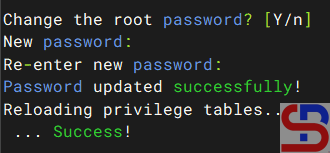
Once finished, use the command below to change the root password in MariaDB:

sudo mysql_secure_installation

Change the root password


Then check whether the database is up or not using the command below:

sudo systemctl status mariadb


3. Install PHP

Install PHP by using the command below:

sudo apt install php php-fpm php-mysql php-cli php-curl php-gd php-mbstring php-xml php-zip -y


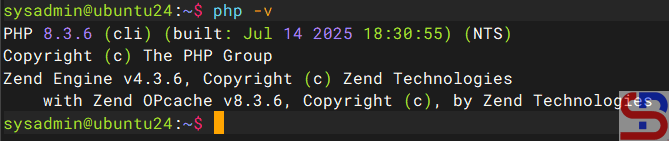
Then check the version of PHP that you just installed by using the command below:

php -v

Check the php version


Usually, when installing PHP, the Apache package will also be installed on the server. Therefore, delete Apache using the command:

sudo apt remove apache2-* -y


4. Install phpMyAdmin

Use the command below to install phpMyAdmin:

sudo apt install phpmyadmin -y


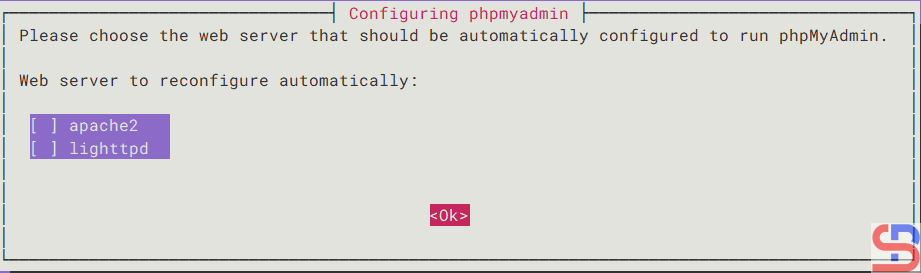
At the time of installation, there are several pop-ups that you must answer, such as the selection of the web server you are using, as shown in the image below:

Choose the Ok button


Just select the button Ok, then the process of installation will continue. A few seconds later, there will be a pop-up as below to insert the phpMyAdmin in the database:

Choose the Yes button


Select the button Yes, and there’s a pop-up to enter the password for the user phpmyadmin in the database as in the picture below:

Enter the password for the phpmyadmin user


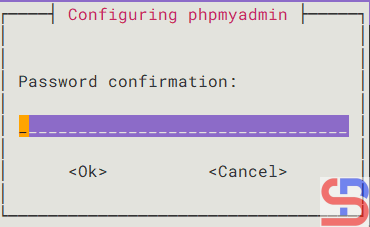
Enter the password you want, select the OK button, and there will be another pop-up to confirm the password as in the image below:

Password confirmation


Enter the same password and select the Ok button, then the phpMyAdmin installation process will continue until completion.


5. Install nginx

Install nginx by using the command below:

sudo apt install nginx -y


After that, configure Nginx so that it can be integrated with phpMyAdmin. Copy the default file using the command below:

sudo cp /etc/nginx/sites-available/default /etc/nginx/sites-available/default.ori


Then in the default file, copy the script below:

server {
    listen 80;
    server_name _;
    root /var/www/html;
    index index.php index.html;

    location / {
        try_files $uri $uri/ =404;
    }

    location /phpmyadmin {
        root /usr/share/;
        index index.php;

        location ~ ^/phpmyadmin/(.+\.php)$ {
            try_files $uri =404;
            root /usr/share/;
            fastcgi_pass unix:/run/php/php8.3-fpm.sock;
            fastcgi_index index.php;
            fastcgi_param SCRIPT_FILENAME $document_root$fastcgi_script_name;
            include fastcgi_params;
        }

        location ~* ^/phpmyadmin/(.+\.(css|js|jpg|jpeg|gif|png|ico|html|xml|txt))$ {
            root /usr/share/;
        }
    }
}


Warning
You have to be careful when writing the php-fpm version in the fastcgi_pass_unix section because there will be an error if the version is different from the one installed on the server. To see the version installed on the server, use the command below:

ls -l /run/php/


After that, use the command below to check whether the nginx configuration has errors or not:

sudo nginx -t


If there are no errors, then you can run the command below to reload nginx:

sudo systemctl reload nginx


6. Open phpMyAdmin

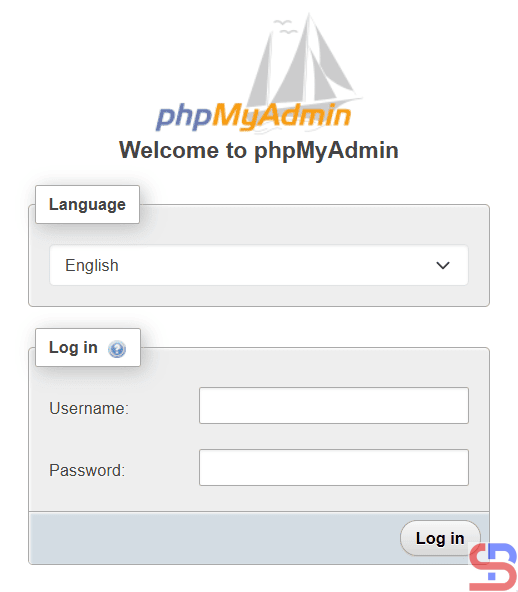
Open your browser and type:

http://ip_server/phpmyadmin


Then there should be a display like below:

Open phpMyAdmin in the browser


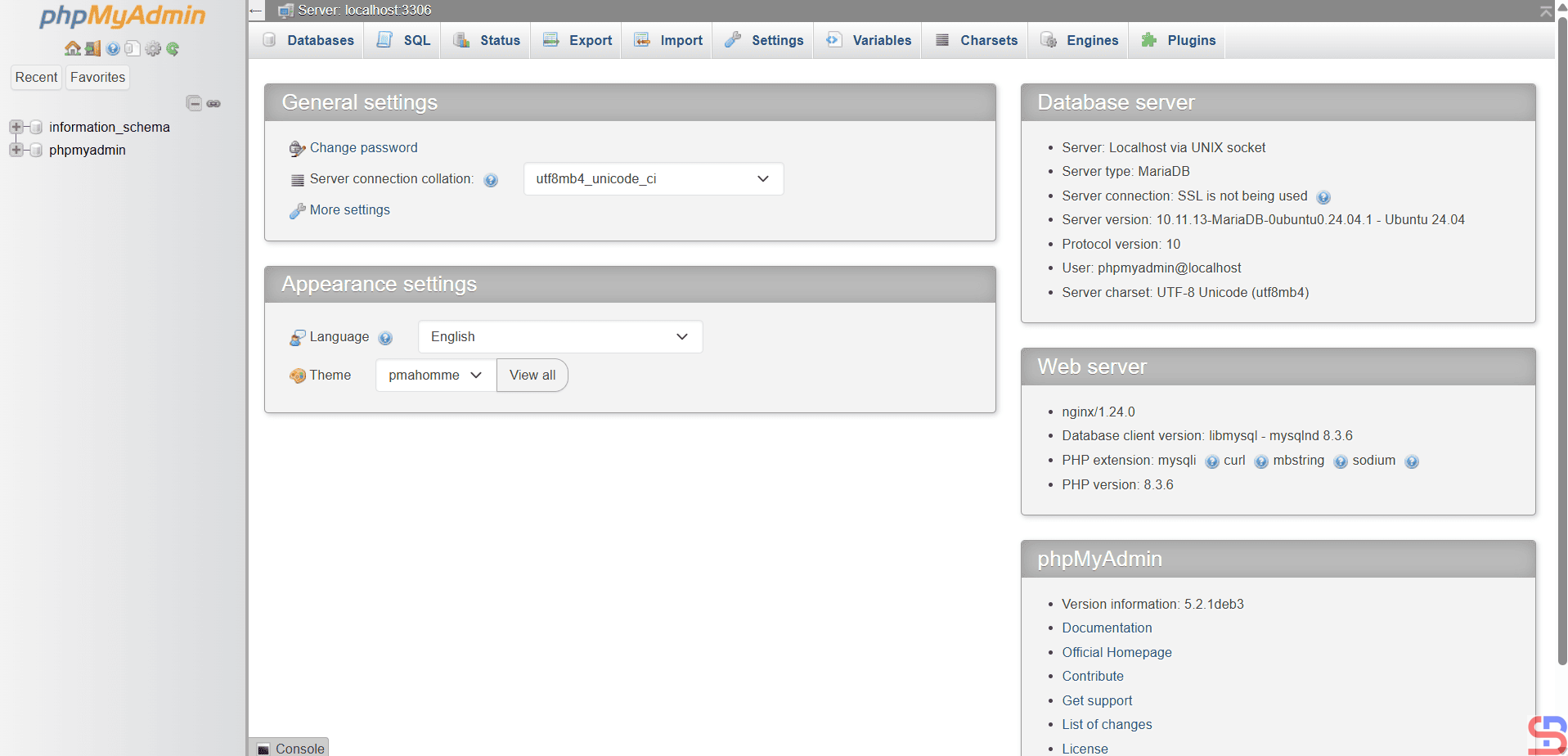
Enter the database username and password, for example, using the user phpmyadmin with the password that you created when installing phpMyAdmin, then there will be a display like the one below:

Display of phpMyAdmin using phpmyadmin user


Note

If you want the phpMyAdmin application to be more secure, you can look at this page.


References

markaicode.com
linuxbabe.com
hostman.com


How to Install Mytop?

As a sysadmin, you need a tool to monitor the MariaDB database, and one of the tools you can use is mytop.


Problem

How to install mytop?


Solution

Mytop is an open-source utility developed by Jeremy Zawodny with Perl for real-time monitoring of MySQL/MariaDB databases. To install this tool, use the commands below:

wget https://jeremy.zawodny.com/mysql/mytop/mytop-1.6.tar.gz
tar -zxvf mytop-1.6.tar.gz 
cd mytop-1.6/
perl Makefile.PL 
make
make test
sudo make install


To run this tool, use the format below:

mytop --prompt -d db_name


For example, if you want to monitor the Zabbix database, then use the command below:

mytop --prompt -d zabbix


Warning
But, if you want to use another user, you have to use the command below:

mytop --prompt -u zabbix_user -d zabbix


By default, Mytop uses the root user to enter the database, then enter the password from the root user, and you should see a display like the one below:

View of mytop application


You see from the image above, it looks like the top command in Linux. The following is a brief explanation of what the image above looks like:

  • The first line shows the version of the MariaDB Database and the uptime of the server.
  • The second line shows the number of queries that have been processed on the server (Queries), the average number of queries per second (qps), the number of slow queries (Slow), and the percentage of Select, Insert, Update, and Delete queries (Se/In/Up/De(%)).
  • The third line shows the current value since the last mytop refresh, which defaults to 5 seconds. The first field is the number of queries per second. The second value is the number of slow queries per second. The threads segment indicates there are a total of 32 connected threads, 1 is active (the others are sleeping), and there are 0 threads in the thread cache. The last field in the third line shows the query percentages, like in the previous line, but since last mytop refresh.
  • The fourth line shows crucial buffer efficiency (the frequency of key reads from the buffer instead of the disk) and the total number of bytes that MySQL has both sent and received, including data from the last mytop cycle. Key Efficiency: 100.0% indicates that all keys are read from the buffer, not from the disk. Bps in/out: 0.1/5.4 shows that since startup, MySQL has averaged 0.1kbps of inbound traffic and 5.4kbps for outbound traffic. Now in/out shows the traffic again, but since last mytop refresh.
  • The next line up to the last line shows a list of current MySQL threads, sorted according to their idle time (least idle first).

If you want to see more details about a query, then you can press the f button, and you will see a display like the one below:

Type the f button to get more details


Select the ID number for which you want to display the query in detail, for example, number 65, then type number 65 and press the Enter button, and then there will be a display like the one below:

Display the query in more detail


If you want to see an explanation of a query, then type the e button as in the image below, then there will be a display like the one below:

Type the ID number to explain the query


Type the ID number you want to explain, and after that, press the Enter key. If you want to see the command view, press the c button, then there will be a display like below:

Display the command view


The Command column displays the type of command or query that was executed, and the following is a brief explanation:

  • – The Total column represents the overall count of that type of command executed since the server began.
  • – The Last column indicates how many of that command type were executed since the last mytop refresh
  • – The Pct column indicates the equivalent percentage.


If you want to exit the mytop application, press the q button. If you want to enter the mytop application without having to type a password, you can create a .mytop file. Type the command:

vi ~/.mytop


After that, copy the script below, assuming the Zabbix database that you want to monitor uses the mytop application:

host=localhost
db=zabbix
user=root
pass=qwerty
delay=5
port=3306
socket=
batchmode=0
color=1
idle=1


After that, type the mytop command, and the mytop application should immediately display the mytop application without you having to write arguments and passwords, as in the image below:

Run the mytop tool without arguments and a password


You should only make a user a viewer if you are afraid that others will see your database password.


Note

Regrettably, this application is no longer under development, and the final version available is 1.6 from 2007. Nonetheless, after I use this tool in November 2025, it remains effective for monitoring MySQL/MariaDB databases.


References

jeremy.zawodny.com
digitalocean.com
tecmint.com
whplus.com
geeksforgeeks.org


How to Install PHPMyAdmin on Linux?

By default, if you want to access the MariaDB database, then you have to access it using the CLI. However, this method is a bit difficult, especially for those who are not used to the CLI. So you need an application that can display the database in the GUI, and you can interact with the database using the application. One application that is often used is the PHPMyAdmin application.


Problem

How to install PHPMyAdmin on Linux?


Solution

phpMyAdmin is an open-source, free MySQL and MariaDB administration tool, and as of this writing (November 2025), this application has version 5.2.3. This application is a web application and is written using PHP. Before installing the PHPMyAdmin application, you must have installed the database on your Linux server, and you must have provided a password for the database. Here is how to install the PHPMyAdmin application on Linux, based on the distro:

Ubuntu/Debian

sudo apt update
sudo apt install phpmyadmin php-mbstring php-zip php-gd php-json php-curl


RockyLinux/AlmaLinux/CentOS

yum install httpd
yum install php-phpmysql


OpenSUSE

sudo zypper install apache2
sudo zypper install php7 php7-mysql apache2-mod_php7 phpMyAdmin


This article will install PHPMyAdmin on Ubuntu 24.04 and run the command below:

sudo apt update
sudo apt install phpmyadmin php-mbstring php-zip php-gd php-json php-curl


During installation, a pop-up will appear as below:

Select the web server


Select the web server used, and I use the Apache web server, and click OK. Then there will be another pop-up like below:

Configuring phpmyadmin


Choose Yes, and the installation will continue, but after that, you must enter the password for phpadmin as in the image below:

Enter the password


Enter your password, click Ok, and then there will be an email confirmation as in the image below:

Password confirmation


Enter your password again, click Ok, and the installation process will continue. And you have to wait until the installation process is complete. After that, open your browser and type the URL below:

http;//your_ip_server/phpmyadmin


There should be a display like the image below:

Enter username and password


If there is no display like the one above, it looks like you have to open port 80 on your server. Enter your username and password in your MySQL/MariaDB Database, and if there are no errors, then there will be a display like in the image below:

Access to PHPMyAdmin


To see all the databases in your database, click Database as shown in the image below:

List all databases


You can also perform queries in the SQL section, as in the image below:

Execute query in PHPMyAdmin


And you can see the history of queries that you have done in PHPMyAdmin in the console section, as in the image below:

Show the history of the query in PHPMyAdmin


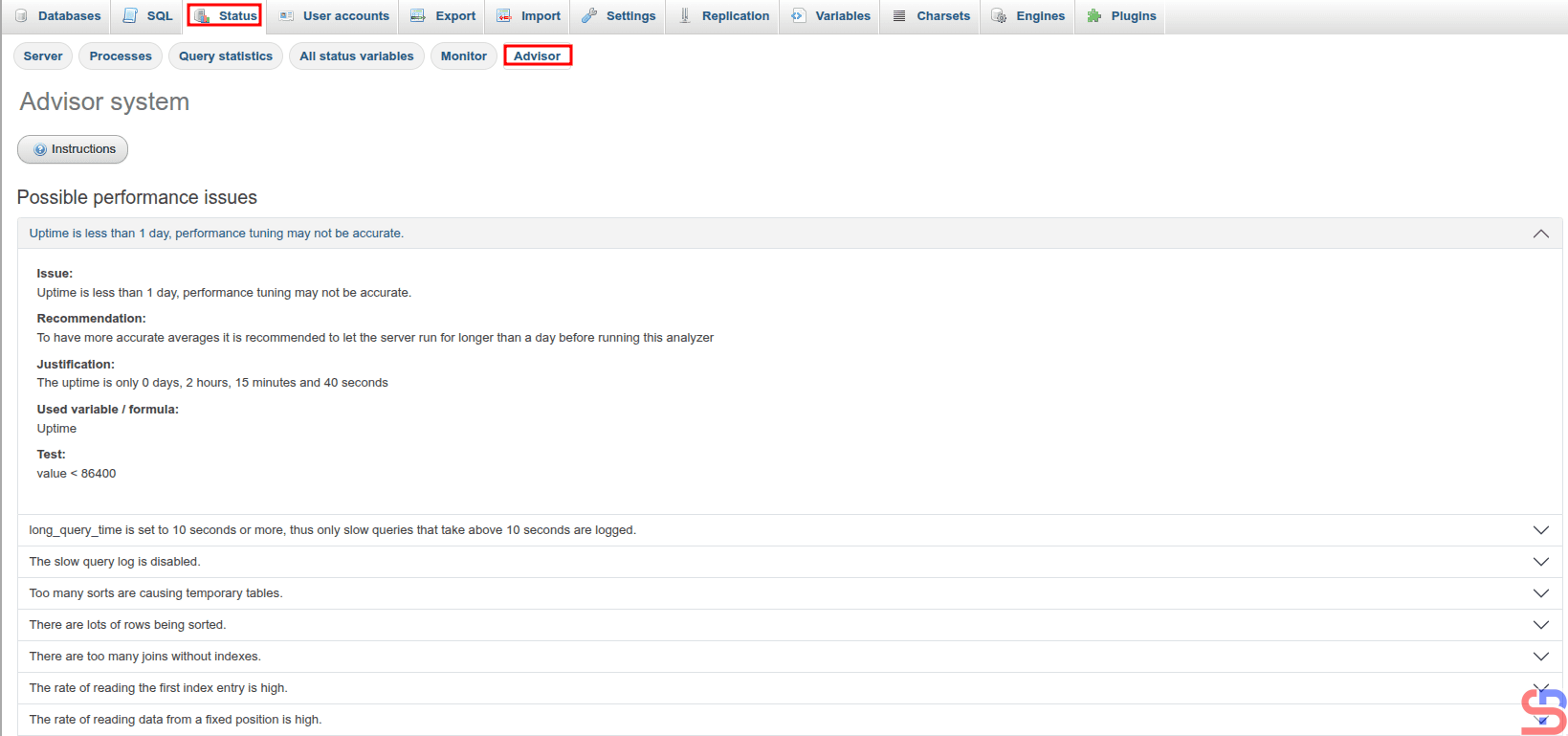
And in the console section, you can also perform queries by pressing Ctrl+Enter after you write the query. In fact, this application also provides an advisor feature to provide recommendations for your MariaDB database, as shown in the image below:

Recommendation for your database in phpMyAdmin


Note

It is highly recommended to restrict access to the PHPMyAdmin application. Therefore, this application should only be allowed on certain IPs, for example, office IPs. And you can make these restrictions in the /etc/apache2/conf-available/phpmyadmin.conf file in the /usr/share/phpmyadmin section. For example, if you want only IP 192.168.56.1 to be able to access this application, then add the script below:

# Limit IP
    Order Deny,Allow
    Deny from All
    Allow from sysadminpedia.com
    Allow from 192.168.56.1
    Allow from 127.0.0.1

IP limitation in PHPMyAdmin


After that, restart your web server. Now you can’t open the phpMyAdmin application except at the IP you have specified in the phpmyadmin.conf file


References

en.wikipedia.org
digitalocean.com
tutorialspoint.com
synaptica.info
linuxblog.io