How to Stop Linux From Erasing the File(s) or Folder(s)?
I want to prevent a specific file or folder from being deleted, even with the root user.
Problem
How to stop Linux from erasing the file(s) or folder(s)?
Solution
In Linux, there are two commands you can use to prevent unauthorized changes, protect the critical file(s) or folder(s), and ensure the integrity of the system: the lsattr and chattr commands.
A. The lsattr command
To see the properties of files or directories on a file system that supports extended attributes, use the lsattr command. So, lsattr command displays special attributes that are not visible with the ls -l command. Run the command below to see the list of attributes:
lsattr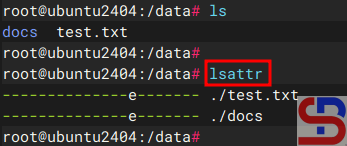
By default, if your server uses the ext4 format, a file or folder on that Linux server will have the e attribute, or extent format, which is a more efficient file storage method than the traditional block method. Below is a brief explanation of the various attributes:
File/Folder Attributes
| Attribute | Explanation |
| - | Attribute not set |
| a | Append-only — file can only be opened for appending without modifying existing data on a File, not overwritten or truncated |
| A | No atime updates — access time is not updated when the file is read |
| c | Compressed — file is stored compressed on disk (kernel support required). |
| C | No Copy-on-Write (CoW) — disables CoW for Btrfs files. |
| d | No dump — file is ignored by the dump backup program. |
| D | Synchronous directory updates — directory changes are written immediately to disk. |
| e | Extents — file uses extents to map blocks (default on ext4). |
| i | Immutable — file cannot be modified, deleted, renamed, or linked (even by root). |
| j | Data journaling — file data is journaled as well as metadata. |
| s | Secure deletion — blocks are zeroed when file is deleted (if supported). |
| S | Synchronous updates — file changes are written immediately to disk. |
| t | No tail-merging — prevents tail-packing (used in ReiserFS). |
| T | Top of directory hierarchy — marks directory as top-level for block allocator. |
| u | Undelete — when deleted, file content can be recovered (if supported). |
B. The chattr command
With Linux, users can modify the properties of files and directories with the ‘chattr’ (change attribute) command. Using this command, you can protect a file or directory from deletion or addition, which is very useful for protecting critical files or folders. To use this command, you can follow the format below:
chattr [operator][attribute] file(s)/folder(s)
You can see the attributes in the table above, while the table below shows the operators you can use:
The Operators in attribute file(s)/folder(s)
| Operator | Explanation |
| + | Add the specified attribute(s) to the file/directory (keep existing ones). |
| - | Remove the specified attribute(s) from the file/directory. |
| = | Set the attribute(s) exactly as specified (replace all existing ones). |
1. Making a file undeletable
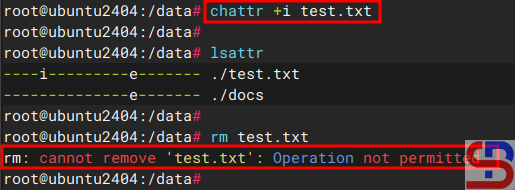
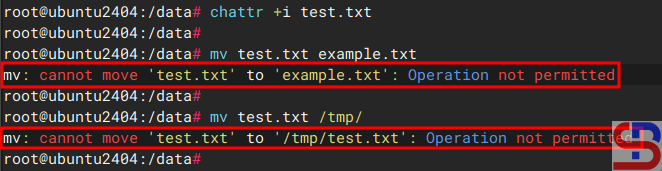
Use the command below to make a file undeletable in a file, for example, test.txt:
chattr +i test.txt
Then, try deleting the file. It should be undeletable even with the root user, as shown in the image below:
You cannot even rename the file or move it to another folder, as shown in the image below:
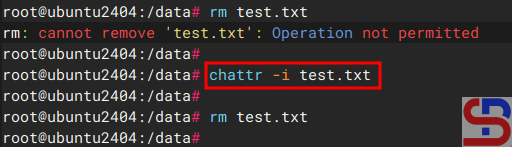
If you want to really delete a file, you have to run the command below, and you can delete the file like in the image below:
2. Append data without modifying existing data on a File
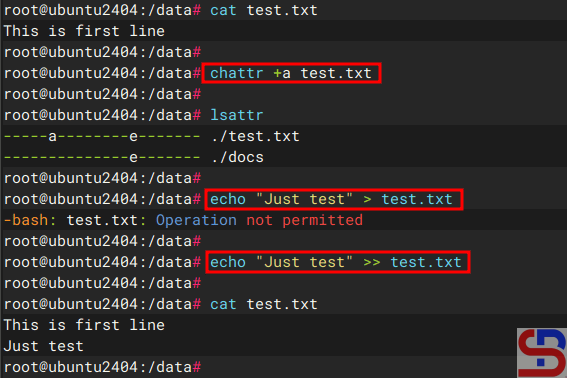
If you want the file to be able to add content without deleting the content that is already in the test.txt file, use the command below
chattr +a test.txt
Then try running the two commands below:
echo "Add test" > test.txt
echo "Just test" >> test.txt
And only the second command should be able to be executed, as shown in the image below:
To get the file back to “normal”, use the command below:
chattr -a test.txt
3. Making a folder secure
Use the command below if you want your folder to be undeleted, for example, the docs folder:
chattr -R +i docs/
Now, try to delete the folder, and it should not be deletable as shown in the image below:
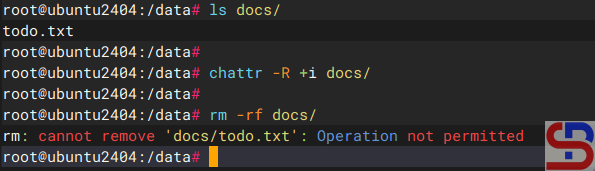
Even you can’t delete the files in the folder, as shown in the image below:

For the folder to be deleted, use the command below:
chattr -R +i docs/
Note
You can run more than one option to change the attributes of a file in a command. For example, you want the file to be undeletable and appended without deleting the content that was previously present in the test.txt file, then use the command below:
chattr +ia test.txt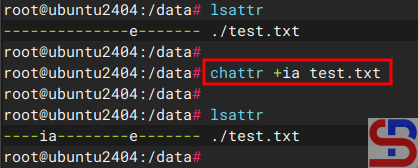
Likewise, you can delete more than one attribute for the test.txt file, then use the command below:
chattr -ia test.txt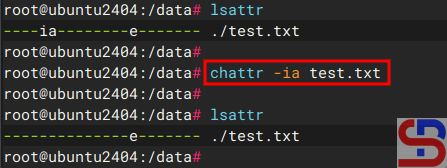
You can also run and change the attribute in more than one file or folder. For example, you want to change the attributes for test.txt and ok.txt, use the following command:
chattr +ia test.txt ok.txt