How to Remove And Limit Journal Log Size in Linux?
written by sysadmin | 19 February 2025
systemd-journald is a service that collects and stores logging data, creating structured, indexed journals based on the logging information it receives. But sometimes the logs produced are so large that you have to remove and limit the journal log.
Problem
How to remove and limit journal log size in Linux?
Solution
By default, the log journal is in the folder/var/log/journal and will retain 4 GB of data. You can limit the log size by using the format below:
journalctl --vacuum-size=BYTES
If you want to remove the journal log to 100 MB, you can use the command below:
journalctl --vacuum-size=100M
The journal log size will reduce to around 100 MB, like in the image below, after you execute the above command:
Remove the journal log
You can also make the journal log remain 100 MB without running the command above by configuring it in the journald.conf file. But the file is in a different folder in each Linux distro, so you have to search for the file using the following command:
find / -name journald.conf
After you find the file, for example, you want to limit the journal log to only 100 MB, then change the file so that it looks like the following:
[Journal]
SystemMaxUse=100MB
After that, restart the journald service using the command below:
systemctl restart systemd-journald.service
The journal log size should be produced in the folder /var /log, only measuring about 100 MB.
Note
If you want to test to generate lots of logging quickly, you can use the following command:
while true; do dd if=/dev/urandom bs=3 count=10000 | base64 | logger; done
At the same time, you can execute the following command to display the size of the journal log in another terminal:
while true; do du -s /var/log/journal/ ; sleep 5 ;done
What you should know is that the journal should not be disabled, especially if you use rsyslogd, because rsyslogd can get its information from journald, and they play very well together this way.
The previous article explained how to install the Nagios application on Ubuntu. This article will explain how to install the Nagios application on RockyLinux.
Problem
How to install Nagios on RockyLinux?
Solution
Below are the steps to install Nagios on RockyLinux and work on RockyLinux 9.5 and below. But I think these steps should apply to installing Nagios on RHEL and its derivatives, such as CentOS, AlmaLinux, and so on.
1. Download the packages
Install the packages needed to install Nagios using the command below:
yum install -y httpd php php-devel gcc glibc glibc-common gd gd-devel make net-snmp-* wget zip unzip php-mysqlnd php-mysql*
2. Create a user and a group
Create a user and group for Nagios using the commands:
Use the commands below to download Nagios, where at the time of this writing (February 2025), the latest version of Nagios is version 4.5.9:
cd /tmp
wget https://github.com/NagiosEnterprises/nagioscore/archive/refs/heads/master.zip -O nagios.zip
unzip nagios.zip
cd nagioscore-master/
4. Install Nagios
By default, Linux will create a Nagios folder in the /usr/local folder to save Nagios configuration files. So, use the following commands to install Nagios:
./configure
Info
If you want to save all Nagios files in a non-default folder, for example, in the /data folder, then use the following command: ./configure –prefix=/data/nagios
After that, run the following commands:
make all
make install
make install-init
make install-commandmode
make install-config
make install-webconf
5. Create the password
Create a password for the user to access the Nagios application. Usually, nagiosadmin is a popular username for Nagios, but you can create another username.
If you installed Nagios in a non-default folder, for example, in the /data folder, execute the below command: htpasswd -c /data/nagios/etc/htpasswd.users nagiosadmin
6. Download Nagios Plugins
Plugins are compiled executables or scripts (Perl, shell, Python, PHP, Ruby, etc.) that can be run from a command line to check the status of a host or service. Nagios Core uses the results from plugins to determine the current status of hosts and services on your network. As of this writing (February 2025), the latest version of Nagios plugins is version 2.4.12. You can check the latest version of Nagios plugins on this site. Run the following commands to download Nagios plugins:
cd /tmp
wget https://github.com/nagios-plugins/nagios-plugins/archive/refs/heads/master.zip -O nagios-plugins.zip
unzip nagios-plugins.zip
cd nagios-plugins-master/
7. Install Nagios Plugins
After that, install Nagios plugins using the following commands:
./tools/setup
sudo ./configure --with-nagios-user=nagios --with-nagios-group=nagios
sudo make
sudo make install
8. Check the configuration
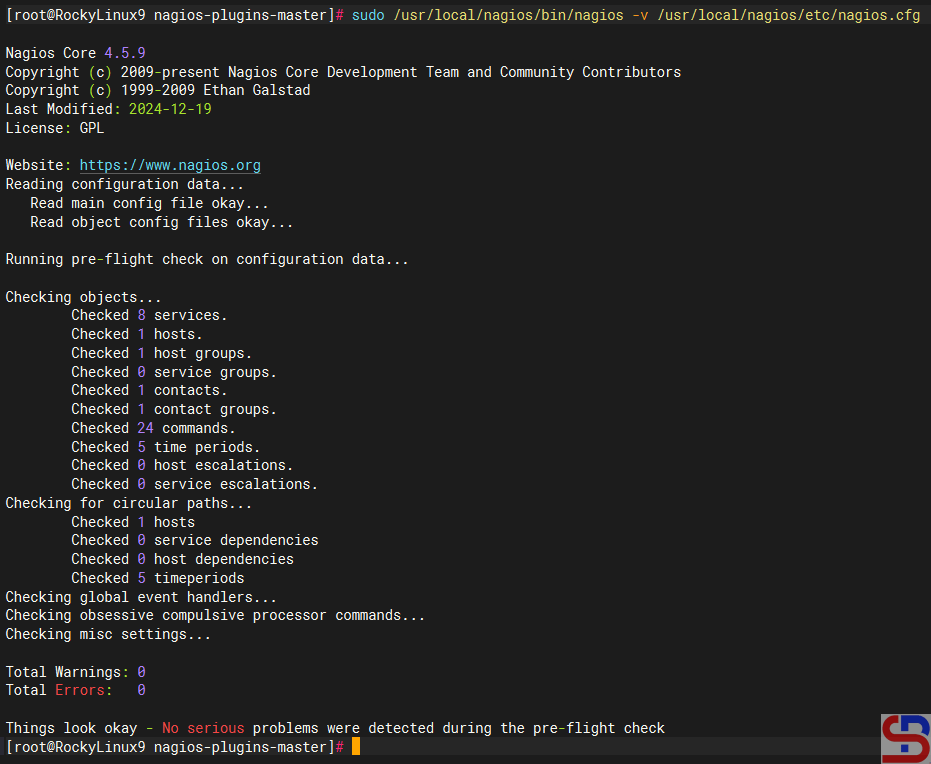
After installing Nagios and Nagios plugins, run the following command to check the configuration of Nagios:
If you installed Nagios in a non-default folder, for example, in the /data folder, execute the below command: /data/nagios/bin/nagios -v /data/nagios/etc/nagios.cfg
and make sure there is no error like in the image below:
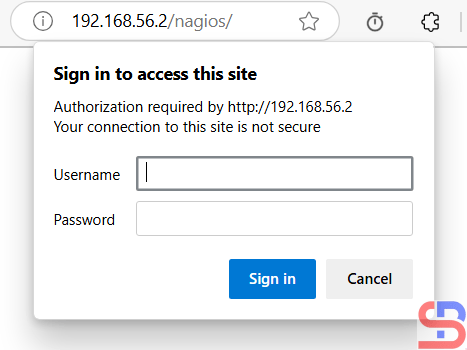
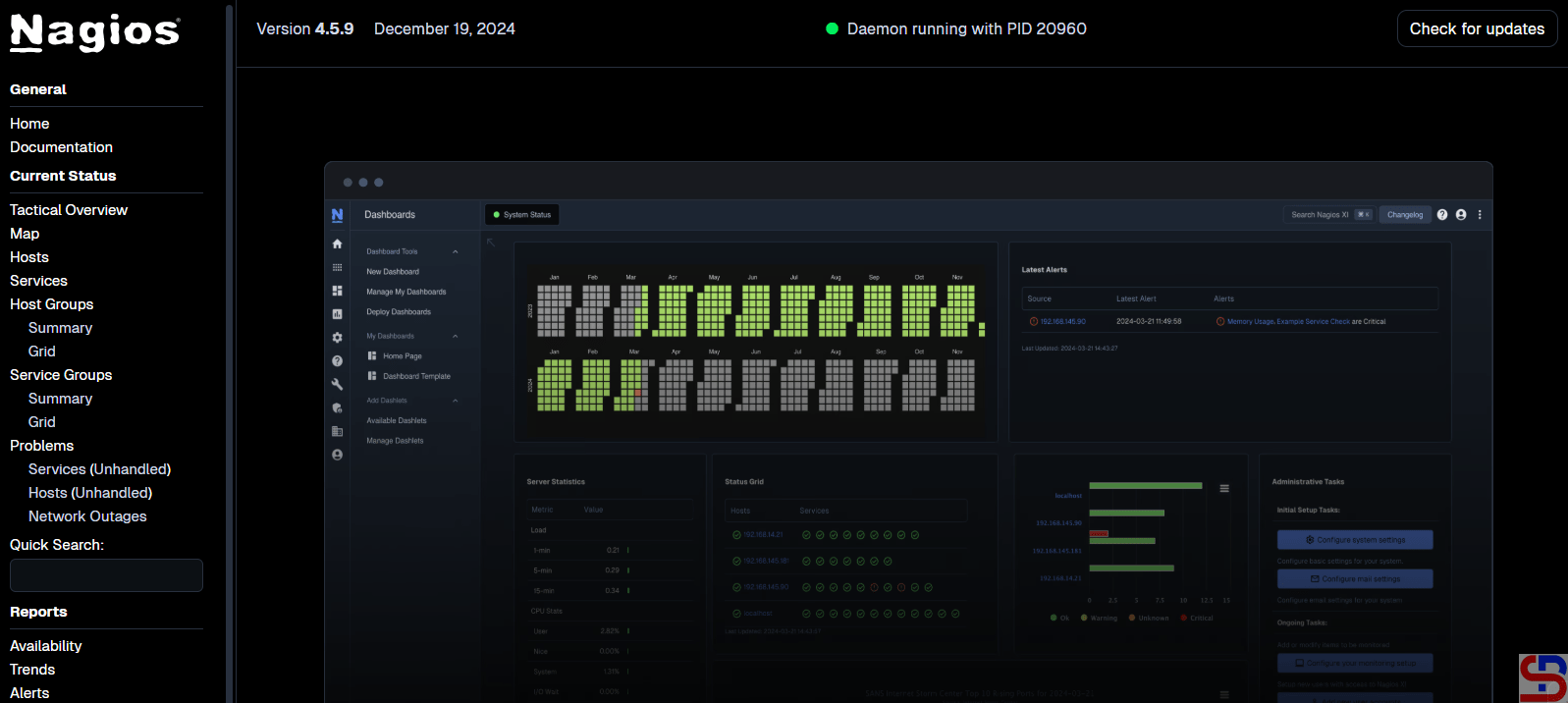
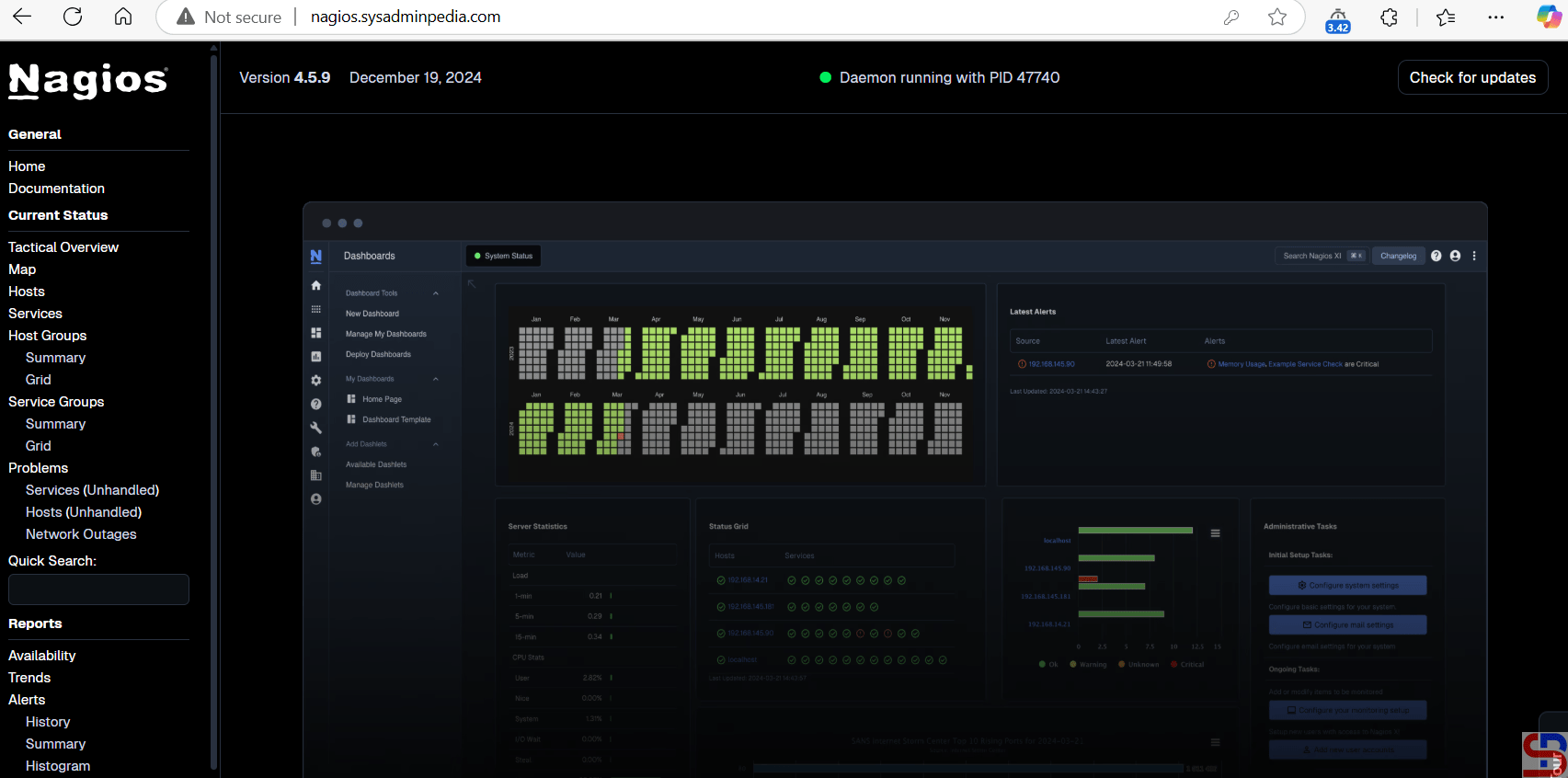
Back to your browser again, and it should work now. Insert the username (nagiosadmin) and the password for Nagios. If the username and the password are right, the Nagios application will appear like this:
Open the Nagios application
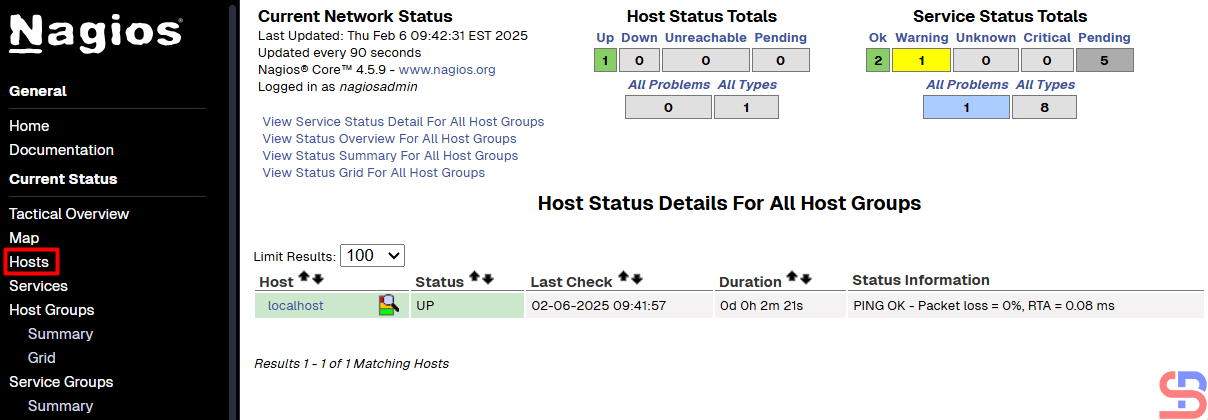
If you want to know which hosts are being monitored by Nagios, click Hosts. Nagios will display the hosts that are being monitored:
Hosts monitored by Nagios
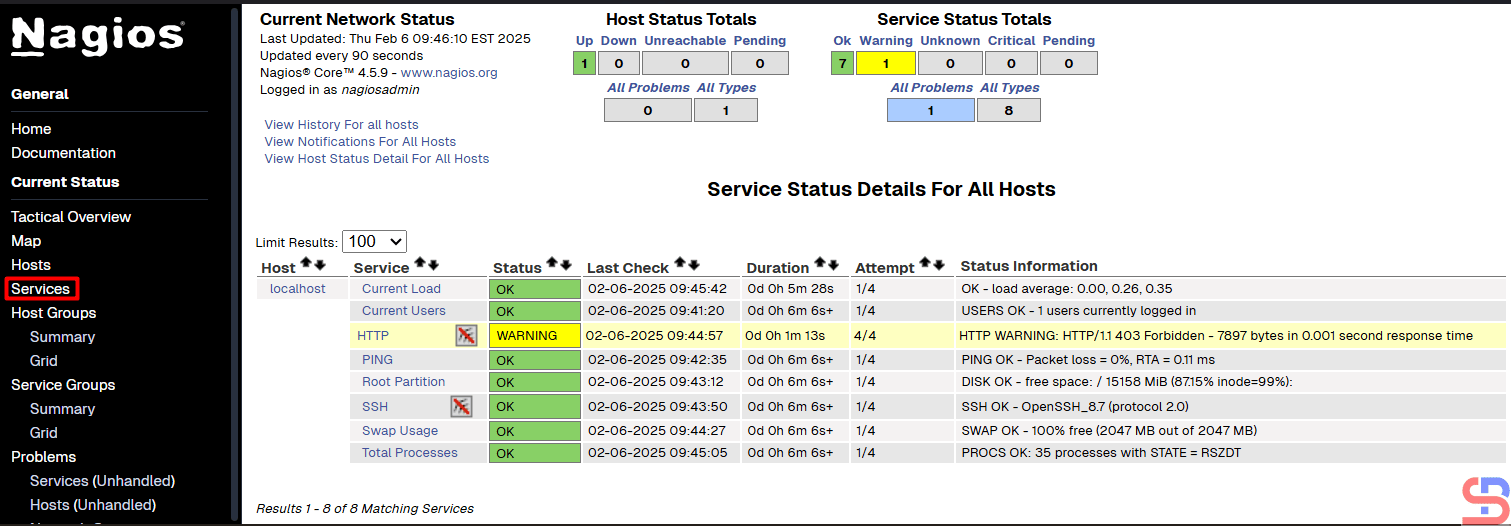
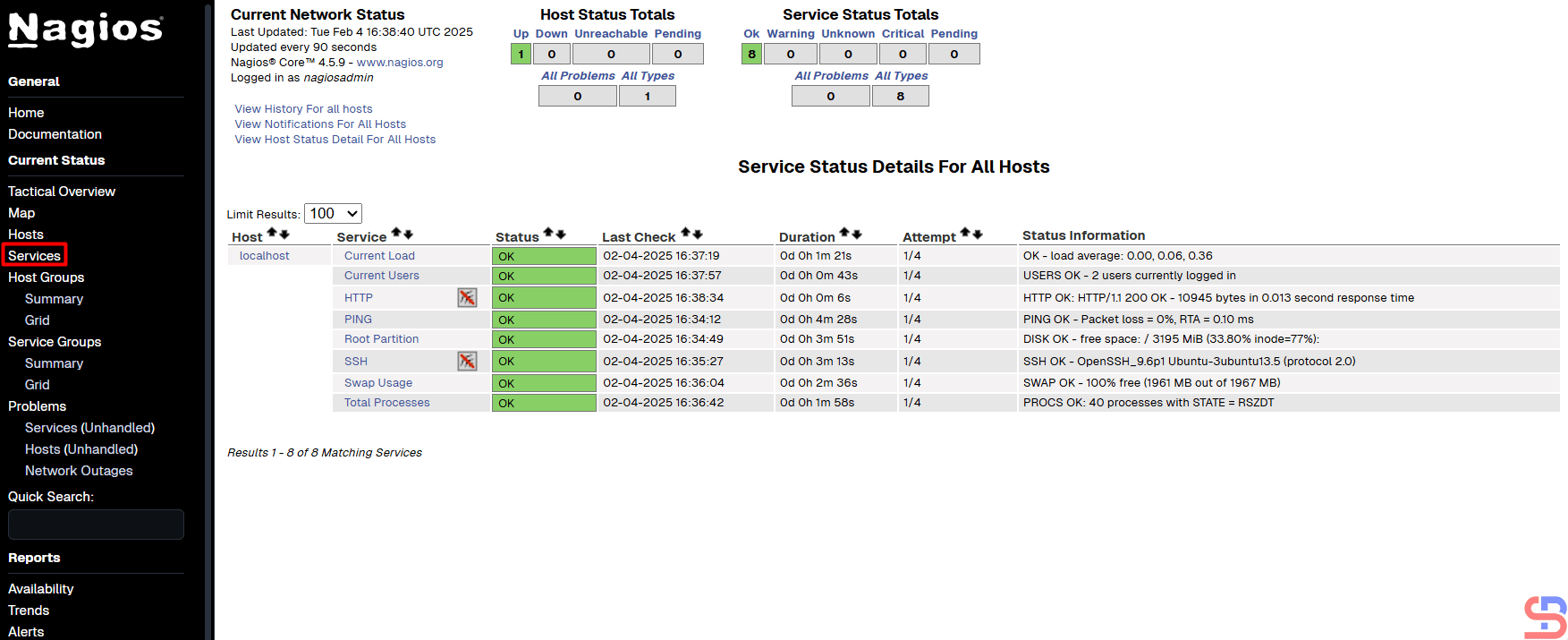
From the picture above, it can be seen that currently, Nagios is only monitoring the Nagios server or localhost. If you want to know which services are being monitored by Nagios, click Services. Nagios will display the services that are being monitored:
Services monitored by Nagios
From the picture above, you can see that Nagios monitored 8 services for the Nagios server or localhost.
Note
If you have a domain/subdomain and want to use that domain/subdomain for the Nagios application, create a virtual host on your web server. For example, I have the domain sysadminpedia.com and want to use the subdomain nagios.sysadminpedia.com for the Nagios application. So, I created the script below in the file /etc/httpd/conf.d/nagios.sysadminpedia.com.conf:
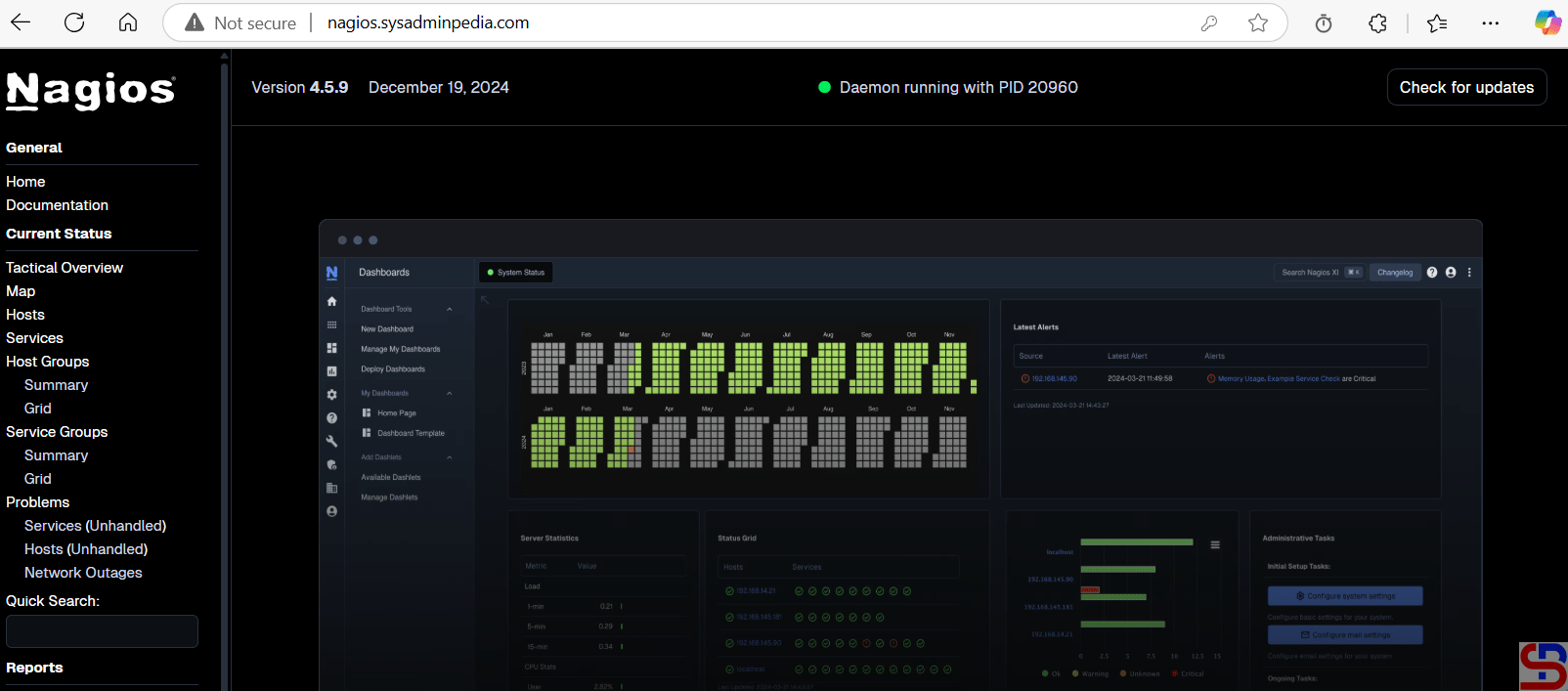
Restart the web server, open your browser, and type your domain/subdomain for Nagios, and it should be like the image below:
Using a domain or a subdomain for the Nagios application
Info
If you installed Nagios in a non-default folder, for example, in the /data folder, you can copy the script above, but you must change the word /usr/local to /data.
How to Display a File Without the Hashtag Sign on Linux?
written by sysadmin | 19 February 2025
If you open the configuration file on the Linux Server, you will usually find many comments used in the file, which are started by a hashtag sign (#). This aims to explain a configuration that is under comment. But sometimes you want to see the configuration without having to look at the explanation of the configuration.
Problem
How to display a file without the hashtag sign on Linux?
Solution
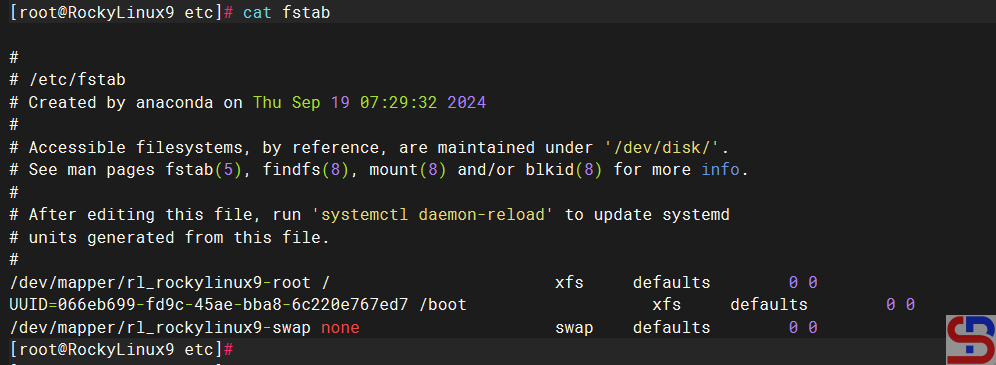
For example, I want to see the default configuration file for the fstab file, which is located at /etc/fstab, and by default, it will look like the image below:
The fstab file
As far as I know, there are 3 methods to display the file without the hash sign:
1. Using the grep command
To use the grep command, you can use the format below:
grep -v '#'filename
In this case, type the command below:
grep -v '#' /etc/fstab
And it will look like the image below:
Using the grep command
2. Using the sed command
To use the sed command, you can use the format below:
sed '/#/d'filename
In this case, type the command below:
sed '/#/d' /etc/fstab
And it will look like the image below:
Using the sed command
3. Using the awk command
To use the awk command, you can use the format below:
awk '! /#/'filename
In this case, type the command below:
awk '! /#/' /etc/fstab
And it will look like the image below:
Using the awk command
Note
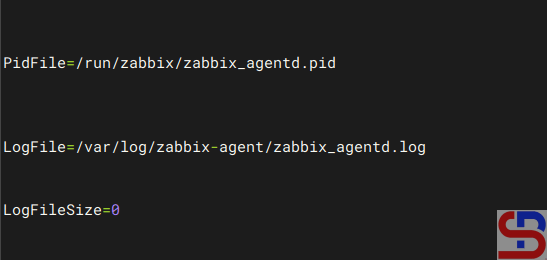
Usually, when you use either of the three commands above to display a sentence that does not start with a hash mark in a Linux file, the result may be a lot of empty spaces, for example, in the zabbix_agentd.conf file, as shown in the image below:
The initial output
So if you want to only display the results without any blank spaces, then use the command below:
and the result will be as shown in the image below:
The expected result
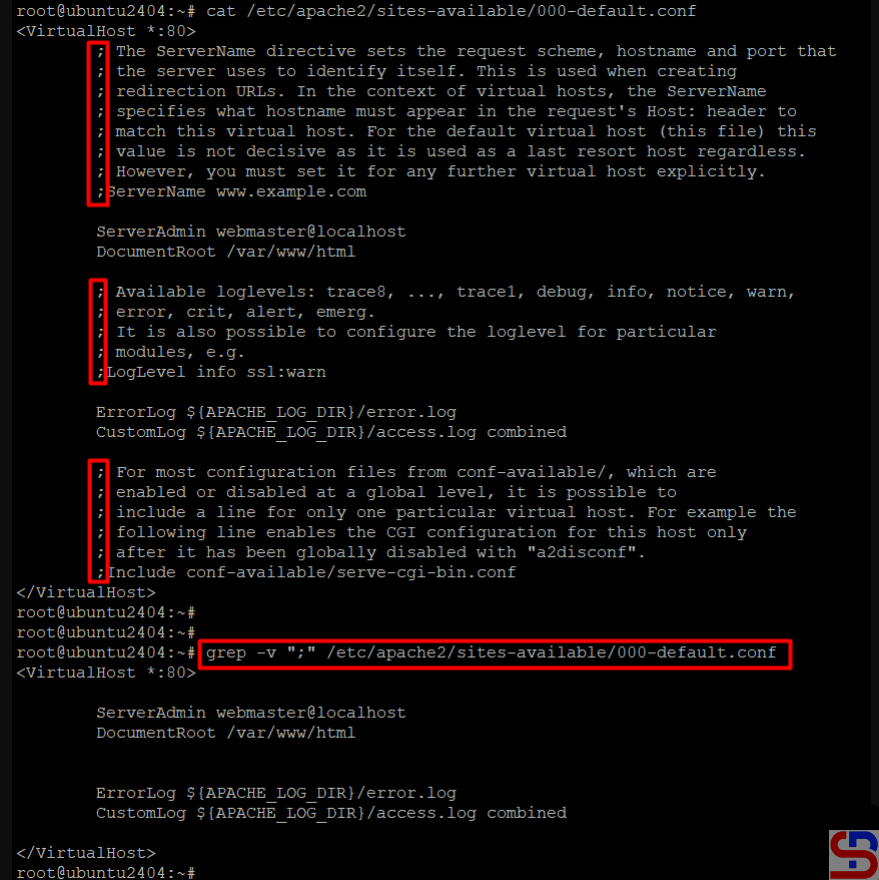
If the file comments do not use a hashtag sign, for example, use a semicolon (;), replace the hashtag sign with a semicolon sign in one of the commands above, and it should display a configuration that does not start with the semicolon sign:
Nagios is an event monitoring system created by Ethan Galstad and first released in 2002, which offers monitoring and alerting services for servers, switches, applications, and services. It alerts users when things go wrong and alerts them again when the problem has been resolved. There are 2 types of Nagios: Nagios XI for the enterprise version and Nagios Core for the free version. This article will explain how to install Nagios Core on Ubuntu.
Problem
How to install Nagios on Ubuntu?
Solution
Here are the steps to install Nagios on Ubuntu, and these steps work on Ubuntu 24.04 and below and I think it should also work on Debian.
1. Download the packages
Install the packages needed to install Nagios using the command below:
After that, create a user and group for Nagios using the commands:
sudo useradd nagios
sudo groupadd nagcmd
sudo usermod -a -G nagcmd nagios
sudo usermod -a -G nagcmd www-data
3. Download Nagios
Use the commands below to download Nagios, where at the time of this writing (February 2025), the latest version of Nagios is version 4.5.9:
cd /tmp
wget https://github.com/NagiosEnterprises/nagioscore/archive/refs/heads/master.zip -O nagios.zip
unzip nagios.zip
cd nagioscore-master/
4. Install Nagios
By default, Linux will create a Nagios folder in the /usr/local folder to save Nagios configuration files. So, use the following commands to install Nagios:
If you want to save all Nagios files in a non-default folder, for example, in the /data folder, then use the following command: sudo ./configure –prefix=/data/nagios –with-command-group=nagcmd –with-httpd-conf=/etc/apache2/sites-enabled
After that, run the following commands:
sudo make all
sudo make install
sudo make install-init
sudo make install-daemoninit
sudo make install-config
sudo make install-commandmode
sudo make install-webconf
sudo a2enmod rewrite
sudo a2enmod cgi
5. Create the password
Create a password for the user Nagios to access the Nagios application. Nagiosadmin is usually a popular username for Nagios, but you can create another.
If you installed Nagios in a non-default folder, for example, in the /data folder, execute the below command: sudo htpasswd -c /data/nagios/etc/htpasswd.users nagiosadmin
6. Download Nagios Plugins
Plugins are compiled executables or scripts (Perl, shell, Python, PHP, Ruby, etc.) that can be run from a command line to check the status of a host or service. Nagios Core uses the results from plugins to determine the current status of hosts and services on your network. As of this writing (February 2025), the latest version of Nagios plugins is version 2.4.12. You can check the latest version of Nagios plugins on this site. Run the following commands to download Nagios plugins:
cd /tmp
wget https://github.com/nagios-plugins/nagios-plugins/archive/refs/heads/master.zip -O nagios-plugins.zip
unzip nagios-plugins.zip
cd nagios-plugins-master/
7. Install Nagios Plugins
After that, install Nagios plugins using the following commands:
./tools/setup
sudo ./configure --with-nagios-user=nagios --with-nagios-group=nagios
sudo make
sudo make install
8. Check the configuration
After installing Nagios and Nagios plugins, run the following command to check the configuration of Nagios:
If you installed Nagios in a non-default folder, for example, in the /data folder, execute the below command: sudo /data/nagios/bin/nagios -v /data/nagios/etc/nagios.cfg
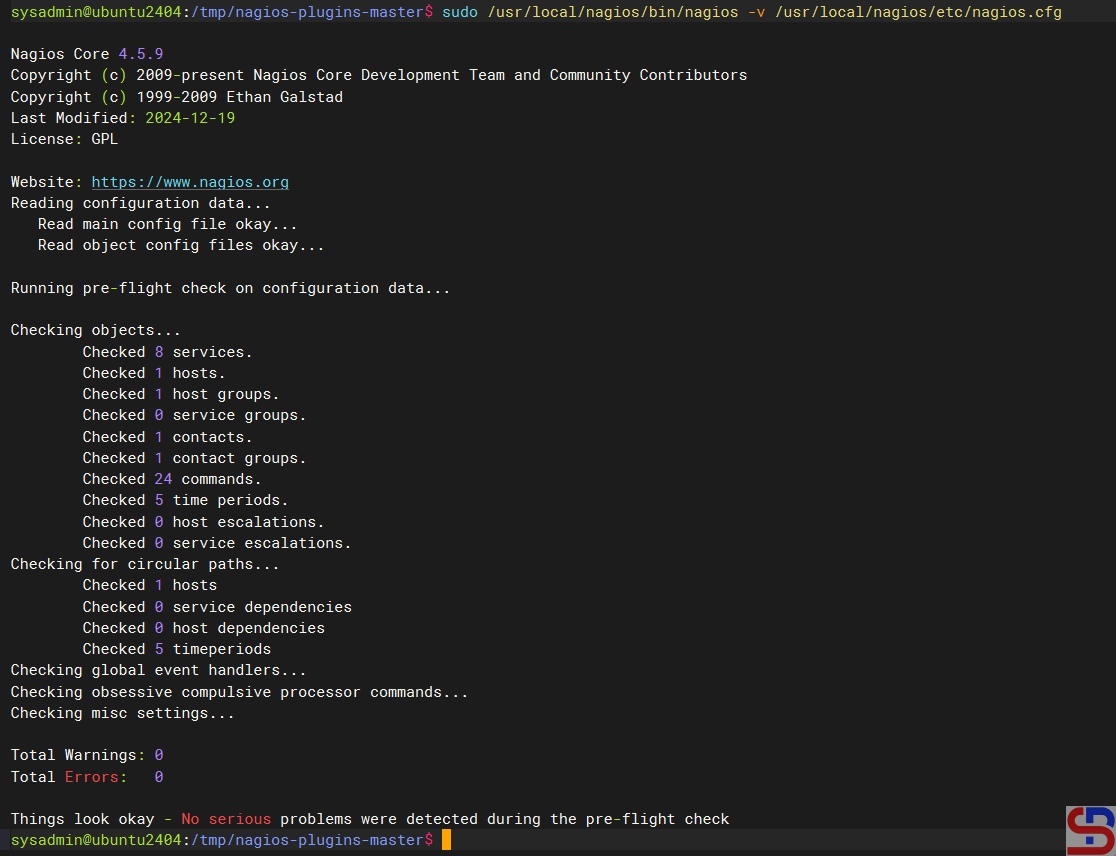
and make sure there is no error like in the image below:
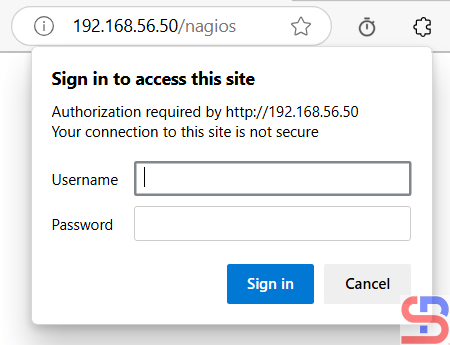
And there should be a display like the image below:
Open Nagios in the browser
If you don’t see the image like the above image in your browser, maybe the Firewall/IPTables is still on your server. Run the following commands:
sudo ufw allow Apache
sudo ufw reload
Back to your browser again, and it should work now. Insert the username (nagiosadmin) and the password for Nagios. If the username and the password are right, the Nagios application will appear like this:
Nagios application
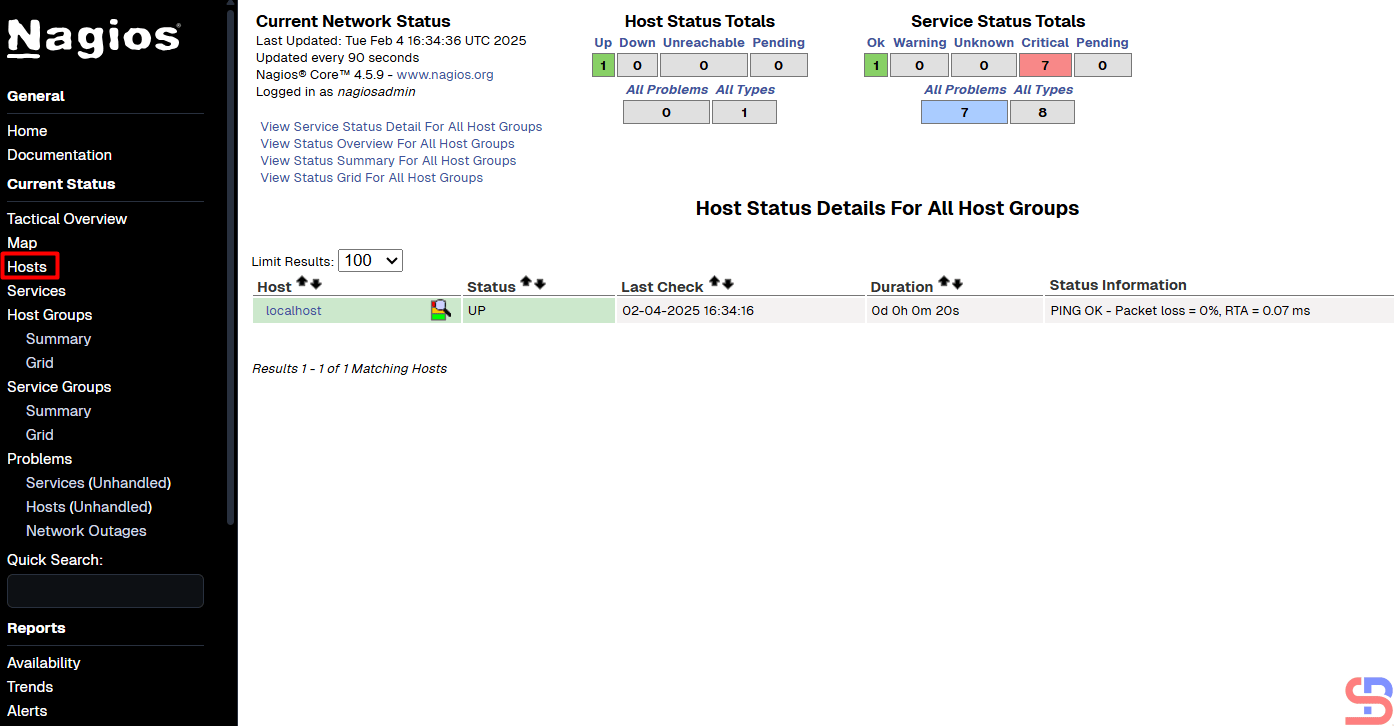
If you want to know which hosts are being monitored by Nagios, click Hosts, and Nagios will display the hosts that are being monitored:
Hosts monitored by Nagios
You can see from the picture above, Nagios only monitors the Nagios server or localhost. If you want to know which services are being monitored by Nagios, click Services then Nagios will display the services that are being monitored:
Services monitored by Nagios
From the picture above, Nagios monitors 8 services for the Nagios server or localhost.
Note
If you have a domain/subdomain and want to use that domain/subdomain for the Nagios application, create a virtual host on your web server. For example, I have the domain sysadminpedia.com and want to use the subdomain nagios.sysadminpedia.com for the Nagios application. So, I created the script below in the file /etc/apache2/sites-enabled/nagios.sysadminpedia.com.conf:
Restart the webserver, open your browser, and type your domain/subdomain for Nagios, and it should be like the image below:
Using a domain/subdomain for the Nagios application
Info
If you installed Nagios in a non-default folder, for example, in the /data folder, you can copy the script above, but you must change the word /usr/local to /data
A Docker is a platform for developing, shipping, and running container applications. Docker is like installing a virtual machine application on your laptop or server, whether it’s VirtualBox, VMWare, or Xen, so you can test various operating systems or applications on it without putting your laptop or server in danger.
Problem
How to install Docker on the Linux server?
Solution
A. Docker summary
The key differentiator between containers and virtual machines is that virtual machines virtualize an entire machine down to the hardware layers, and containers only virtualize software layers above the operating system level. Take a look at the image below to make the difference between virtual machines and Docker clearer:
Comparison of Docker and Virtual Machine Architecture (image credit from atlassian.com)
The table below shows the comparison between virtual machines and Docker:
Comparison between Docker and virtual machine (Image credit from huawei.com)
Below is a brief explanation of the terms in Docker:
𝗗𝗼𝗰𝗸𝗲𝗿 𝗣𝘂𝗹𝗹: Downloads images from Docker Hub if not locally available
𝗗𝗼𝗰𝗸𝗲𝗿 𝗕𝘂𝗶𝗹𝗱: Creates a local image using a Dockerfile, enabling custom images
𝗗𝗼𝗰𝗸𝗲𝗿 𝗣𝘂𝘀𝗵:Uploads images to Docker Hub, allowing sharing
𝗗𝗼𝗰𝗸𝗲𝗿 𝗥𝘂𝗻: Takes an image to run a container, useful for starting web servers or other applications
𝗗𝗼𝗰𝗸𝗲𝗿 𝗜𝗺𝗮𝗴𝗲: Read-only templates forming the base of containers, including all application dependencies
𝗗𝗼𝗰𝗸𝗲𝗿 𝗖𝗹𝗶𝗲𝗻𝘁: Interacts with Docker, sending instructions to the Docker daemon to execute tasks
𝗗𝗼𝗰𝗸𝗲𝗿 Daemon: Handles all requests, including building, running, and distributing containers
𝗗𝗼𝗰𝗸𝗲𝗿 𝗖𝗼𝗻𝘁𝗮𝗶𝗻𝗲𝗿𝘀: Include everything needed to run an application, such as code, libraries, and configurations
𝗗𝗼𝗰𝗸𝗲𝗿 𝗥𝗲𝗴𝗶𝘀𝘁𝗿𝘆: Stores Docker images, with Docker Hub as a public registry and the option to create private ones
The image below is a picture of how the Docker works:
To see the version of Docker you installed, use the command below:
docker info
Running the docker info command
D. Test the application in Docker
After that, to see whether Docker is running well on the server, use the command below to run the hello-world container on your server:
docker run hello-world
If you have got the error like the image below:
Error when running the docker run command
ERROR: permission denied while trying to connect to the Docker daemon socket at unix:///var/run/docker.sock: Get “http://%2Fvar%2Frun%2Fdocker.sock/v1.47/info”: dial unix /var/run/docker.sock: connect: permission denied
Then you have to run the following command:
sudo usermod -aG docker $USER
Log out of your server and log in again. After that, you should be able to run the Docker commands like in the image below:
Test the Docker run command
That way, your Docker application is ready to use.
Note
You don’t have to use Docker to create and run containers, but you can use other applications such as podman, buildah, cri-o, etc. However, Docker is the most popular at the moment. Also, the terms and workings of various container applications are almost the same, so if you understand the terms and workings of Docker, then you will also understand the terms and workings of other container applications. To learn about basic commands in Docker, go to this page.
In general, sysadmins will use the free -m command to see how much server memory is on the Linux server and how much is used. However, I want to display the server memory percentage on my Linux.
Problem
How to display server memory percentage on Linux?
Solution
If you run free -m on your Linux server, you will see something like this in the image below:
Display of RAM condition
a. Display the memory used
Use the command below to display the memory used in percent form:
free -m | grep Mem | awk '{print $3/$2 * 100.0}' | sed 's/$/%/'
Used memory in percentage
b. Display available free memory
Use the command below to display available free memory in percent form:
free -m | grep Mem | awk '{print $4/$2 * 100.0}' | sed 's/$/%/'
Free memory in percentage
c. Display the cache memory
Use the command below to display the cache memory in percent form:
free -m | grep Mem | awk '{print $6/$2 * 100.0}' | sed 's/$/%/'
Cache memory in percentage
d. Integrate with bash script
If you want the percentage of memory to be put into the bash script for comparison, then the percentage should be changed from a fraction to an integer. Take a look at an example of a bash script below:
#!/bin/bash

# Take the percentage of memory usage
mem_usage=$(free -m | grep Mem | awk '{print $3/$2 * 100.0}')
echo Usage Memory: $mem_usage

# Change to integer for comparison
mem_usage_int=${mem_usage%.*}

# Check condition
if [ $mem_usage_int -gt 80 ]; then
    echo "High Memory: ${mem_usage_int}% used"
else
    echo "Low Memory: ${mem_usage_int}% used"
fi
Note
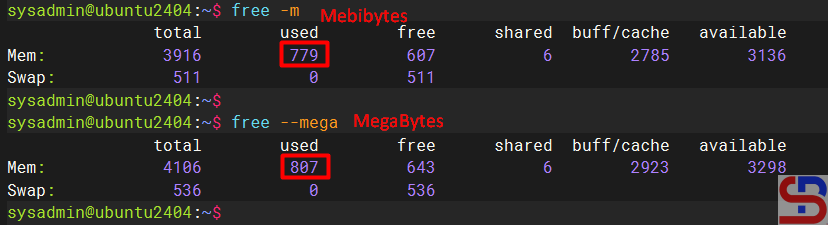
Sysadmins, including me, often think that using the free -m command will display memory in Megabytes (MB), even though the command will display memory in Mebibytes. To display memory in Megabytes, run the free –mega command, where 1 Mebibyte (MiB) is the same as 1,048 Megabytes. Look at the image below to see the difference between Mebibytes and Megabytes:
SUDO stands for “SuperUser DO” and it is a program for Unix-like computer operating systems that enables users to run programs with the security privileges of another user, by default, the superuser. With sudo, a normal user can install or delete an application, change the server network, or even reboot or shut down the server.
Problem
How to make a Linux user have the sudo function?
Solution
This article will explain how to make a Linux user have the sudo function on RockyLinux/AlmaLinux/CentOS, Ubuntu/Debian, and OpenSUSE distros. For example, you want to add the user john to these distros and want that user to be able to use the sudo function. As far as I know, there are two methods to do it:
1. Change the sudoers file
Open the /etc/sudoers file or use the command below:
visudo
Add to the file the user name as in the image below:
Add the user in the sudoers file
After that, save the file and then try to add a new user using the user john, if there is a display like the image below:
Choose number 1
Then select number 1, and the user should successfully add a new user as in the image above.
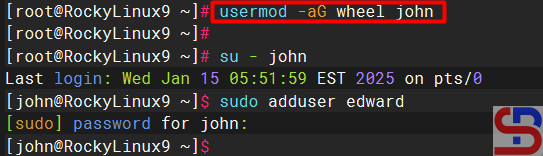
2. Add the user to the sudo group
Add the user to the sudo group, where the name of this sudo group can vary in each distro. To see the name of the sudo group, look in the sudoers file and look for a sentence similar to ‘Allows people in group to execute any command‘. For example, in RockyLinux and OpenSUSE, the name of the sudo group is wheel, sudo in Ubuntu, and don’t forget to make sure to uncomment the section as in the image below:
Check the sudo group in the sudoers file
Then type the command below so that a user can use sudo:
RockyLinux & OpenSUSE
usermod -aG wheel john
Add the user to the sudo group
Ubuntu/Debian
usermod -aG sudo john
Note
The two methods above can provide the sudo feature to a user on Linux so that the user can run commands that can only be executed by root if the user uses the sudo command by writing down the password. However, if you want the bob user not to have to enter a password when running the sudo command, then in the sudoers file, type the script below:
bob ALL=(ALL) NOPASSWD: ALL
Use the command below if you want the robin user to only be able to perform reboot commands using sudo, but not other commands using sudo: