The previous article explained how to monitor an entire container in Docker. In addition to monitoring, you should also limit the resource usage of each container so that server performance remains in good condition.
Problem
How to limit resources in Docker?
Solution
If you run the docker stats command, the command will display the resource container as shown in the image below:
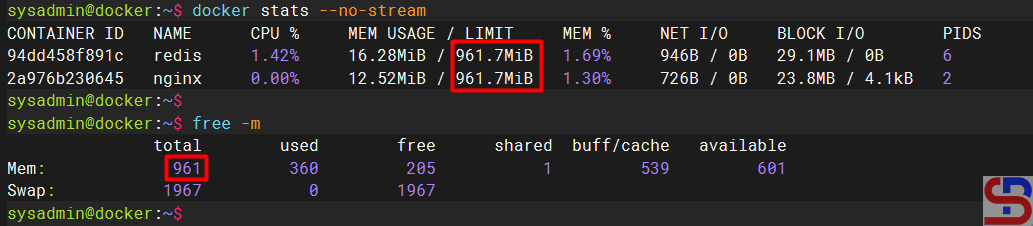
As you can see in the image above, there are 2 containers running, and both containers have a memory limit of 941 MB, where the memory size is the size of the memory of the server. This is dangerous because the application in the container can use all the memory or CPU on the server, causing the server to run abnormally. Therefore, you should limit the use of resources in the container.
A. RAM limitation
There are 2 types of memory limitations in Docker:
- The hard limit is a maximum value that cannot be exceeded. When a container exceeds a hard memory limit, Docker takes aggressive actions such as terminating the container so that there will be an OOM or Out Of Memory error in the container. The options used in Docker are ‐‐memory or -m.
- The soft limit is a limit that can be temporarily exceeded. When a soft limit is reached, Docker warns the user but does not take immediate action. The option used is ‐‐memory-reservation.
If you use swap on the server, you can use the ‐‐memory-swap option to allocate available swap memory to the container. This swap memory must be larger than the hard limit, usually twice larger than the hard limit. If you want to use a percentage for memory swap, use the ‐‐memory-swappiness option.
To limit the memory on the new container, use the format below:
docker run -d --memory='hard_limit_value' --name docker_name docker-image
For example, if you want to limit the memory on a container of 512 MB with a soft limit of 256 MB, then I run the command below:
docker run -d --memory='512m' --name nginx nginx
You can immediately change the container memory when the container is running using the format below:
docker update docker_name --memory='hard_limit_value'
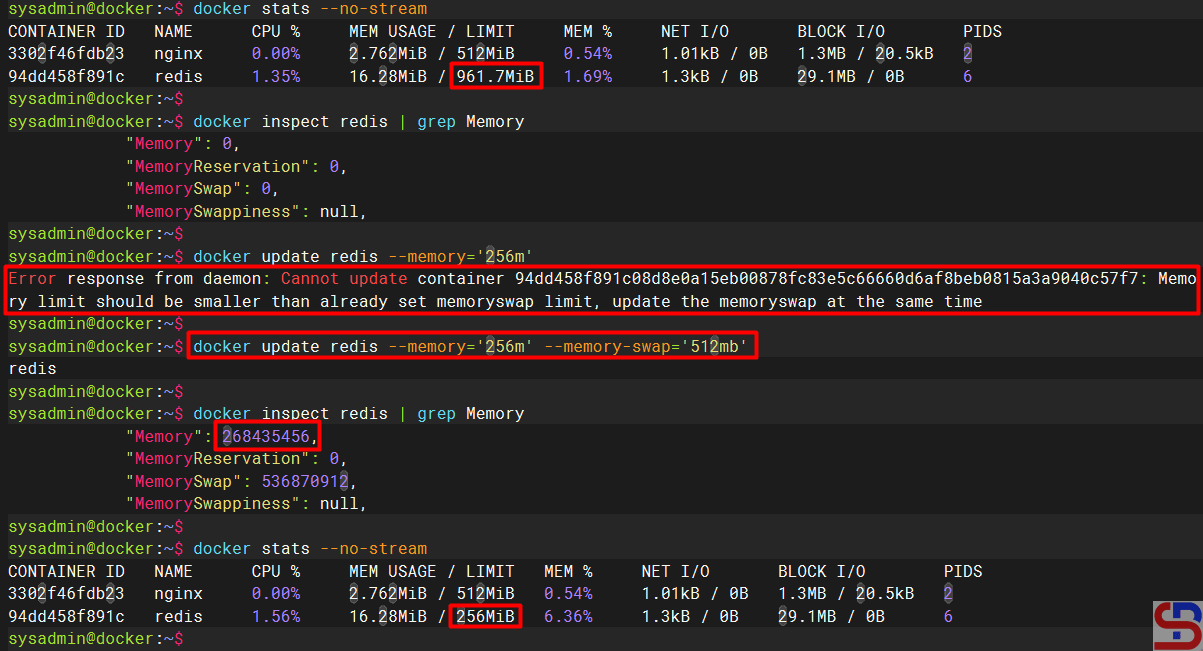
For example, I want to change the Redis container memory from 971 MB to 256 MB using the command below:

But when running the command, there is an error as below:
Error Response from Daemon: Cannot Update Container 94DD458F891C08D8E0A15EB00878FC83E5C6660D6AF8Beb0815A3A9040C57F7: Memory Limit Should Be Smaller Than Already Set Time
To overcome the error, update the memory container swap, whose value must be greater than the memory value. Therefore, use the command below to increase the memory of a container:
docker update redis --memory='256m' --memory-swap='512mb'
And the container memory value should have changed as shown below:
B. CPU limitation
Before you limit the CPU in the container, you need to know how many CPU cores there are on your server by using the command below:
nproc
To limit the CPU used in the container, use the ‐‐cpus option to determine how many CPU cores can be used in a container. If your server has two CPUs and you set ‐‐cpus=’1.5′, the container is guaranteed at most one and a half of the CPUs and this is the equivalent of setting ‐‐cpu-period=’100000′ and ‐‐cpu-quota=’150000′ (cpu-period is used with cpu-quota to configure the CPU scheduler with defaults to 100000 microseconds and cpu-quota is used with cpu-period to configure the CPU scheduler). Use the format below to limit the CPU in the container:
docker run -d --cpus='cpu_value' --name docker_name docker_image:tag
You can see the details of the CPU used by a container by using the format below:
docker inspect nginx | grep -e Cpu -e cpu
For example, I want to limit the CPU to 1, so I run the command below:
docker run -d --cpus='1' --name nginx nginx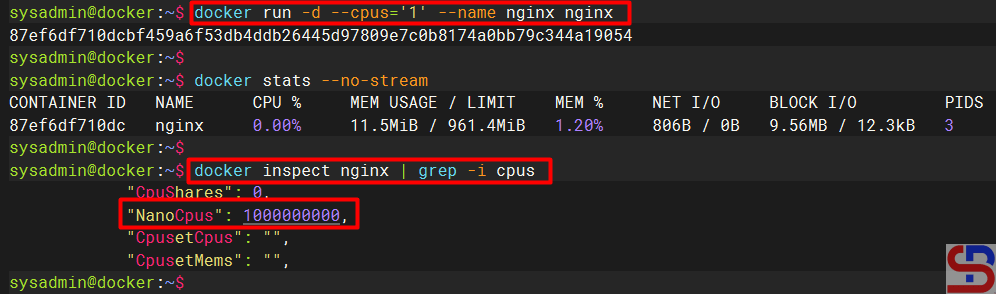
You can use the ‐‐cpu-shares option for a container to control the share of CPU cycles available, whose default value is 1024. This option is like a soft limit option on memory, so if you run the command below:
docker run -d --cpu-shares='2048' --name webapp1 nginx
If there is more than 1 container on a host and CPU cycles are constrained, then the webapp1 container will receive 2x more CPU than the other containers. You can update the CPU in a running container using the format:
docker update docker_name --cpus='cpu_value'
For example, I have 2 CPUs on the server, and initially, I use all the CPUs in the webapp1 container. Then, I wanted to update the CPU on the container to 1.5, so I ran the command below:
docker update webapp1 --cpus='1.5' nginx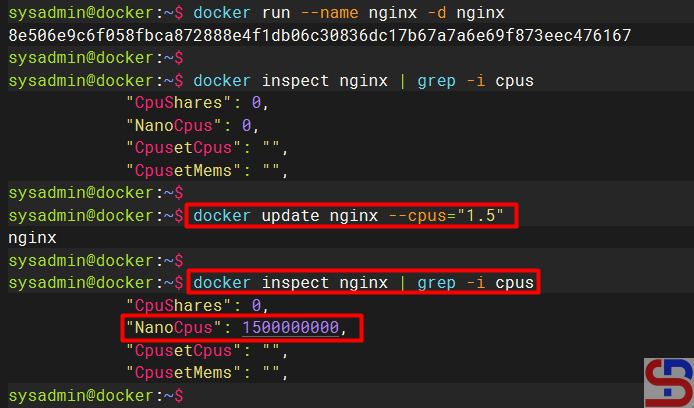
C. HDD limitation
As of this writing (April 2025), the HDD limitation can only be used for btrfs, overlay2, windowsfilter, and zfs storage drivers. For the overlay2 storage driver, the size option is only available if the backing filesystem is xfs and mounted with the pquota mount option. Type the command below to see the Docker settings on the server:
docker info | grep -e 'Filesystem' -e 'Support' -e 'Storage'
Run the command above, and here is the result:

To limit the hard disk in a container, follow the format below:
docker run -d --name nginx --storage-opt size=1g nginx
If I want to limit my hard disk in a container, I run the command below:
docker run -d --name nginx --storage-opt size=1g nginx
But, I have an error like the image below:
docker: Error response from daemon: –storage-opt is supported only for overlay pver xfs with ‘pquota’ mount option

From the image above, I can’t limit the HDD to the container because my Backing Filesystem in my server still uses extfs, not xfs. So, if I want to limit my HDD in my containers, I have to change my Backing Filesystem in my server. So I made an experiment by turning off Docker and deleting the Docker folder using the command below:
sudo systemctl stop docker
sudo rm -rf /var/lib/docker && sudo mkdir /var/lib/docker
Then I inserted an additional hard disk into the existing server, and then I converted the file system to xfs using the commands below:
sudo mkfs.xfs /dev/sdb1
sudo mount /dev/sdb1 /var/lib/docker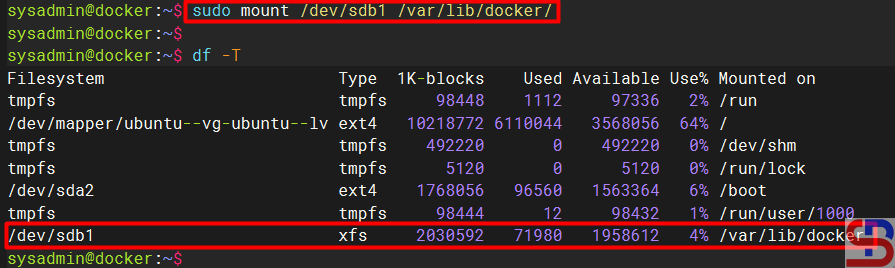
And I added to the /etc/fstab file the script below:
echo '/dev/sdb1 /var/lib/docker xfs defaults,quota,prjquota,pquota,gquota 0 0' | sudo tee -a /etc/fstab
I rebooted the server to test whether the fstab file settings were correct. After that, I tried to create a container by limiting the container’s hard disk to 1GB using the command below:
docker run -d --name nginx --storage-opt size=1g nginx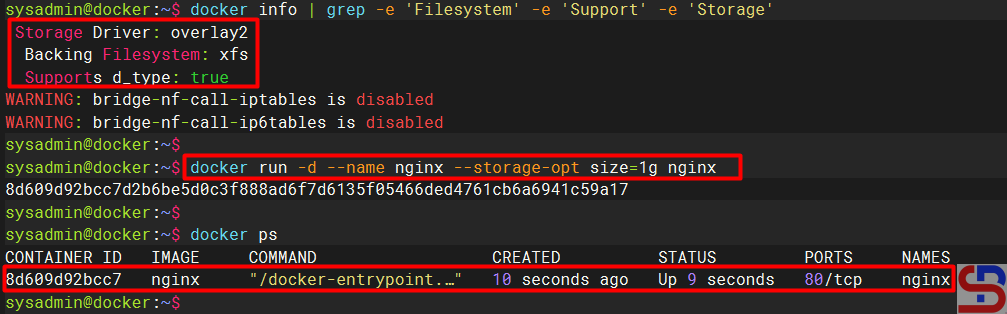
Note
You can combine more than one restriction above by using one command. For example, if you want to limit memory, CPU, and HDD in a container, then you can run the command below:
docker run -d --name webapp1 -m 512m --cpus=1.5 --storage-opt size=1g nginx
As far as I know, Sysadmin only limits the use of RAM and CPU in Docker, but rarely limits HDD in Docker. If you want to limit resources in Docker, you must discuss it with the developers so that there are no problems with the application in the future.
References

