Nagios is an event monitoring system created by Ethan Galstad and first released in 2002, which offers monitoring and alerting services for servers, switches, applications, and services. It alerts users when things go wrong and alerts them again when the problem has been resolved. There are 2 types of Nagios: Nagios XI for the enterprise version and Nagios Core for the free version. This article will explain how to install Nagios Core on Ubuntu.
Problem
How to install Nagios on Ubuntu?
Solution
Here are the steps to install Nagios on Ubuntu, and these steps work on Ubuntu 24.04 and below and I think it should also work on Debian.
1. Download the packages
Install the packages needed to install Nagios using the command below:
sudo apt-get install autoconf gcc libc6 make wget unzip apache2 php libapache2-mod-php libgd-dev libssl-dev
2. Create a user and a group
After that, create a user and group for Nagios using the commands:
sudo useradd nagios
sudo groupadd nagcmd
sudo usermod -a -G nagcmd nagios
sudo usermod -a -G nagcmd www-data
3. Download Nagios
Use the commands below to download Nagios, where at the time of this writing (February 2025), the latest version of Nagios is version 4.5.9:
cd /tmp
wget https://github.com/NagiosEnterprises/nagioscore/archive/refs/heads/master.zip -O nagios.zip
unzip nagios.zip
cd nagioscore-master/
4. Install Nagios
By default, Linux will create a Nagios folder in the /usr/local folder to save Nagios configuration files. So, use the following commands to install Nagios:
sudo ./configure --with-command-group=nagcmd --with-httpd-conf=/etc/apache2/sites-enabled
After that, run the following commands:
sudo make all
sudo make install
sudo make install-init
sudo make install-daemoninit
sudo make install-config
sudo make install-commandmode
sudo make install-webconf
sudo a2enmod rewrite
sudo a2enmod cgi
5. Create the password
Create a password for the user Nagios to access the Nagios application. Nagiosadmin is usually a popular username for Nagios, but you can create another.
sudo htpasswd -c /usr/local/nagios/etc/htpasswd.users nagiosadmin
6. Download Nagios Plugins
Plugins are compiled executables or scripts (Perl, shell, Python, PHP, Ruby, etc.) that can be run from a command line to check the status of a host or service. Nagios Core uses the results from plugins to determine the current status of hosts and services on your network. As of this writing (February 2025), the latest version of Nagios plugins is version 2.4.12. You can check the latest version of Nagios plugins on this site. Run the following commands to download Nagios plugins:
cd /tmp
wget https://github.com/nagios-plugins/nagios-plugins/archive/refs/heads/master.zip -O nagios-plugins.zip
unzip nagios-plugins.zip
cd nagios-plugins-master/
7. Install Nagios Plugins
After that, install Nagios plugins using the following commands:
./tools/setup
sudo ./configure --with-nagios-user=nagios --with-nagios-group=nagios
sudo make
sudo make install
8. Check the configuration
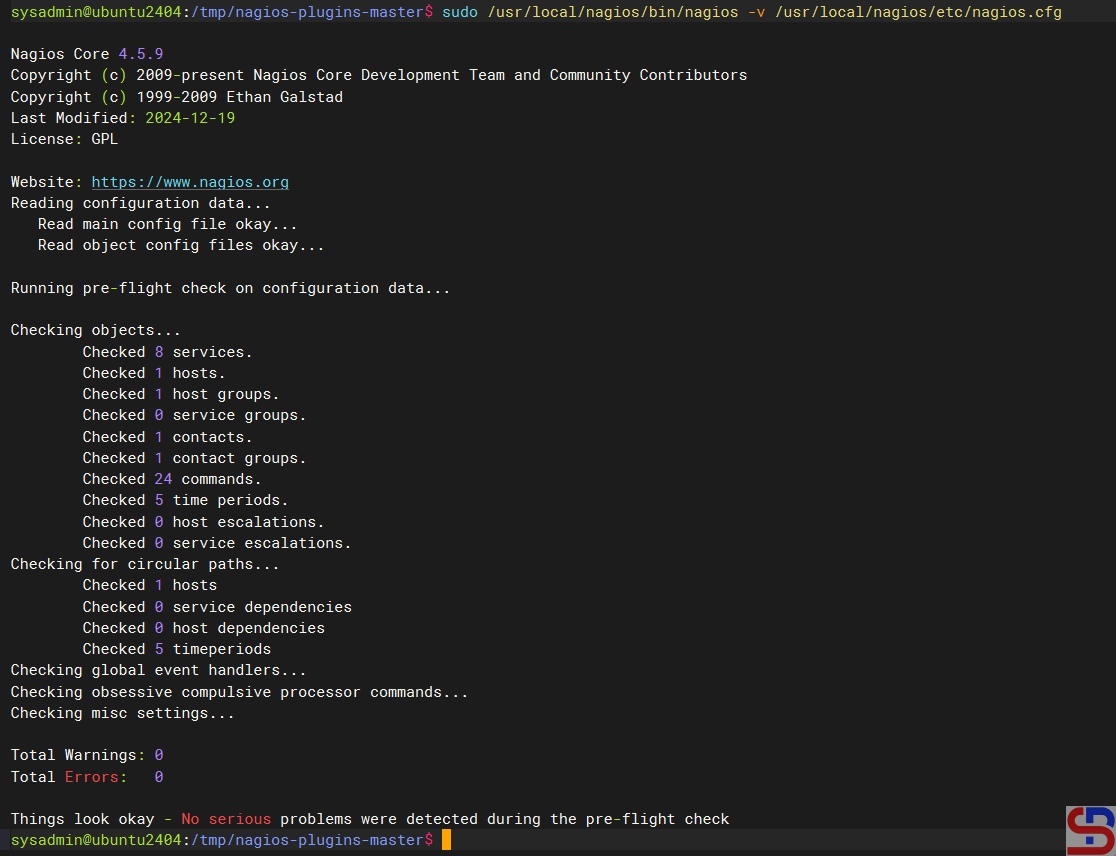
After installing Nagios and Nagios plugins, run the following command to check the configuration of Nagios:
sudo /usr/local/nagios/bin/nagios -v /usr/local/nagios/etc/nagios.cfg
and make sure there is no error like in the image below:
9. Turn on the services
Turn on the services using the commands below:
sudo systemctl start nagios.service
sudo systemctl enable nagios
sudo systemctl restart apache2.service
10. Check the application
Open your browser, and type in your browser:
http://your_ip_address_server/nagios
And there should be a display like the image below:
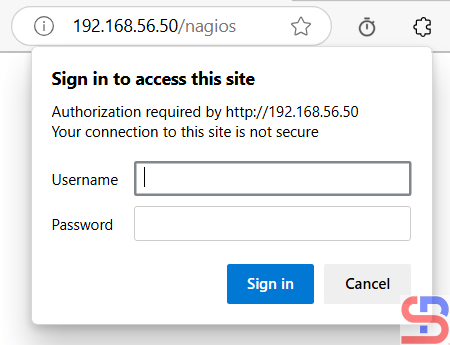
If you don’t see the image like the above image in your browser, maybe the Firewall/IPTables is still on your server. Run the following commands:
sudo ufw allow Apache
sudo ufw reload
Back to your browser again, and it should work now. Insert the username (nagiosadmin) and the password for Nagios. If the username and the password are right, the Nagios application will appear like this:

If you want to know which hosts are being monitored by Nagios, click Hosts, and Nagios will display the hosts that are being monitored:
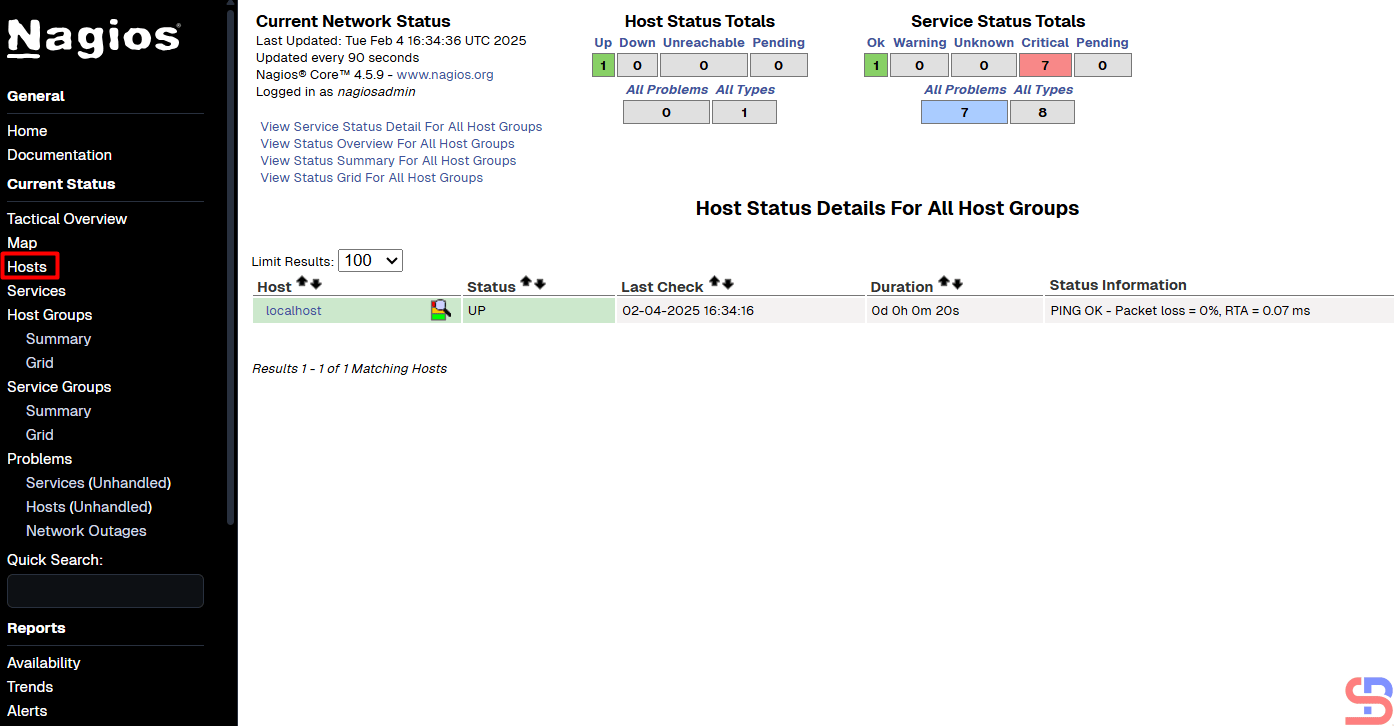
You can see from the picture above, Nagios only monitors the Nagios server or localhost. If you want to know which services are being monitored by Nagios, click Services then Nagios will display the services that are being monitored:
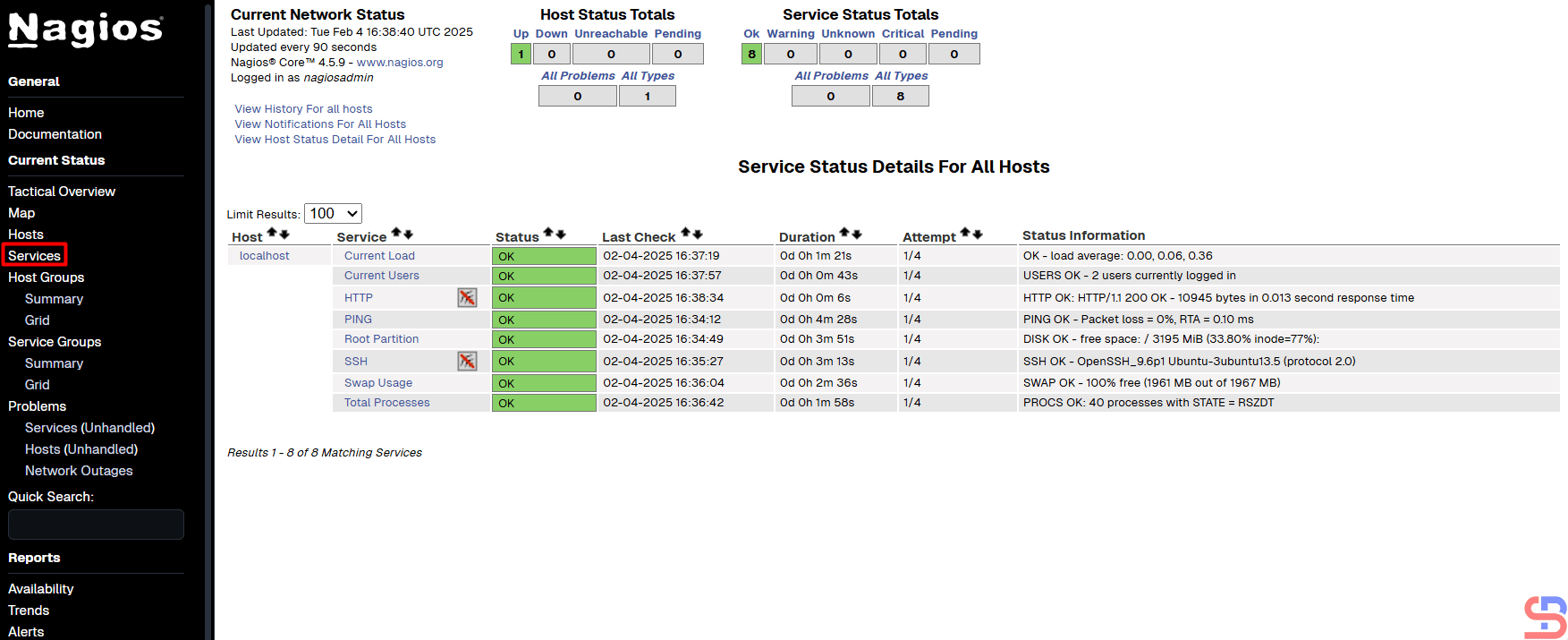
From the picture above, Nagios monitors 8 services for the Nagios server or localhost.
Note
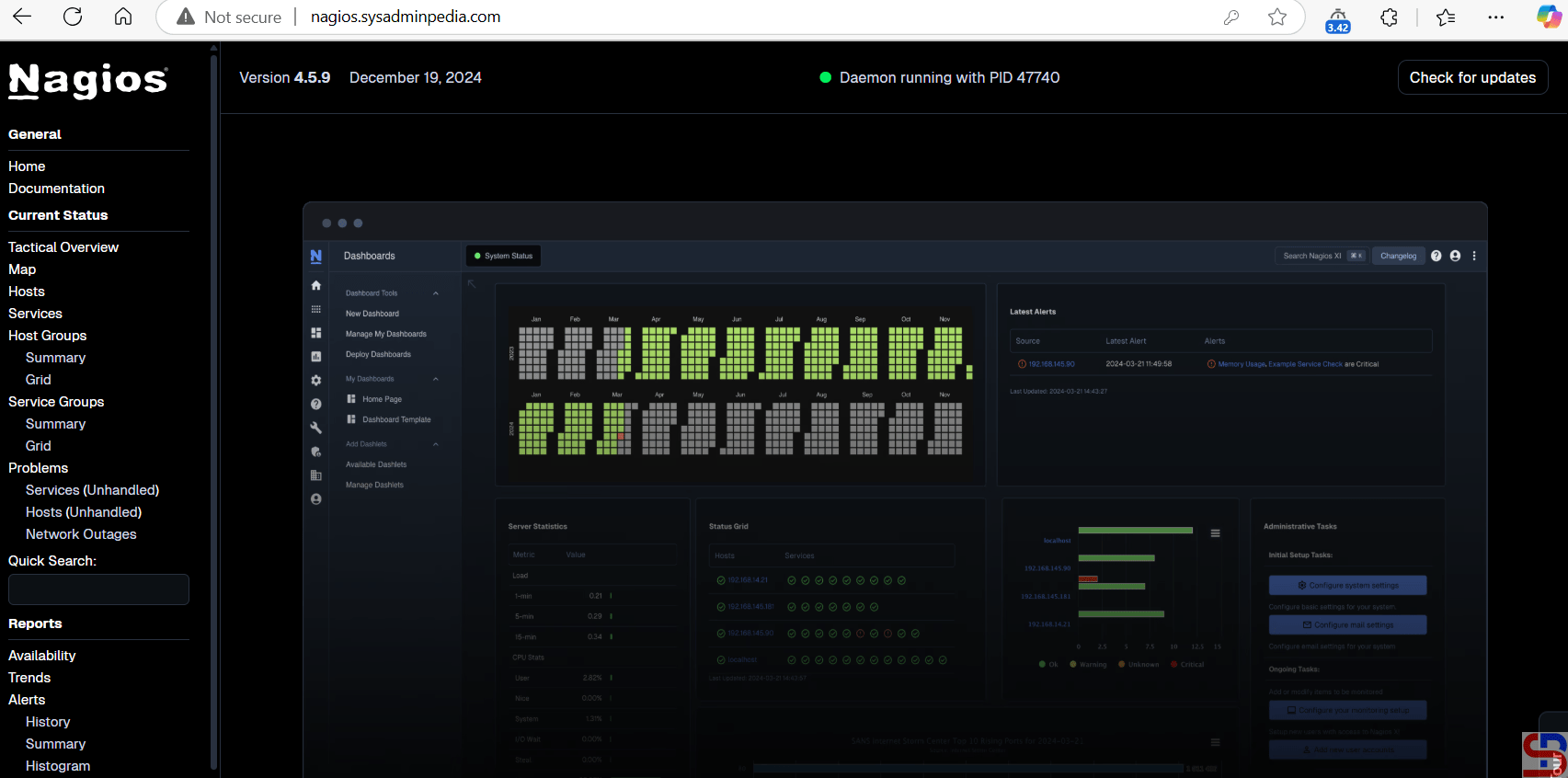
If you have a domain/subdomain and want to use that domain/subdomain for the Nagios application, create a virtual host on your web server. For example, I have the domain sysadminpedia.com and want to use the subdomain nagios.sysadminpedia.com for the Nagios application. So, I created the script below in the file /etc/apache2/sites-enabled/nagios.sysadminpedia.com.conf:
<VirtualHost *:80>
    ServerName nagios.sysadminpedia.com
    ServerAdmin sysadmin@nagios.sysadminpedia.com
    DocumentRoot /usr/local/nagios/share
    <Directory /usr/local/nagios/share>
         Options -Indexes +FollowSymLinks
         AllowOverride All
    </Directory>

    ErrorLog /var/log/apache2/nagios.sysadminpedia.com-error.log
    CustomLog /var/log/apache2/nagios.sysadminpedia.com-access.log combined
</VirtualHost>
Restart the webserver, open your browser, and type your domain/subdomain for Nagios, and it should be like the image below:
References
en.wikipedia.org
assets.nagios.com
techoverflow.net

