The previous article explained how to create a recycle bin in the Linux CLI without installing an application. This article will explain how to create a recycle bin in the Linux CLI using the trash-cli application.
Problem
How to use the trash-cli as a recycle bin in Linux?
Solution
Trash-cli is an application to trash files, recording the original path, deletion date, and permissions, which can function as a recycle bin in the Linux CLI.
A. Install the app
RockyLinux/AlmaLinux/CentOS
yum install epel-release
yum install trash-cli
Ubuntu/Debian
sudo apt update
sudo apt-get install trash-cli
OpenSUSE
zypper addrepo https://download.opensuse.org/repositories/home:siegel/openSUSE_Leap_15.1/home:siegel.repo
zipper refresh
zypper install python-trash-cli
You can also install this application from GitHub by using the command below:
git clone https://github.com/andreafrancia/trash-cli.git
cd trash-cli
python setup.py install
To see the trash-cli version installed, you can use the command:
trash --version
B. Delete item(s)
If you want to delete a file, for example, the images.zip file, then use the command below:
trash images.zip
If you want to delete more than one file, you can delete them directly using, for example, the command below:
trash test.txt chatgpt.png
You can also delete folder(s) using the format above.
C. Displays deleted item(s)
To show deleted file(s) and folder(s), use the command below:
trash-list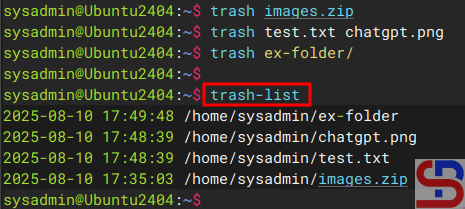
D. Restore item(s)
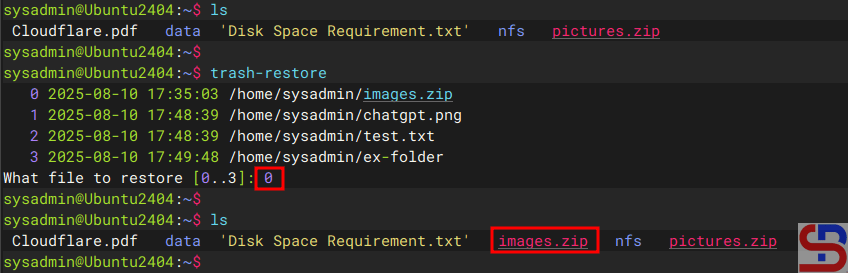
To restore deleted item(s), use the command below:
trash-restore
It will display all the items that have been deleted, and you will be asked to select the files to be restored. Enter the file number, and the file will be restored to its original location as in the image below:
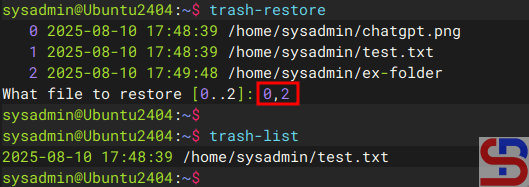
If you want to restore more than one item, you can write file numbers separated by commas.
E. Empty the trash bin
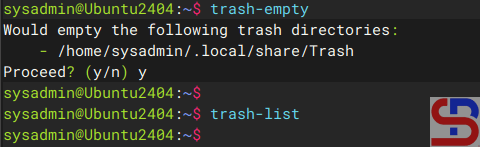
If you want to empty the trash bin, use the command below:
trash-empty
All items in the trash can be deleted as shown in the image below:
In addition, you can delete some items that are more than 3 days old by using the command:
trash-empty 7
You can also delete items with the .zip extension by using the command:
trash-empty *.zip
F. Combine the rm command with the trash application
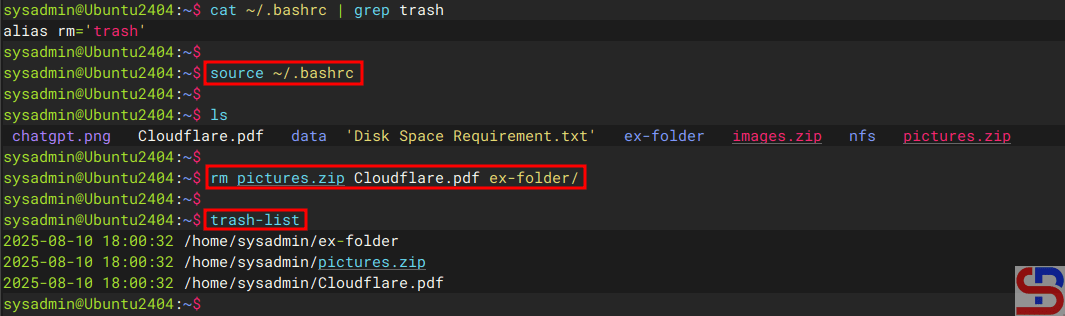
By default, you have to use the trash command to delete a file or folder when using the trash-cli application. However, Linux uses the rm command to delete a file or folder. Therefore, you can combine the rm command and the trash command by adding the script below to the .bashrc file:
alias rm=`trash`
After that, run the command:
source ~/.bashrc
Then, try deleting files or folders using the rm command, then the items that have been deleted using the rm command should be in the trash can using the trash-list command, as in the image below:
Note
You have to manually change the .bashrc file for each user who wants to combine the rm command and this trash application. You can also use crontab for each user to delete items in the trash can. Just like the previous method, the weakness of this method is that if you use sudo to delete a file or folder, the file or folder will be immediately deleted from the Linux system and will not be saved in the Recycle bin that has been created. So be careful about that.
References
github.com
tecmint.com
vitux.com
installati.one

