If you have important source code and are worried that someone is changing or duplicating it, you can protect it by encrypting the file so that other people cannot read the source code unless they can enter the appropriate password. There are several ways to encrypt a file, but in this article will use the vim application.
Problem
How to encrypt a file using the Vim application?
Solution
A. The Vim application
Vim or vi improved is an enhanced, improved, and extended version of the Vi text editor. To see if the application is already installed or not, use the command below:
vim --version
If your Linux device does not have a Vim application, you can install it using the following commands:
RockyLinux/AlmaLinux/CentOS
yum install vim
Ubuntu/Debian
sudo apt update
sudo apt install vim
OpenSUSE
sudo zypper install vim
The Vim application has a feature to encrypt a file so that users who want to access the file must enter a password, and the algorithm used by the Vim application to encrypt a file is Blowfish. Suppose you have a file called test.txt, the contents of which are as below:
No  Name        Address
1   Richard     Apt. 344 86094 Swaniawski Drive, East Suzetteshire, MT 51323-2013
2   Alex        4522 Rosenbaum Island, Lake Suzan, IL 68193
3   Bryan       Apt. 907 703 Douglas Run, West Brainburgh, MT 70080-8990
B. Encrypt the file
There are 2 methods for encrypting files using the Vim application:
1. Before accessing the file
If you want to encrypt a file, then use the format below before you access the file:
vim -x filename
For example, if your file name is test.txt, then use the command below before you access the file:
vim -x test.txt
There will be writing as below:

Enter the password you want, press the Enter button, then there will be writing as below:

You will be able to access the test.txt file. After that, save and exit the file, and thus you have successfully encrypted the file. Now, try to display the file, and the file should be encrypted as shown below:
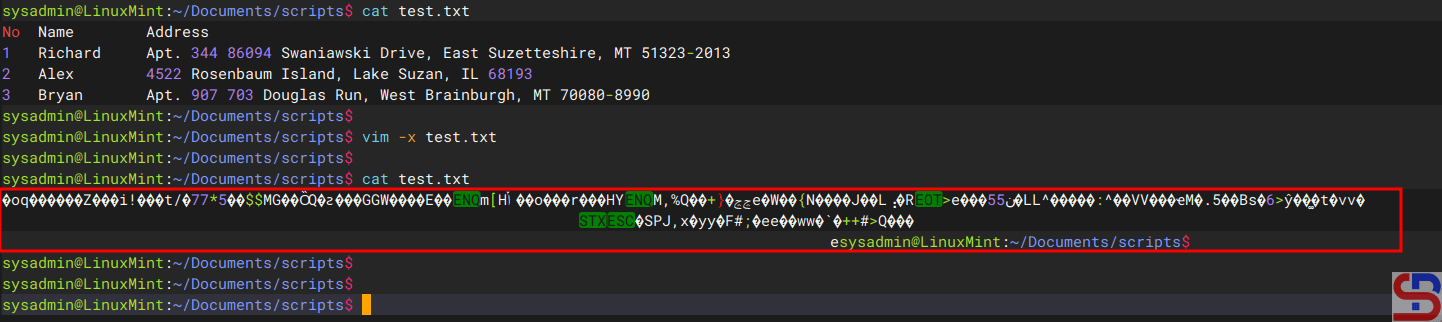
If you or other users want to access the file, you must enter the password as shown below:

If your password is suitable, the file can be displayed, but if the password is not appropriate, the file remains in its the condition in the encrypt.
2. When accessing files
When you are accessing the file and want the file to be encrypted, then in the command mode (mode in Vim after you press the Esc button), Type :X, press the Enter button, it will be written as below:
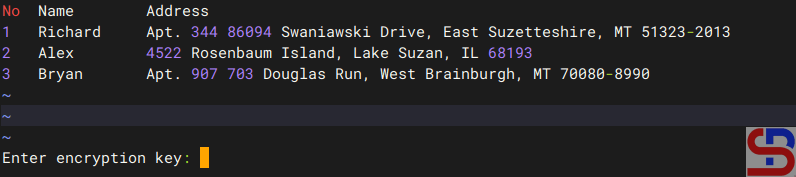
Press the Enter key after entering the desired password, and the following text will appear:
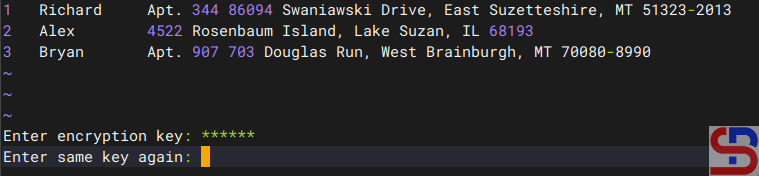
After that, save and exit the file, and thus you have successfully encrypted the file.
C. Decrypt the file
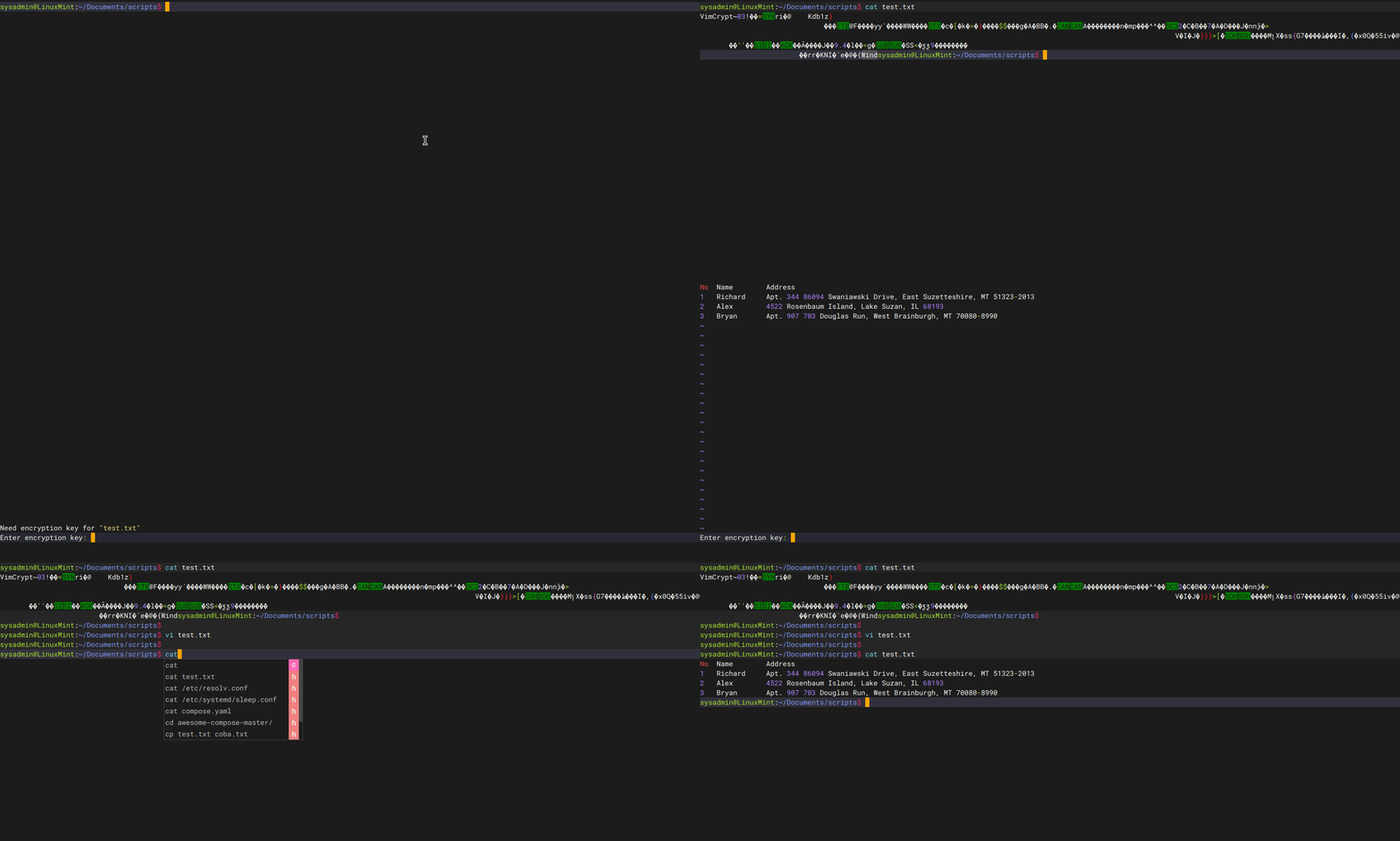
If you want the file to be decrypted or no longer need to use a password to access it, then open the file by entering the password and then write :X in the command mode, and press the Enter button 2x when you are asked to enter the password. After that, save and exit the file, and the file should be directly opened without having to enter the password again, as shown below:
Note
You must always remember the password that you use to encrypt in Vim because if you forget then as far as I know, you will not be able to decrypt the file.
References
askubuntu.com
geeksforgeeks.org
networkworld.com
ii.com
superuser.com

