To see the total size of a folder in Linux usually sysadmin uses the command du -sh*. However, this command has a drawback because it only displays the size of all files and folders visible in the Linux folder but cannot display the size of the files and folders hidden in a Linux folder.
Problem
How to display hidden files and folder sizes on Linux?
Solution
I have a BACKUP folder with a total folder size of 1.4GB, but, when I go to the folder and run the command du -sh *, it turns out that the size of all the files and folders in the folder is only 261 MB as shown in the image below:
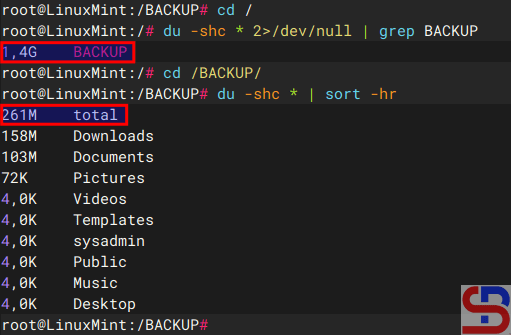
So there is a difference of 1.1 GB from the total size of the BACKUP folder. The difference is that the du -sh* command does not count the hidden files and folders in a Linux folder. To display hidden files and folder sizes on Linux, use the command below:
du -shc .[^.]* 2>/dev/null | sort -hr
and it will look like in the image below:
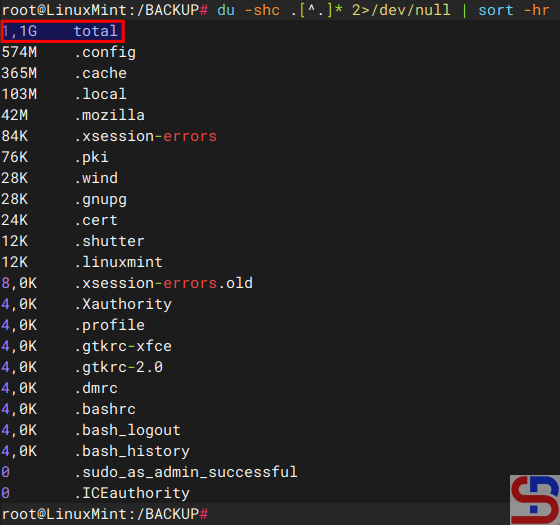
As seen in the image above, the command only displays hidden files and directories and shows a total of 1.1 GB of hidden files and folders. If you want to display the size of the entire file or folder, both hidden and visible, use the command below:
du -shc * .* 2>/dev/null | sort -hr
there will be a display like the image below:
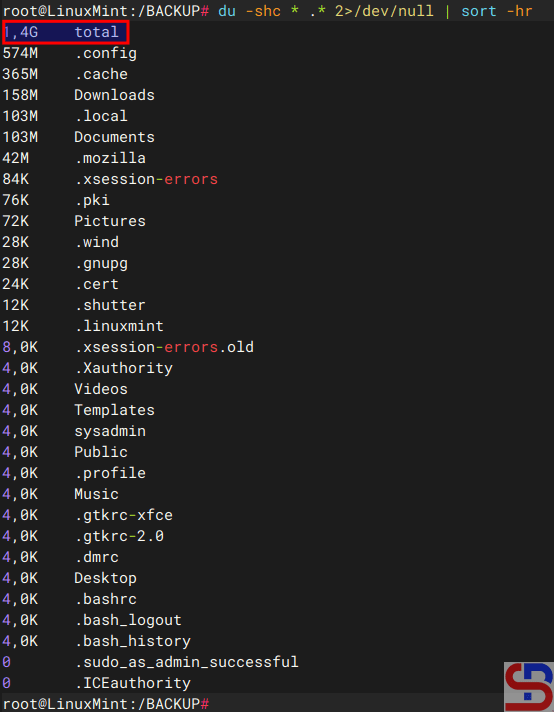
You can see the total size of a file and folder, both visible and hidden, like the image above.
Note
You can view file sizes and directories on Linux by using an application named ncdu. To install it, enter the following command:
Ubuntu/Debian
sudo apt update
sudo apt ncdu
RockyLinux/AlmaLinux/CentOS
sudo dnf install epel-release
sudo dnf update
sudo dnf install ncdu
OpenSUSE
sudo zypper refresh
sudo zypper install ncdu
Next, choose the folder you wish to view to see the overall size of the files and folders included within. If you want to see the total of all folders in Linux, log in as a root user and type the command below:
ncdu -x /
then the application will scan and after the scanning process is complete it will display the total size of all folders in Linux as shown in the image below:
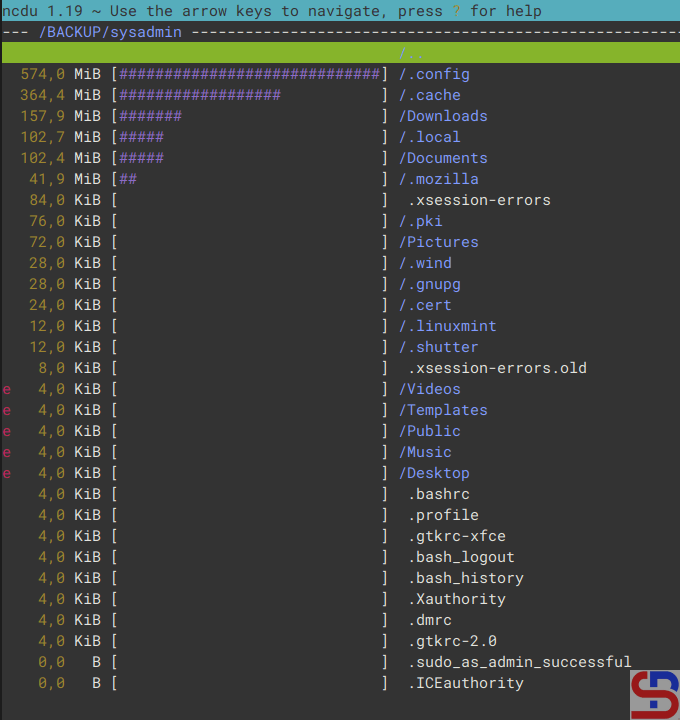
Please select the folder you want to enter and press the Enter key to enter the folder. I choose the BACKUP folder and push the Enter button, it will display like the image below:
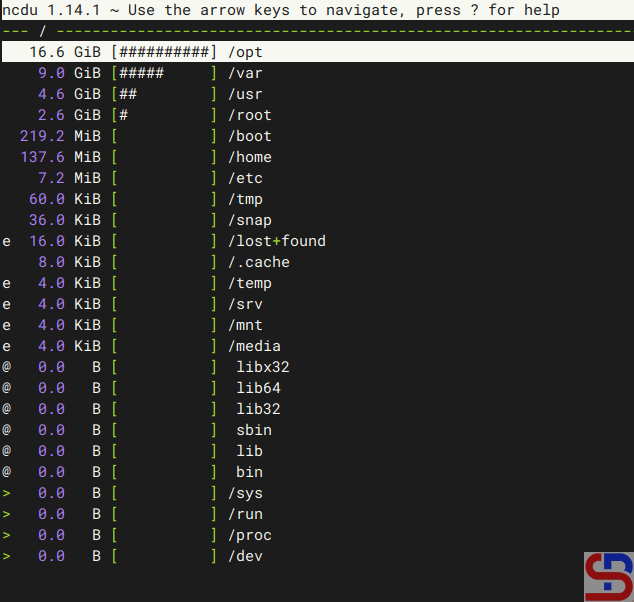
The -x option in the above command means that he will ignore other mounted filesystems outside where the root filesystem is hosted. If you want to use more options in this application, please read the description using the command below:
man ncdu
References
askubuntu.com
unix.stackexchange.com
stackoverflow.com

