The Guest Additions in VirtualBox is used to optimize the guest operating system for better performance and usability.
Problem
How to install the VirtualBox Guest Additions?
Solution
The Oracle VM VirtualBox Guest Additions for all supported guest operating systems are provided as a single CD-ROM image file which is called VBoxGuestAdditions.iso. This image file is located in the installation directory of Oracle VM VirtualBox. These are the steps to install the ISO in the Windows and Linux guests.
A. In the Windows guest
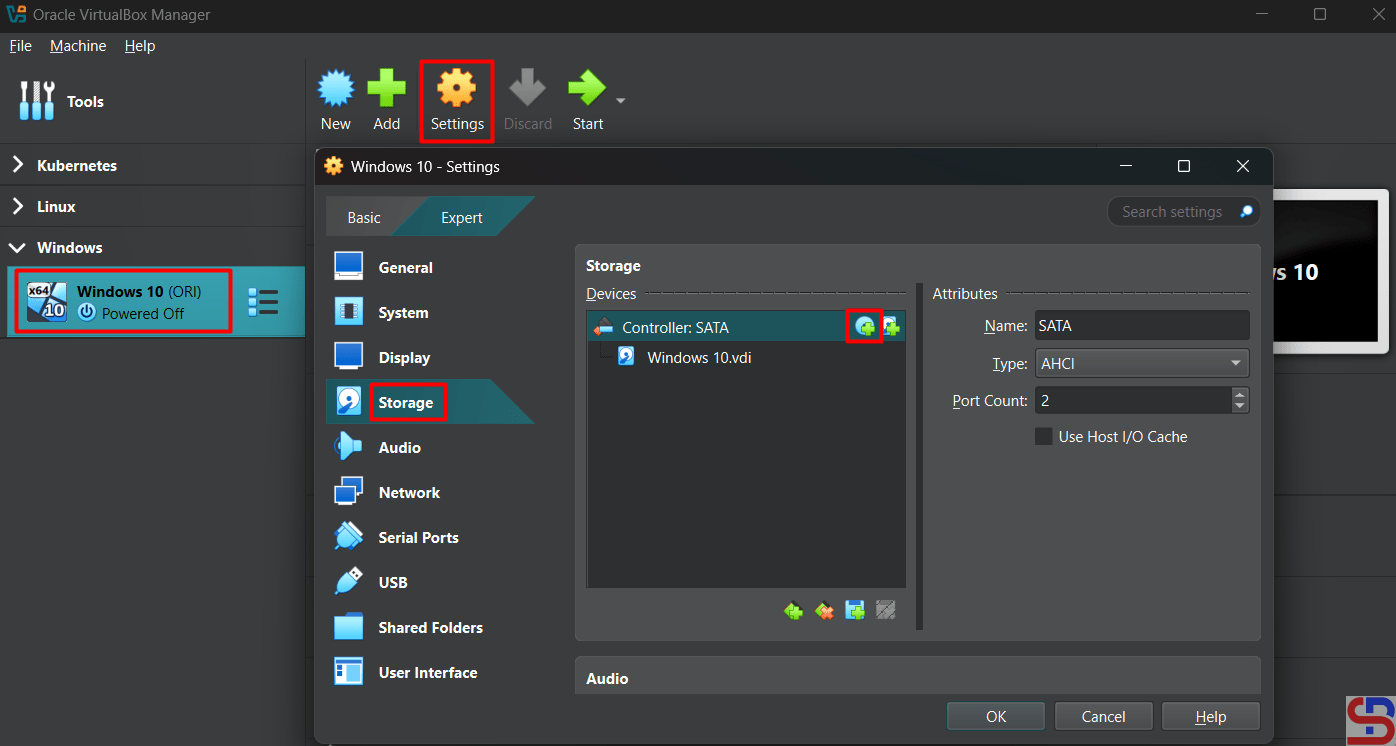
Open your VirtualBox, click your guest or your virtual machine, click Settings – Storage, and then click the icon like in the below image:
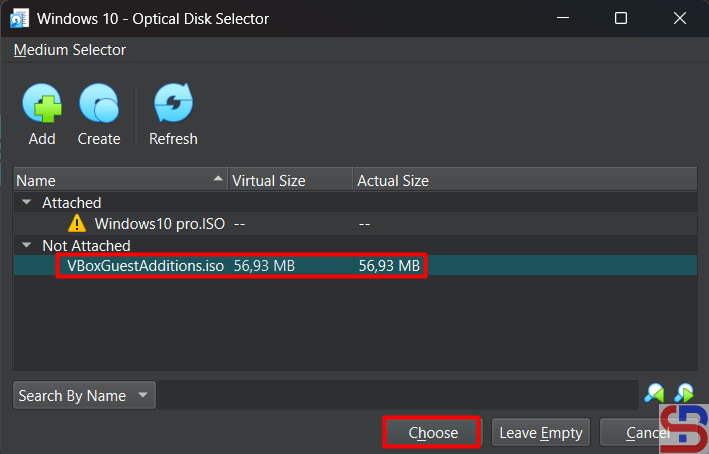
Choose the VBoxGuestAdditions.iso like in the below image:
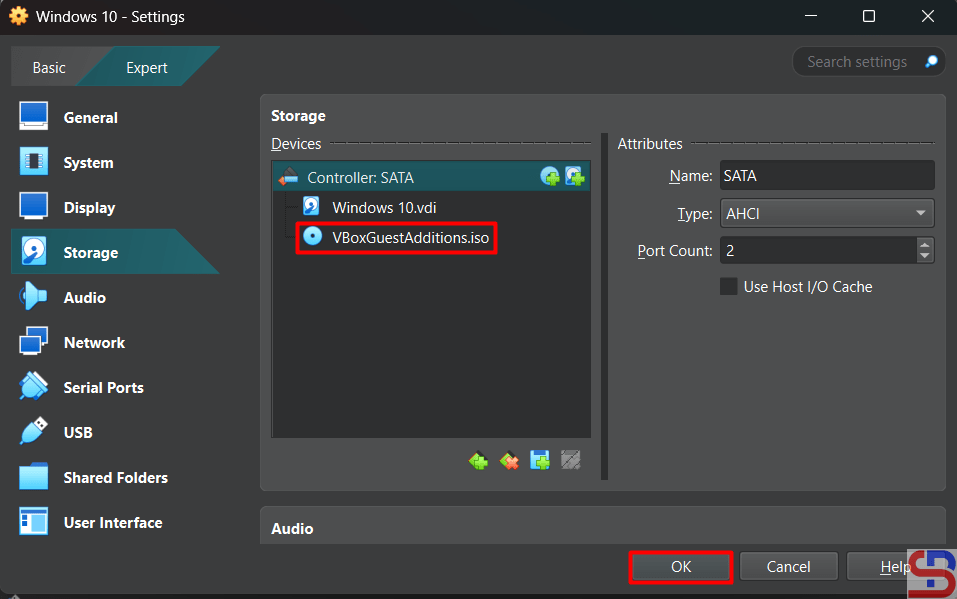
Click the Choose button and the iso will appear like in the image below:
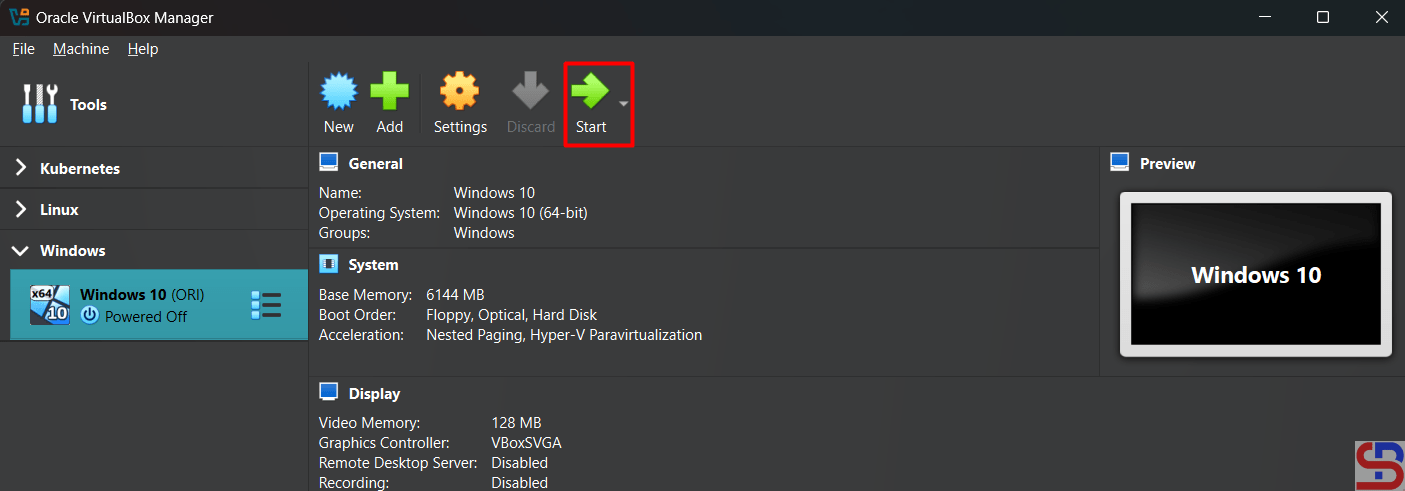
After that, turn on your virtual machine by clicking the Start button like in the image below:
Go to This PC page and you will see the view in the image below:
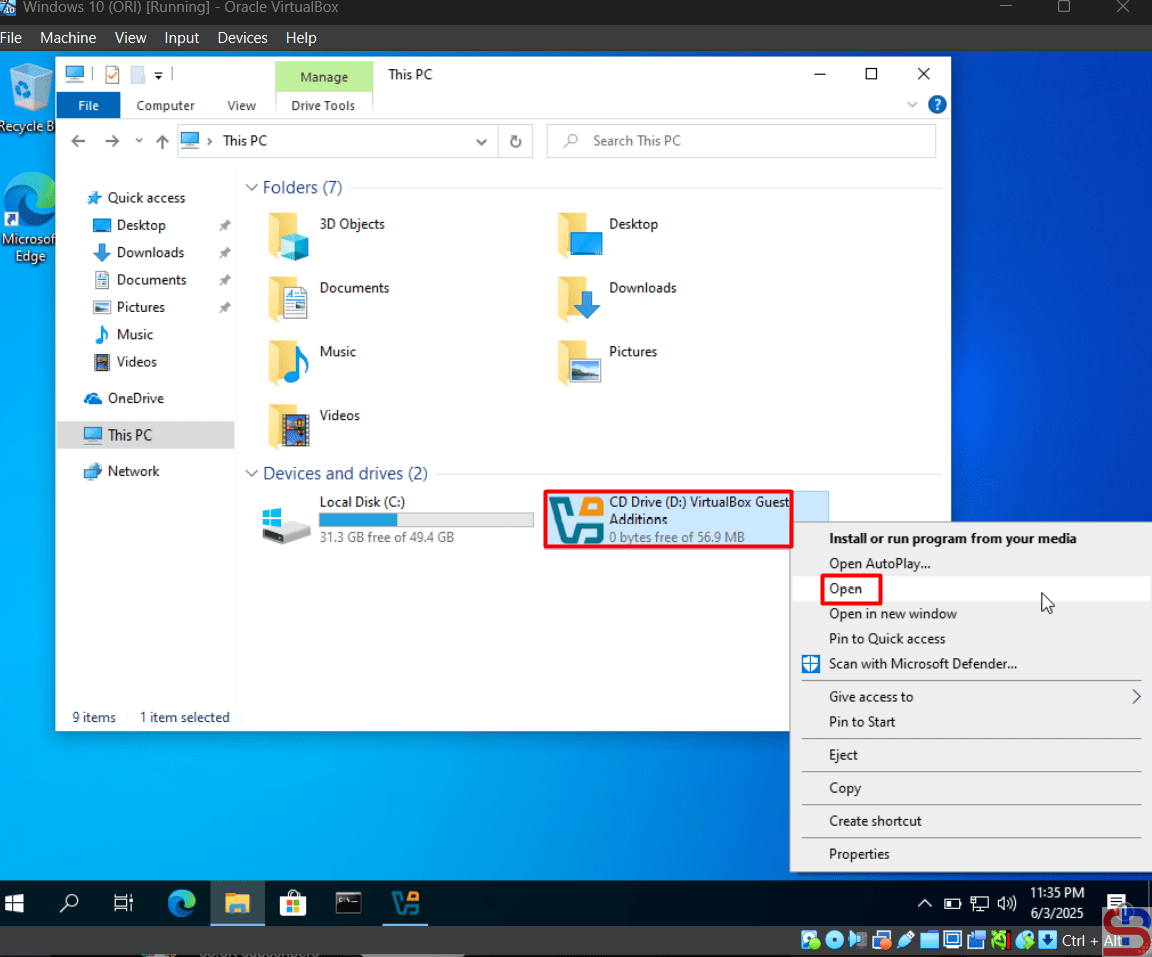
Right-click the CD Drive and click Open, so there is a display like in the image below:
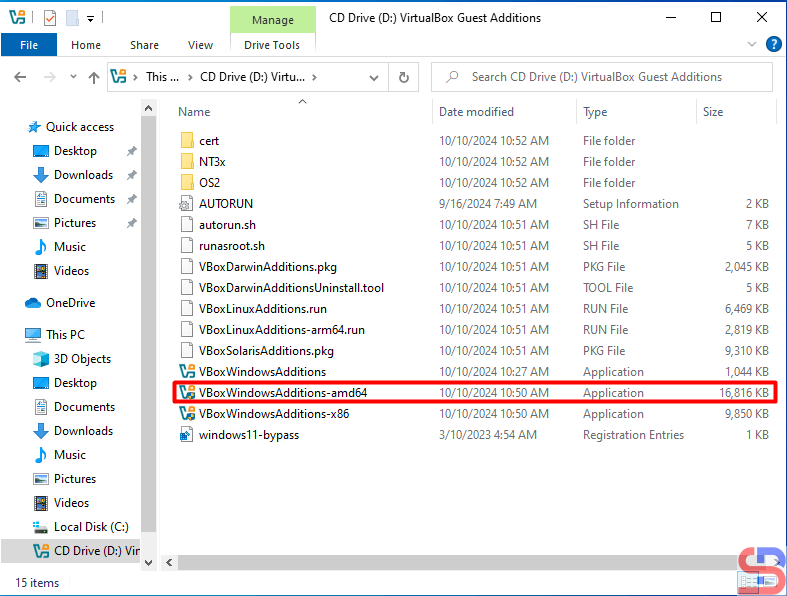
Double-click on the installer in the red box if your guest is 64-bit, and display it like in the image below:
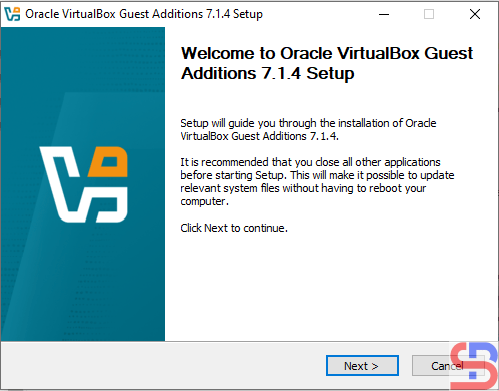
Click the Next button and continue until the driver installation is successful until it displays as shown in the image below:
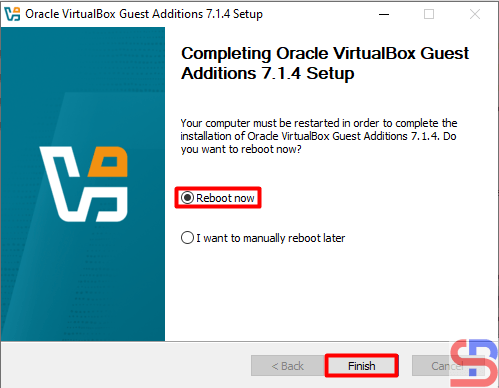
Choose the Reboot now and click the Finish button.
B. In the Linux guest
Open your VirtualBox, click your guest or your virtual machine, click Settings – Storage, and then click the icon like in the below image:
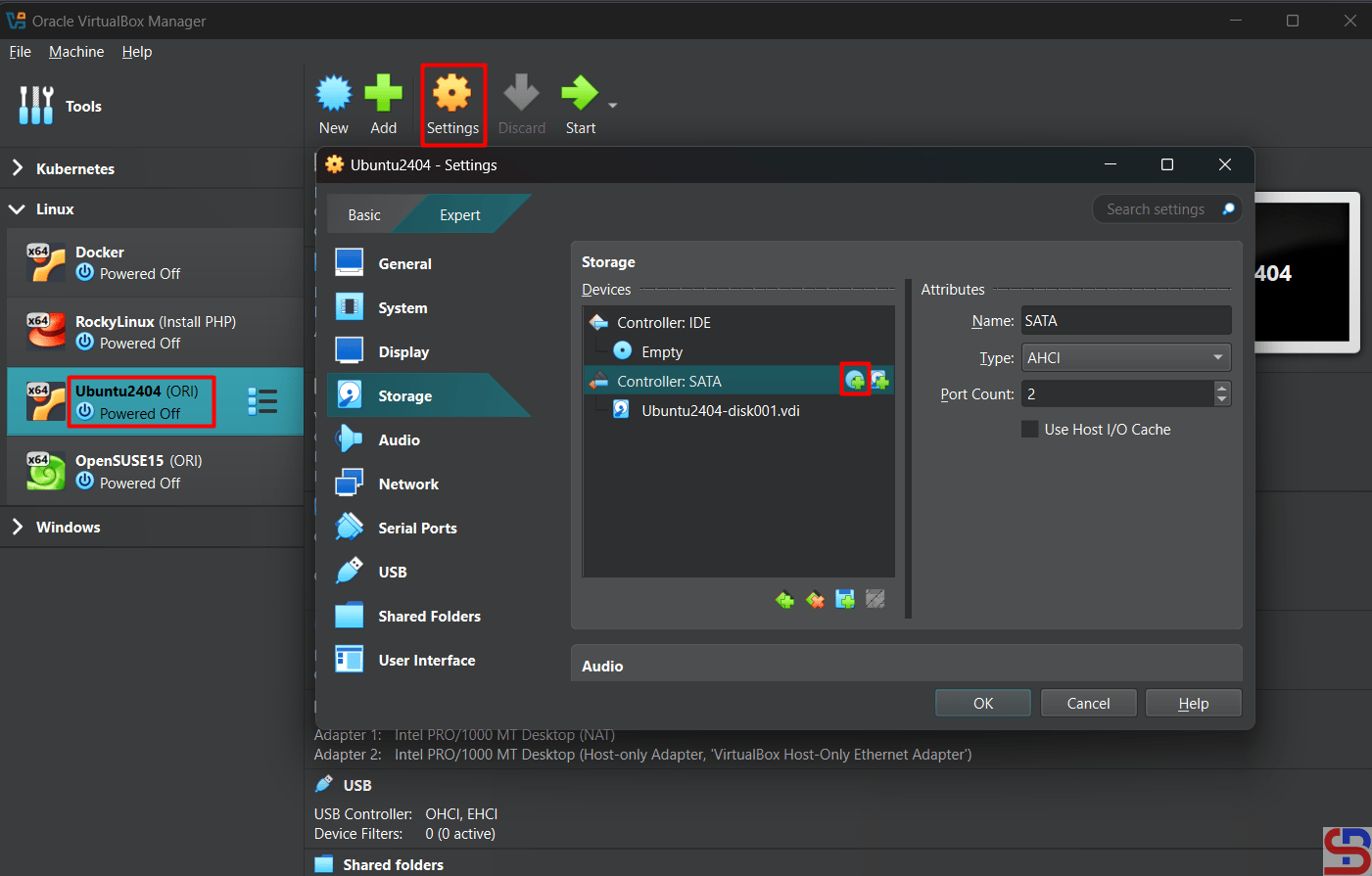
Choose the VBoxGuestAdditions.iso like in the below image:

Click the Choose button and the iso will appear like in the image below:

After that, turn on your virtual machine by clicking the Start button like in the image below:

Make a folder in Linux and I created a folder /mnt/cdrom using the command below:
sudo mkdir /mnt/cdrom
Execute the below command to mount the shared folder with your folder:
sudo mount /dev/sr0 /mnt/cdrom/
Install some packages by running the command below:
Ubuntu
sudo apt update
sudo apt install -y bzip2 tar gcc make perl
RockyLinux/AlmaLinux/CentOS
sudo dnf install -y bzip2 tar gcc make perl
OpenSUSE
sudo zypper install -y bzip2 tar gcc make perl
After installation, go to the folder cdrom:
cd /mnt/cdrom
Execute the command below and wait until finish:
sudo sh VBoxLinuxAdditions.run
After that, reboot your virtual machine.
Note
Guest Addition will be very useful if your guest uses graphics such as Windows OS or Linux that have graphics because it will improve performance and usability such as Mouse pointer integration, better video support, shared clipboard, and so on. But if you use the Linux CLI in the guest, this guest addition will not be useful.
References
virtualbox.org
blogs.oracle.com
greenwebpage.com

